



PCloud Integration
The pCloud Integration allows you to securely connect your pCloud account with Advanced File Manager in WordPress. Once connected, your pCloud storage becomes accessible directly from the WordPress dashboard.
This integration enables seamless file management between your server and pCloud without requiring manual uploads through the pCloud website. Users can browse, upload, download, and organize cloud files from within the File Manager interface.
If you haven’t yet upgraded to the Pro business plan, now’s the perfect time! Buy now to unlock this powerful feature and take your file management to the next level. Get the Advanced File Manager Plan!
The connection is established using secure OAuth authorization, ensuring safe access to your pCloud account without exposing login credentials.
Enable the pCloud Integration in Advanced File Manager
- Navigate to the WordPress Admin Dashboard > File Manager > Integrations tab.
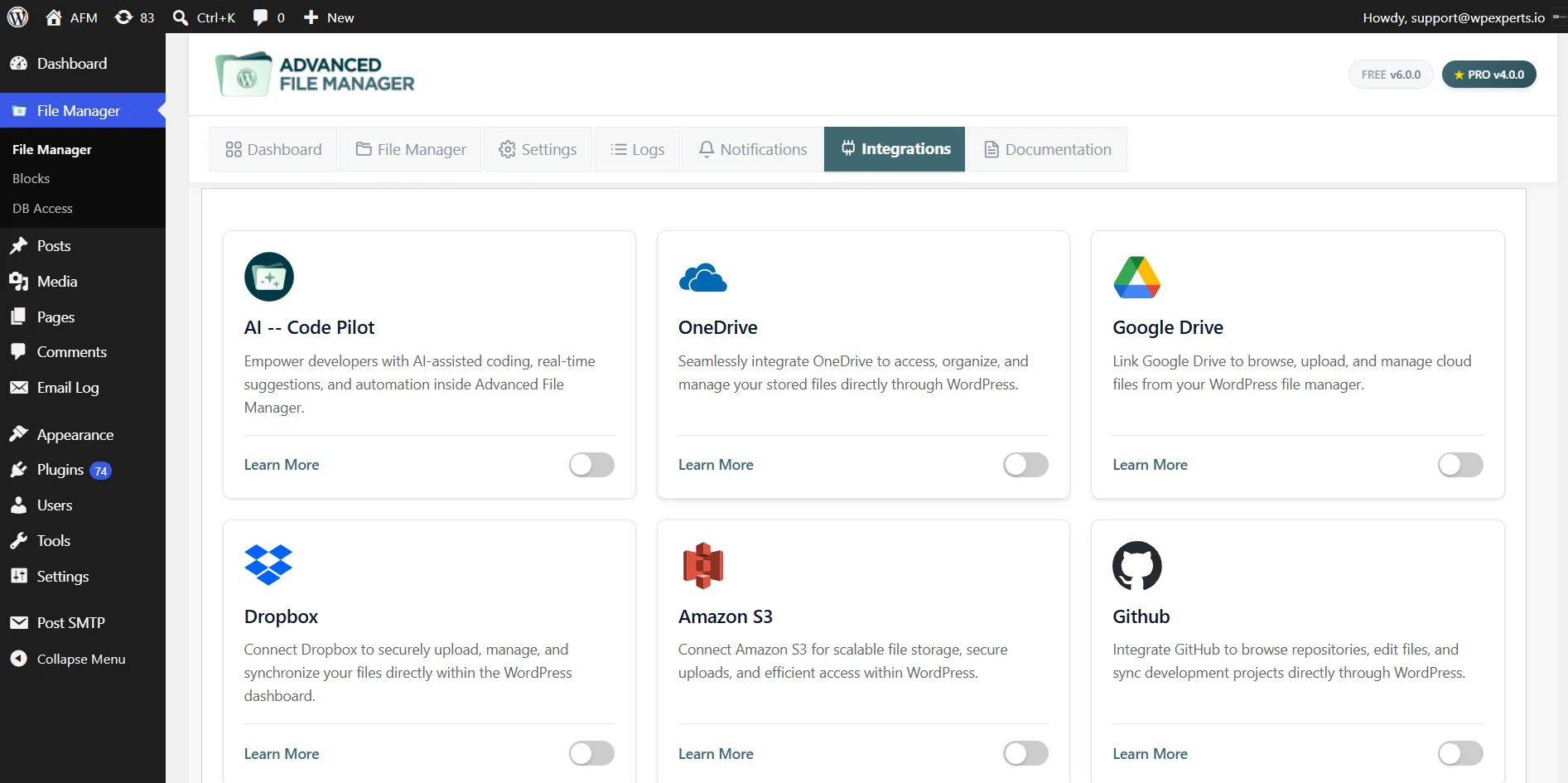
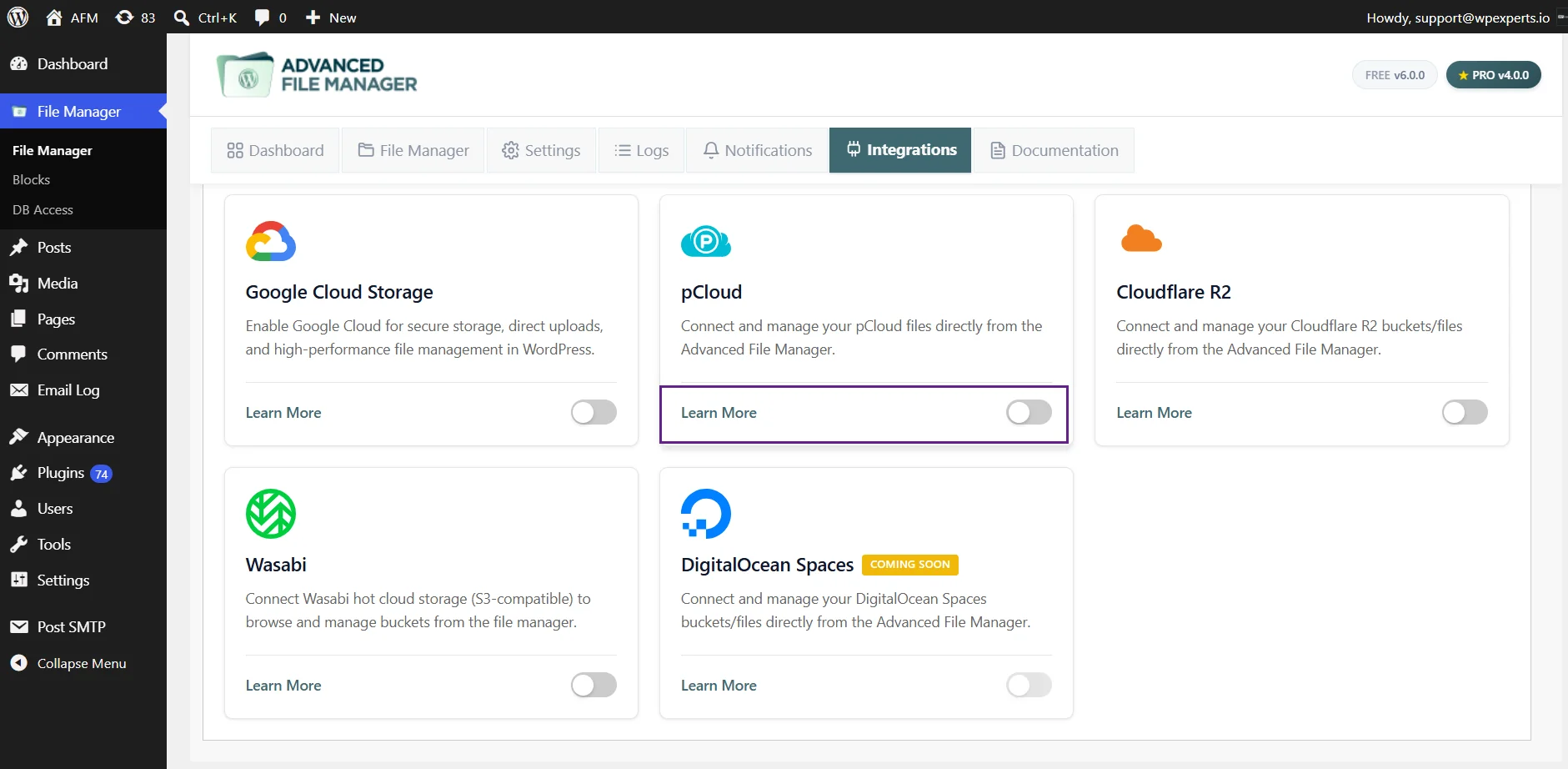
- In Integrations, locate the pCloud card and click the toggle to enable the pCloud integration.
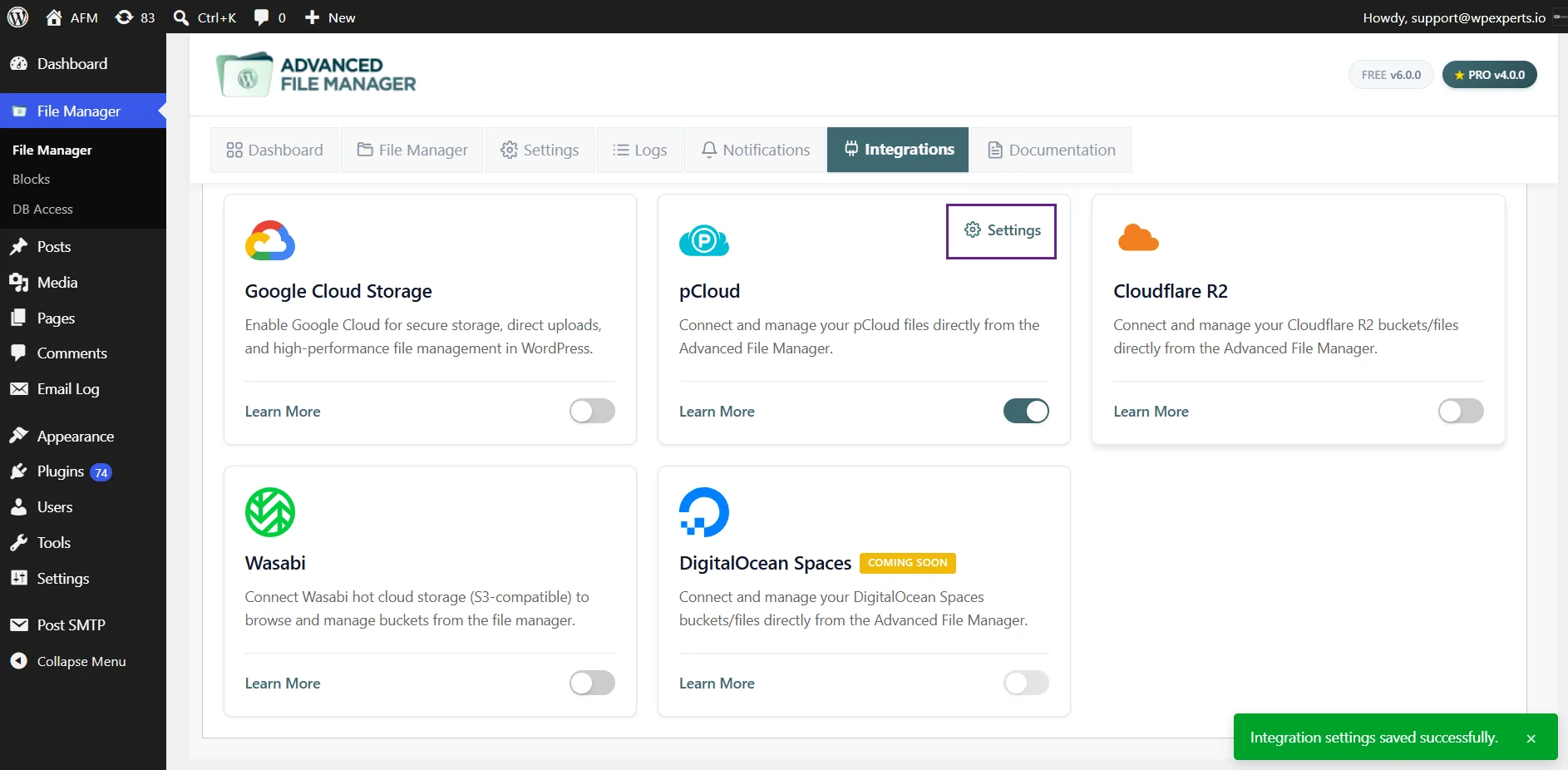
- After enabling the pCloud , click on the Settings in the pCloud card.
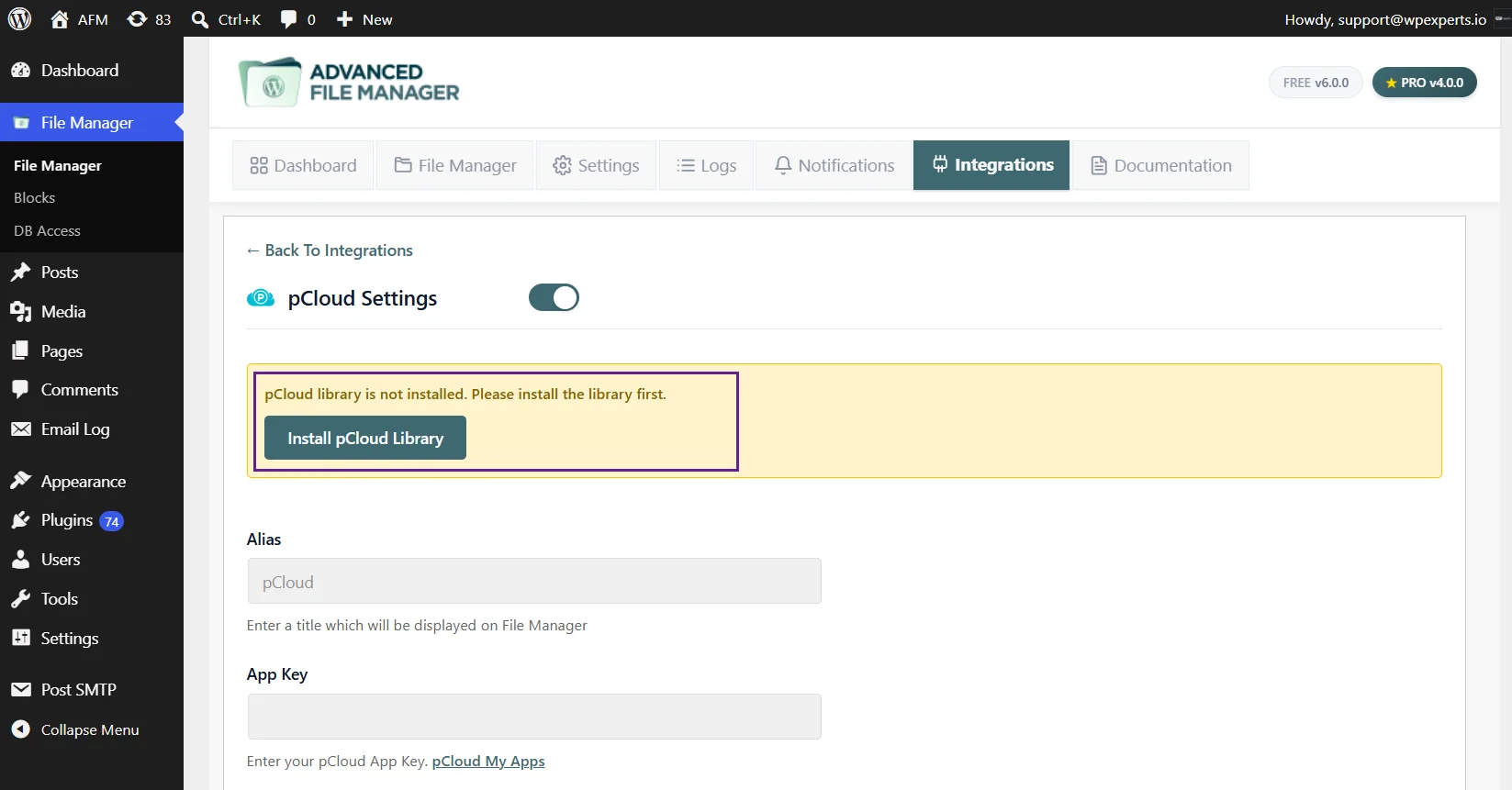
- In the pCloud Settings, if you do not have the pCloud library installed then it will ask you to install the pCloud library.
- In order to install the library, click on the Install pCloud Library button.
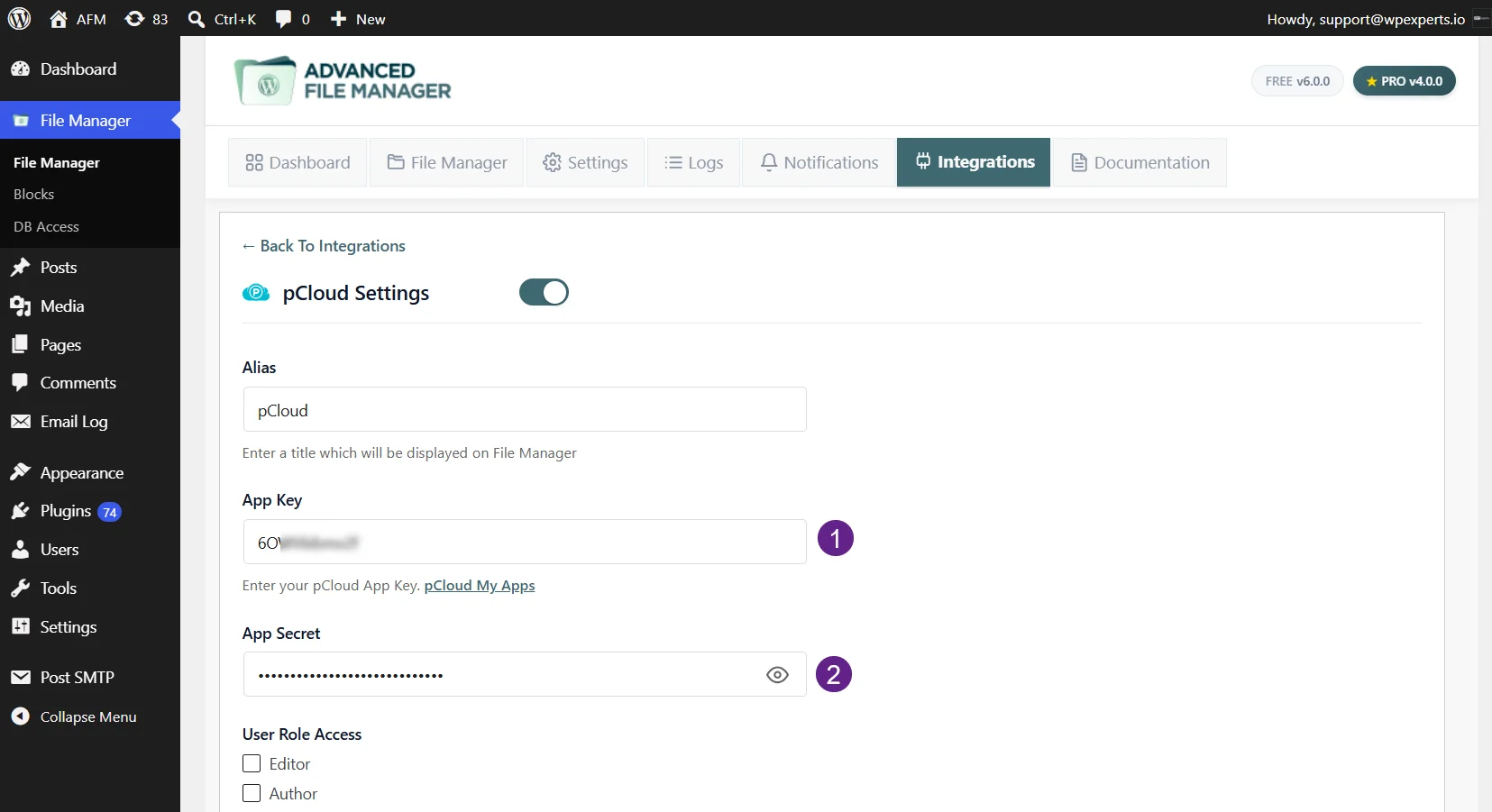
- After installing the library, add your custom Alias.
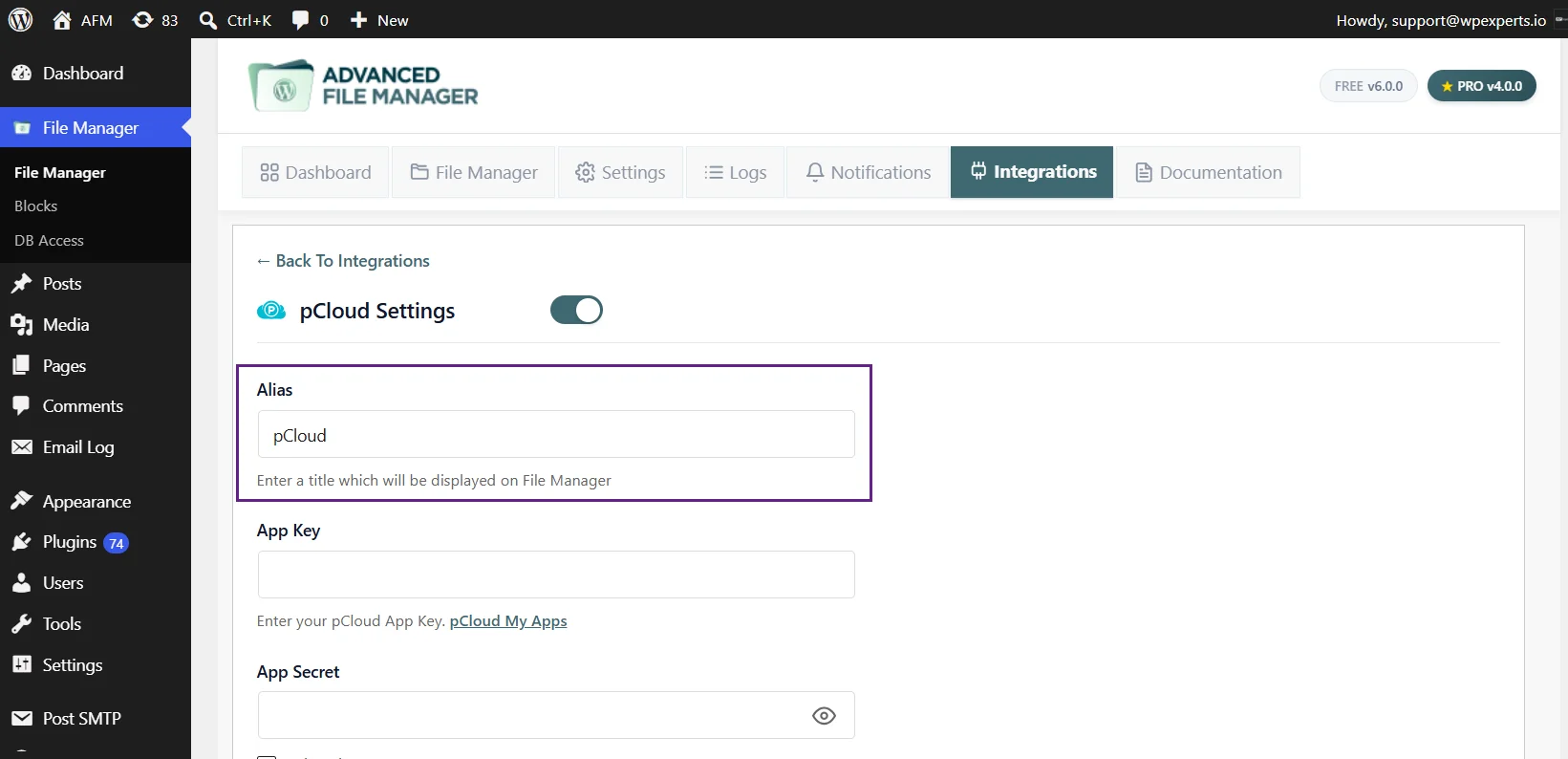
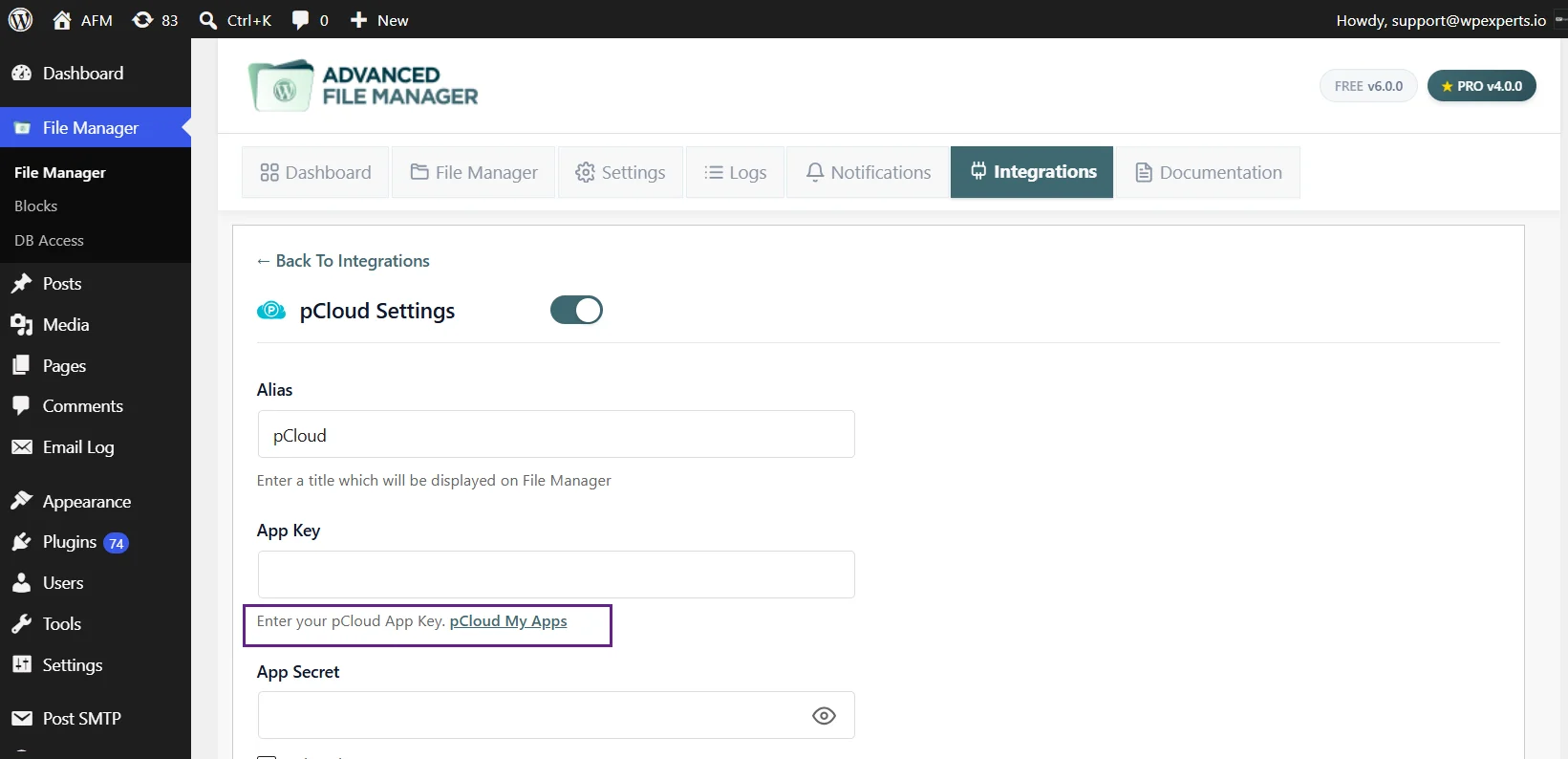
- Next, you need to get the App Key and App Secret Key, for that you’ll need to create an app in the pCloud My App.
- Click on the pCloud My App or visit to https://docs.pcloud.com/my_apps/ .
Create pCloud Application
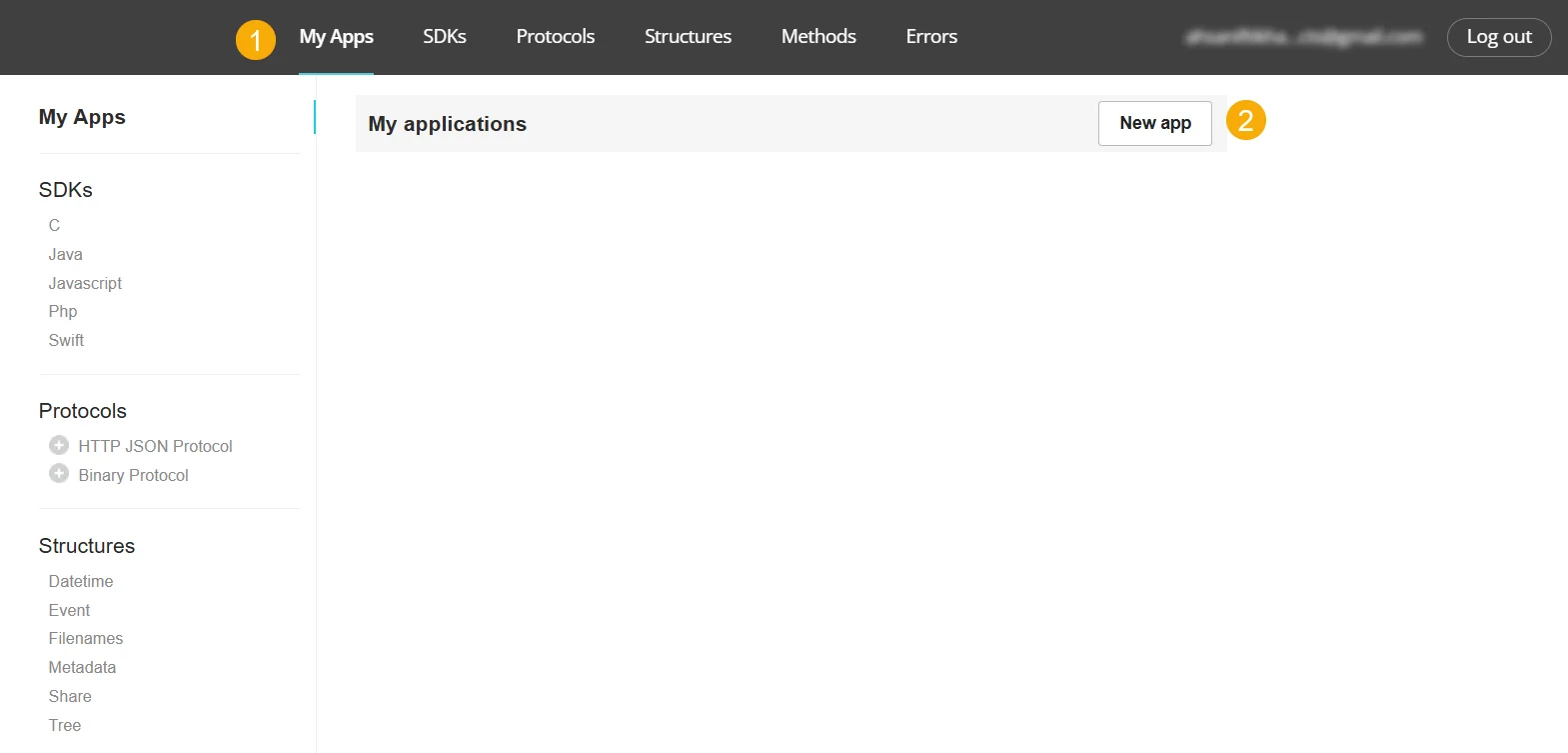
- Log in to your pCloud account.
- Navigate to the My Apps section.
- Click Add New App to create a new app.
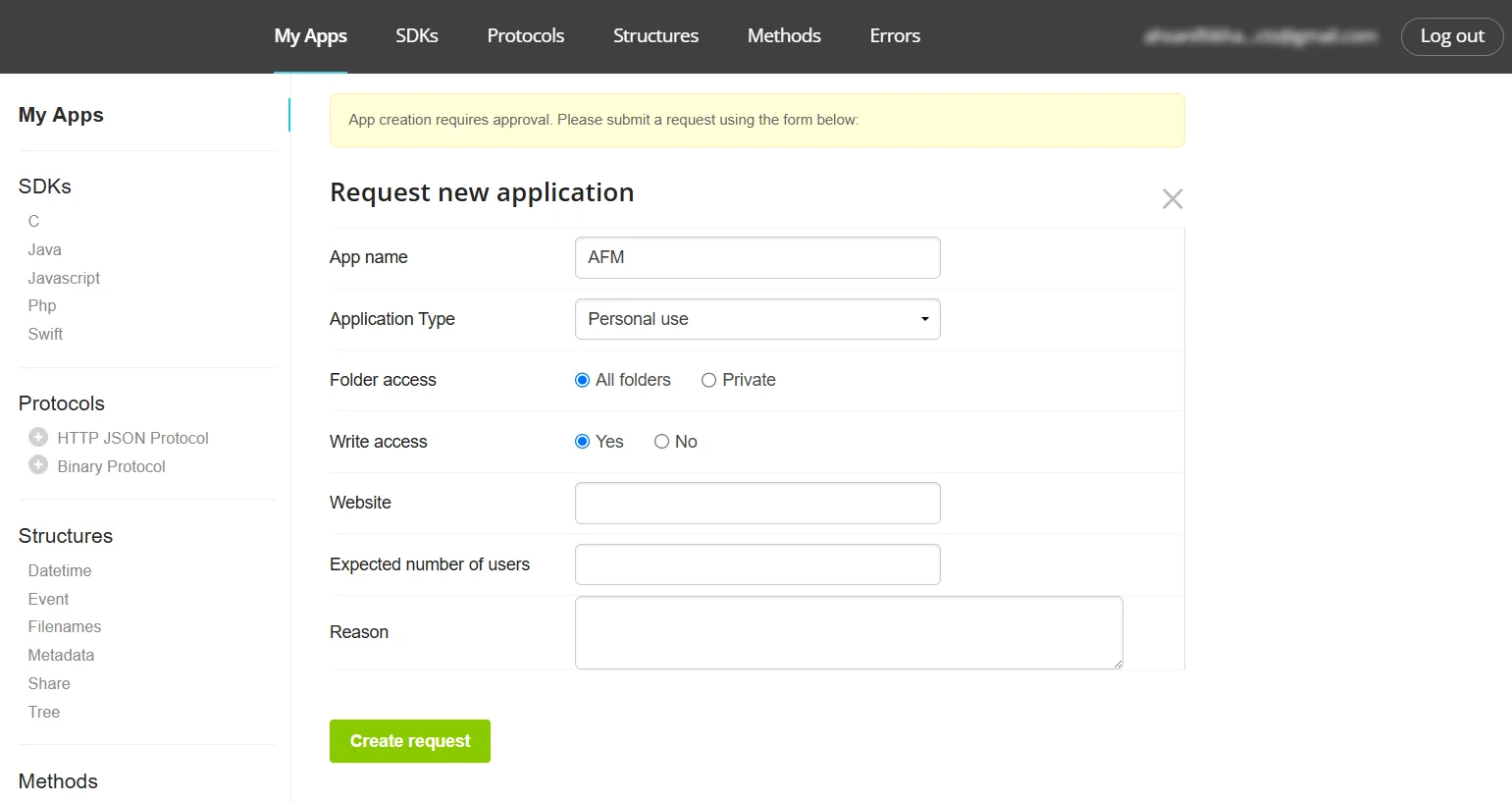
- Fill in the Request New Application form.
- Click on Create request to submit.
- Once the App is created, open the App.
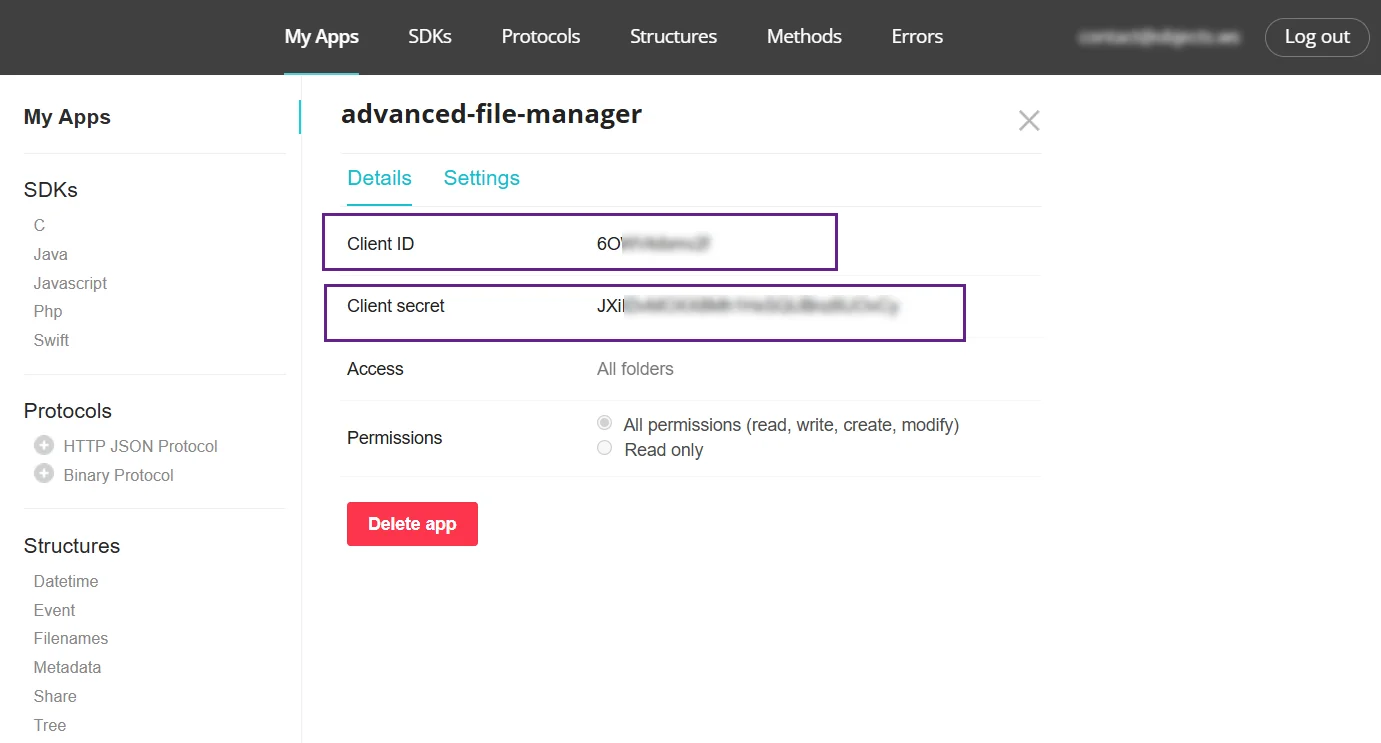
- From the Details tab, copy the Client ID and Client Secret.
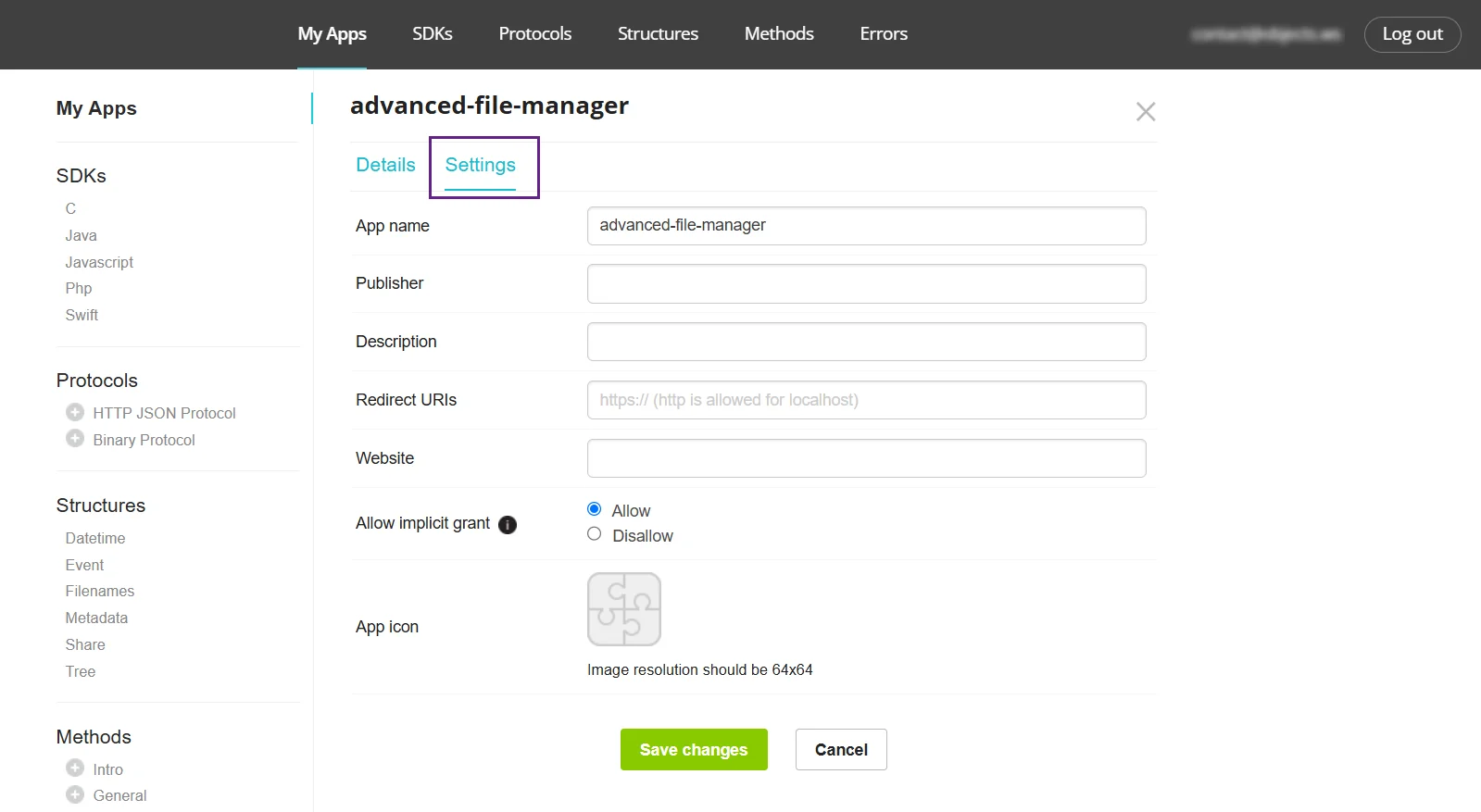
- Now go to the Settings tab.
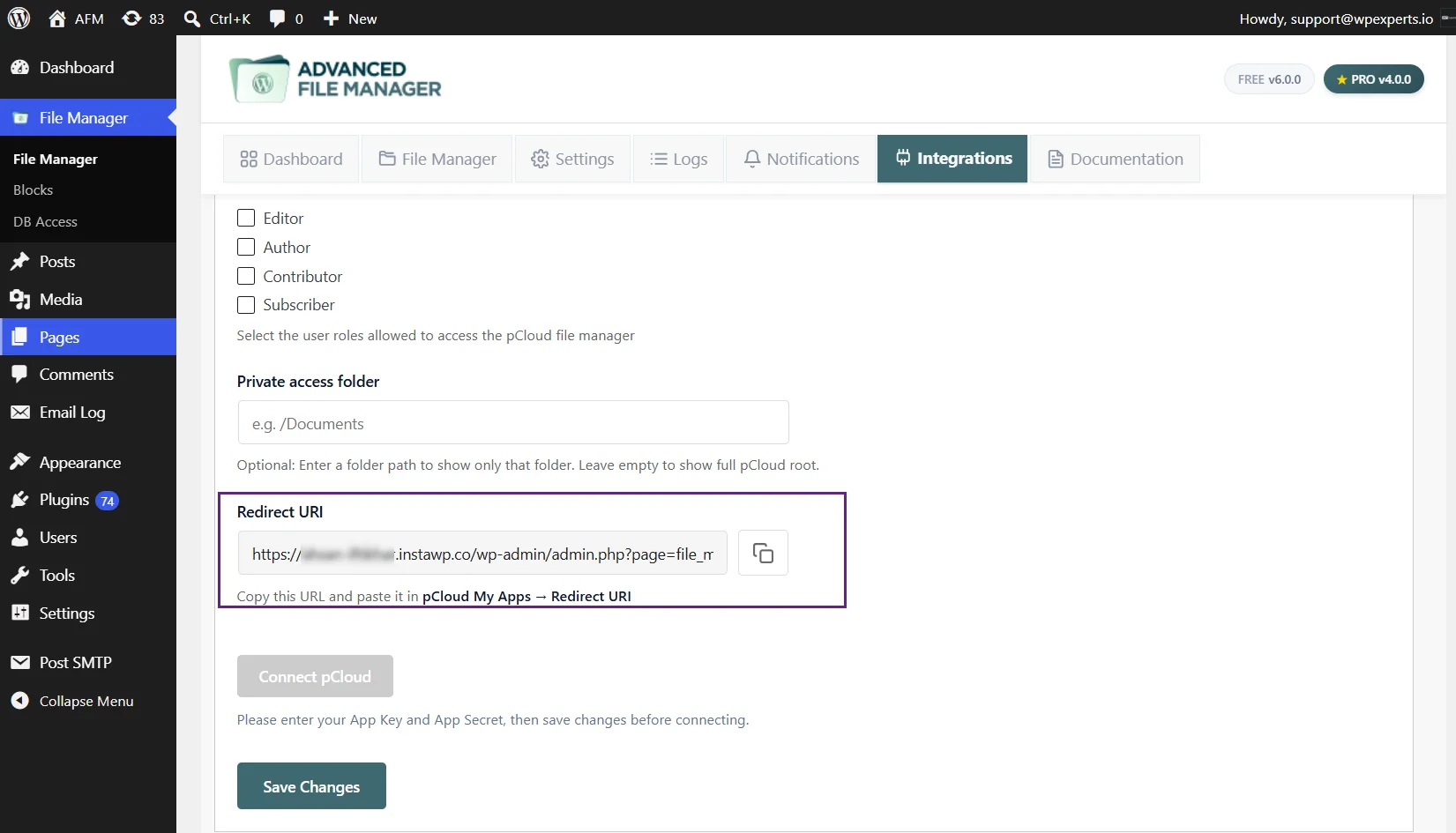
- Copy the Redirect URI from the pCloud Integration Settings from the plugin.
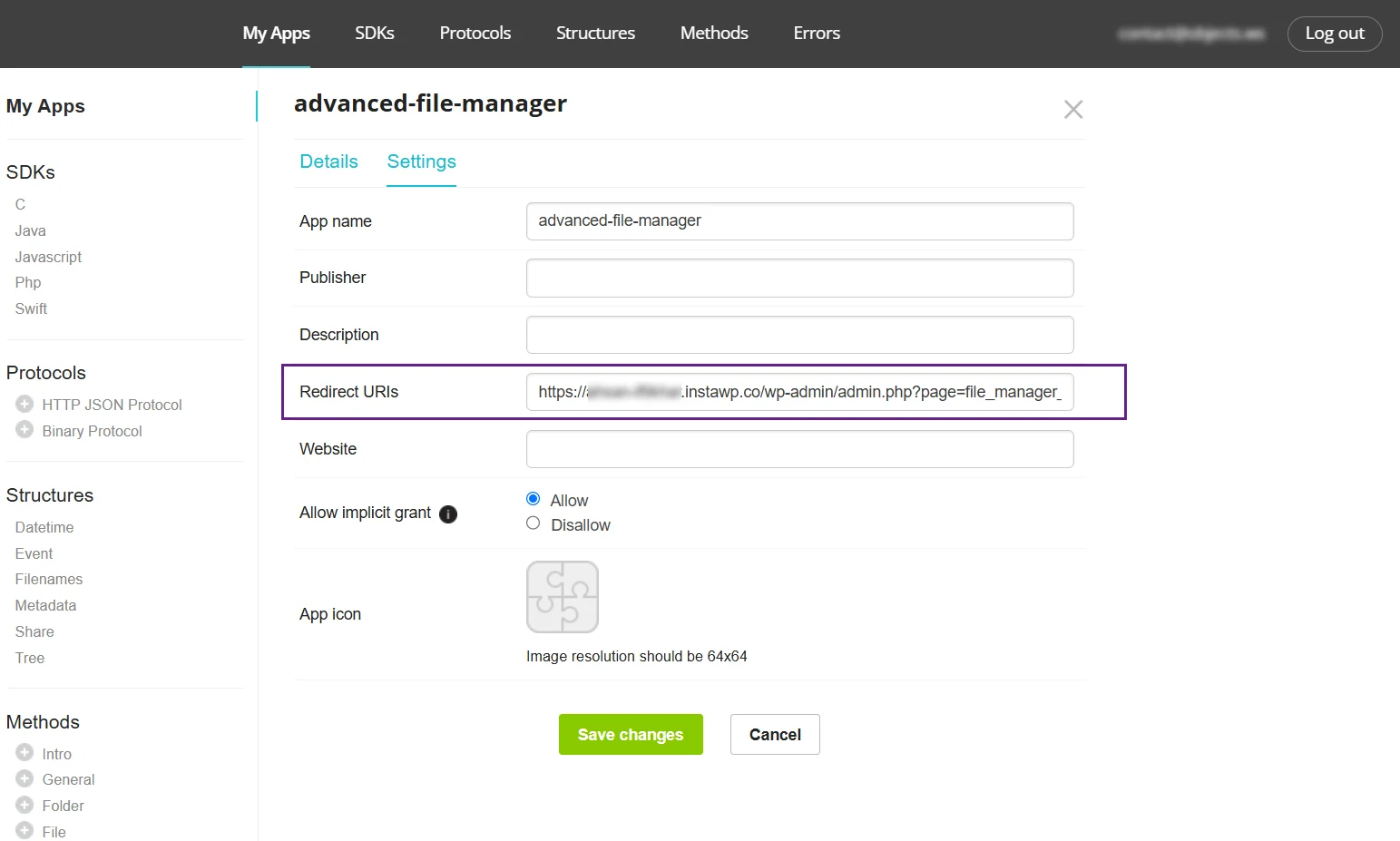
- Paste the Redirect URI in the pCloud > App > Settings.
- Click Save Changes.
Notice: pCloud App Creation Requirement
New developer apps cannot currently be created directly in pCloud due to temporary restrictions. Please contact pCloud Support at support@pcloud.com to request app creation. Once you receive your App Key and App Secret, continue with the setup steps.
Configure in Advanced File Manager pCloud integration
- Return to the pCloud setting in File Manager > Integration > pCloud Settings.
- Paste the Client ID in the App key
- Paste the Client Secret in the App Secret.
- Click on the Save Changes button.
Authorize Connection
- Click Connect pCloud.
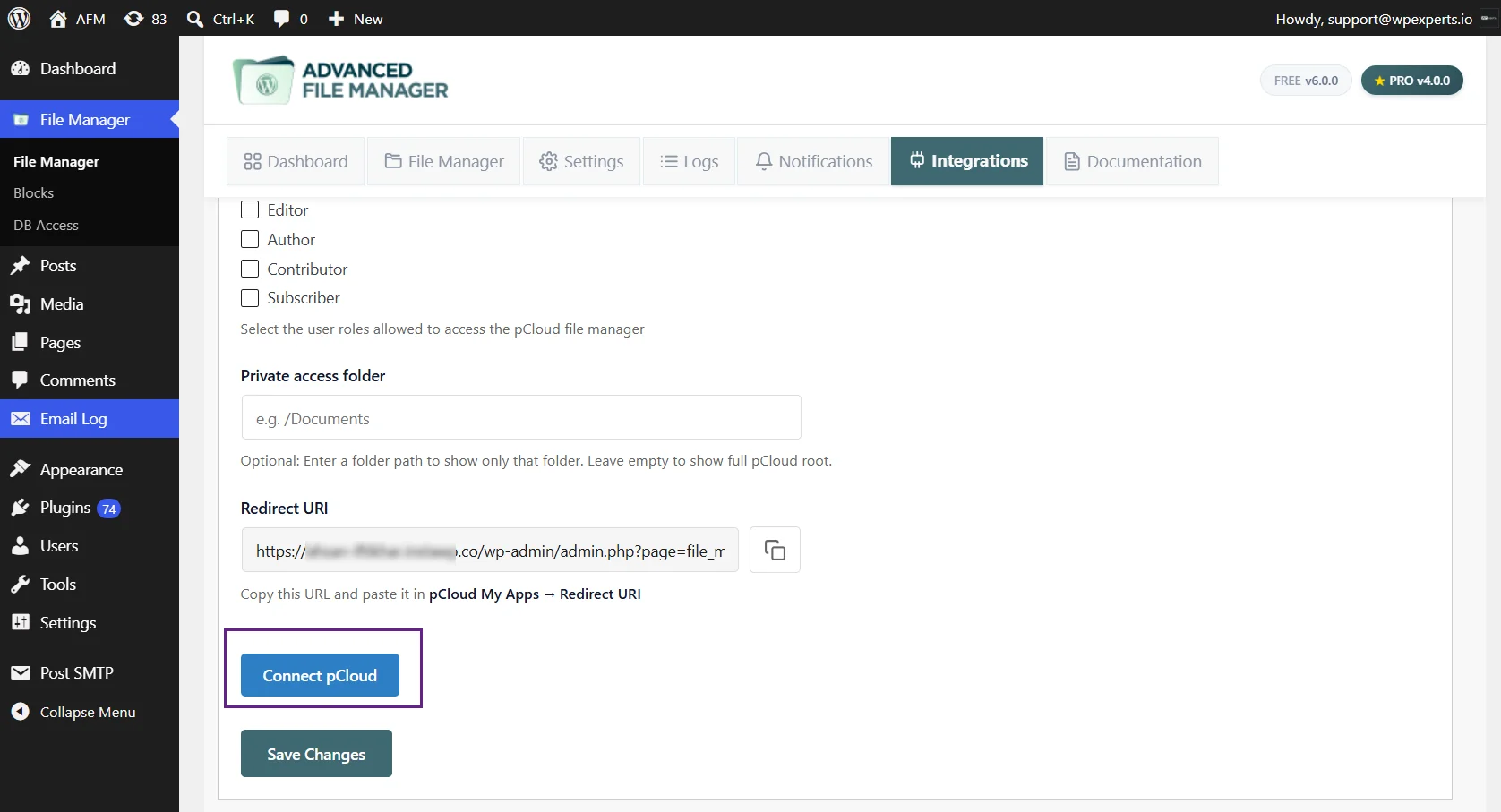
- You will be redirected to pCloud for authorization.
- Approve the requested permissions.
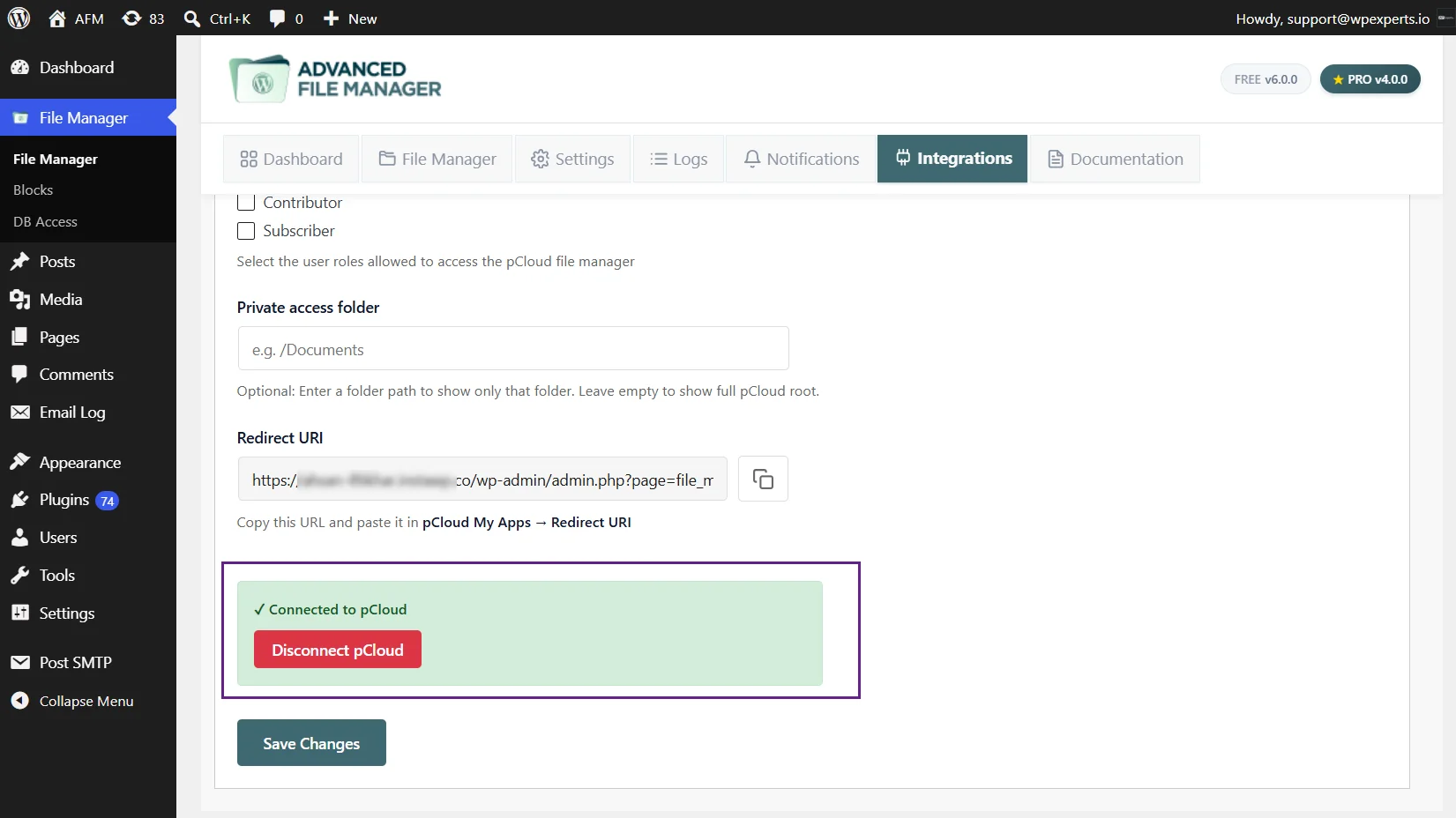
- After successful authorization, you will be redirected back to WordPress.
- The integration status will show as connected.
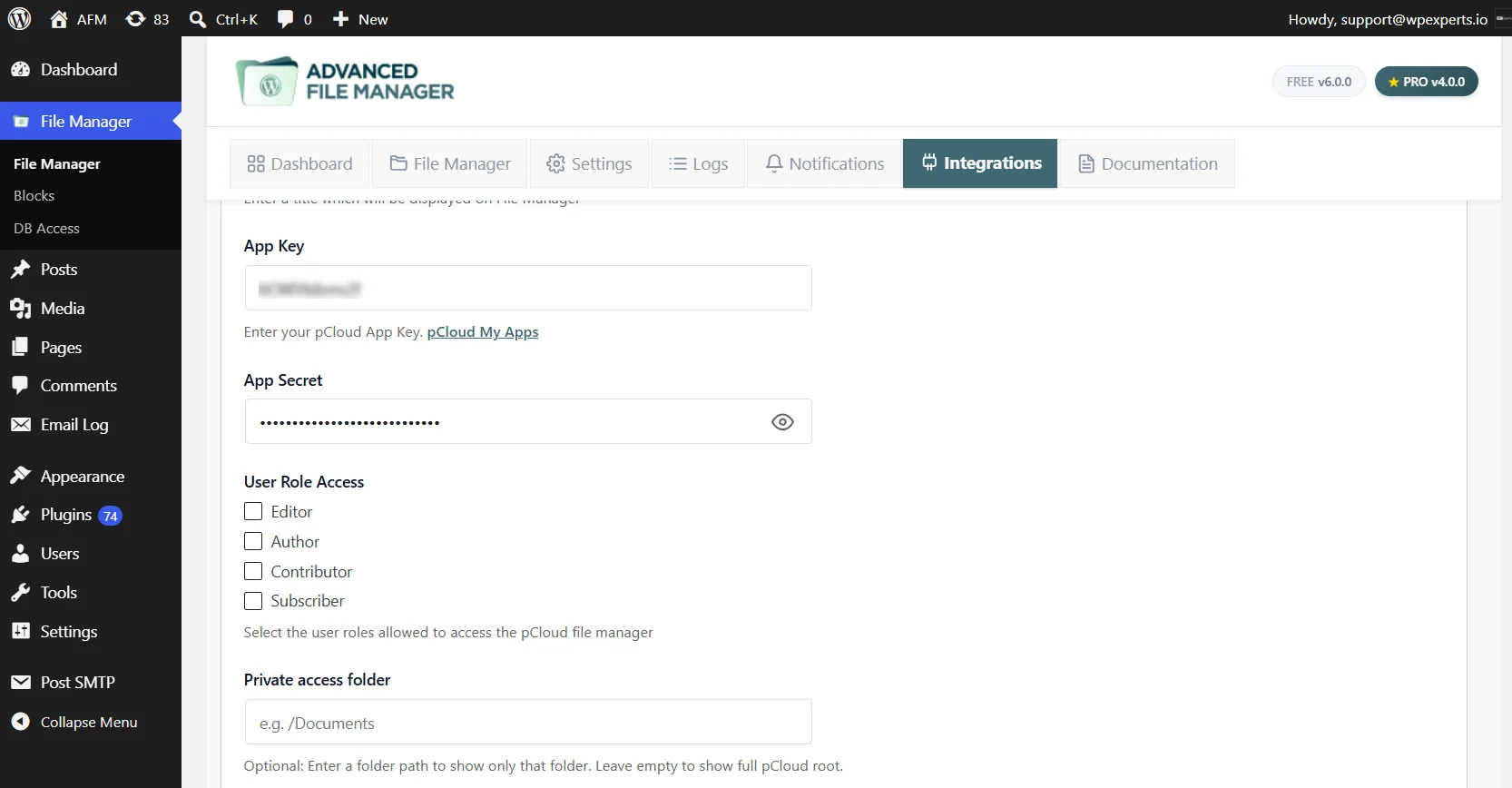
- You can select the user roles from the User Role Access that is allowed to access the pCloud file manager.
- You can also restrict access to the folder, add folder in Private Folder Access.
Access pCloud in File Manager
- Your pCloud integration is now successfully configured.
- Navigate to the WordPress Dashboard > File Manager.
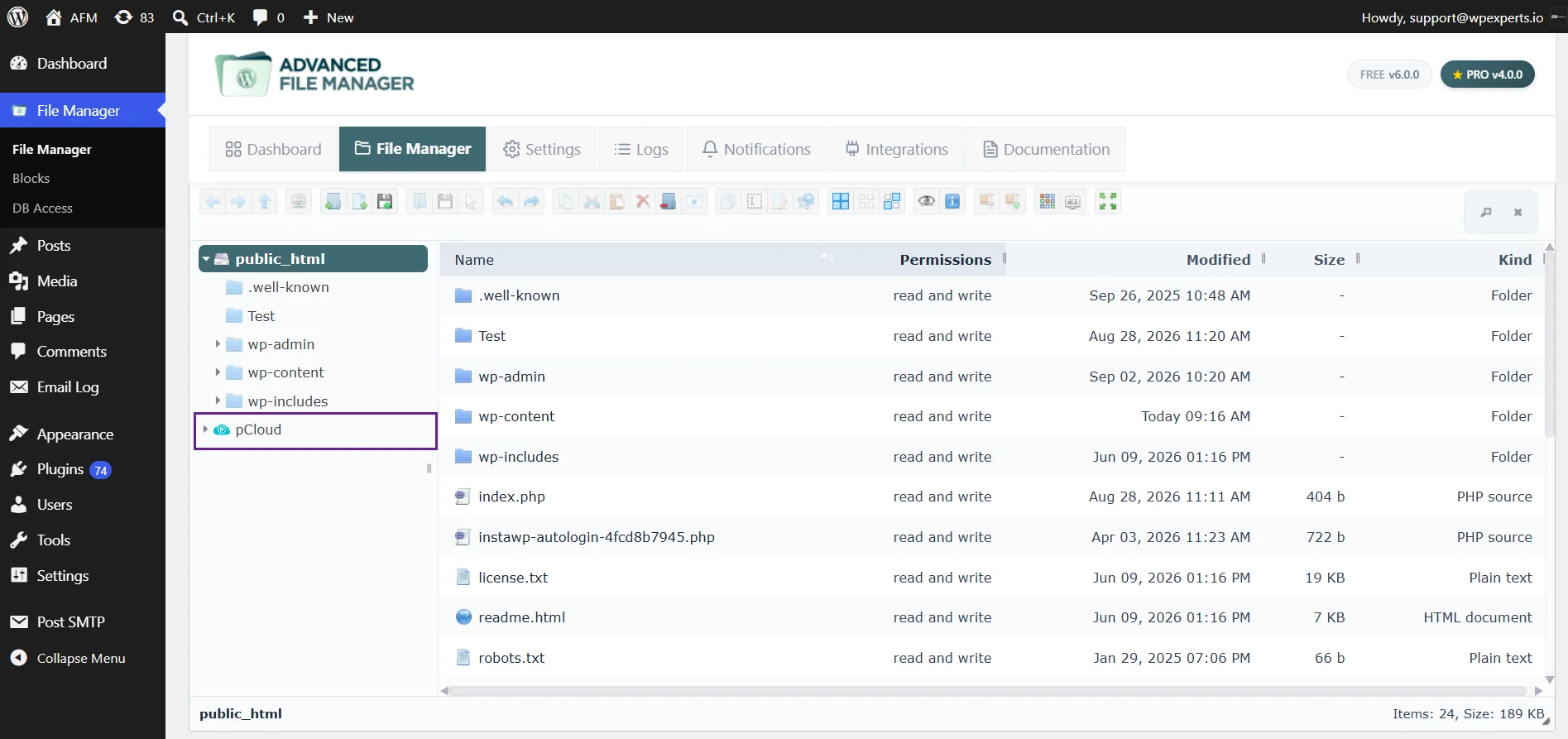
- You can see the pCloud in the tree.
Need Help?
If you encounter any issues during setup, please contact our Support Team. Our experts will troubleshoot your problem and provide a prompt resolution. We are committed to delivering excellent customer service and ensuring a smooth integration experience.
