

Frontend Cloud Storage Blocks
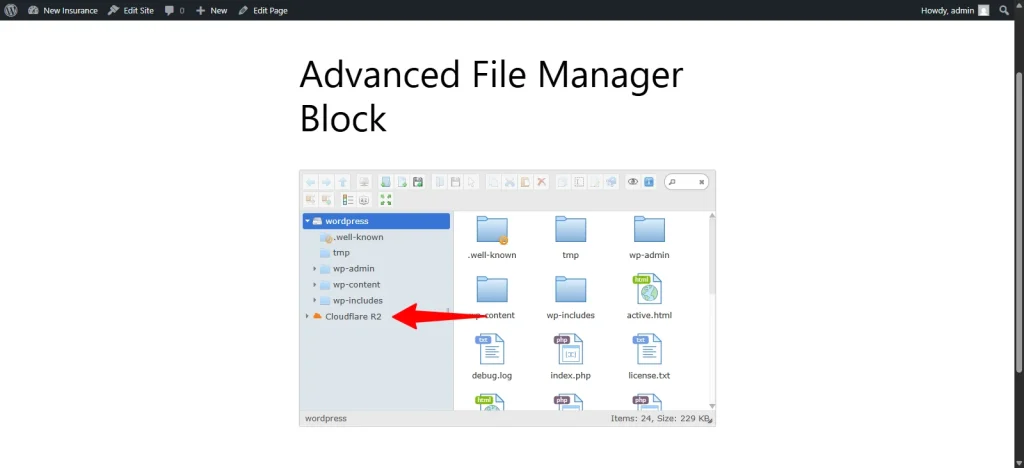
Advanced File Manager allows you to display connected Cloud Storages on the Frontend cloud storage display WordPress using Advanced File Manager Blocks. With this feature, you can showcase storage services like Google Drive, OneDrive, Dropbox, Amazon S3, and more directly on your website including private folder access control.
How It Works
Follow the step-by-step guide below to use this functionality:
Step 1: Navigate to Blocks
Go to:
Advanced File Manager > Blocks
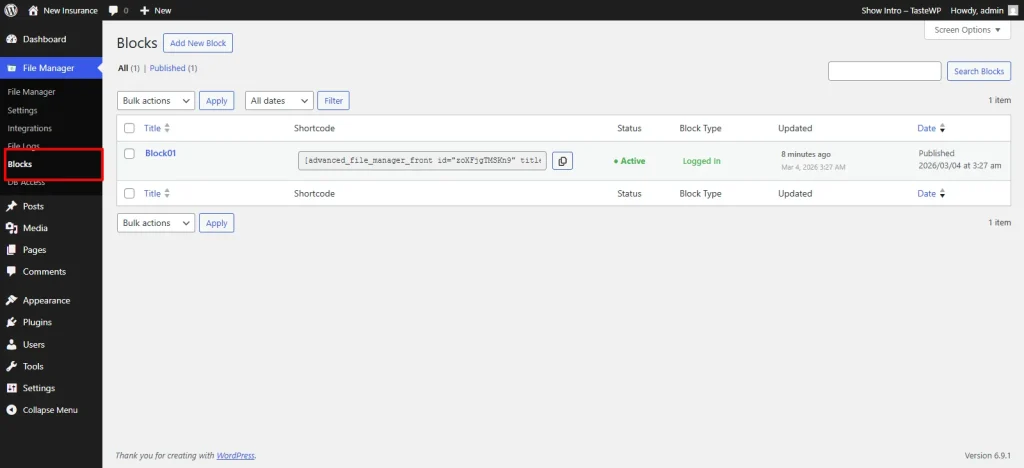
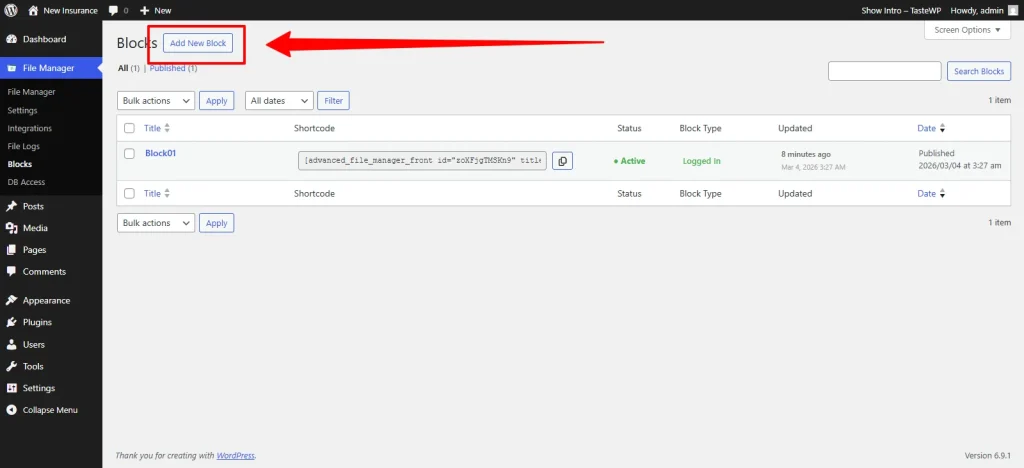
Step 2: Add a New Block
Click on Add New Block to create a new frontend file display block.
Step 3: Select WordPress Cloud Storage Integration
On the right-side panel, locate the Integration Folder Access widget.
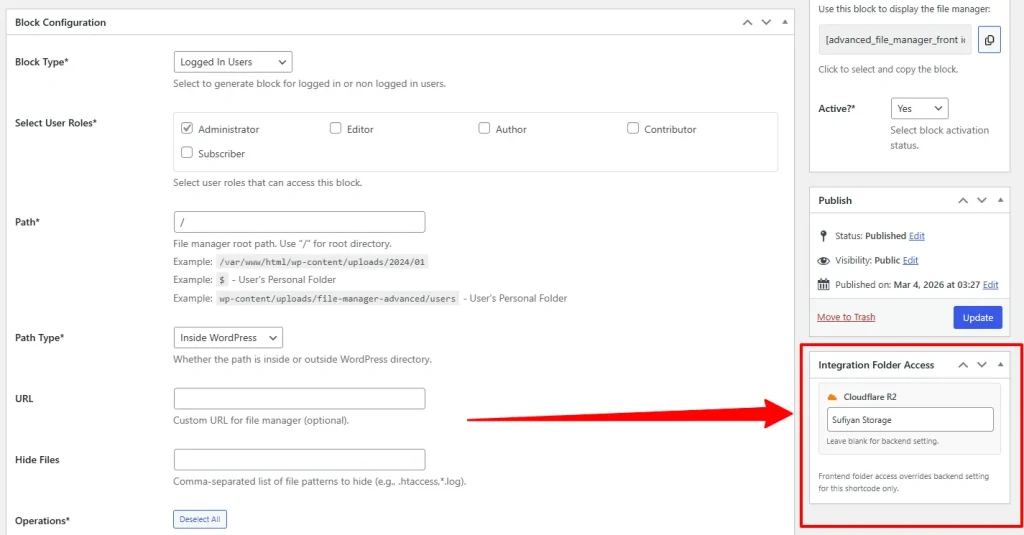
Here you will see all the cloud storage integrations that you have already enabled and configured.
If you haven’t configured any integrations yet, please refer to our detailed documentation on setting up integrations in Advanced File Manager.
Step 4: Assign Folder Access
From the same panel, you can:
- Select the connected cloud storage
- Assign private folder access
- Control which user- based folder can access specific folders through this block
Note: Frontend folder access settings applied through Block level access control will override backend folder access settings but only for that specific block/shortcode.
Block Specific Integrations
You can also disable specific integrations on the frontend based on your preference.
If there are certain connected cloud storage access control that you do not want to display within a particular block, you can simply block or exclude them from that specific block’s settings.
This allows you to control exactly which integrations appear on each block while keeping other integrations active globally.
Need Help?
If you encounter any issues or need assistance, feel free to contact our Support Team. We’re always ready to help you troubleshoot and ensure everything runs smoothly.
