

Google Drive
The File Manager Google Drive Integration is a game-changer!
It helps you save time and effort by allowing you to back up your files directly to Google Drive or upload and manage your files instantly through Google Drive’s File Manager. This seamless integration makes development smoother and more efficient.
If you haven’t yet upgraded to the Pro business plan, now’s the perfect time! Buy now to unlock this powerful feature and take your file management to the next level. Get the Advanced File Manager Plan!
Follow these simple steps to quickly integrate Google Drive with your Advanced File Manager plugin and start managing your files like a pro!
Enabling Google Drive Integration in Advanced File Manager
To successfully integrate Google Drive with the Advanced File Manager, follow the steps below:
Enable Google Drive
- Navigate to WordPress Admin Dashboard > File Manager > Integrations tab.
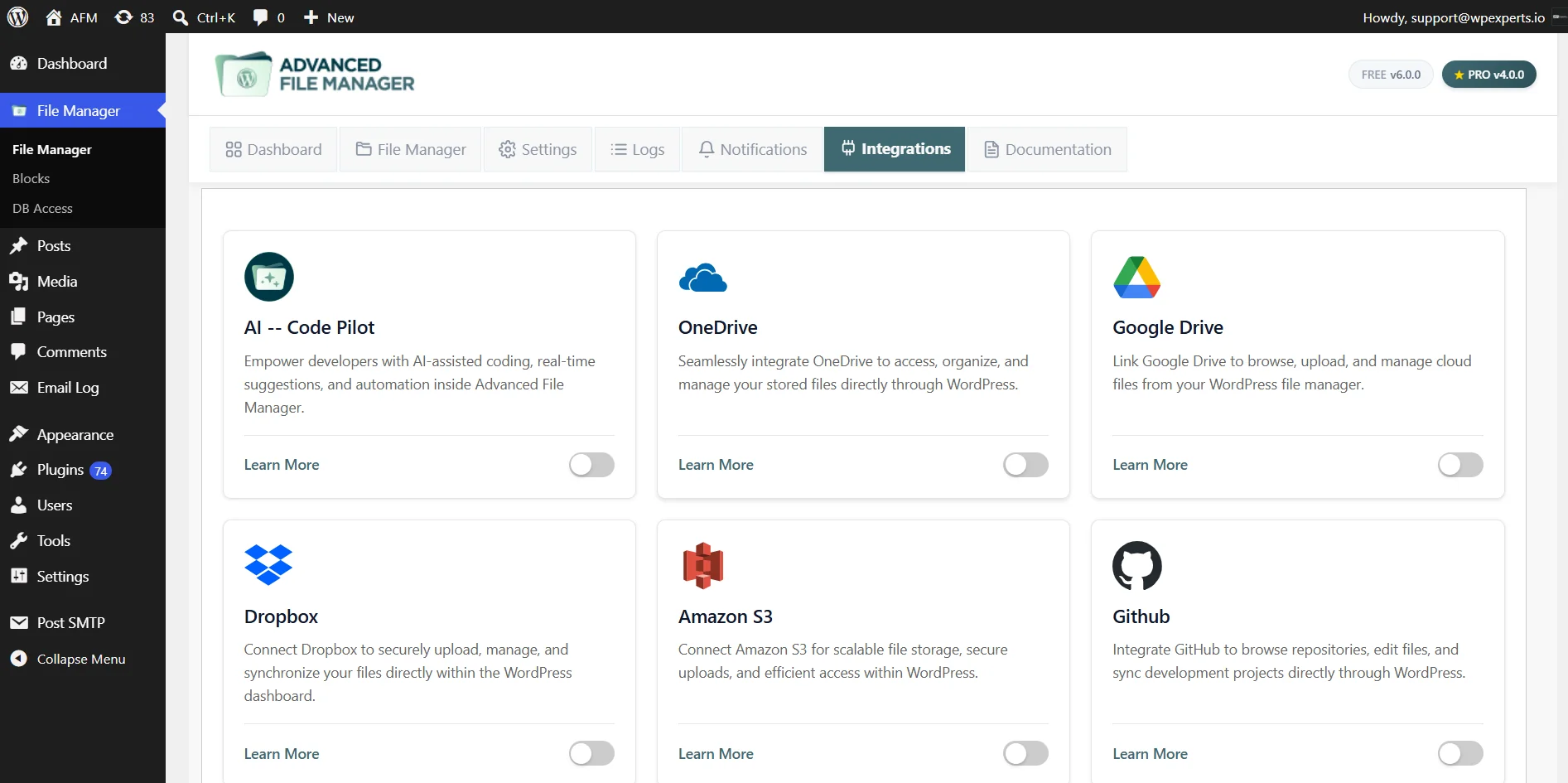
- In the Integrations, go to the Google Drive card and click on the toggle to enable the Google Drive integrations.
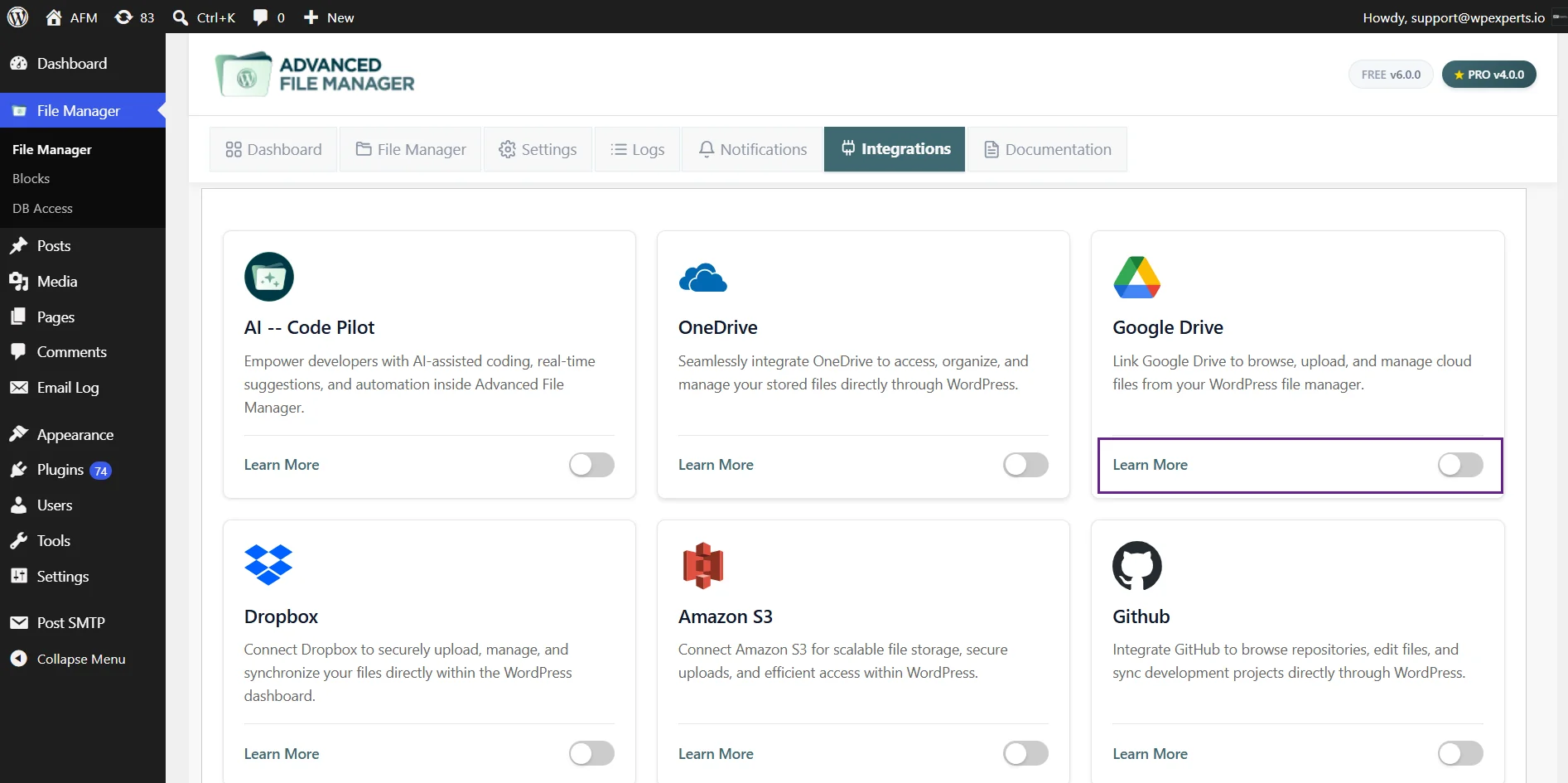
- After enabling the Google Drive, click on the Settings in the Google Drive card.
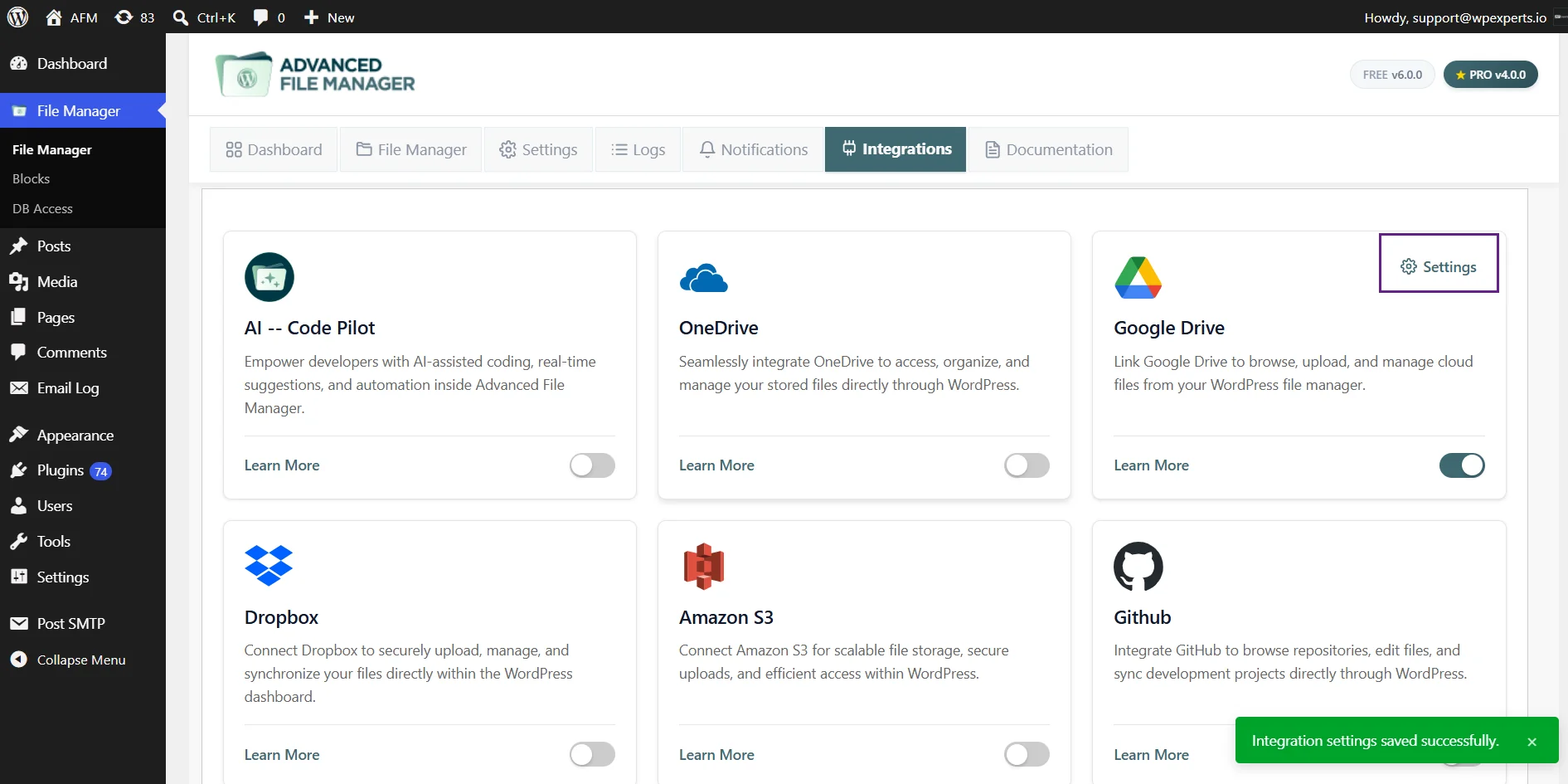
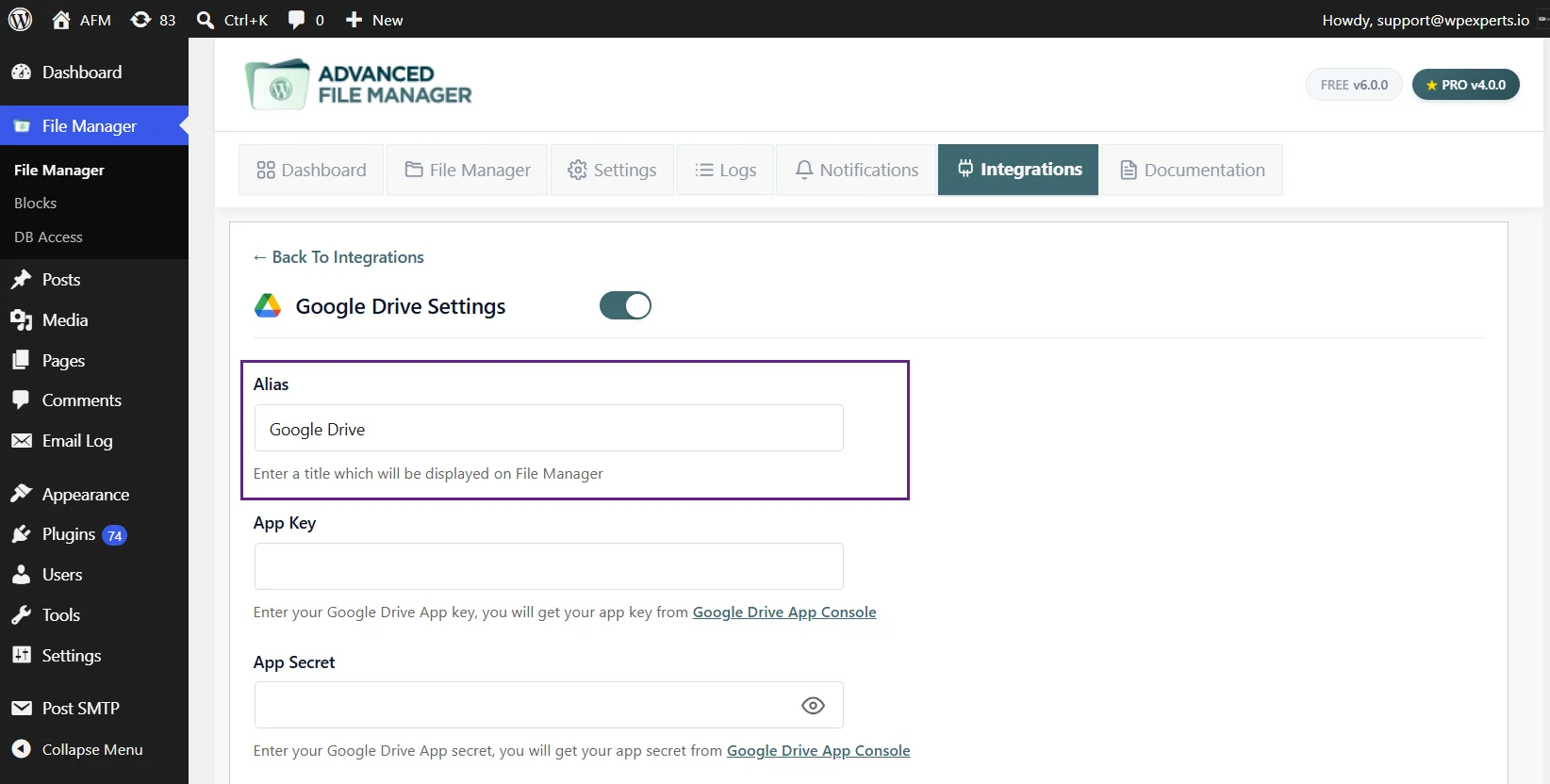
- In the Google Drive Settings, add an Alias name.
Access Google Cloud Console
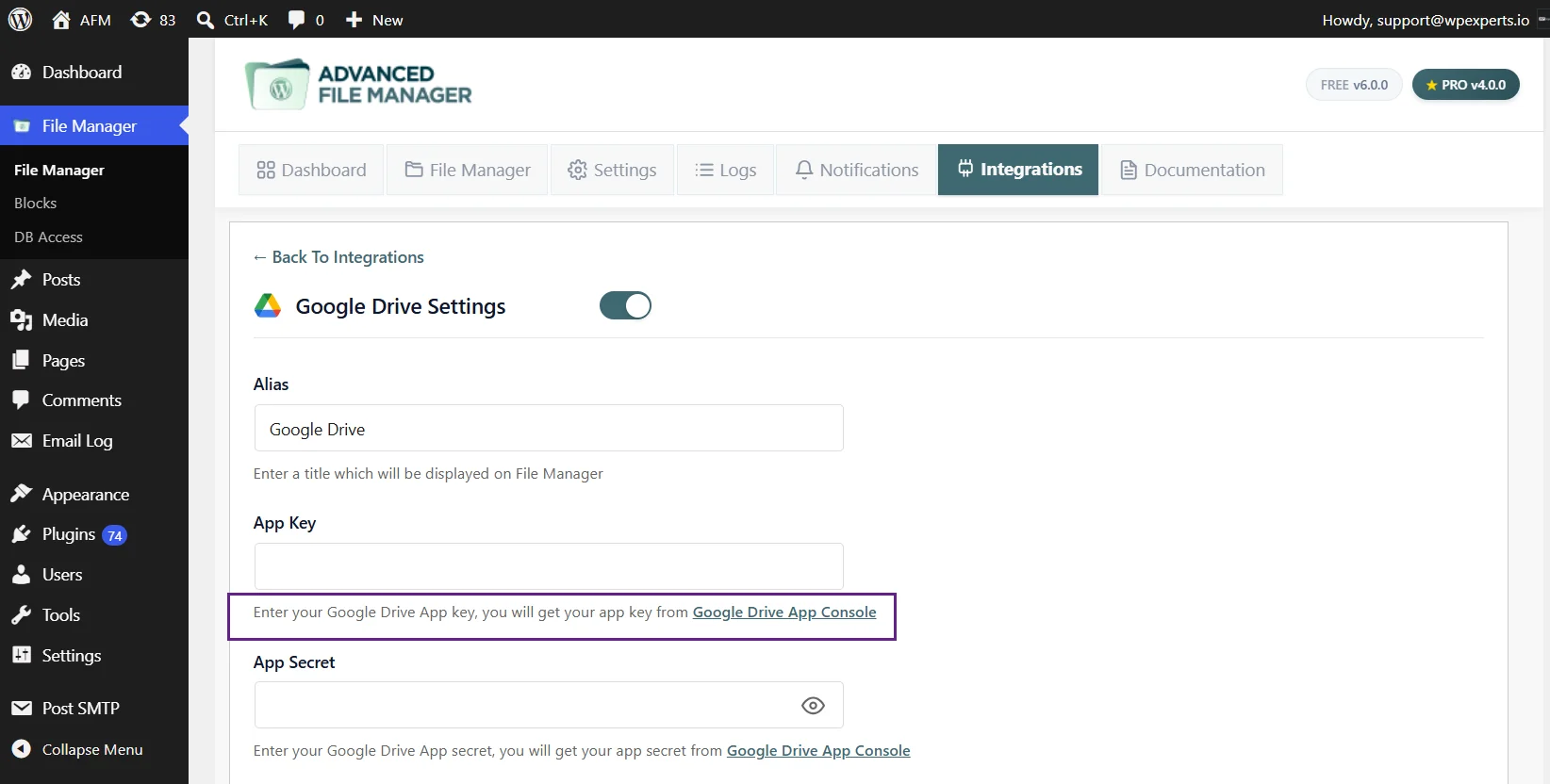
- Now you need App Key and App Secret to connect to Google Drive.
- Click on Google Drive App Console or visit the Google Cloud Console.
- If you haven’t already created a project, click “Create Project” at the top of the page.
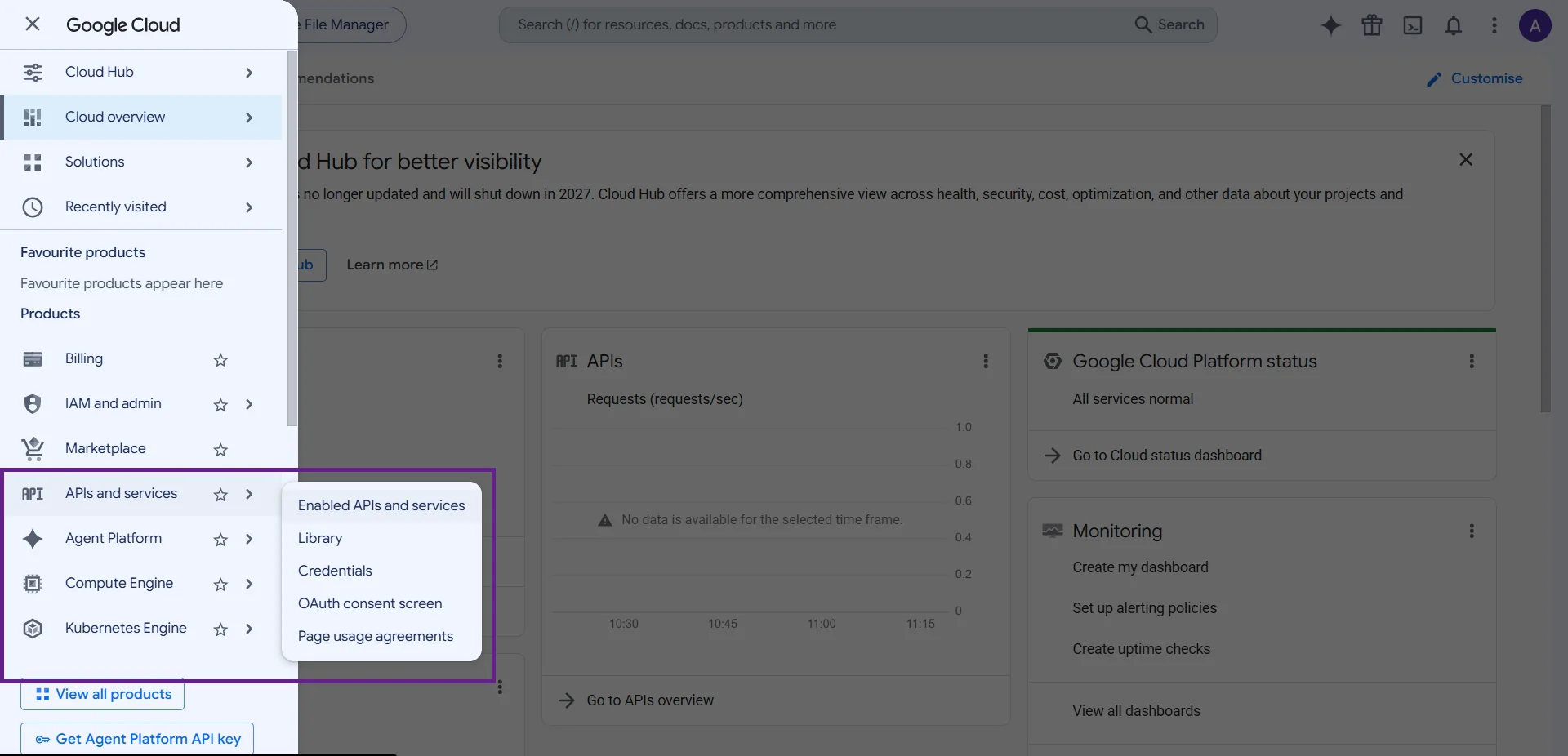
- After creating a new project, navigate to the left side menu and go to the APIs and Services > Enabled APIs and services.
Enable Google Drive API
Once inside your project dashboard:
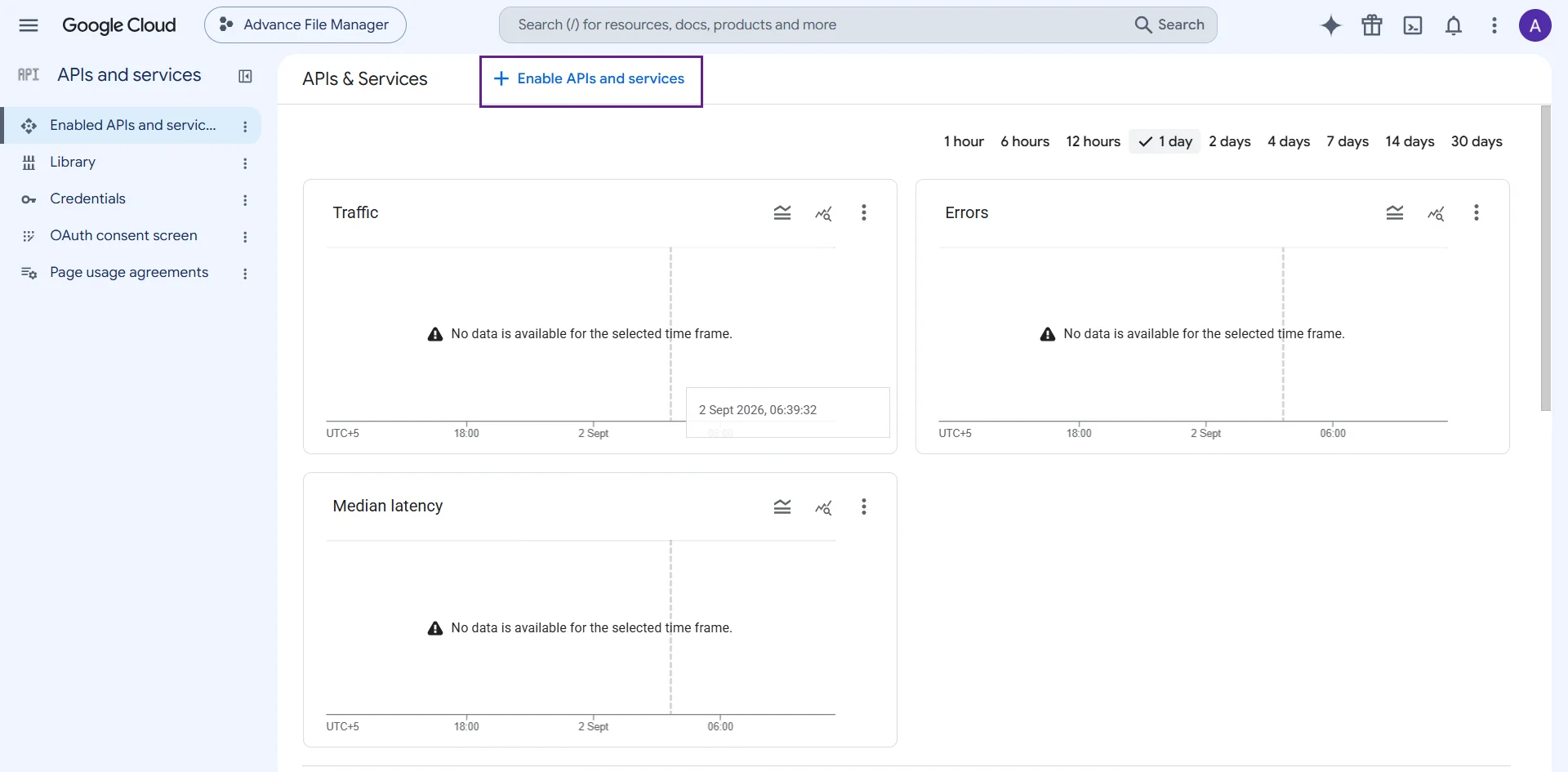
- Click on Enable API and Services.
- Search for Google Drive API.
- Click on Enable to enable the Google Drive API.
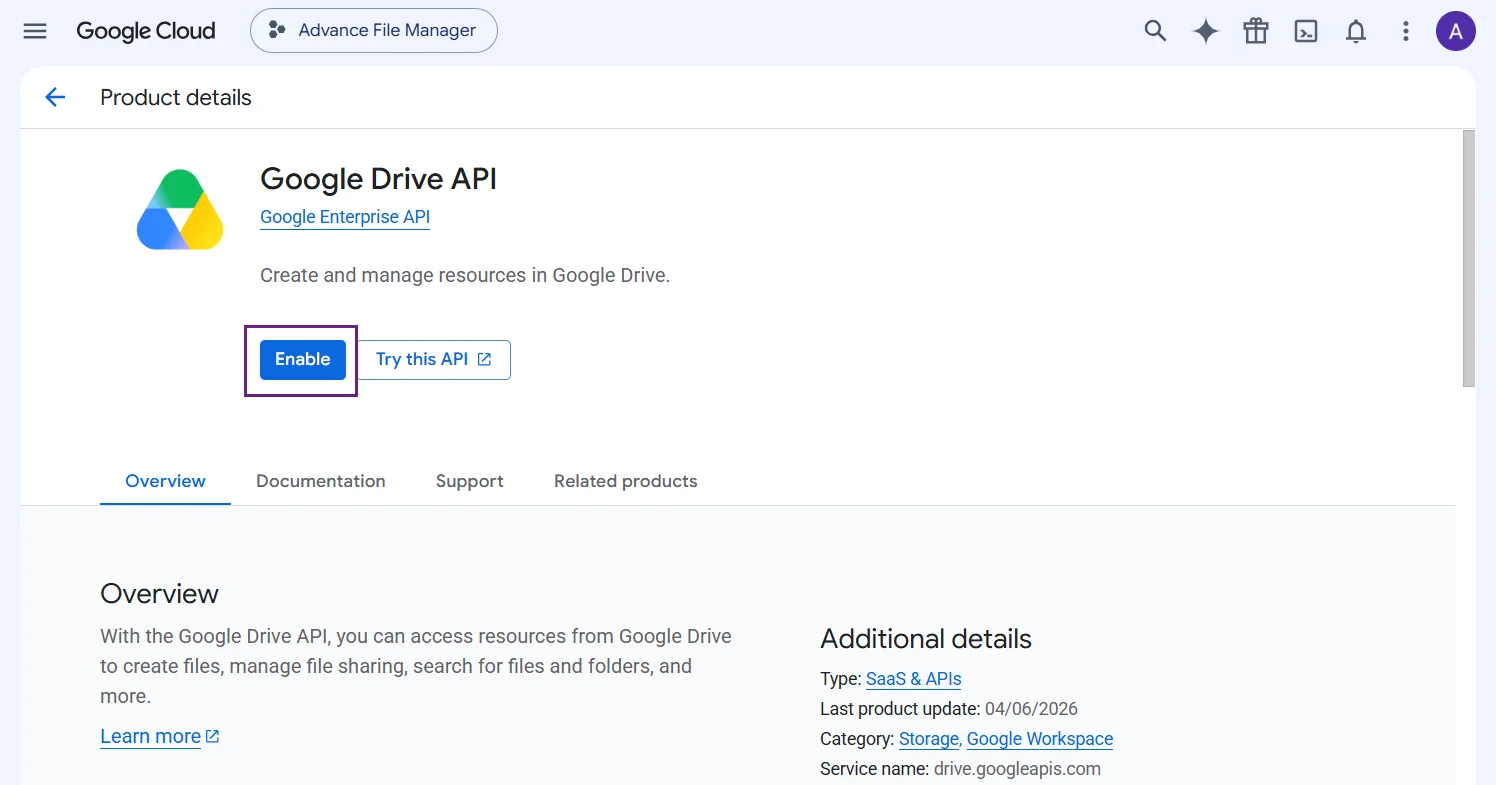
- The Google Drive API will be enabled.
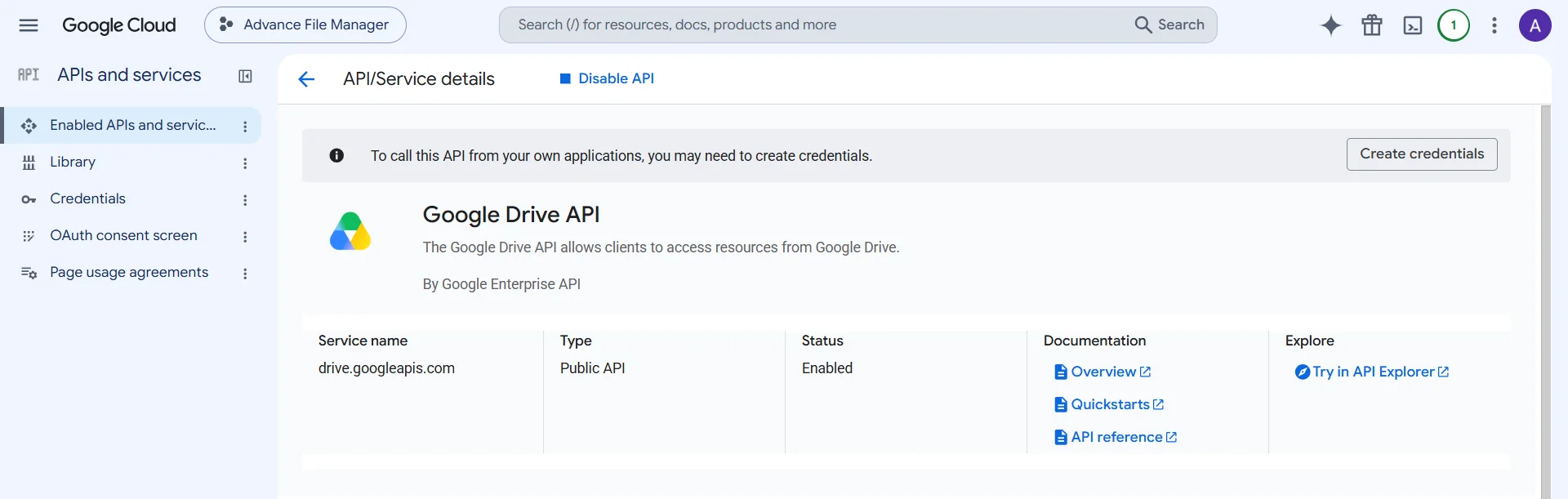
- Return to the main dashboard.
Note: Ensure that the Google Drive API is enabled in the “APIs & Services” section before proceeding.
Configure OAuth Consent Screen
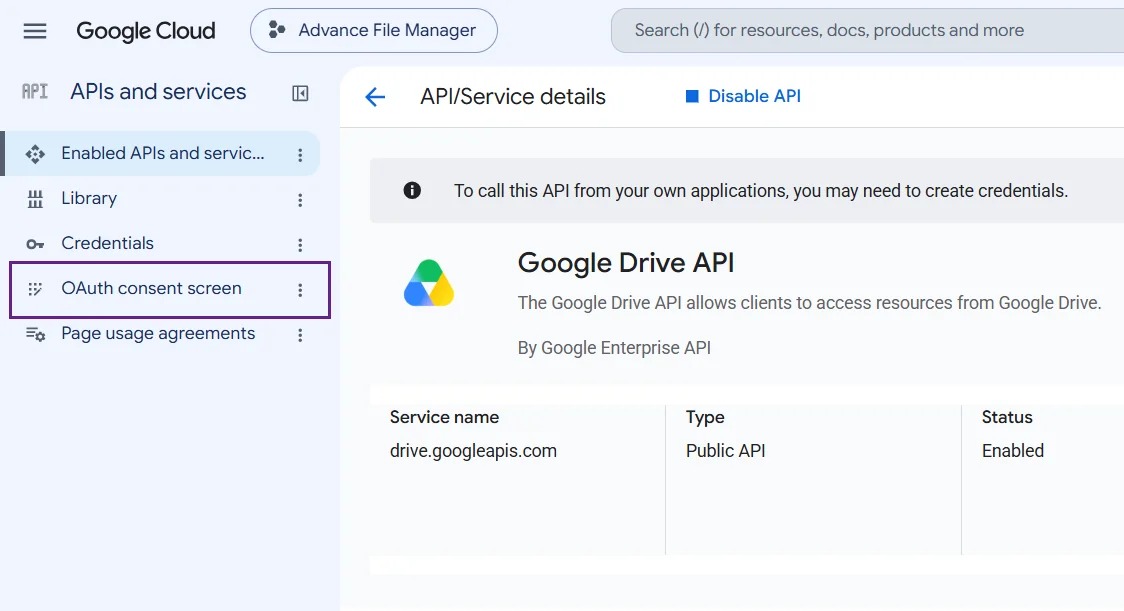
- Now, click on OAuth Consent Screen in the left side menu.
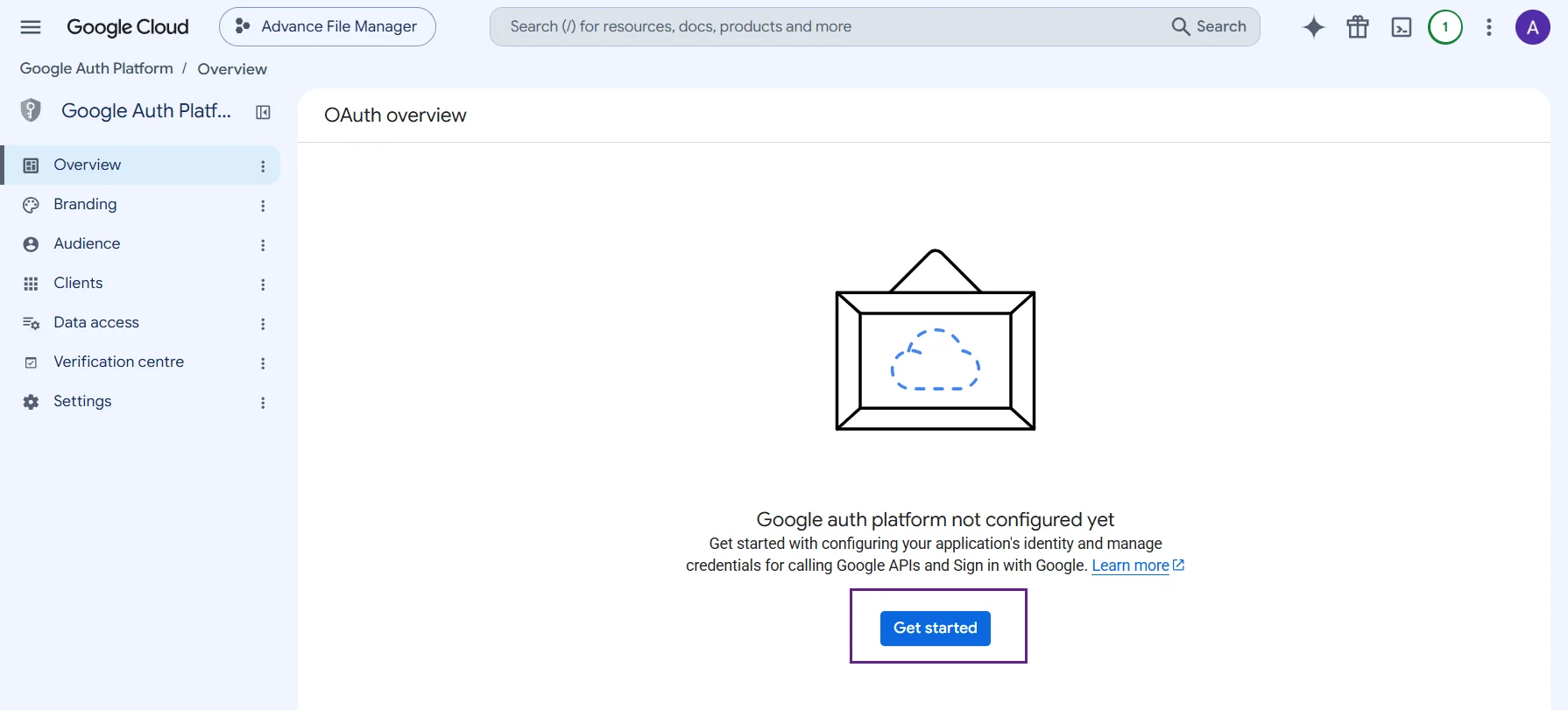
- Click on the Get Started Button to start the OAuth Configuration.
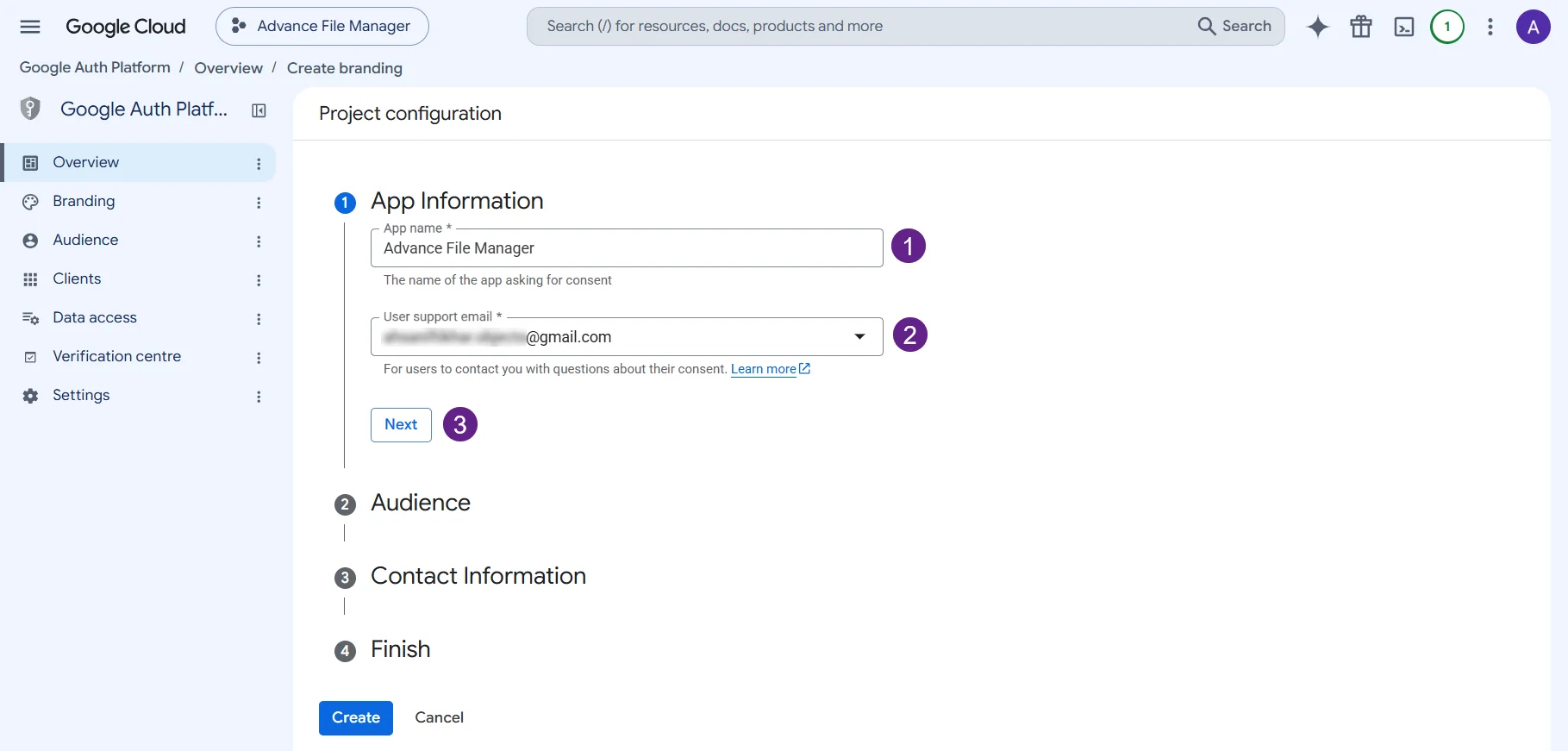
- You will be redirected to the Project Configuration.
- Fill out the required fields in the App Information.
- App Name – Enter any name.
- Support Email – Use your Google account email.
- Click on Next.
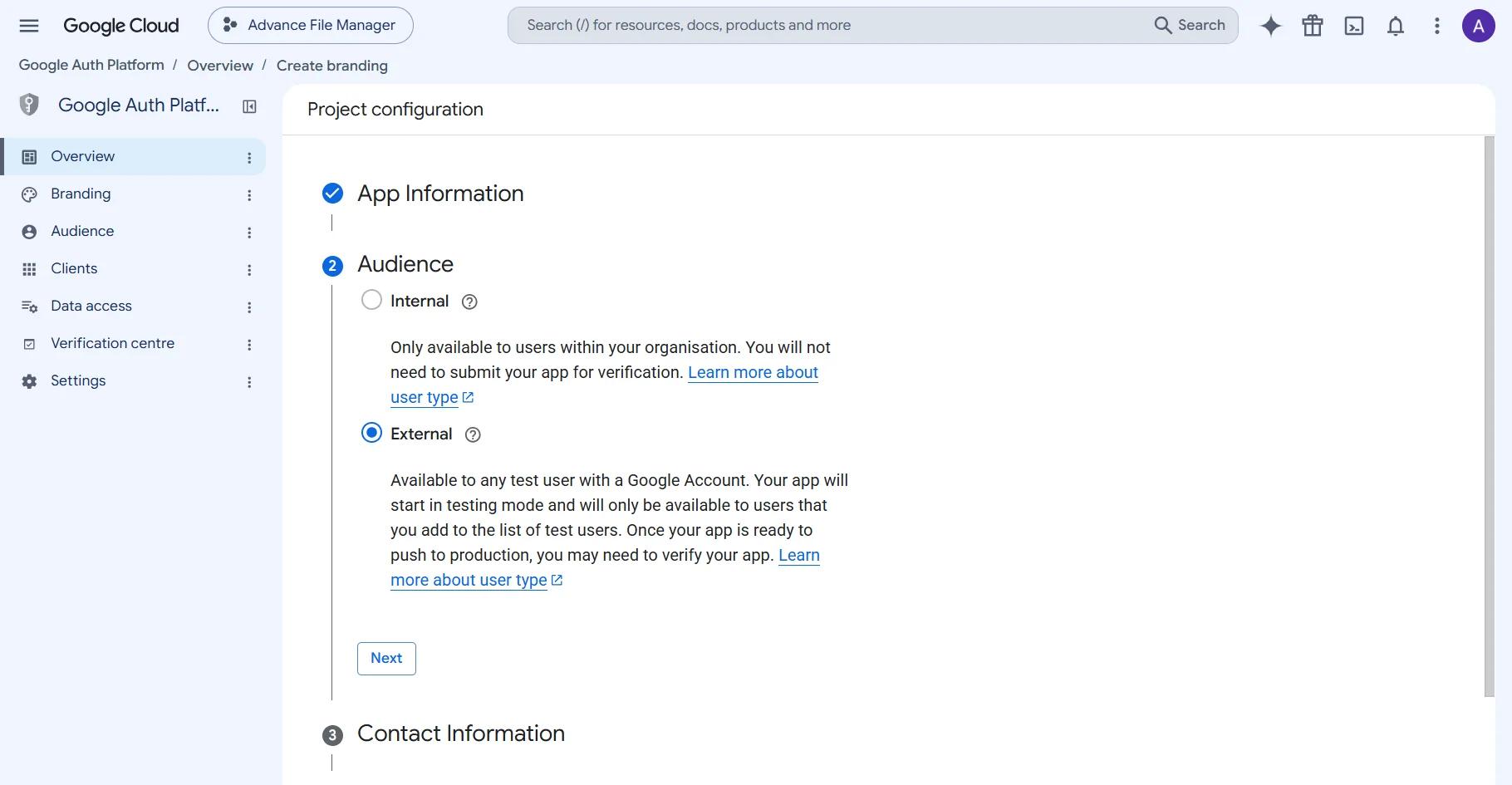
- Audience – Choose your Audience as Internal or External.
- Developer Contact Information – Add your developer email.
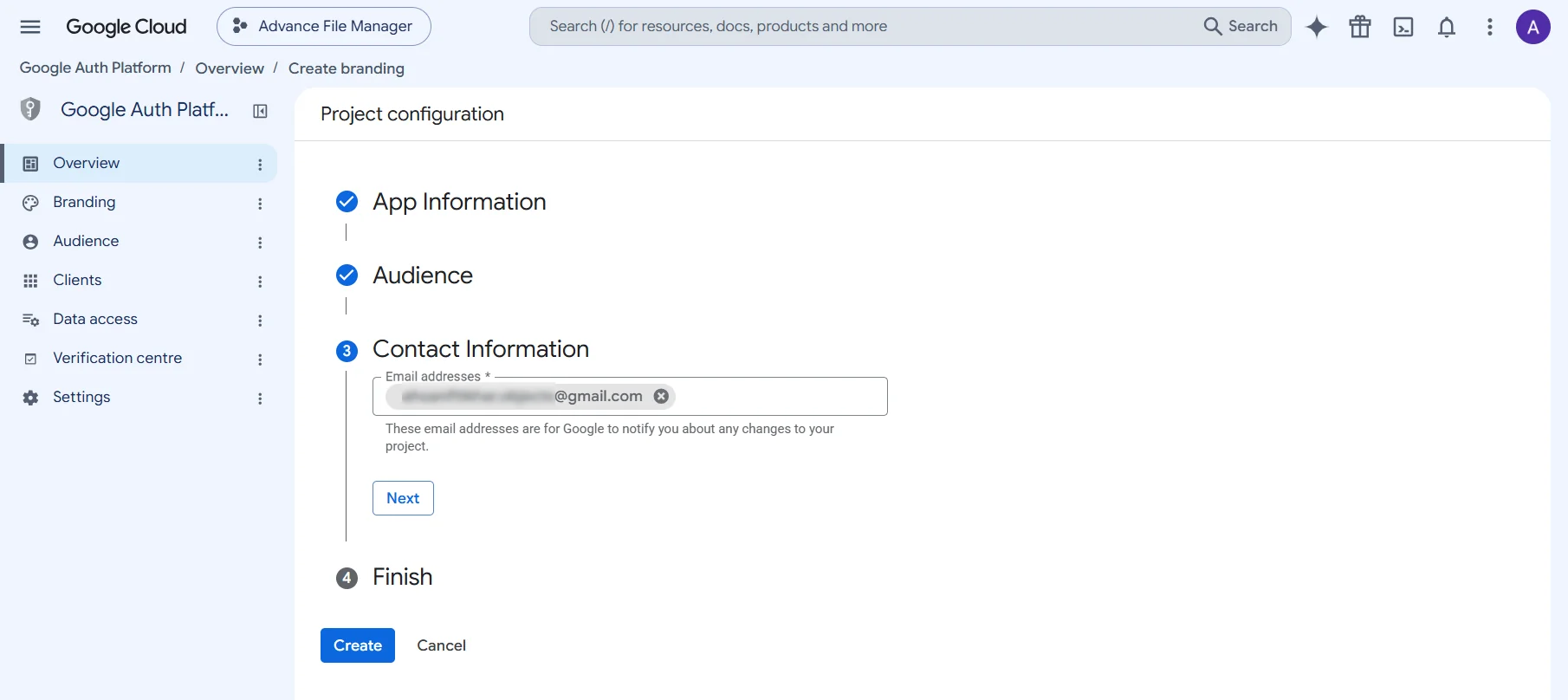
- Click Next to continue to the next step.
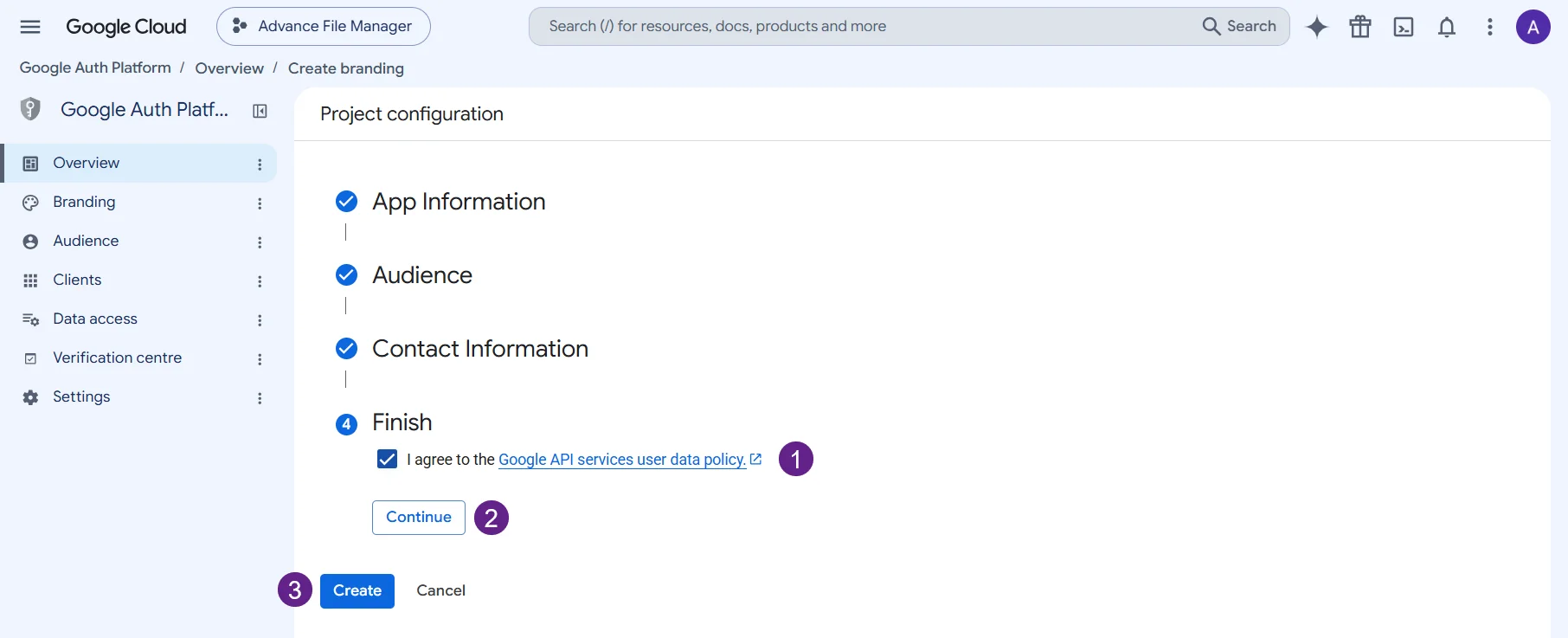
- In the last step, click on the I Agree checkbox.
- Click on Continue.
- Click on Create.
- On the Scopes page, no changes are necessary—click “Create” again, then return to the dashboard.
Create OAuth Credentials
From the dashboard:
- Click on Credentials.
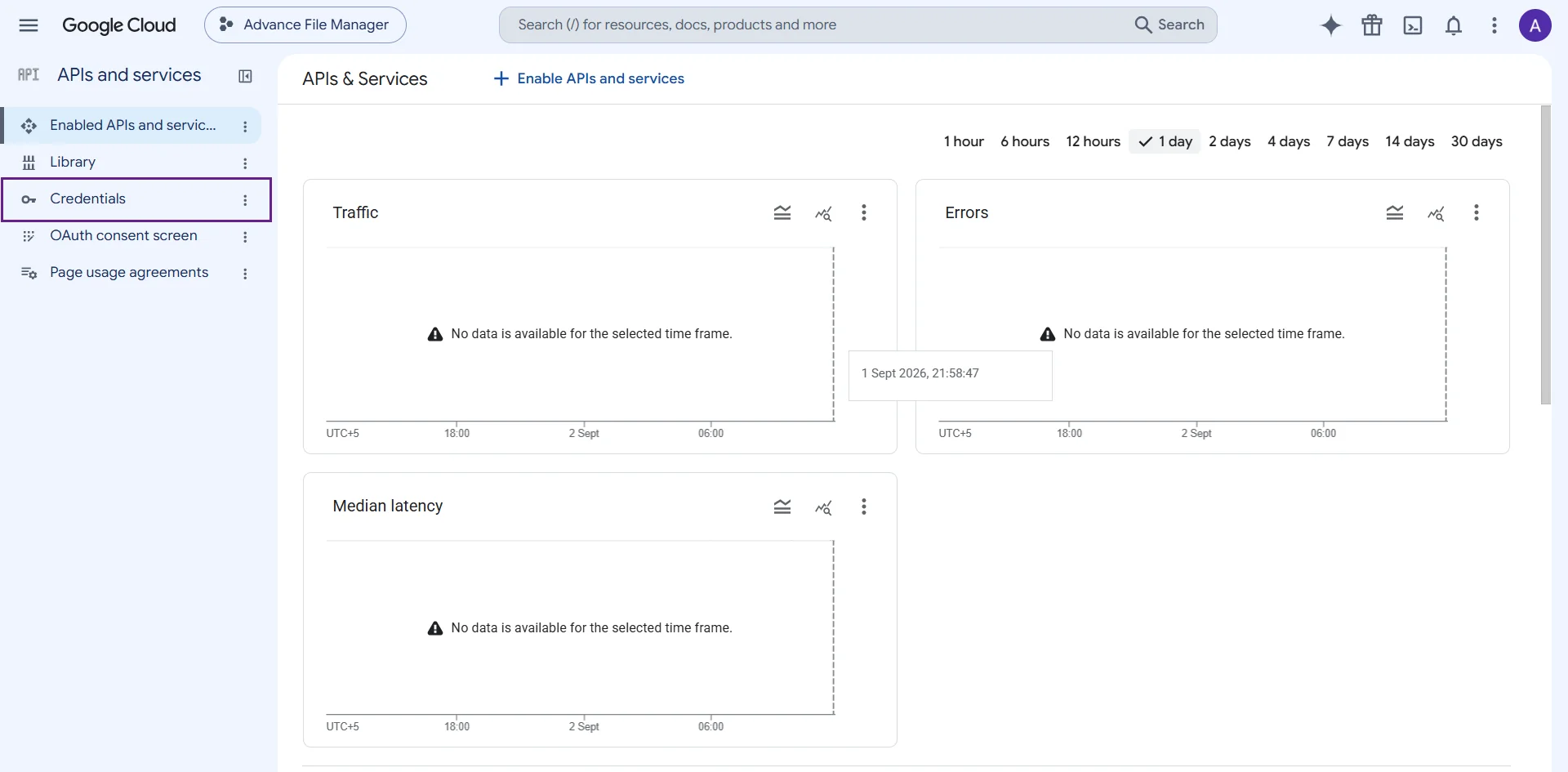
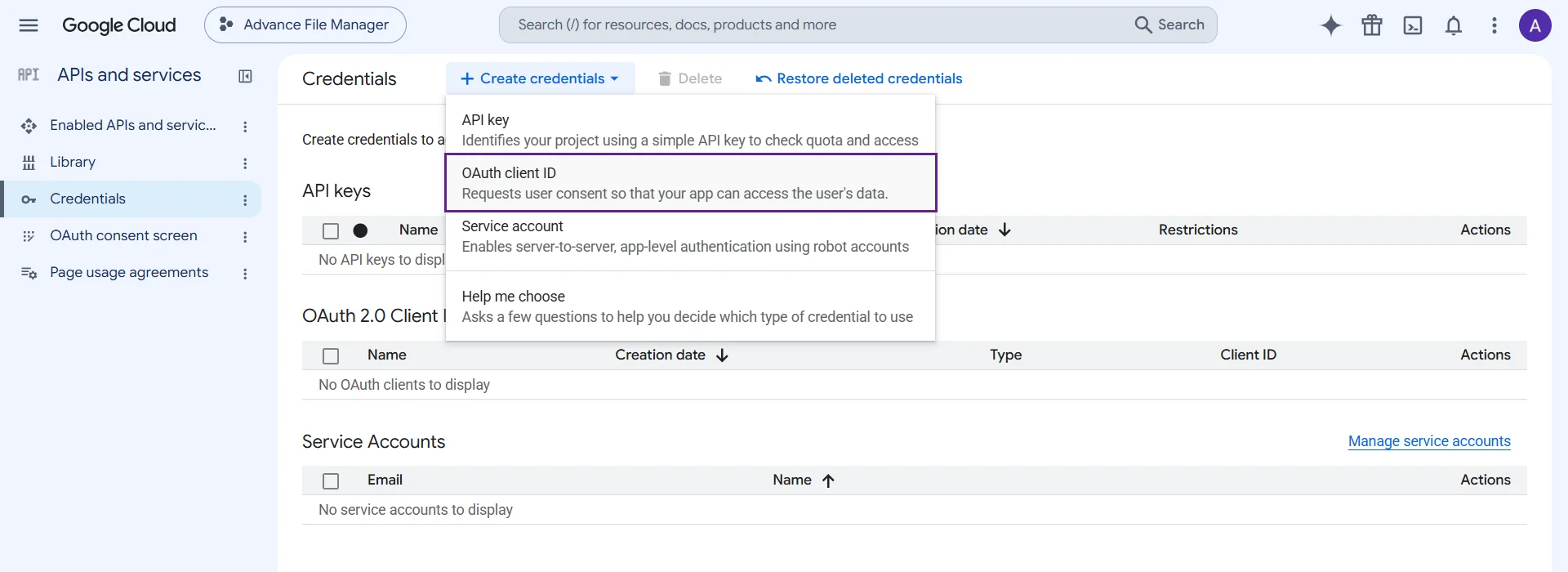
- Click on Create Credentials > OAuth Client ID.
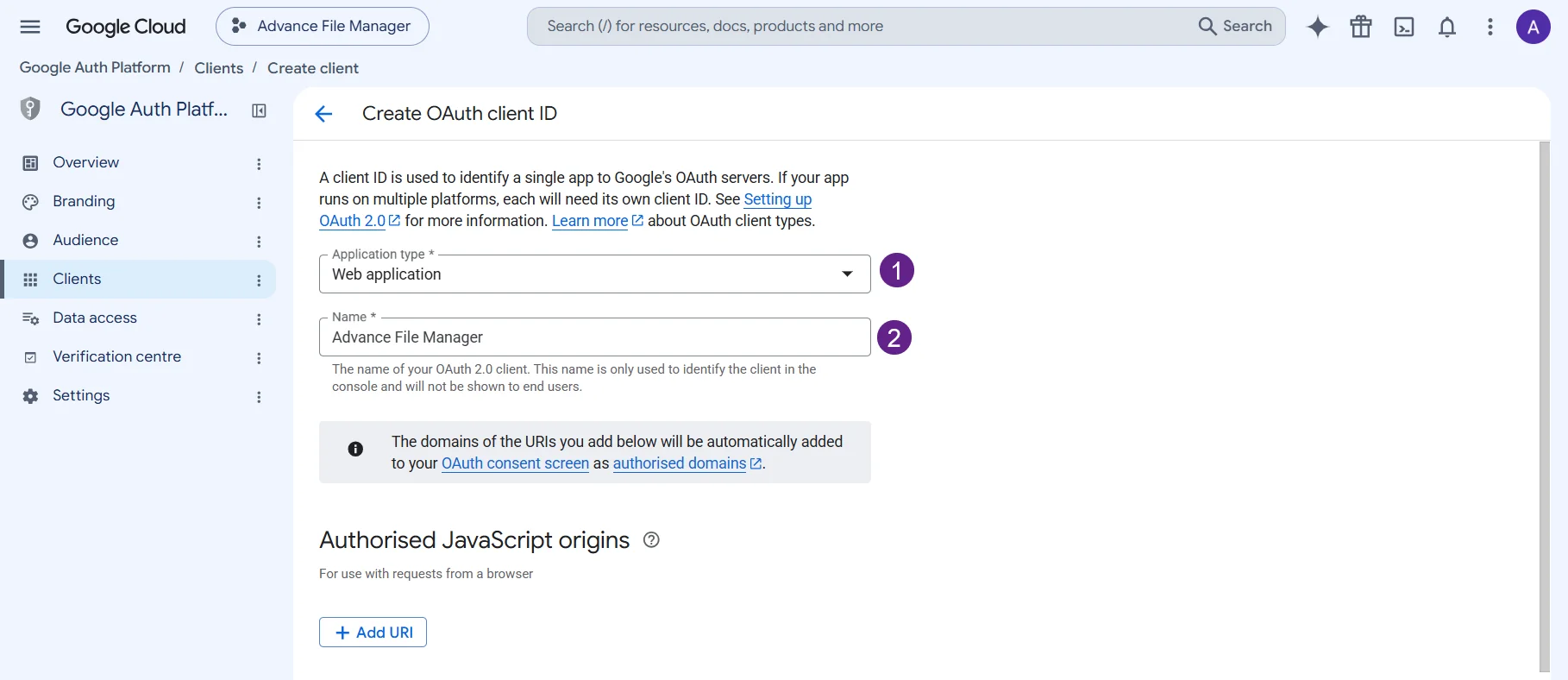
- In Application Type, choose Web Application.
- Enter a Name for OAuth 2.0 client.
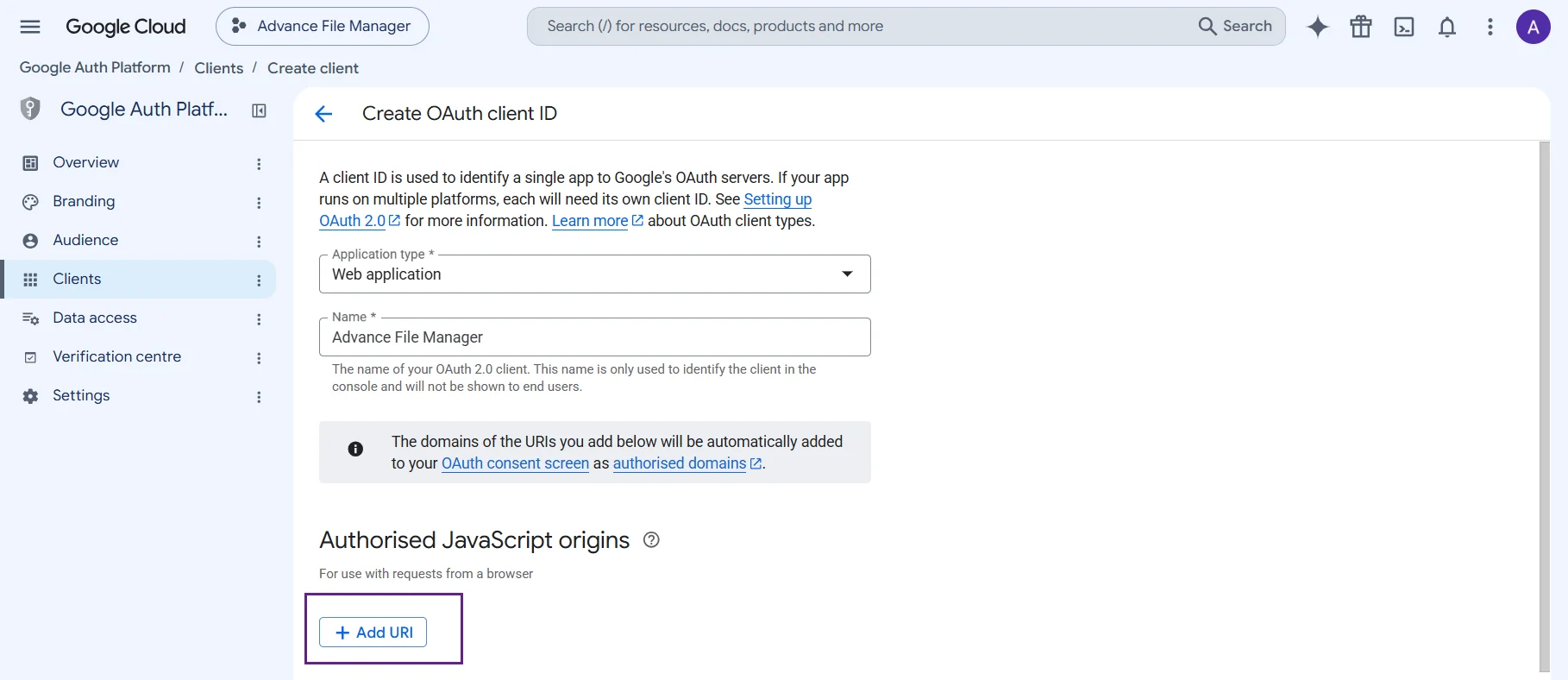
- Now in Authorised JavaScript Origins, click on Add URI.
- Go to Google Drive Settings in the plugin.
- You can find the JavaScript Origin and Redirect URL within the plugin interface.
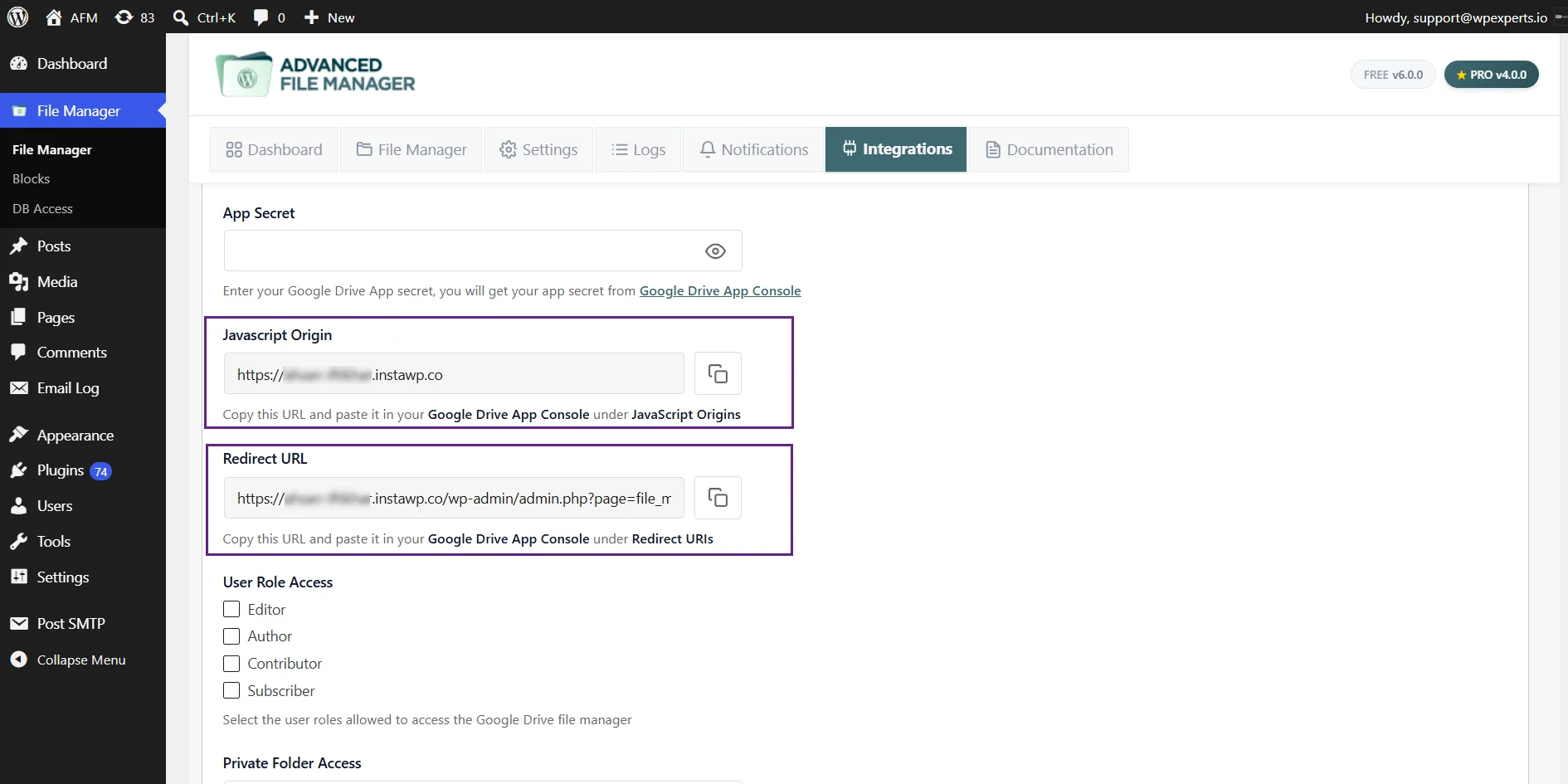
- Copy the Javascript Origin and Redirect URL from the plugin’s Google Drive Settings.
- Paste the Javascript Origin in Authorised JavaScript origins in Google Console > Create OAuth Client ID.
- Paste the Redirect URL in Authorised redirect URIs in Google Console > Create OAuth Client ID.
- Click on Create.
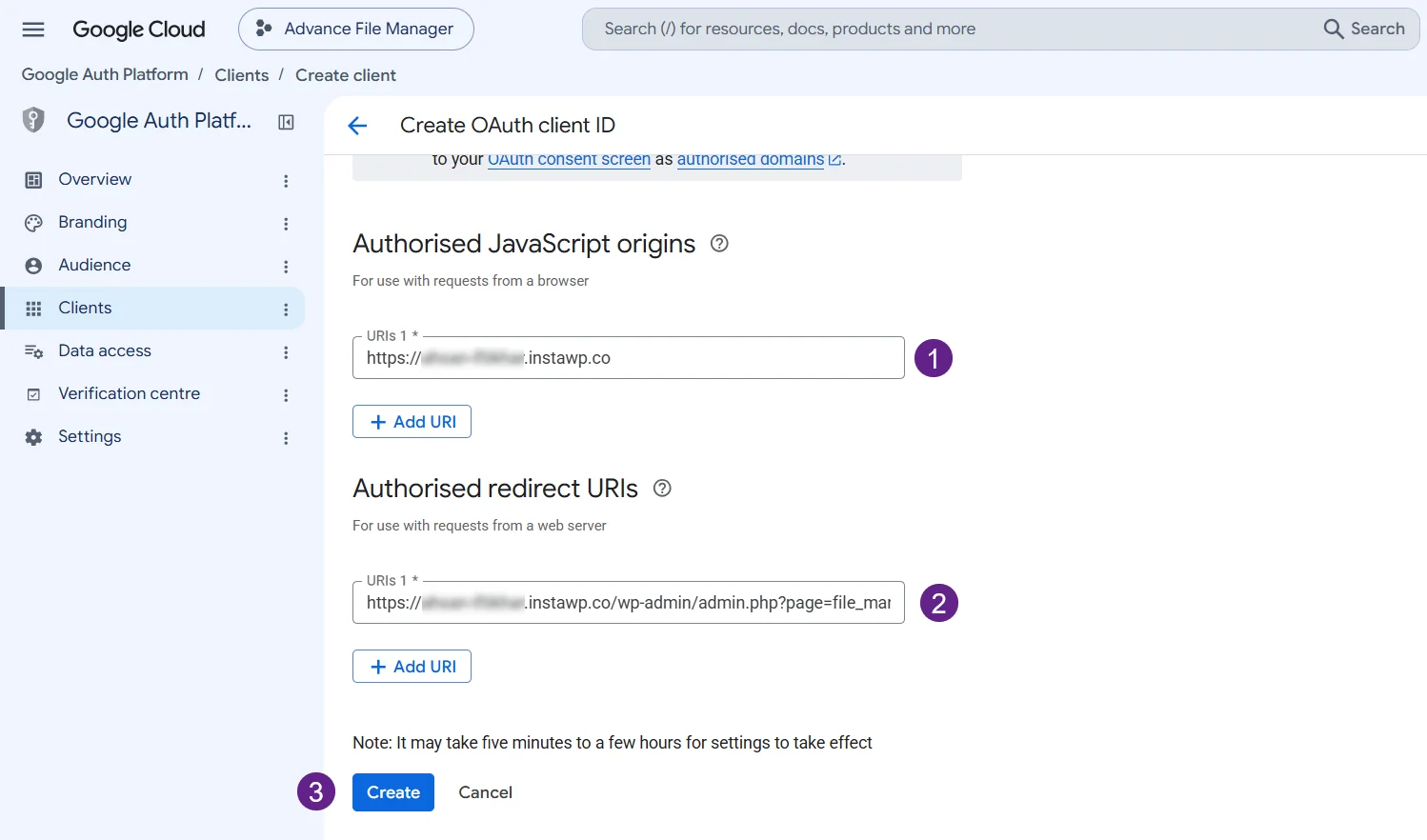
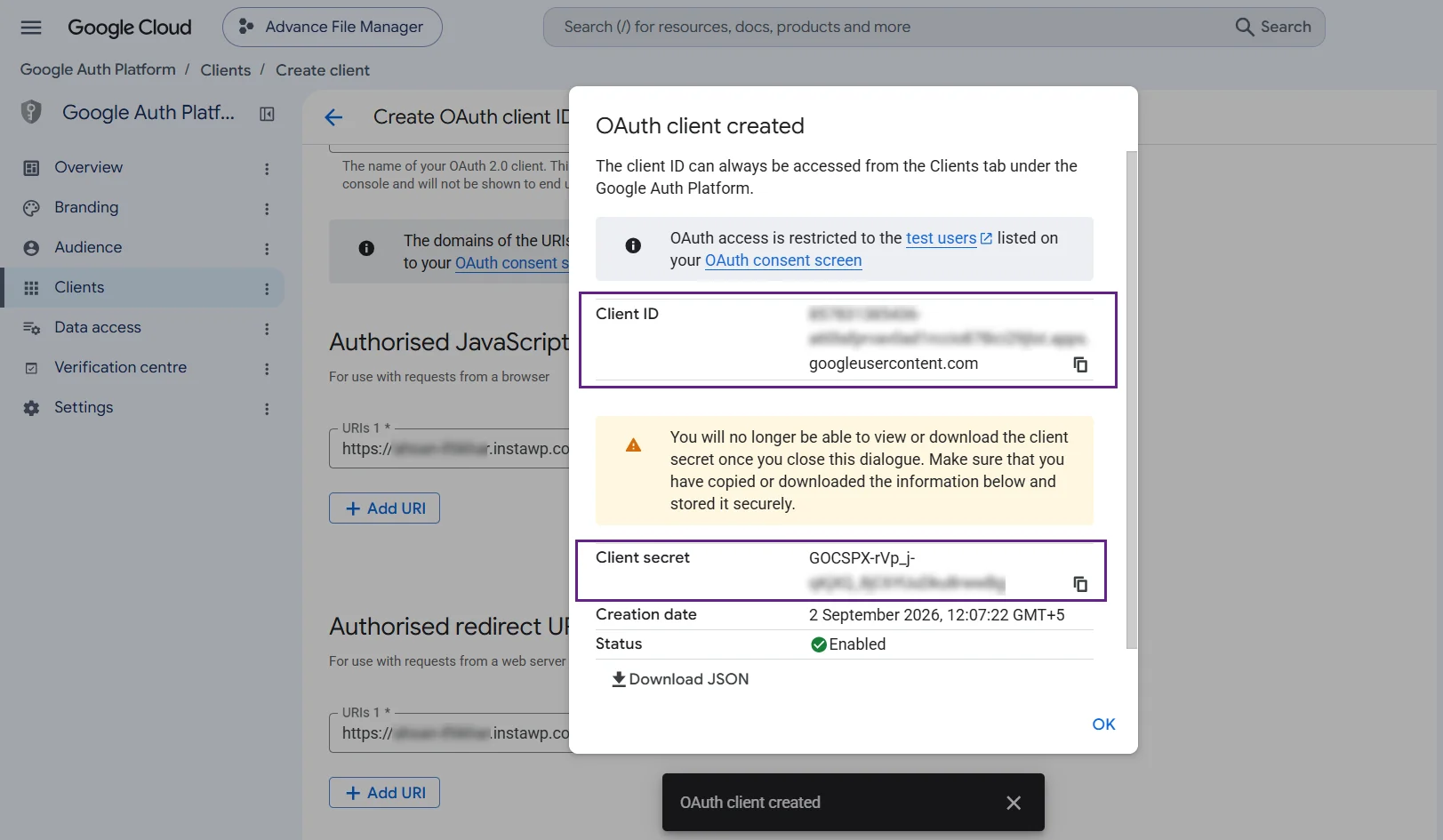
- The OAuth client will be created.
- Copy the Client ID and Client secret.
Authenticate the Integration
- Return to the Google Drive section in File Manager > Integration > Google Drive Settings.
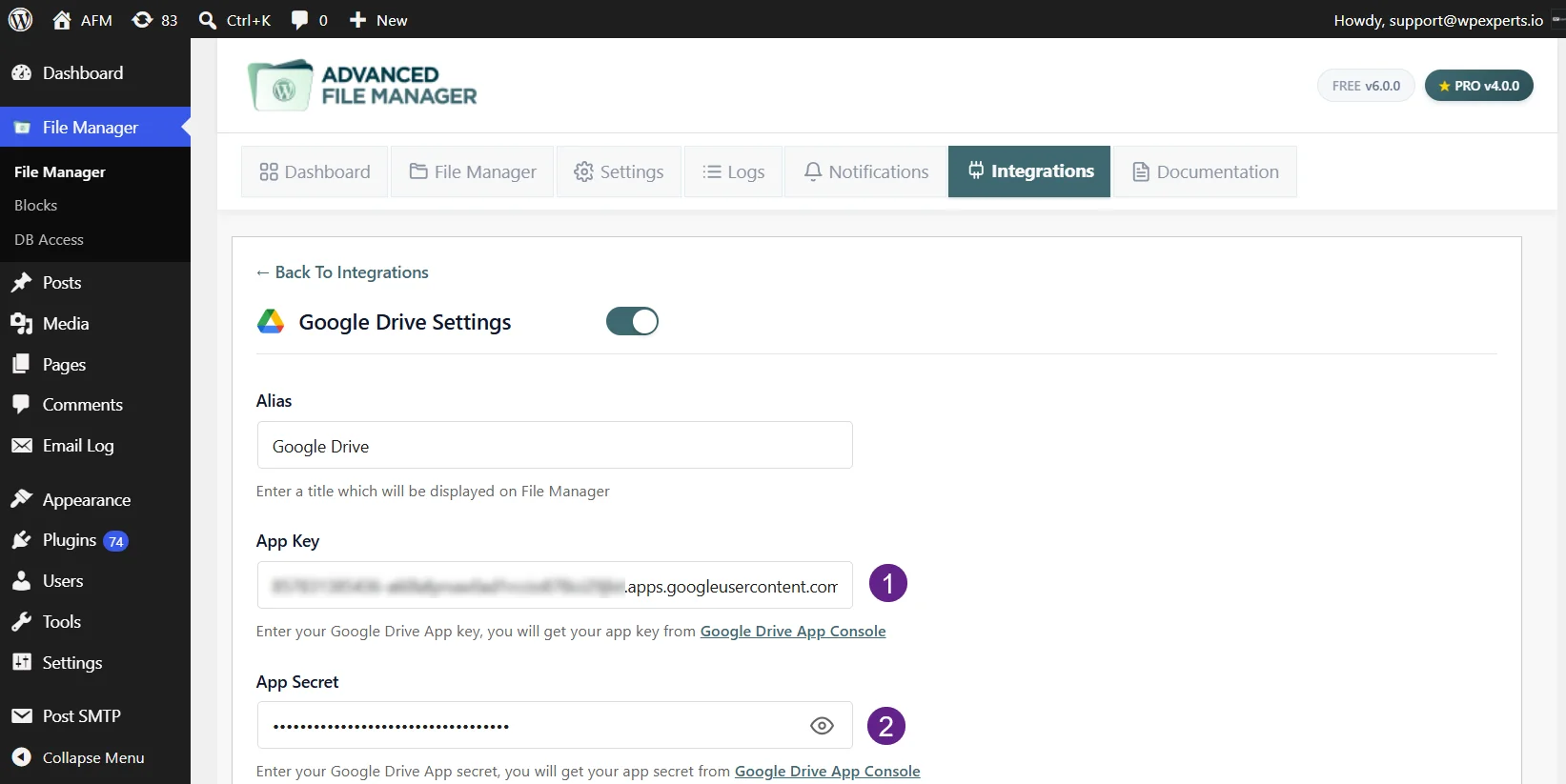
- Paste the Client ID in the App key and Client Secret in the App Secret.
- Click on the Save Changes button.
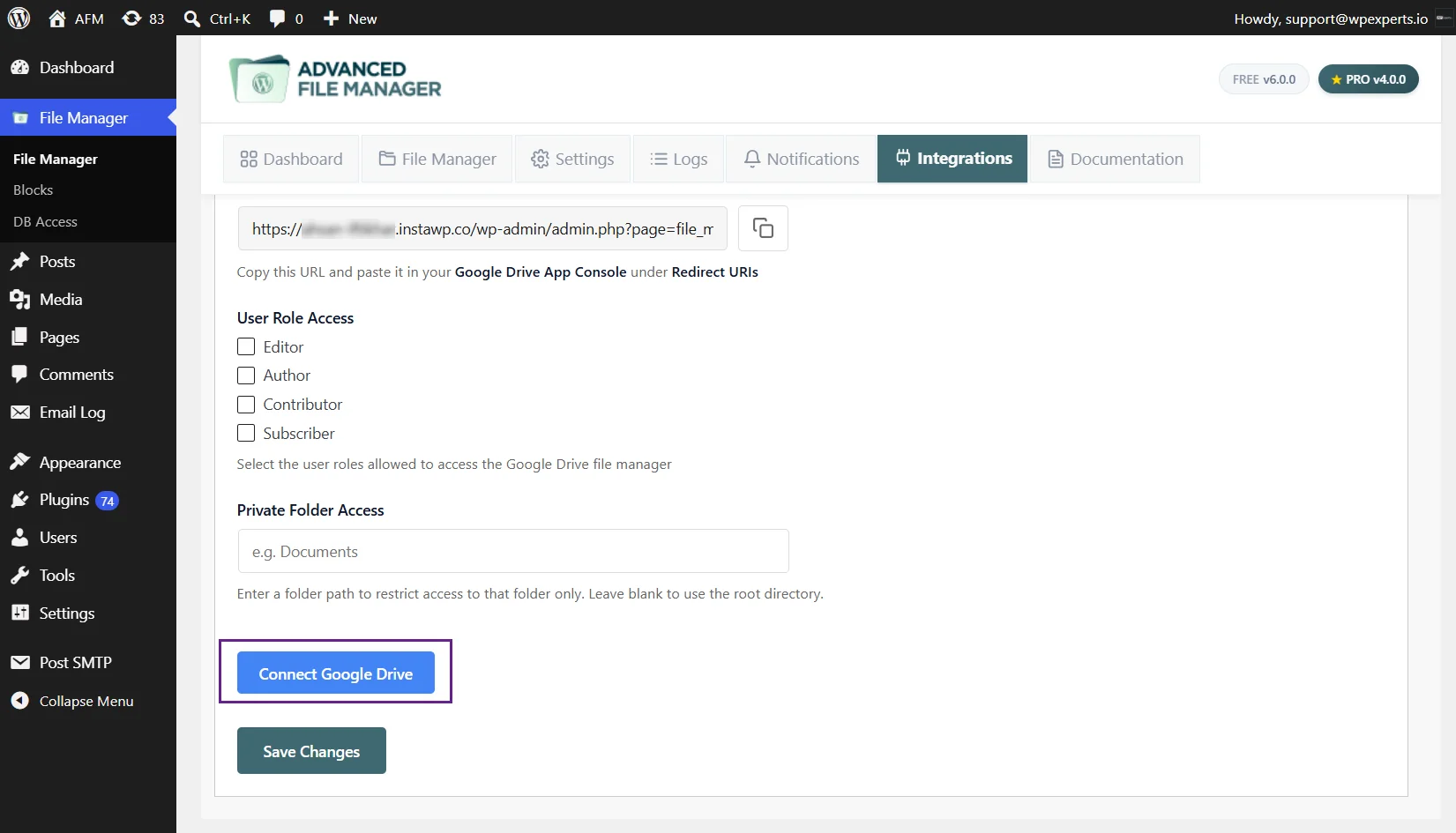
- Now Click on the Connect Google Drive button.
- You’ll be redirected to a Google verification page to grant access.
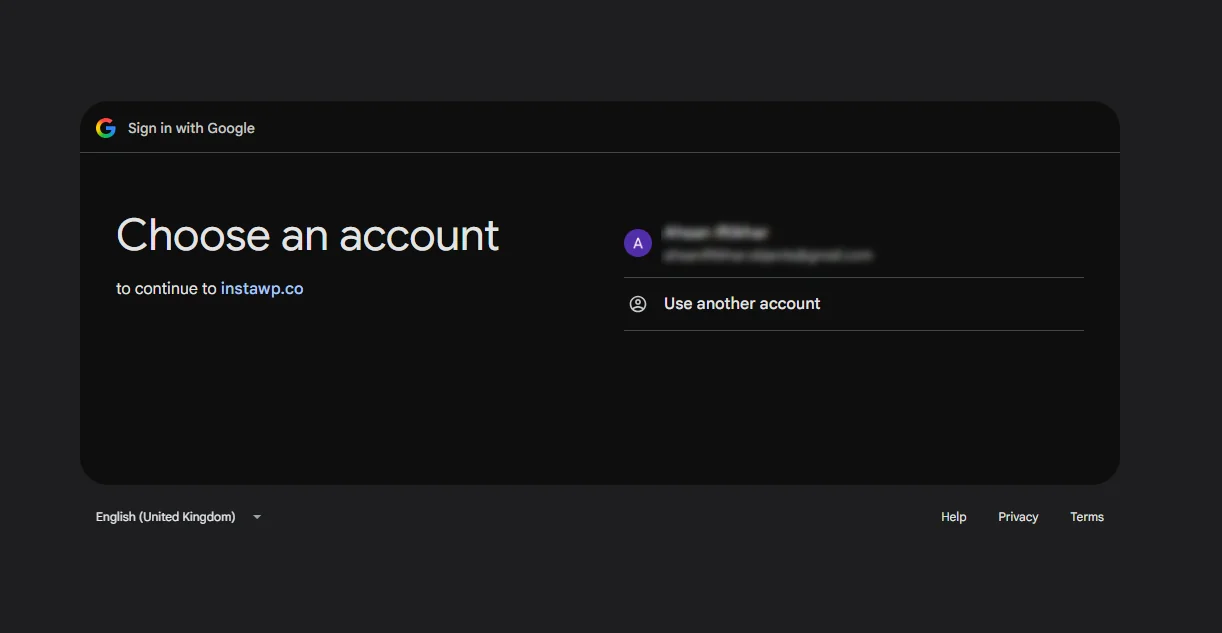
- After granting permission, you will be redirected back to your WordPress dashboard.
- Your Google Drive will be connected.
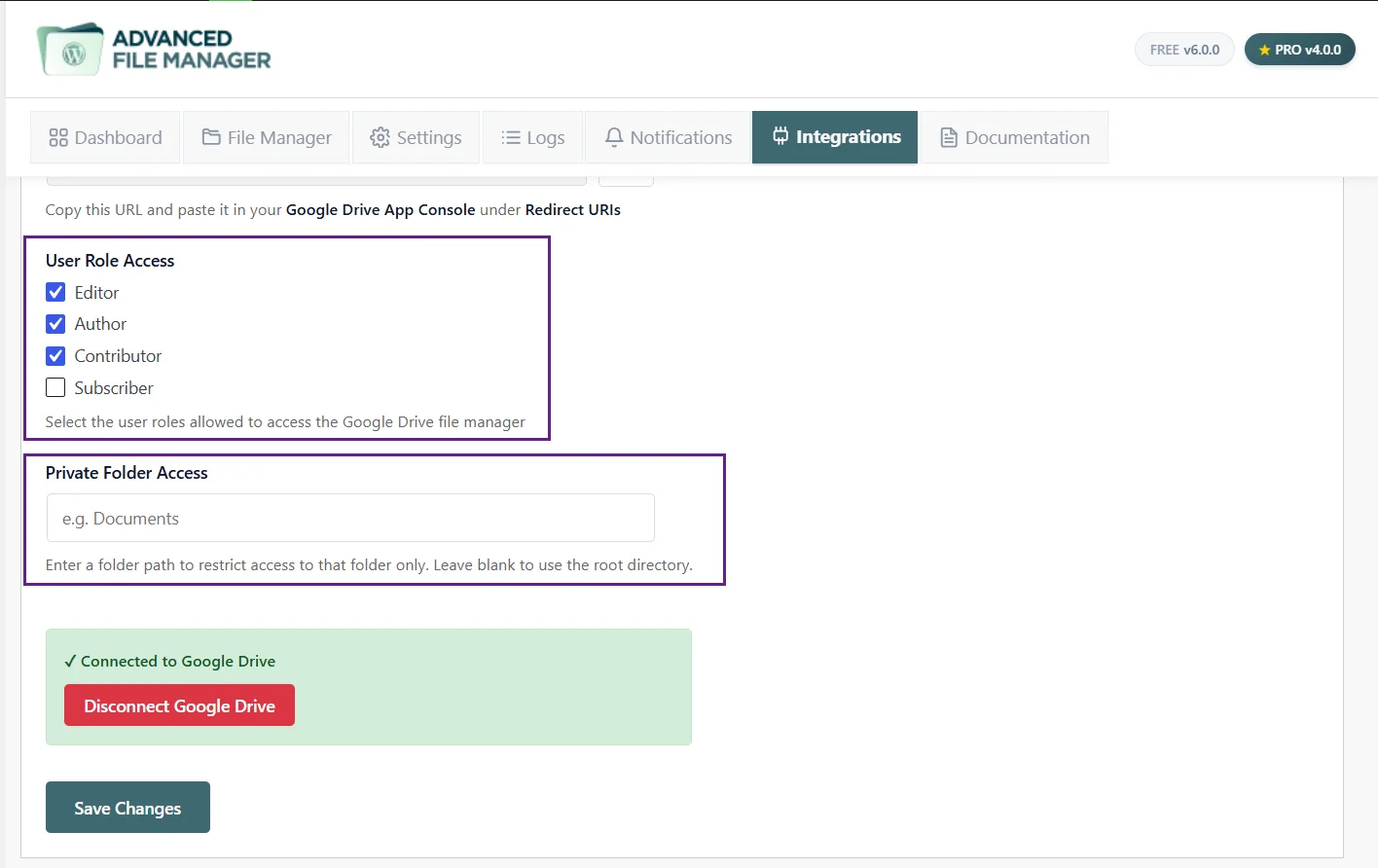
- You can select the user roles from the User Role Access that is allowed to access the Google Drive file manager.
- You can also restrict access to the folder, add folder in Private Folder Access.
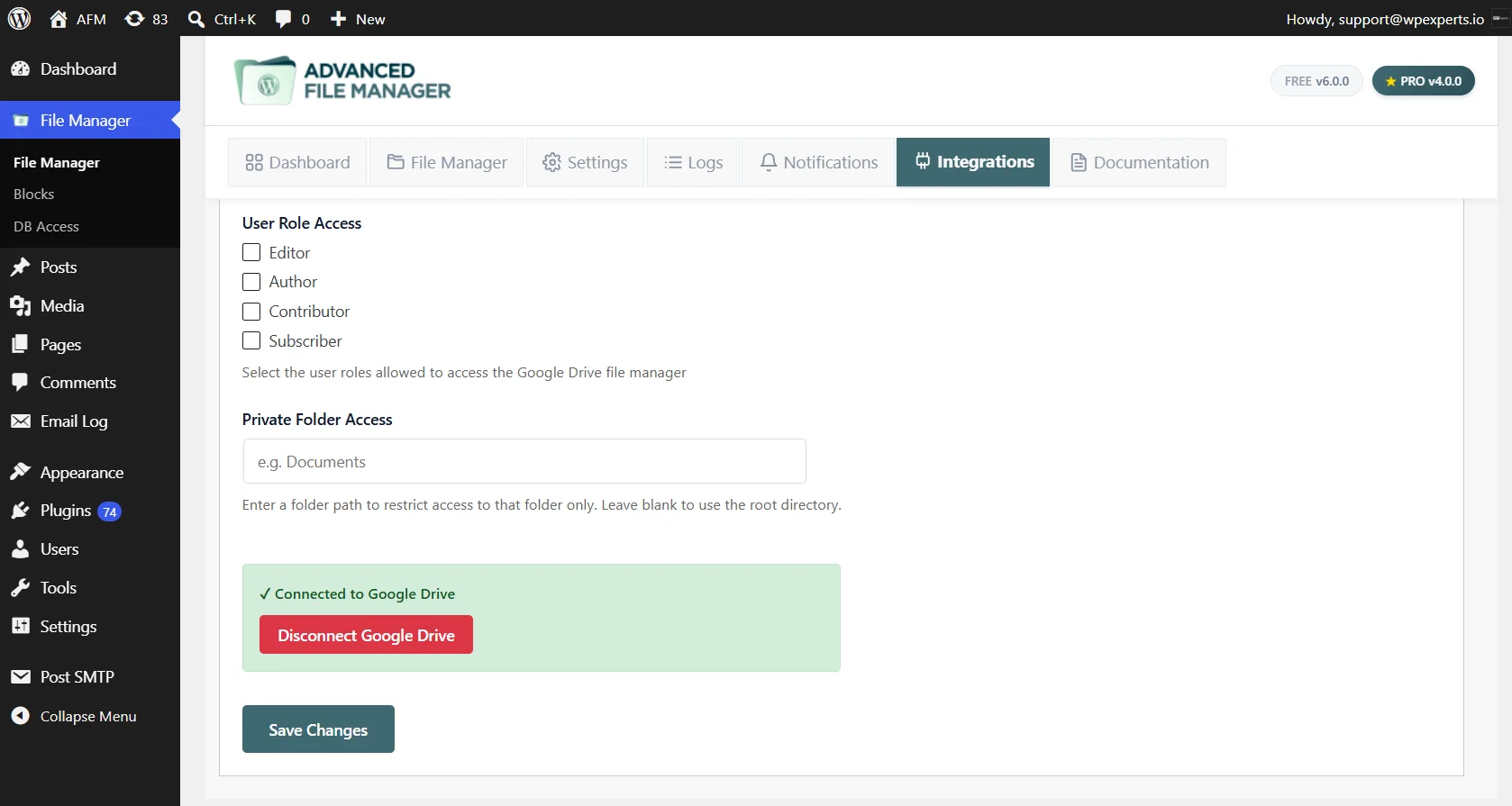
- Google Drive will now be accessible within Advanced File Manager.
- You can also authorize the User Roles who can access the google drive in filemanager.
- You can also add a Private Folder Access.
Access Google Drive in File Manager
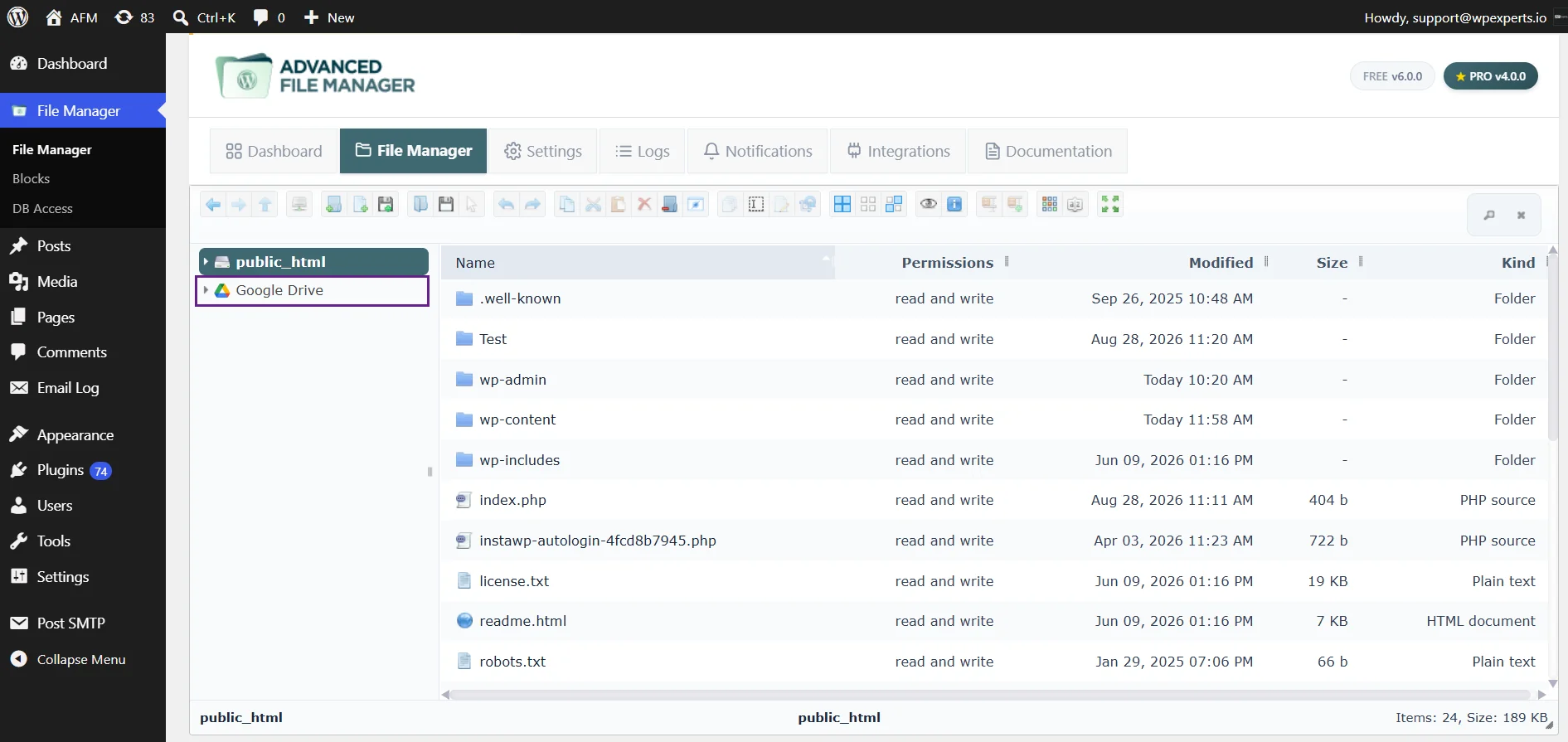
- Navigate to the WordPress Dashboard > File Manager.
- You can see the Google Drive in the tree.
Note: If you encounter authentication errors, double-check each step to ensure that all information is entered correctly.
Need Any Help?
You have successfully configured the Google Drive driver with WordPress. Don’t hesitate to contact our Support Team if you are still having difficulty or encounter any other issues. Our team of experts will troubleshoot all your problems and promptly provide you with a resolution. We take great pride in going above and beyond to provide excellent customer service.
