

Advanced File Manager Dashboard
The Advanced File Manager Dashboard provides a centralized overview of your WordPress file management environment. From the dashboard, you can monitor storage usage, file statistics, plugin settings, recent activity, connected cloud integrations, and quick access tools without navigating through multiple screens.
The dashboard helps you quickly understand your file manager status and access commonly used Advanced File Manager features from one place.
The Dashboard is available to both Free and Pro users. Pro users gain access to additional widgets, including cloud integration status and recent activity logs.
Dashboard
Navigate to WordPress Dashboard > File Manager.
The Dashboard tab opens automatically when you launch Advanced File Manager.
From the Dashboard, you can quickly view:
- Plugin Settings & Quick Access
- Storage Usage
- Integration Status (Pro)
- Recent Activity Logs (Pro)
Storage Usage
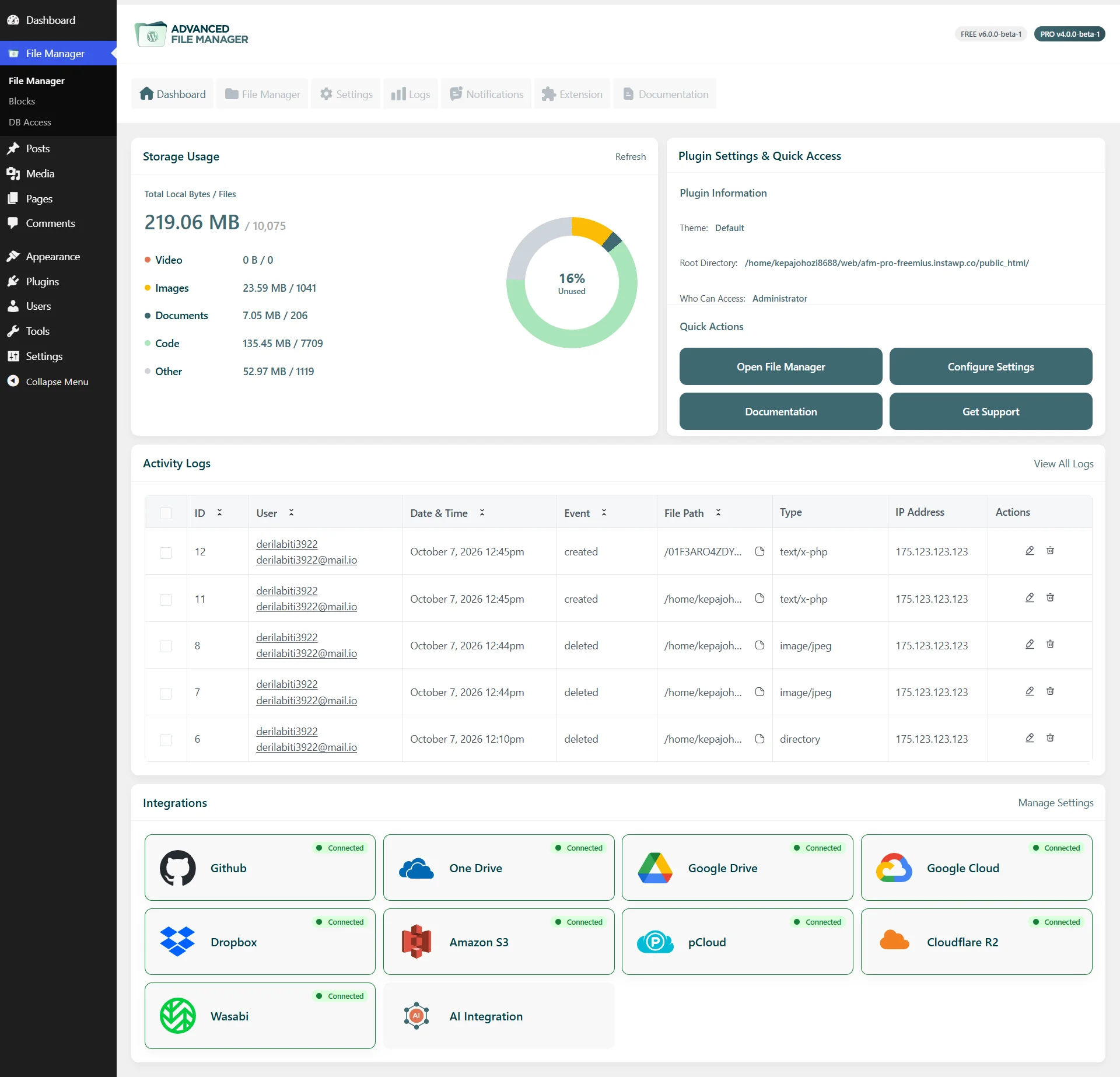
The Storage Usage section provides an overview of the storage space currently used by files on your server.
It displays the total storage used, the number of files, and a breakdown of files by category, such as Videos, Images, Documents, Code, and Other. The visual chart helps you quickly understand how your storage is being utilized.
The section also displays your website’s available Disk Capacity, allowing you to monitor storage consumption and identify which file types are using the most space.
You can also reload the data by clicking on the Refresh button.
Plugin Settings and Quick Access
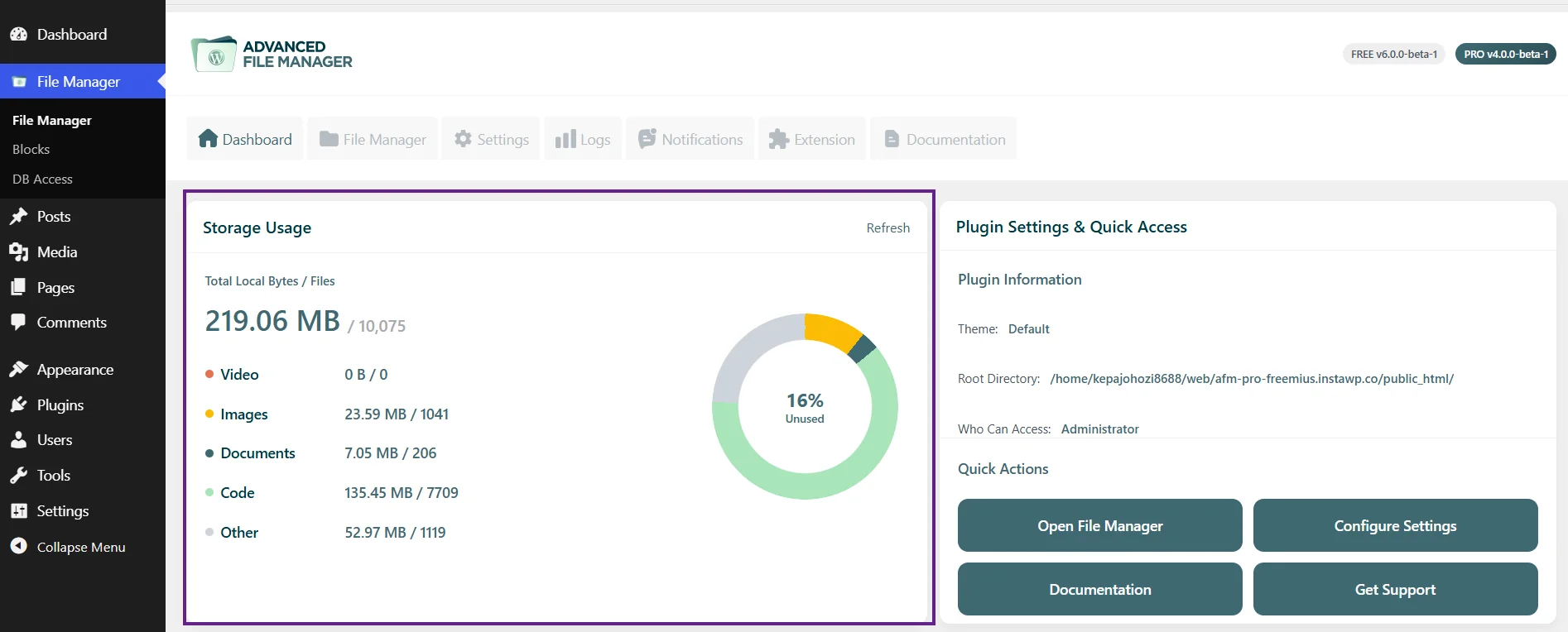
The Plugin Settings & Quick Access section provides essential information about your Advanced File Manager installation and shortcuts to commonly used actions.
Plugin Information
The Plugin Information area displays important details about your current configuration, including:
- Version: Displays the installed Advanced File Manager version.
- Theme: Shows the currently selected File Manager theme.
- Root Directory: Displays the server directory where the File Manager starts.
- Who Can Access: Shows the WordPress user roles that are permitted to access the File Manager.
This information helps administrators quickly review the current plugin configuration without navigating to the Settings page.
Quick Actions
The Quick Actions section provides shortcuts to frequently used areas of the plugin:
- Open File Manager: Opens the main File Manager interface for browsing and managing files.
- Configure Settings: Opens the plugin settings where you can configure File Manager options.
- Documentation: Opens the Advanced File Manager documentation for setup instructions and feature guidance.
- Get Support: Provides access to support resources when you need assistance.
Recent Activity Logs (Pro)
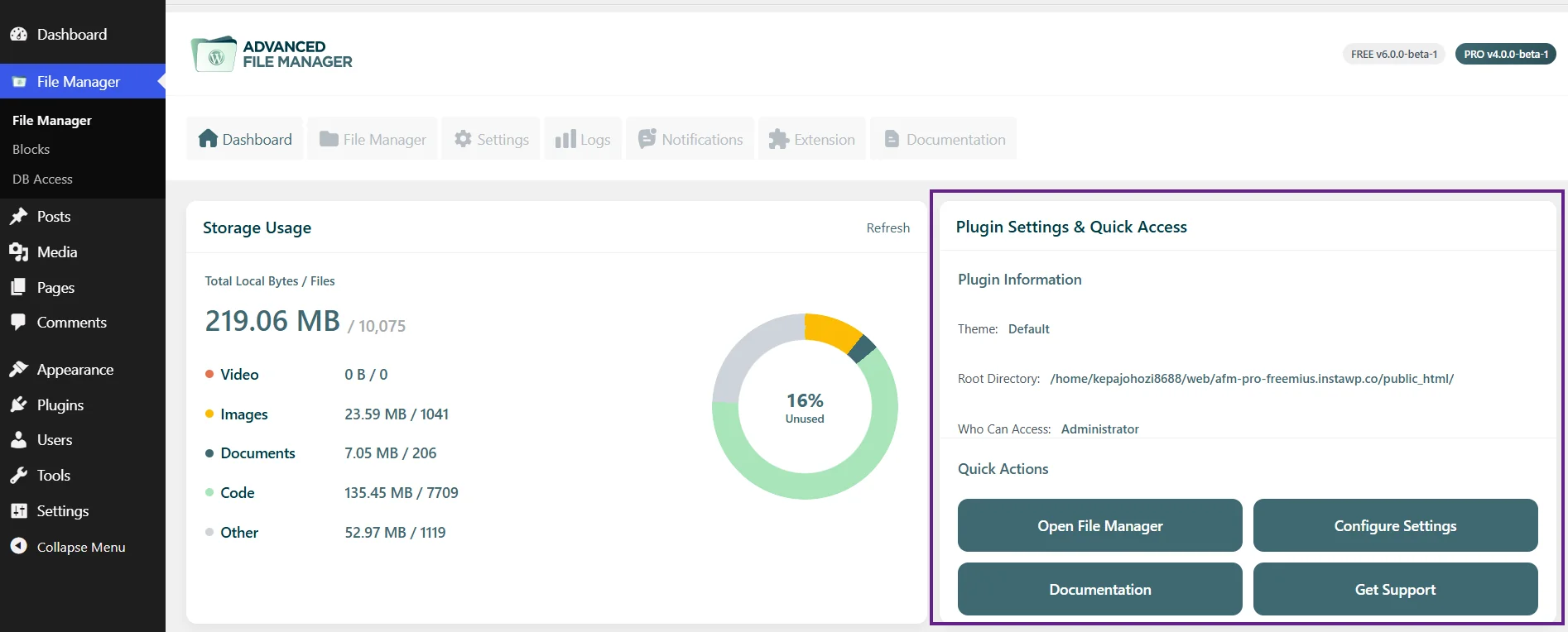
The Activity Logs section provides a quick overview of file-related activities performed through Advanced File Manager.
It can display information such as:
- ID: Unique identifier for the activity.
- User: WordPress user who performed the action.
- Date & Time: When the activity occurred.
- Event: The action performed, such as uploading, downloading, editing, or deleting a file.
- File Path: Location of the affected file or folder.
- Type: Type or category of activity.
- IP Address: IP address associated with the activity.
- Actions: Available actions for reviewing the log entry.
The Dashboard displays recent activity for quick reference. Click View All Logs to access the complete activity history.
Integration Status (Pro)
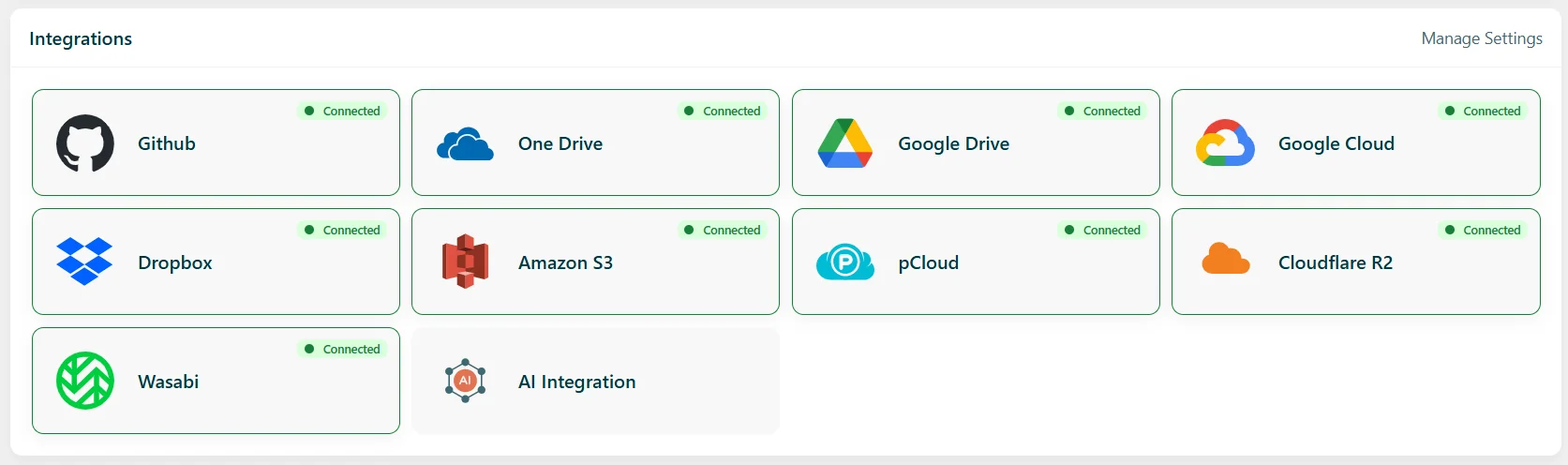
The Integrations section provides a centralized view of the cloud storage and external services available in Advanced File Manager.
Each integration card displays the service name and its current connection status, such as Connected or Disconnected. This allows you to quickly check which services are currently connected to your File Manager.
Available integrations may include:
- GitHub: Connect and manage files associated with your GitHub repositories.
- OneDrive: Access and manage files stored in Microsoft OneDrive.
- Google Drive: Manage files stored in Google Drive directly from the File Manager.
- Google Cloud: Connect to Google Cloud storage for managing cloud-based files.
- Dropbox: Access and manage files stored in Dropbox.
- Amazon S3: Connect to Amazon S3-compatible storage for cloud file management.
- pCloud: Connect your pCloud account and manage cloud files from WordPress.
- Cloudflare R2: Connect Cloudflare R2 for scalable cloud-based file storage and management.
- Wasabi: Connect Wasabi cloud storage and manage stored files directly through Advanced File Manager.
- AI Integration: Connect supported AI services to enable AI-powered capabilities within Advanced File Manager.
Click Manage Settings to open the Integrations settings and configure available integrations.
Need Help?
If you experience any issues or have questions, please contact our Support Team. Our experts are always available to help ensure you get the most out of Advanced File Manager.
