

How to Redeem Your AppSumo Code
Follow the complete procedure to redeem your AppSumo code and activate Advanced File Manager with the lifetime deal refer to our step by step guide.
Step 1: Purchase Advanced File Manager
- Log in to your AppSumo.
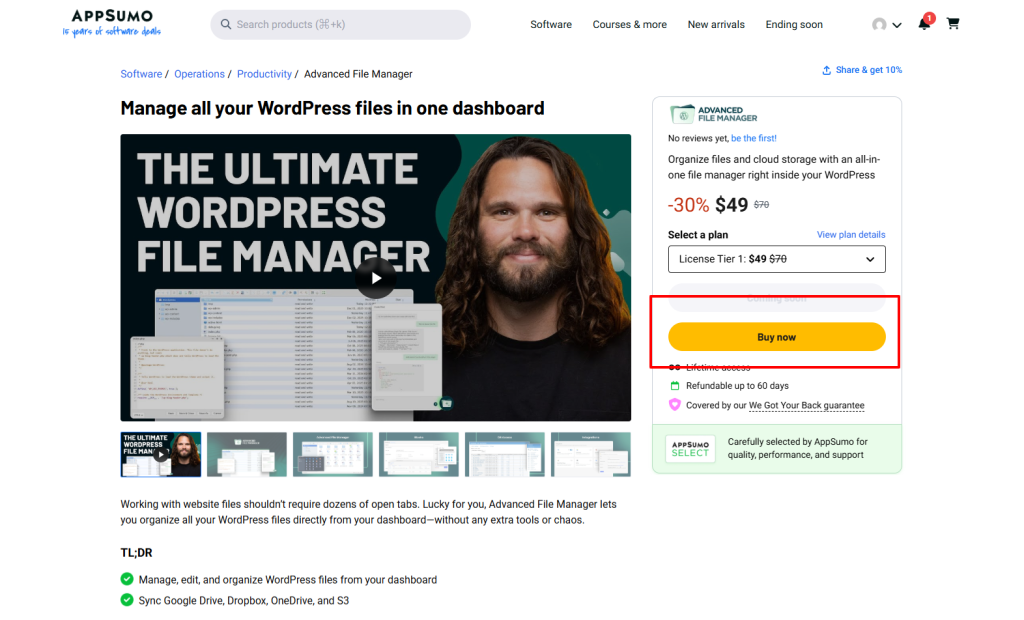
- Use the search bar to find Advanced File Manager.
- Open the product page and click Buy Now.
Step 2: Select a Plan
- On the pricing screen, you will see multiple tier plans.
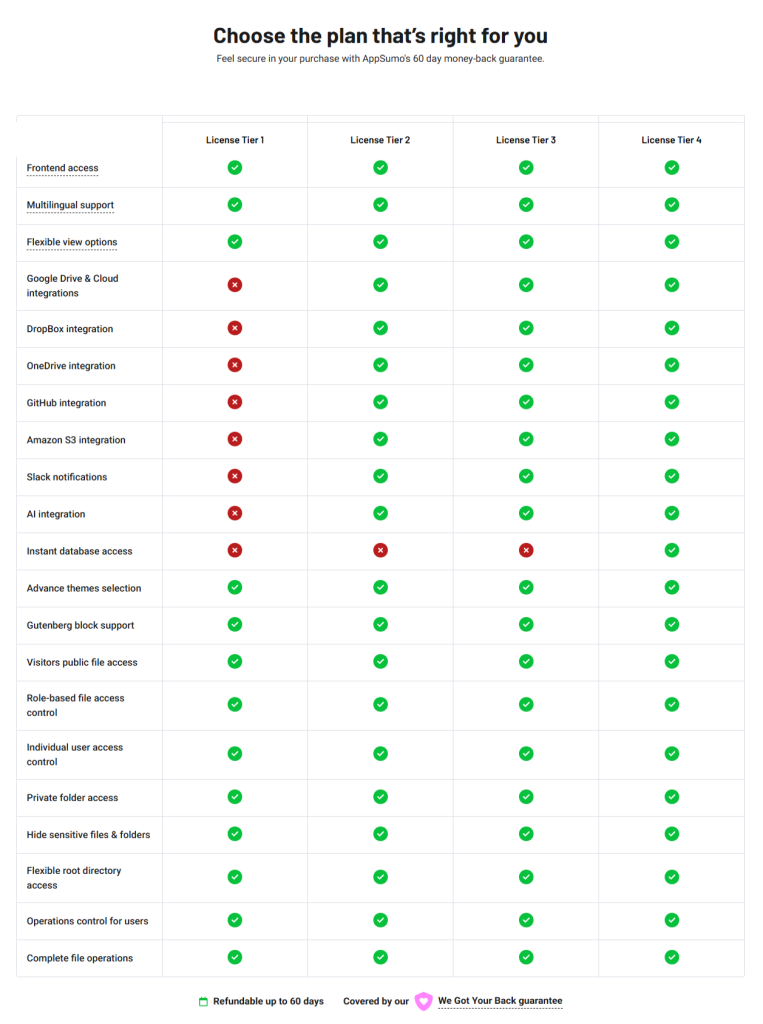
- Select the tier that best fits your requirements.
- Complete the checkout process.
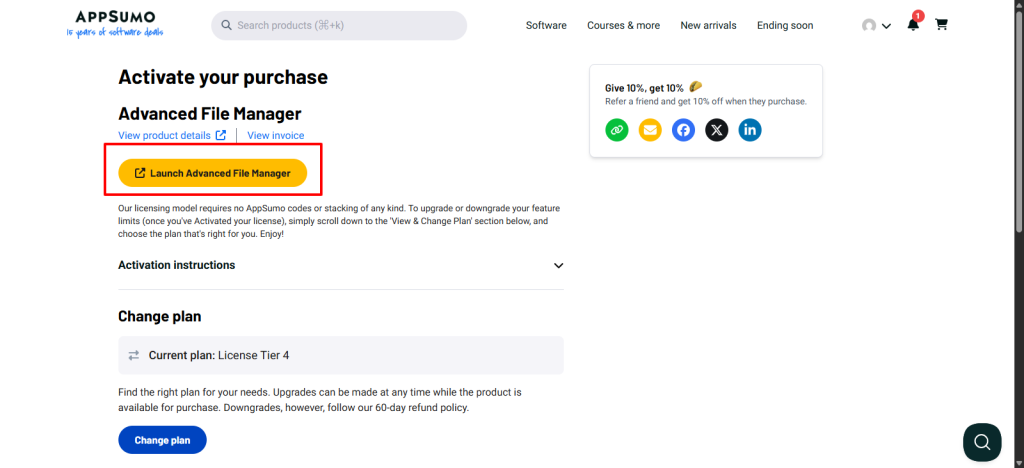
After purchase, you will be redirected to the Activate Your Plugin screen.
Your purchased plan will be displayed, and you can click Launch Advanced File Manager.
You will be redirected to the My Account login page. Enter your registered email address; the license key will be displayed in the corresponding field.
After submitting your email, a password setup link will be sent to that email address. Set your password, then return to the My Account page and log in using your email and password.
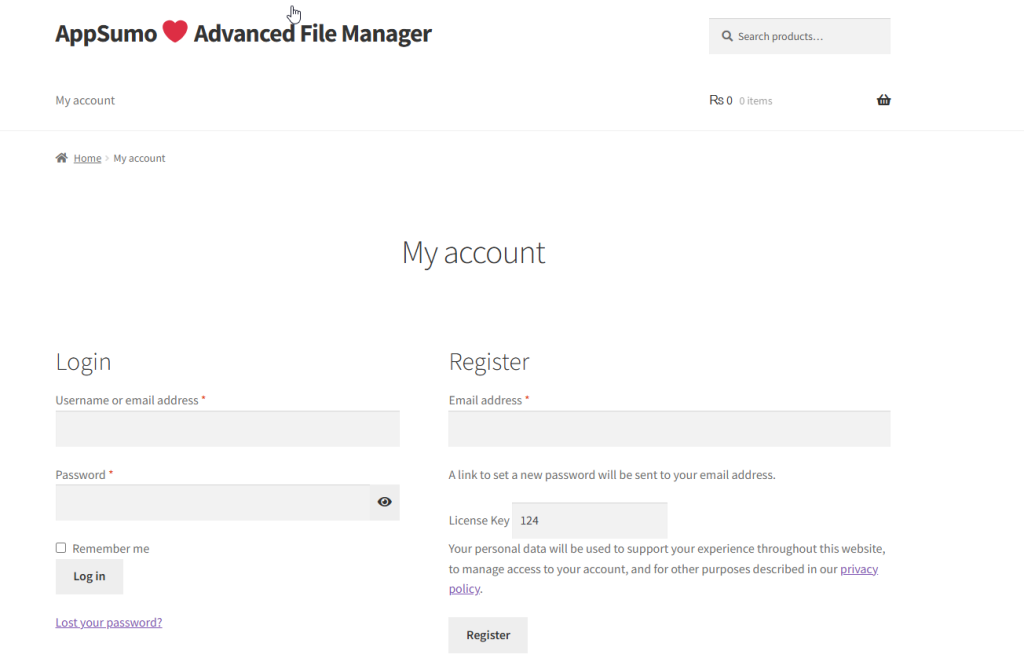
Note: If AppSumo does not automatically redirect you to the Advanced File Manager account page, please navigate there manually and enter your credentials as described above.
Step 3: Download the Plugin and Get License Key
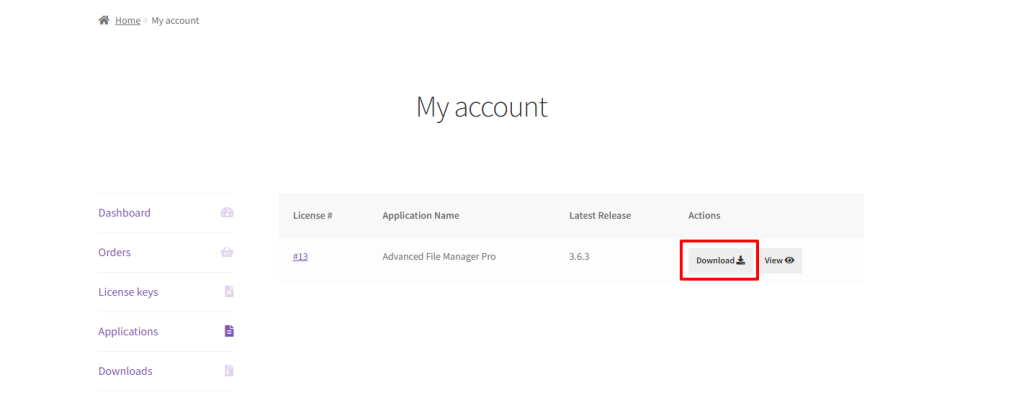
- Go to My Account → Applications in your AppSumo dashboard.
- Locate Advanced File Manager.
- Download the Pro plugin.
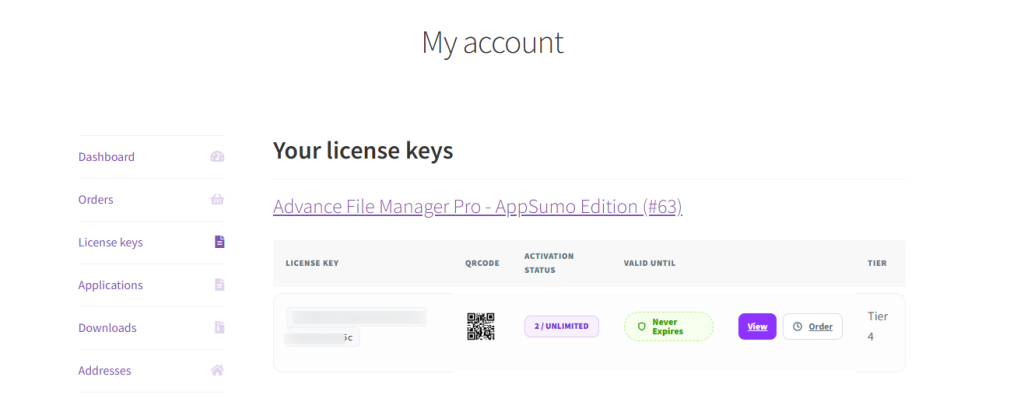
Copy your license key from Account → License.
Step 4: Install the Plugin
- Log in to your WordPress Admin Dashboard.
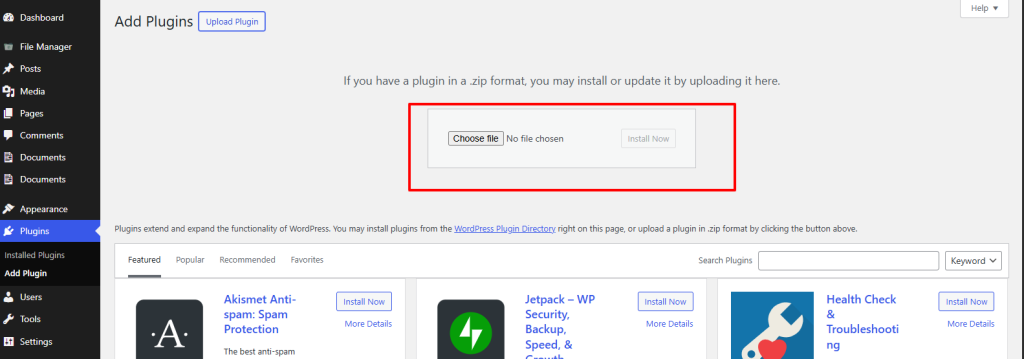
- Navigate to Plugins → Add New → Upload Plugin.
- Upload and install the Advanced File Manager Pro plugin.
- Make sure the free version of Advanced File Manager is also installed and active.
Note: Make sure the free Advanced File Manager plugin is installed and activated from WordPress.org. Refer to the step-by-step guide for instructions on how to install and activate the plugin.
Step 5: Activate the License Key
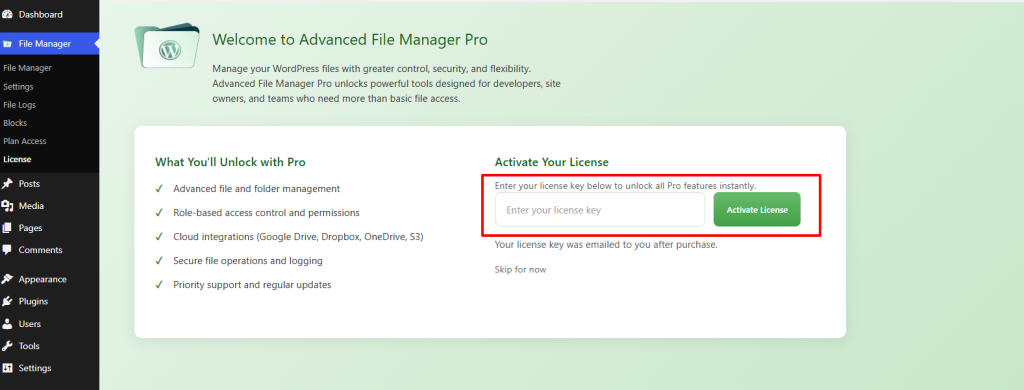
- After installation, you will be redirected to the License Activation screen.
- Paste your AppSumo license key.
- Click Activate License.
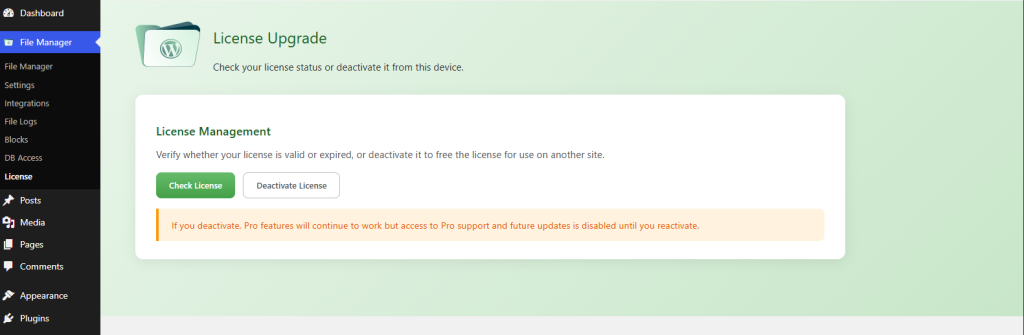
Once activated, you will be taken to the License Management page, where you can:
- Verify license status
- Deactivate the license if required
If you encounter any issues during the installation process, please don’t hesitate to reach out to our Support team. We’re here to help.
