

Google Cloud Storage Integration — Direct Access to Your Buckets
Connect your Google Cloud Storage to WordPress using Advanced File Manager. Browse, upload, and manage your Google Cloud Storage (GCS) files directly from your WordPress dashboard.
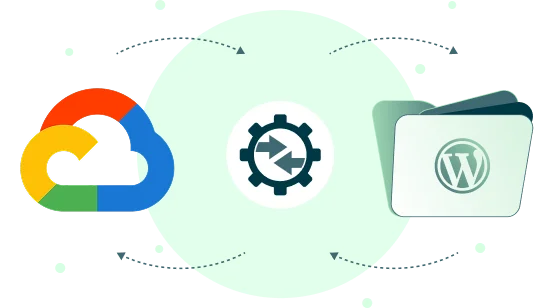
3 Easy Steps to Integrate Google Cloud Storage with WordPress
Install Advanced File Manager
Go to Plugins → Add Plugin and install Advanced File Manager Pro. Then navigate to Advanced File Manager → Integrations → Google Cloud and enable the integration.
Step
01
Set up Google Cloud Storage
Upload your Service Account JSON Key, enter your Storage Bucket name, install the Google Cloud Library to establish a secure connection, and complete configuration.
Step
02
Save and Sync
Save your settings to establish the connection. Your Google Cloud bucket is now available to upload, download, and organize files from WordPress.
Step
03
Key Benefits of Google Cloud Storage Integration

Enterprise-Grade Cloud Access
Manage Google Cloud Storage buckets within WordPress, without switching between the console and your site.

Effortless File Organization
Browse, upload, and structure bucket contents through a clean, intuitive interface.

Built for Small & Large Scale
Handle high-volume media, backups, and documents on infrastructure trusted by the world’s largest cloud workloads.

IAM-Backed Security
Every action respects your Google Cloud IAM permissions, so access stays exactly as tight as you configure it.
Other Supported Cloud Integrations
Connecting your cloud storage services with Advanced File Manager streamlines your workflow.






Why Google Cloud Storage Integration Matters

Ready to Organize Your WordPress Files & Document Libraries?
Frequently Asked Questions
If you still have any questions in mind, check out our frequently asked questions, or feel free to contact us directly.