
How to Use Divi and Elementor with Advanced File Manager
The Advanced File Manager Block integrates seamlessly with Divi and Elementor, allowing you to display your configured file manager blocks directly on the frontend of your WordPress website using your preferred page builder.
Below is a complete guide for both methods.
Before proceeding, make sure you have installed and activated the Advanced File Manager Pro plugin and created at least one block. You can follow the block creation guide here.
1. Display Using Elementor
Advanced File Manager allows you to easily insert file manager blocks using Elementor file manager widgets.
To display via Elementor, follow the steps below:
Note: Make sure Elementor and its Theme Builder are installed and activated on your website.
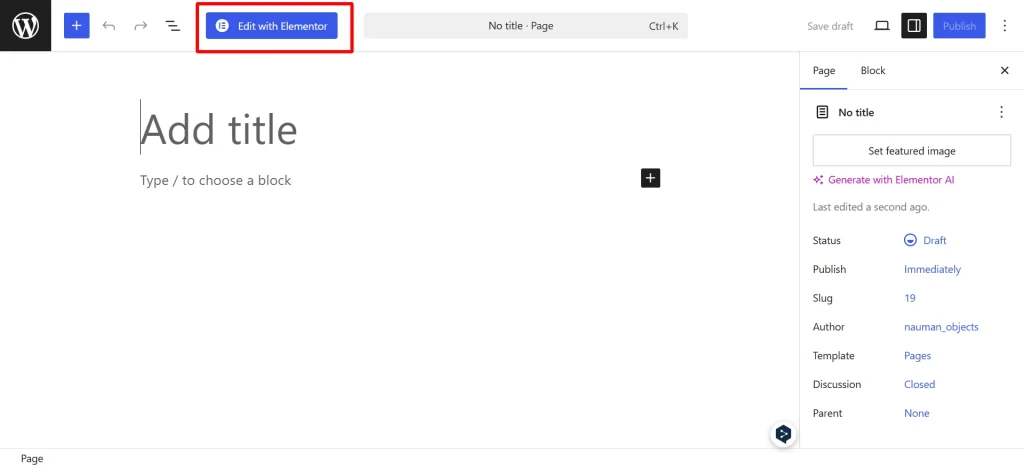
Step 1: Create or Edit a Page
- Go to WordPress Dashboard → Pages / Posts → Add New.
- Click on Edit with Elementor.
Step 2: Add the File Manager Widget
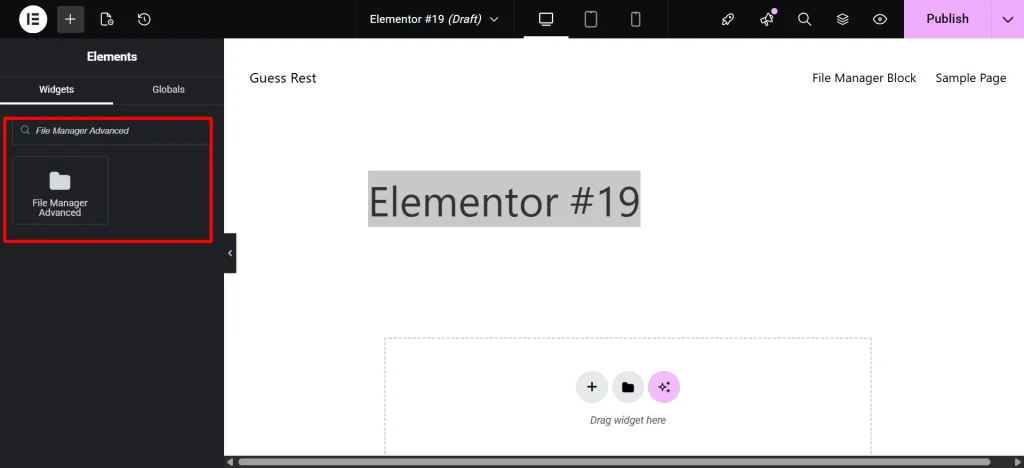
- In the Elementor panel (left side), search for “File Manager Advanced”.
- Drag and drop the widget into your page layout.
Step 3: Select Your Block
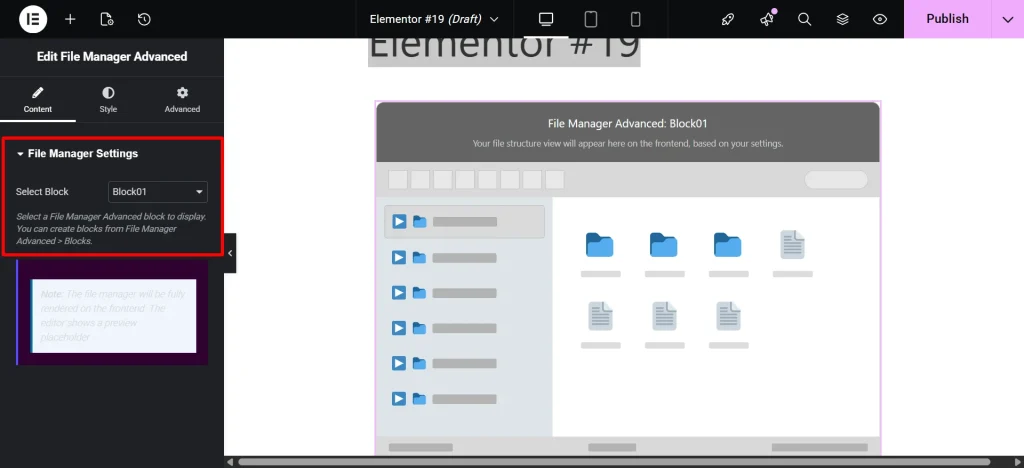
- From the dropdown menu, select the block you previously created in Advanced File Manager.
- Adjust settings if required.
Step 4: Publish the Page
Click Publish to display the file manager on your WordPress page.
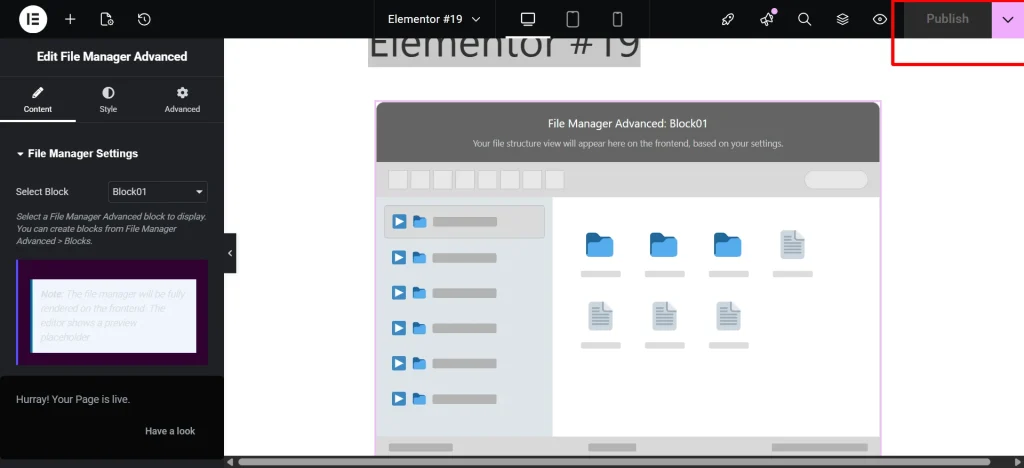
Your Advanced File Manager block will now be displayed on the frontend file manager for WordPress using Elementor.
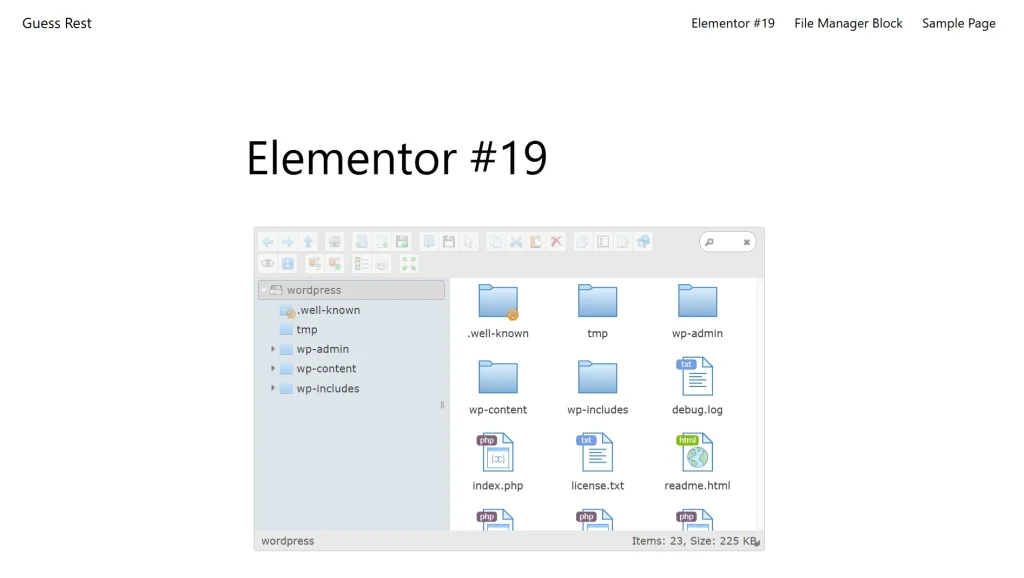
2. Display Using Divi Theme
Advanced File Manager also supports Divi Builder, allowing you to embed the file manager in Divi layouts.
To display via Divi, follow the steps below:
Note: Ensure that the Divi Theme or Divi Builder is installed and activated on your website.
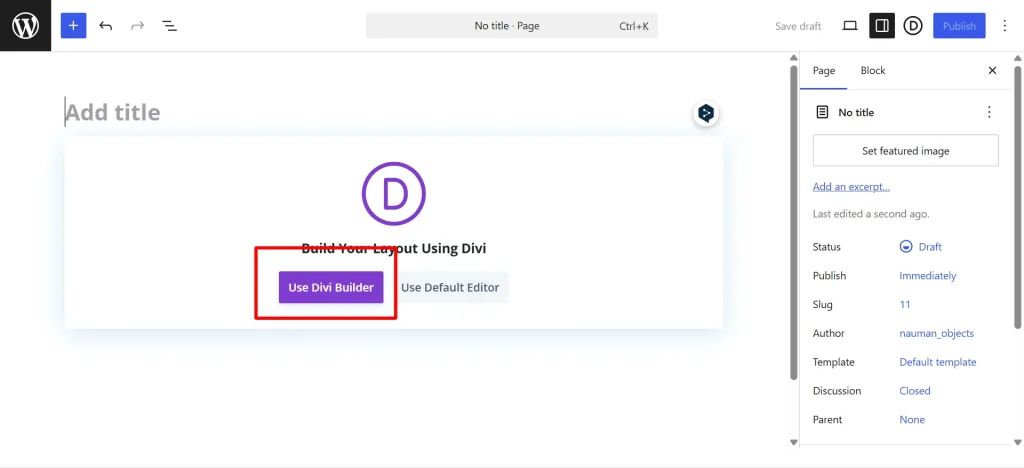
Step 1: Open Divi Builder
- Go to WordPress Dashboard → Pages / Posts → Add New.
- Click on Use Divi Builder.
Step 2: Add the File Manager Module
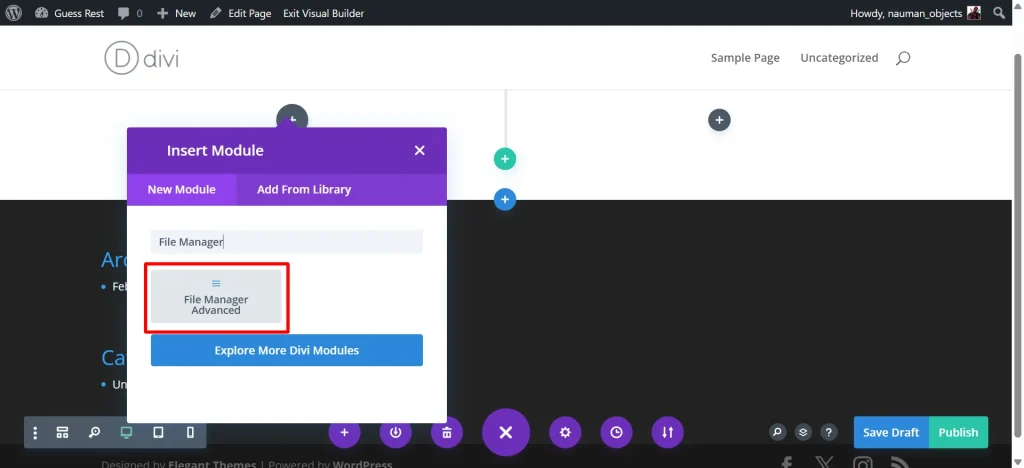
- Click to add a new module.
- In the search bar, type “File Manager Advanced”.
- Select the module.
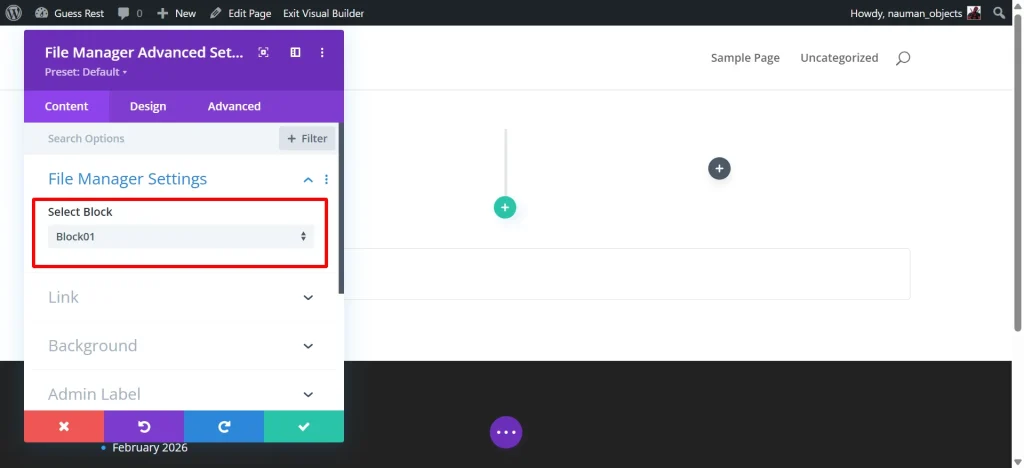
Step 3: Select Your Block
- Choose your previously created block from the dropdown list.
- Customize settings as needed.
Step 4: Save and Publish
Click Save and then Publish the page to display the file manager on your wordpress page.
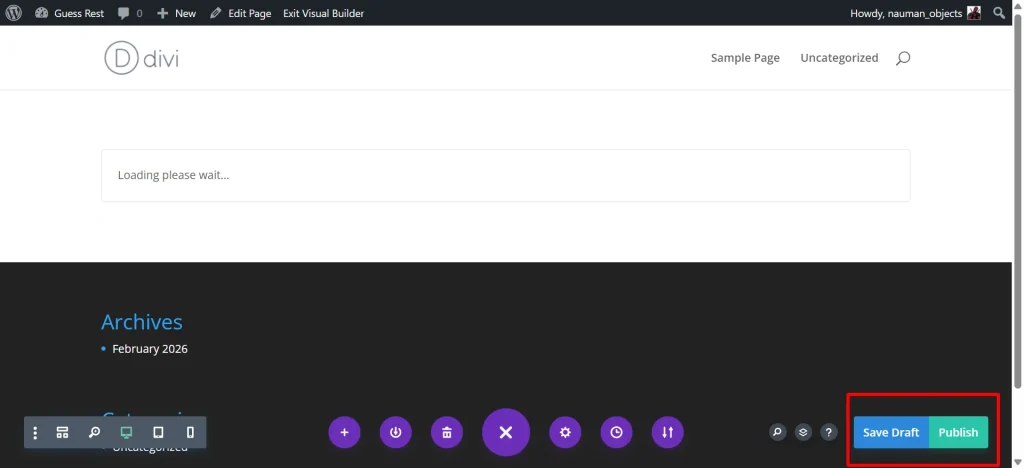
Your Advanced File Manager block will now be visible on the frontend using Divi.
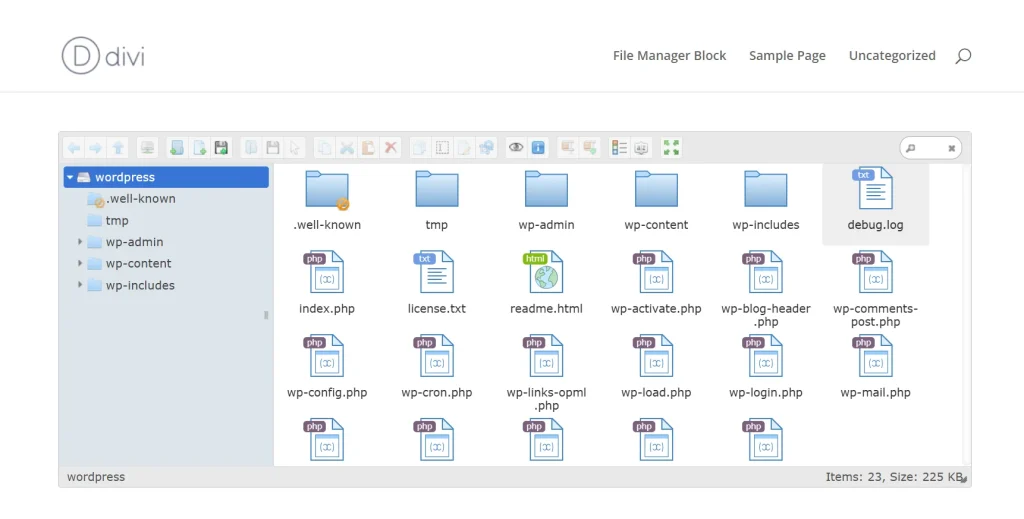
You can use either Elementor or Divi to display your configured Advanced File Manager blocks. Both methods are fully supported and provide flexibility to design and manage your WordPress document library solution layout as needed.
Need Help?
If you encounter any issues or need assistance, feel free to contact our support team. We’re always ready to help you troubleshoot and ensure everything runs smoothly.
