
OneDrive
The OneDrive Integration in Advanced File Manager makes it easy to manage your OneDrive files right inside your WordPress dashboard. You can upload, view, and organize files without leaving your site.
If you haven’t upgraded to the Pro plan yet, now’s the best time! Get the Advanced File Manager Plan to unlock this feature and manage your cloud files with ease.
Follow the simple steps below to set up OneDrive in Advanced File Manager.
Enable OneDrive Integration
1. In your WordPress dashboard, go to Advanced File Manager > OneDrive.
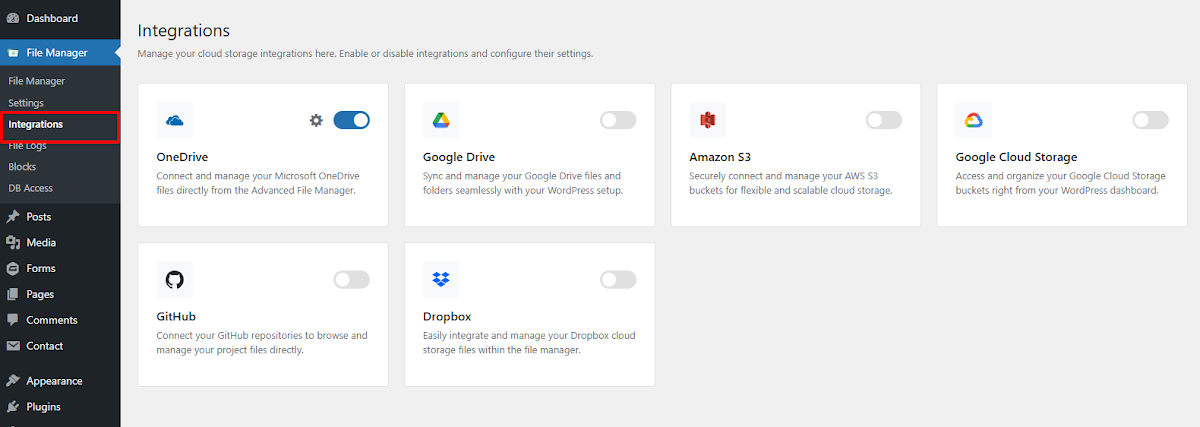
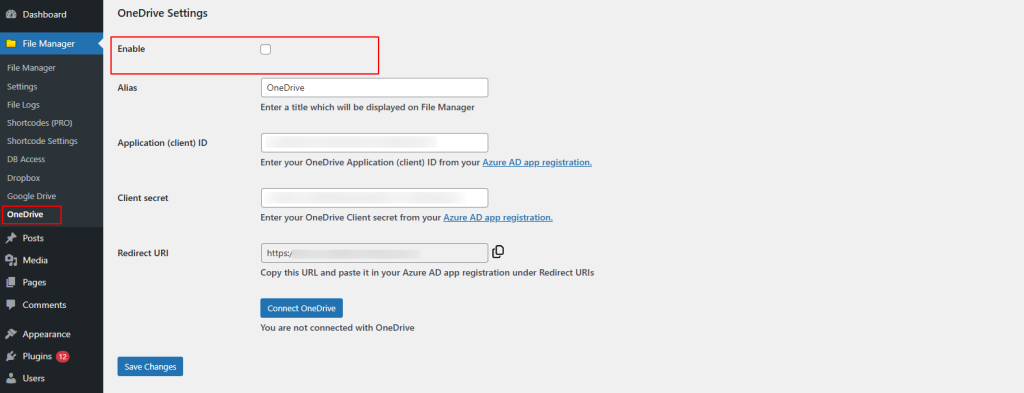
2. Check the box to enable OneDrive.
Register a New App
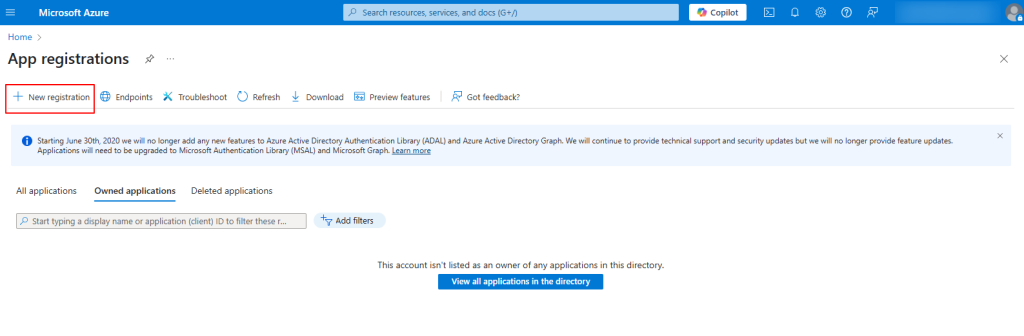
- Search for App Registrations or simply click App Registration below
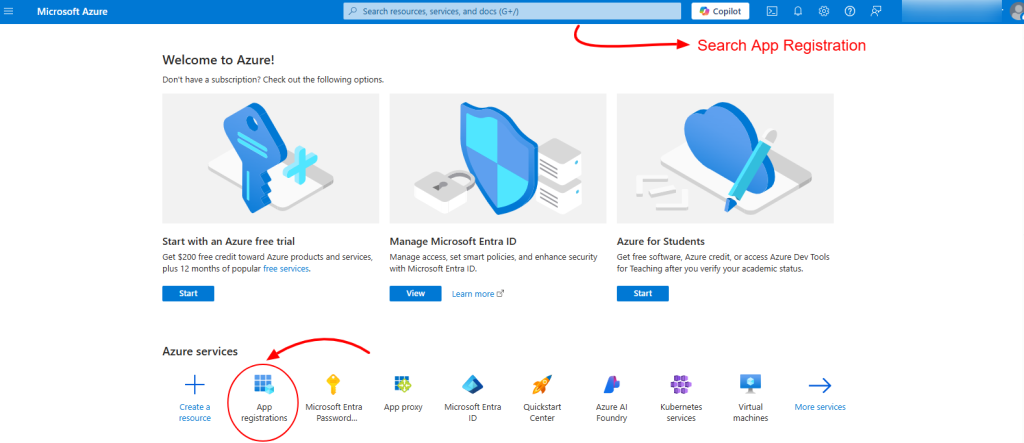
- Now Click New Registration
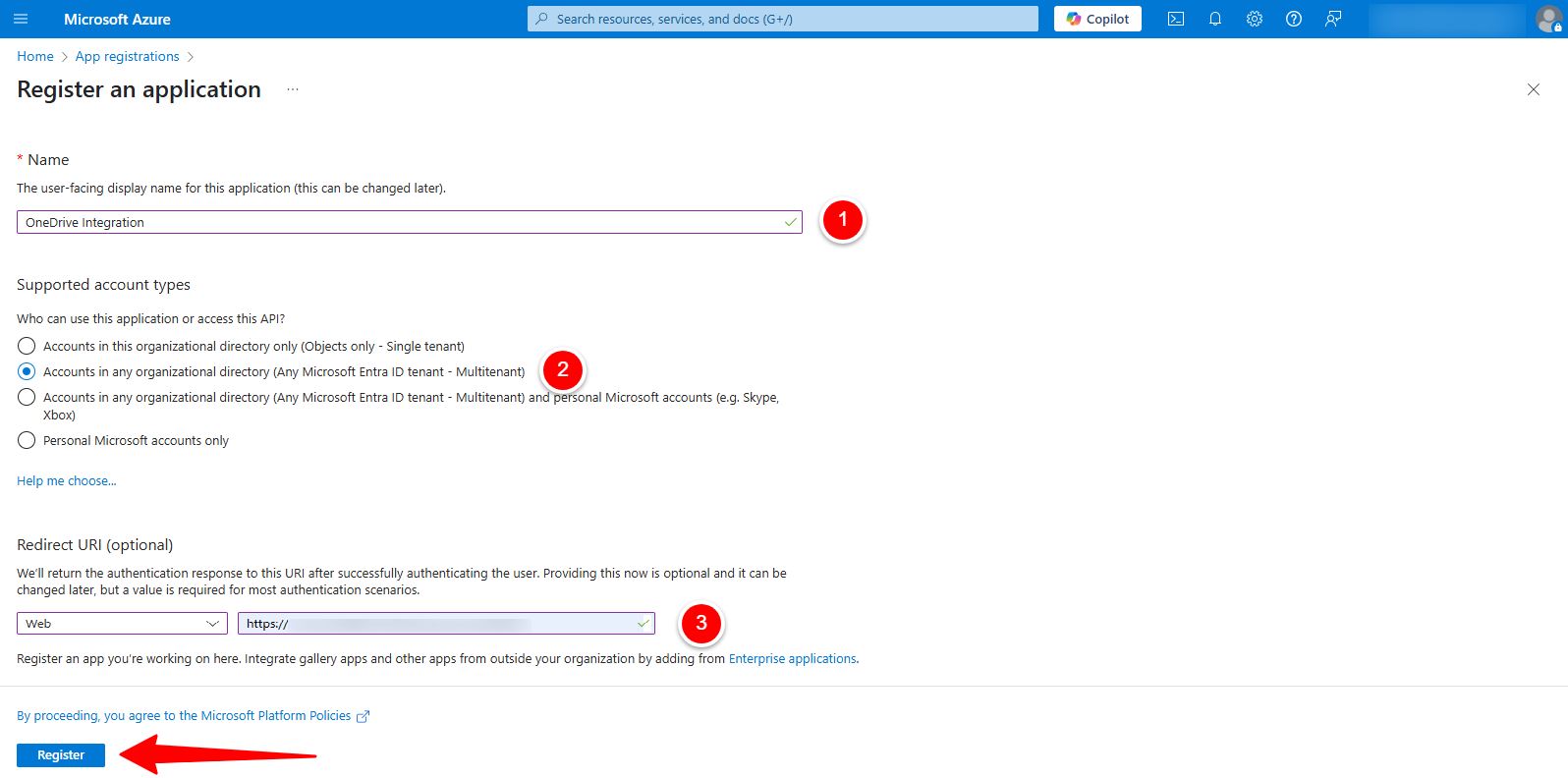
- Fill out the form:
- Name: Enter any name like OneDrive Integration.
- Supported Account Types: Select the second option.
- Redirect URI: Choose Web and paste your WordPress site URL. Click Register.
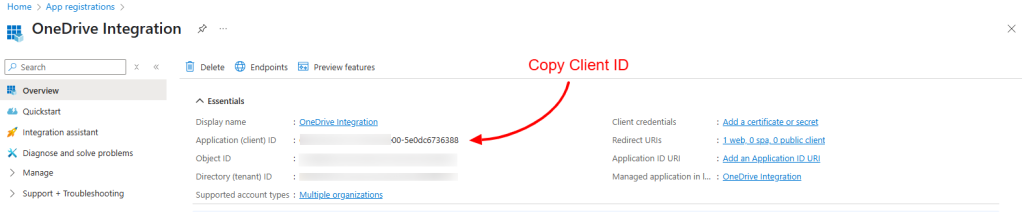
- Copy the generated Client ID.
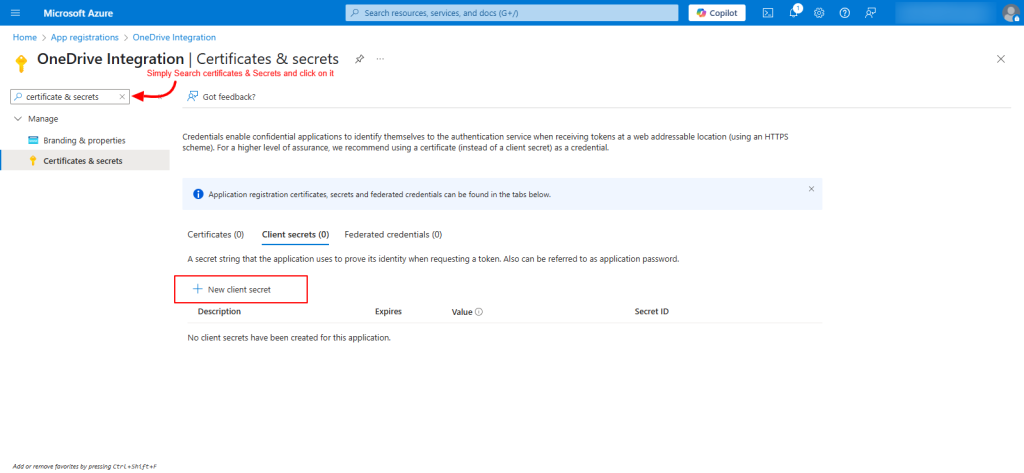
Create a Secret Key
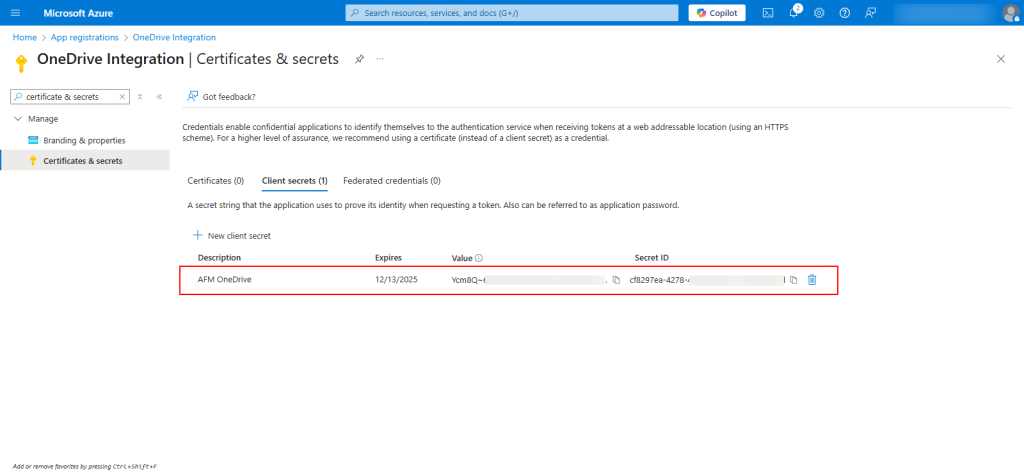
- Go to Certificates & secrets.
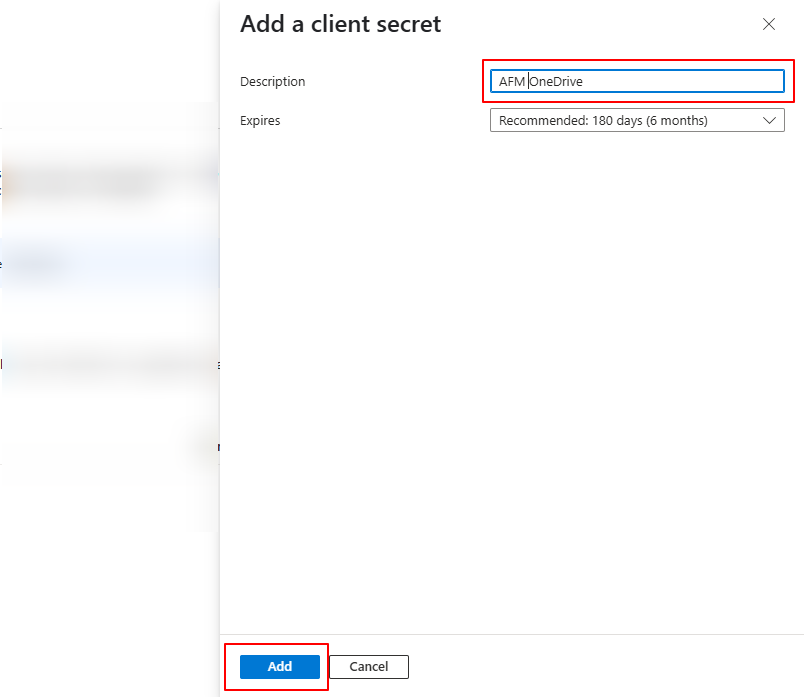
- Click New Client Secret.
- Enter a name and choose when it should expire.
- Click Add
- Copy the Value shown (this is your Secret Key).
Add the Details to Your Plugin
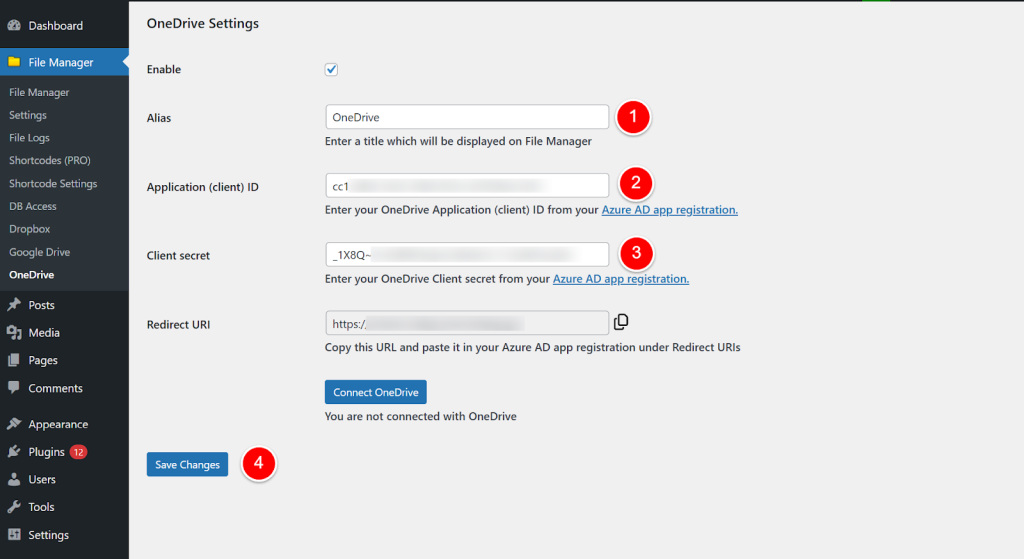
- Go back to the OneDrive settings page in Advanced File Manager.
- Enter an alias title to be displayed in the File Manager, or leave it as the default “OneDrive.”
- Paste the Client ID and Secret Key.
- Click Save Changes.
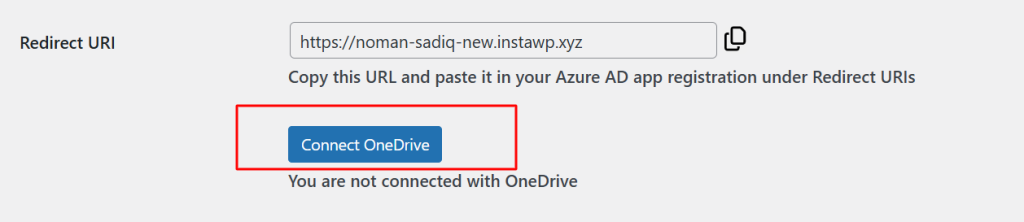
- Then click Connect OneDrive to Authenticate.
Note: If you encounter authentication errors, double-check each step to ensure that all information is entered correctly.
Grant Access to OneDrive
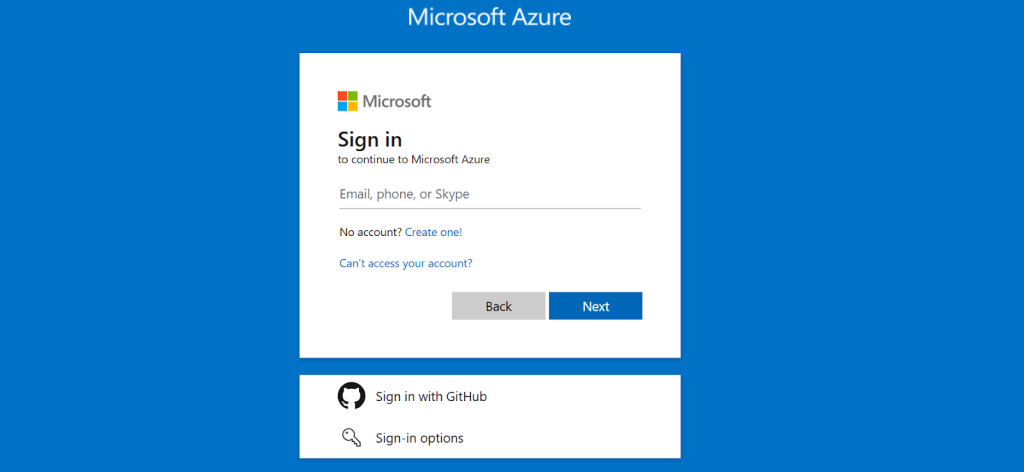
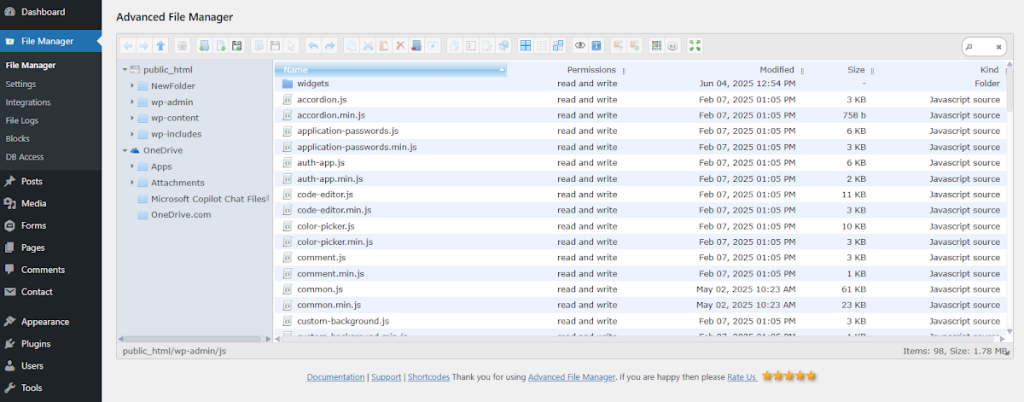
You’ll be redirected to Microsoft’s login page to give permission. After approval, you’ll be redirected back to WordPress, and OneDrive will appear in the File Manager panel.
Need Help?
If OneDrive isn’t connecting or you see an error, make sure the Client ID, Secret Key, and Redirect URI are entered correctly—any mismatch can cause the setup to fail. If you’re still having trouble, feel free to contact our Support Team. We’re here to assist you with setup issues, verify your OneDrive configuration, check your app credentials. Our team will guide you step-by-step to ensure everything works as expected. Advanced File Manager is designed to make file management easy, and we’re committed to supporting you every step of the way.
