
Google Drive
The File Manager Google Drive Integration is a game-changer!
It helps you save time and effort by allowing you to back up your files directly to Google Drive or upload and manage your files instantly through Google Drive’s File Manager. This seamless integration makes development smoother and more efficient.
If you haven’t yet upgraded to the Pro business plan, now’s the perfect time! Buy now to unlock this powerful feature and take your file management to the next level. Get the Advanced File Manager Plan!
Follow these simple steps to quickly integrate Google Drive with your Advanced File Manager plugin and start managing your files like a pro!
Enabling Google Drive Integration in Advanced File Manager
To successfully integrate Google Drive with the Advanced File Manager, follow the steps below:
1. Enable Google Drive
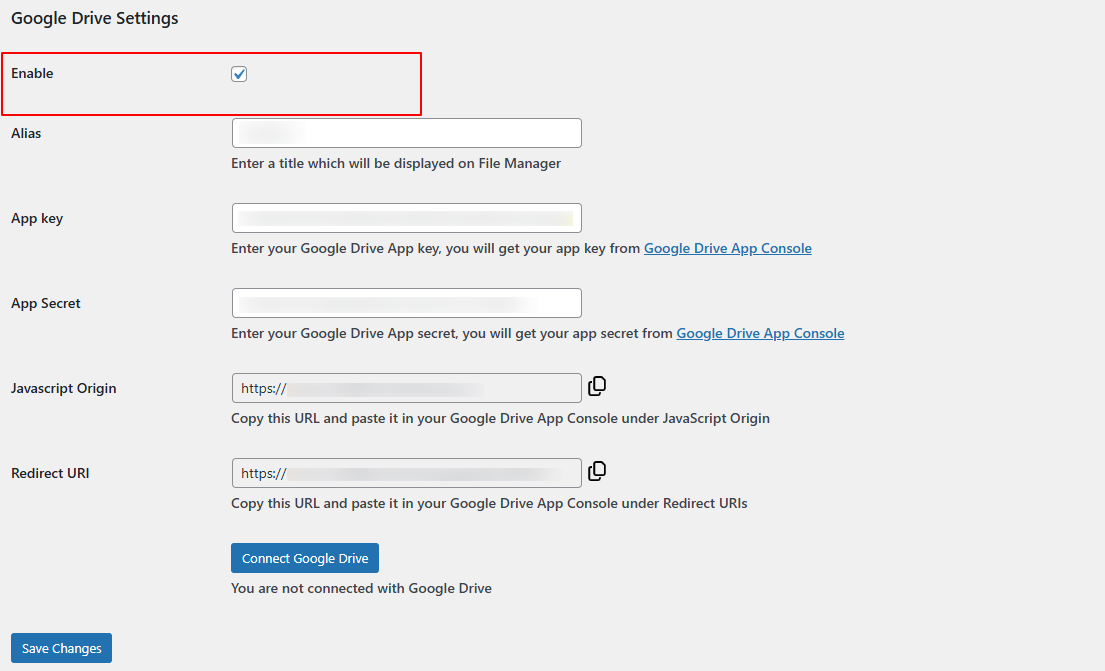
After activating Google Drive, navigate to the Advanced File manager > Integration > Google Drive.

Check the “Enable” box, scroll to the bottom, and click Save Changes
2. Access Google Cloud Console
Visit the Google Cloud Console.
If you haven’t already created a project, click “Create Project” at the top of the page.
3. Enable Google Drive API
Once inside your project dashboard:
- Check the “Enable” box, scroll to the bottom, and click Save Changes

- Enable the Google Drive API

- Return to the main dashboard.
Once inside your project dashboard:
Once inside your project dashboard:Note: Ensure that the Google Drive API is enabled in the “APIs & Services” section before proceeding with the app creation process.
4. Configure OAuth Consent Screen
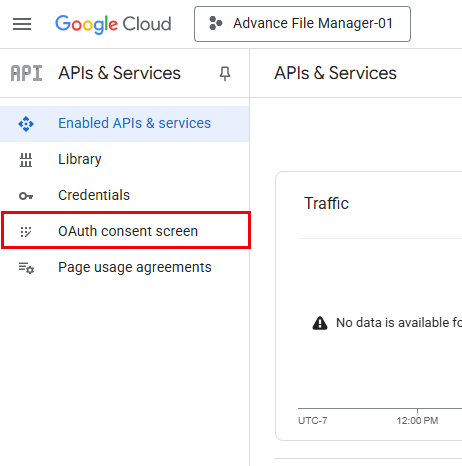
In the left sidebar:
- Click on OAuth Consent Screen.
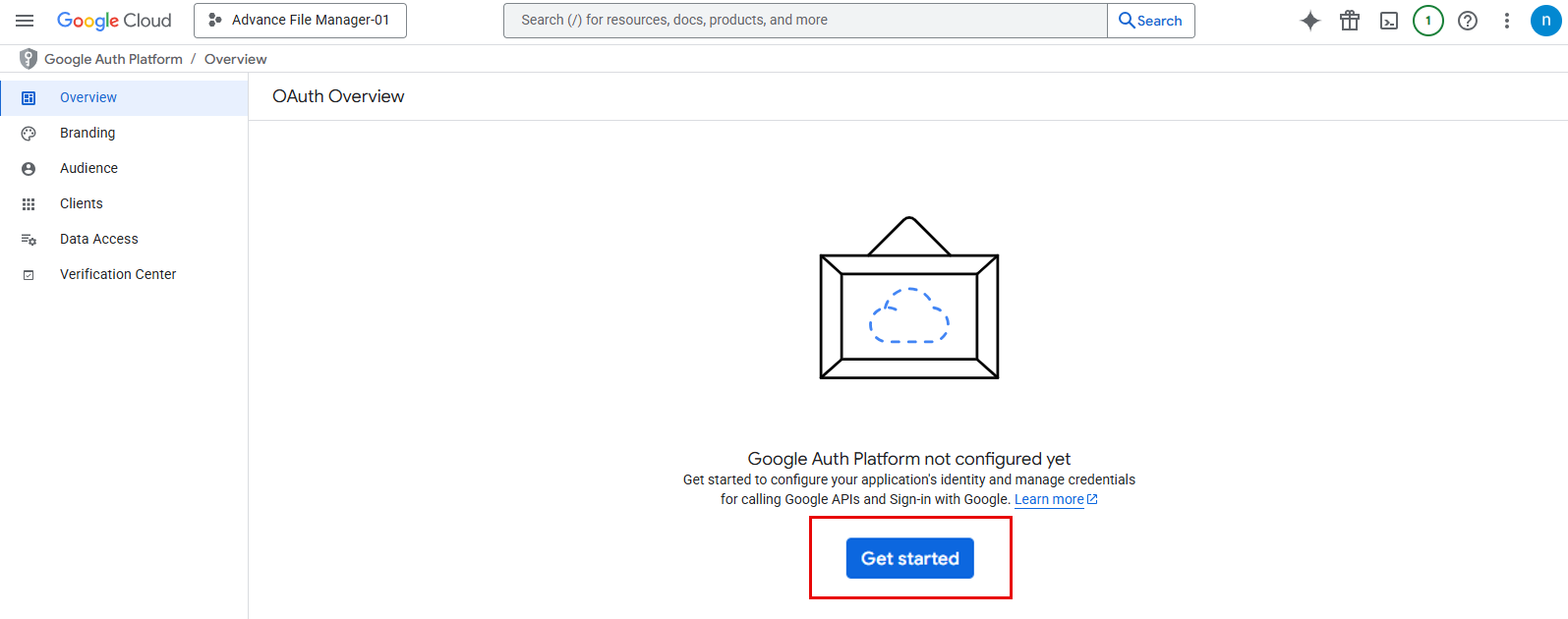
- Click on the Get Started Button to start the 0 Auth Configuration
- Select User Type as Internal, then click “Next”.
Fill out the required fields:
- App Name – Enter any name.
- Support Email – Use your Google account email.

- Audience – Choose your Audience as Internal

- Developer Contact Information – Add your developer email.
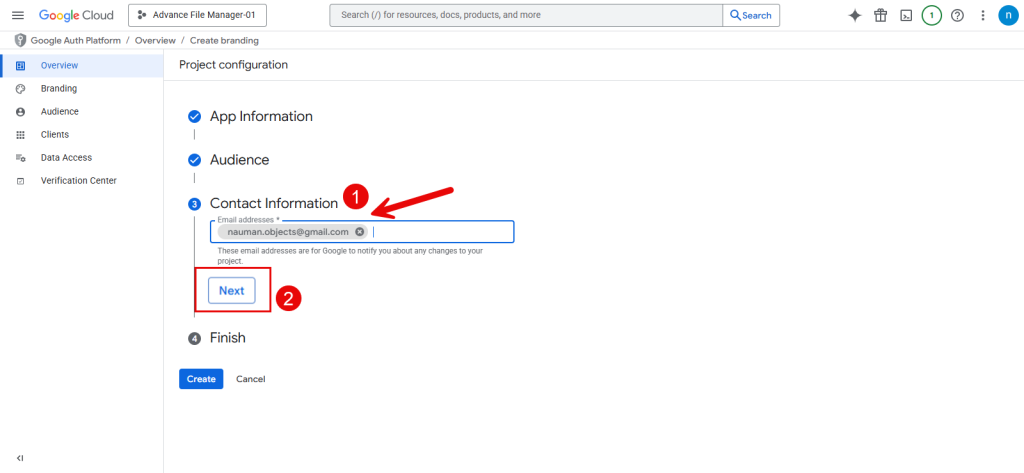
- Click “Next” to continue to the next step.
- Then the Last Step is to click Finish.
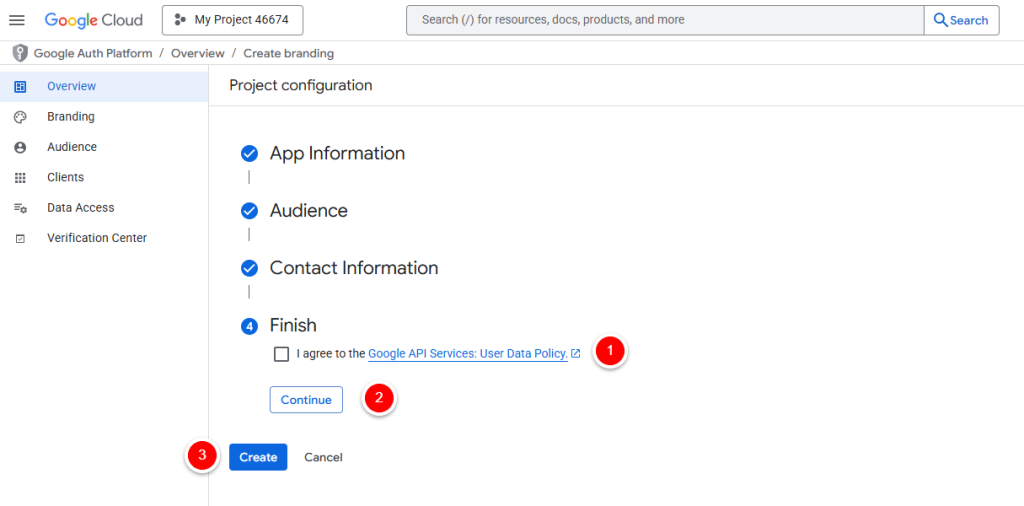
- On the Scopes page, no changes are necessary—click “Create” again, then return to the dashboard.
5. Create OAuth Credentials
From the dashboard:
- Click on “Credentials”.
- Select “Create Credentials” > “OAuth Client ID”.
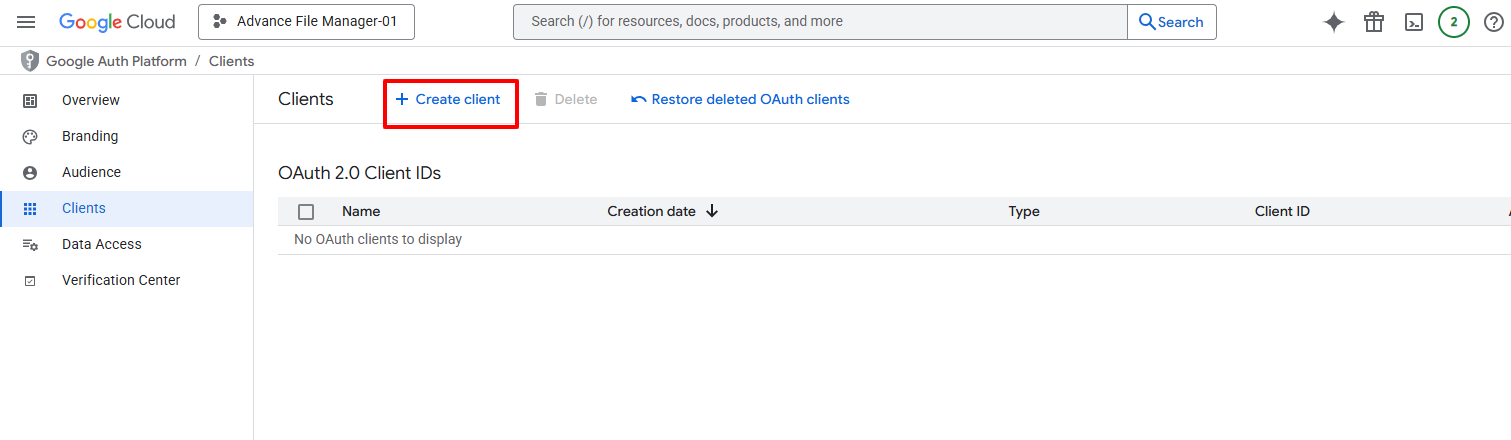
- Click For Application Type, choose Web Application.
- Name the credentials as preferred (default name is acceptable)
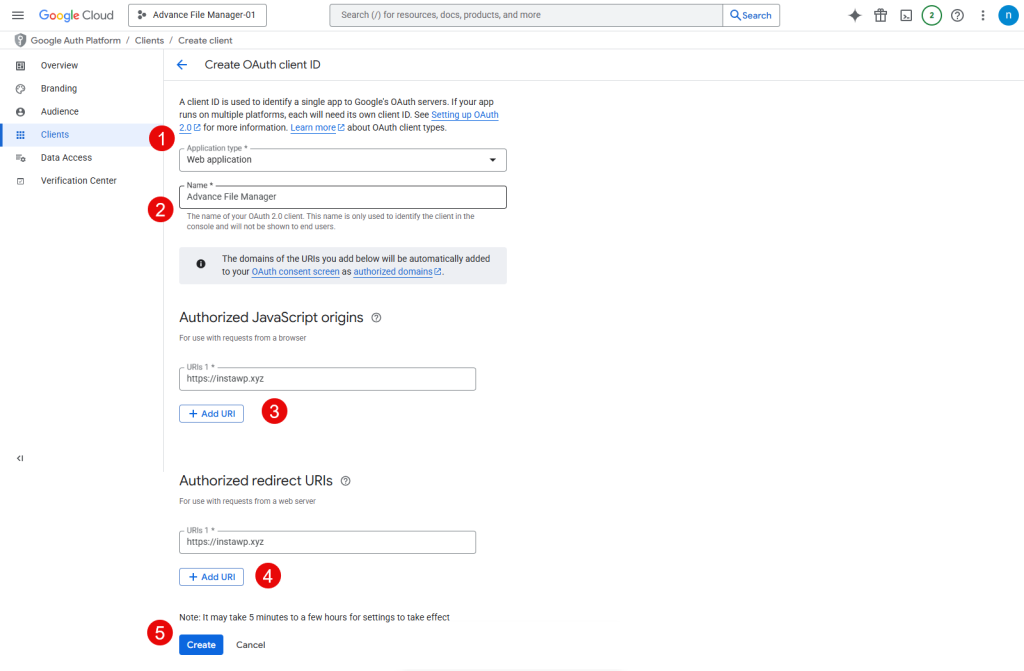
- You can find the JavaScript Origin and Redirect URL within the plugin interface.
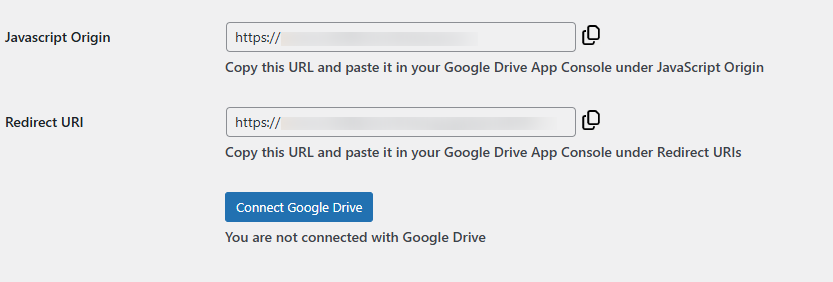
- You can find the JavaScript Origin and Redirect URL within the plugin interface.

6. Authenticate the Integration
Return to the Google Drive section in Advanced File Manager: Paste the Client ID in the App key and Client Secret in App Secret into their respective fields.
- Click Connect to Google Drive.
- Then, click the “Save Changes” button.
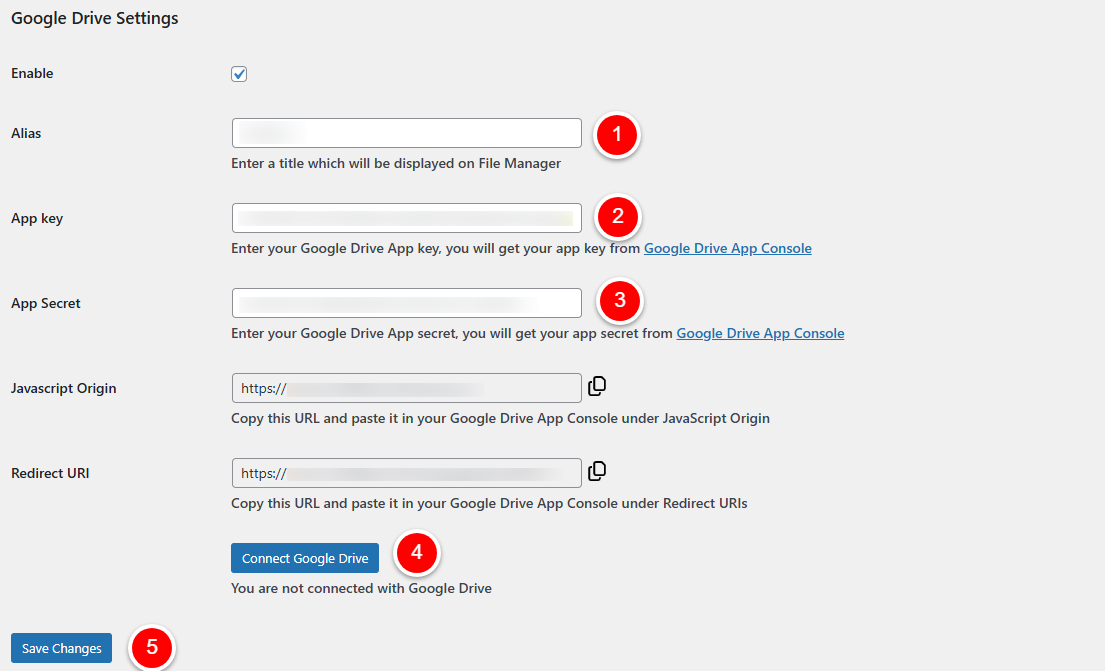
- You’ll be redirected to a Google verification page to grant access.
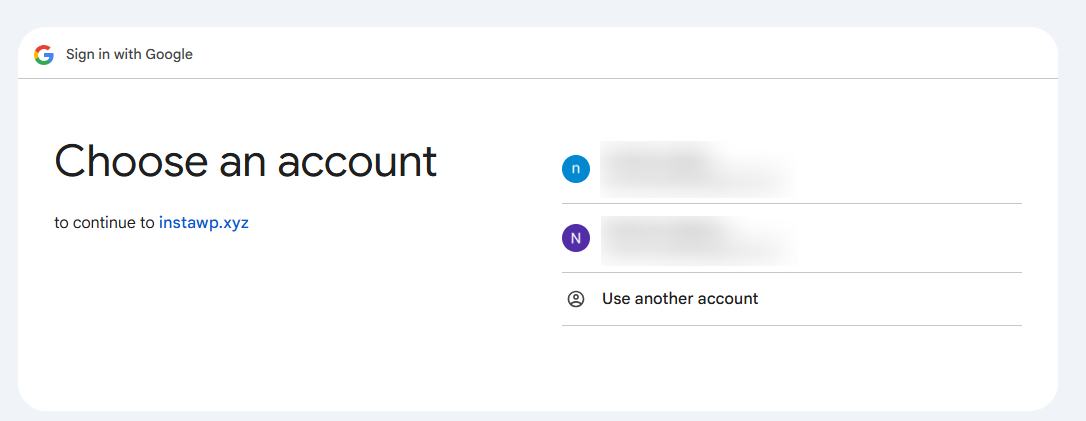
After granting permission, you will be redirected back to your WordPress dashboard. Google Drive will now be accessible within Advanced File Manager.

Note: If you encounter authentication errors, double-check each step to ensure that all information is entered correctly.
You have successfully configured the Google Drive driver with WordPress. Don’t hesitate to contact our Support Team f you are still having difficulty or encounter any other issues. Our team of experts will troubleshoot all your problems and promptly provide you with a resolution. We take great pride in going above and beyond to provide excellent customer service.
