
Github Integration
The GitHub integration in Advanced File Manager allows you to connect your GitHub account directly to your WordPress dashboard. You can pull files from your repositories, push changes back, and even track commit history—all without leaving your site.
If you already have a GitHub account you wish to connect, click here, or use the GitHub Desktop app.
Let’s Get Started
Your Step 1: Navigate to GitHub Settings
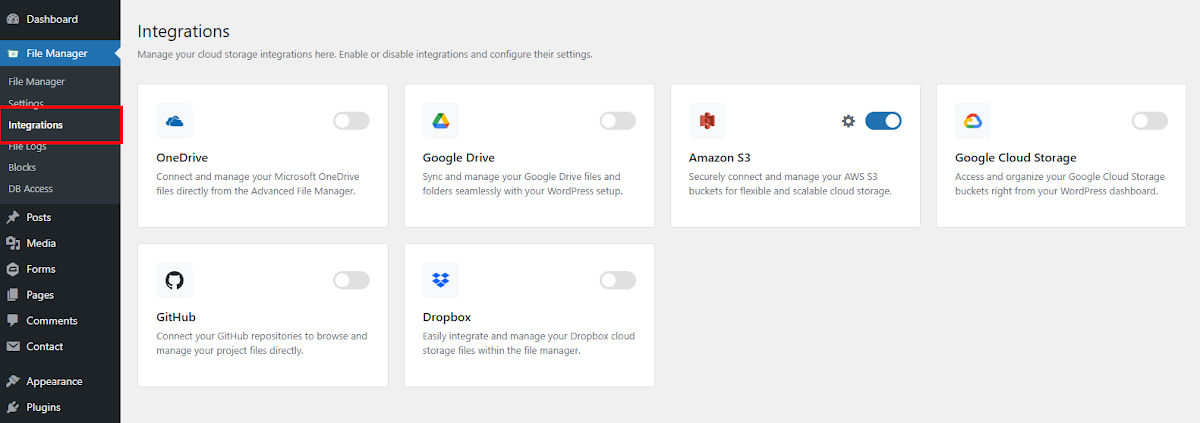
Go to WordPress Admin Dashboard > Advanced File Manager > Integration > GitHub and for settings click the gear icon on the card.
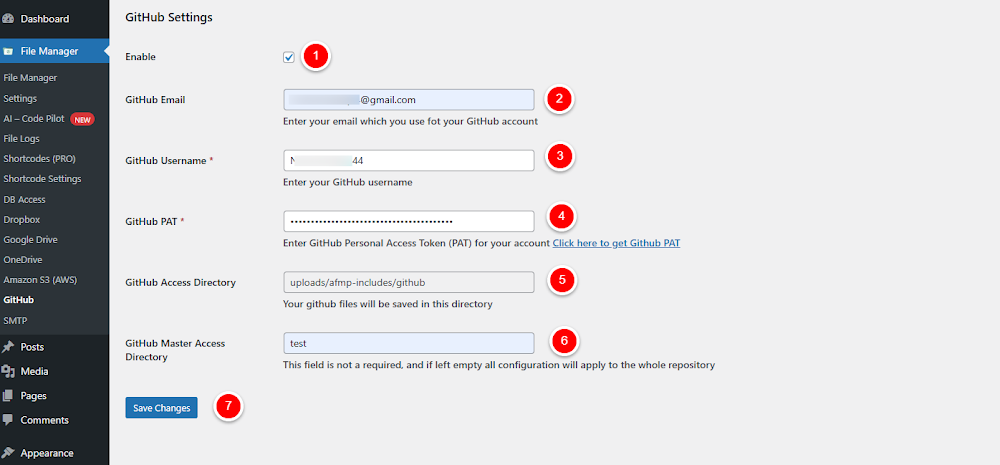
You will see the GitHub settings screen with the following fields:
- Enable – Check this box to activate GitHub integration.
- GitHub Email – Enter the email linked to your GitHub account.
- GitHub Username – Enter your GitHub username.
GitHub Private Access Token – Enter your GitHub private access token. - GitHub Access Directory – Enter the directory path for GitHub access.
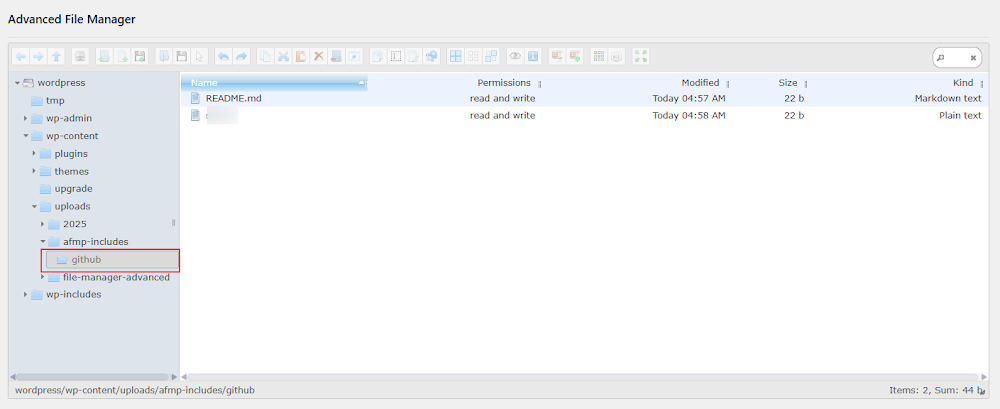
(By default: wp-includes/afmp-includes/github) - GitHub Master Access Directory – Enter the master directory path for GitHub.
- Once all fields are filled, click Save Changes.
Step 2: GitHub Actions
After saving your settings, a new section called GitHub Actions will appear. Here you’ll find options to manage repositories and branches.
You will see the following fields and buttons:
- Fetch Repositories – Click to fetch all repositories linked to your account.
- GitHub Repository – Select a repository from the dropdown.
- GitHub Branch – Select a branch from the chosen repository.
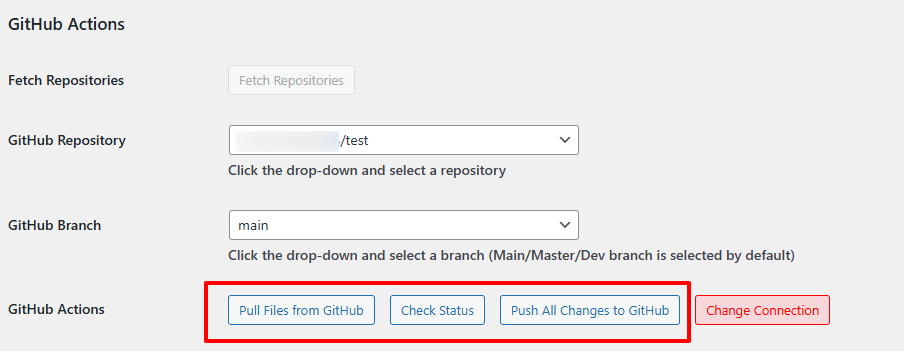
- GitHub Actions – Four main options:
- Pull Files from GitHub
- Check Status
- Push All Changes to GitHub
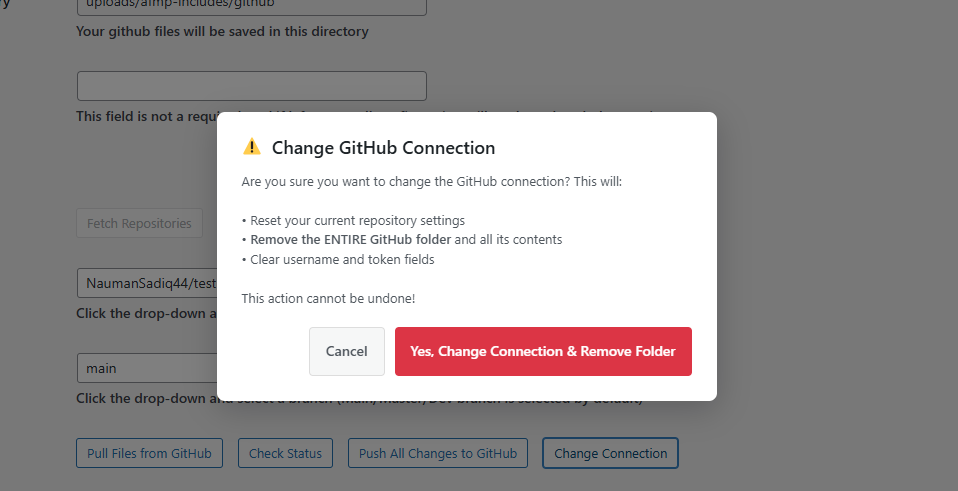
- Change Connection
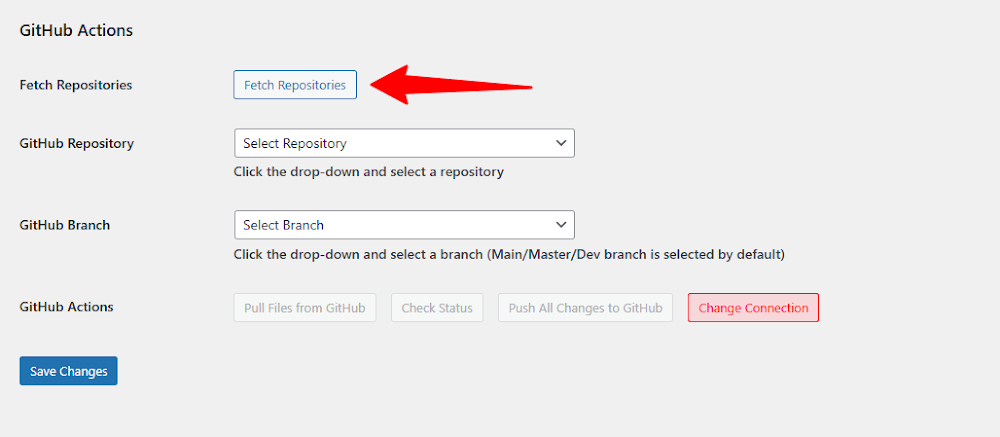
Once Clicked it will fetch the repository

Step 3: Working with Repositories
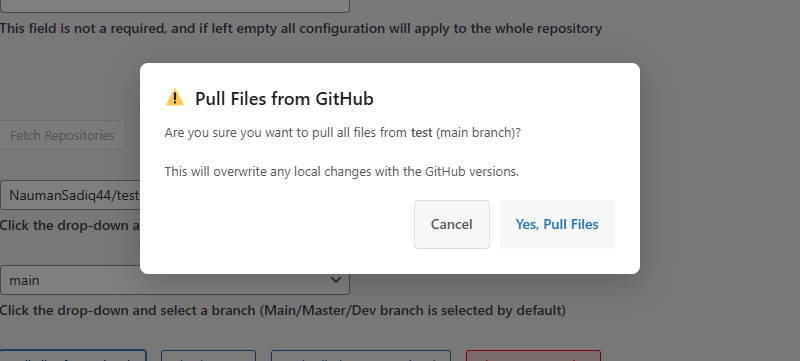
Pull Files from GitHub
- Click Pull Files from GitHub.
- A confirmation pop-up will appear, warning: “All existing files in the folder will be cleared if you pull files.”
- Confirm to proceed.
Check Status
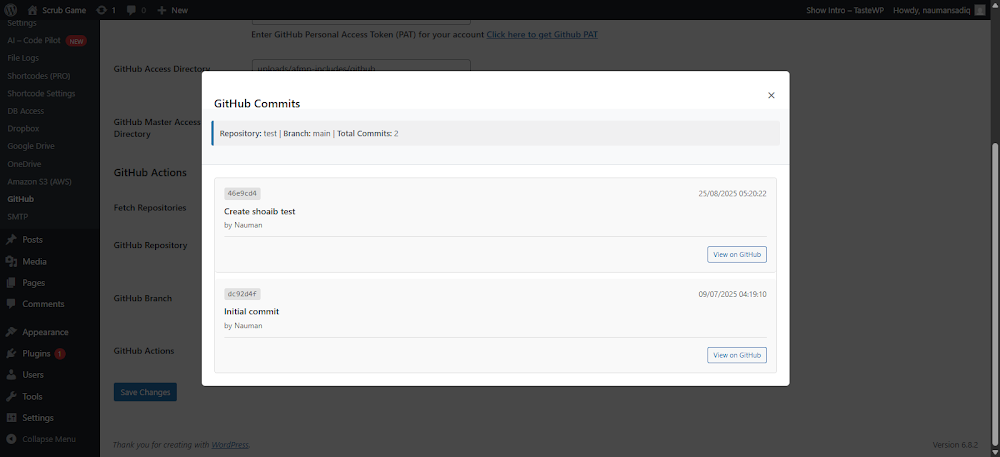
- Click Check Status to view repository details.
- A pop-up will display:
- Repository name
- Selected branch
- Total commits
- Commit details (ID, author, date/time)
- A View on GitHub button for each commit
Push All Changes to GitHub
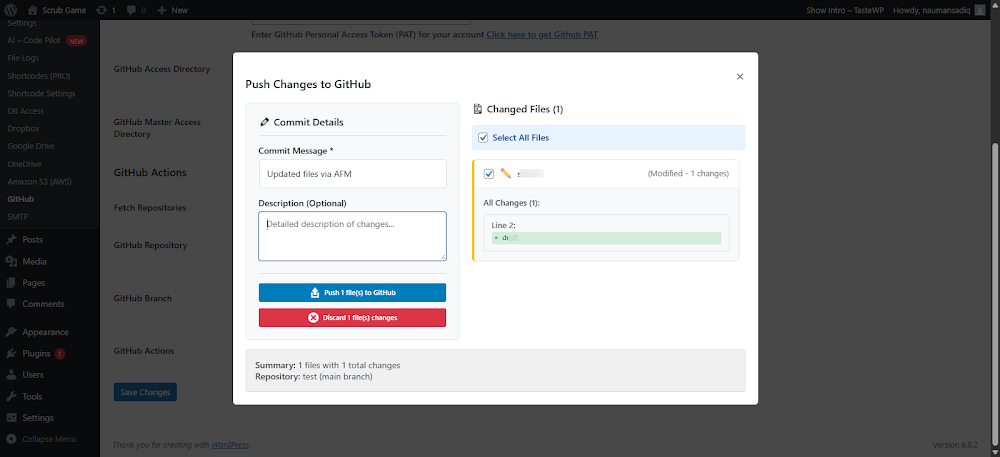
- Click Push All Changes to GitHub.
- A pop-up will appear showing:
- File name
- Changes made in each file
- Option to discard changes
- Option to push all files or select files to push
Change Connection
- Click Change Connection if you need to reconnect.
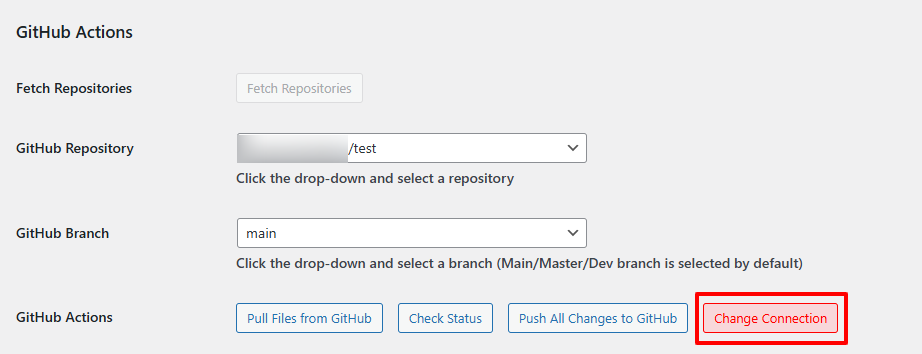
- This clears your GitHub Action settings but keeps the Access Directory intact.
Output
Once configured, you can seamlessly pull, push, and track changes between Advanced File Manager and your GitHub repositories.
Need Help?
If you encounter any issues while setting up GitHub integration, please reach out to our Support Team. We’ll guide you step-by-step to ensure your setup is successful.
