
Managing WordPress files often means opening an FTP or SFTP client or logging into your hosting control panel. That works well when you need direct server access, but it can feel like extra work when you only need to move one file, upload a ZIP archive, or fix a small file.
An FTP-like file manager gives you another option.
You can browse and manage your website files from the WordPress dashboard, so you don’t have to open a separate FTP client for every supported file-management task.
In this guide, we’ll show you how to add an FTP-like file manager to WordPress using Advanced File Manager. You’ll also learn how FTP differs from SFTP, where common WordPress files live, which tasks you can handle from the dashboard, and when you should still use direct server access.
What Is an FTP-Like File Manager in WordPress?
An FTP-like file manager is a WordPress file management tool that lets you browse and manage website files from the WordPress dashboard. Depending on the plugin, you can upload, download, rename, move, copy, edit, archive, and delete files without opening a separate FTP client.
Advanced File Manager provides these common file operations directly from the WordPress dashboard, including copy, paste, rename, edit, delete, upload, download, and ZIP archive management.
FTP and SFTP work differently.
FTP stands for File Transfer Protocol. SFTP stands for SSH File Transfer Protocol and uses SSH to provide an encrypted connection for transferring files between a client and server.
An FTP or SFTP client connects to your server outside WordPress. A WordPress file manager, on the other hand, gives you a dashboard-based interface for supported file operations.
So, an FTP-like file manager isn’t another name for FTP. It gives you a different way to manage website files while you work inside WordPress.
FTP vs. SFTP vs. a WordPress File Manager
These tools overlap, but they don’t serve exactly the same purpose.
| Tool | How you access files | Best suited for |
| FTP client | Separate desktop or web application | Direct file transfers |
| SFTP client | Separate application using SSH | Encrypted server file transfers |
| WordPress file manager | WordPress dashboard | Routine file management from WordPress |
A file manager doesn’t make FTP or SFTP obsolete. Each option has a place.
If you can’t access WordPress, for example, a dashboard-based file manager won’t help you get into the site. You’ll need another access method, such as SFTP, SSH, or your hosting tools, depending on your server setup.
Why Use a WordPress File Manager Instead of an FTP Client?
An FTP client remains useful for direct server access and troubleshooting. But you don’t always need to leave WordPress to handle a simple file operation.
A WordPress file manager keeps common file tasks inside the same dashboard you already use to manage your plugins, themes, pages, and settings.
Manage Files From the WordPress Dashboard
A dashboard-based file manager keeps common file operations inside WordPress. You don’t have to open another application every time you need to inspect a directory or upload a file to a specific WordPress folder.
You can work with files from the same browser session.
That’s often all you need.
Upload and Edit Files Without Opening an FTP Client
Suppose a service asks you to upload a verification file to your website’s root directory. You could open an FTP or SFTP client, connect to your server, find the correct directory, and upload the file.
Or you can use a WordPress file manager for the supported task.
Advanced File Manager supports file uploads and includes a file editor for supported files, so you can make quick changes from the WordPress dashboard.
And you don’t need a separate FTP application for that dashboard-based workflow.
Work With WordPress Folders From One Interface
WordPress stores plugins, themes, media uploads, and other website resources in different directories. A WordPress file manager plugin can make those folders easier to browse and manage from one interface.
You’ll commonly work with folders such as:
- /wp-admin/
- /wp-includes/
- /wp-content/
- /wp-content/plugins/
- /wp-content/themes/
- /wp-content/uploads/
We’ll cover what each directory does later in the guide.
Handle Common File Operations From WordPress
File management involves more than uploading a file.
You may need to rename a file, move a folder, copy an item, create a ZIP archive, extract compressed files, download a copy, or delete an obsolete file.
Advanced File Manager supports these common operations from the WordPress dashboard.
That can save you a few steps when you’re already working inside WordPress.
How to Add an FTP-Like File Manager to WordPress
You can add an FTP-like file manager to WordPress by installing a dedicated WordPress file manager plugin.
In this guide, we’ll use Advanced File Manager.
The free version handles the basic dashboard-based workflow. Advanced File Manager Pro adds features such as advanced file operations, large-file and folder uploads, access controls, private folders, media previews, and supported cloud integrations.
Choose the version that matches the tasks you need to handle.
Note: If you only want to use the free version, you can skip Steps 2 and 3.
Step 1: Install and Activate Advanced File Manager
Start by logging in to your WordPress dashboard.
- Go to Plugins → Add Plugin.
- Search for Advanced File Manager.
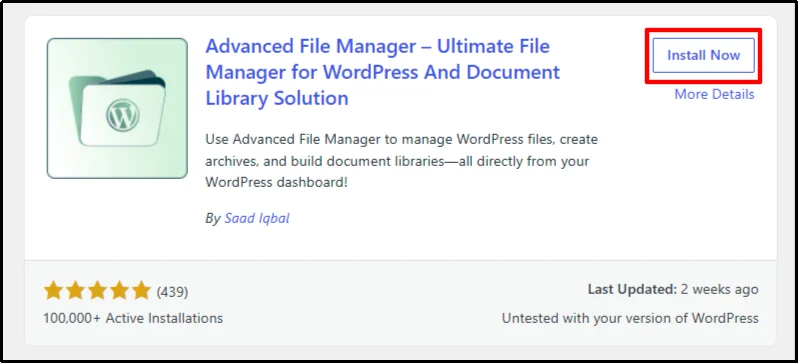
- Click Install Now.
- Click Activate.
You have successfully installed and activated Advanced File Manager.
After activation, open File Manager from your WordPress dashboard to access the file management interface. The plugin adds a dedicated file manager area to the WordPress admin panel.
No extra app.
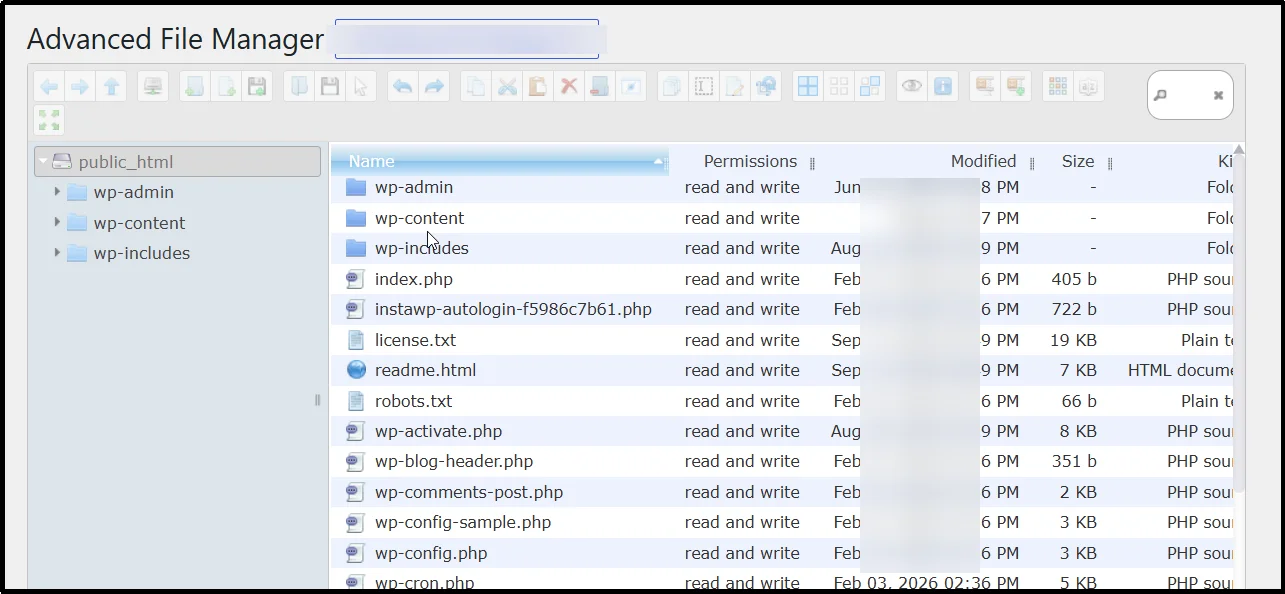
NOTE: Before you edit website files, though, take a backup or save a copy of the original file. A small PHP syntax error can cause unexpected behavior or make parts of your site unavailable, so test significant code changes on a staging site whenever possible.
Step 2: Upgrade to Advanced File Manager Pro
If you need Pro features, follow these steps.
- Go to the Advanced File Manager pricing page.
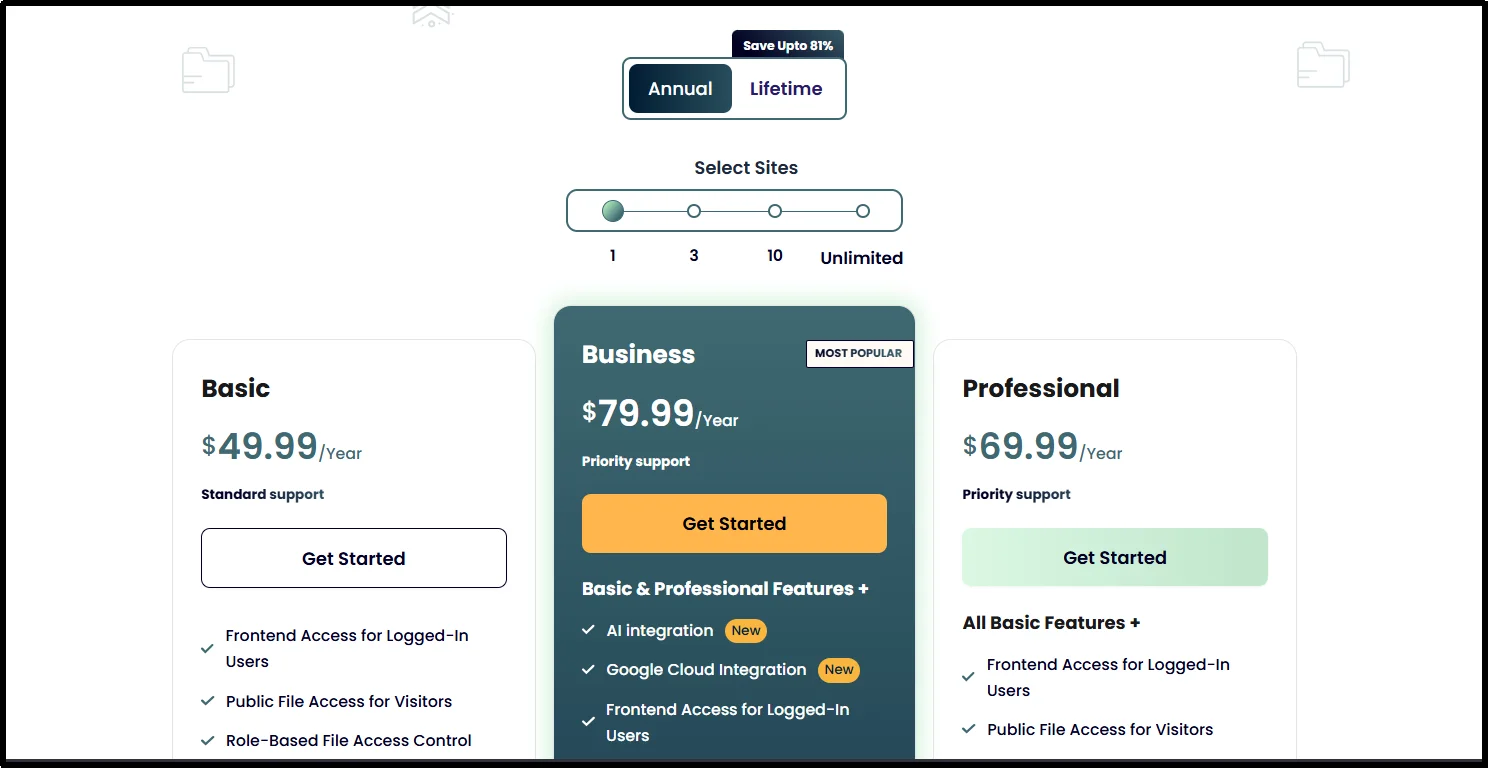
- Choose the plan that fits your file-management needs and click Get Started.
- Enter your information and click Review Order.
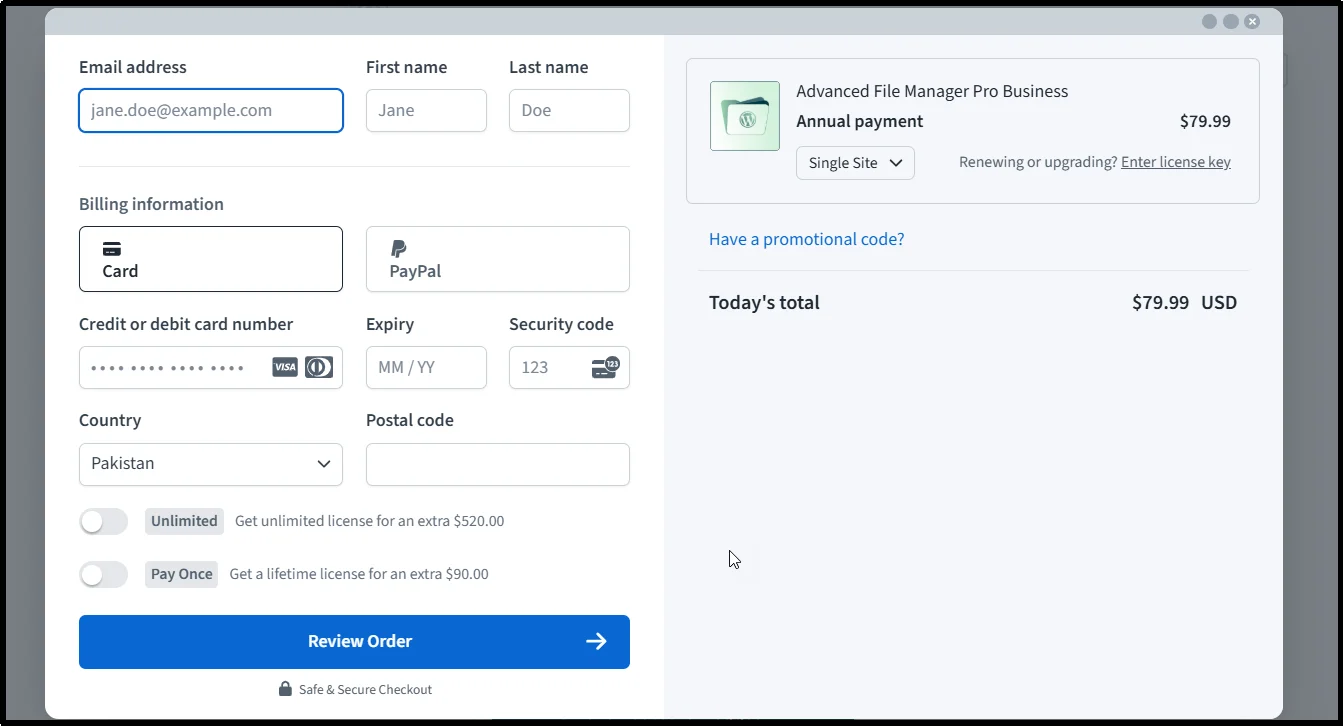
- Complete the payment process.
- After payment, check your email for the Pro plugin ZIP file and license key.
- Download the ZIP file and keep the license key available for the next step.
Step 3: Install and Activate Advanced File Manager Pro
Note: You must install the free version of Advanced File Manager before you install the Pro version.
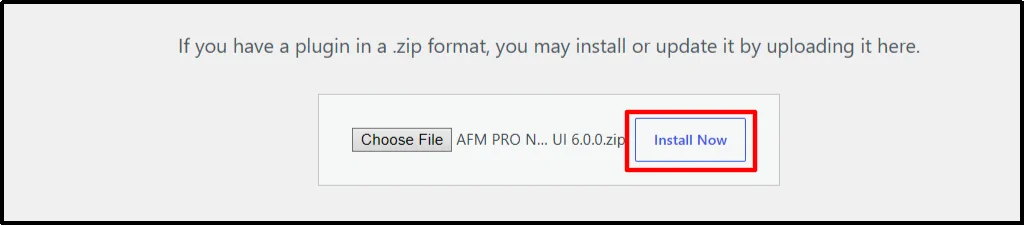
- Go to Plugins → Add Plugin → Upload Plugin.
- Click Choose File and select the Pro ZIP file you downloaded.
- Click Install Now.
- Go to Plugins → Installed Plugins.
- Find File Manager Advanced Pro and click Activate License.
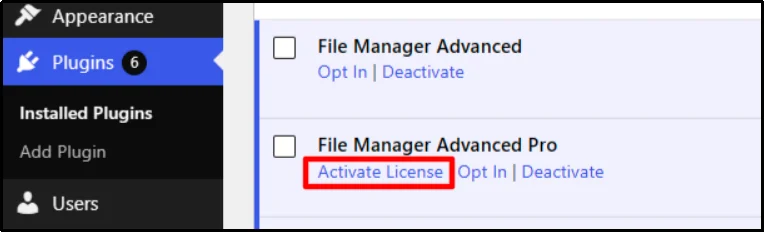
- Enter your license key and click Agree & Activate License.
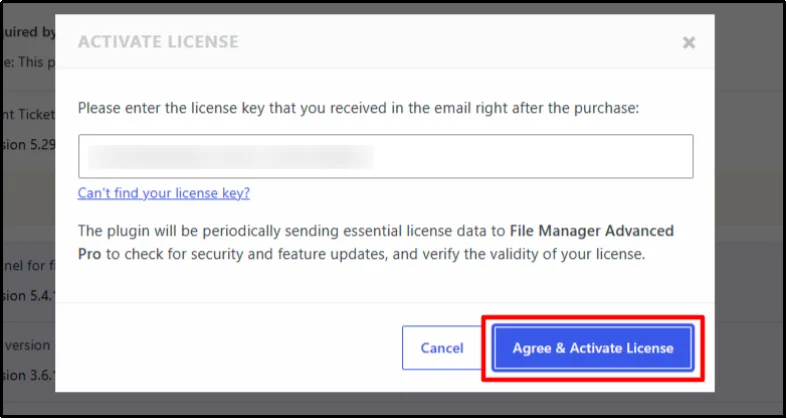
You can now use the Pro features included with your plan.
Where to Find Common WordPress Files
Understanding the WordPress folder structure makes file management much easier.
You don’t need to memorize every directory. Knowing what the main folders do can help you find the right location without guessing.
| WordPress directory | What you’ll typically find |
| /wp-admin/ | Files that support the WordPress administration area |
| /wp-includes/ | WordPress core libraries and application files |
| /wp-content/ | Site-specific content such as plugins, themes, uploads, and other resources |
| /wp-content/plugins/ | Installed WordPress plugin files |
| /wp-content/themes/ | Installed theme files |
| /wp-content/uploads/ | Media uploads and other files stored by WordPress and plugins |
WordPress identifies wp-admin as the administration area and wp-includes as the directory that contains much of the WordPress application logic. WordPress also uses wp-content for user-supplied content, including plugins, themes, and uploads.
For most website file-management tasks, wp-content deserves the most attention.
But don’t treat every folder as equally safe to modify.
Avoid changing WordPress core files inside wp-admin and wp-includes unless you have a specific technical reason and understand the consequences. WordPress updates can replace core files, while manual changes can create maintenance and compatibility problems.
You may also find important files in the WordPress root directory.
What Is wp-config.php?
wp-config.php contains important WordPress configuration, including database connection details and other site settings.
Treat this file carefully.
Before editing it, create a backup and double-check every change. A mistake can prevent WordPress from loading correctly.
What Is .htaccess?
On Apache-based hosting, .htaccess can control rewrite rules and other server behavior.
WordPress can use this file for permalink rules, among other server-level configuration. Your hosting setup determines whether .htaccess applies to your site.
Don’t edit it just because you found it.
Only change it when you understand the rule you’re adding or when a trusted technical guide or support team gives you specific instructions.
Common Tasks You Can Handle With a WordPress File Manager
People don’t usually install a WordPress file manager because they want another menu in the dashboard. They install one because they need to complete a specific file-management task without breaking their workflow.
Here are some common examples.
Reason 1: Upload a Verification File
Some website services ask you to upload a verification file to a specific directory.
If a service gives you a file and tells you where to place it, a dashboard file manager can simplify the process.
Upload the file to the required location and keep the filename exactly as the service provides it. Don’t rename the file unless the service specifically allows it.
Reason 2: Replace or Upload a Plugin File
During troubleshooting, a plugin developer may ask you to upload a specific file or replace an existing file.
Follow those instructions carefully.
Keep a backup of the original file before you replace it, because a wrong file or incorrect path can create compatibility problems. Plugin updates can also replace manual changes later.
For routine plugin maintenance, use the normal WordPress update process whenever it meets your needs.
Reason 3: Edit a Theme or Configuration File
Developers sometimes need to make targeted changes to theme files. A WordPress file manager can make that work more convenient when the required change involves a supported text file.
PHP changes need extra care.
A syntax mistake can trigger an error, break a feature, or stop WordPress from loading correctly. Back up the original file and test significant changes on staging before you apply them to a live website.
Reason 4: Upload and Extract a ZIP Archive
A ZIP archive can package multiple files into one upload.
Upload the archive to the appropriate directory, extract it, and check the resulting folder structure. Make sure the archive doesn’t create an unexpected nested folder that changes the file path your website expects.
Advanced File Manager supports archive creation and extraction from the WordPress dashboard.
Reason 5: Manage Files Without Opening an FTP Client
Sometimes you only need to handle one small file operation while you’re already working inside WordPress.
Opening another application for that one task can add unnecessary steps.
An FTP-like file manager gives you a dashboard-based option for supported operations, so you can stay inside WordPress and finish the task there.
When Should You Still Use FTP or SFTP?
A WordPress file manager works well for many routine tasks, but it doesn’t replace every server-level workflow.
Use FTP or SFTP when you need to work outside WordPress, troubleshoot a site that you can’t access through the dashboard, or transfer files directly between your computer and the server.
SFTP can also make sense when your hosting provider gives you SSH-based file access and you want an encrypted connection to the server.
And if WordPress itself stops working, a dashboard-based file manager won’t give you access to the site.
You’ll need another access method.
Depending on your hosting setup, that could include SFTP, SSH, a hosting control panel, or another server-management tool.
Advanced File Manager vs. FTP and SFTP Clients
Advanced File Manager and FTP or SFTP clients can handle many of the same file-management tasks, but they work in different ways.
Advanced File Manager provides a file-management interface inside WordPress. An FTP or SFTP client connects to the server from outside WordPress.
| Feature | Advanced File Manager | FTP/SFTP client |
| Works inside the WordPress dashboard | Yes | No |
| Requires separate FTP/SFTP software | No | Usually |
| Requires WordPress dashboard access | Yes | No |
| Browse WordPress directories | Yes | Yes |
| Upload files | Yes | Yes |
| Download files | Yes | Yes |
| Edit supported files | Yes | Depends on the client and workflow |
| Create and extract archives | Supported | Depends on the client and server |
| Copy and move files | Supported | Yes |
| Rename files | Supported | Yes |
| Delete files | Supported | Yes |
| Works when the WordPress dashboard is unavailable | No | Yes |
Neither approach fits every situation.
Choose the tool based on the task.
If you’re already inside WordPress and need to upload, move, rename, edit, or archive supported files, a dashboard-based file manager can keep the process simple. If you can’t access WordPress or need direct server access, use the server-level method your hosting environment supports.
WordPress File Management Best Practices
Direct access to website files gives you more control.
It also gives you more ways to make a mistake.
Follow these basic practices before you change anything:
- Back up important files before editing or deleting them.
- Verify the file path before making a change.
- Keep a copy of the original file when you edit code.
- Use a staging site for significant PHP or configuration changes.
- Avoid modifying WordPress core files unless you have a specific technical reason.
- Don’t delete files just because you don’t recognize their names.
- Check plugin or theme documentation before changing their files.
- Give users only the file access and operations they actually need.
- Use SFTP when you need direct encrypted server access.
- Don’t set file permissions to overly permissive values just to make an error disappear.
WordPress warns about the risks of overly permissive file permissions, including the use of 777. File and directory permissions should match your hosting environment and the access WordPress actually needs.
A little caution goes a long way.
Manage WordPress Files Without Leaving the Dashboard
You don’t need to open an FTP client every time you need to handle a small WordPress file task.
An FTP-like file manager gives you another way to work.
With Advanced File Manager, you can browse WordPress directories and perform supported operations such as uploading, downloading, copying, moving, renaming, editing, deleting, and managing archives from the WordPress dashboard.
But direct file access comes with responsibility. Back up important files, verify paths before making changes, and don’t edit files when you don’t understand what they do.
For PHP and configuration changes, use staging when you can. For direct server access or situations where WordPress isn’t available, use FTP, SFTP, SSH, or the server-management tools provided by your host.
If you want to manage common website files without constantly switching between WordPress and an FTP client, Advanced File Manager gives you a practical dashboard-based option for WordPress file management.
Frequently Asked Questions
Can I add an FTP-like file manager to WordPress?
Yes. You can install a WordPress file manager plugin such as Advanced File Manager and use it to manage supported website files from the WordPress dashboard without opening a separate FTP client.
Can I manage WordPress files without FTP?
Yes. A WordPress file manager can let you upload, download, move, copy, rename, edit, delete, and archive supported files from the dashboard.
However, you’ll still need another access method when WordPress itself isn’t available.
Can I access WordPress files from the dashboard?
Yes. A file manager plugin can let you browse directories such as wp-content, plugins, themes, and uploads directly from your WordPress dashboard.
Can I edit PHP files from a WordPress file manager?
Yes, when the file manager includes a PHP code editor. Advanced File Manager provides a file editor for supported files.
PHP editing requires care, though. Back up the original file and use staging for significant code changes whenever possible.
Can I upload ZIP files to WordPress and extract them?
Yes. Advanced File Manager supports archive creation and extraction, including ZIP archives, directly from the dashboard.
Is a WordPress file manager the same as FTP?
No. FTP provides a file-transfer protocol, while a WordPress file manager provides an interface for managing website files from inside WordPress.
They can handle some of the same tasks, but they use different workflows.
Is an FTP-like WordPress file manager a replacement for SFTP?
Not in every situation.
A WordPress file manager provides a dashboard interface for supported file operations, while SFTP provides direct encrypted access between an SFTP client and your server.
Use the option that matches the task you need to complete.
Can I manage WordPress files if I can’t access the dashboard?
No. A dashboard-based file manager requires access to WordPress.
If you can’t log in or your site doesn’t load, you’ll need another access method, such as SFTP, SSH, or your hosting control panel, depending on your server setup.
Where are WordPress plugin and theme files located?
WordPress normally stores plugin files in /wp-content/plugins/ and theme files in /wp-content/themes/.
WordPress usually stores uploaded media in /wp-content/uploads/.
Can I access folders outside the WordPress root directory?
Advanced File Manager supports configurable root paths and can access files outside the WordPress root directory when your setup and permissions allow it.
Use this capability carefully, especially when you give other users access to files outside the normal WordPress directory structure.
Can a WordPress file manager change file permissions?
That depends on the plugin and your hosting environment.
If you need to change server file permissions, check your hosting documentation or use an appropriate server-level tool. Don’t change permissions simply to bypass an error, and avoid overly permissive settings such as 777 unless you have a specific, well-understood reason.