



Every WordPress website runs on a core set of system files known as WordPress Core. These files power the system that manages your dashboard, content, users, and site settings.
Most users interact with WordPress through themes and plugins, while the core software handles all underlying functionality behind the scenes.
Understanding WordPress Core helps you troubleshoot errors, perform safe updates, and manage critical files when issues occur.
In this guide, you’ll learn what WordPress Core is, how it works, its file structure, and how to fix common core-related errors.
An Overview of WordPress Core
WordPress Core is the main software framework that powers your entire website. It refers to the default code and files included when you download WordPress from WordPress.org.
These core files handle essential functions such as:
- Loading the WordPress admin dashboard
- Managing users, roles, and permissions
- Connecting and querying the database
- Executing themes and plugins
- Processing posts, pages, and media uploads
Without the WordPress core, none of these features would work.
Themes and plugins extend functionality, but they depend on the core to operate.
This is why maintaining WordPress core files properly is essential for site stability and security.
The Four Core Components of a WordPress Website
A WordPress website is built on four core components that work together to deliver content and functionality.
- WordPress Core Files: These are the essential files that power the platform. They control how WordPress loads the dashboard, processes content, and interacts with the database.
- WordPress Database: The WordPress database stores the actual content of your website. This includes posts, pages, user accounts, comments, metadata, and site settings. WordPress core retrieves and processes this data whenever a page loads.
- WordPress Themes: Themes control the design of your website. Although some developers refer to theme functionality as WordPress theme core, themes are technically separate from the main WordPress core system.
- WordPress Plugins: Plugins add new features such as SEO tools, security plugins, or page builders. Like themes, plugins extend WordPress but do not belong to the core itself.
Important WordPress Core Files
WordPress core contains hundreds of files, but a few folders and configuration files are especially important. Below is a simplified WordPress core file explanation for you to take a look at:
wp-admin
The wp-admin directory contains files that power the WordPress dashboard. Every time you log in to your admin panel, WordPress loads files from this folder.
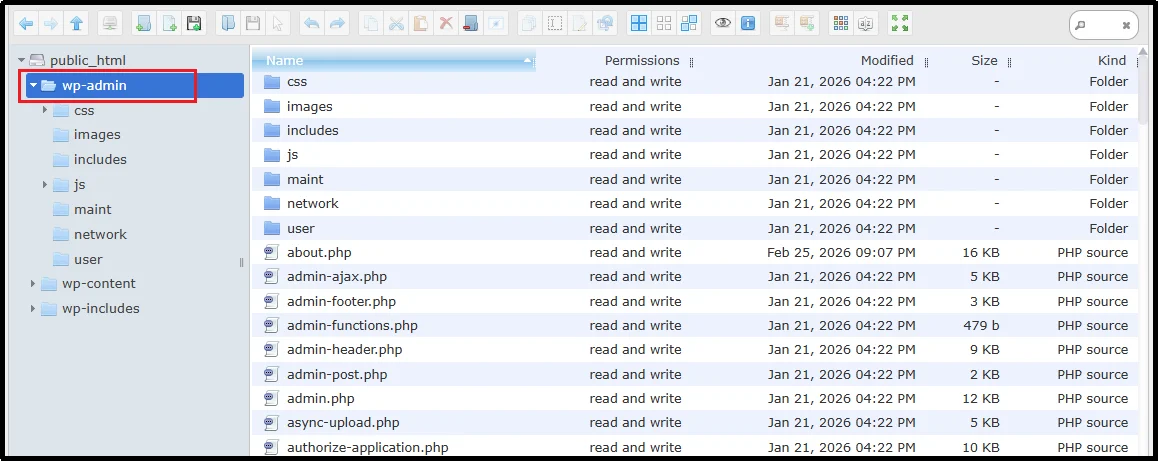
Some important files inside this directory include:
- admin.php
- users.php
- update.php
These files handle tasks such as:
- loading the dashboard
- verifying user permissions
- processing updates
If the wp-admin folder becomes corrupted, the dashboard may stop working.
wp-includes
The wp-includes folder contains the libraries and core functions that make WordPress run.
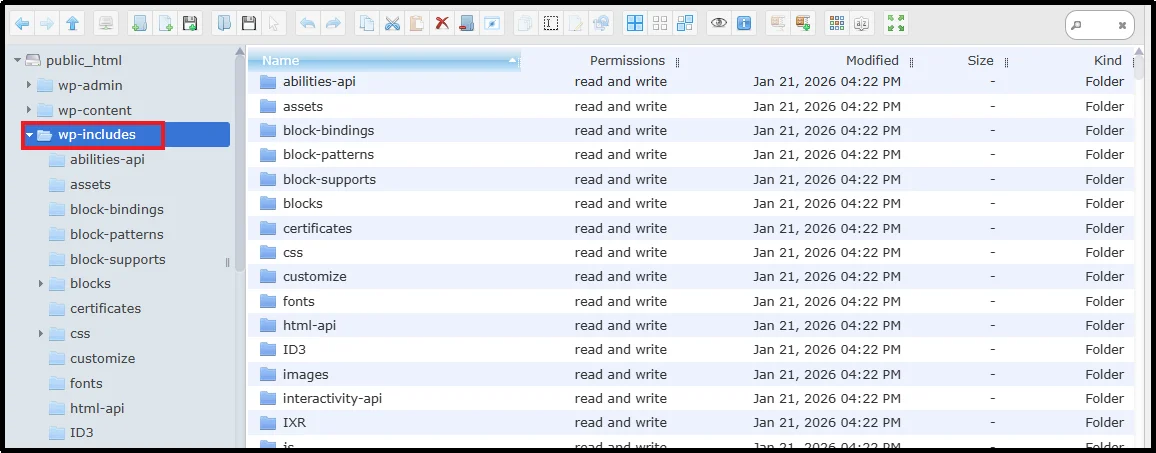
These files include:
- WordPress API functions
- formatting utilities
- class definitions
- internal system functions
Important: WordPress Core does not include a functions.php file. The functions.php file exists only within themes, not in wp-includes.
Developers rarely modify files inside wp-includes, because they are part of the official WordPress core system.
wp-content
The wp-content directory stores themes, plugins, and uploaded media.
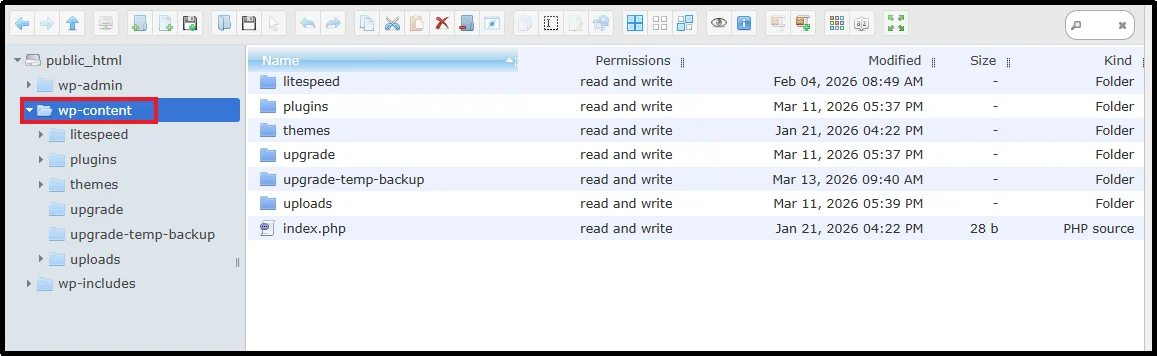
Unlike the previous directories, this directory is not part of the WordPress Core software, but it stores all user-generated content and custom functionality.
However, it is where your custom site functionality lives.
wp-config.php
The wp-config.php file is one of the most critical WordPress configuration files.
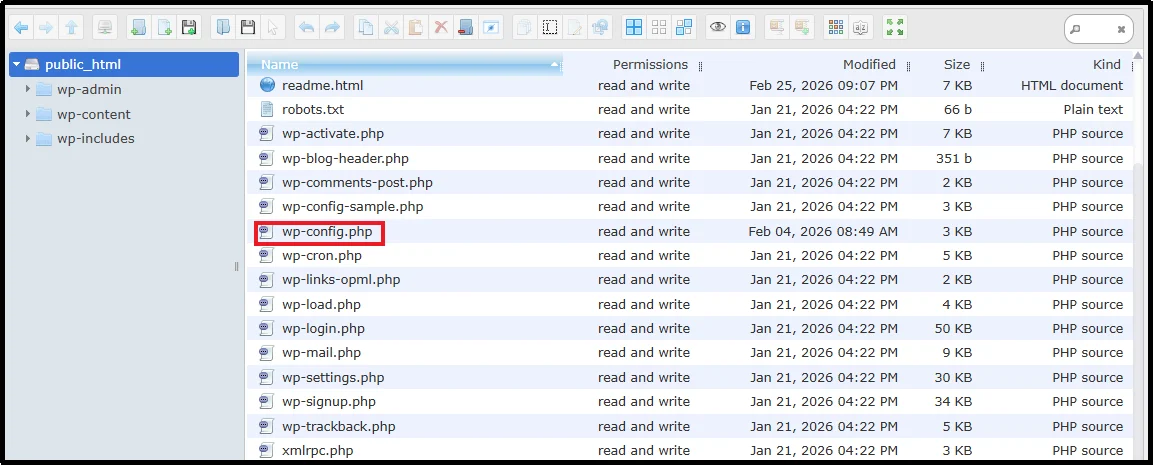
It connects WordPress to the WordPress database. You can edit the wp-config.php file using a WordPress file manager or FTP client (advanced users only).
This file stores information such as:
- database name
- database username
- database password
- database host
- authentication security keys
Without wp-config.php, WordPress cannot load your site content.
functions.php
The functions.php file allows developers to add custom functionality to WordPress.
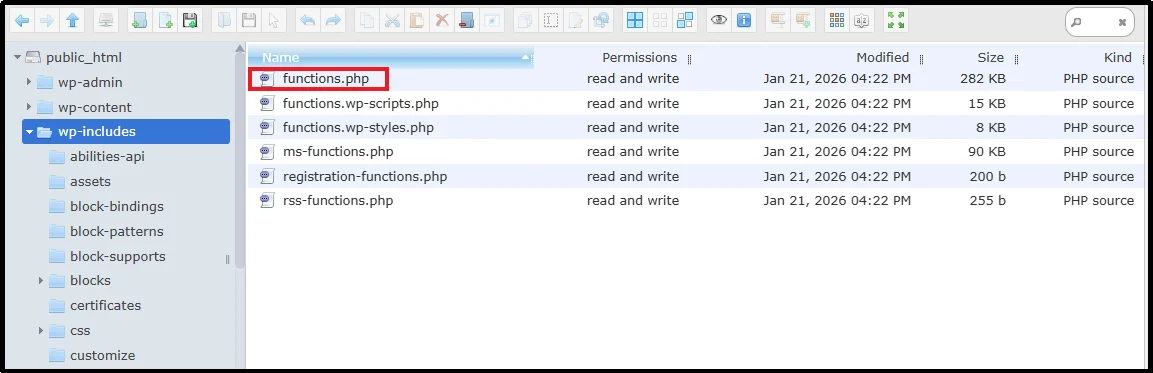
However, there are two versions of this file.
Core functions.php
Located inside wp-includes, this file is part of the WordPress core system.
It powers many built-in WordPress functions and should never be edited.
Theme functions.php
Every theme contains its own functions.php file.
This version can safely be modified to add custom features to your site.
Where Are WordPress Core Files Located?
WordPress core files are stored in the WordPress root directory of your website.
The root directory typically contains the following core files and folders:
- wp-admin
- wp-content
- wp-includes
- wp-config.php
- index.php
When WordPress is installed, these folders appear automatically.
Traditionally, developers access these files using FTP clients or hosting control panels such as cPanel. However, many site owners now prefer managing files directly from the WordPress dashboard.
Using a file manager plugin such as Advanced File Manager, you can access and manage core files directly from your WordPress dashboard without FTP.
This approach simplifies file management and reduces technical complexity.
Accessing Core Files Safely
Managing WordPress Core files requires caution, as modifying the wrong file can break your entire website.
Historically, developers used FTP clients to manage files. While effective, this approach requires additional software and server credentials.
A more convenient method is using a WordPress file manager plugin such as ‘Advanced File Manager,’ which allows you to access and manage WordPress files directly inside the admin panel.
If you need more advanced capabilities, you can explore the Advanced File Manager pricing plans to unlock additional file management features.
With this plugin, you can:
- Browse directories
- Build document libraries.
- Edit code using AI
- Upload or download files
- Rename or delete files
- Create ZIP archives
- Connect cloud storage apps
- And much more.
The plugin also allows access to directories outside the WordPress root, making file management more flexible.
For developers and administrators, this makes accessing core files significantly easier.
How to Update WordPress Core
Keeping your WordPress Core updated is essential for security, performance, and compatibility with themes and plugins.
Updates often include:
- bug fixes
- security patches
- performance improvements
Failing to update WordPress core can expose your site to vulnerabilities.
There are two main ways to update WordPress Core:
- Automatic Updates,
- Manual Updates.
Automatic Updates
The simplest method is updating WordPress from the dashboard.
Steps:
- Go to Dashboard → Updates
- Click Update to Version #.#.# (Currently 6.9.4)
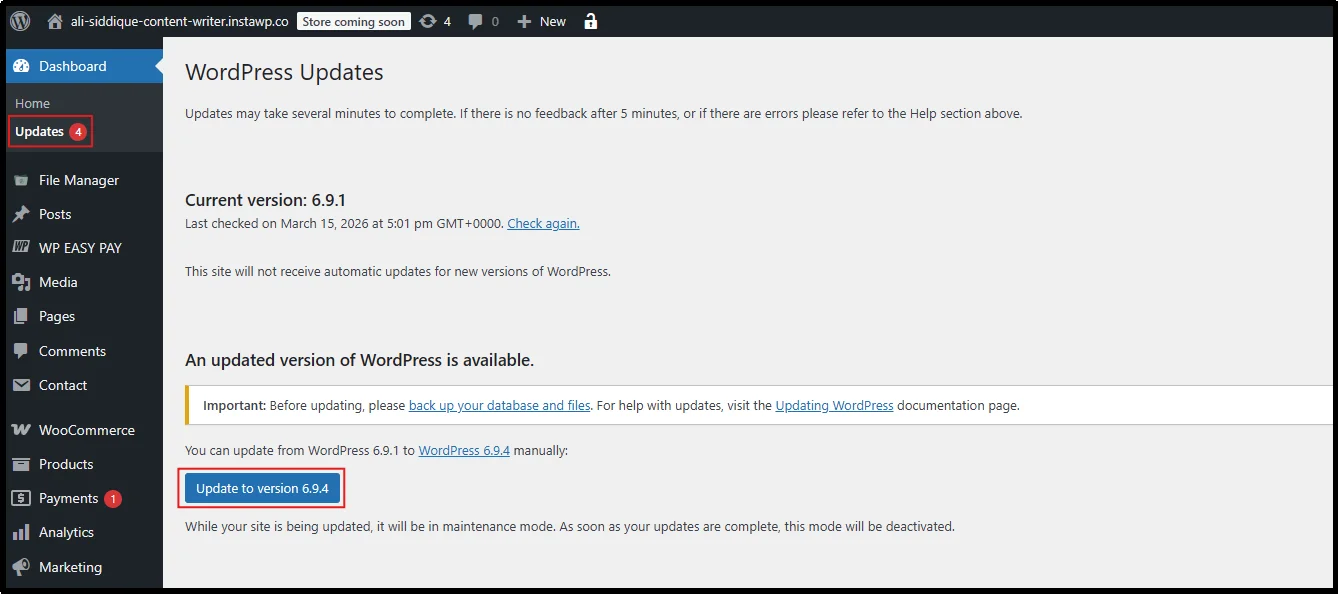
- Wait for the update process to complete
WordPress automatically replaces outdated core files with the latest versions.
Manually Update WordPress Core
Sometimes automatic updates fail due to server restrictions or plugin conflicts.
In these cases, you may need to manually update WordPress core.
Before replacing any files, you should install a file management tool that allows you to safely manage WordPress directories from your dashboard.
Start by installing the Advanced File Manager plugin:
- Go to Dashboard → Plugins → Add Plugin
- Search for Advanced File Manager
- Click Install Now, then Activate
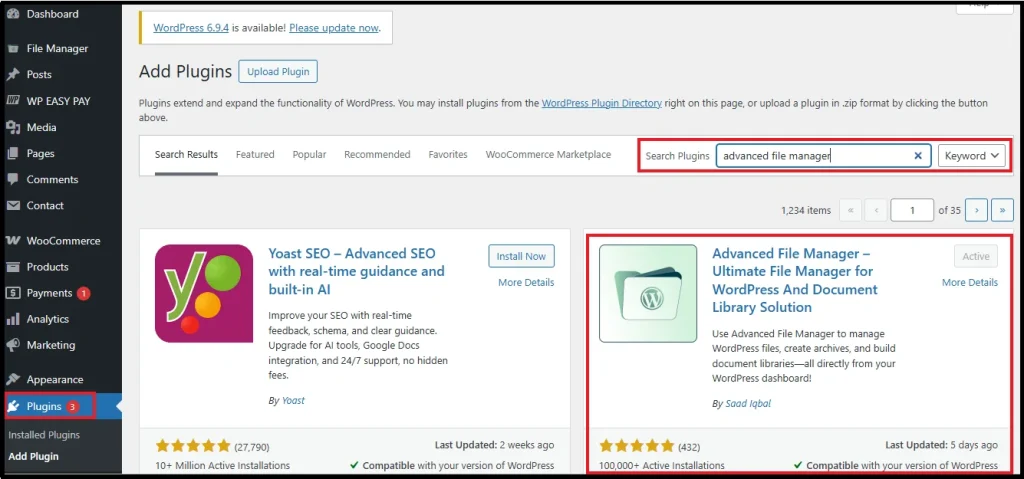
Once the plugin is activated, you can access your website’s files directly from the WordPress dashboard.
The typical manual update process involves:
- Download the latest WordPress version ZIP file.
- Extract the files and open the WordPress folder.
- Select the wp-admin and wp-includes folders and copy them.
- Go to WordPress dashboard → File Manager.
- Paste the copied folders, select Yes to replace the old files with the new ones, and keep the wp-content folder unchanged.
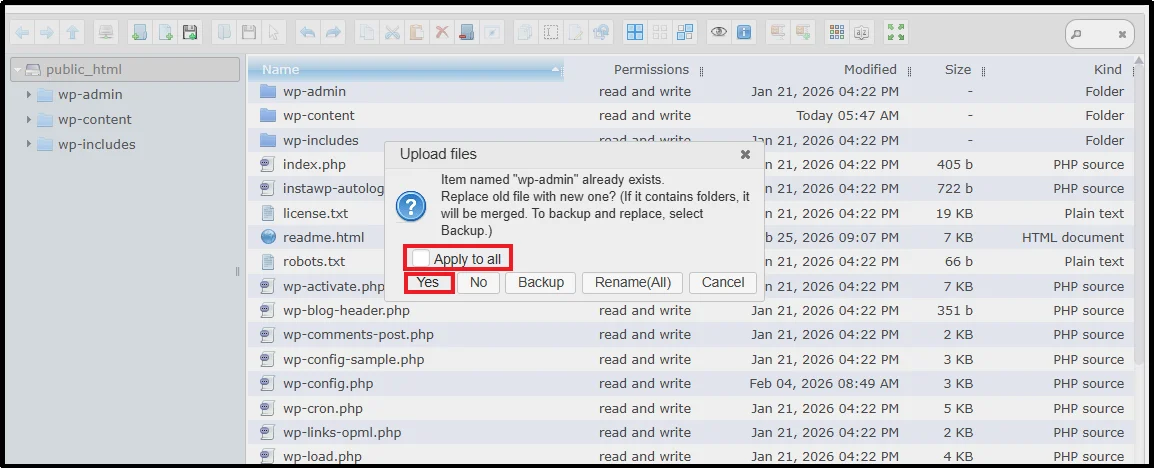
Using Advanced File Manager, you can upload and replace files directly inside WordPress without switching to FTP tools.
This simplifies the process of manually updating WordPress core and makes file management much more convenient.
WordPress Core Update Problems and Fixes
Even though WordPress updates are reliable, problems can sometimes occur.
Below are some common WordPress core update problems and fixes.
- White Screen of Death
The White Screen of Death (WSOD) displays a completely blank page on your website.
Common causes include:
- plugin conflicts
- corrupted core files
- PHP errors
The solution usually involves disabling plugins and checking core files.
- Database Upgrade Required
Sometimes WordPress requires a database update after a core upgrade.
You can complete this by visiting:
/wp-admin/upgrade.php
This updates the WordPress database structure automatically.
- Stuck in Maintenance Mode
During updates, WordPress temporarily places the site in maintenance mode.
If the update fails, the site may remain stuck.
The fix is to delete the .maintenance file from the WordPress root directory.
A file manager tool helps locate and remove this file quickly.
- Restore Core Files When Something Breaks
Sometimes corrupted files cause serious website issues.
In these cases, you may need to restore core files.
The safest approach is to replace damaged files with fresh versions.
Using a file manager plugin allows you to upload and extract these files directly inside WordPress.
The Advanced File Manager plugin supports archive extraction and large file uploads, which simplifies the recovery process.
How WordPress Core Stays Updated
WordPress is an open-source platform maintained by a global community.
Developers contribute to WordPress core development by improving the software.
Common contribution areas include:
- fixing bugs
- improving performance
- testing new features
- strengthening security
Developers typically work with technologies such as:
- PHP
- JavaScript
- MySQL
Through collaborative development, the WordPress core continues to evolve and improve.
Make Your WordPress Core Easier to Handle with Advanced File Manager
WordPress Core is the foundation of every WordPress website and is essential for site performance, security, and functionality.
The core includes the files and system logic that power the platform. Learning how these components work helps you troubleshoot errors, manage updates, and maintain site stability.
Key takeaways:
- WordPress Core powers all core website functionality
- Core files are separate from themes and plugins
- Regular updates improve security and performance
- Understanding the core structure helps in troubleshooting
- File manager plugins simplify access and management
With the right knowledge and proper tools, such as Advanced File Manager, handling WordPress core files becomes far easier and more efficient.

