
Your WordPress site may suddenly show a blank white page, stop loading, or lock you out of the wp-admin dashboard after a plugin update, theme change, or WordPress core update. This issue is known as the WordPress White Screen of Death (WSOD), a common WordPress error that hides fatal PHP errors and makes your site inaccessible without any warning message.
In most cases, WSOD occurs due to plugin conflicts, theme errors, PHP memory exhaustion, corrupted core files, failed updates, caching issues, or server-related problems. Since WordPress does not display error details by default, you need a structured troubleshooting approach to identify the root cause.
In this guide, we’ll walk through 9 proven fixes based on real-world WordPress troubleshooting experience to help you restore your website quickly and safely.
What is the WordPress White Screen of Death?
The WordPress White Screen of Death (WSOD) is one of the most common and frustrating WordPress errors because it can make your website completely inaccessible without showing an obvious error message. It occurs when your site fails to render content and displays a blank screen because of a hidden WordPress fatal error, PHP crash, or server-side execution issue.
For many users, this problem looks like a WordPress page is blank or a WordPress homepage white screen, which makes the website appear broken or inaccessible. In some cases, the issue only affects the frontend, while in others, it locks administrators out by showing a WordPress admin white screen.
Signs of the White Screen of Death Error
The white screen of death doesn’t always look the same, but there are a few clear indicators:
- Blank white page on the frontend → Visitors only see a completely white browser screen instead of your homepage, blog posts, or landing pages.
- White screen in wp-admin → You see a WordPress admin blank page when trying to log in, blocking access to the dashboard.
- Partial blank pages → Some sections load correctly, while others appear blank due to PHP execution failures.
These signs confirm that your site is experiencing a white screen in WordPress, often leaving WordPress stuck on the white screen until the root cause is fixed.
Causes of White Screen of Death Error in WordPress
There are several reasons that cause the white screen of death in WordPress:
- Plugin conflicts: A newly installed plugin, automatic update, or incompatible addon may conflict with your WordPress core files, active theme, or other plugins and trigger a fatal PHP error.
- Theme errors: A syntax error in your theme’s functions.php file (like a missing semicolon) can crash PHP instantly. Incompatibility with your server’s PHP version can also trigger a WordPress white page error.
- PHP memory exhaustion and PHP version incompatibility: When your site exceeds the allocated PHP memory limit, WordPress stops executing scripts and displays a blank page. This happens when running many plugins simultaneously.
- Corrupted core files: Incomplete updates or failed file transfers can corrupt WordPress core files, preventing proper execution.
- Corrupted .htaccess file: A syntax error or infinite redirect loop in .htaccess prevents Apache from processing requests correctly.
- Failed update lockout: WordPress creates a temporary .maintenance file during updates. If the process is interrupted, this file may remain in your root directory, blocking access to your entire site.
- Database connection issues: If WordPress fails to connect to the database, it may return a blank page instead of an error, especially when error reporting is disabled.
- File permission issues: Incorrect permissions can prevent WordPress from reading required files. If permissions were changed during migration or restore, you can fix them directly with AFM.
- Caching conflicts: Outdated or corrupted cache files may cause a white screen after an update. Clearing both the browser and WordPress cache often resolves this.
- Hosting/server errors: Server outages, PHP misconfigurations, or resource limitations can cause your WordPress website to fail to load. In such cases, contacting your hosting provider is essential.
- Custom code errors: Incorrect PHP snippets added inside functions.php, custom plugins, or code snippet plugins can instantly crash WordPress and trigger a white screen.
What to Do Before Fixing the Error
Before applying any fix, first identify whether the WordPress white screen affects the frontend, wp-admin dashboard, or the entire website. This helps narrow down the root cause, such as plugin conflicts, theme issues, PHP memory exhaustion, or server-level problems.
Create a Backup of Your Website
Before making any changes, always create a complete backup of your website. If you cannot access the WordPress dashboard due to the White Screen of Death, use your hosting control panel instead.
You can back up your site using one of the following methods:
- Hosting File Manager (cPanel/hPanel/Plesk):
Open your hosting File Manager, go to the public_html (or root directory), and download or compress the following files:- wp-content folder (themes, plugins, uploads)
- wp-config.php
- .htaccess
- phpMyAdmin (Database Backup):
Open phpMyAdmin, select your WordPress database, and export it as an SQL file. This contains your posts, pages, users, and settings. - Hosting Backup Tools (if available):
Some hosting providers offer built-in backup or snapshot features that allow you to restore your site quickly.
This ensures you can safely restore your website if anything goes wrong during troubleshooting.
Enable WordPress Debug Mode
WordPress debug mode helps you identify hidden PHP errors, fatal errors, deprecated functions, and plugin conflicts. It logs all errors into the debug.log file inside the wp-content folder, making troubleshooting much easier.
To enable it, open your wp-config.php file using your hosting File Manager and add or update the following lines:
define( ‘WP_DEBUG’, true );
define( ‘WP_DEBUG_LOG’, true );
define( ‘WP_DEBUG_DISPLAY’, false );
What each line does:
- WP_DEBUG turns on WordPress debugging mode.
- WP_DEBUG_LOG saves all errors in the wp-content/debug.log file.
- WP_DEBUG_DISPLAY hides errors from visitors to protect sensitive information.
This is the safest way to detect PHP errors causing a blank WordPress screen without exposing them to the public.
After troubleshooting, disable debug mode by setting:
define( ‘WP_DEBUG’, false );
This helps prevent performance issues and keeps error details hidden on live websites.
9 Fixes for WordPress White Screen of Death Error
Now that you’ve backed up your site and enabled debug mode, let’s walk through the 9 solutions to fix the WordPress white screen of death. Work through these fixes sequentially rather than applying them all at once. As soon as the issue resolves, stop and avoid making additional changes that could introduce new errors.
Fix 1: Clear Your Browser Cache
When WordPress updates a plugin or its core files, cached versions of your site may conflict with the new code. This mismatch between cached files and updated code can trigger a white screen, which often resolves immediately after clearing the cache.
To clear your browser cache:
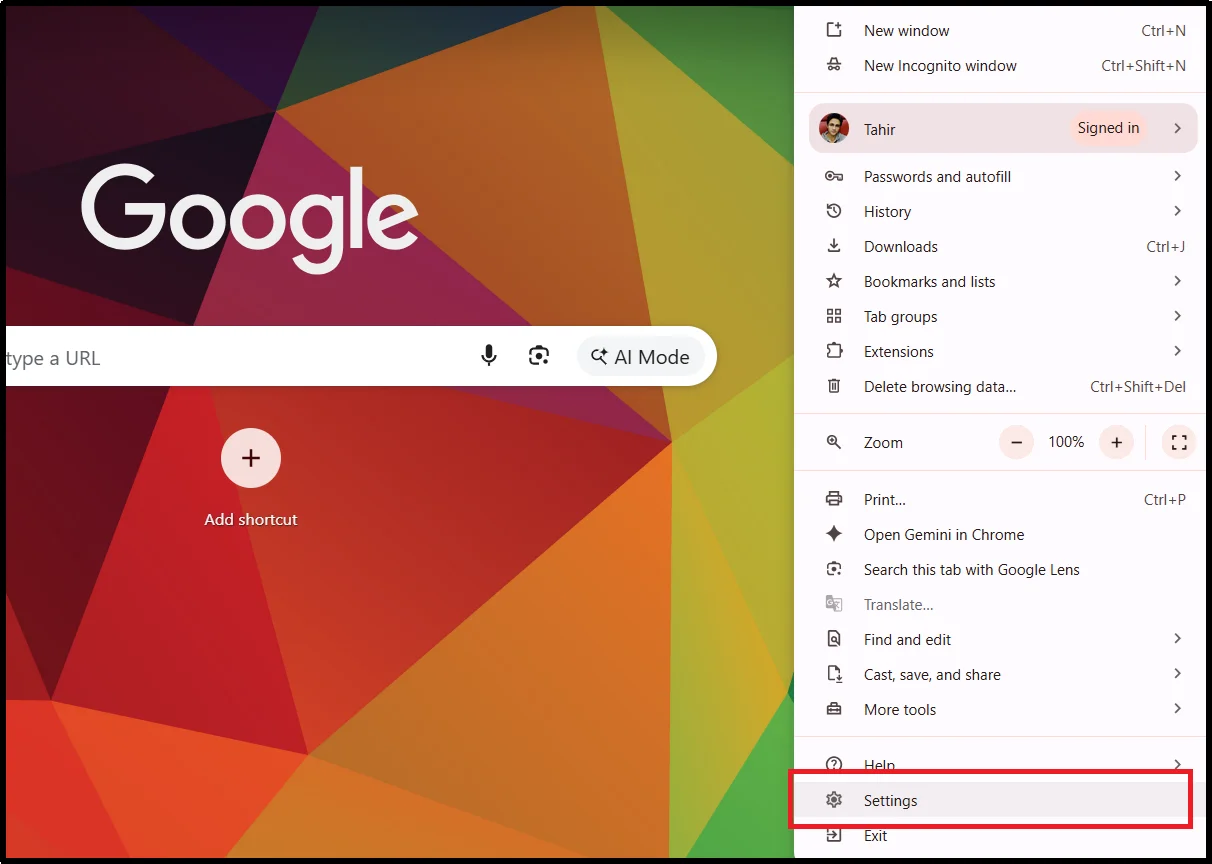
- Open your browser settings.
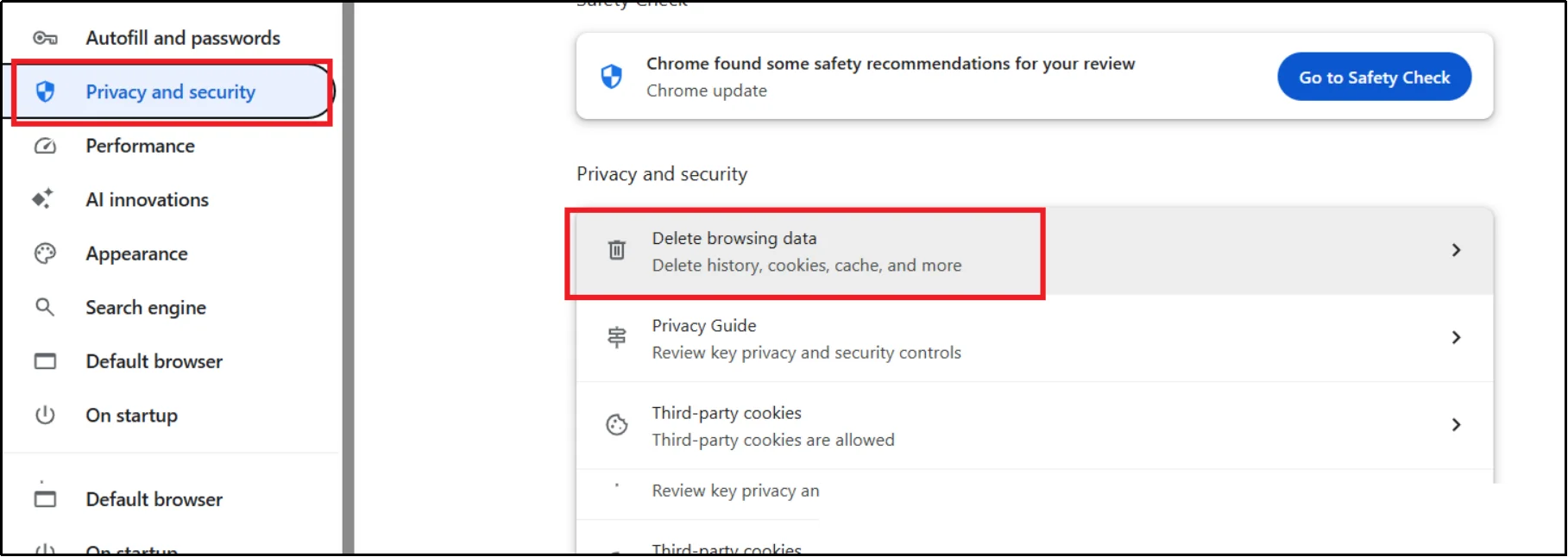
- Navigate to Privacy and security > Delete browsing data.
- Select Cookies and other site data, then click Delete data.
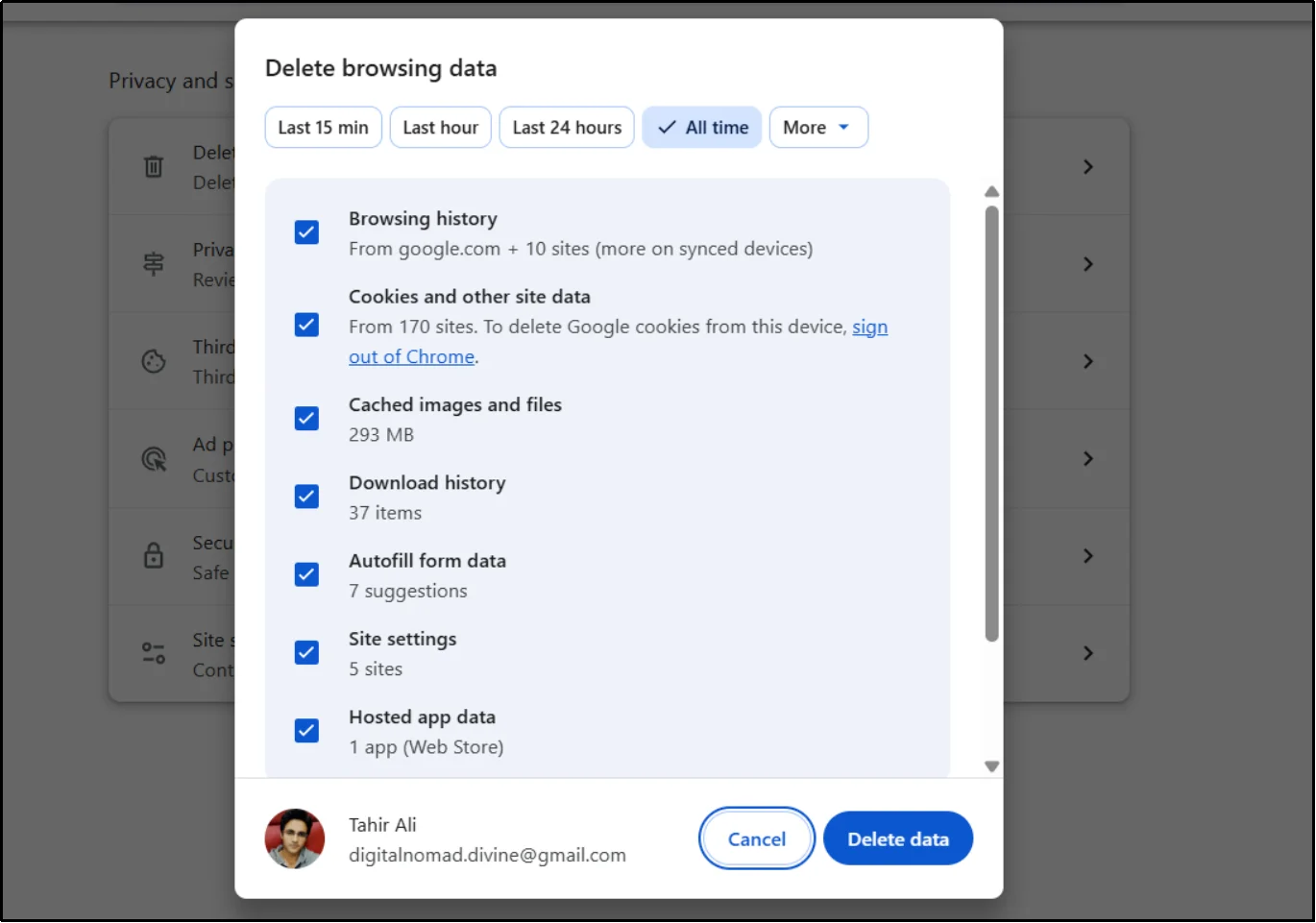
Reload your website and check if the white screen is gone.
Fix 2: Disable All WordPress Plugins
When a plugin conflicts with your theme, WordPress core, or PHP version, it can trigger a fatal error, activate WordPress recovery mode, or completely break your site.
Unfortunately, you cannot access your dashboard if you are experiencing WordPress White Screen of Death. What you can do is:
- Log in to your hosting cPanel or hPanel.
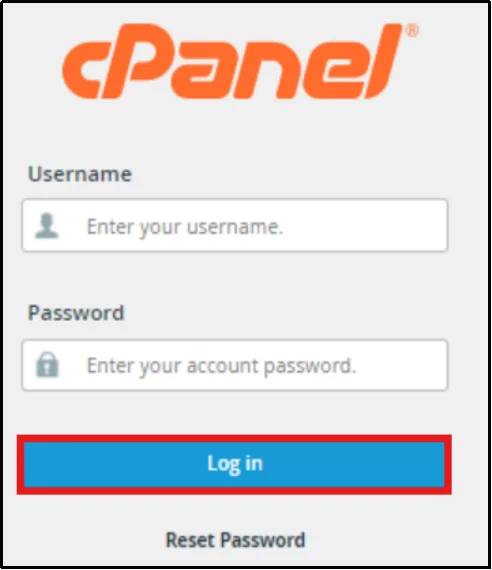
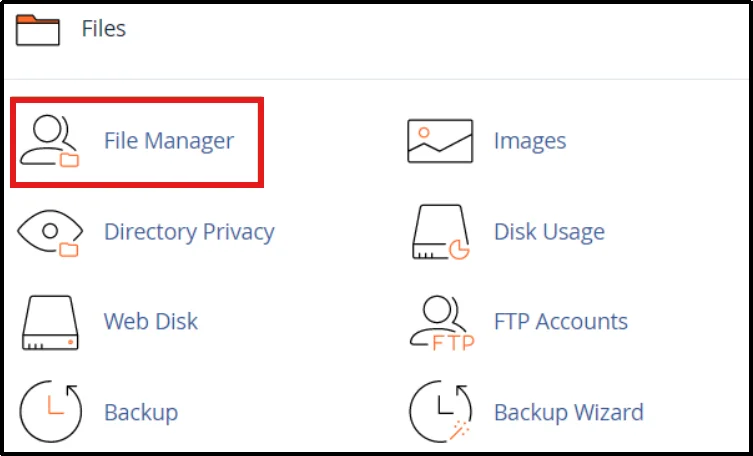
- Open the File Manager, and go to the Root Folder (public_html).
- Head to the wp-content folder and then Plugins.
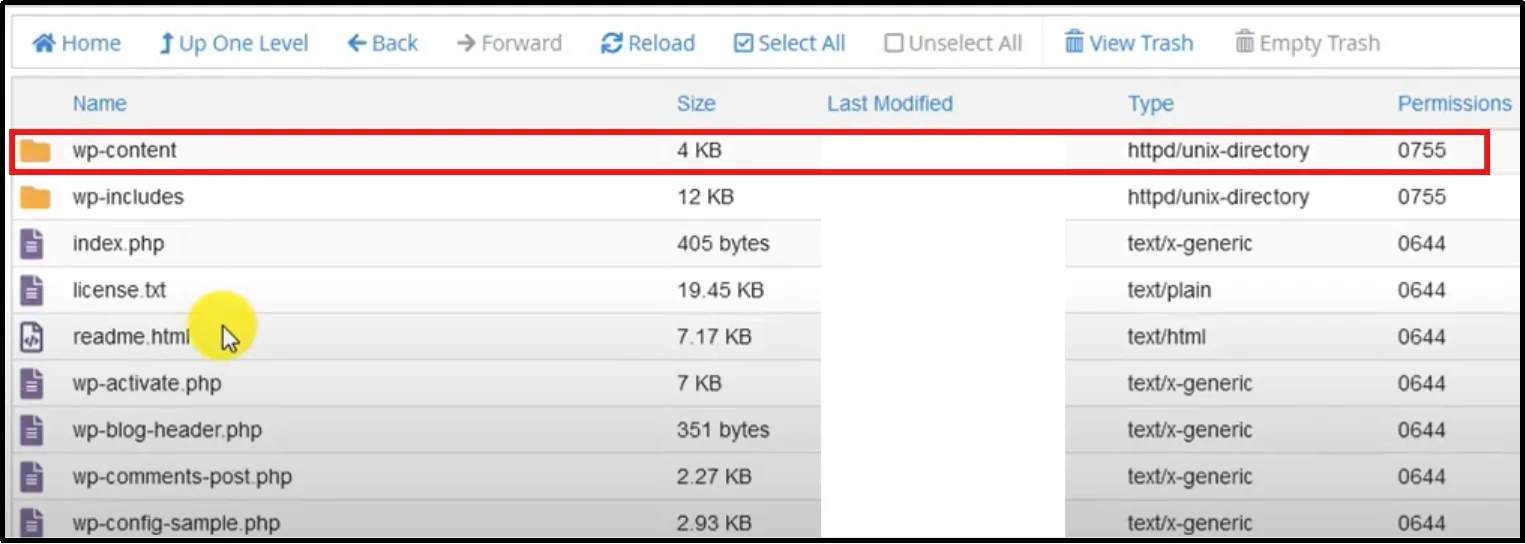
- Rename the plugins folder to plugins-disabled or any temporary name to deactivate all plugins instantly, as it deactivates plugins because WordPress can no longer detect them.
- Save and reload your website.
You have successfully disabled all WordPress plugins without using any external tool or developer.
Fix 3: Switch to a Default WordPress Theme
If the active theme has a PHP error or a broken function, WordPress will show a white screen instead of your content.
Change the theme from File Manager using cPanel or hPanel by following the steps below:
- In your hosting, cPanel or hPanel, visit the File Manager.
- Go to wp-content → themes.
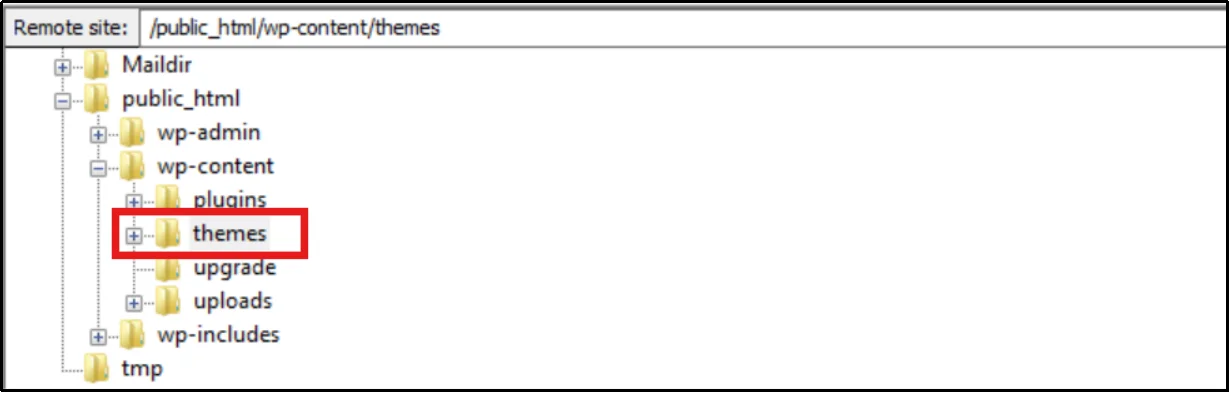
- Just rename your active WordPress theme folder to anything you like.
- As with plugins, WordPress will automatically fall back to a default theme, such as Twenty Twenty‑Four, if one exists.
- Save and reload your website.
Once you have recovered from the white screen of death, you must double-check your theme files. It’s better if you access your theme files through Advanced File Manager and check the functions.php file for syntax errors.
Fix 4: Increase the WordPress PHP Memory Limit
If PHP runs out of its allocated memory while loading your site, WordPress will produce a WordPress memory limit white screen.
You can resolve memory-related issues using the following methods:
1. Increase Memory Limit Using wp-config.php
Open your wp-config.php file using File Manager via cPanel or FTP and add the following line just before the line that says /* That’s all, stop editing! */:
2. define(‘WP_MEMORY_LIMIT’, ‘256M’);
Save the file and reload your site. If the memory limit was the issue, your site should now load correctly. If you need more than 256M, try 512M, but note that some hosting plans have a maximum cap, so contact your host if needed.
3. Ask Your Hosting Provider for More Resources
If increasing the memory limit in wp-config.php doesn’t help, contact your hosting provider to request an increase in the PHP memory limit.
4. Increase PHP Memory Limit Through php.ini
Some hosting providers ignore the wp-config.php memory setting. In that case, increase the PHP memory limit through php.ini or your hosting control panel.
Add:
memory_limit = 256M
Fix 5: Check File Permissions
Incorrect file permissions can prevent WordPress from reading or executing its own files. They often occur after migrations, manual uploads, or server misconfigurations.
The recommended permission settings for a WordPress site are:
Files: 644 – allows the owner to read and write, while the group and public can only read.
Folders: 755 – allows the owner to read, write, and execute, while others can only read and execute
Fix 6: Regenerate the .htaccess File
A corrupted .htaccess file can trigger redirect loops, server errors, or a WordPress white screen after migration or plugin changes.
To regenerate it:
- Open your WordPress root folder via FTP or cPanel
- Rename .htaccess to .htaccess-old.
- Reload your website.
- Go to Settings → Permalinks and click Save Changes to generate a new .htaccess file automatically.
Fix 7: Re-upload Core WordPress Files
If critical WordPress core files become corrupted or accidentally modified, it can lead to a WordPress website disappearing after login or a complete white screen.
To replace corrupted core files:
- Download a fresh copy of WordPress from wordpress.org.
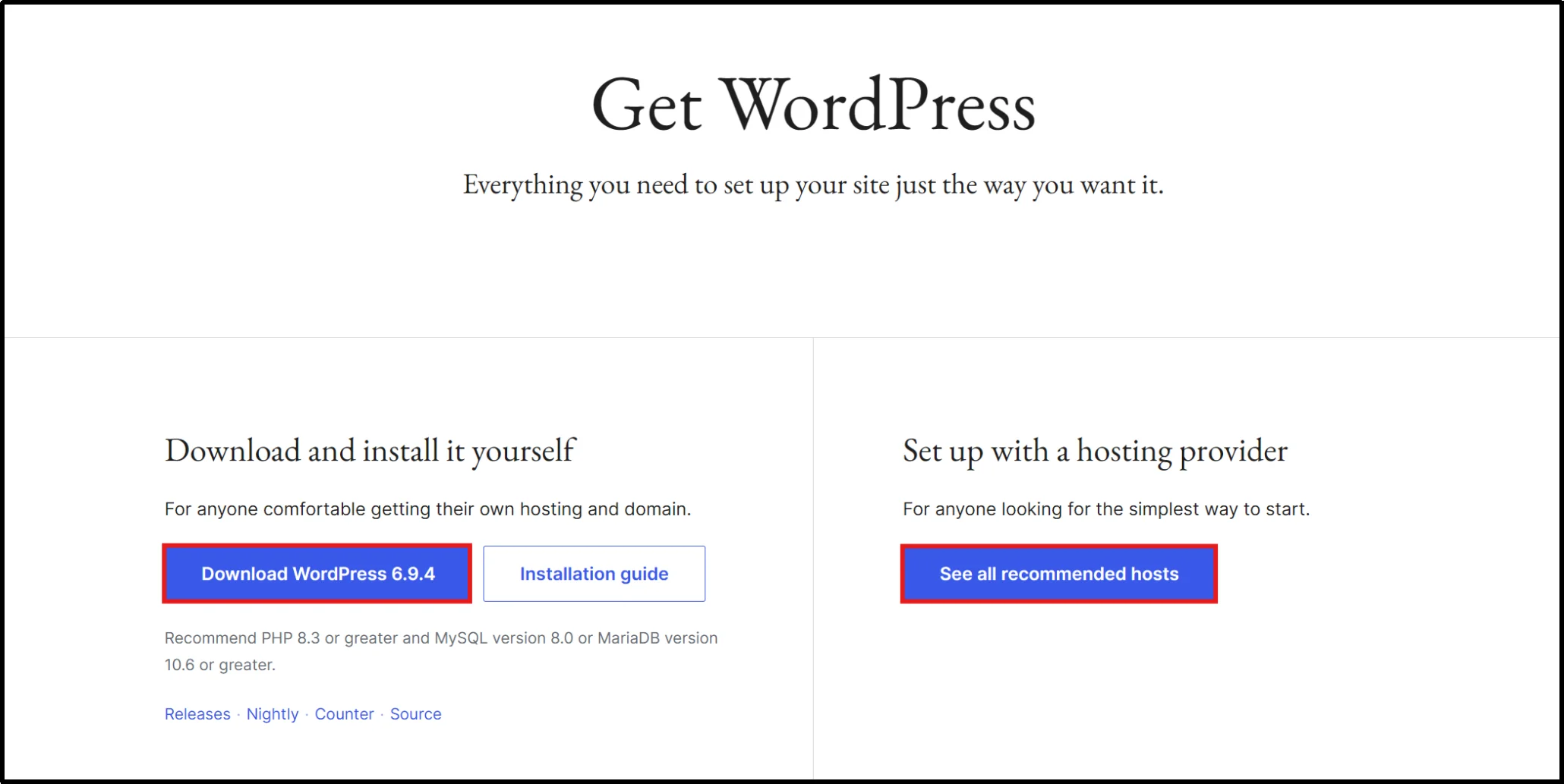
- Extract the ZIP file and locate the wp-admin and wp-includes folders.
- Log in to your hosting cPanel or hPanel and upload these two folders to the root folder.
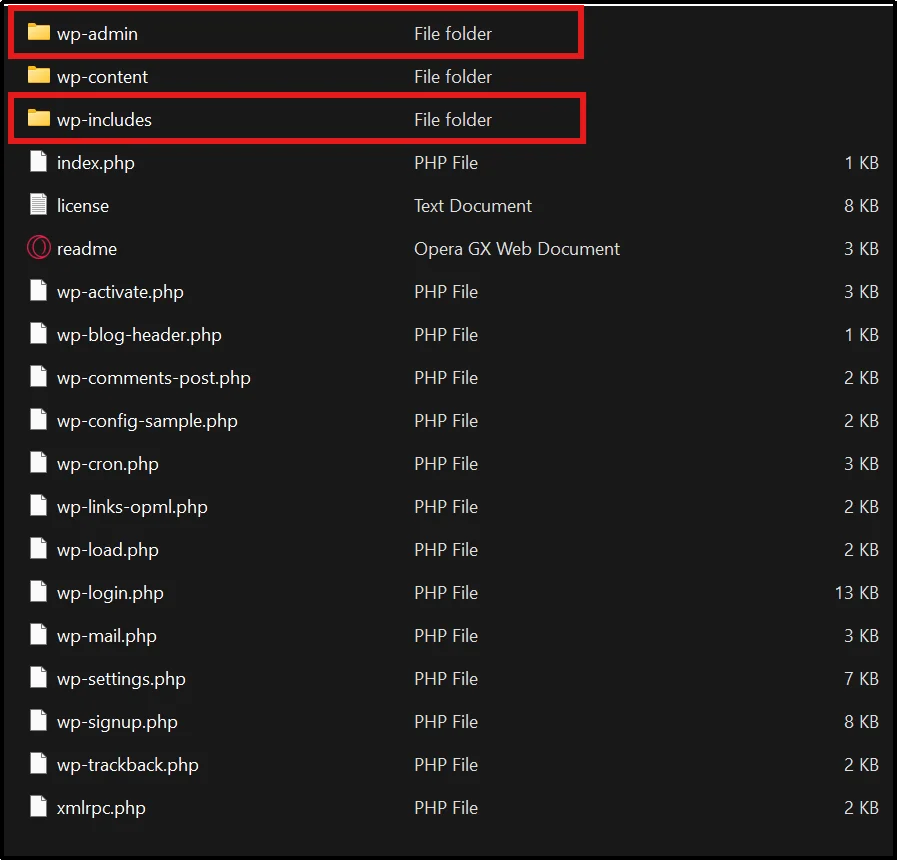
- Do not replace the wp-content folder, as it contains your themes, plugins, and uploaded media files.
- Reload your website to check whether the white screen is resolved.
Important Precautions Before Re-uploading:
- Always create a full backup before replacing any files.
- Only overwrite wp-admin and wp-includes – never touch wp-config.php or wp-content.
Fix 8: Disable Failed Automatic Updates
During an update, WordPress creates a file called .maintenance in the root directory. If the update fails, this file remains and puts your site into a permanent maintenance loop.
Delete the .maintenance file to exit maintenance mode and restore access to your site. To do so:
- Log in to cPanel or hPanel and open File Manager.
- Go to your WordPress root directory (public_html).
- Click Settings in the top-right corner, show Hidden Files, then save.
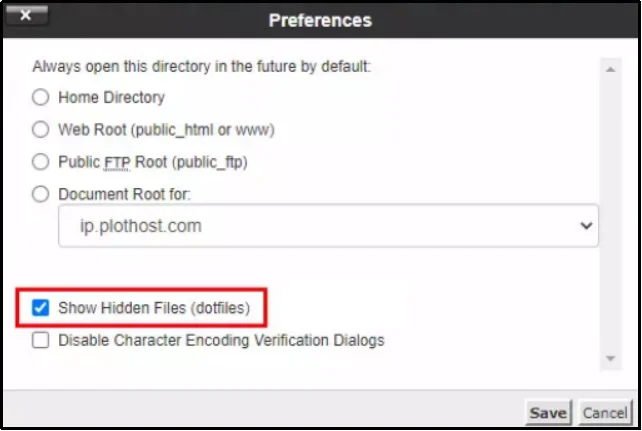
- Look for the .maintenance file, right-click to open the contextual menu, and press delete.
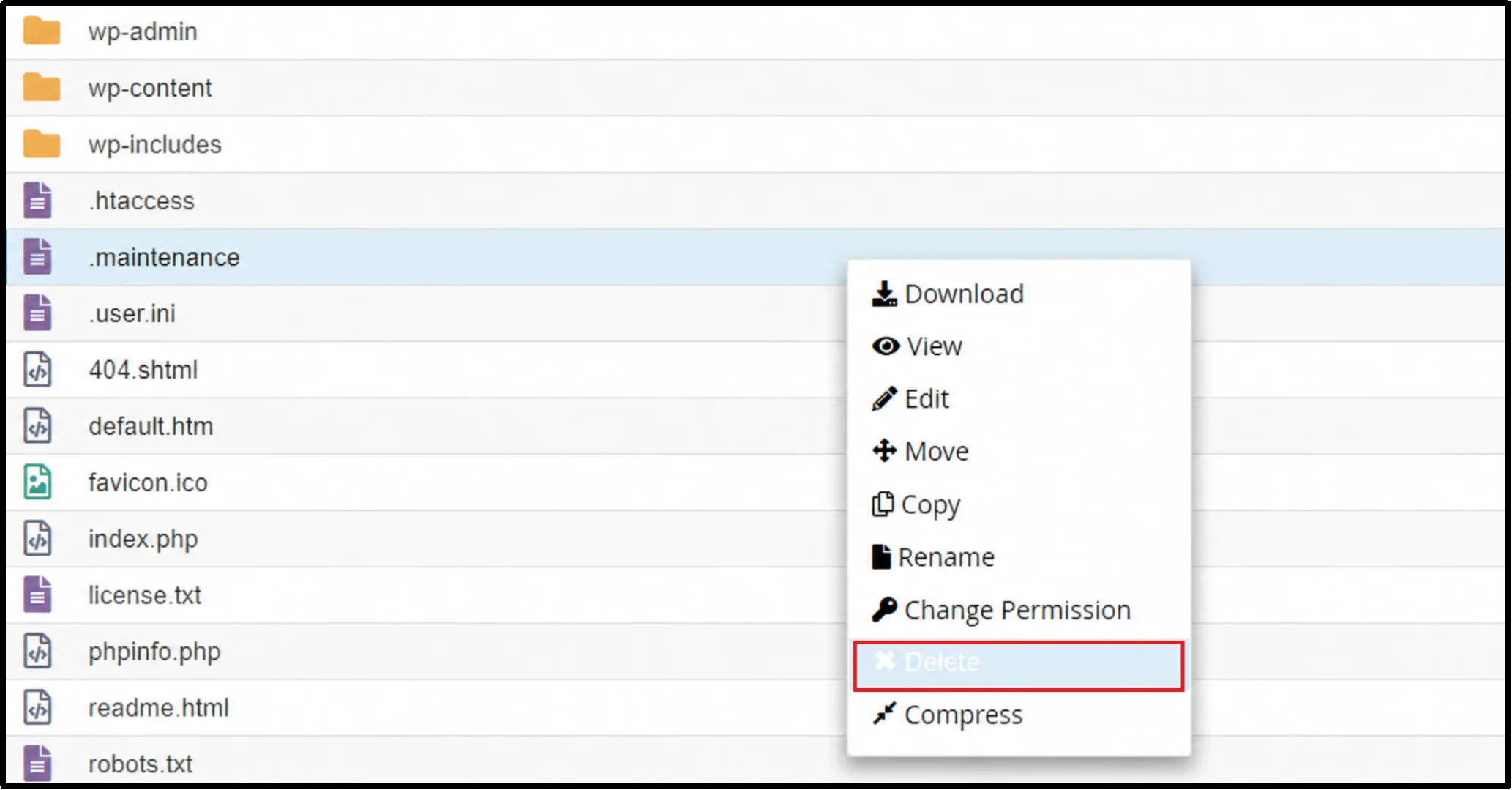
- Reload your site. Your site should now exit maintenance mode.
- Retry the WordPress Update
Just make sure your server resources are sufficient, and your internet connection is stable to prevent another interruption.
Fix 9: Contact Your Hosting Provider
If you’ve tried all seven solutions above and your WordPress site still crashes or refuses to load, the problem may exist at the server or hosting level.
Issues such as PHP version conflicts, server outages, and resource limitations can cause your site to go blank, aka the white screen of death.
Contact your hosting provider and share the following:
- The exact error message from your debug.log file.
- When the issue started and any recent changes made (plugin installs, updates, etc.).
- Your current PHP version and the steps you’ve already taken to troubleshoot.
- Screenshots of your WP-Admin or any partial error messages visible on the screen.
How to Prevent Your WordPress Site From White Screen of Death Error
Now that you’ve resolved the WordPress White Screen of Death (WSOD), the next step is preventing it from happening again. In most cases, plugin conflicts, PHP memory exhaustion, corrupted files, and failed updates trigger the issue. Following these best practices will help you keep your WordPress site stable and reduce the risk of future downtime.
- Keep plugins and themes updated. Regularly update your WordPress core, plugins, and themes, but always review compatibility notes before applying updates to a live website.
- Avoid poorly coded plugins. Before installing a plugin, check its ratings, update frequency, support history, and active installation count to reduce the risk of WordPress plugin conflicts and fatal errors.
- Use a staging site before major changes. Test updates, theme modifications, and new plugins in a staging environment before deploying them to your live website.
- Monitor WordPress errors regularly. Use uptime monitoring tools and keep WordPress debug logging enabled in a secure, non-public mode to catch issues early and troubleshoot WordPress errors faster.
- Use reliable hosting. A quality hosting provider with sufficient PHP memory, modern PHP support, optimized server configurations, and strong uptime can prevent many WordPress white screen errors before they affect your website.
The WordPress White Screen of Death may feel frustrating, but it is completely fixable in most cases. With the right troubleshooting process and recovery tools, you can quickly restore your WordPress website and minimize downtime.
Frequently Asked Question
What causes a blank white page in WordPress?
Common causes include plugin conflicts, broken themes, low PHP memory, corrupted files, caching issues, or server problems. WordPress hides errors, so it appears blank.
How do I fix the WordPress white screen after a plugin update?
Disable recently updated plugins, clear your cache, and check the debug.log file for fatal PHP errors.
Where is the WordPress debug.log file located?
WordPress stores the debug.log file inside the wp-content folder after enabling WP_DEBUG_LOG in wp-config.php.
Can PHP version issues cause a white screen in WordPress?
Yes. An outdated or unsupported PHP version can conflict with plugins or themes and trigger the WordPress White Screen of Death.
Does clearing the cache fix the white screen of death?
Yes, if cached files conflict with recent updates. Clear both the browser and WordPress cache before deeper troubleshooting.
Can a plugin cause the WSOD error?
Yes, plugin conflicts are the most common cause. Incompatible plugins can crash your site, especially after installation.
Does increasing PHP memory fix WSOD?
Only if low memory is the cause. It won’t help with plugin conflicts or corrupted files.
Can corrupted themes cause a white screen in WordPress?
Yes. A broken or incompatible theme can trigger WSOD. Rename it to force WordPress to load a default theme.
Is WSOD caused by hosting issues?
Yes, server misconfigurations, downtime, or insufficient resources can trigger the white screen of death.
Can a corrupted .htaccess file cause a WordPress white screen?
Yes. A broken .htaccess file can trigger redirect loops, server errors, or prevent WordPress from loading correctly. Renaming the file forces WordPress to generate a fresh configuration.
Why does WordPress show a white screen after updating PHP?
Some plugins or themes may not support the latest PHP version. Compatibility issues can trigger fatal PHP errors and cause the WordPress White Screen of Death.