



Want to edit WordPress theme files but not sure where to start?
Whether you need to change CSS styles, modify PHP functions, or customize your theme layout, WordPress gives you multiple ways to safely edit theme files, even without advanced coding skills.
In this guide, we will show you four easy and secure ways to edit your WordPress theme files using built-in tools, cPanel, FTP, and the powerful Advanced File Manager.
Ready? Let’s get started!
Where Are WordPress Theme Files Located in the Directory?
Before you start editing, it is important to know where the files are located. All WordPress themes are stored in the wp-content/themes/ directory, where each theme has its own folder containing core files like style.css, functions.php, and template files.
The WordPress theme directory is located at wp-content/themes/, where each installed theme has its own folder. Inside this, there will be a subdirectory for each theme you have installed on your WordPress site. To edit a file, you will first want to look in a directory under `wp-content/themes/your-theme-name/`.
Knowing where other directories like `wp-content/uploads/` are can also help you with files, and you can learn more about this in our guide on what the WP-Content Uploads directory is and how to upload files.
Important Safety Precautions
Before editing WordPress theme files, follow these essential safety practices:
- Create a full backup of your website (files + database) before you make any modifications in any of the theme’s files.
- Use a child theme for modifications. A child theme is a theme that inherits all styles and functions from another theme (the parent theme) and keeps your modifications intact when you update your parent theme.
- Never modify WordPress core files, as any modifications you make will be overwritten when you update WordPress.
- Test all changes in a staging environment before making them live on your website.
Method 1: Using the Built-in WordPress Theme File Editor
The easiest way to edit WordPress theme files is by using the built-in Theme File Editor in WordPress. This tool is part of the WordPress admin dashboard and allows you to modify theme files directly in your browser.
How to Use The Theme File Editor
- For Classic Themes – Go to “Appearance” → “Theme File Editor” in your WordPress admin sidebar.
- For Block Themes (WordPress 5.9+): The traditional Theme File Editor may be disabled. Instead, use Appearance → Editor (Site Editor) for full-site editing, or enable the classic editor via code if needed.
⚠️ Always verify your theme type first.
- On the right side, you can see a list of all the theme files you can edit.
- Click on a file you wish to edit, like style.css or functions.php, and you can edit it in the code editor.
- Once you have edited your file, click on “Update File”.
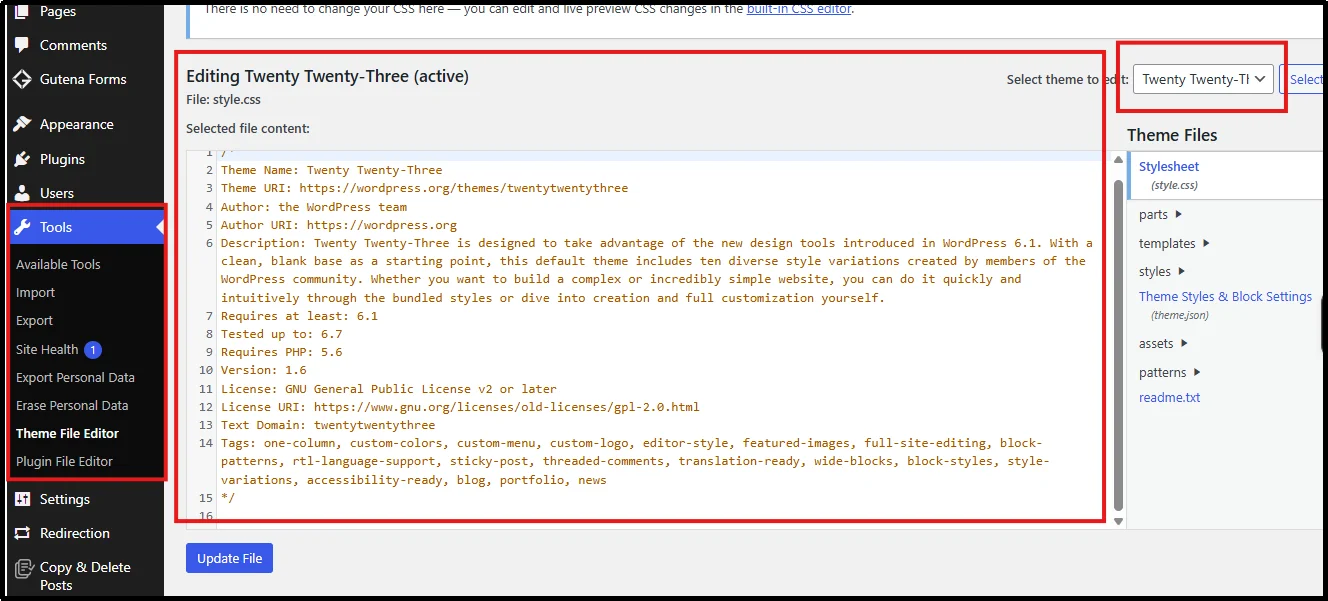
The WordPress theme file editor, also known as Theme File Editor, is a code editor included in WordPress as a part of the Appearance tab in the admin dashboard. It’s a simple built-in code editor that lets you edit PHP, CSS, and other theme files directly from your dashboard.
What Can You Do Using The WordPress Theme File Editor?
- Customize your stylesheets, like style.css, by editing colors, fonts, and layouts.
- Add functionality to your WordPress website by editing functions.php.
- Modify template files such as header.php, footer.php, and single.php.
What Are The Limitations of Using The WordPress Theme File Editor?
- You cannot undo any changes you make in your WordPress theme files.
- functions.php is a crucial file in WordPress; errors in this file can completely crash your website.
- This feature is disabled in some hosts due to security concerns.
Method 2: How to Edit WordPress Theme Files in cPanel
If the built-in editor is unavailable, you can edit WordPress theme files in a cPanel-style file manager using your hosting provider’s control panel.
Steps:
- Access your “cPanel” account.
- Click on “File Manager”.
- Find the public_html file.
- Click on WP-content
- Navigate to: public_html → wp-content → themes
- Access your theme folder and choose a file you wish to edit.
- Utilize the built-in code editor to make your modifications.
While cPanel’s File Manager is a useful tool for accessing and editing server-side files without needing to resort to FTP clients, you will have to access your hosting provider’s control panel separately to access the File Manager tool. The interface can sometimes appear cluttered, depending on your hosting provider.
For a more streamlined alternative accessible directly from your WordPress dashboard, a range of file manager plugins is available. In fact, we’ve covered the key benefits of using a WordPress file manager plugin compared to traditional cPanel or FTP approaches.
Method 3: How to Edit WordPress Theme Files via FTP
For those who prefer desktop applications, learning how to edit WordPress theme files via FTP is a valuable skill. With FTP (File Transfer Protocol), you can connect your computer directly to your server.
What you need:
- An FTP client such as FileZilla, CyberDuck, or WinSCP
- FTP credentials provided by your hosting company (hostname, username, password, port)
How to Edit WordPress Theme Files via FTP
- Connect to your hosting server using an FTP client like FileZilla.
- Navigate to the /wp-content/themes/ directory where your active theme is stored.
- Open the directory where your active theme is located.
- Find the file you want to edit, then download it.
- Edit the file with your code editor, then re-upload the file to the server, overwriting the existing file.
Important Security Note: When transferring data via FTP, the data is not encrypted. Therefore, we recommend using “SFTP” instead. With SFTP, your data is encrypted as it is transferred between your computer and the server. If you are not familiar with the process, we recommend reading our guide on how to use FTP to upload files to WordPress.
Method 4: The Modern Alternative – Edit WordPress Theme Files with Advanced File Manager Plugin
If you want a simpler, more secure way to modify WordPress theme code without switching between FTP clients and cPanel logins, your best option is Advanced File Manager. It’s a modern, dashboard-native solution that lets you edit WordPress theme files without using FTP or cPanel.
Why Advanced File Manager is Better
- No FTP or cPanel Needed: Manage and edit files directly from your WordPress dashboard.
- Built-in Code Editor: Secure editor with syntax highlighting for PHP, HTML, CSS, and JavaScript.
- All File Operations: Copy, paste, rename, upload, download, and zip/unzip files بسهولة.
- AI Coding Assistant: Get code suggestions, fixes, and error detection in real time.
- Front-End Access: Allow users to upload and manage files without dashboard access.
- Cloud Integrations: Connect Google Drive, Dropbox, Amazon S3, and GitHub.
- Drag & Drop + Search: Quickly upload, organize, and find files.
- Role-Based Security: Control access and protect sensitive files.
- And much more, check out all features list.
The plugin is actively maintained and widely used, making it a reliable choice for safely managing WordPress files.
How to Use Advanced File Manager to Edit Theme Files
- Install and activate the Advanced File Manager plugin from the WordPress repository.
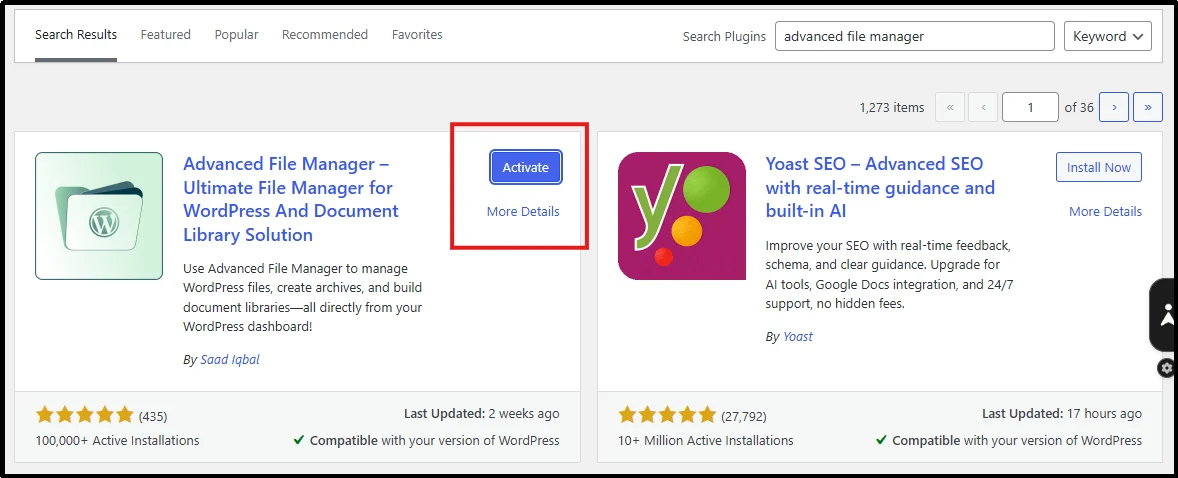
- Go to “Advanced File Manager” in your admin dashboard.
- Navigate to wp-content > themes > your-theme-name.
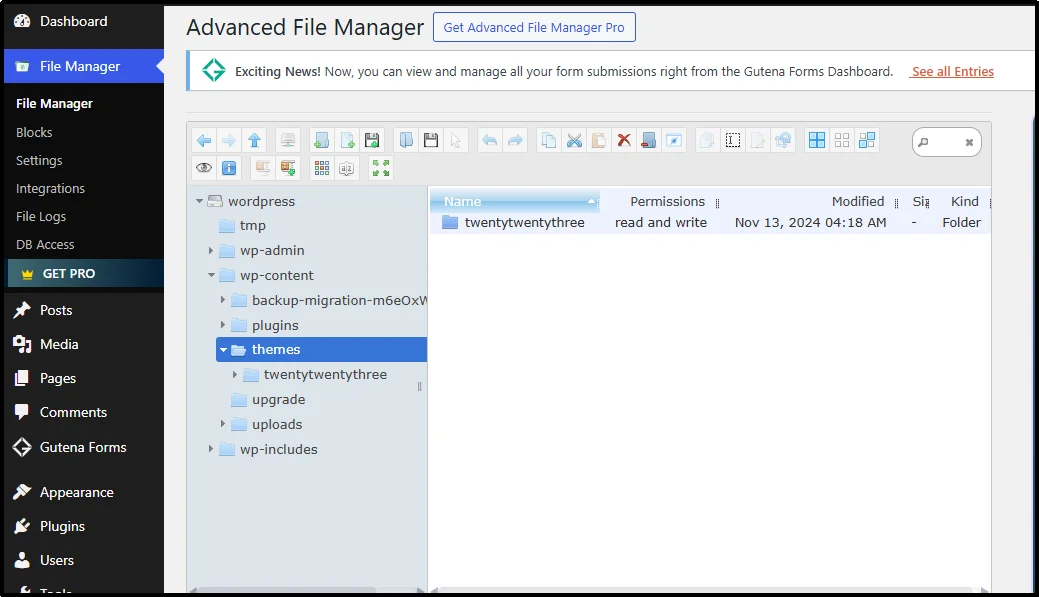
- Right-click on any file and select “Edit” to open the code editor.
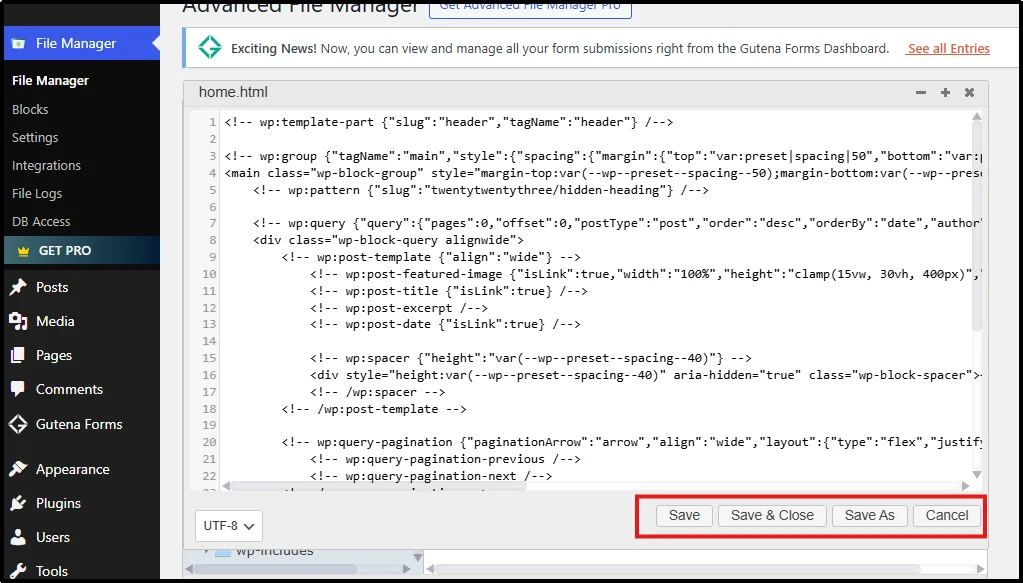
- Make your changes and save.
Steps to Enable Code Editor Themes:
- Navigate to “Settings” → “Code Editor Theme”.
- Enable the theme option.
- Select your desired theme from the dropdown menu.
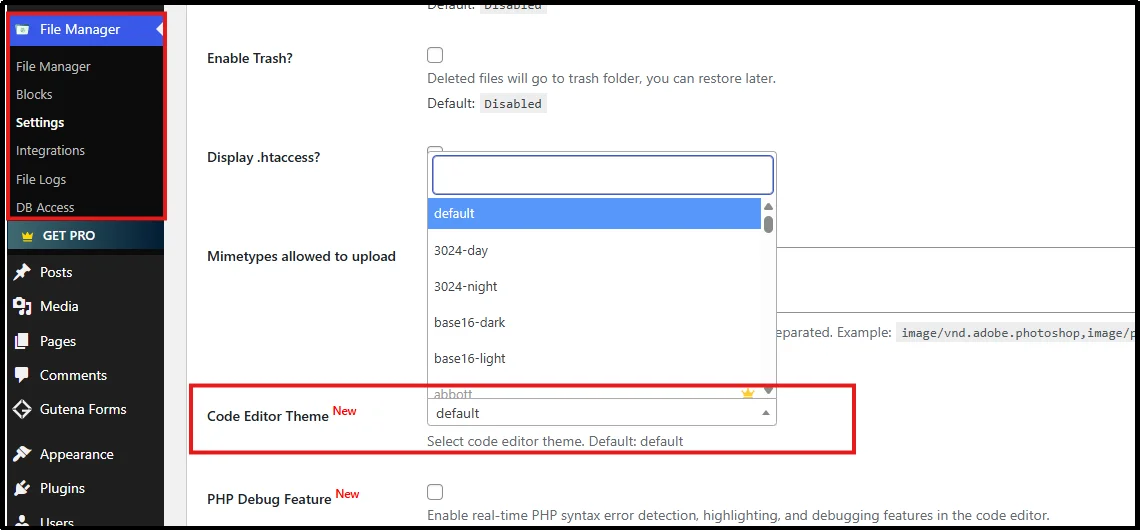
Over 200,000 website owners trust this plugin, and it has a 4.8/5-star rating on WordPress.org. It transforms how you manage files, making theme editing accessible to beginners and efficient for developers.
Best Practices for Modifying Theme Code
Follow these best practices to safely edit WordPress theme files without breaking your site:
- Always Use a Child Theme
A child theme enables you to customize WordPress theme files without modifying the parent theme. Should you decide to modify a parent theme, you will lose those changes when you update the theme. Create a child theme directory inside `wp-content/themes/` with a `style.css` and `functions.php` file.
- Work on a Staging Environment
Never modify a live theme directly, unless you have a specific reason to do so. Instead, work on a staging environment first, then move to a live environment.
- Keep Track of Your Changes
Always keep a record of what you’ve modified, as well as why you made those specific changes. This will be helpful if you’re trying to debug a problem or working on a project that requires replicating those same changes.
- Use Proper Code Editing Tools
While you can edit files directly within WordPress, you should consider using a different, more feature-rich editor such as VS Code or Sublime Text.
Wrapping Up
Learning how to edit WordPress theme files gives you complete control over your website’s design and functionality. While the built-in WordPress Feature File Editor, cPanel, FTP, and the Advanced File Manager plugin are all good options for editing theme files, each is best suited to different levels of technical expertise and working styles.
For most website owners, Advanced File Manager is the best tool for editing WordPress theme files. Not only is it simple and intuitive, but it is also very safe and powerful. With the Advanced File Manager plugin, you will be able to edit WordPress theme files directly from your WordPress dashboard without having to worry about FTP and cPanel complexities. With proper safety precautions, such as using child themes and staging environments, you can edit your WordPress theme files without fear of damaging your website.
Ready to edit your WordPress theme files the easy way? Install Advanced File Manager and start customizing your site directly from your dashboard—no FTP or cPanel required.

