
The WordPress “failed to write file to disk” error appears when WordPress can’t save an uploaded file to your server. You may see it while uploading images to the Media Library, installing a plugin, updating a theme, or adding another file to your site.
The cause isn’t always obvious. File permissions can block an upload, but so can incorrect ownership, a full hosting account, an inode limit, a broken PHP temporary directory, or a server security rule.
Start with the basics. Check whether WordPress can write to wp-content/uploads, then check storage, ownership, PHP upload settings, and server restrictions if the problem continues.
This guide explains what the error means, how to find the actual cause, and how to fix it without making unnecessary changes to your WordPress installation.
What Does “Failed to Write File to Disk” Mean in WordPress?
When you upload a file, PHP handles the incoming upload before WordPress saves the file in your site’s uploads directory. WordPress normally stores uploaded media under wp-content/uploads, often inside year and month folders.
If WordPress can’t write to the required location, the upload fails.
That’s when you may see an error such as:
- “Upload: Failed to write file to disk”
- “WordPress has failed to upload due to an error.”
- “Unable to create directory wp-content/uploads/2026/09. Is its parent directory writable by the server?”
- “Unable to write data to disk.”
These messages can point to similar filesystem problems, but they don’t always have the same underlying cause.
For example, WordPress may have permission to write to the uploads directory while your hosting account has already reached its storage or inode limit. In another case, the directory permissions may look fine, but incorrect ownership prevents the PHP process from creating a new file.
So, don’t change permissions immediately.
First, find out where the upload process fails.
What Causes the WordPress “Failed to Write File to Disk” Error?
Several problems can produce the same WordPress upload error. The most common ones involve filesystem permissions, file ownership, storage limits, PHP configuration, or server-level restrictions.
Here are six areas to check.
1. Incorrect File and Folder Permissions
WordPress needs write access to directories that handle uploaded content. If the permissions on wp-content/uploads don’t allow the relevant user or process to write there, WordPress can’t save new files.
This can happen after a migration, manual file changes, a backup restore, or a hosting configuration change.
But don’t assume 755 will solve every installation. WordPress notes that permission requirements can vary between server environments, so the correct setup depends on how your host runs PHP and WordPress.
2. Incorrect File or Folder Ownership
Permissions can look correct while uploads still fail.
Why? The files or directories may belong to the wrong system user or group.
This issue often appears after moving a site between servers, restoring a backup, manually copying files, or changing the hosting environment. If WordPress runs under a different account from the owner of the uploads directory, the relevant process may not have the access it needs.
Your hosting provider can usually confirm the ownership and PHP process configuration if you don’t have server-level access.
3. A Missing or Unwritable wp-content/uploads Directory
WordPress needs a location where it can store uploaded media.
If wp-content/uploads doesn’t exist, WordPress may need to create it. The parent directory must allow that operation.
A migration or incomplete backup can also leave the directory missing. In other cases, the directory exists but no longer allows WordPress to write to it.
Check the directory before creating a new one manually.
4. Insufficient Disk Space or Inode Capacity
Your hosting account can run out of room.
That sounds obvious, but WordPress doesn’t always give you a clear storage-related message when an upload fails. Hosting providers may also limit the number of files your account can store, which many hosts call an inode limit.
A site can therefore have free disk space and still fail to create new files after reaching its inode limit.
Check both.
5. PHP Temporary Upload Directory Problems
PHP temporarily handles uploaded files before WordPress moves them into the site’s uploads directory. The upload_tmp_dir setting can define the temporary directory PHP uses.
If that directory doesn’t exist, lacks the required permissions, runs out of space, or has another configuration problem, the upload can fail before WordPress saves the file.
This problem often requires help from your hosting provider because the temporary directory may sit outside your WordPress installation.
6. Plugin, Security, or Server Restrictions
A plugin can interfere with uploads.
So can a Web Application Firewall (WAF), malware scanner, server security rule, hosting configuration, or another server-level restriction.
If the problem started immediately after you installed or updated a security, caching, optimization, or file-management plugin, that timing gives you a useful clue.
Don’t disable everything at once if you can avoid it. Test the suspected plugin first.
Quick Diagnostic Checklist
Before changing anything, use this quick check.
| Possible cause | What to check | What to do next |
| File permissions | Is wp-content/uploads writable? | Review the directory permissions |
| File ownership | Does the directory belong to the correct account or group? | Ask your host to verify ownership |
| Missing uploads directory | Does wp-content/uploads exist? | Create it only when the parent directory allows it |
| Disk space | Has your hosting account reached its storage limit? | Remove unnecessary files |
| Inode limit | Has your account reached its file-count limit? | Remove unnecessary files or contact your host |
| PHP temporary directory | Can PHP write to its temporary upload directory? | Ask your host to check upload_tmp_dir |
| Large file limits | Do PHP upload limits allow the file size? | Check upload_max_filesize and post_max_size |
| Plugin or WAF restriction | Did the problem begin after a plugin or server change? | Test the suspected component |
| Server configuration | Do server logs show filesystem or security errors? | Ask your hosting provider to investigate |
This approach saves time.
You don’t need to change five settings when one directory causes the problem.
Before You Fix the Error
Create a current backup before changing file permissions, ownership, PHP configuration, or other server settings.
A recent backup gives you a way back if a change causes another problem. You can use your hosting provider’s backup system or a reputable WordPress backup plugin.
And don’t change permissions just because you found a guide that recommends 777.
Start with the smallest change that addresses the actual problem.
5 Ways to Fix “Failed to Write File to Disk” in WordPress
Method 1: Check wp-content/uploads Permissions From WordPress
If you have access to a WordPress file manager, you can inspect your site’s files directly from the WordPress dashboard instead of opening an FTP client or hosting control panel.
Advanced File Manager, for example, lets you browse files and inspect file information from within WordPress.
However, a WordPress file manager can’t solve every server-level problem. Ownership, hosting quotas, PHP configuration, and firewall restrictions may still require help from your hosting provider.
Check Filesystem Permissions in Site Health
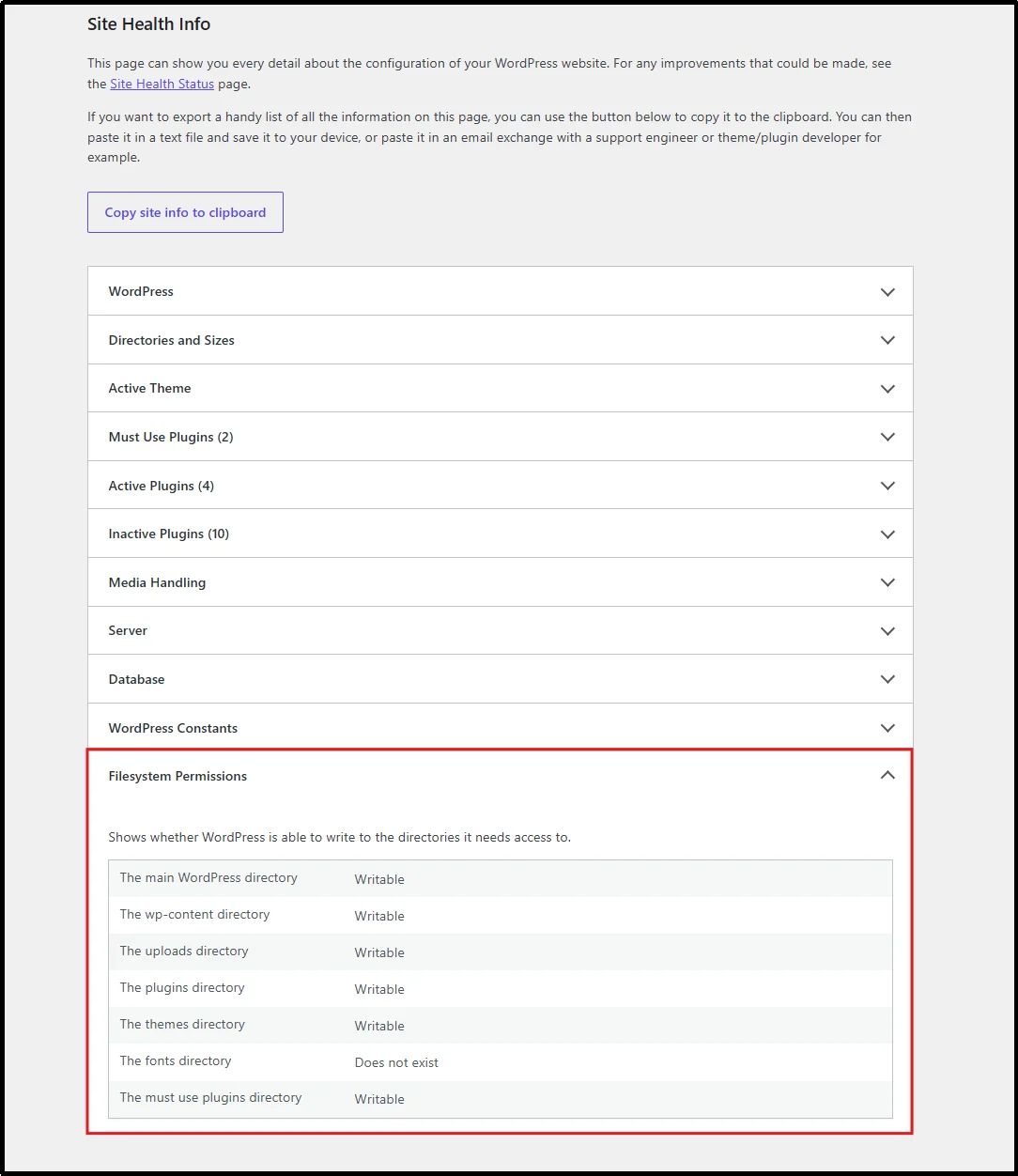
WordPress includes a built-in Site Health screen that can help you determine whether required directories remain writable.
- Go to Tools → Site Health in your WordPress dashboard.
- Open the Info tab.
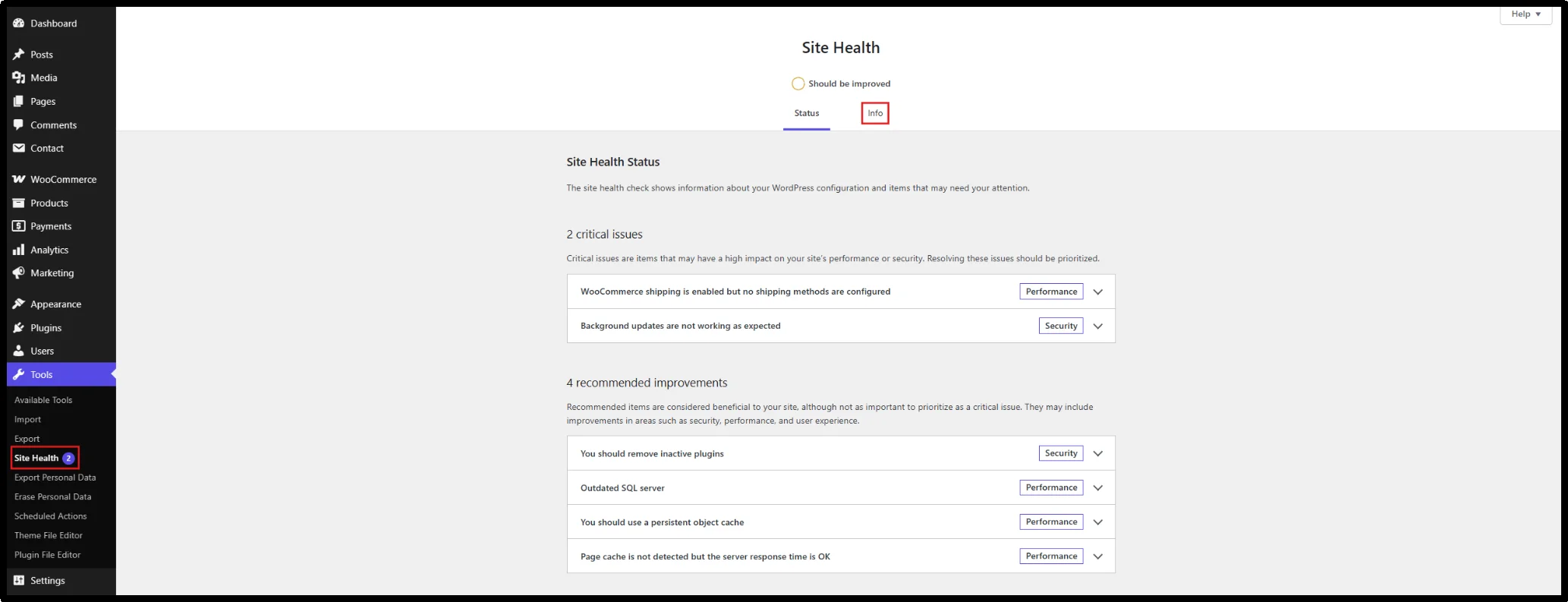
- Expand Filesystem Permissions.
- Check the status of the Uploads Directory.
If WordPress reports that the uploads directory isn’t writable, you’ve found a strong lead.
If WordPress reports that the directory is writable, don’t change its permissions yet. Move to the next diagnostic step instead.
Check the Uploads Folder with Advanced File Manager
You can also inspect the directory with Advanced File Manager.
If you don’t have Advanced File Manager installed, follow this installation guide.
- Open Advanced File Manager from your WordPress dashboard.
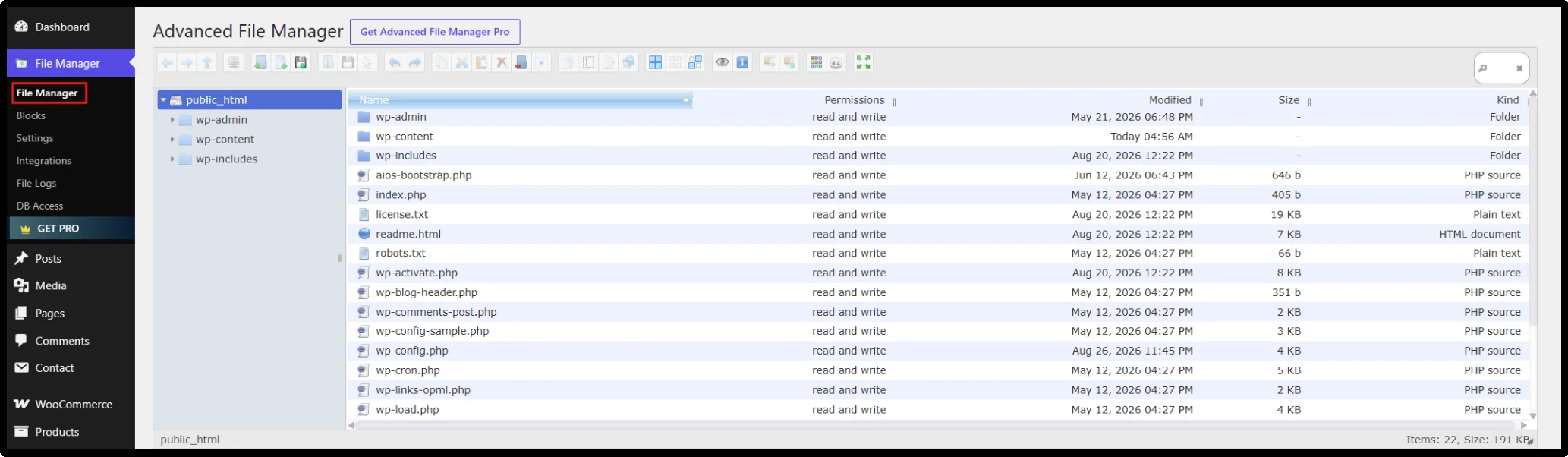
- Navigate to wp-content → uploads.
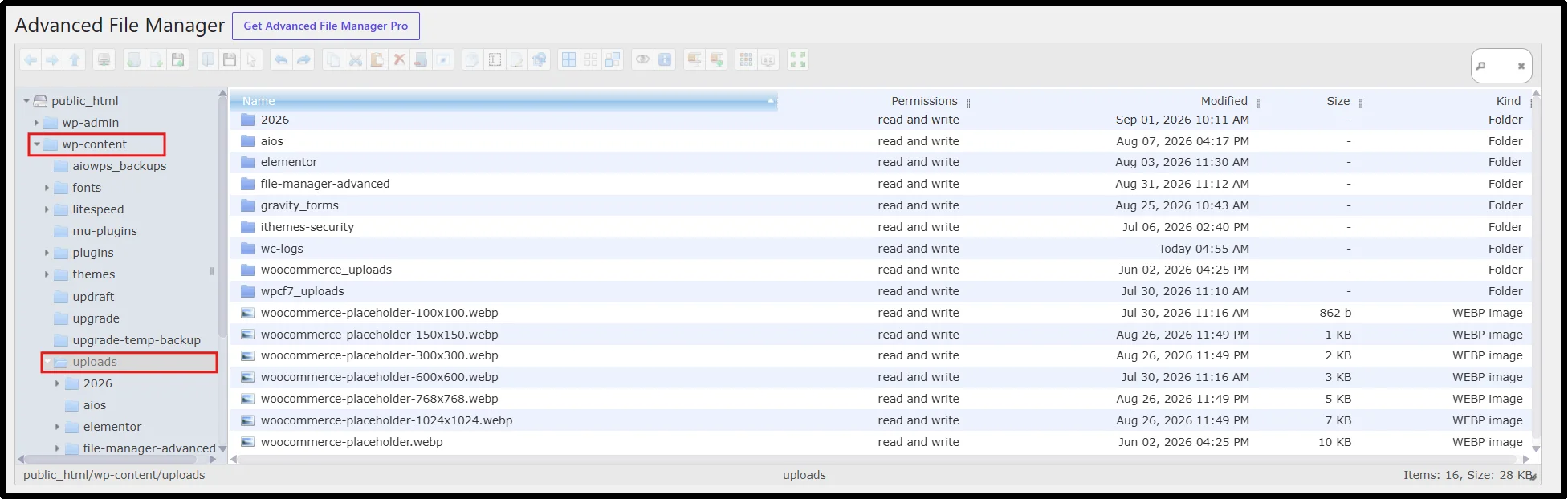
- Open the folder information or properties.
- Review the available permission information.
- Confirm that the directory has the access required by your hosting environment.
Advanced File Manager provides file information that can include the file path, size, modification date, permissions, and related details.
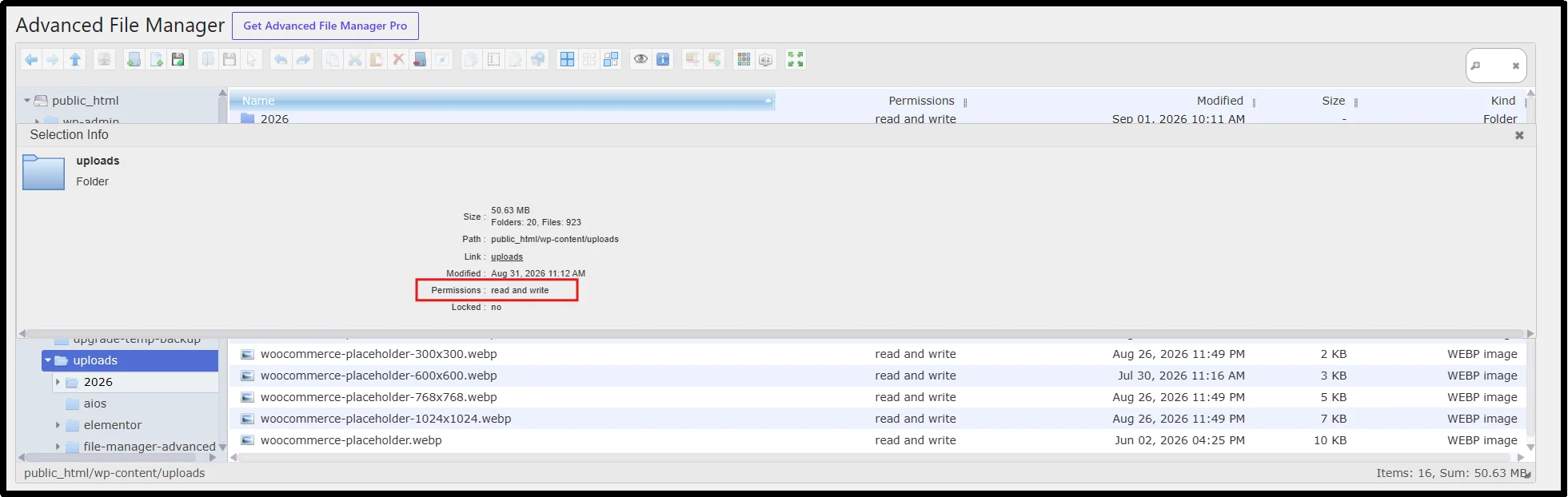
If the directory already has appropriate access, leave it alone.
Move on.
Method 2: Correct File and Folder Permissions with FTP or cPanel
If you’ve confirmed a permission problem, you can correct it through your hosting control panel, FTP client, or SSH.
The exact permission values depend on your server configuration. For many WordPress installations, 755 works as a common directory setting and 644 works as a common file setting, but WordPress’s official documentation notes that different hosting environments can require different arrangements.
What Permissions Should WordPress Files and Folders Use?
As a common starting point:
- Directories: 755
- Files: 644
- wp-config.php: a more restrictive setting may work, such as 600, 640, 440, or 400, depending on the server setup
Don’t treat those values as universal rules.
WordPress documentation explains that ownership, PHP execution methods, group permissions, and hosting configuration can change the correct setup.
Never Use 777 as a Routine Fix
Avoid 777.
That permission mode gives the owner, group, and everyone else read, write, and execute access, which creates broader access than most WordPress installations need.
It can appear to fix an upload problem because it removes permission restrictions, but that doesn’t mean it fixes the underlying ownership or server configuration issue.
If a guide tells you to set your entire WordPress installation to 777, stop first.
That’s the wrong troubleshooting direction.
Change Permissions With an FTP Client
If your host provides FTP access:
- Connect to your website using your FTP client.
- Navigate to wp-content/uploads.
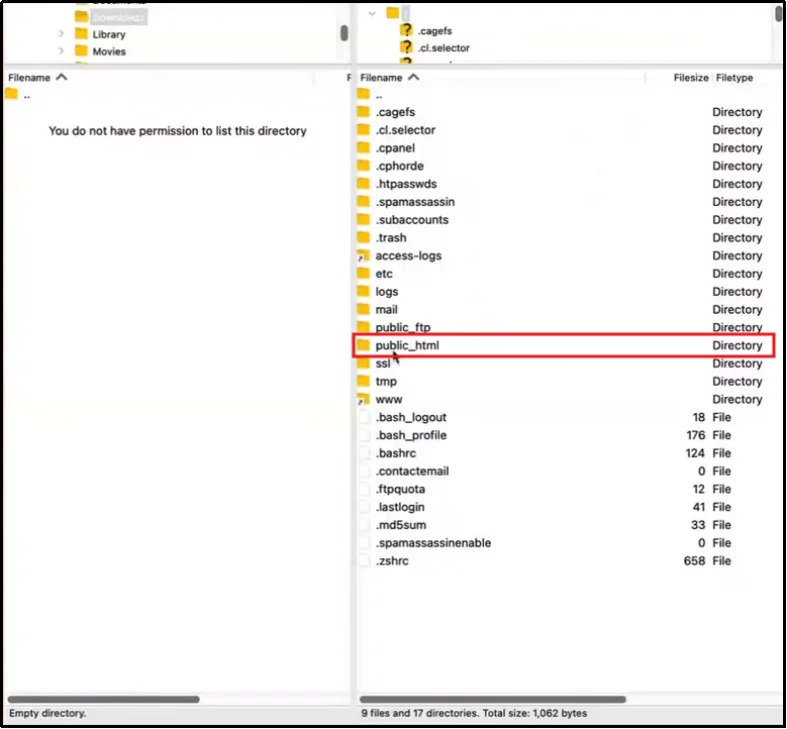
- Right-click the uploads directory.
- Open File Permissions or the equivalent option.
- Review the current permission mode.
- Change the directory to the appropriate setting for your hosting environment.
- Test the upload again.
If you need to change permissions recursively, take care.
Applying one permission mode to every file and folder inside a directory can affect files that use different settings, so change only what you need.
Change Permissions With cPanel File Manager
If your host uses cPanel:
- Log in to cPanel.
- Open File Manager.
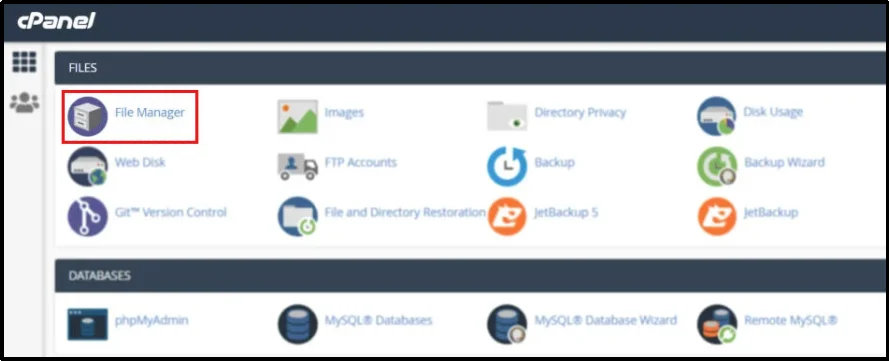
- Go to public_html → wp-content.
- Find the uploads directory.
- Right-click it and select Change Permissions.
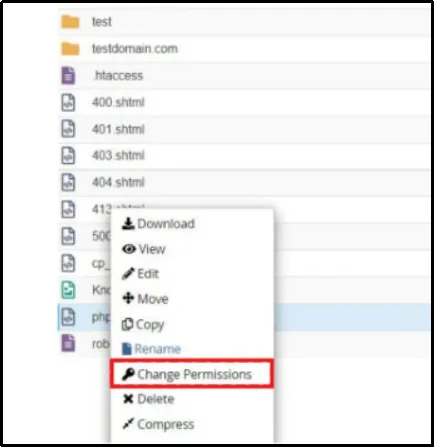
- Apply the appropriate directory permissions for your hosting environment.
- Test another upload.
If the directory permissions look correct but the error continues, check ownership and storage before making more changes.
Method 3: Check the PHP Temporary Upload Directory
If WordPress can write to wp-content/uploads and your hosting account has enough storage, check the PHP temporary upload directory next.
During an upload, PHP handles the incoming file before WordPress saves it in the final destination. The upload_tmp_dir setting can control the temporary location.
You usually won’t manage this directory from WordPress.
Ask Your Hosting Provider to Check upload_tmp_dir
Contact your hosting provider and ask them to check:
- Whether upload_tmp_dir exists
- Whether PHP can write to it
- Whether the temporary location has enough storage
- Whether the PHP configuration points to a valid directory
- Whether server logs show a temporary upload error
Don’t manually delete files from a server-wide temporary directory unless you know what those files belong to.
Your host can clean or correct the directory safely within the server’s configuration.
Method 4: Free Up Disk Space or Inodes
Your site needs available storage to create uploaded files and related files.
If the hosting account has reached its storage limit, WordPress may fail to save new uploads. The same can happen when the account reaches its inode or file-count limit.
Check Your Current Disk Usage
Open your hosting dashboard and look for:
- Disk usage
- Storage usage
- Inode usage
- File count
- Account quota
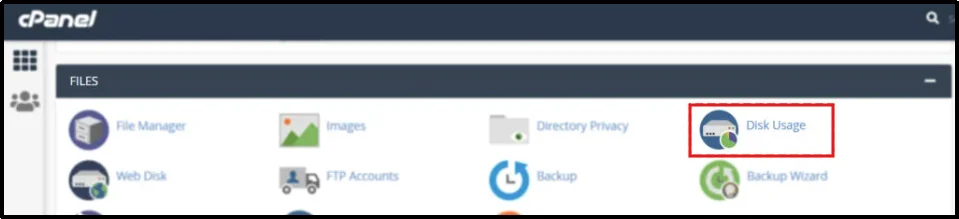
If your host uses cPanel, open Disk Usage and review the directories consuming the most space.
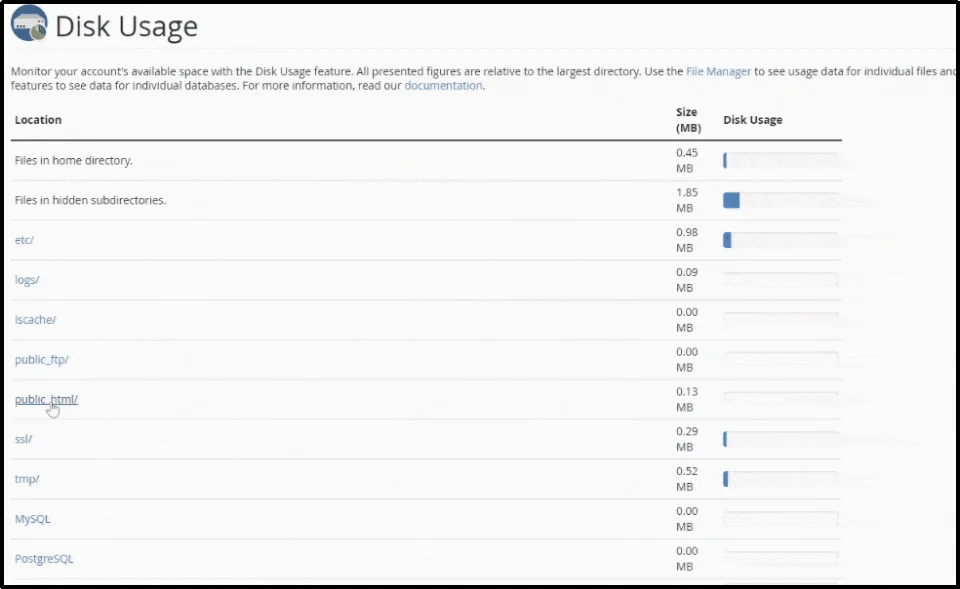
WordPress Site Health can also show the size of your uploads directory and other major WordPress directories, which can help you find where storage has grown.
Check Your Inode Usage
Disk space isn’t the whole story.
A website can contain thousands of small files, such as cached files, old backups, logs, temporary files, and generated assets. Those files can push an account toward its inode limit even when plenty of disk space remains.
If your host reports an inode limit, check it separately.
Remove Unnecessary Files
Look for files you no longer need, such as:
- Old backup archives
- Unused plugin packages
- Old theme packages
- Temporary files
- Unnecessary log files
- Duplicate media
- Cache files that your caching system can safely regenerate
Be careful with WordPress media.
Don’t delete an image just because you don’t remember where you used it. Existing posts and pages may still reference that file.
If you want to remove old media, back it up first and confirm that your content no longer depends on it.
You can use Advanced File Manager to inspect directories and manage files directly from your WordPress dashboard, which can make storage cleanup easier when you don’t want to switch between WordPress and an FTP client.
You might want to read this 👉 How to Move, Rename, and Delete Files and Folders in WordPress.
When Should You Upgrade Your Hosting Plan?
If your website repeatedly reaches its storage or inode limit, your current hosting resources may no longer fit the site’s needs.
At that point, consider increasing your storage capacity or moving to a hosting plan with higher resource limits.
Method 5: Check Plugin, Security, and Server Restrictions
If permissions, ownership, storage, and PHP’s temporary directory all look fine, investigate plugins and server restrictions.
Start with the change that happened closest to the first failed upload.
Did you install a security plugin?
Did a firewall rule change?
Did you update a caching plugin?
Did your hosting provider migrate the account?
Those details can narrow the search quickly.
Test Plugins Carefully
If a specific plugin looks suspicious, test it first.
- Go to Plugins → Installed Plugins.
- Identify the plugin you suspect.
- Create a backup before changing anything on a production site.
- Deactivate the suspected plugin.
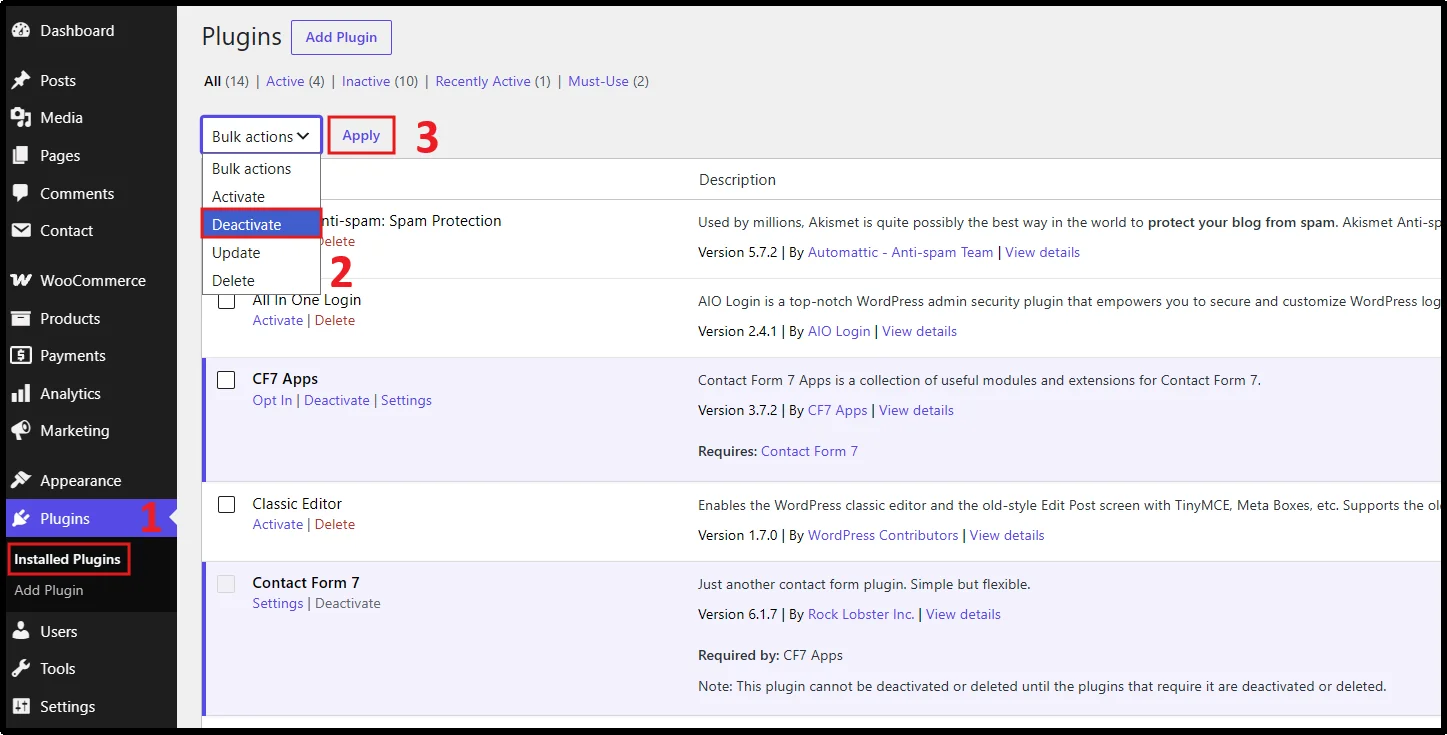
- Try uploading a small test image.
- If the upload works, reactivate the plugin and contact its developer or review its settings.
If you need to test for a broader plugin conflict, use a staging site whenever possible.
And don’t blindly deactivate every plugin on a live ecommerce, membership, or business site; doing so can interrupt payments, forms, caching, security controls, and other important functions.
Check Server Security Rules
If the upload still fails after plugin testing, ask your hosting provider to inspect the server logs.
They can check for:
- WAF blocks
- Malware scanner restrictions
- PHP errors
- Filesystem permission errors
- Ownership problems
- Temporary directory failures
- Hosting quota errors
- Server security rules
A server-level restriction can block an upload even when WordPress itself looks healthy.
What If Only Large Files Fail?
Small files can upload successfully while larger files fail.
That pattern points toward upload limits or resource constraints rather than a simple permissions problem.
Check these PHP settings:
- upload_max_filesize
- post_max_size
- PHP memory limit
- Maximum execution time
- Available disk space
WordPress Site Health shows the maximum upload size, maximum POST data size, and related server information under its Info screen.
The effective upload limit can depend on more than one PHP setting. For example, post_max_size can limit the total size of the request even when upload_max_filesize allows a larger individual file.
If you don’t control your PHP configuration, ask your hosting provider to check these values.
When Should You Contact Your Hosting Provider?
Some WordPress upload problems require server-level access.
Contact your hosting provider if:
- wp-content/uploads appears writable, but uploads still fail.
- You can’t correct file ownership.
- Your account has reached its disk or inode limit.
- PHP’s temporary upload directory looks unavailable.
- Large files fail because of PHP limits.
- Server logs show filesystem errors.
- A WAF or security rule blocks uploads.
- You don’t have enough access to inspect the server configuration.
Tell your host exactly what you’ve already checked.
For example:
“WordPress reports that the uploads directory is writable, my account has available disk space, but Media Library uploads still fail with ‘Failed to write file to disk.’ Please check filesystem ownership, PHP’s temporary upload directory, PHP upload limits, and server security logs.”
That gives support a useful starting point.
How to Prevent the “Failed to Write File to Disk” Error
You can’t prevent every server-side problem, but regular maintenance can reduce the chances of seeing the error again.
- Monitor disk space and inode usage: Check your hosting dashboard regularly so you can catch storage or file-count limits before they block new uploads.
- Keep your uploads directory organized: Remove unnecessary files and old backups instead of letting your hosting account fill up quietly.
- Use appropriate permissions: Don’t change permissions randomly, and don’t use 777 as a permanent solution.
- Check ownership after migrations: Confirm that your WordPress files and directories use the ownership your hosting environment expects.
- Back up before server changes: Create a recent backup before modifying permissions, ownership, PHP settings, or server files.
- Review recent plugin changes: If an upload problem starts after a plugin update, installation, or configuration change, investigate that change first.
- Keep security tools updated: Outdated security components can create compatibility problems, while aggressive security rules can sometimes block legitimate uploads.
- Check large-file limits: Review PHP upload settings if users frequently upload large images, videos, PDFs, or other files.
- Use staging for risky tests: Test broad permission changes, plugin conflicts, and server configuration changes away from your production site whenever possible.
- Test after every change: Upload a small test file after each troubleshooting step so you know which change actually solved the problem.
Small checks can save a lot of time.
Quick WordPress Upload Troubleshooting Checklist
Before you contact your host, run through this list:
- wp-content/uploads exists.
- WordPress reports the uploads directory as writable.
- The directory uses appropriate permissions for your hosting environment.
- File and directory ownership matches your hosting setup.
- Your hosting account has enough disk space.
- Your hosting account hasn’t reached its inode limit.
- PHP’s temporary upload directory works correctly.
- upload_max_filesize allows the file you’re uploading.
- post_max_size allows the upload request.
- No security plugin blocks the upload.
- Your WAF or hosting security system doesn’t block the request.
- Server logs don’t show a filesystem or PHP error.
- You tested a small file after making each change.
If every item looks fine, your hosting provider probably needs to inspect the server environment.
Fix WordPress File Issues From Your Dashboard With Advanced File Manager
When a WordPress upload fails because of a filesystem problem, you may need to inspect directories, review permissions, create folders, or remove unnecessary files.
Advanced File Manager gives you access to your WordPress files directly from the dashboard. You can browse directories, inspect file information, manage files, and handle supported file operations without opening a separate FTP client.
That can make everyday WordPress file management much easier.
But it won’t replace your hosting provider when the problem involves server ownership, PHP configuration, hosting quotas, or firewall rules. Those settings live outside the WordPress dashboard.
Get Advanced File Manager and manage your WordPress files directly from your dashboard.
Frequently Asked Questions
Why does WordPress say “failed to write a file to disk”?
WordPress shows this error when it can’t save an uploaded file to the required location. Common causes include incorrect file permissions or ownership, insufficient disk space or inode capacity, PHP temporary-directory problems, and server-level restrictions.
What permissions should wp-content/uploads have?
755 is a common directory permission for many WordPress installations, while 644 is common for files. However, the correct permissions depend on your hosting environment and how PHP runs on the server.
Don’t change the directory to 777 just to make an upload work. Check the ownership and server configuration if normal permissions don’t solve the problem.
Why are my WordPress permissions correct but uploads still fail?
Correct permissions don’t always guarantee write access.
File and directory ownership also matters, as does the account or process that handles PHP operations on your server. A migration, backup restore, or hosting change can leave files owned by the wrong user or group.
Ask your hosting provider to verify ownership and the PHP process configuration if the problem continues.
How do I fix the error without cPanel or FTP?
A WordPress file manager can help you inspect and manage files from your WordPress dashboard without opening a separate FTP client.
However, some problems require server-level access. Incorrect ownership, inode limits, PHP configuration, temporary-directory issues, and WAF restrictions may require help from your hosting provider.
What is “unable to create a directory — is its parent directory writable by the server?” mean?
WordPress tried to create a directory but couldn’t write to the parent location.
The problem often involves permissions or ownership on the parent directory. Check whether WordPress can write to wp-content/uploads, then inspect ownership and hosting configuration if the directory already appears writable.
Can a full hosting account cause the failed to write file to disk error?
Yes. WordPress needs available storage to create uploaded files and related files. If your hosting account reaches its disk-space or inode limit, WordPress may fail to save new files.
Check both storage usage and inode usage in your hosting dashboard.
Why can small files upload while large files fail?
Large files can trigger PHP or hosting limits that small files never reach. Check upload_max_filesize, post_max_size, available disk space, PHP memory limits, and execution limits. WordPress Site Health can also show upload-related server information.
Does this error mean my WordPress site has been hacked?
Not necessarily. Filesystem permissions, ownership, storage limits, PHP configuration, and server restrictions can all cause the error. If you also notice unfamiliar plugins, unexpected files, suspicious admin activity, or other security symptoms, investigate the site separately for possible compromise.
Is it safe to set permissions to 777?
Avoid it. 777 gives the owner, group, and other users read, write, and execute permissions, which creates broader access than most WordPress installations need.
Find the actual cause instead. Correct the relevant permissions or ownership, check storage and PHP settings, and contact your host when the problem sits at the server level.