
WordPress normally handles old core files during an update. Its core upgrade process replaces the files in the new release and removes files that the update process marks for removal. If an update fails or the server can’t write to or delete certain files, some old files may remain.
So, should you delete them?
Not right away.
First, you need to confirm that a file really belongs to an older WordPress version and that the current installation doesn’t need it. A filename that looks unfamiliar, an old modification date, or a checksum warning alone isn’t enough to justify deleting it.
In this guide, we’ll show you how to identify old WordPress core files and safely remove a confirmed obsolete file with Advanced File Manager. You’ll also learn how to check your WordPress version, verify core files with WP-CLI checksums, protect important files, and check your site after cleanup.
Important: You don’t normally need to manually delete WordPress core files after every update. Manual cleanup only makes sense when you’ve identified a specific file that the current WordPress installation no longer needs.
What Are WordPress Core Files?
WordPress core files make up the WordPress software itself. They include the files inside /wp-admin/ and /wp-includes/, along with core PHP files in the WordPress root directory.
If you’re unsure which files belong to WordPress core, here’s a quick reference.
| Location | Examples | Purpose |
| /wp-admin/ | admin.php, index.php, update.php | Powers the WordPress administration area |
| /wp-includes/ | functions.php, plugin.php, load.php | Contains core WordPress libraries and functionality |
| WordPress root | wp-load.php, wp-settings.php, wp-cron.php | Loads and initializes WordPress and handles core requests |
| WordPress root | wp-login.php | Handles the WordPress login process |
| WordPress root | wp-comments-post.php | Processes comment submissions |
| WordPress root | wp-mail.php | Handles posts submitted by email |
| WordPress root | wp-signup.php | Handles site signup on multisite installations |
| WordPress root | wp-trackback.php | Handles Trackback requests |
| WordPress root | xmlrpc.php | Provides the XML-RPC interface |
| WordPress root | index.php | Loads the WordPress environment for standard front-end requests |
There’s another directory you need to know about: /wp-content/.
The /wp-content/ directory isn’t the same as the main WordPress core directories. It stores your plugins, themes, uploads, and other site-specific files, so don’t treat an unfamiliar file there as an old WordPress core file simply because it looks unfamiliar.
Why Do Old WordPress Core Files Remain After an Update?
WordPress normally removes files that its core update process identifies for removal. During an upgrade, WordPress copies the new core files and later removes the old files listed for cleanup.
Sometimes that process doesn’t finish.
A timeout, failed file operation, or filesystem permission problem can interrupt the update before WordPress completes every cleanup task. WordPress’s own update documentation notes that failures during the upgrade can prevent the automatic removal of old files.
Here are a few situations where you might find old WordPress files after an update:
- Files remain after a failed update: An interrupted update can leave files from an older WordPress release in the installation.
- The updater can’t remove a file: Incorrect filesystem permissions can stop WordPress from writing to or deleting certain files.
- A verification check reports an unexpected file: A core-file check may flag a file that doesn’t match the expected installation.
- You’re troubleshooting an update: Leftover files can make file-integrity results harder to interpret.
- You need to investigate a specific file: Manual cleanup may help when you’ve confirmed that a file belongs to an older release.
But manual cleanup shouldn’t become routine maintenance. If you can’t confirm that a file is obsolete, leave it alone until you’ve investigated it.
Before You Delete an Old WordPress Core File
Don’t start by opening the file manager.
Start with verification.
Before you remove anything, check these five things:
- Current WordPress version: Confirm which version your site currently runs.
- File path: Check exactly where the file sits.
- File purpose: Find out what the file does.
- Checksum result: Use WP-CLI when you have command-line access.
- Backup: Create a recent backup before changing WordPress files.
One wrong deletion can create a much bigger problem than one leftover file.
Method 1: Check Your Current WordPress Version
Start from your WordPress dashboard.
- Go to Dashboard → Updates.
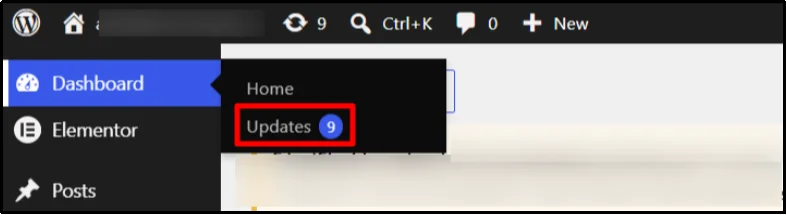
- Check the WordPress version shown as installed.
- If your site recently completed an update, look for any update errors or messages about files that WordPress couldn’t remove.
You can also use WP-CLI if you have server or SSH access:
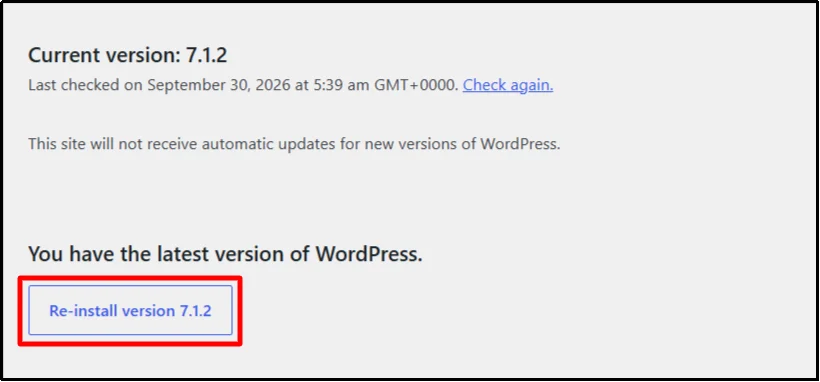
wp core version
WP-CLI’s wp core version command displays the installed WordPress version.
If WordPress recently failed to update, don’t rush into deleting files. First, find out which file caused the problem and why.
Method 2: Verify WordPress Core Files With Checksums
You can verify the WordPress version currently installed on your site with:
wp core verify-checksums –version=$(wp core version)
You can also replace the version with a specific WordPress release when you need to check against a different version.
You can add –include-root to check files and folders in the WordPress root directory and warn about items that aren’t part of the expected WordPress installation.
A checksum warning needs investigation. It can indicate a modified, missing, or unexpected file, or that you’re checking against the wrong WordPress version. It doesn’t automatically mean the file is obsolete or safe to delete.
How to Confirm a WordPress Core File Is Obsolete
Don’t use a filename or modification date alone to decide whether a WordPress file is obsolete. Compare the file with the files included in the WordPress version currently installed on your site.
If the file belongs to an older WordPress release but isn’t included in the current release, and you’ve confirmed that the current installation doesn’t require it, you can consider removing it.
A checksum mismatch alone isn’t enough evidence. If you’re unsure why a file exists or whether WordPress still needs it, leave it in place and investigate it first.
Step-by-Step: Delete a Confirmed Old WordPress Core File
Once you’ve confirmed that a specific file belongs to an older WordPress version, isn’t included in the current release, and isn’t required by the current installation, you can remove it.
Advanced File Manager lets you manage WordPress files directly from the dashboard. You can copy, paste, rename, edit, delete, upload, download, and create ZIP archives without opening a separate FTP client or hosting control panel.
For this cleanup, use only the Delete operation, and delete only the specific file you’ve verified as obsolete.
🚨 Stop if you’re unsure: Don’t delete a WordPress file if you can’t confirm why it exists, which WordPress version it belongs to, or whether the current installation still needs it. A checksum warning alone isn’t enough evidence to delete it.
Step 1: Install and Activate Advanced File Manager
If you haven’t installed Advanced File Manager yet, add it from your WordPress dashboard.
- Go to Plugins → Add Plugin.
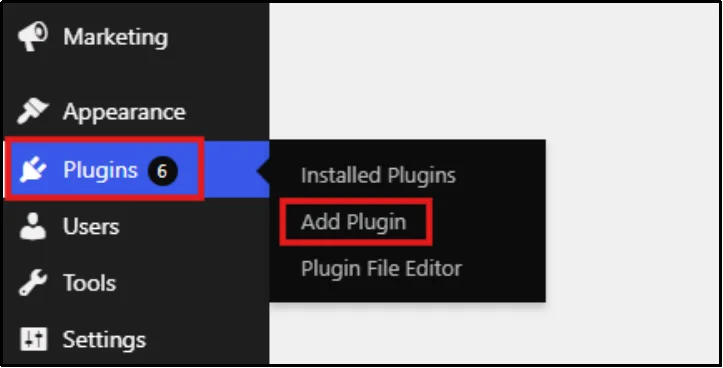
- Search for Advanced File Manager.
- Click Install Now.
- Click Activate.
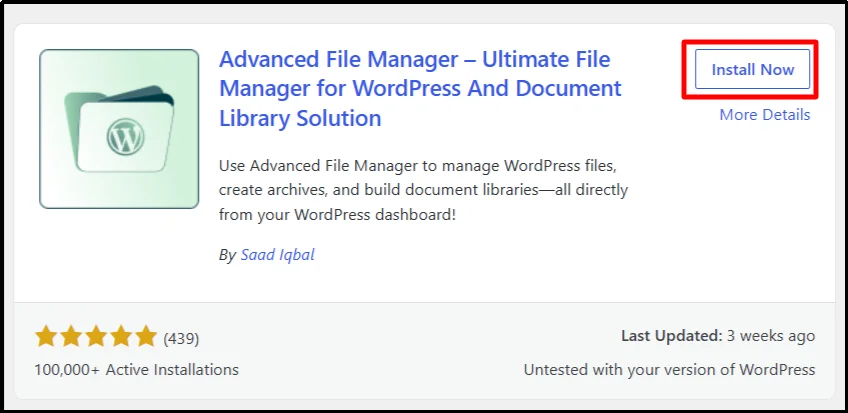
Once the plugin is active, open its File Manager interface from your WordPress dashboard.
Step 2: Locate and Delete the Confirmed Obsolete File
Now find the exact file you’ve already verified.
- Open File Manager from your WordPress dashboard.
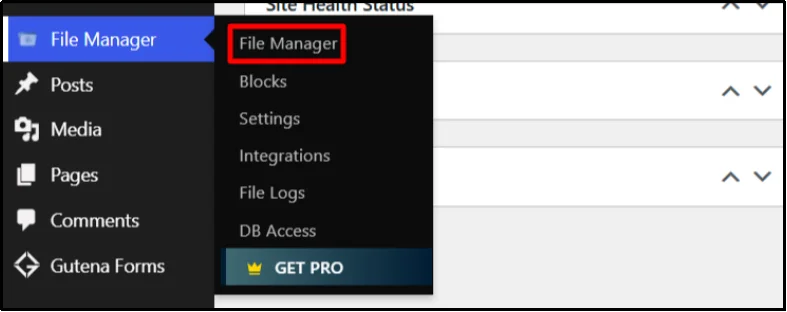
- Navigate to the location of the confirmed obsolete WordPress core file.
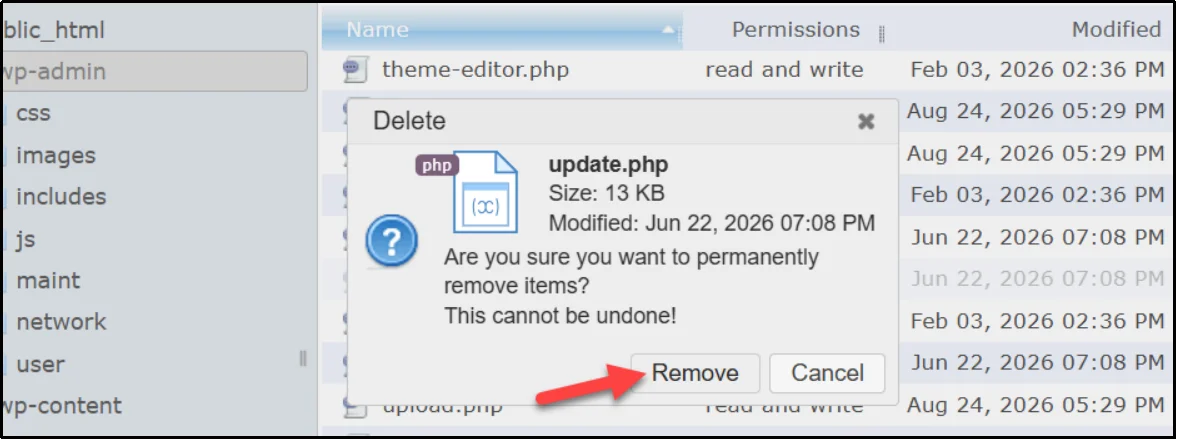
- Right-click the file and select Delete.
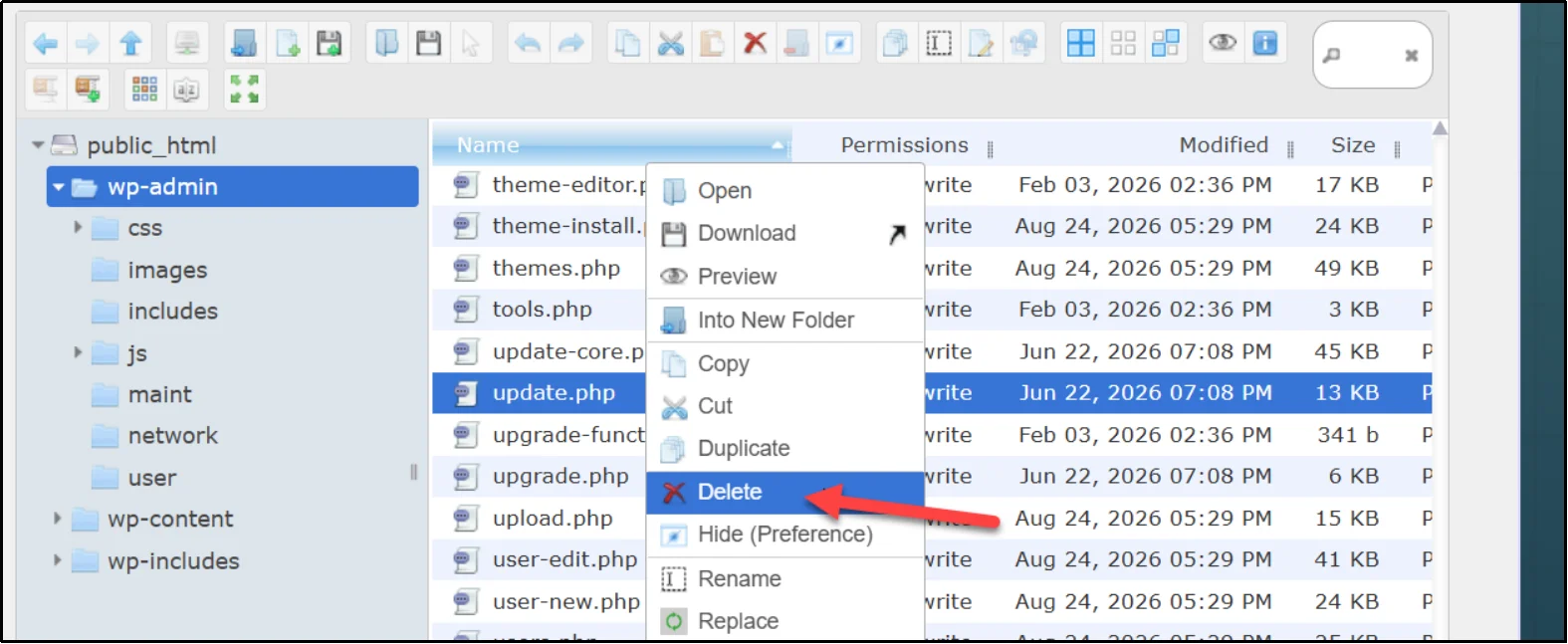
- Review the confirmation dialog.
- Click Remove to delete the selected file.
That’s it.
But don’t delete the entire /wp-admin/, /wp-includes/, or WordPress root directory as part of this process. Those locations contain files that the current WordPress installation may need to run your website and dashboard.
Repeat the process only for other files that you’ve independently verified as obsolete.
Verify Your WordPress Installation After Cleanup
The job isn’t finished when the file disappears.
Now check the site.
Open the front end and make sure it loads normally. Then sign in to the WordPress dashboard and check important site functions.
Depending on your website, you may also want to test:
- WordPress login
- Contact forms
- Search
- Media uploads
- Important plugins
- Theme functionality
- Custom features
If you have WP-CLI access, run the checksum check again:
wp core verify-checksums
This gives you another look at the WordPress core files after the cleanup.
If the command reports another unexpected file or checksum mismatch, investigate that result instead of deleting files at random.
Which WordPress Core Files Should You Not Delete?
Not every file in your WordPress root directory or core directories qualifies as an old WordPress core file.
A filename doesn’t tell the whole story.
The same goes for a file’s age.
1. Don’t Delete wp-config.php
wp-config.php contains your site’s database connection details and other WordPress configuration settings.
Don’t delete it during routine core-file cleanup.
If you find another configuration file that looks like a duplicate, investigate that file separately instead of treating wp-config.php as an obsolete core file.
2. Don’t Delete Current WordPress Core Files
WordPress relies on PHP files throughout its core directories.
Deleting a current core file can break the WordPress admin area or parts of your site’s front end, so check the file’s version, path, purpose, and verification status before removing it.
WordPress’s own documentation advises against changing WordPress core files unless you have a specific reason and recommends working from backups when making file changes.
3. Don’t Delete Files Based Only on Age
An old modification date doesn’t prove that a file is obsolete.
Updates, migrations, backups, and server processes can change file timestamps, which means the date alone tells you very little about whether a WordPress file is still needed.
Check the WordPress version, file path, purpose, and verification results before deleting it.
4. Don’t Delete Entire Core Directories
Never treat /wp-admin/ or /wp-includes/ as cleanup folders.
/wp-admin/ contains the files that power the WordPress administration area, while /wp-includes/ contains much of the WordPress core code used by both the dashboard and front end.
If you’ve identified one obsolete file inside either directory, verify that exact file first.
Then remove only that file.
What about readme.html, license.txt, and wp-config-sample.php?
These WordPress root files often appear in cleanup discussions.
Their presence doesn’t automatically mean they’re leftover files from an older WordPress release.
Treat them separately.
1. readme.html
readme.html can appear in the WordPress root directory and can also appear in checksum verification results.
Its presence alone doesn’t prove that it’s obsolete.
Check why the file was flagged and compare it with the files expected for your WordPress version before removing it. WP-CLI’s checksum documentation even uses readme.html as an example of a file that can produce a checksum warning.
2. license.txt
license.txt contains WordPress licensing information.
Its presence in the WordPress root doesn’t mean that it’s an obsolete core file, so don’t delete it simply because its modification date looks old.
3. wp-config-sample.php
wp-config-sample.php is a sample configuration file.
It’s different from wp-config.php, which contains your active site configuration.
Don’t confuse the two. Check the file’s purpose before removing anything.
4. Old ZIP or Backup Files
ZIP archives and backup files aren’t automatically WordPress core files.
They may contain an older WordPress package, plugin, theme, or complete site backup, so check the file’s source and contents before deleting it.
And don’t remove a backup until you’ve confirmed that you no longer need it.
Can You Remove Old WordPress Files With FTP, SFTP, or cPanel?
Yes. Advanced File Manager isn’t the only way to access WordPress files.
You can also use an FTP, FTPS, or SFTP client, or the file manager provided by your hosting company. WordPress documents both hosting file managers and FTP/SFTP clients as ways to work with files on a server.
The main difference is where you manage the files.
| Method | Where you manage files | Separate software needed? | Best for |
| Advanced File Manager | WordPress dashboard | No | Managing files without leaving WordPress |
| Hosting file manager | Hosting control panel | No | Users with hosting-panel access |
| FTP/SFTP | External client | Usually yes | Direct server-level file access |
No single method fits every situation.
If WordPress still works and you want to manage files from the dashboard, Advanced File Manager gives you a direct file-management interface inside WordPress.
If WordPress itself isn’t available, FTP, SFTP, or your hosting file manager may give you the access you need.
Before uploading, replacing, or deleting WordPress files, WordPress recommends keeping current backups of both your site files and database.
Also, take a look: How to Add an FTP-Like File Manager to WordPress
Safely Clean Up Old WordPress Core Files
Manual WordPress file cleanup doesn’t need to be complicated.
The important part is knowing exactly what you’re deleting.
Start by checking the current WordPress version. Find the file’s location and purpose. Use checksum verification when you have WP-CLI access. Back up your site before making changes. Then delete only the file you’ve confirmed as obsolete.
If you can’t prove that a file is old and unused, leave it in place.
It’s better to investigate one questionable file than to break an entire WordPress installation.
Advanced File Manager lets you handle the file-management part from your WordPress dashboard, so you can locate and remove a confirmed obsolete file without switching to a separate FTP client or hosting file manager.
Get Advanced File Manager Pro to manage WordPress files directly from your dashboard.
Frequently Asked Questions
What are old WordPress core files?
Old WordPress core files are files from a previous WordPress version that remain after an update. WordPress normally removes files that its core update process identifies for removal, but an interrupted update or file-operation problem can prevent the cleanup from finishing.
Why does WordPress leave old core files after an update?
WordPress’s core update process copies the new files and removes files listed for removal. If the upgrade encounters a failure before the cleanup finishes, some old files can remain on the server. Filesystem permission problems can also prevent WordPress from completing file operations.
Is it safe to delete old WordPress core files?
It can be safe when you’ve confirmed that a file belongs to an older WordPress version and that the current installation doesn’t need it.
Back up your site first. Then verify the file’s path, purpose, and checksum status before deleting it.
How do I remove old WordPress files?
First, identify and verify the obsolete file. Back up your WordPress files and database, then use Advanced File Manager, an FTP/SFTP client, or your hosting file manager to remove the confirmed file.
Afterward, check your website and WordPress dashboard, then verify the core files again when WP-CLI is available.
Can I delete old WordPress core files without FTP?
Yes. Advanced File Manager lets you manage WordPress files directly from the dashboard, so you don’t need a separate FTP client for supported file-management tasks.
You still need to identify and verify the file before deleting it.
How do I know if a WordPress core file is obsolete?
Check the current WordPress version, file path, file purpose, update history, and verification results.
If you have WP-CLI access, wp core verify-checksums can compare your installation with the checksums for the WordPress version you’re checking.
Don’t treat a checksum warning as an automatic deletion instruction.
What does a WordPress checksum warning mean?
A checksum warning means that one or more files don’t match the expected checksums for the WordPress version you’re checking, or that WP-CLI found an unexpected item when you include the WordPress root directory.
That doesn’t automatically mean the file is malicious or obsolete.
Investigate the file before deleting it. WordPress’s own security guidance notes that checksum results can have different causes, including version mismatches and unexpected files.
Can I delete files from wp-admin or wp-includes?
Don’t delete files from /wp-admin/ or /wp-includes/ simply because they look old or unfamiliar.
Those directories contain active WordPress core files. If you’ve identified a specific file as obsolete, verify that exact file before removing it.
Should I delete wp-config.php during WordPress cleanup?
No. Don’t delete wp-config.php as part of routine WordPress core cleanup. It contains your site’s database connection details and other configuration settings.
If another configuration file looks like a duplicate, investigate that file separately.
What should I do if WordPress says an old core file wasn’t removed?
First, confirm that the file belongs to an older WordPress version.
Then back up your site and check for update errors or filesystem permission problems. If you’ve verified that the file is obsolete, remove that specific file and run the core-file verification again.
If you can’t determine why WordPress flagged the file, don’t delete it blindly. Ask your hosting provider or WordPress developer to investigate it.
Should I delete old WordPress files based on their modification date?
No. A file’s modification date doesn’t prove that it’s obsolete. Server processes, migrations, updates, and other operations can change timestamps.
Use the WordPress version, file path, file purpose, and verification results to make the decision instead.