



The WordPress .htaccess file controls how your site handles redirects, security rules, and URL structure at the server level.
If your WordPress site is not loading, showing 500 errors, or throwing 404 issues, the .htaccess file is often the root cause. Even a single incorrect line can break your entire site.
In this guide, you’ll learn how to access, edit, and fix the WordPress .htaccess file safely, along with real solutions for common WordPress errors, performance issues, and security risks.
What is the WordPress .htaccess File?
The WordPress .htaccess file is a configuration file used by Apache servers to control how requests are handled before WordPress loads. It manages redirects, rewrite rules, access control, and performance optimizations.
Because it runs at the server level, it plays a critical role in fixing WordPress errors, improving website performance, and enforcing security rules without modifying core files.
What Does the .htaccess File Actually Do?
At WordPress core, the WordPress .htaccess file allows you to control server behavior without modifying global server settings, making it ideal for managing WordPress .htaccess redirects, rewrite rules, and security settings.
Here’s what the WordPress .htaccess file actually controls:
- WordPress redirects (301 & 302): Redirect old URLs without losing SEO rankings
- Permalink structure: Generates clean, SEO-friendly URLs instead of query strings
- Security rules: Blocks malicious traffic and protects sensitive files
- Custom error pages: Improves UX for 404 and server errors
- Performance optimization: Enables caching and compression to fix WordPress performance issues
In simple terms, it controls how requests are processed before WordPress loads, which is why it is critical for performance, SEO, and security.
Important: If you’re using WordPress, you already have a .htaccess file, even if you’ve never seen it. WordPress automatically creates and updates this file, especially when you change your permalink settings (like switching to “Post name” URLs).
Without .htaccess, your links can break, redirects won’t work properly, and your site may fall back to clunky default behavior. These rules, commonly known as WordPress rewrite rules in .htaccess, control how URLs are structured and processed.
Why is the WordPress .htaccess File Important for SEO & Security?
Ignoring the WordPress .htaccess file means missing control over redirects, security rules, and performance optimizations that directly impact SEO rankings.
- SEO advantage: Using WordPress .htaccess redirect rules ensures you don’t lose rankings when URLs change. Incorrect redirects or broken links can reduce rankings by affecting crawl efficiency and user experience.
- Stronger security: You can block malicious traffic before it even touches your WordPress installation.
- Faster load times: Compression and caching rules can significantly improve performance without plugins.
- Better user experience: Clean redirects and custom error pages make your site feel polished and reliable
Where is the .htaccess File Located in WordPress?
The WordPress .htaccess file is located in the root directory of your website, usually inside public_html. This is where core files like wp-config.php, wp-admin, and wp-content are stored.
How to Access the .htaccess File in WordPress Safely
You can access the .htaccess file in WordPress using multiple methods, including cPanel File Manager or an FTP client. The most common methods are; your hosting control panel (cPanel or hPanel) through the built-in File Manager, or connecting via an FTP client.
Key Note: If you don’t see .htaccess: you might either have a hidden, or a missing file. Many content management systems like WordPress create a .htaccess file automatically, but if your site is custom, you might need to create one yourself.
This method is also useful if you are trying to access a hidden .htaccess file in WordPress, since the file is hidden by default on most servers.
How to Access .htaccess File Using cPanel
- Log in to your hosting.
- Select the website whose .htaccess you want to access. Head to cPanel.
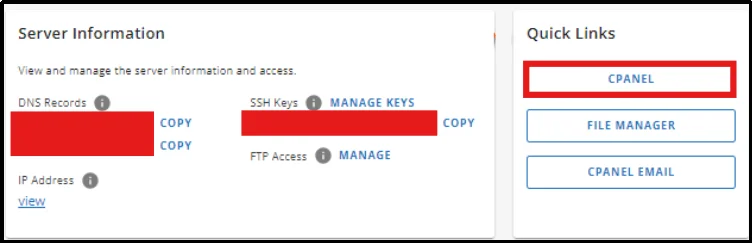
- In the cPanel, you will find a File Manager, click on it.
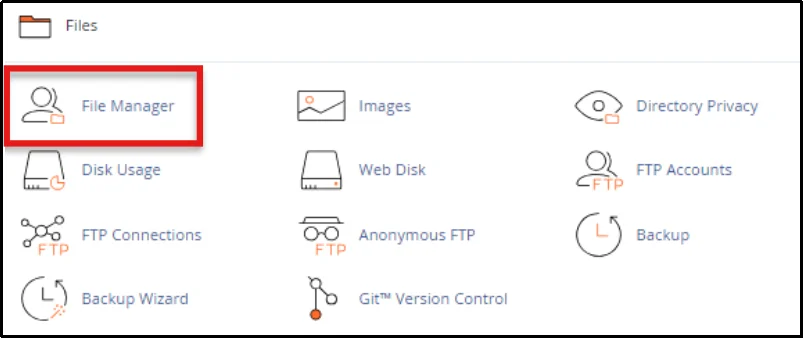
- Once inside the root directory (public_html), on the top right search bar, enter .htaccess.
- If you have successfully found the .htaccess file, you can now backup, edit, or delete the file.
- If you can’t find the .htaccess file, go to Preferences and tick Show Hidden Files.
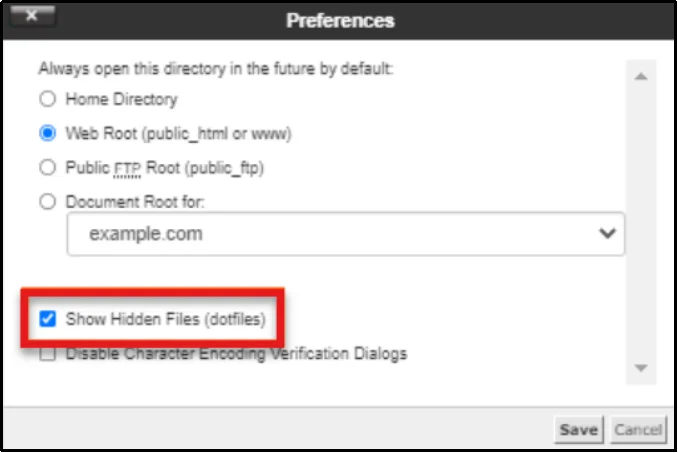
Congratulations! You can now access, edit, and troubleshoot your WordPress .htaccess file directly from cPanel. This method is the easiest way to fix WordPress errors without using an FTP client.
How to Access .htaccess File Using FTP
This method is especially useful when your WordPress site is down or not loading, and you cannot access the admin dashboard.
- Choose an FTP Client and download it. We chose FileZilla.
- Now, in parallel, log in to your hosting.
- Go to FTP Accounts and copy your FTP login credentials.
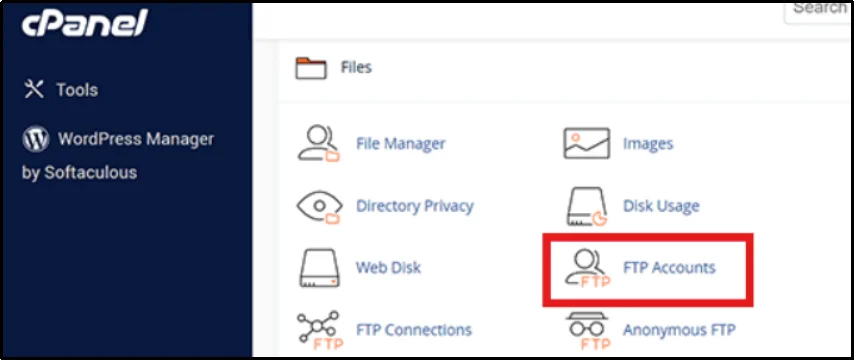
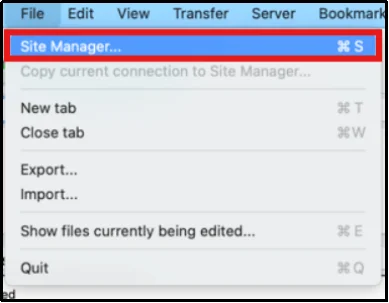
- Open FileZilla, then from the top menu bar, click File > Site Manager.
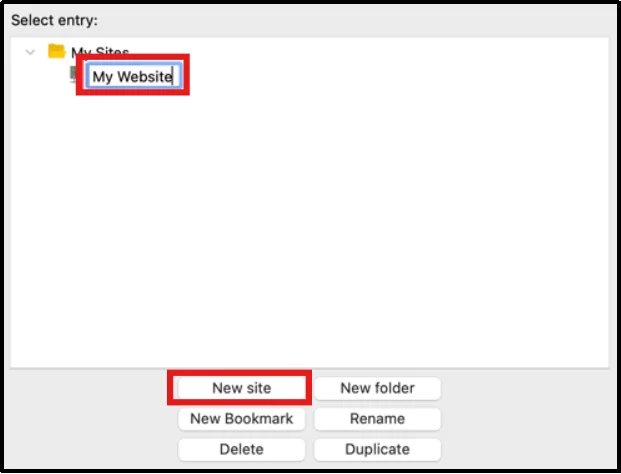
- In the Site Manager, click on New Site and name it anything you want.
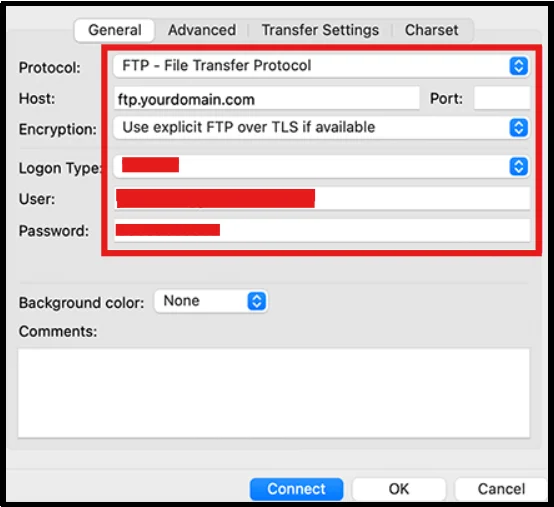
- Enter the necessary connection details:
- Host: usually your domain name (e.g., yourdomain.com) or sometimes ftp.yourdomain.com
- Protocol: choose SFTP if your host supports it, otherwise select FTP
- Logon Type: choose Normal
- Username and Password: use the credentials provided by your host
- Click Connect. If prompted with a security certificate, check “Always trust this certificate” and click OK.
- Once connection is established, you’ll come across two panels:
- Local site (Left side) – files and folders on your computer
- Remote site (Right side) – files stored on your hosting server
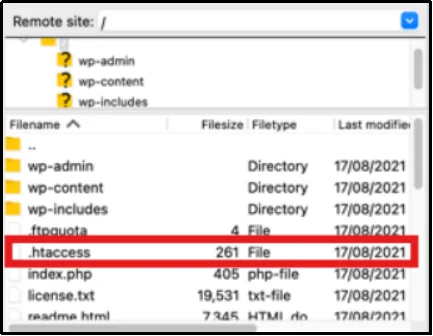
- You’re now in the root directory. On the Remote Site (right side), locate the .htaccess file.
How to Fix WordPress .htaccess File Missing (Create It Manually)
If your WordPress .htaccess file is missing, it is usually either hidden or not generated yet. If you can’t find .htaccess, it’s probably missing.
- Open Notepad.
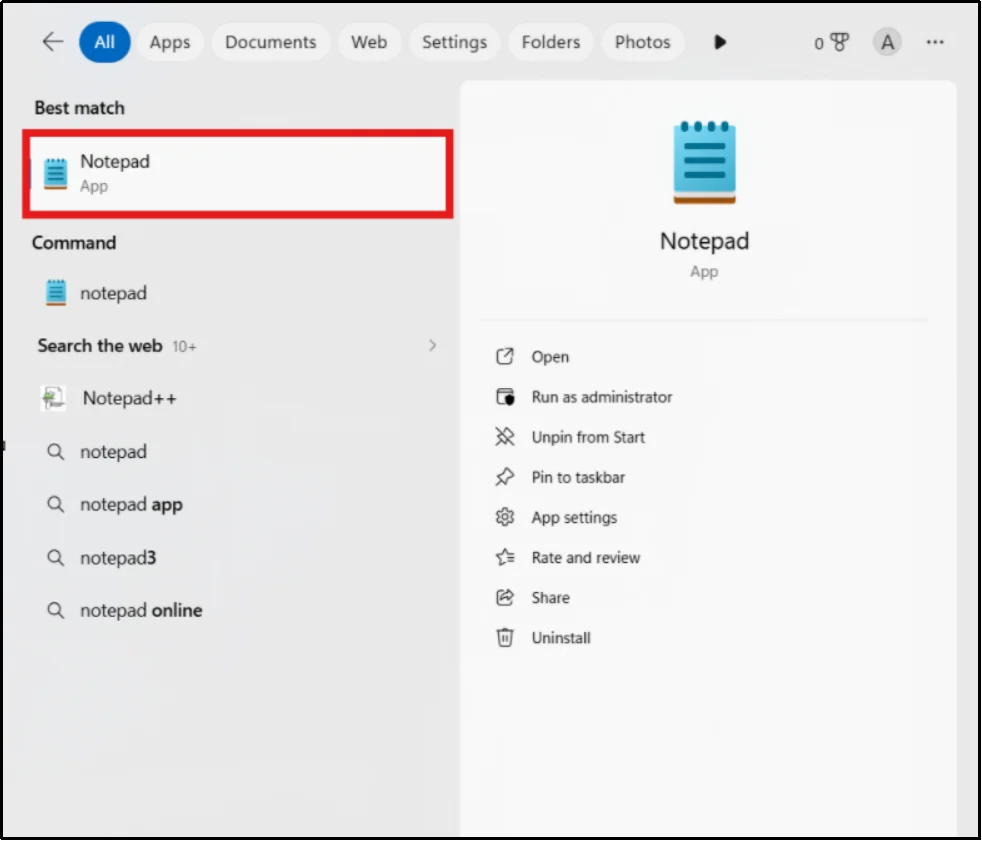
- Copy the following text and paste it into Notepad.
Default WordPress .htaccess File Code (copy the content below):
# BEGIN WordPress
RewriteEngine On
RewriteRule .* – [E=HTTP_AUTHORIZATION:%{HTTP:Authorization}]
RewriteBase /
RewriteRule ^index.php$ – [L]
RewriteCond %{REQUEST_FILENAME} !-f
RewriteCond %{REQUEST_FILENAME} !-d
RewriteRule . /index.php [L]
# END WordPress
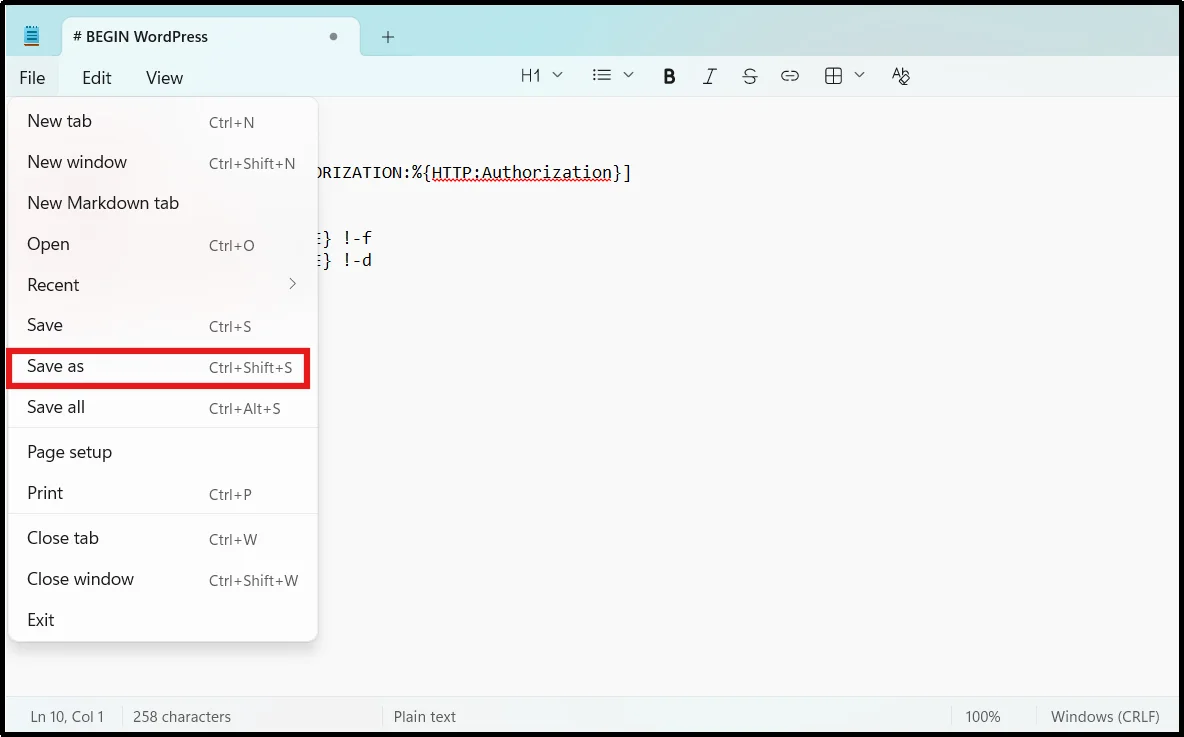
- Once you have pasted the text, go to File → Save As.
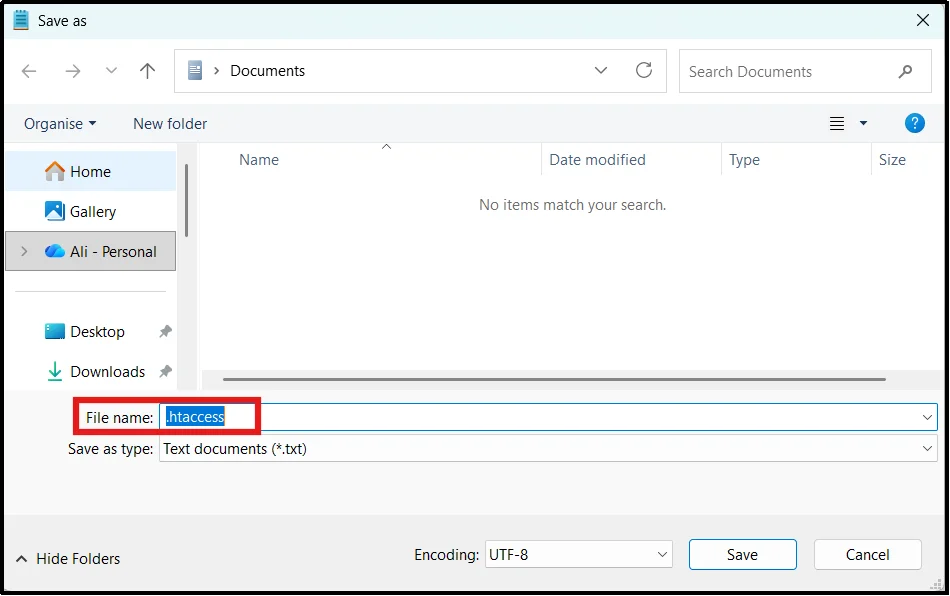
- Make sure you save the name as .htaccess and type as .txt.
- Once created, you have to upload the file to the root directory.
- Follow the same steps as above to access the root directory and either drag and drop the file or paste it there.
You have now created and uploaded the WordPress .htaccess file to your root directory, which restores default WordPress .htaccess functionality.
How to Edit the .htaccess File in WordPress
There are two safe ways to edit the WordPress .htaccess file: using cPanel File Manager or an FTP client. Both methods allow you to fix WordPress errors, update redirect rules, and troubleshoot configuration issues.
The other method is as follows:
- Access the .htaccess file via cPanel, hPanel, or FTP.
- Double-click it, or press right-click, then edit.
- Once it is opened in your code editor, you can edit it as per your requirements.
- Save it, and you have successfully edited the .htaccess file in WordPress.
To safely edit the .htaccess file in WordPress, always create a backup, test changes step by step, and avoid adding unverified rules.
Common Uses of the WordPress .htaccess File
The .htaccess file is small, but it can handle many important tasks for your website. Here are the most common ways it is used:
- Redirects (301 & 302): WordPress .htaccess redirect rules allow you to send users and search engines from old URLs to new ones without losing SEO value.
- Clean Permalinks: WordPress permalink .htaccess file rules help generate clean and SEO friendly URLs instead of query strings.
- Blocking IP Addresses: You can block specific IPs that are spamming or attacking your site.
- Password Protect Directories: You can restrict access to certain folders, like wp-admin, by adding an extra login layer.
- Prevent Hotlinking: Stop other websites from using your images and stealing your bandwidth.
- Improve Website Speed: Enable caching and compression (e.g., GZIP) to speed up your site’s load times.
- Custom Error Pages: Show user-friendly 404 or 500 error pages instead of generic server messages.
How to Fix WordPress .htaccess File Errors (Common Issues & Solutions)
Here are the most common WordPress .htaccess file errors and how to fix them safely.
Internal Server Error (500): This is one of the most common WordPress errors and is often caused by corrupted .htaccess rules or incorrect syntax.
How to Fix:
- Rename your .htaccess file to something like .htaccess_old
- Refresh your site
- If it works, the file had an error
- Generate a new one from WordPress (Settings → Permalinks → Save)
- You can also restore the default WordPress .htaccess file by resaving the permalink settings.
Broken Links / 404 Errors: Your pages may stop working.
How to Fix:
- Go to the WordPress dashboard
- Open Permalinks settings
- Click “Save Changes” to regenerate .htaccess
Too Many Redirects Error: This happens when redirect rules conflict.
How to Fix:
- Check for duplicate or looping redirect rules
- Remove unnecessary lines
Missing .htaccess File: Sometimes the file simply doesn’t exist.
How to Fix:
- Create it manually (as shown earlier)
- Or resave permalinks to generate it automatically
How to Enable WordPress Debug Mode for .htaccess Errors
If you’re troubleshooting advanced .htaccess issues, enabling WordPress debug mode can help identify the exact error.
Open your wp-config.php file and add:
define(‘WP_DEBUG’, true);
define(‘WP_DEBUG_LOG’, true);
define(‘WP_DEBUG_DISPLAY’, true);
This will generate WordPress error logs, allowing you to diagnose issues caused by incorrect .htaccess rules.
5 Best Security Tips for Editing .htaccess Safely
WordPress .htaccess security is critical, as incorrect changes can break your entire site. We’ve compiled the top 5 security tips that you must follow very carefully.
- Always take a backup first: Before making any changes, download a copy of your current .htaccess file. This way, you can quickly restore it if something breaks.
- Use correct file permissions: Set your .htaccess file permission to 644. This prevents unauthorized users from modifying it.
- Avoid copying random code: Only use trusted sources when adding rules. Unknown or incorrect code can break your site or create security risks.
- Test changes step by step: Don’t add multiple rules at once. Make small changes and test your site after each update.
- Restrict access to sensitive areas: Use .htaccess to protect folders such as wp-admin or wp-config.php with additional security rules.
NOTE: From real-world WordPress troubleshooting experience, most site crashes happen due to copying unverified .htaccess code from forums or outdated tutorials.
Access Your WordPress Files Without cPanel or FTP
The WordPress .htaccess file is a core part of your website that controls redirects, security, and performance before WordPress even loads.
At the same time, it’s important to handle it with care. A small mistake can break your site, but with proper backups, careful editing, and basic understanding, you can safely use it to your advantage.
Learning how to access the .htaccess file in WordPress and edit it safely allows you to fix errors, improve SEO, and strengthen your site’s security.
If you want a simpler way to access WordPress root directory and WordPress core files, consider using Advanced File Manager. It gives you quick, direct access to your files right from the dashboard, no need for cPanel or FTP.
FAQs
How do I fix WordPress site not loading due to .htaccess?
Rename the .htaccess file via FTP or File Manager, then regenerate it by saving permalink settings.
Why is my WordPress .htaccess file missing?
It may be hidden or not created yet. Check “Show Hidden Files” in your File Manager. If it’s still missing, WordPress will create it when you save the permalink settings.
Can I create a new .htaccess file manually?
Yes, you can. Just create a file named .htaccess, add the default WordPress code, and upload it to your root directory.
Is editing .htaccess dangerous?
It can be, if done incorrectly. A small mistake can break your entire website. However, if you take backups and follow proper steps, it is safe and very useful.

