
If you have ever encountered a “Permission Denied,” “403 Forbidden,” or failed WordPress update error, incorrect file permissions may be the cause. WordPress file permissions control who can access, modify, and execute files and folders on your website. Proper permissions help protect your site from security vulnerabilities while allowing WordPress core files, themes, and plugins to function correctly.
When permissions are too restrictive, WordPress may fail to install updates, upload media files, or run plugins properly. When they are too open, attackers may exploit them to inject malicious code, modify files, or gain unauthorized access. The good news is that you do not need Linux expertise to manage WordPress file permissions.
In this guide, you will learn how file permissions work, the recommended settings to use, and how to safely troubleshoot common permission-related issues.
What Are WordPress File Permissions?
WordPress file permissions are security settings that control who can read, write, and execute files and folders on a WordPress website. They help protect your site from unauthorized access while allowing WordPress, plugins, and themes to function correctly.
Every file in WordPress—including wp-config.php, plugin files, theme files, and media uploads—has its own permission settings. These permission settings determine what actions users and processes can perform on each file.
Think of it like the lock system on a shared office building. Some rooms (files) you own outright and can do whatever you want with.
Some rooms your teammates can walk into and use, but not rearrange. And some rooms should be completely off-limits to visitors walking in off the street.
In simple terms, WordPress file permissions determine who can access, modify, or execute files and folders on your website.
Why Are WordPress File Permissions Important?
WordPress file permissions play a critical role in protecting your website from unauthorized access and security threats. They control who can read, modify, upload, or execute files, helping WordPress core files, themes, and plugins function correctly while preventing unauthorized changes.
When file permissions are configured properly, WordPress can perform essential tasks such as installing updates, uploading media files, and running plugins without issues. At the same time, they help reduce the risk of malware infections, file tampering, data breaches, and other security vulnerabilities.
Incorrect file permissions can cause a wide range of problems, including failed updates, upload errors, 403 Forbidden errors, and even website downtime. Following recommended WordPress file permission settings helps maintain website security, improve stability, and keep your site running smoothly.
The Fundamentals of WordPress File Permissions
Every file or folder on a Linux server (which is what most WordPress hosting runs on) has permissions defined for three types of users:
- Owner – usually your hosting account or FTP user
- Group – a set of users who share certain access, often including the web server process
- Public (or “others”) – literally everyone else who could theoretically touch the server
And for each of those three groups, there are three possible actions:
- Read – view the file’s content or see what’s inside a folder
- Write – edit, delete, or add to the file or folder
- Execute – run a script or access and traverse a directory
Here’s an example:
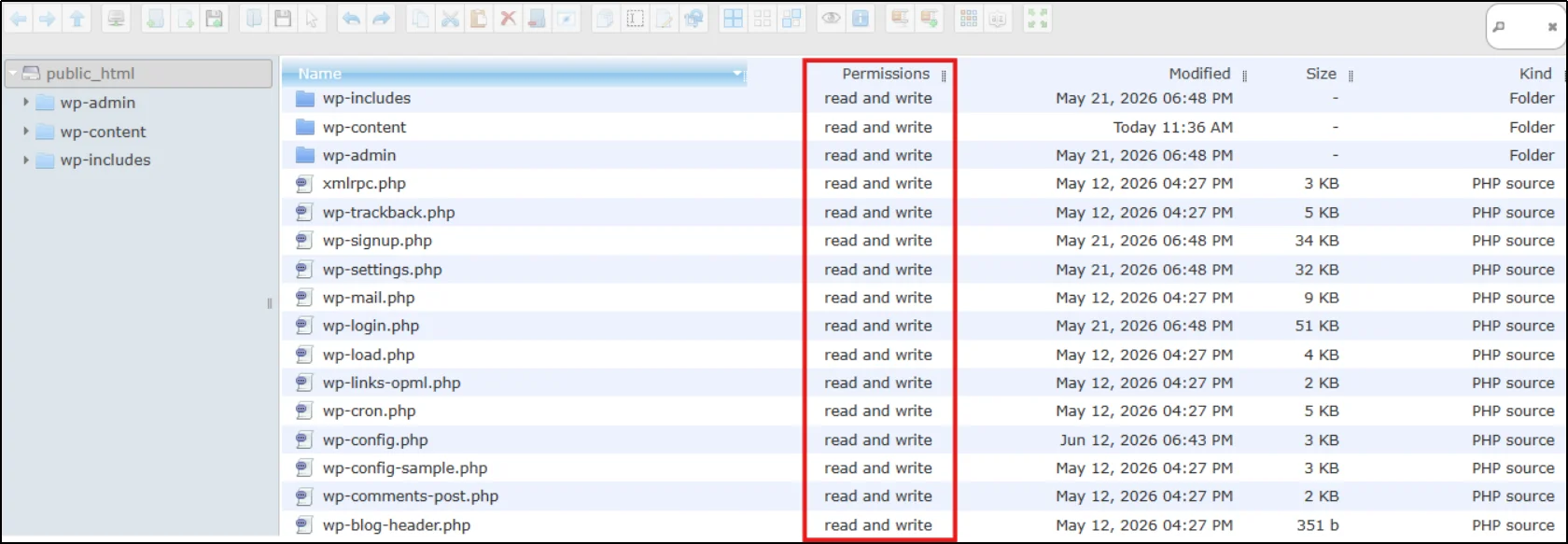
Combine those three user types with those three actions, and you get the full permission system WordPress relies on.
Why WordPress Uses File Permissions
WordPress is a dynamic platform that needs to:
- create files (when you upload media),
- write to files (when a plugin updates), and
- read files (basically every time a page loads).
File permissions help WordPress perform these tasks securely while preventing unauthorized users and malicious scripts from making unwanted changes.
If permissions are too loose, malicious scripts can rewrite your theme files, corrupt, or steal your database credentials.
On the other hand, if permissions are too restrictive, WordPress may not be able to update plugins, upload media files, install themes, or function correctly.
The goal is to configure WordPress file permissions correctly so your website remains both secure and functional.
File Permissions vs Server Permissions
It’s worth separating two related but different concepts: file permissions and server permissions.
File permissions control access at the individual file/folder level (the 755s and 644s you’ll see throughout this guide).
Server permissions are broader, as they include things like which users exist on the server, firewall rules, database access controls, and SSH access.
File permissions are a subset of your overall server security, not a replacement for it. You’ll still want strong passwords, updated software, and a firewall regardless of how well your file permissions are configured.
How Hosting Environments Affect File Permissions
Recommended file permissions can vary slightly depending on your hosting environment. Shared hosting, managed WordPress hosting, VPS hosting, and dedicated servers often use different file ownership and PHP execution models.
In many cases, file ownership causes permission-related errors even when files use the correct 644 and 755 settings. Before making major permission changes, review your hosting provider’s documentation or contact their support team for guidance.
Understanding how your hosting environment manages Linux file permissions helps you troubleshoot permission issues more effectively and maintain a secure WordPress website.
How WordPress File Permissions Work
WordPress file permissions determine who can read, write, or execute files and folders on your website. Each permission level controls what actions users, processes, or the web server can perform, helping maintain both functionality and security. Understanding how these permissions work makes it easier to configure your site correctly and prevent unauthorized changes.
Permission Numbers (644, 755, 777) on WordPress
You’ve probably already seen these three-digit numbers floating around, 644, 755, 777, and wondered what they actually are and mean. Here’s the decoder:
Each permission (read, write, execute) has a numeric value:
| Permission | Value |
| Read | 4 |
| Write | 2 |
| Execute | 1 |
| No access | 0 |
You add these values together to get a single digit that represents what a given user type (owner, group, or public) can do. A three-digit number like 755 simply stacks three of these digits in a row; one = owner, one = group, one = public.
So 755 breaks down as:
- Owner: 4+2+1 = 7 (read, write, execute)
- Group: 4+0+1 = 5 (read, execute)
- Public: 4+0+1 = 5 (read, execute)
And 644 breaks down as:
- Owner: 4+2 = 6 (read, write)
- Group: 4 = 4 (read only)
- Public: 4 = 4 (read only)
This numeric shorthand, sometimes called octal notation, is why you’ll see it referred to everywhere as WordPress chmod permissions, since the Linux command used to set them is called chmod (short for “change mode”).
What Do Read, Write, and Execute Mean?
It helps to picture what each permission actually does in practice on a live WordPress site:
- Read lets a file’s content or a folder’s file list be viewed. Without read access, your browser couldn’t load your CSS or images.
- Write lets a file be changed or deleted, or lets new files be created inside a folder. WordPress needs write access to save an uploaded photo or install a plugin update.
- Execute permission allows users and processes to access and traverse a directory. Without execute permission, users cannot open the directory or access the files inside it, even if read permission exists.
WordPress File Permissions 755 vs 777
This comparison comes up constantly, so let’s settle it clearly: 755 is safe, 777 is not.
- 755 gives the owner full control, while the group and public can only view and access, but not modify. This is the correct, recommended setting for WordPress directories.
- 777 gives everyone, including the owner, group, and the public, full read, write, and execute access. That means literally anyone who can reach that file or folder, including a malicious script or another compromised account on a shared server, could rewrite it.
777 sometimes “fixes” an upload or update error, which is exactly why so many beginners reach for it. But it’s a band-aid that trades a temporary inconvenience for a permanent vulnerability.
What Are the Recommended WordPress File Permissions?
For most WordPress websites, the recommended file permissions are:
- 755 for directories (folders)
- 644 for files
- 600 or 640 for wp-config.php
These settings provide the right balance between WordPress functionality and website security.
With 755 permissions, the site owner can read, write, and access directories, while other users can only read and access them. For files, 644 permissions allow the owner to make changes while keeping files read-only for everyone else. Since wp-config.php contains sensitive information such as database credentials and security keys, using 600 or 640 permissions adds an extra layer of protection.
For most WordPress installations, following these recommended file permission settings provides the right balance between website security, WordPress functionality, and file access control.
Recommended WordPress File Permission Settings
Here’s the part you’re probably here for. These are the values recommended by WordPress.org’s own documentation and echoed by virtually every major WordPress security vendor.
File Permission Values You Should Use
Most individual files in your WordPress installation should be set to 644. This lets the owner read and write the file, while everyone else can only read it.
There’s rarely a good reason for a standard WordPress file to have execute permission, since PHP files are interpreted by the PHP engine rather than run directly.
Best Settings for WordPress Directories
Directories (folders) should be set to 755. The execute bit on a folder allows a process to open and navigate into that folder to reach the files inside. Without it, even reading access to a directory’s contents is effectively useless.
Securing Important WordPress Configuration Files
A few files carry more risk than the rest and deserve tighter settings:
- wp-config.php: This file stores your database credentials and secret security keys, making it the single most sensitive file in your entire install.
Set it to 600 or 640 (some hardened setups use 440 or 400).
Many hosts use 644 safely, but if your hosting environment supports it, setting wp-config.php to 640 or 600 provides an additional layer of protection.
- .htaccess: This controls your server configuration and often contains security rules.
644 is standard.
- wp-content and its subfolders (themes, plugins, uploads): 755 for folders, 644 for the files inside them.
Quick Reference Table for WordPress File Permissions
| File/Folder | Recommended Permission | Purpose |
| All directories | 755 | Allows navigation and reading; blocks unauthorized writes |
| All standard files | 644 | Allows reading everywhere; writing only by the owner |
| wp-config.php | 600 or 640 | Protects database credentials and security keys |
| .htaccess | 644 | Protects server configuration rules |
| wp-content/ | 755 | Houses themes, plugins, and uploads |
| wp-content/uploads/ | 755 | Needs to stay writable for media uploads |
| wp-content/plugins/ | 755 (folders), 644 (files) | Allows WordPress and PHP to access plugin files while preventing unauthorized modifications. |
| wp-content/themes/ | 755 (folders), 644 (files) | Same logic as plugins |
A simple rule of thumb worth memorizing: 755 for folders, 644 for files, and something tighter for wp-config.php.
That single sentence covers the vast majority of real-world WordPress setups.
Common WordPress Permission Errors and Their Causes
Incorrect permissions tend to announce themselves through a handful of recognizable symptoms.
- “Permission Denied” Errors: If you see this error while uploading files, installing plugins, or editing themes, WordPress likely doesn’t have write access to the required directory.
- Failed Plugin or Theme Updates: Updates that fail or repeatedly prompt for FTP credentials often indicate insufficient write permissions on the wp-content/plugins or wp-content/themes directories.
- Unable to Upload Media Files: Media uploads usually fail when the wp-content/uploads directory has incorrect permissions or ownership settings.
- White Screen and Access Errors: A white screen, a 500 Internal Server Error, or a 403 Forbidden can result from incorrect permissions on files such as .htaccess, wp-config.php, or other core WordPress files.
- Security Risks from Incorrect Permissions: Permissions that are too open (such as 777) make it easier for attackers or malware to modify files, inject malicious code, or create backdoors. In some cases, malware also changes file permissions to prevent removal.
- Incorrect File Ownership: File ownership issues often look identical to permission problems. Even when files use the correct 644 and 755 settings, WordPress may still fail to upload media, install plugins, or complete updates if the web server does not own the files correctly.
How to Check WordPress File Permissions [3 Easy Ways]
Before changing anything, always check what you’re currently working with.
Method #1: Checking Permissions Through Hosting File Manager (cPanel)
- Log in to your hosting account and open cPanel File Manager.
- In the cPanel dashboard, click on File Manager under the Files section.
- Locate and go to the public_html directory where WordPress is installed.
- Right-click on any file or folder and select Permissions. A dialog box will appear showing the current permission settings.
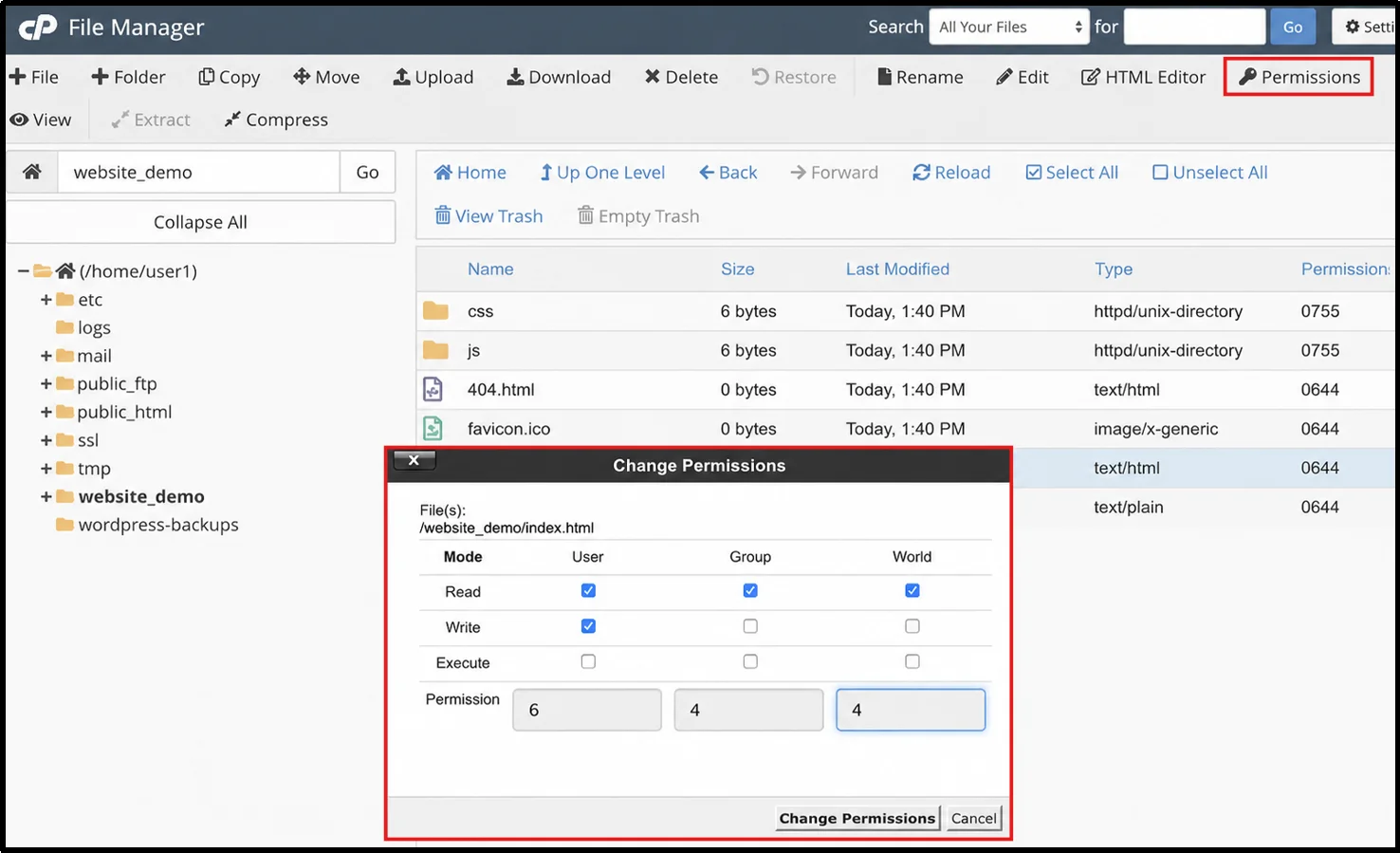
Method #2: Checking Permissions Using FTP Clients
- Open your FTP client, FileZilla, or any of your choice.
- Connect to your server using the FTP credentials provided by your hosting service.
- Go to the directory where WordPress is installed, public_html.
- Right-click on any file or folder, and click File permissions…
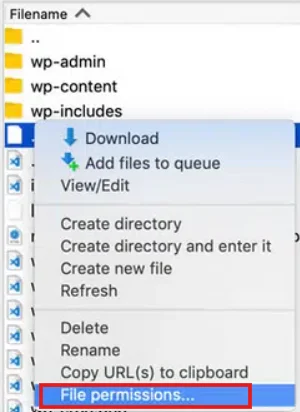
- A window will pop up showing the numeric permission value and checkboxes for read, write, and execute permissions.
Method #3: Checking Permissions with Advanced File Manager Plugin
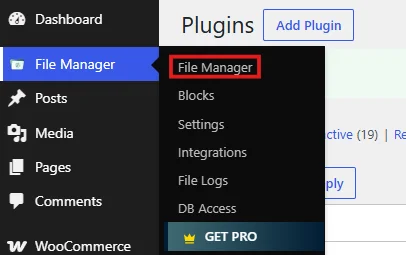
- In your WordPress dashboard, head to Plugins → Add Plugin.
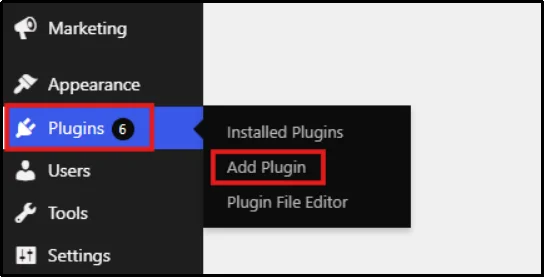
- Enter Advanced File Manager in the search bar, click on Install, then Activate.
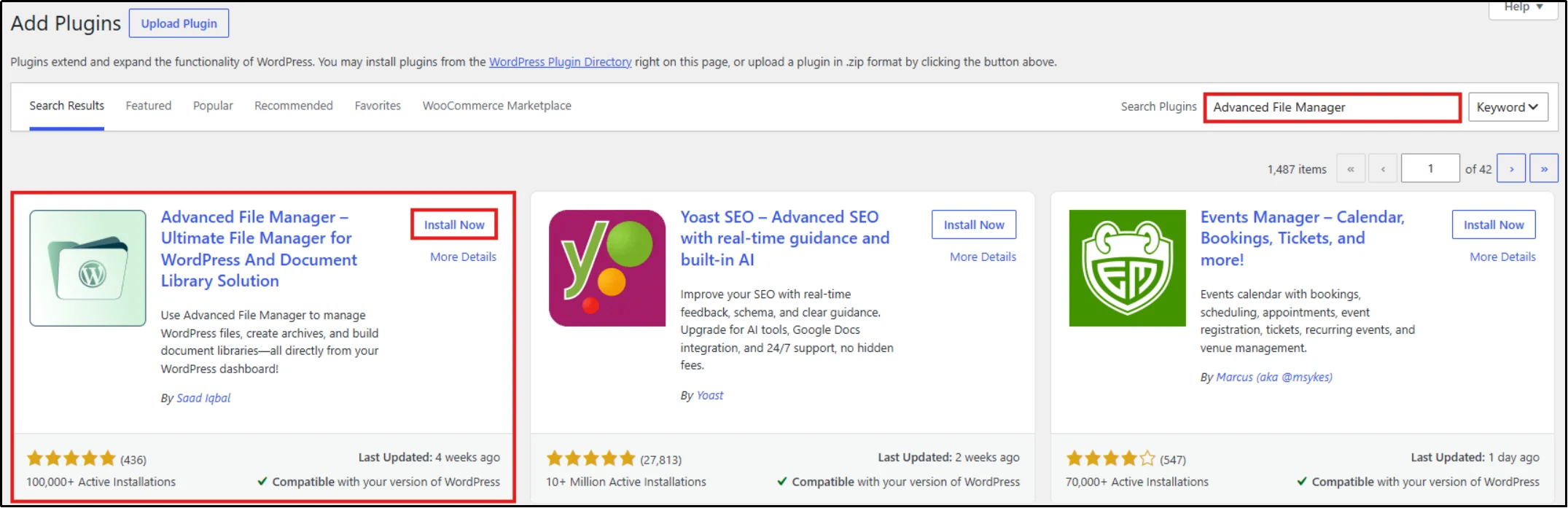
- Go to the File Manager dashboard.
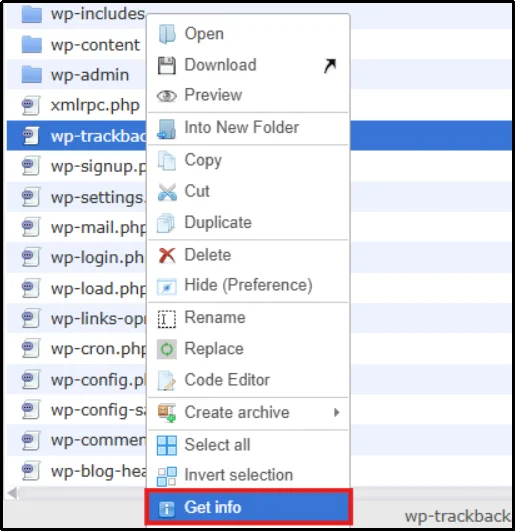
- Right click on any file or folder and select Get Info.
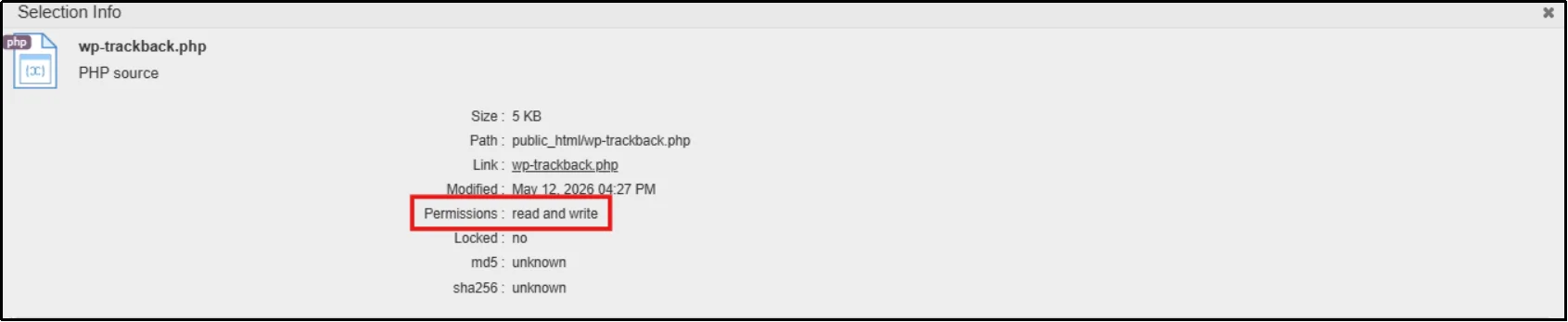
- You can view WordPress file permissions in a user-friendly format without interpreting Linux permission values manually.
How to Change WordPress File Permissions
Now that you are familiar with checking file permissions, it is important to change them as needed.
Method #1: Change Permissions Using cPanel File Manager
- Head to the cPanel dashboard → File Manager.
- Now go to the WordPress directory and right-click on the file or folder for which permission you want to change.
- Select Change Permissions, and a window will appear where you can check or uncheck the permission boxes for Read, Write, and Execute and for designated groups.
- Click Change Permissions to apply the new settings.
Method #2: Change Permissions Using FTP Client
- Open your FTP client and connect using your FTP credentials.
- Find the file or directory you wish to modify permissions for.
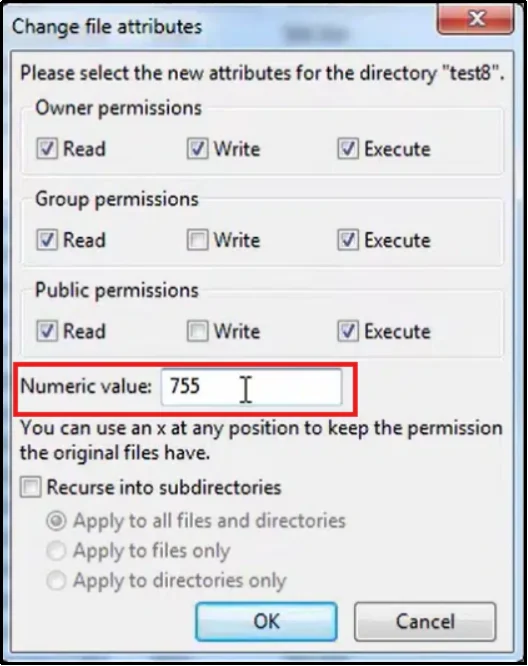
- Right-click on the selected file or folder, choose File Permissions.
- Adjust the numeric value or check the appropriate permissions boxes.
- Click OK to apply the changes. The new permissions will take effect immediately.
What Is CHMOD?
CHMOD stands for “change mode,” and it’s the Linux command used to set file and folder permissions from the command line. It’s the engine behind every permission change you make; even FTP clients and File Manager tools are just running chmod when you click “save.”
Common CHMOD Commands for WordPress
A few commands you’ll use repeatedly when managing file permissions in WordPress:
# Set a single file to 644 → chmod 644 wp-config.php
# Set a single folder to 755 → chmod 755 wp-content
# Recursively set directories to 755 → find /path/to/wordpress -type d -exec chmod 755 {} \;
# Recursively set files to 644 → find /path/to/wordpress -type f -exec chmod 644 {} \;
# Lock down wp-config.php specifically → chmod 600 wp-config.php
Notice the find command is used for bulk changes instead of a plain recursive chmod -R. That’s intentional – a single recursive chmod applies the same value to both files and folders, which will break your site by granting files execute permissions or stripping folders of the access they need to remain navigable.
Safely Using CHMOD on Production Websites
A few habits will save you a lot of stress:
- Always back up your site before making bulk permission changes.
- Change one thing at a time when troubleshooting, so you know exactly what fixed (or broke) something.
- Never use 777, even “just temporarily”; that temporary fix is how sites get compromised.
- Test immediately after each change by loading your site and trying the action that was failing (uploading, updating, etc.).
Examples of CHMOD Values in WordPress
| Command | Result |
| chmod 755 wp-content | Owner: full access; group/public: read + execute |
| chmod 644 index.php | Owner: read + write; group/public: read only |
| chmod 600 wp-config.php | Owner only: read + write; nobody else has any access |
| chmod 640 wp-config.php | Owner: read + write; group: read only; public: none |
WordPress File Permissions – 10 Best Practices
Proper file permissions are an important part of WordPress security and WordPress hardening. Following these best practices helps reduce security risks, prevent permission-related errors, and keep your website running smoothly.
- Follow the Principle of Least Privilege – Grant only the minimum permissions required for files and folders to function.
- Never Use 777 Permissions – Avoid giving full access to everyone, as it creates a serious security risk.
- Secure Sensitive Files – Restrict access to files like wp-config.php, .env, and other configuration files.
- Audit Permissions Regularly – Review file and folder permissions periodically, especially after updates or site migrations.
- Keep WordPress Updated – Regularly update WordPress core, themes, and plugins to reduce vulnerabilities.
- Use Security Monitoring Tools – Install a security plugin to monitor file integrity and alert you to unauthorized changes.
- Verify File Ownership – Ensure files and folders are owned by the correct server user to avoid permission conflicts.
- Limit File Editing in the Dashboard – Disable the built-in theme and plugin editor to reduce the risk of unauthorized code changes.
- Remove Unused Themes and Plugins – Delete inactive extensions to minimize your site’s attack surface.
- Back Up Your Website Regularly – Maintain recent backups so you can quickly restore your site if permission issues or security incidents occur.
Final Thoughts on WordPress File Permissions
WordPress file permissions play a critical role in website security, stability, and maintenance. In most cases, 755 for directories, 644 for files, and stricter permissions for wp-config.php provide the right balance between functionality and protection. Regularly reviewing file ownership, monitoring permission changes, and avoiding risky settings such as 777 can significantly reduce your website’s exposure to security threats.
If you regularly manage WordPress files, permissions, backups, or website maintenance tasks, Advanced File Manager can help you inspect, edit, and organize files directly from your WordPress dashboard. You can also view and update file permissions without relying on cPanel or FTP software.
Upgrade to Advanced File Manager Pro to simplify WordPress file management and permission control.
Frequently Asked Questions About WordPress File Permissions
What are the recommended file permissions for WordPress?
As a baseline: 755 for directories, 644 for files, and a stricter 600 or 640 for wp-config.php, this covers the vast majority of standard WordPress installations.
Should I use 755 or 777 permissions?
Always 755. 777 grants full read, write, and execute access to everyone who can reach the file, turning a convenience into a serious security risk. If 777 seems to be the only thing that fixes an issue, check file ownership before changing the permission level.
What permissions should wp-config.php have?
600 or 640 is recommended, since this file holds your database credentials and secret keys. Some hardened environments go even further with 440 or 400, though this depends on how your specific hosting setup runs PHP.
How do I change WordPress file permissions safely?
Back up your site first; change one file or folder at a time; use 755 for directories and 644 for files (never mix the two); and test the affected functionality immediately after each change.
Can incorrect permissions cause website errors?
Yes. Permission problems are behind many of the most common WordPress errors, including failed uploads, failed plugin/theme updates, 403 and 500 errors, and blank white screens.
How often should I review file permissions?
Check them after any major event: a migration, a malware cleanup, a manual file restoration, or unusual site behavior. Outside of that, a periodic audit every few months alongside your other routine security checks is a reasonable habit.
Does changing file permissions affect SEO?
File permissions do not directly affect SEO rankings. However, incorrect permissions can cause website errors, security vulnerabilities, failed updates, and downtime, all of which can negatively impact search performance and user experience.
Can malware change WordPress file permissions?
Yes. Some malware modifies file permissions to gain persistent access, block removal attempts, or hide malicious files. Regular security scans and permission audits help identify these changes early.