
Seeing the “cURL Error 28: Connection Timed Out” message in WordPress means your website could not complete an HTTP request within the allowed timeout period. This WordPress timeout error commonly affects REST API requests, loopback requests, plugin updates, payment gateways, and third-party integrations.
In this guide, you’ll learn what causes cURL Error 28 in WordPress, how to identify the underlying issue, and the most effective ways to resolve connection timeout errors permanently. Whether the problem is caused by a recent change on your site or a server-side configuration issue, you’ll find practical solutions to help you resolve it.
What is cURL Error 28 in WordPress?
cURL (Client URL) is a data transfer library that WordPress uses through PHP to send HTTP and HTTPS requests. Through the WordPress HTTP API, cURL allows WordPress to communicate with external services, check for updates, process payment gateway requests, verify licenses, and perform loopback requests.
Every request sent through the WordPress HTTP API has a time limit. If a cURL request doesn’t finish within that limit, WordPress records the failure as cURL Error 28.
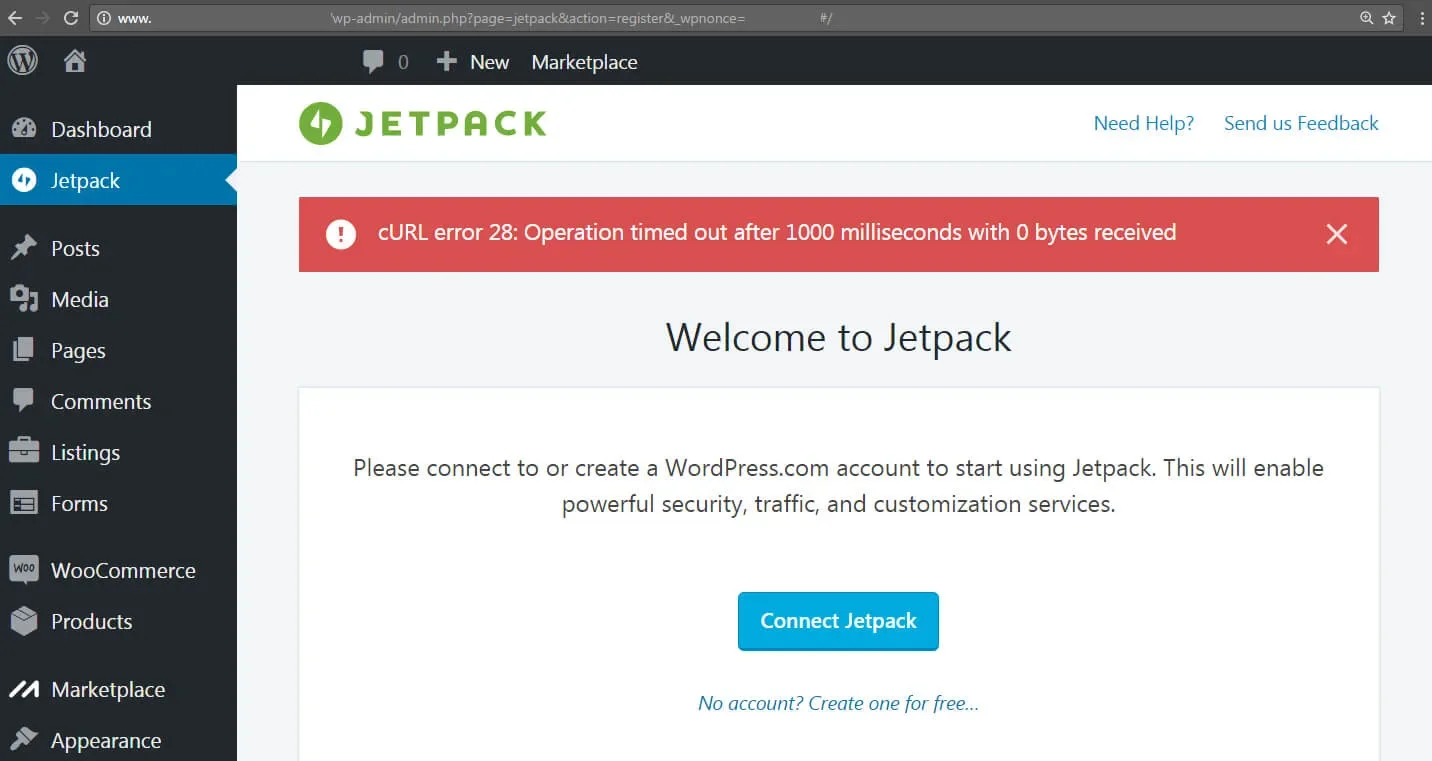
In simple terms, WordPress waits for a response whenever it sends an HTTP request. If the server or external service fails to respond within the allowed timeout period, WordPress terminates the request and displays the “cURL Error 28: Connection Timed Out” message.
How WordPress Uses cURL Requests
WordPress uses cURL for many critical website functions, including:
- REST API communication – WordPress uses cURL to handle REST API and loopback requests that allow different components of your site to communicate internally.
- Plugin and theme updates – WordPress uses cURL to connect with WordPress.org and retrieve update information for installed plugins, themes, and core files.
- Third-party integrations – Services such as Stripe, Mailchimp, reCAPTCHA, CRMs, and email marketing tools rely on cURL to exchange data securely with WordPress through external API calls.
- CDN and caching services – cache-clearing calls to external providers often go through cURL.
- Scheduled tasks (WP-Cron) – WordPress uses HTTP requests to trigger scheduled events such as backups, email notifications, and automated maintenance tasks. If these requests fail, cURL Error 28 may appear.
Because cURL is used so widely, this error can pop up from many different directions.
You’ll typically find this error in two places: the WordPress Site Health tool (under Tools → Site Health) and your server error logs. Here are the most common variations:
- cURL error 28: Operation timed out after 10000 milliseconds with 0 bytes received
- cURL error 28: Connection timed out after X milliseconds
- The REST API encountered an error (followed by the cURL 28 detail)
- The loopback request to your site failed – WordPress could not communicate with itself, which often points to firewall restrictions, plugin conflicts, or server configuration issues.
- Http_request_failed
In WordPress Site Health, cURL Error 28 commonly appears as a REST API error, indicating that WordPress could not complete an internal or external request within the configured timeout period.
Although the wording varies, these messages indicate the same underlying problem: WordPress initiated an HTTP request that exceeded the configured timeout limit before receiving a response.
Common Causes of cURL Error 28 in WordPress
There are several causes of cURL error 28 in WordPress. It’s best to understand what the common causes are, so we can eliminate it from happening in the future too.
- Plugin and Theme Conflicts
A plugin or theme making slow or broken external requests is the most frequent trigger. When the connected service takes too long to respond, the request hangs until WordPress gives up. This often happens right after installing a new plugin that talks to a third-party API. An API request failure caused by slow responses or misconfigured integrations can eventually trigger cURL Error 28.
- Firewall or Security Restrictions
Security plugins like Wordfence or Sucuri can block loopback requests, requests your site makes to itself, treating them as threats. Server-level firewalls running mod_security can also restrict outgoing connections, preventing WordPress from communicating with external services. Either way, the connection never completes.
- Server Timeout Limits
Some hosting providers enforce strict PHP execution time or web server timeout limits. When an HTTP request exceeds these limits, WordPress may terminate the request and generate cURL Error 28.
- DNS Resolution Issues
WordPress has to translate a domain name to an IP address before it can connect anywhere. If your server’s DNS resolver is slow or misconfigured, the DNS lookup process alone can consume the entire timeout window before data transfer even begins.
- SSL Certificate Problems
SSL certificate issues typically generate dedicated SSL errors. However, certificate validation failures can occasionally delay connections enough to contribute to cURL Error 28 timeouts.
- Low PHP Memory Limits
When PHP runs out of memory mid-request, the connection stalls. Insufficient PHP execution time settings can also interrupt long-running requests before they complete. Most WordPress sites need at least 256MB to run reliably. The default 64MB limit is often too low, especially on sites with several active plugins.
- Outdated PHP or cURL Versions
Older PHP and cURL versions may struggle with modern TLS requirements and compatibility standards, increasing the likelihood of connection failures and timeout-related issues.
- Hosting Server Performance Issues
An overloaded server, high CPU, memory pressure, or a queue of waiting processes, may lack sufficient resources to process outgoing requests efficiently. Shared hosting is especially prone to this during traffic spikes.
How to Check if Your Website Is Affected by cURL Error 28
Before diving into fixes, confirm the error is present and understand where it’s showing up.
Method 1: Using WordPress Site Health Tool
- Log in to your WordPress admin.
- Go to Tools → Site Health
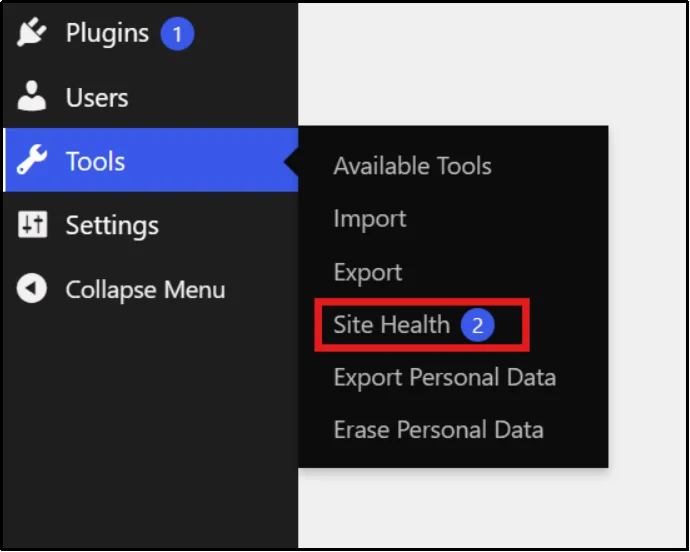
- If there is a cURL error 28, you will see it listed under Critical section as REST API issue or failed loopback request.
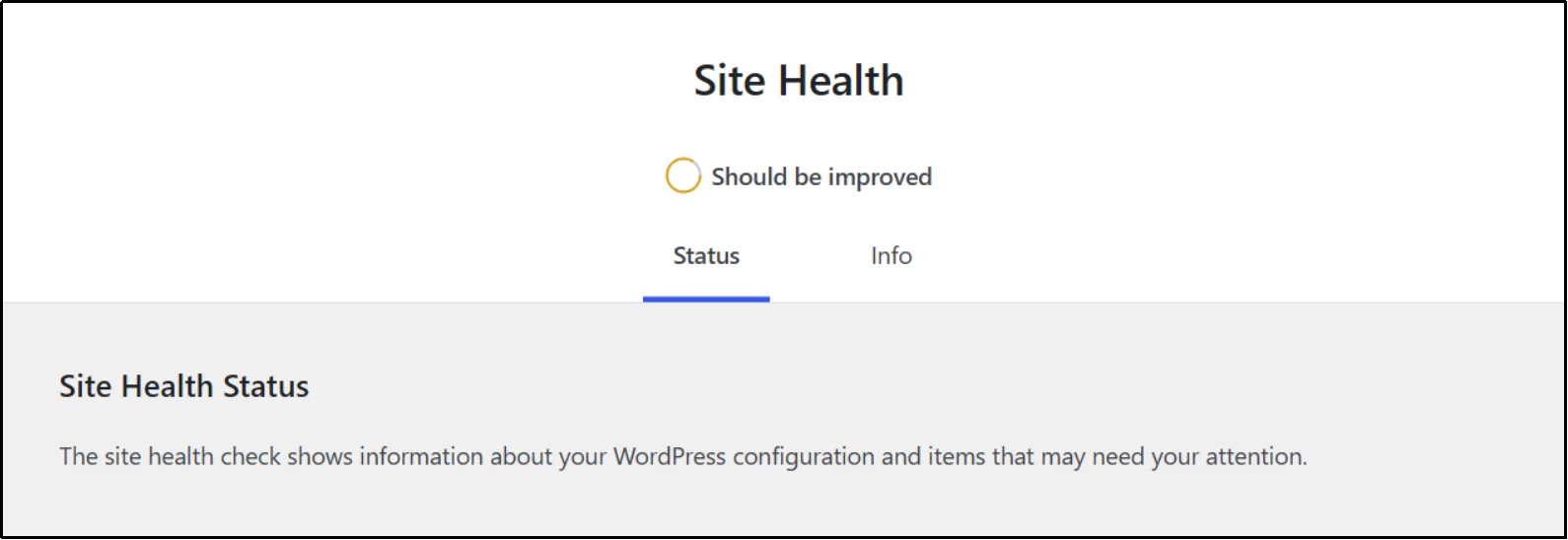
- If the issue appears, click the entry to view additional details, including the timeout duration, affected request, and the number of bytes received before the request failed.
Method 2: Check Server System Software Versions
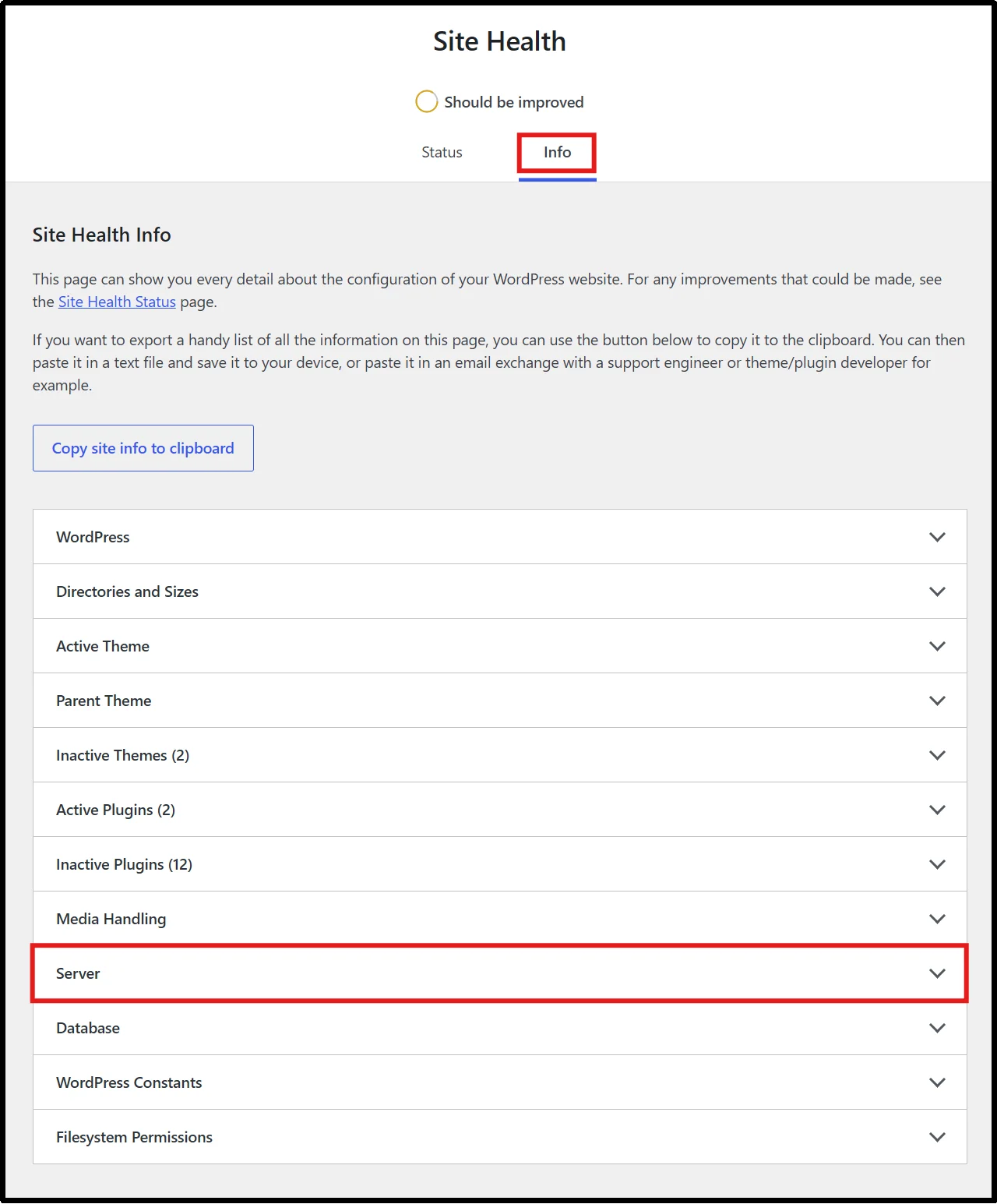
- In the same Site Health menu, go to Info.
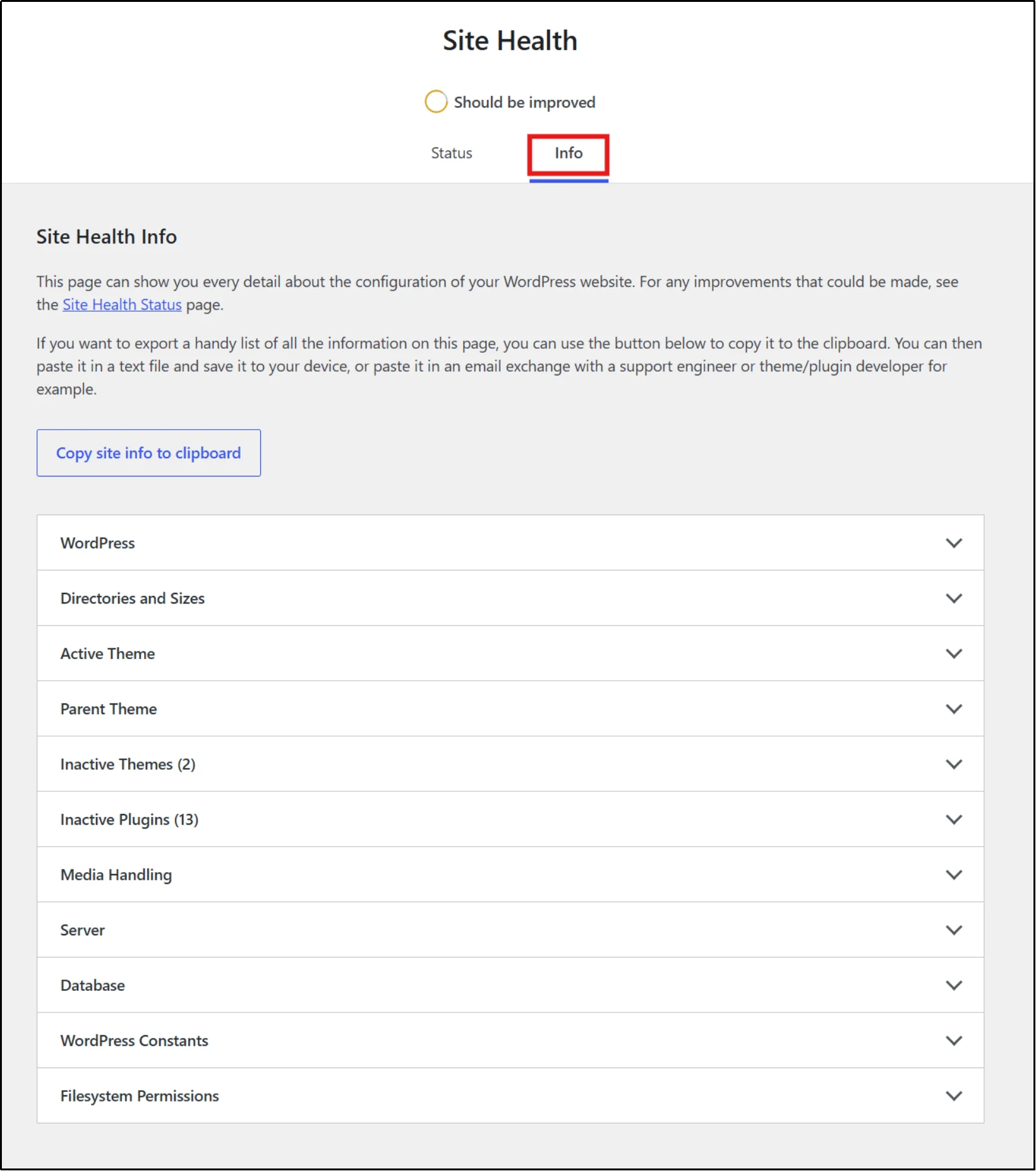
- Click on the Server dropdown to expand it.
- Look for the PHP version and cURL version numbers.
- If your server has an outdated cURL build, contact your hosting provider to update them.
Method 3: Reviewing WordPress Error Logs
To review WordPress debug logs, you need access to your website files. You can use FTP, your hosting file manager, or a WordPress file management plugin such as Advanced File Manager.
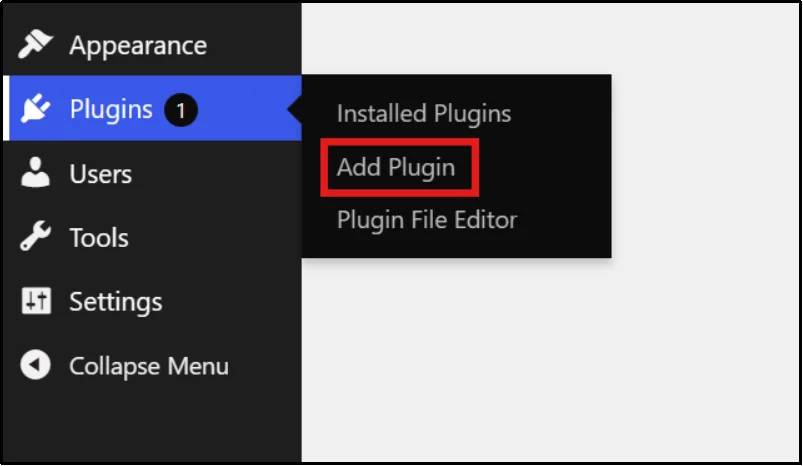
- Go to Plugins → Add Plugin
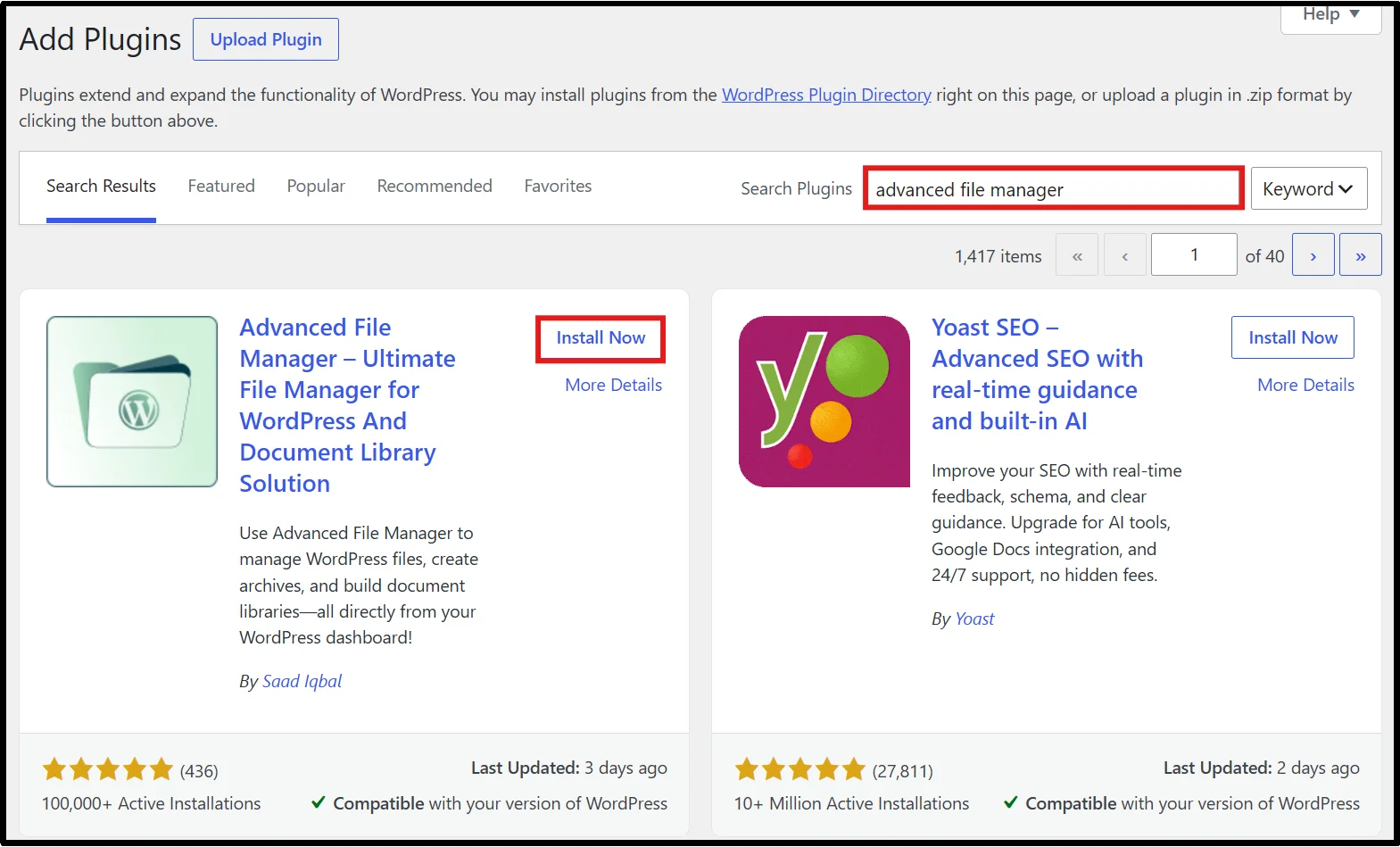
- Type Advanced File Manager in the search bar, then click Install Now on the plugin.
- Now click Activate in order to start using the plugin.
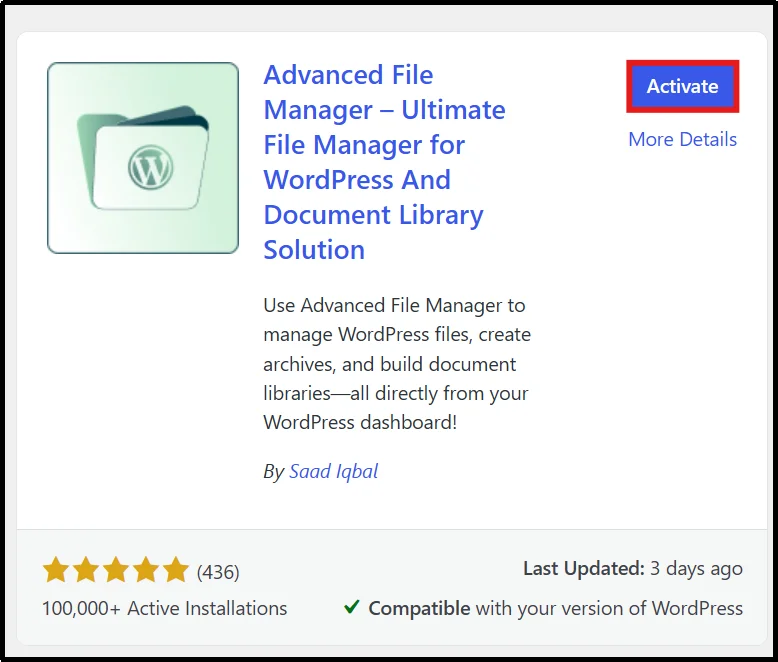
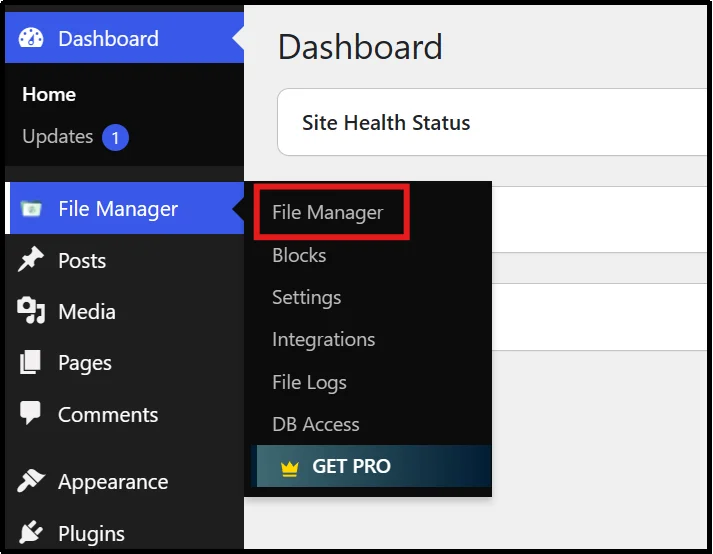
- Now that the plugin is activated, head to File Manager.
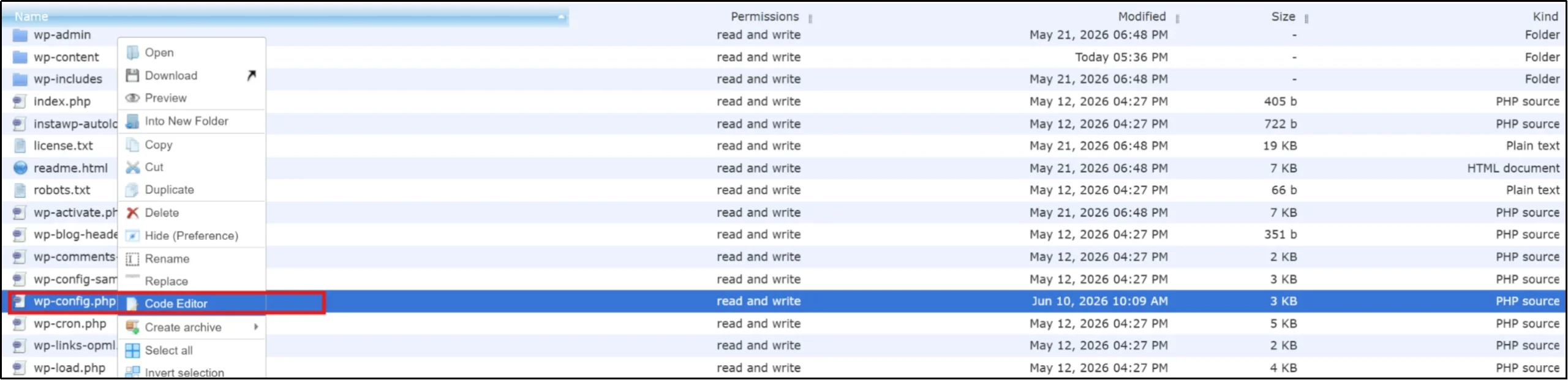
- Find wp-config.php, right click on it, and select Code Editor.
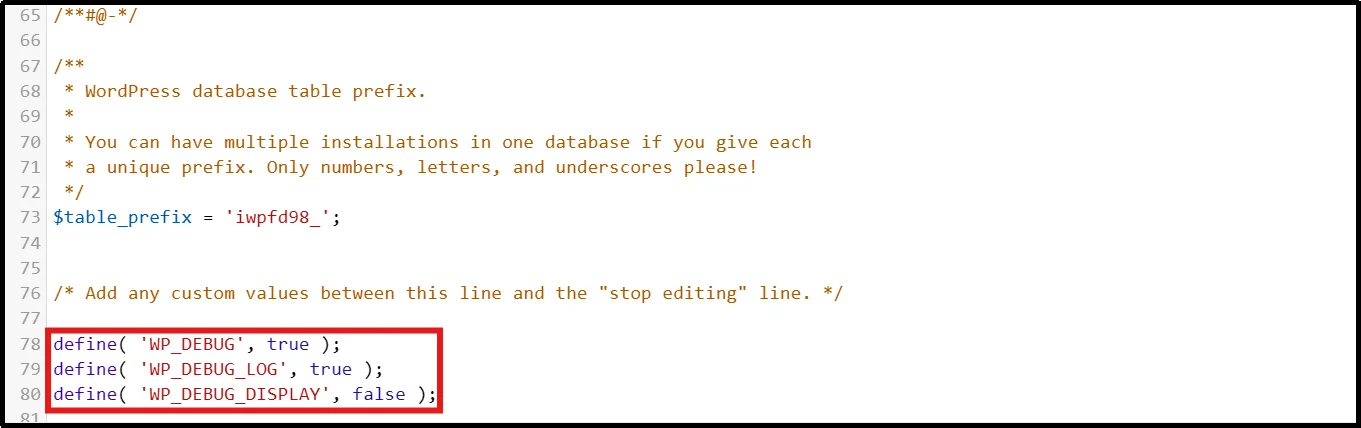
- Add the following lines to the file:
define( ‘WP_DEBUG’, true );
define( ‘WP_DEBUG_LOG’, true );
define( ‘WP_DEBUG_DISPLAY’, false );
These settings enable WordPress debug logging while preventing error messages from appearing publicly on your website.
- After enabling this, the log file is created at /wp-content/debug.log
- Open it and search for “cURL” or “timed out” entries. The log will show you which request failed, which URL it was trying to reach, and when it happened.
How to Fix cURL Error 28: Connection Timed Out in WordPress
Work through these methods in order. Most cases are resolved within the first 3 fixes.
Note: Before making server-level changes, always create a full website backup. Incorrect modifications to PHP settings, firewall rules, or DNS configurations can affect site functionality.
Fix 1: Disable the Security Plugin Firewall
A security plugin firewall blocking loopback requests is one of the quickest things to rule out. If you don’t have a security plugin, then skip this fix.
- In your WordPress dashboard, open your security plugin settings (Wordfence, Sucuri, or whatever you are using).
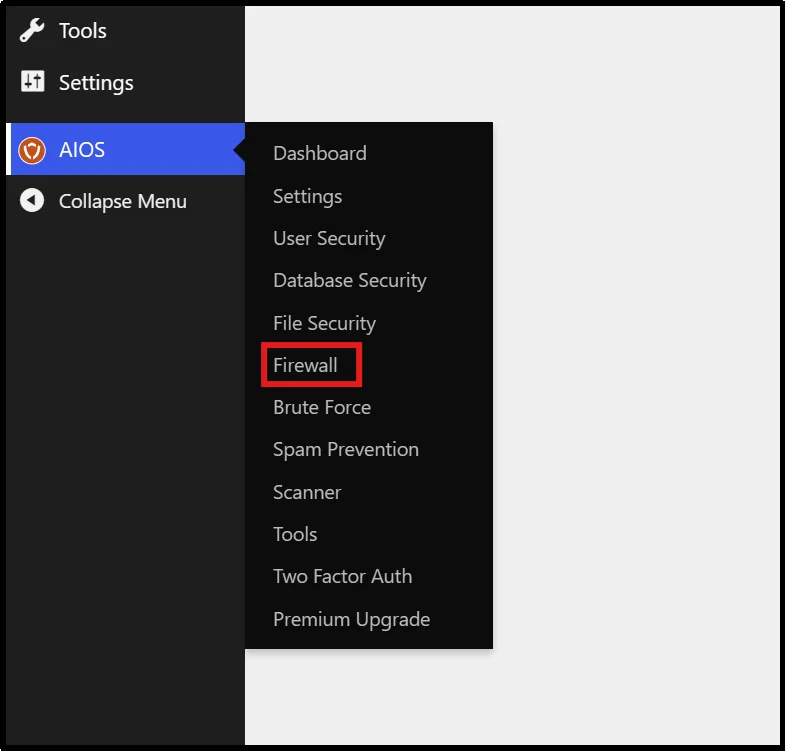
- Find the firewall or protection settings and disable the firewall component only.
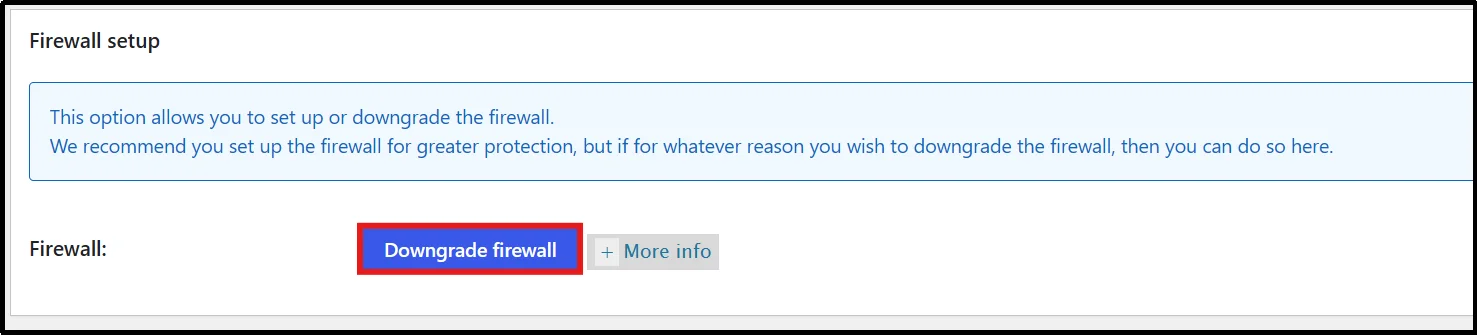
- Go to Tools → Site Health and check whether the error has disappeared.
If the error is resolved, whitelist your server’s IP address and the /wp-json/ path within the plugin’s firewall or access control settings before re-enabling the firewall.
- Re-enable the firewall.
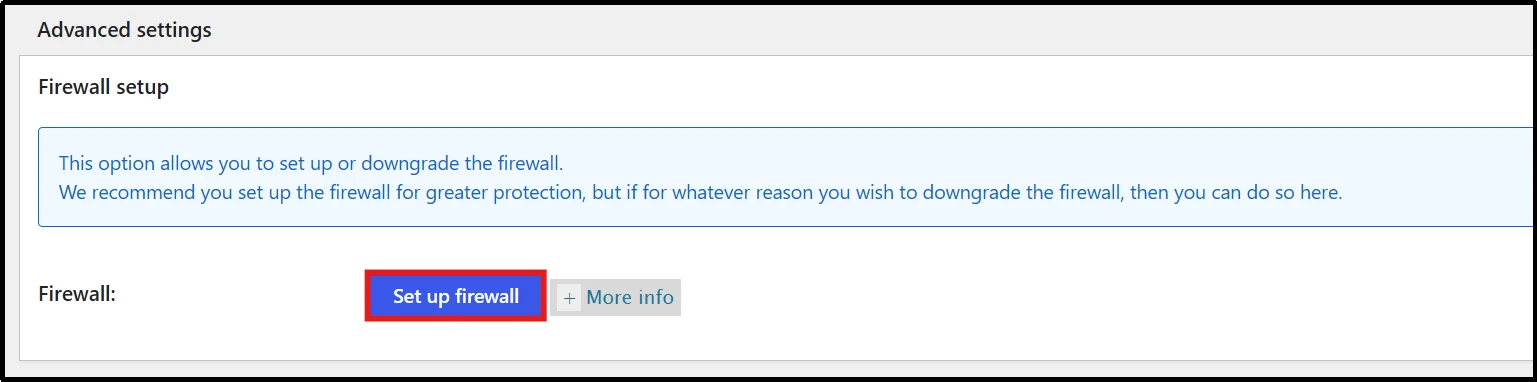
Fix 2: Deactivate Conflicting Plugins
A poorly coded plugin making slow external requests can stall WordPress until it times out.
- Go to Plugins → Installed Plugins.
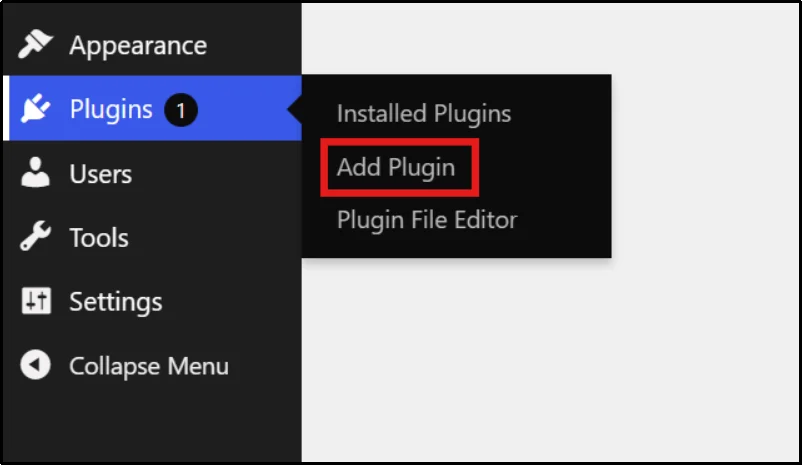
- Select all plugins and choose Deactivate from the Bulk Actions dropdown.
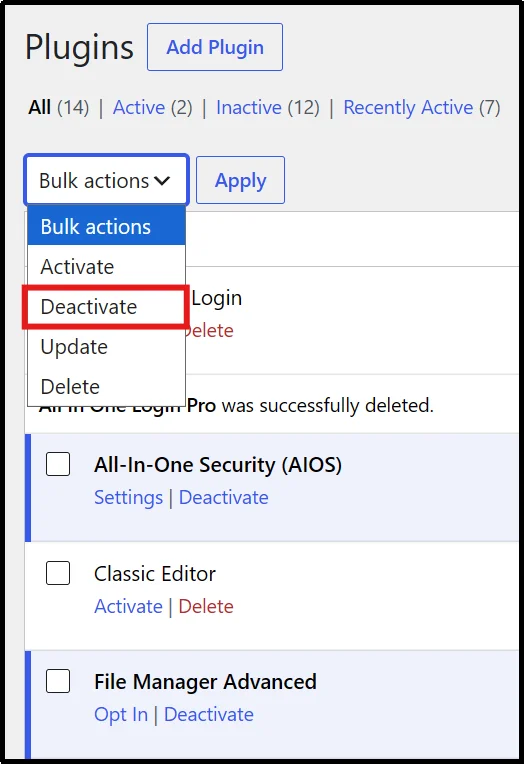
- Go to Tools → Site Health and check if the error is gone.
- If it is, reactivate plugins one at a time, checking Site Health after each.
- When the error returns, that’s your conflicting plugin, update it or find an alternative.
Fix 3: Check SSL Certificate and Configuration
SSL certificate issues typically generate certificate validation errors. However, in some cases, failed SSL negotiations can delay the connection long enough to contribute to timeout-related errors such as cURL Error 28.
- Go to SSL Labs and enter your domain.
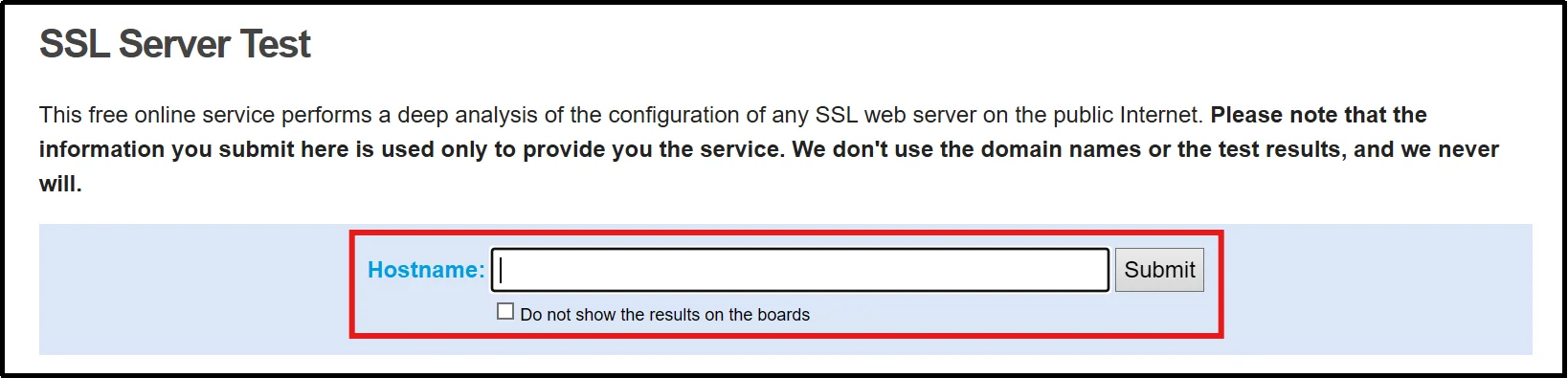
- Wait for the test to complete and check for any failing grades.
- Look for an expired certificate, a hostname mismatch, or an incomplete certificate chain.
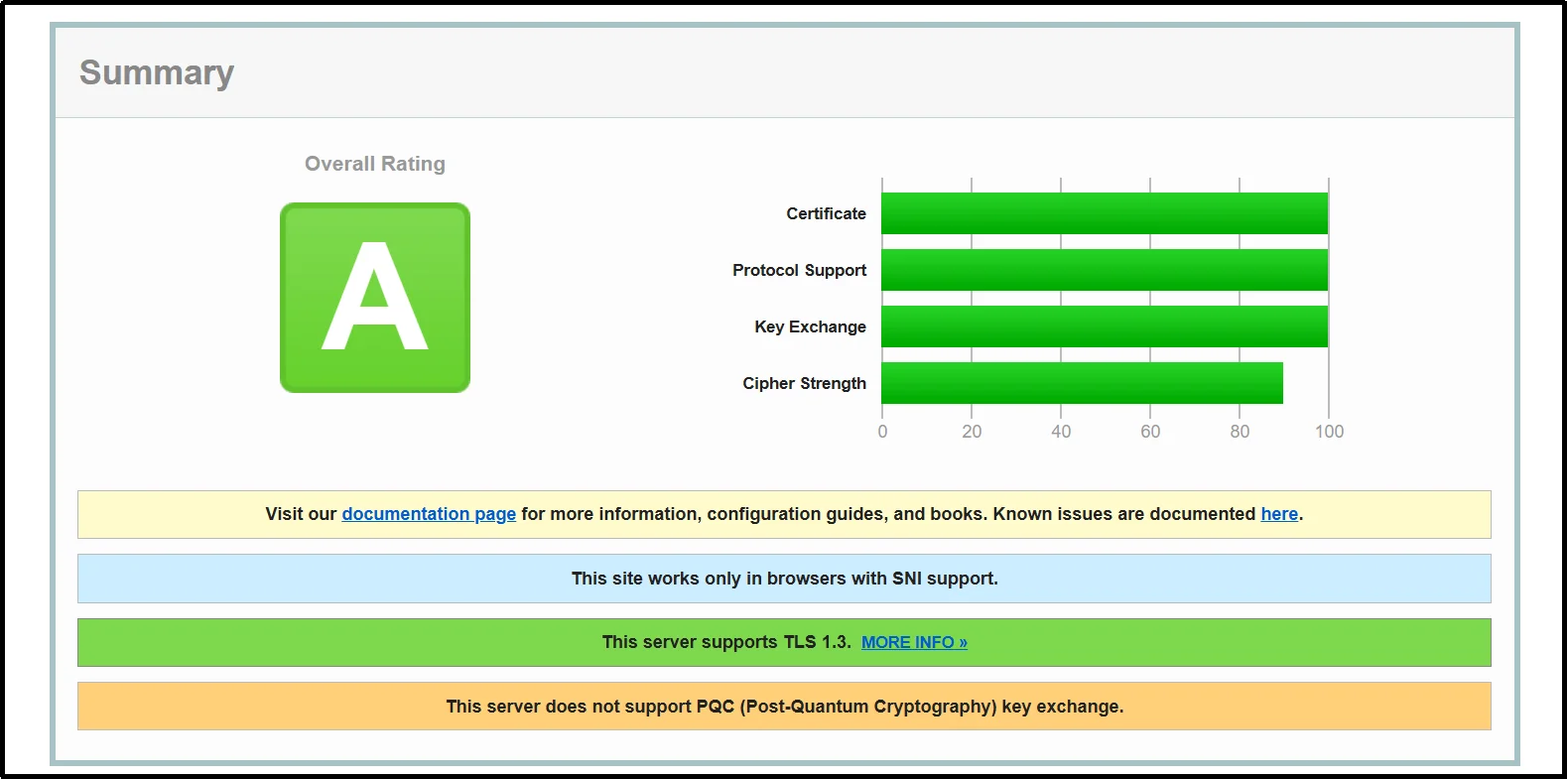
- Renew an expired certificate through your host or Let’s Encrypt.
- For chain issues, contact your host and ask them to install the full intermediate certificate bundle.
Fix 4: Verify DNS Settings
A slow or misconfigured DNS resolver can exhaust the timeout window before any data is transferred.
- Log in to your hosting control panel (cPanel, hPanel, etc.).
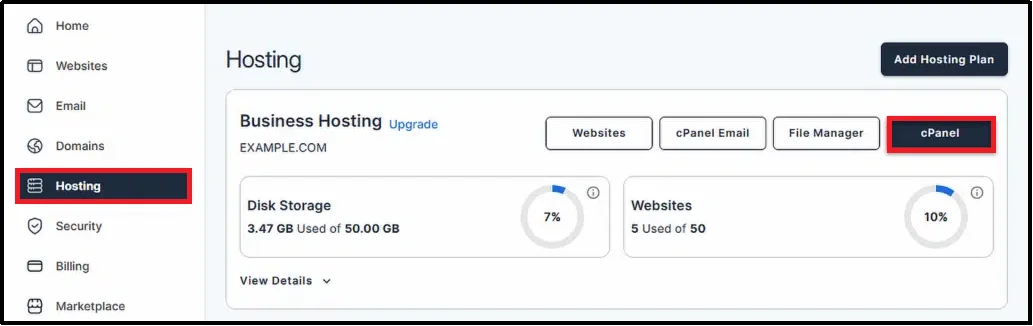
- Check that your nameservers are correctly pointing to your host.
- If the error appeared after a server migration, either wait 24–48 hours for DNS propagation or add DNS records – by clicking Manage on a domain.
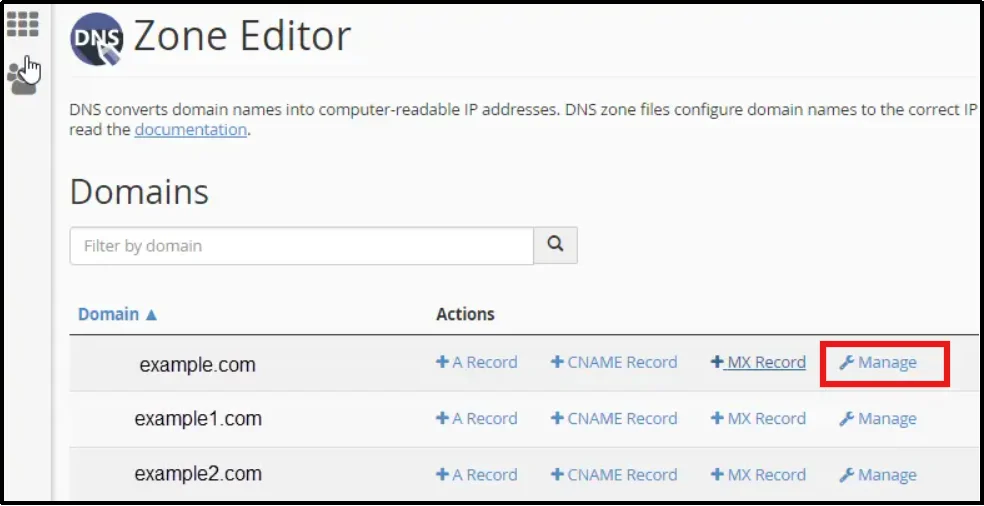
- If you’re on a VPS, ask your host to verify DNS resolution speed from their end
- If DNS is slow, switch to Google (8.8.8.8) or Cloudflare (1.1.1.1) DNS in your server’s /etc/resolv.conf
Fix 5: Update the cURL Version
An outdated cURL version may not support the TLS standards that modern servers require.
- Go to Tools → Site Health → Info.
- Expand the Server section.
- Check the cURL version, if your server uses an outdated cURL version, update it to the latest version supported by your hosting environment.
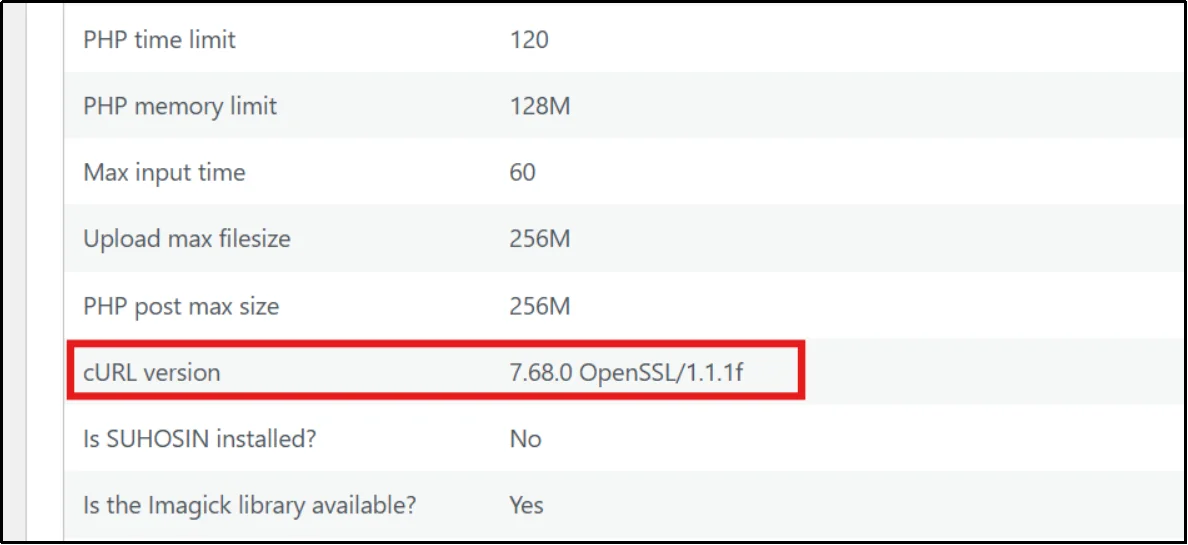
- Also confirm your PHP version, PHP 8.2 or newer is recommended for security, compatibility, and performance.
- Contact your hosting provider and ask them to update both, these are server-level changes they’ll handle.
Fix 6: Increase the PHP Memory Limit
When PHP runs out of memory mid-request, the connection stalls. There are three places to set this, try them in order.
Option A – wp-config.php (most common):
- Add this line above the /* That’s all, stop editing! */ comment:
- define( ‘WP_MEMORY_LIMIT’, ‘256M’ );
Important Note: Before editing wp-config.php, create a full website backup so you can restore your site if a configuration mistake occurs.
Option B – php.ini (if the host overrides WordPress settings):
- memory_limit = 256M
Note: We strongly suggest you to get in touch with your hosting provider to increase the PHP memory limit.
Fix 7: Update WordPress, Themes, and Plugins
Outdated software is a common and easy-to-miss source of cURL timeouts. Developers regularly patch connection handling bugs that may be causing this error.
- Go to Dashboard → Updates.
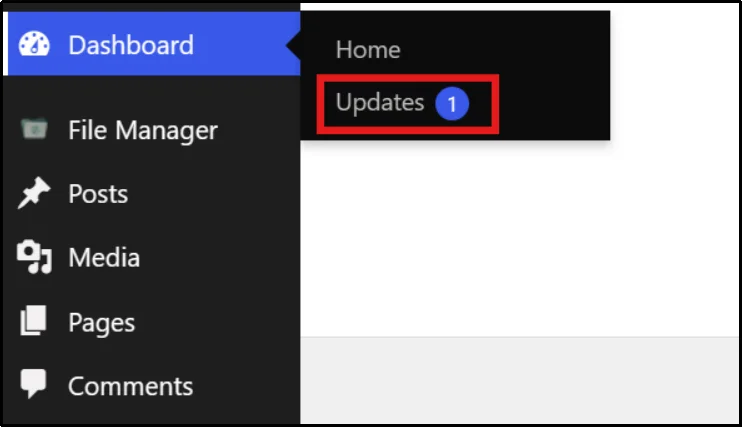
- Update WordPress core if an update is available.
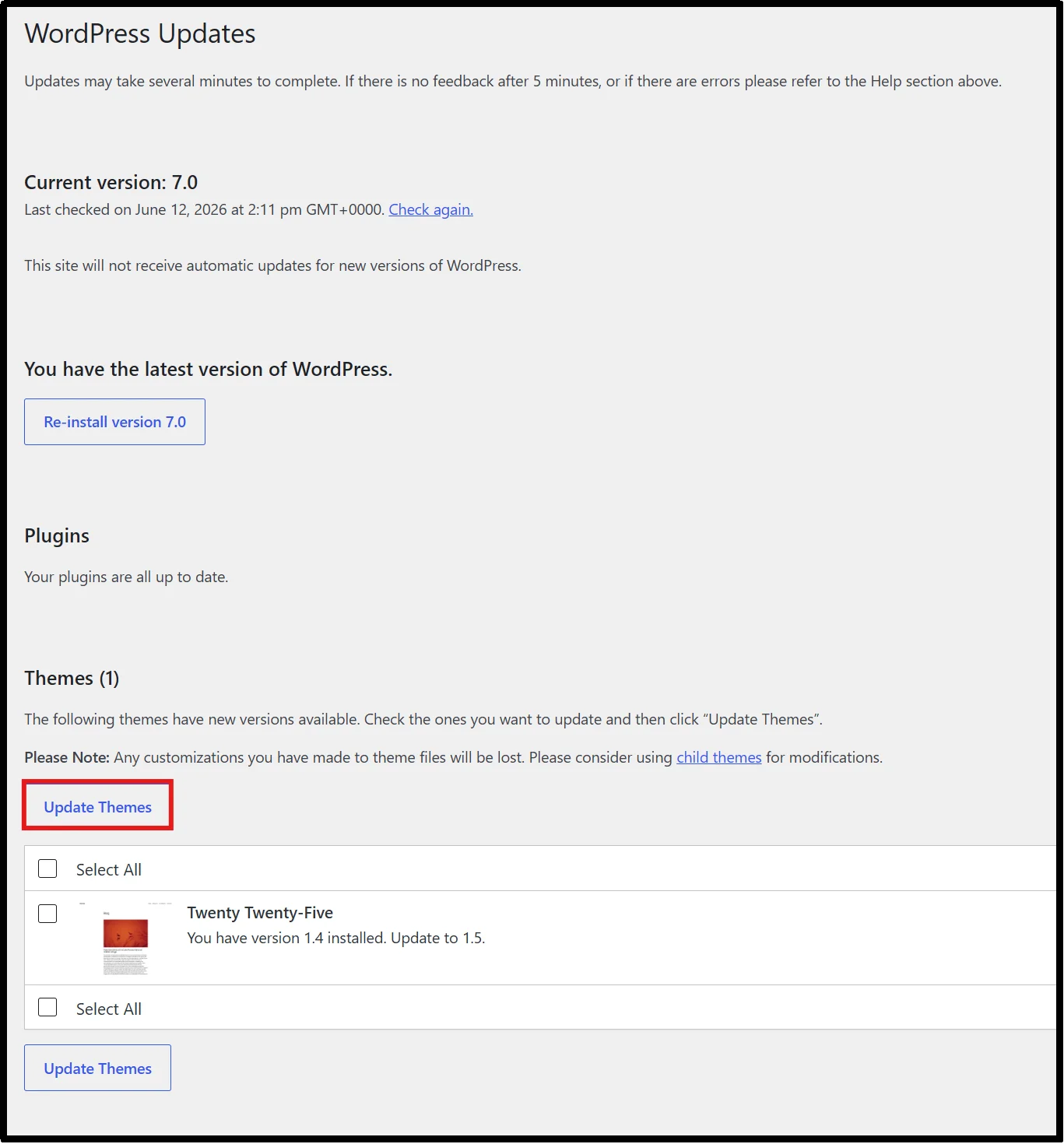
- Update all plugins and all themes.
- Go to Tools → Site Health and check if the error is resolved.
Best Practices to Prevent cURL Error 28 in WordPress
Fixing this error once is good. Making sure it doesn’t come back is better.
- Keep WordPress, theme files, and plugins updated – developers regularly patch connection handling bugs, so staying current removes one of the most common timeout triggers.
- Use a reliable hosting provider – Choose a provider that offers adequate PHP workers, server resources, and optimized WordPress infrastructure. If you frequently encounter server-related issues, consider managed WordPress hosting for improved performance and support.
- Monitor WordPress Site Health regularly – review WordPress Site Health reports regularly to identify REST API issues, loopback failures, outdated software versions, and performance bottlenecks before they affect visitors.
- Maintain updated PHP and cURL versions – aim for PHP 8.2+ and keep cURL current; both include TLS compatibility improvements that directly affect connection reliability.
- Optimize firewall and security rules – whitelist your own server IP and the /wp-json/ path in your security plugin so loopback requests are never blocked.
- Monitor server resources and performance – watch for sustained CPU or memory spikes in your hosting control panel; high resource usage is an early warning sign that timeouts are coming.
Resolve cURL Error 28 Before It Impacts Your Website
cURL Error 28 indicates that WordPress could not complete an HTTP request within the allowed timeout period. For instance, WordPress tried to make a request, something got in the way or took too long, and the request failed. The good news is that each potential cause has a specific fix, and most cases resolve at the end of this guide.
Start with Site Health, disable plugins to rule out conflicts, check your firewall settings, and work down the list from there. If you need to edit server files along the way to fix WordPress errors, Advanced File Manager gives you a clean, safe way to do that without touching FTP.
If you’ve been through every method and the error persists, you should contact your hosting provider’s support team. They have direct access to server logs and configurations that you can’t reach from inside WordPress.
Frequently Asked Questions
Is cURL Error 28 caused by a plugin conflict?
Often, yes. A plugin making slow or broken external requests is one of the most common triggers. Deactivate plugins one by one to find the culprit.
Can DNS issues trigger cURL Error 28?
Yes. If the server’s DNS resolver is slow or misconfigured, the domain lookup alone can exhaust the timeout window before any data transfers.
How do I check my cURL version in WordPress?
Go to Tools → Site Health → Info and expand the Server section. Your cURL version is listed there alongside the supported SSL/TLS version.
Can Advanced File Manager help troubleshoot WordPress timeout errors?
Yes, with a WordPress file manager, you can edit wp-config.php, .htaccess, and php.ini directly inside WordPress, review error logs, and back up files by downloading and uploading large files easily.
Does increasing the PHP memory limit fix cURL Error 28?
It can, if low memory is the cause. It won’t help if the issue is a firewall, DNS, or a slow external server, but it’s a low-risk change worth making early in troubleshooting.
Does cURL Error 28 affect website visitors?
Not always. Some timeout errors affect background processes such as updates, API requests, scheduled tasks, or payment gateway communications without impacting normal page views.
What timeout value triggers cURL Error 28?
The timeout varies by server configuration and the specific request, but WordPress commonly reports cURL Error 28 when a request exceeds the configured HTTP timeout period.