


File Logs
Advanced File Manager includes a File Logs feature that allows users to track all file-related activities. This helps users stay informed about what actions were performed, when they occurred, and who performed them.
File Logs provide clear visibility into file events, ensuring better monitoring, accountability, and control over file operations.
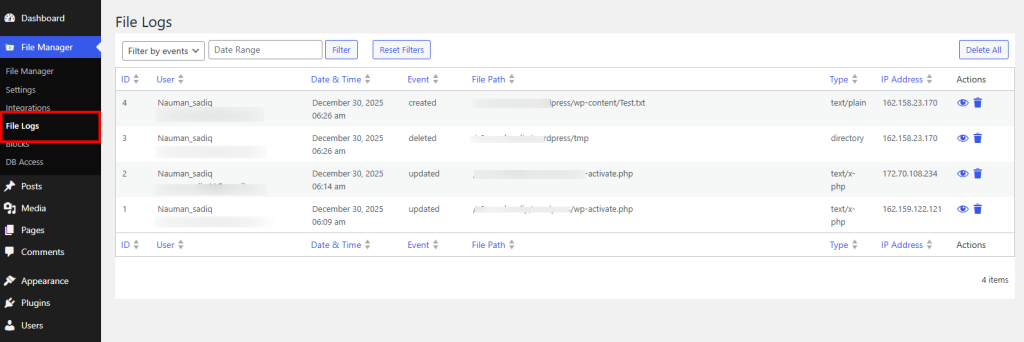
To see File logs Navigate to Advanced File Manager > File Logs
What Information Is Available in File Logs
The File Logs section displays detailed records for each event, including:
- Log ID – A unique identifier for every log entry
- User – The name and email address of the user who performed the action
- Date & Time – When the event occurred
- Event Type – Actions such as create, update, delete, or modify
- File Path – The exact location of the file or folder involved
- File Type – For example, .txt, .php, directory, and more
- IP Address – The IP address from which the action was performed
Viewing and Managing Logs
- View: Clicking View opens a modal displaying full event details and related content.
- Delete: Clicking Delete removes the selected entry from the logs.
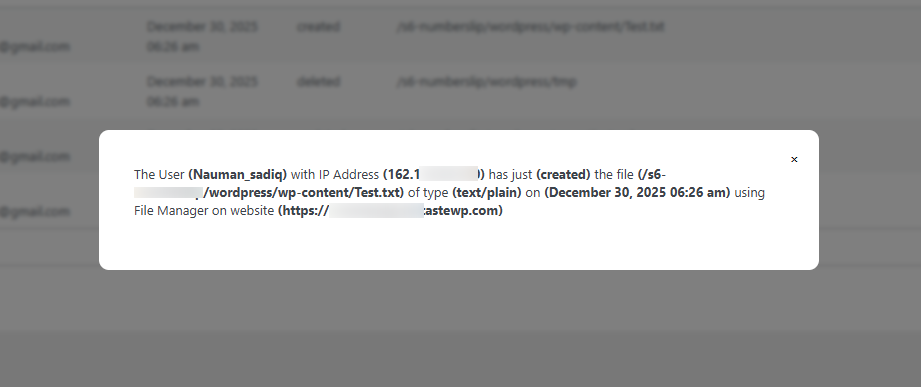
These controls allow users to review activity details or clean up logs as needed.
Need help?
If you need assistance or have any questions, please contact our Support Team. Our experts are always ready to help and provide timely resolutions.
