
Have you ever pasted HTML into WordPress only to see nothing happen, or watch your code appear as plain text on the page? You are not alone.
Editing HTML in WordPress seems simple at first glance. However, the moment you need to embed an iframe, fix broken markup, or update your header code, the process gets confusing. Fortunately, you have several reliable ways to edit HTML in WordPress.
This guide explains the main ways to edit HTML in WordPress. You can modify a single block, edit the HTML of an entire post or page, work with theme files, or manage standalone HTML files from your WordPress dashboard.
Quick Answer: Which HTML Editing Method Should You Use?
If you just want the short answer, here is a quick table you can scan before reading the full guide.
| If you want to… | Use this method |
| Edit HTML without touching FTP or code risk | Advanced File Manager |
| Add an iframe, form, or embed code to a page | Custom HTML Block |
| Edit the raw HTML of an existing block | Edit as HTML (Gutenberg) |
| Rewrite the HTML of an entire page or post | Code Editor |
| Work on an older or Classic Editor site | Classic Editor Text Tab |
| Change your header, footer, or template files | Theme File Editor |
| Upload a full standalone HTML page | Advanced File Manager |
Most users searching for this topic will find their solution in this table. The Advanced File Manager plugin covers these use cases more safely than any other method because it lets you browse, edit, and upload files directly from your WordPress dashboard, eliminating the need for an FTP client.
When Do You Actually Need to Edit HTML in WordPress?
You will likely need to edit HTML in WordPress for several common tasks: embedding third-party content, fixing broken markup, or customizing specific theme elements.
- Adding custom HTML to a page or post.
- Embedding third-party content such as maps, videos, calculators, or booking widgets.
- Fixing broken or incorrectly structured HTML markup.
- Cleaning up formatting after copying content from Word or Google Docs.
- Adding HTML to specific theme templates or template parts.
- Adding site-wide code to your header or footer when your WordPress setup supports that workflow.
Identifying your specific use case is the crucial first step, as it dictates the right tool for the job. A user adding a single embed code requires a completely different WordPress HTML editor than a developer modifying page.php or functions.php site-wide.
Where Is the HTML Editor in WordPress?
Your exact method to edit HTML in WordPress depends entirely on your goal. WordPress does not provide one universal HTML editor for all content and file types. Instead, it has several places where HTML editing happens, and which one you land on depends on what you are editing.
Block Editor (Gutenberg):
- Add a Custom HTML block from the block inserter.
- Use Edit as HTML to edit the HTML of an existing block.
Classic Editor:
- Switch from the Visual tab to the Text tab to view and edit raw HTML.
Widgets:
- Use the Custom HTML widget under Appearance → Widgets to add HTML to widget areas.
Theme Files:
- Edit template files such as header.php and footer.php from Appearance → Theme File Editor.
Full Site File Access:
- Use a File Manager plugin, such as Advanced File Manager, to browse, upload, and edit files outside the theme directory directly from the WordPress dashboard.
Can You Edit HTML on WordPress.com?
WordPress.com restricts HTML and file-editing capabilities based on your subscription plan and activated hosting features. The Custom HTML block lets you add supported HTML to posts, pages, and templates, but WordPress.com restricts certain tags and attributes on lower-tier plans.
Tags such as iframe, script, form, style, and object require a paid plan with hosting features activated. Plugin-enabled plans also provide broader options for installing plugins and managing site code.
If you run self-hosted WordPress, you generally have more control over plugins, files, themes, and code than you do on a hosted WordPress.com plan. However, your hosting provider, user role, file permissions, security configuration, active theme, and installed plugins can still restrict specific editing options.
HTML vs CSS vs PHP in WordPress
Many users confuse these three technologies, but each serves a distinct purpose in your WordPress stack:
- HTML (HyperText Markup Language): Defines the structure of your content, including headings, paragraphs, links, images, and embedded media.
- CSS (Cascading Style Sheets): Controls the appearance of your content, such as colors, fonts, spacing, and layout.
- PHP (Hypertext Preprocessor): The server-side programming language that powers WordPress, generates web pages, and runs theme files like functions.php.
When users search for how to edit HTML in WordPress, they usually want to modify the source code controlling their page or post content. CSS controls presentation, while PHP controls server-side logic and can dynamically generate HTML. This guide focuses on HTML editing but also explains where HTML appears inside WordPress theme files and templates.
5 Ways to Edit HTML in WordPress
Always create a full site backup before you edit HTML or theme files. A single missing closing tag breaks your layout, and an incorrect PHP modification triggers critical site errors.
Expert Note: WordPress actively filters HTML based on user roles and context. The system automatically removes disallowed tags and attributes when users without the unfiltered_html capability save content. This filtering helps prevent users from adding potentially unsafe markup.
We cover this in detail in the troubleshooting section further down.
Let’s head back to the 5 methods to edit HTML in WordPress.
Which WordPress Files Control Which Part of Your Site?
If you are working with the Theme File Editor or File Manager, it helps to know what each WordPress core file is responsible for.
| File | Controls |
| index.php | Fallback template for displaying content |
| header.php | Site header and navigation |
| footer.php | Site footer |
| single.php | Individual blog posts |
| page.php | Static pages |
| archive.php | Category, tag, and archive listings |
| functions.php | Site functionality and custom code |
Knowing this mapping saves time when you are trying to find where a specific piece of HTML lives, rather than opening every file one by one.
Method 1: Edit HTML via Advanced File Manager
The Advanced File Manager plugin gives you direct, secure access to your WordPress core files, themes, and plugins right from your dashboard. It eliminates the need for complex FTP clients or cPanel access, making it the safest and most efficient way to modify raw HTML, PHP, or CSS files on the fly.
⚠️ Crucial Step: Back Up Your Files First
Before you modify any source code, always create a full backup of your website or download a copy of the specific file you plan to edit. A single syntax error can break your site layout, and a backup ensures you can restore your site instantly if anything goes wrong.
Once your backup is secure, follow these steps:
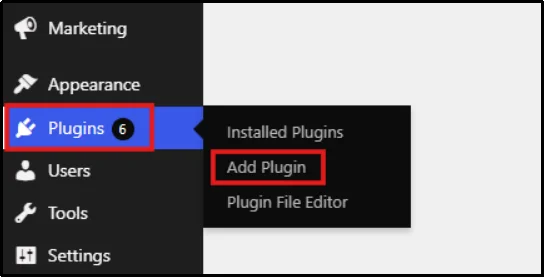
- Go to Plugins → Add Plugin.
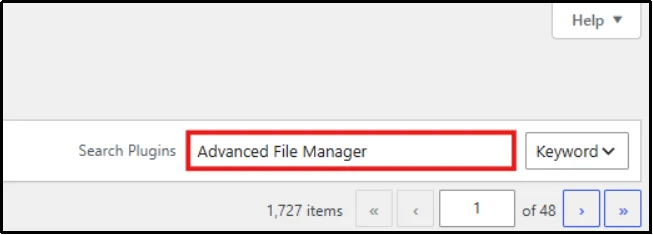
- Enter Advanced File Manager in the search bar.
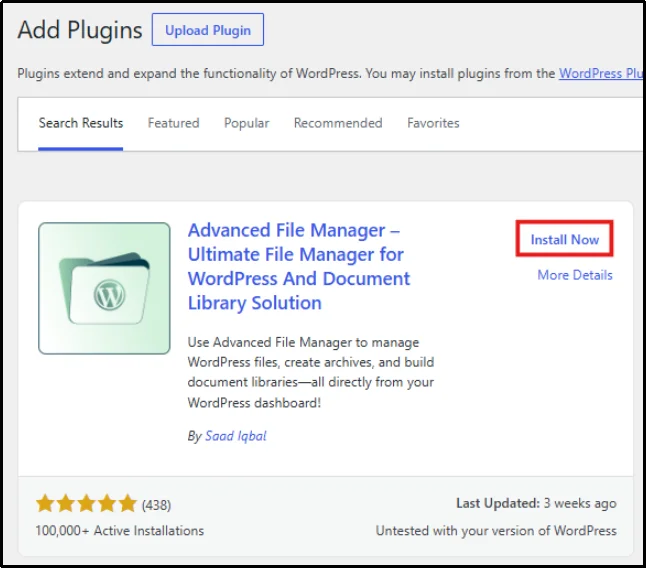
- Click Install Now, then Activate later.
- Navigate to File Manager and browse to wp-content/themes/your-theme/, or any file you want to edit.
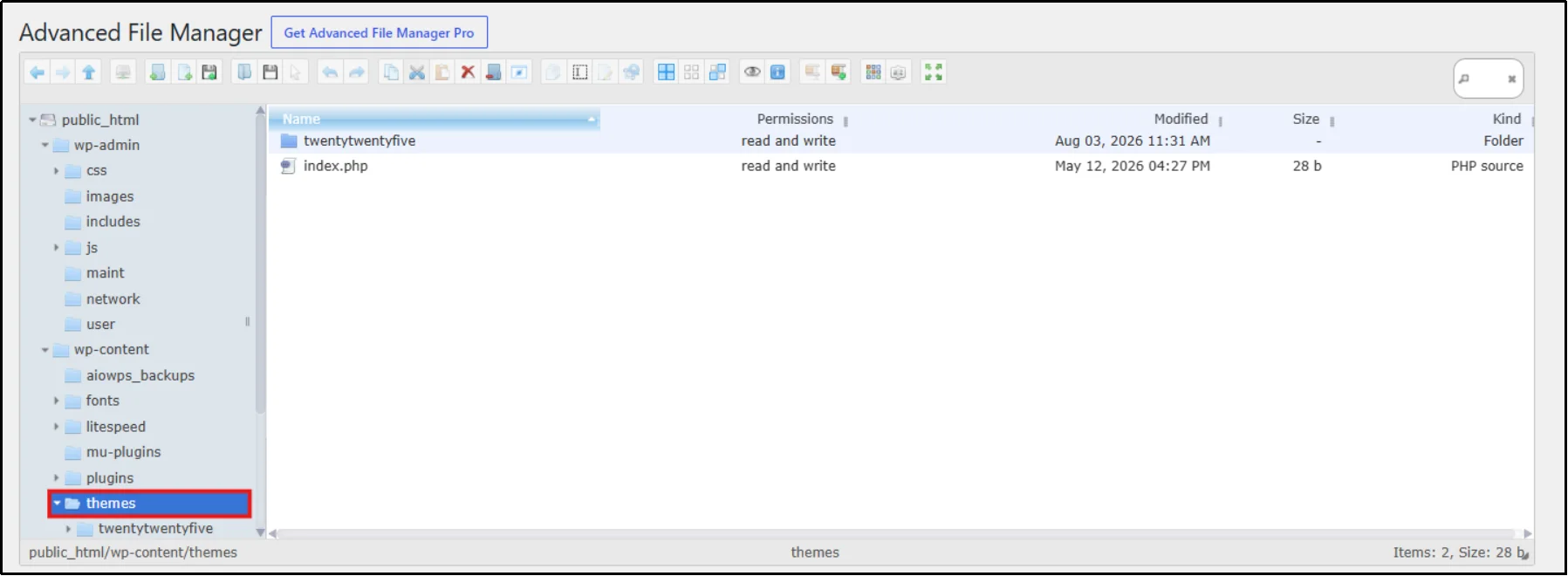
- Right-click on the HTML or PHP file and click Code Editor.
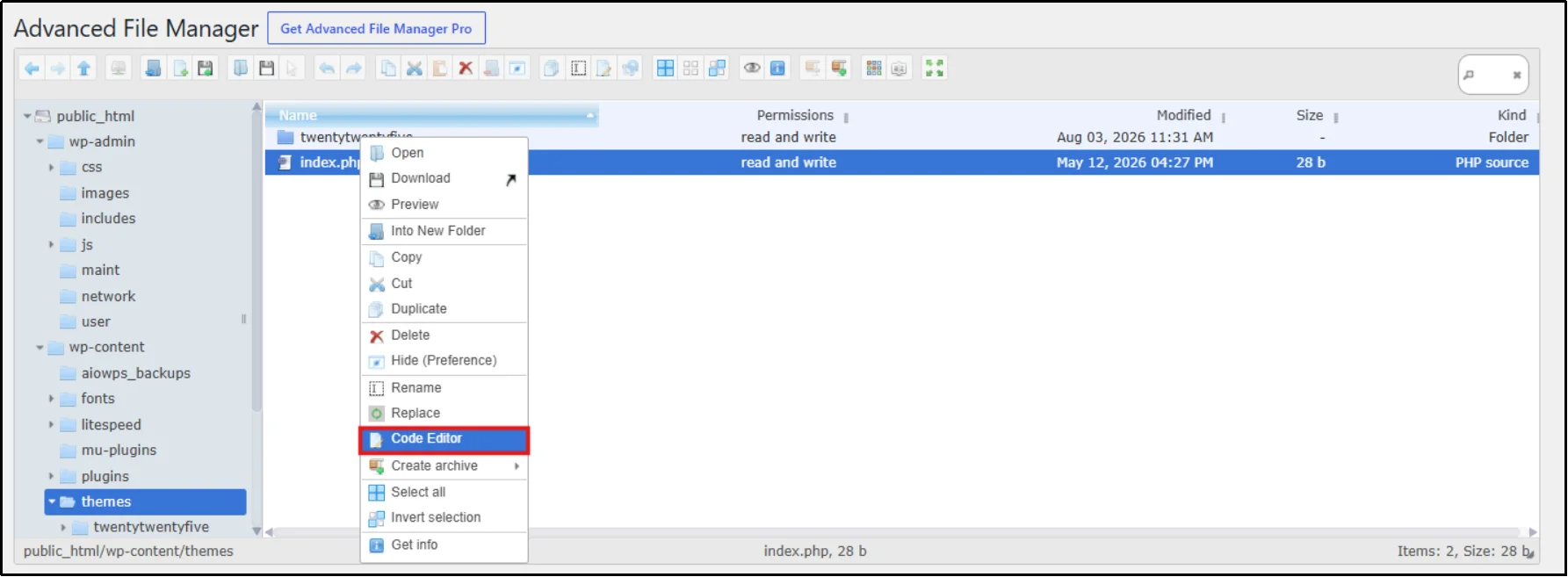
We highly recommend that you download the file or make a copy for backup, then begin editing its contents. If your website layout becomes unresponsive, you can use the backup to restore it.
We highly recommend downloading the file or creating a backup copy before you edit its contents. If your website layout breaks, you can instantly restore the site using this backup.
- Make your HTML changes in the built-in editor.
- Click Save to apply the changes.
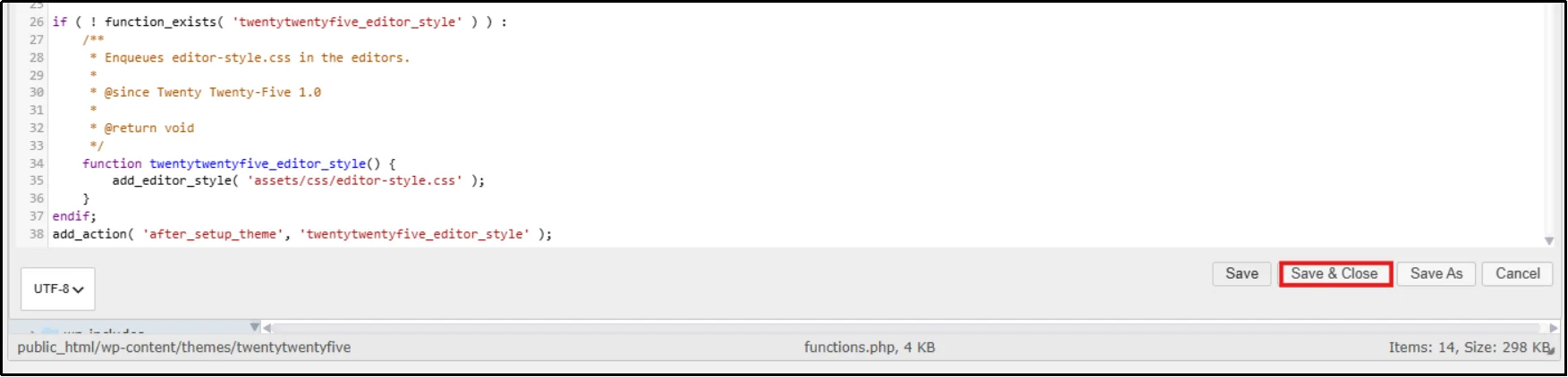
- Refresh your live website in a new browser tab to verify that the updates display correctly.
Method 2: Add Custom HTML Block
- Open the page or post you want to edit. Let’s say a page; go to Page → Add Page.
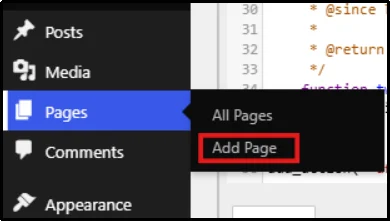
- Click the + (Adblock) button.
- Search for and select Custom HTML.
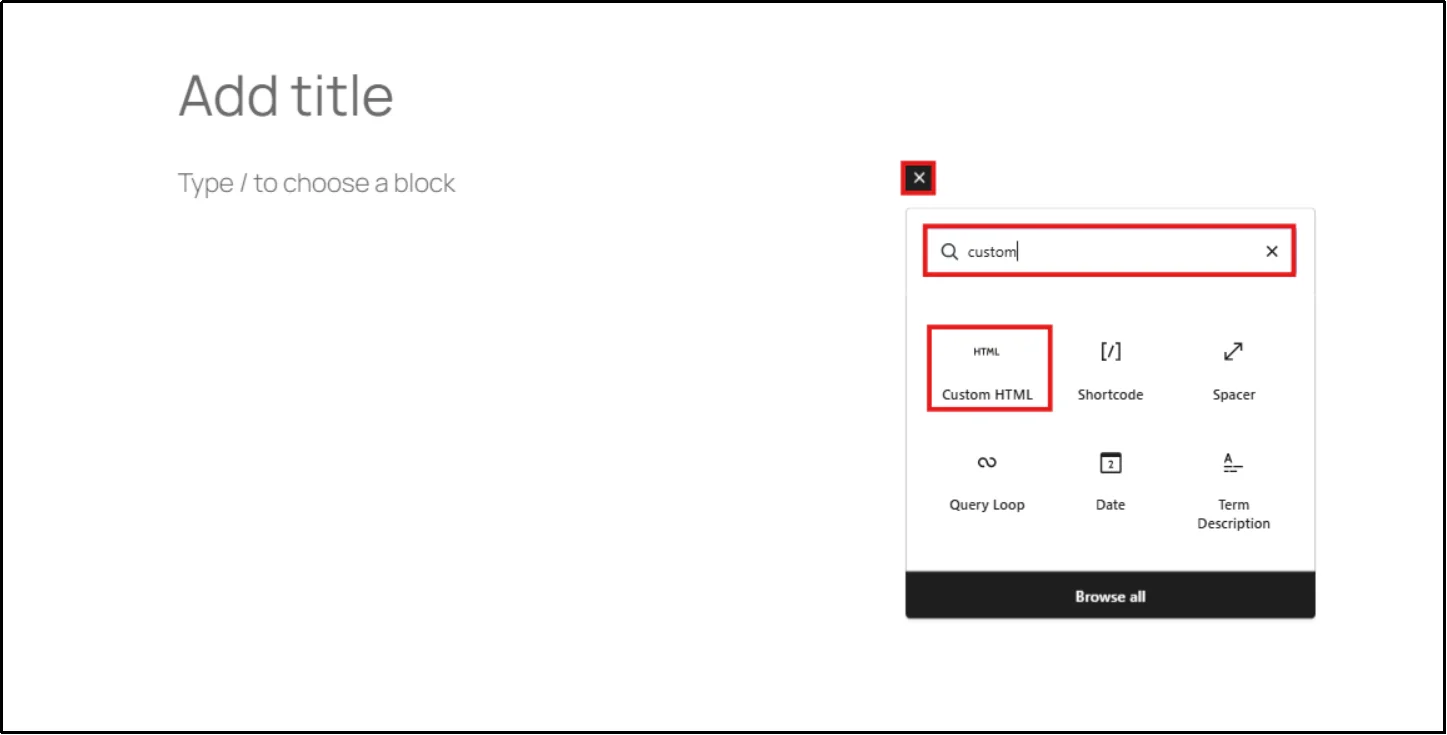
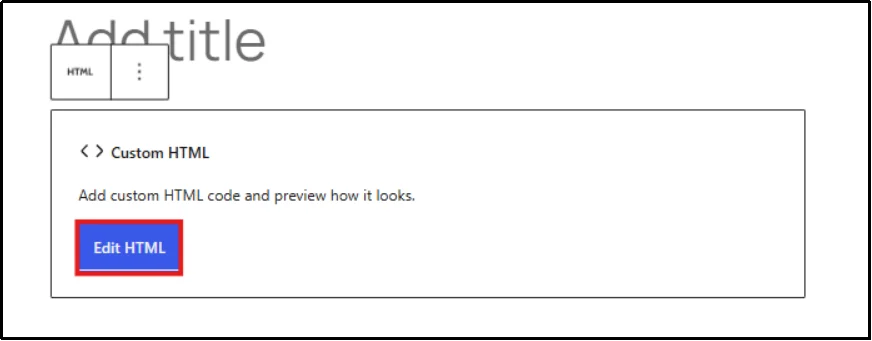
- Click on Edit HTML.
- Paste or type your HTML code into the block. After doing so, click on Update.
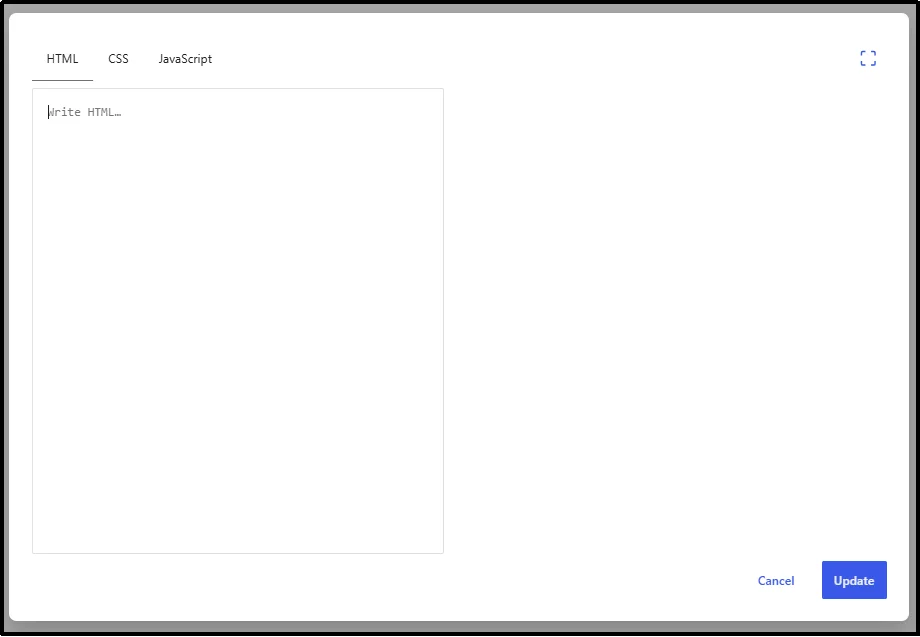
- Click Preview to check how the HTML will render.
- Click Publish or Update to save your changes.
Method 3: Use Gutenberg Code Editor (Edit as HTML)
Edit a Single Block:
- Open the page or post in the Block Editor. Let’s again go to Page → All Pages, and click Edit on any existing page with content.
- Select the block you want to edit.
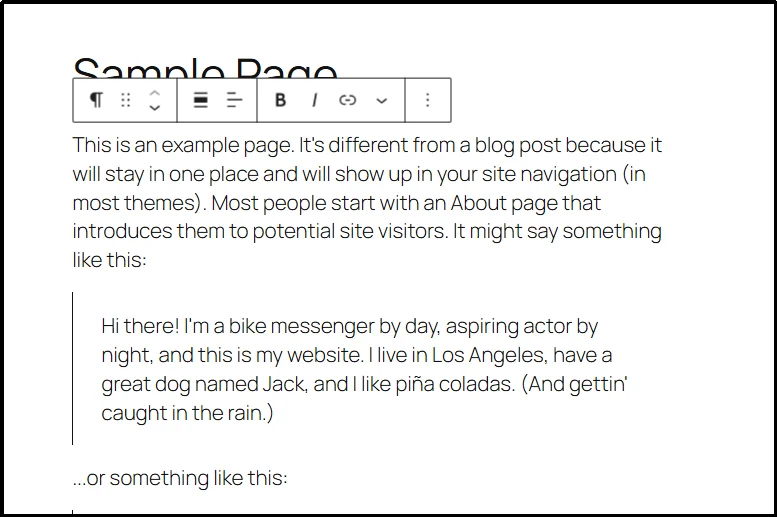
- Click the ⋮ (More Options) menu.
- Select Edit as HTML.
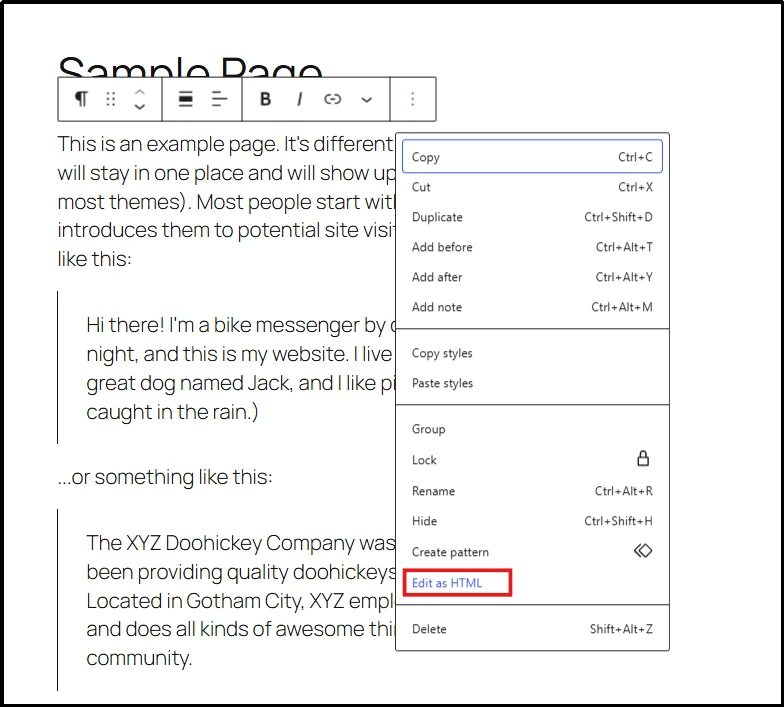
- Modify the HTML.
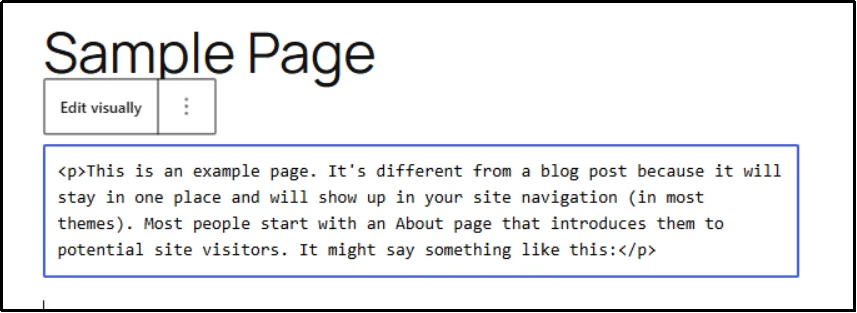
- Click Edit Visually (optional) to switch back.
- Update or publish the page.
Edit the Entire Page in HTML:
- Open the page or post.
- Click the ⋮ menu in the top-right corner of the editor.
- Select Code Editor.
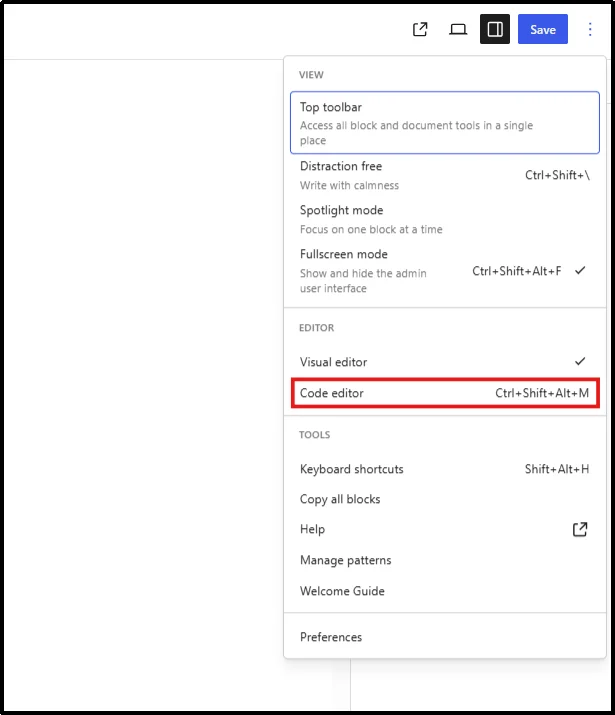
- Edit the HTML for the page.
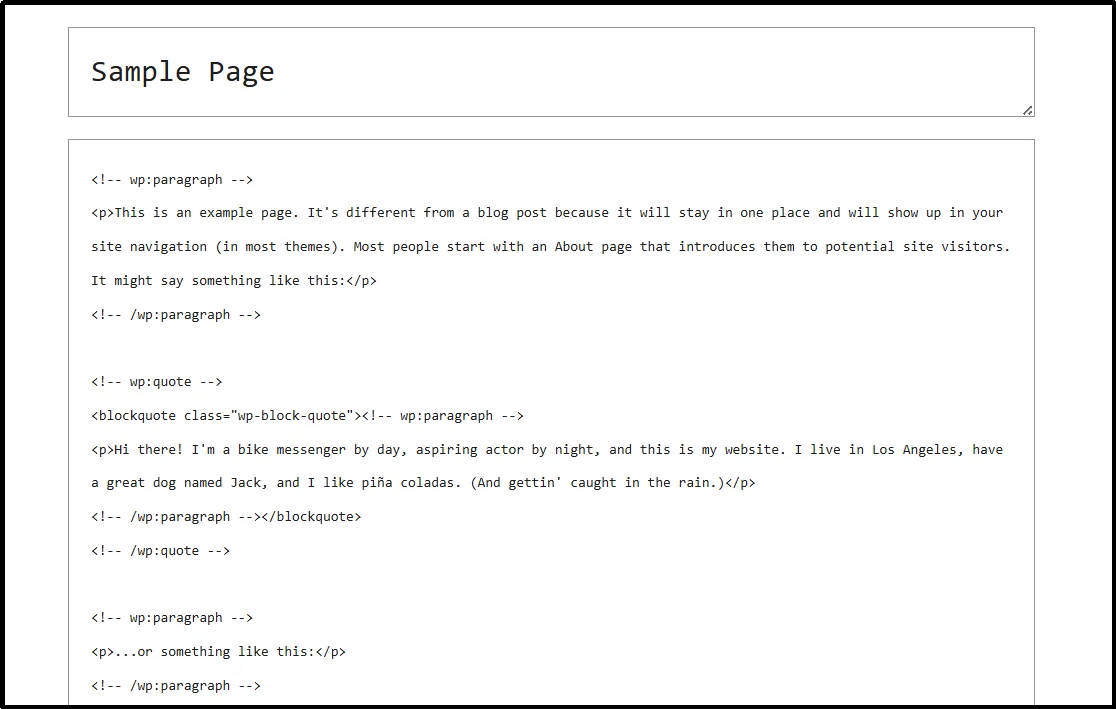
- Switch back to the Visual Editor if needed.
- Click Update or Publish.
Method 4: Edit HTML Directly with Classic Editor
- Open the page or post in the Classic Editor.
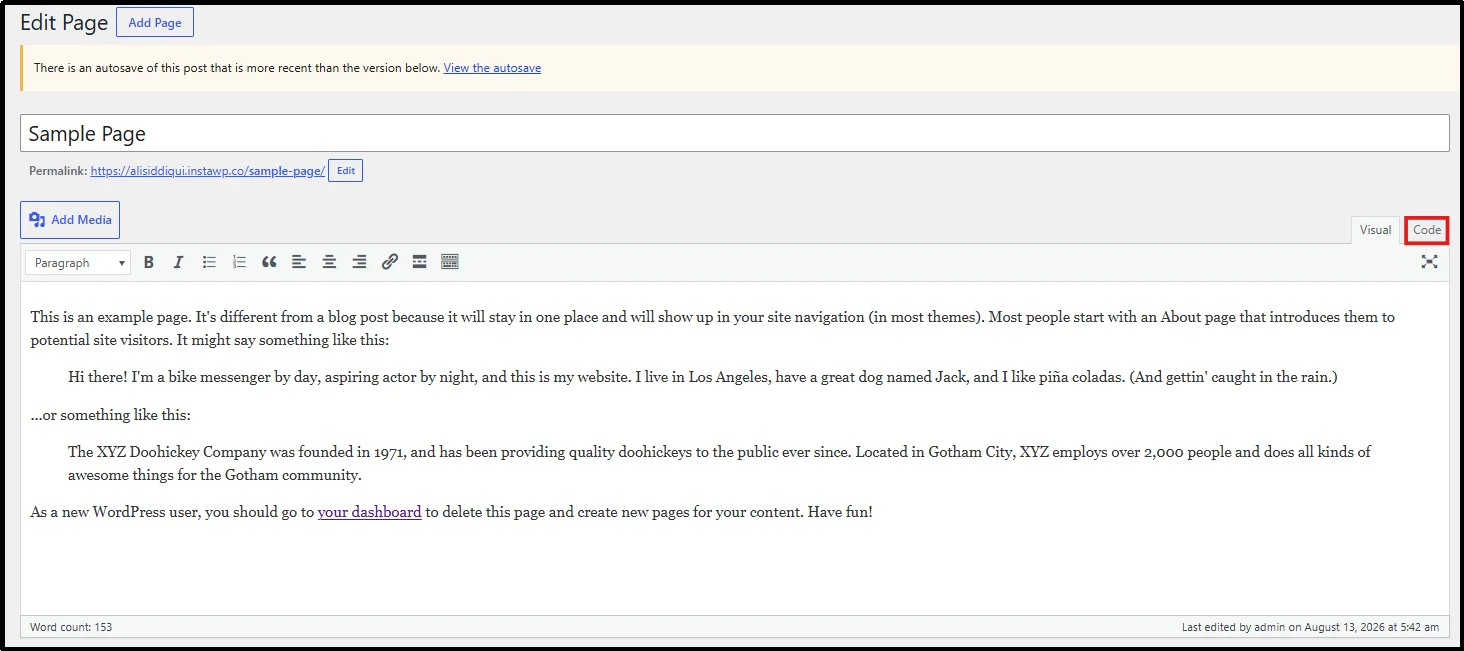
- Click the Code tab next to Visual.
- Edit the HTML directly.
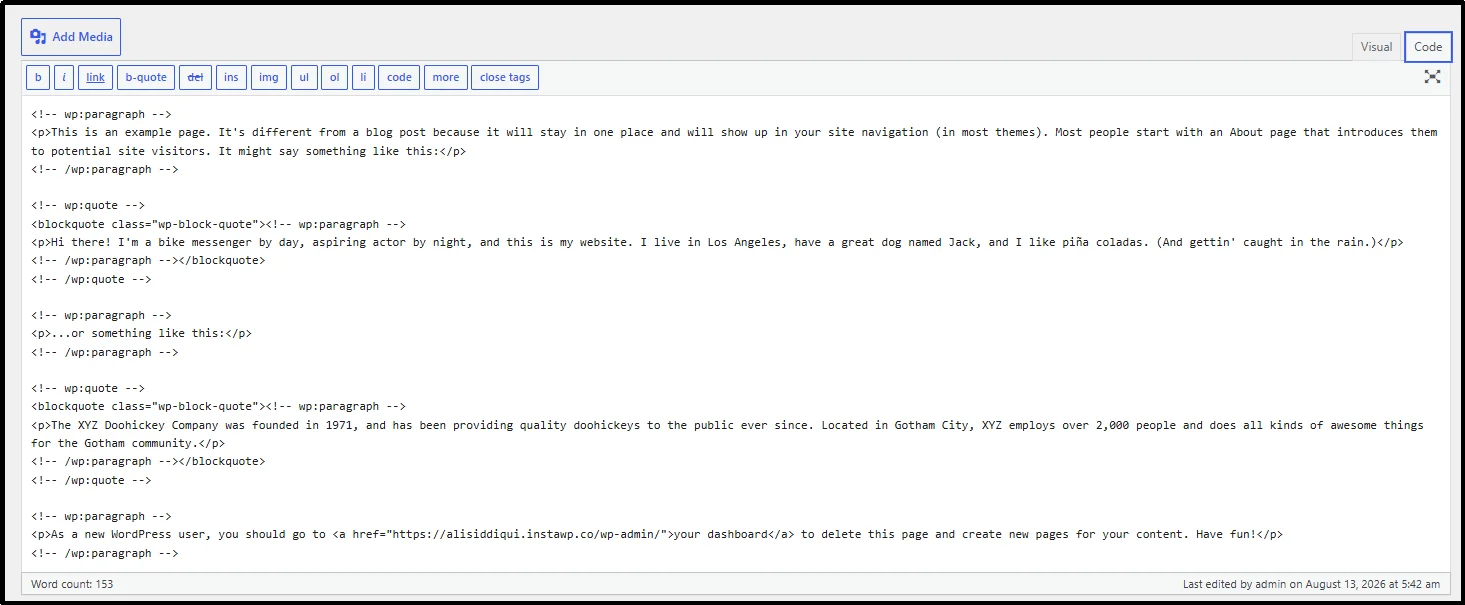
- Switch back to the Visual tab (optional) to preview your changes.
- Click Update or Publish.
Method 5: Edit PHP and HTML Files Using Theme File Editor
- Navigate to Appearance → Theme File Editor in your WordPress dashboard.
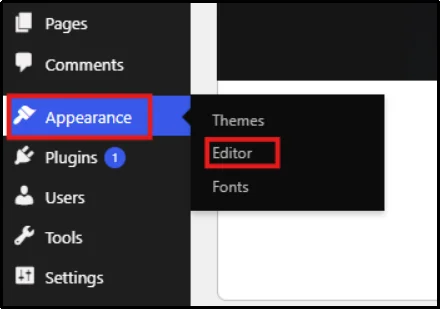
- Select the theme you want to edit.
- Click on Template.
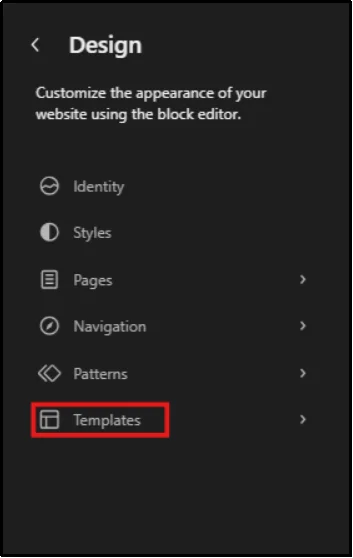
- Click any template page to be redirected to the editing screen.
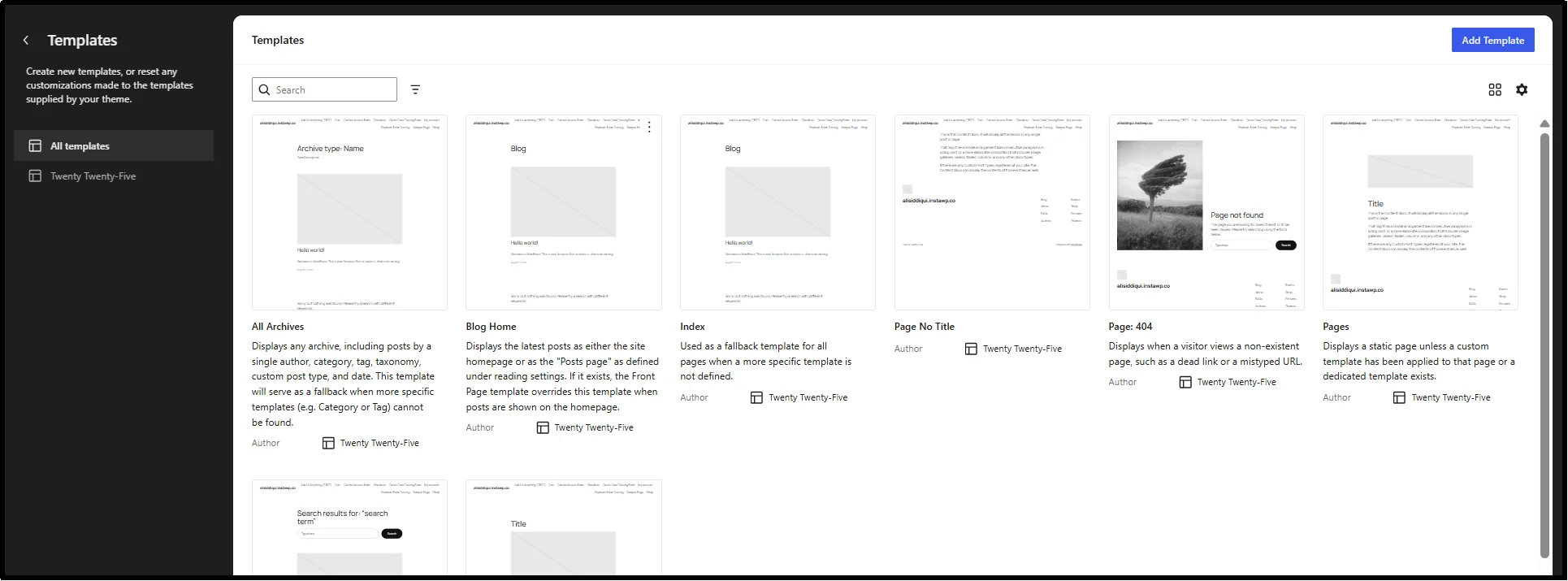
- Make your HTML changes.
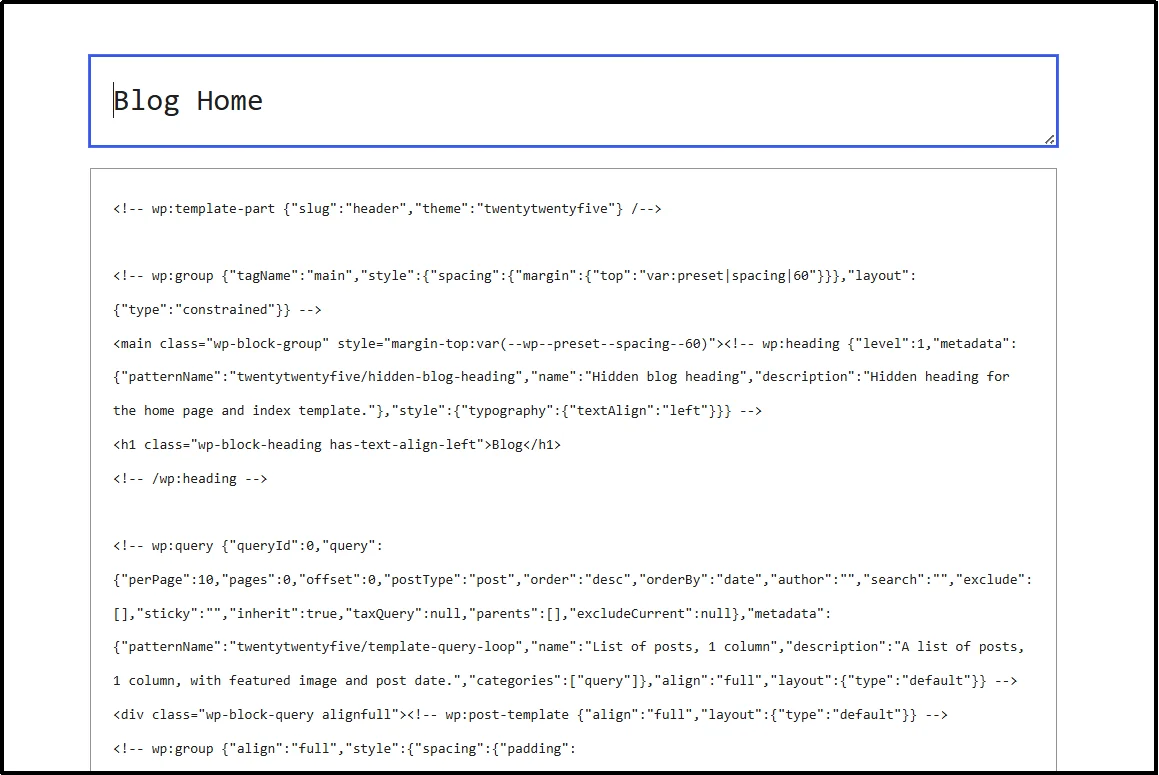
- Click Update File.
- Visit your website and confirm everything is working correctly.
Note: Always use a child theme and create a backup before editing theme files.
Troubleshooting: Why WordPress Removes Your HTML
WordPress includes built-in security filtering that sometimes strips out HTML it considers unsafe or malformed, catching many users off guard.
Here are the most common issues and how to fix them.
| Problem | Likely Cause | Fix |
| Iframe disappears after saving | Pasted into a regular paragraph block instead of a Custom HTML block | Use a Custom HTML block instead |
| Script tags get removed | User role lacks unfiltered_html capability | Use a Custom HTML block, or edit via File Manager/theme files |
| Extra <p> tags appear around your HTML | WordPress auto formatting (wpautop) | Wrap code in a Custom HTML block, which is excluded from auto formatting |
| Changes do not appear on the live site | Active caching plugin or browser cache | Clear your WordPress cache and perform a hard browser refresh. |
| “Invalid content” block error | Gutenberg cannot parse edited HTML back into a block | Fix markup in Code Editor or recreate the block |
| Permission denied when editing files | Incorrect file or folder permissions | Adjust permissions through the File Manager plugin |
Best Practices for Editing HTML in WordPress
Following a few simple best practices can help you avoid broken pages, security issues, and performance problems when editing HTML in WordPress.
- Back up your site or at least the file you’re editing before making changes.
- Always use a child theme when modifying theme files to prevent future theme updates from overwriting your custom code.
- Preview your changes before publishing, and test significant edits on a staging site whenever possible.
- Check your HTML syntax by ensuring all tags are properly opened and closed, as a single missing tag can affect the entire page layout.
- Validate your HTML syntax by ensuring all tags open and close properly, as a single missing tag can affect the entire page layout.
- Only use HTML, scripts, and embed code from trusted sources. Avoid pasting unknown snippets, as they may contain malicious code that can introduce security vulnerabilities such as cross-site scripting (XSS).
- Limit access to sensitive tools, such as the Theme File Editor and File Manager, so only trusted users can modify your site’s files.
- Be mindful of performance. Every iframe, external script, or widget increases page load time, so add only the embeds necessary.
- Enable lazy loading for iframes and embedded videos whenever possible to improve loading speed.
- Review third-party embeds periodically and remove outdated or unused scripts to keep your website fast and maintainable.
Common HTML Snippets You Can Paste into WordPress
Here are a few highly requested HTML snippets, ready for you to paste directly into a WordPress Custom HTML block.
Iframe (video embed):
<iframe src=”https://example.com/video” width=”560″ height=”315″ frameborder=”0″ allowfullscreen></iframe>
Button:
<a href=”https://example.com” class=”wp-button”>Click Here</a>
Anchor link to a section:
<a href=”#section-id”>Jump to Section</a>
Basic table:
<table><tr><td>Row 1</td><td>Data</td></tr></table>
Google Map embed:
<iframe src=”https://www.google.com/maps/embed?…” width=”600″ height=”450″></iframe>
Make HTML Editing Easier with the Right Tools
Editing HTML in WordPress means knowing which tool is right for the task. For content edits, the Custom HTML block, Code Editor, and Classic Editor make it easy to work with HTML directly. If you need to modify theme templates, the Theme File Editor gives you access to your theme’s PHP and HTML files.
For broader site management, especially when you need to move, rename, upload, or delete files, edit code without FTP, or access areas of your WordPress installation beyond the block editor, a File Manager plugin offers the most flexible solution. Once you understand where each editing option fits, working with HTML becomes a straightforward part of maintaining your website instead of a complicated task.
If you’re looking for an easier way to manage your WordPress files and edit HTML, Advanced File Manager is the way to go.
Frequently Asked Questions
Can I edit HTML in WordPress for free?
Yes. The Custom HTML block, Code Editor, and Classic Editor Text tab are all available in the free, self-hosted WordPress.org software without requiring a paid plugin.
Can I edit HTML without a plugin?
Yes, for post and page content through the Custom HTML block or Code Editor. For file access, such as uploading standalone HTML files, a File Manager plugin makes the process far easier and safer.
Can I edit HTML without FTP?
Yes. A File Manager plugin gives you the same file access as FTP but directly from your WordPress dashboard, without needing separate login credentials or FTP software.
Can I upload a standalone HTML file to WordPress?
Yes, but not through the Media Library. Use a File Manager plugin to upload the file directly to your site’s folder structure.
What is the difference between Edit as HTML and the Code Editor?
Edit as HTML changes the markup of a single block. The Code Editor shows and edits the HTML of the entire post or page at once.
Why does my HTML disappear after I save?
WordPress usually removes it because you pasted it into a standard paragraph block instead of a Custom HTML block, or because your user role lacks permission to save unfiltered HTML.