
When you explore WordPress core files, you will inevitably encounter the index.php file. This critical file dictates how WordPress processes requests, loads content, and renders pages across your website. Mastering its function empowers you to troubleshoot errors, customize themes, and manage your WordPress site with absolute confidence.
WordPress utilizes two distinct index.php files: one in the root directory and another inside your theme folder. Each serves a unique purpose within the WordPress template hierarchy.
In this comprehensive guide, we will break down everything you need to know about the index.php file: its purpose, its location, and how to edit it safely using Advanced File Manager.
What is index.php in WordPress?
The index.php file stands as one of the most crucial components of any WordPress installation. It fulfills two primary functions: acting as the main entry point that boots WordPress, and serving as the ultimate fallback template within the WordPress template hierarchy.
Your WordPress setup includes two index.php files: one in the root directory and another inside every theme. The root index.php processes incoming HTTP requests and initializes the WordPress environment, while the theme’s index.php displays content when WordPress cannot find a more specific template file.
Due to these dual roles, index.php fundamentally controls how WordPress routes requests, loads content, and renders dynamic pages.
Is index.php a Core WordPress File?
Yes. index.php ranks among the essential WordPress core files. Every standard WordPress installation includes the root index.php file, which directly loads the WordPress environment for every single request.
This file works in tandem with other critical core files like wp-config.php, wp-settings.php, and .htaccess. Together, these files initialize the WordPress application and process incoming user requests.
Why index.php Matters in WordPress
The index.php file matters because it acts as both the foundation and the fallback mechanism of WordPress.
At the root level, it serves as the entry point that boots WordPress whenever a visitor accesses your site, making it essential for routing HTTP requests and displaying dynamic pages.
Inside themes, index.php functions as the fallback template in the WordPress template hierarchy. When WordPress cannot locate a more specific template file—such as single.php, archive.php, or page.php—it automatically defaults to index.php to display the content.
This fallback behavior keeps your website fully functional even when specific template files are missing.
Understanding the WordPress Template Hierarchy
The WordPress template hierarchy is a structured system that dictates how WordPress selects a specific template file to display different content types on your site. Instead of relying on a single file, WordPress intelligently checks for specific templates first and only falls back to general ones if necessary.
It achieves this by evaluating the WP_Query object and utilizing conditional tags like is_single(), is_archive(), and is_page() to match the request.
This system empowers developers and site owners to create highly customized designs for different sections of a website:
- A unique layout for individual blog posts
- A distinct design for category archives
- A custom template for specific landing pages
When a user visits a page, WordPress follows a predefined order of template files. It starts with the most specific match and works its way down the hierarchy until it finds a usable file.
What Does the WordPress index.php File Do? (Root vs. Theme)
The index.php file performs different tasks depending on its location. In the WordPress root directory, it initializes the platform. Inside a theme, it controls how the front end displays content.
Role of the Root index.php
The root index.php file serves as the WordPress front controller. Its primary job is to define the WP_USE_THEMES constant and load wp-blog-header.php. This action bootstraps WordPress, loads plugins, processes rewrite rules, queries the database, and renders the requested page. Ultimately, this triggers a chain reaction that initializes the database connection, activates WordPress plugins, and loads the active theme.
Without the root index.php file, WordPress would completely fail to function.
Role of the Theme index.php
The theme index.php file dictates how the website displays content when no other template is available.
Every WordPress theme must contain an index.php file because it acts as the default template in the WordPress template hierarchy. When WordPress cannot locate files like home.php, single.php, or category.php, it falls back to the theme’s index.php.
This file typically contains the WordPress Loop alongside template tags such as get_header(), get_footer(), and get_template_part(). These building blocks pull in reusable theme sections and display posts, pages, and other dynamic content directly from the database.
How WordPress Uses index.php During Page Loads
During page loads, WordPress utilizes index.php as a front controller that processes requests and delivers dynamic content to visitors.
When a user enters a URL, the rewrite rules in your .htaccess file route the request to the root index.php file first. The root index.php then loads the WordPress environment and queries the database to determine what content must appear. Next, WordPress follows the template hierarchy to locate the most appropriate theme template.
When no matching template exists, WordPress automatically falls back to the theme’s index.php as the default rendering template.
This entire process allows WordPress to generate dynamic pages instead of relying on static HTML files.
A Real-World Example of index.php in Action
Imagine a visitor accesses a blog post URL like this:
WordPress routes this request through the root index.php file. The system then checks the template hierarchy for a matching template.
The process usually follows this exact order:
- single-post.php
- single.php
- singular.php
- index.php
If WordPress cannot find a more specific template, it automatically loads index.php to display the content.
This robust fallback system ensures visitors can still access your content even when a theme lacks certain specialized template files.
Where is index.php Located in WordPress?
The index.php file exists in multiple locations within a WordPress installation. The two most critical locations are the root directory and the active theme folder.
Root Directory Location
You will find the root index.php file in the main WordPress installation folder, sitting alongside files like wp-config.php and directories such as wp-content and wp-admin.
A typical server path looks like this:
/public_html/index.php
This root index.php file takes responsibility for loading WordPress whenever the website receives an HTTP request.
Theme Folder Location
The second index.php file lives inside your active WordPress theme folder.
Example path:
/wp-content/themes/your-theme-name/index.php
This file dictates how the front end displays content when no more specific template exists.
index.php in the WordPress Template Hierarchy
The index.php file sits at the very bottom of the template hierarchy, making it the ultimate fallback template in WordPress. This means that if no other template file matches the request, WordPress will always use index.php to render the page.
This fallback behavior is critical because it:
- Guarantees that the system can still display content
- Prevents complete layout failures
- Ensures theme compatibility with WordPress core
Even if a theme remains incomplete or misses certain files, index.php acts as a safety net that keeps the website fully functional.
Why Every WordPress Theme Requires index.php
Every WordPress theme must include an index.php file. Without it, the theme fails to meet WordPress.org standards and will not activate.
Here is why this file remains essential:
- It ensures your site can always render content for visitors.
- It provides a default structural framework for output.
- It supports the WordPress Loop, which dynamically displays posts.
Even the simplest themes rely on index.php as their foundational building block.
Common Uses of index.php in WordPress
The index.php file acts as a versatile component of any WordPress theme. Its ability to handle multiple page types makes it a central hub for adding layout structure and dynamic logic. Here are the most common uses for index.php:
- Customizing Theme Layouts: Modify the structure of your pages, such as changing how the system displays posts, adding new sections, or adjusting the overall layout.
- Loading Dynamic Content: Use the WordPress Loop to automatically display posts, pages, and other content directly from the database.
- Serving as a Fallback Template: Display content when WordPress cannot find a more specific template file in the hierarchy.
- Creating Custom Template Logic: Implement custom queries and conditional logic to control exactly which content appears and how the page renders.
Common index.php Errors in WordPress
Even a tiny mistake in index.php can trigger serious issues on a WordPress website. Most problems occur due to incorrect code, missing elements, or conflicts within the file.
Here are some of the most common errors you might encounter:
- White Screen of Death (WSOD): A completely blank page that PHP errors or broken code in the file triggers.
- Parse Errors: PHP syntax mistakes, such as missing semicolons or incorrect brackets, that prevent the file from executing.
- 500 Internal Server Error: A server-level error that invalid or incompatible PHP code often triggers.
- Broken Theme Layouts: Visual display issues that incorrect HTML structure or WordPress Loop errors cause.
How to Edit index.php in WordPress Safely Using Advanced File Manager
🚨 Crucial Safety Tip: Avoid editing the root index.php file unless you possess a specific development requirement. In most cases, you should only edit the index.php file inside your active theme or child theme. Modifying core WordPress files can cause severe issues during future updates, as the update process will overwrite your custom changes. That’s why always back up your WordPress site before making any changes to index.php or other core files.
If you encounter an error stemming from the index.php file, you must know how to edit it safely without causing further damage. You can leverage the Advanced File Manager debug code feature to double-check your modifications before pushing them live.
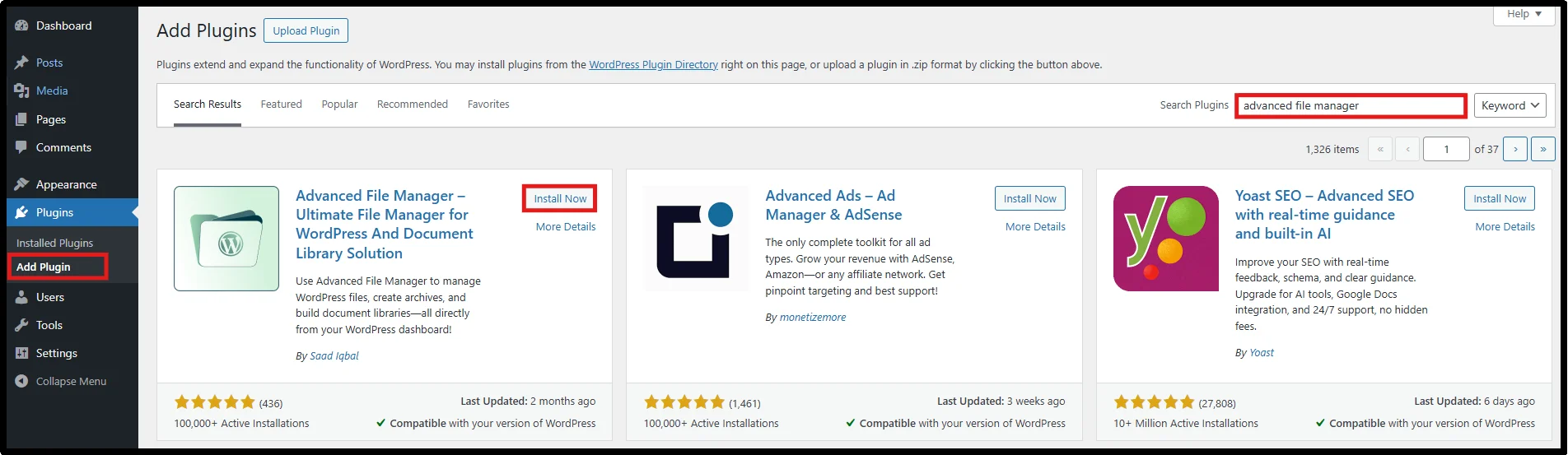
- Navigate to your WordPress dashboard and head to Plugins → Add Plugin.
- In the search bar, type Advanced File Manager.
- Click Install Now, and a few seconds later, click Activate.
- Once activated, click on File Manager from the WordPress sidebar.
- Scroll down, or type the file name in the search bar, to locate index.php.
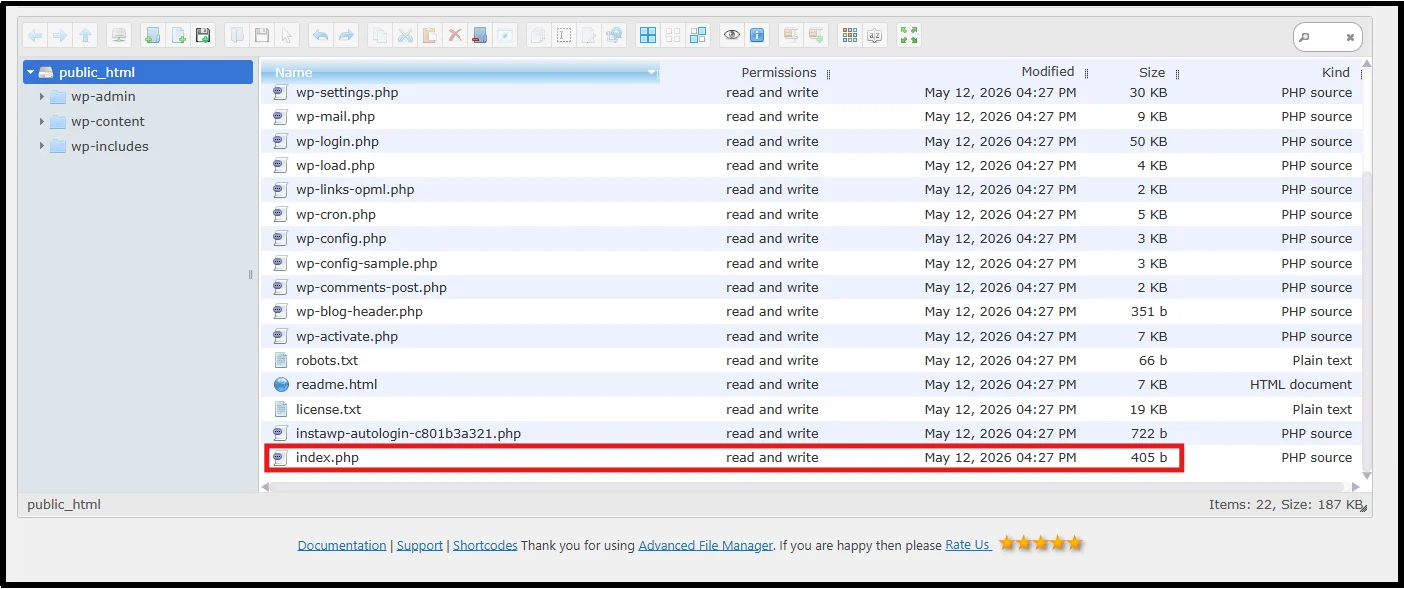
- Right-click the index.php file to open the context menu.
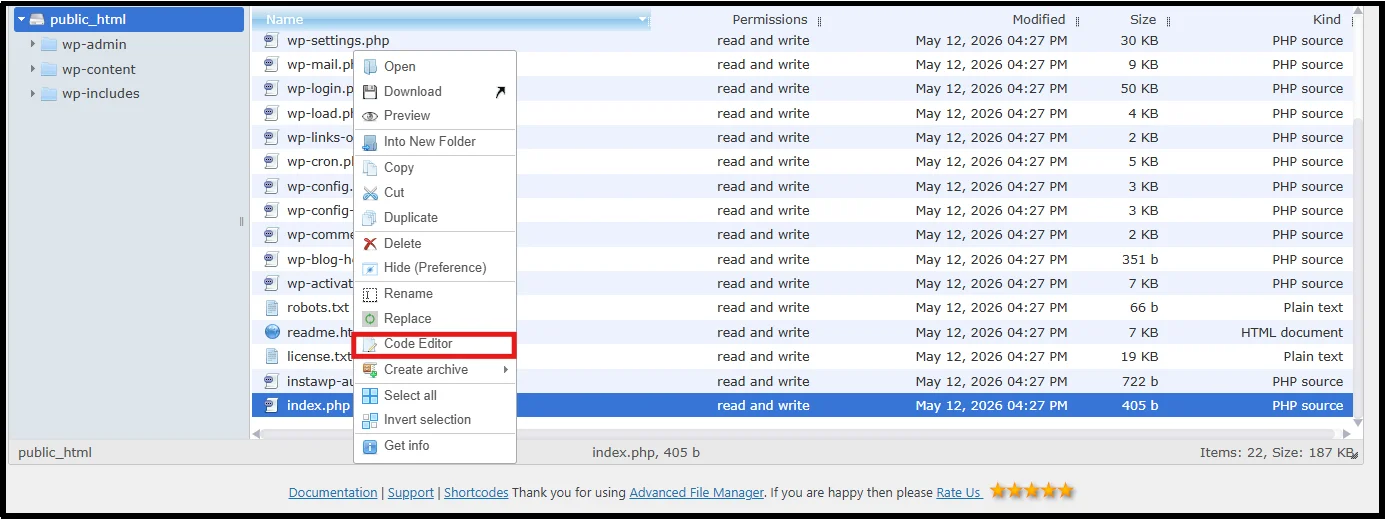
- Click on Code Editor to open index.php live in the code editor.
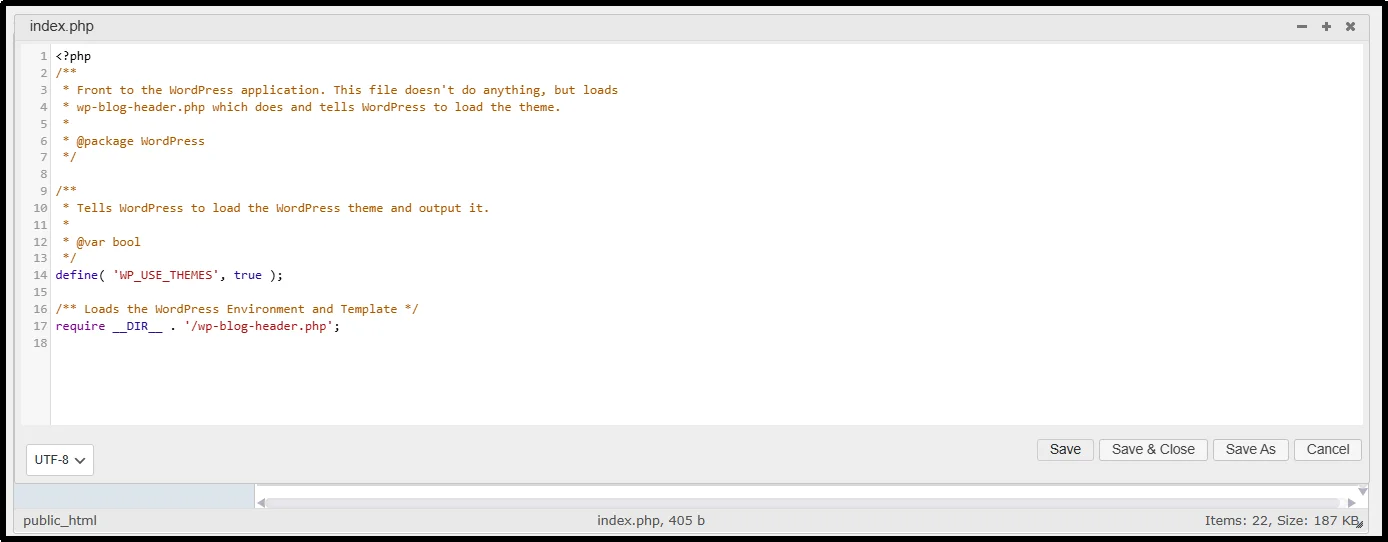
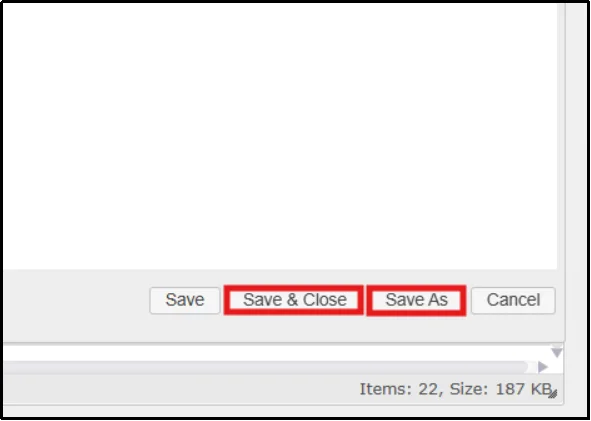
- Once you finish editing, simply click the buttons in the bottom-right corner to save your index.php file changes or save the file under a new name.
- After saving your changes, test your website immediately to confirm that everything works perfectly. If you encounter an error, restore your backup and review the modified code before trying again.
index.php vs Other Important WordPress Files
Beyond index.php, several other WordPress files hold immense importance. Let’s take a side-by-side look at how index.php compares to these critical files.
index.php vs wp-config.php
WordPress includes two important index.php files. The root index.php acts as the application’s entry point, while the theme index.php controls content output when no more specific template file is available. By contrast, wp-config.php sits at the root level of your installation and is far more sensitive. It stores database credentials, security keys, and core configuration settings.
While index.php affects presentation, wp-config.php controls how your site runs. You can edit wp-config.php the same way as index.php.
index.php vs functions.php
The index.php file determines what the system shows, while functions.php determines what your theme can do.
The best way to explain both is:
- index.php = layout and output
- functions.php = functionality and logic behind the scenes
index.php vs single.php
WordPress specifically uses single.php to display individual blog posts
If single.php exists, WordPress will use it for posts. If it doesn’t, WordPress falls back to index.php. That is exactly why developers often call index.php the “ultimate fallback template.
index.php vs header.php
The header.php file contains reusable elements like the <head> section, navigation menus, and opening HTML tags.
index.php typically calls header.php using get_header().
So:
- header.php = reusable top section
- index.php = overall page structure
Manage Core Files Like a Pro
Understanding what index.php in WordPress is gives you a strong foundation for working with themes, troubleshooting errors, and customizing your site with confidence. What makes it especially important is its role as a fallback template.
Even when other files are missing or misconfigured, index.php steps in to keep your site running. That reliability is exactly why it’s required in every WordPress theme and should be handled with care.
If you plan to edit this file, always take a safer approach.
Try Advanced File Manager and make changes to index.php with peace of mind.
Frequently Asked Questions
Can I delete index.php in WordPress?
No, you should never delete index.php. It plays a fundamental role in both WordPress core and your active theme. Removing it will instantly break your site and make it completely inaccessible.
Is index.php required in every theme?
Yes. Every WordPress theme must include an index.php file. It represents the absolute minimum requirement for a theme to function properly and pass WordPress.org repository checks.
What happens if index.php is missing?
The impact depends entirely on which index.php file goes missing:
- If the root index.php file goes missing, WordPress cannot process requests correctly, and your site will immediately crash.
- If the theme’s index.php file goes missing, the theme will fail WordPress requirements, and the template rendering process will break.
Which index.php file should I edit?
You should only edit the index.php file located in your active theme (or child theme) directory, never the one in the WordPress root. Editing the wrong file will severely affect core functionality and break your site during the next update.