



After troubleshooting hundreds of WordPress websites, we know that most 404 errors stem from permalink issues, corrupted rewrite rules, or migration-related URL mismatches. A WordPress 404 error harms your SEO performance, reduces search visibility, frustrates visitors, and ultimately costs you potential customers.
Fortunately, you can fix most WordPress 404 errors within a few minutes.
In this guide, we will walk you through exactly what causes the WordPress 404 error, proven methods to fix it, and practical steps to ensure it never happens again.
What Is the WordPress 404 Not Found Error?
When a browser requests a page from your server, the server responds with an HTTP status code. These server responses are categorized into five groups: informational (1xx), successful (2xx), redirection (3xx), client errors (4xx), and server errors (5xx).
In this case, you are facing a client error. A WordPress 404 error occurs when a visitor tries to access a page, post, image, or file that no longer exists at the requested URL. The server is working correctly, but it cannot find the content being requested, so it returns a 404 Not Found response.
The full message typically appears as:
404 Not Found – The requested URL was not found on this server.
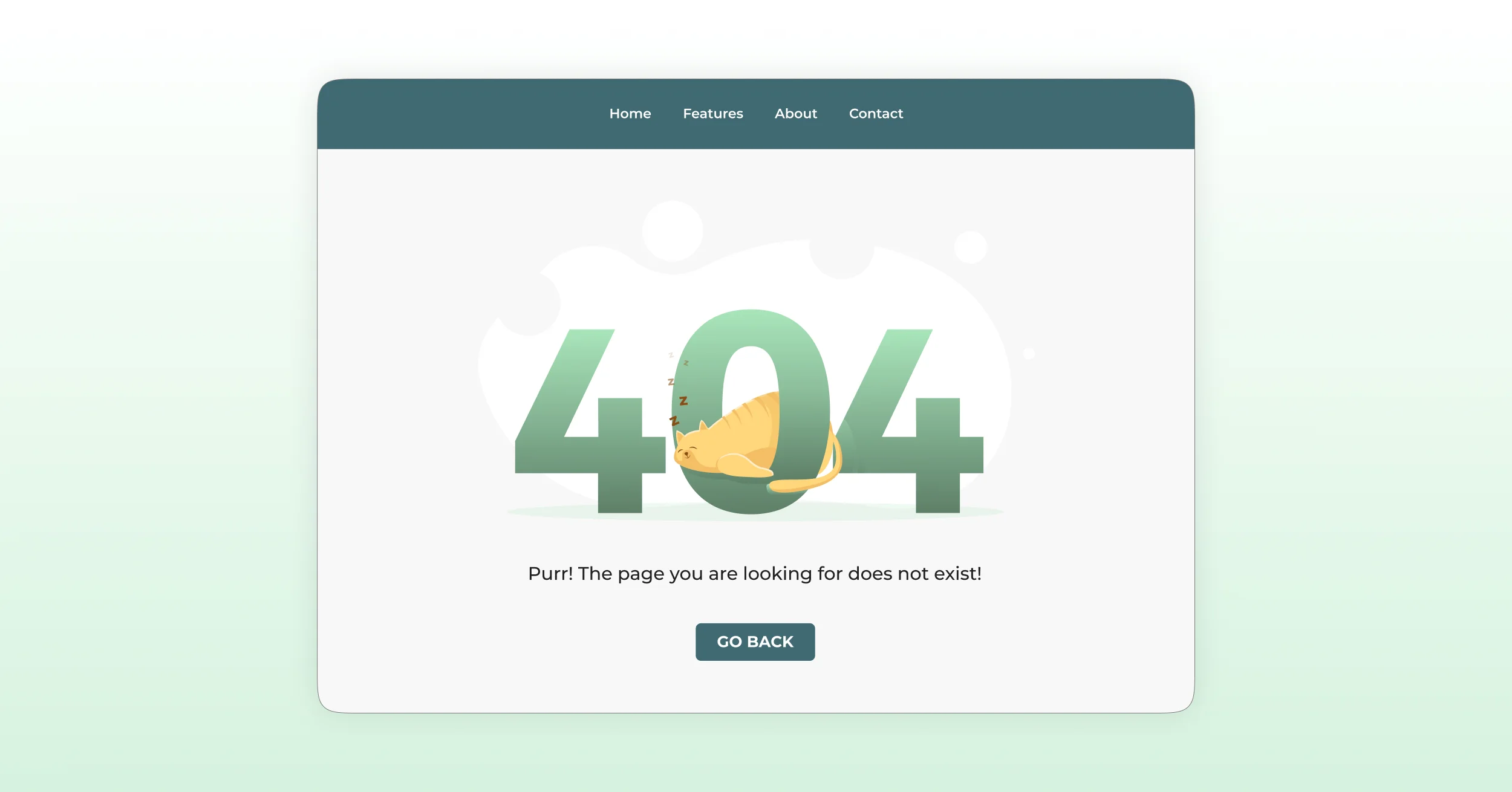
You may also see this error displayed as “Page Not Found,” “404 Page Not Found,” or “The requested URL was not found on this server,” depending on your hosting environment and WordPress configuration.
Ultimately, a 404 error specifically indicates a URL mismatch between what the browser requests and what the server can deliver.
How 404 Errors Affect Your Website
404 errors trigger three major consequences:
- User Experience: Visitors who land on a 404 page leave immediately. This spikes your bounce rate and destroys conversion chances.
- SEO Impact: While individual 404 pages rarely affect rankings directly, excessive broken internal links can make it harder for search engines to discover and crawl important content, particularly on larger website
- Lost Conversions: If a product page, landing page, or contact form returns a 404, you lose direct revenue as the potential customer exits instantly.
Common Causes of the WordPress 404 Not Found Error
Identifying the root cause accelerates your fix. Here are the most common triggers for WordPress 404 errors:
- Deleted or Moved Content: When you delete, move, or change the slug of a page or post, existing links pointing to the old URL will return a 404.
- Mistyped URLs: Sometimes the cause isn’t on your end. A visitor manually typing your URL or copying it incorrectly can land on a 404 simply due to a typo. A single misplaced character in the URL leads to an error.
- Corrupted .htaccess File: The .htaccess file is an Apache server-level configuration file. WordPress writes specific rewrite rules into this file so pretty permalinks work correctly. If this file becomes corrupted, deleted, or overwritten with incorrect rules, every URL relying on those rules will return a 404. This often explains why WordPress posts return a 404 error, but the homepage still works.
- Custom Post Type Rewrite Issues: Plugins and themes that create custom post types sometimes fail to refresh WordPress rewrite rules after updates or configuration changes. When this happens, custom content URLs may return 404 errors even though the content still exists.
- Incorrect Permalink Settings: WordPress uses a permalink structure to convert human-readable URLs (like /contact-us/) into database queries. WordPress stores and manages this structure via its rewrite rules. When you change or corrupt this structure, WordPress fails to match the URL to the correct post, resulting in a 404.
- Plugin Conflicts: Certain plugins (especially those manipulating custom post types or URL structures) interfere with WordPress’s built-in routing and break page routing entirely.
- Website Migration Issues: When migrating a WordPress site, the database retains old URL references. If you fail to update those references using a search and replace tool, WordPress generates incorrect internal links. A WordPress 404 error after migration happens extremely often.
- Broken Internal or External Links: Manual linking errors, outdated URLs in your content, or third-party links pointing to deleted pages generate 404 errors. You can monitor and fix these easily with the right site audit tools.
How to Find and Identify WordPress 404 Errors
Before trying to force a solution on any common WordPress error you are facing, it’s important that you find and verify the error. There are a few ways to find a WordPress 404 error; here’s how you can do it easily:
Method 1: Using Google Search Console
Google Search Console is an essential tool for discovering how your site performs in search and finding crawl errors.
- Log in to Google Search Console and select your website property.
- Set up your website and verify your ownership.
- Navigate to Indexing → Pages.
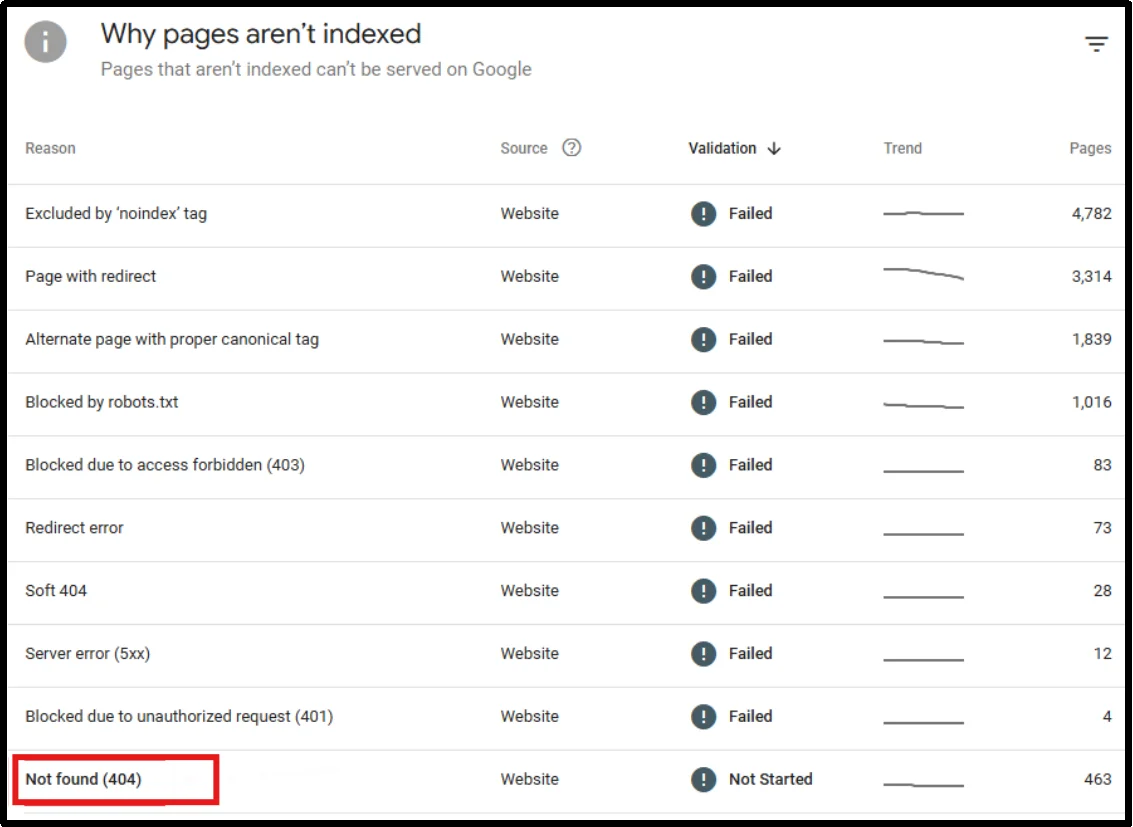
- Locate the Not found (404) row, click it, and view the list of affected URLs.
This list shows every URL that search engine bots tried to crawl that returned a 404 response. You can now start fixing those specific links.
Method 2: Using Broken Link Checker Tools or Plugins
You can use two types of tools: dedicated broken link checkers like Ahrefs or Screaming Frog, and WordPress plugins like Rank Math.

- Crawler Tools: These tools crawl your entire site exactly like a search engine, reporting every URL that returns a 404 response alongside redirects and missing images. These are ideal for a thorough site audit.
- WordPress Plugins: Plugins offer an easier approach. For instance, several SEO plugins, including Rank Math, provide built-in 404 monitoring tools that help track broken URLs directly from the WordPress dashboard.
For most site owners, combining both approaches works best: use a plugin for ongoing monitoring and run a full crawler audit periodically.
Method 3: Using Analytics Tools

If you have Google Analytics or Microsoft Clarity installed, track 404 page views by filtering for your site’s custom 404 page title. This shows real user-facing 404 errors and helps you understand which broken pages actively frustrate your visitors.
Method 4: Check Server Error Logs
Reviewing your Apache access logs, Nginx logs, or hosting control panel error reports can help you identify recurring missing URLs that may be negatively affecting user experience and SEO performance.
Look for patterns in the logs, such as outdated URLs receiving frequent requests, broken internal links, mistyped URLs, or pages that were removed without proper redirects. Pay particular attention to 404 errors triggered by search engine bots, as these may indicate indexing issues or links from external websites pointing to non-existent pages.
Once you identify problematic URLs, determine the most appropriate action for each case:
- Set up 301 redirects for permanently moved content.
- Fix broken internal links to point to the correct pages.
- Use a 410 status code for permanently removed content.
- Redirect valuable outdated external links to relevant pages.
5 Solutions to Fix the WordPress 404 Not Found Error
Work through these methods in order. Most users will resolve their issue with Method 1 or 2. The later methods address more specific scenarios.
Solution 1: Reset Your WordPress Permalink Settings
The first thing to try, which fixes the majority of WordPress 404 errors, is refreshing your permalink settings. This forces WordPress to regenerate its rewrite rules, which resolves most URL-routing issues without requiring any file editing.
- Log in to your WordPress dashboard.
- Go to Settings → Permalinks
- Without changing anything, scroll to the bottom and click Save Changes.
In many cases, this simple step resolves site-wide 404 issues. WordPress will flush and regenerate the rewrite rules and update the .htaccess file automatically.
If your permalink structure is currently set to Plain, try switching it to Post name (the most SEO-friendly option), save, and then test your URLs.
Pro tip: If you’ve recently changed your permalink structure and this triggered the 404s, switching back to your previous structure and then saving may also resolve the issue immediately.
Solution 2: Setting Up 301 Redirects
For any URL that has permanently moved or been deleted, set up a 301 redirect (permanent redirect) to tell both users and search engines where to go instead. This preserves link equity and prevents 404 errors from being seen by visitors.
- Go to the WordPress dashboard.
- Navigate to Plugins → Add Plugin.
- Enter Redirection in the search bar, and click Install Now on Redirection by John Godley.
- Finish the basic setup wizard.
- Once you have set it up, you can easily add redirections to your 404 links.
Key Note: Always redirect broken URLs to the most relevant alternative page. If a direct replacement isn’t available, redirect users to a closely related category or content page rather than the homepage to provide a better user experience and avoid Google “soft 404” issues.
Also, avoid creating redirect chains (where URL A redirects to URL B, which redirects to URL C). Redirect chains slow page loading and trigger soft 404 errors.
Solution 3: Edit or Regenerate the .htaccess File
If refreshing permalinks didn’t work, the issue likely lies in the .htaccess file; it’s either corrupted, missing, or has invalid rules.
You can follow our step-by-step guide on how to find the .htaccess file using FTP.
Note: If your server runs Nginx instead of Apache, WordPress does not use a .htaccess file. Instead, review your Nginx rewrite rules within the server configuration.
Upon finding the .htaccess file, remember, before touching any server file (in this case, .htaccess), always create a backup.
- Download the current .htaccess file to your computer for backup.
- Then double-click on the .htaccess file to open it in your code editor. Before modifying the file, copy its existing contents to a text document. Then temporarily replace the WordPress rewrite section with the default rules shown below.
# BEGIN WordPress
<IfModule mod_rewrite.c>
RewriteEngine On
RewriteBase /
RewriteRule ^index\.php$ – [L]
RewriteCond %{REQUEST_FILENAME} !-f
RewriteCond %{REQUEST_FILENAME} !-d
RewriteRule . /index.php [L]
</IfModule>
# END WordPress
- Save the file, refresh your website, and then test it for 404 errors.
If it still doesn’t work, regenerate the .htaccess file by going to WordPress → Permalinks, and Save settings. WordPress should automatically rewrite the file with the correct rules. If that didn’t work, it’s likely a permissions issue; the file is read-only, and WordPress can’t write to it.
In that case, you’ll need to replace the file manually. Make a copy of the downloaded file, delete its content, and then paste the above rules, and save it. Once done, upload the file to WordPress to your website’s root directory (commonly the public_html folder) via a file manager plugin such as Advanced File Manager.
Solution 4: Disable Plugins to Find Conflicts
If your 404 errors appeared after installing or updating a plugin, a plugin conflict is the likely cause. The safest way to diagnose this is to deactivate all plugins and reactivate them one at a time.
- Go to Plugins → Installed Plugins in your WordPress admin.
- Check the box at the top to select all plugins.
- From the Bulk Actions dropdown, select Deactivate and click Apply.
- Now visit the pages that were showing 404 errors. If they load correctly, a plugin was causing the conflict.
- Reactivate each plugin individually, testing your 404 URLs after each one.
When the 404 error returns, you’ve found the problematic plugin.
Once identified, you can either check for updates, find an alternative, or leave it deactivated.
Solution 5: Fix 404 Errors After Website Migration
A WordPress 404 error after migration is one of the most common issues site owners face. When you move WordPress to a new domain or server, in some cases, server rewrite rules or permalink settings may also fail to transfer correctly during migration, causing widespread 404 errors even when URLs appear correct.
The quickest fix is to update WordPress’s stored URLs:
- Go to Settings → General.
- Update both the WordPress Address (URL) and Site Address (URL) fields to your new domain.
Note: This only updates your general settings. To fix hardcoded URLs in your posts, use a plugin like Better Search Replace to update your database safely.
- Save changes.
After updating the site URLs, go to Settings → Permalinks and save your settings again to flush rewrite rules against the new URL structure.
How to Prevent WordPress 404 Errors in the Future
Now that you have fixed the WordPress 404 error, the better long-term strategy is to prevent them from occurring in the first place.
- Maintain a Consistent URL Structure: Once you’ve chosen a permalink structure, stick with it. Changing your permalink structure after your site has aged means every indexed URL changes. If you must change your URL structure, set up 301 redirects from every old URL to its new equivalent before making the switch public.
- Create Redirects Before Deleting Pages: Never delete a page without first deciding where to redirect its traffic. Before hitting delete, add a 301 redirect from the old URL to the most relevant alternative page.
- Regularly Audit Broken Links: Schedule regular site audits using Google Search Console, Screaming Frog, Ahrefs, or similar website auditing tools to identify crawl errors, broken links, and redirect issues before they affect users.
- Monitor Website Changes: Keep a record of any significant changes to your site, such as URL changes, deleted pages, and plugin updates that affect URL structure. A simple log can save hours of troubleshooting later, and you can’t remember what changed.
- Keep WordPress, Themes, and Plugins Updated: Running outdated plugins increases your risk of conflicts and errors. Enable automatic updates for minor WordPress core releases and check for plugin and theme updates weekly.
WordPress 404 Not Found – Troubleshooting Checklist
Use this checklist as a quick diagnostic reference whenever you encounter a WordPress 404 error:
- Check if the homepage loads.
- Determine whether the 404 error affects all pages or only specific pages.
- Save permalinks again (Settings → Permalinks → Save Changes).
- Deactivate plugins and test for conflicts.
- Switch to a default WordPress theme and retest.
- Check for deleted, moved, or renamed pages/posts.
- Verify site URLs after a migration or domain change.
- Review server rewrite settings.
- Contact your hosting provider if the issue persists.
Fix WordPress 404 Errors with Confidence
WordPress 404 errors are frustrating, but they’re usually easy to resolve once you identify the root cause. Whether the issue stems from permalink settings, a corrupted .htaccess file, plugin conflicts, or a website migration, the solutions in this guide can help you restore access to your content and improve your site’s user experience and SEO performance.
For easier access to important website files during troubleshooting, you can use Advanced File Manager to safely manage and edit files directly from your WordPress dashboard without FTP.
Frequently Asked Questions
Why does my WordPress site show a 404 error?
A WordPress 404 error happens when the server fails to locate the requested page or post. Common causes include broken permalinks, a corrupted .htaccess file, plugin or theme conflicts, or deleted/moved content.
Can plugins cause a 404 error in WordPress?
Yes. Some plugins interfere with rewrite rules or permalink handling, which can break URLs and cause 404 errors. Deactivate all plugins, then reactivate them one by one to identify the problematic plugin.
How do I fix a 404 error without FTP access?
You can use the Advanced File Manager plugin to edit or regenerate your .htaccess file directly from the WordPress dashboard. This avoids the need for FTP or cPanel access.
What’s the difference between a 404 and a 410 error?
A 404 status code indicates that a page cannot be found, while a 410 status code tells search engines that the page has been permanently removed and will not return. Use a 410 status code when content has been intentionally deleted without a replacement page.
Does a 404 error hurt SEO?
Individual 404 errors do not usually harm rankings. However, large numbers of broken internal links, missing pages, and unresolved crawl errors can negatively affect user experience and make it harder for search engines to discover important content.
Should I redirect all 404 pages to my homepage?
No. Redirecting every 404 page to the homepage can create a poor user experience and may be treated as a soft 404 by Google. Instead, redirect visitors to the most relevant alternative page whenever possible.
Why are my WordPress pages showing 404 after migration?
After migration, your site URLs may not match the new server environment. Fix this by updating site URLs in the database, refreshing permalinks, and checking server configuration (Apache/Nginx).
How can I find 404 errors on my WordPress site?
Use Google Search Console, analytics tools, or broken link checker tools and plugins to identify 404 errors. Server logs can also reveal missing pages and broken links.
How do I prevent WordPress 404 errors in the future?
Maintain a consistent URL structure, set up redirects before deleting pages, audit broken links regularly, and keep WordPress, themes, and plugins updated.

