

Amazon S3
The Amazon S3 Integration in Advanced File Manager makes it easy to manage your files from your bucket right inside your WordPress dashboard. You can upload, view, and organize files without leaving your site.
If you already have an IAM user whom you wish to give access to S3, click here.
Let’s get started
- Navigate to AWS console, and search for IAM, or click here and log in.
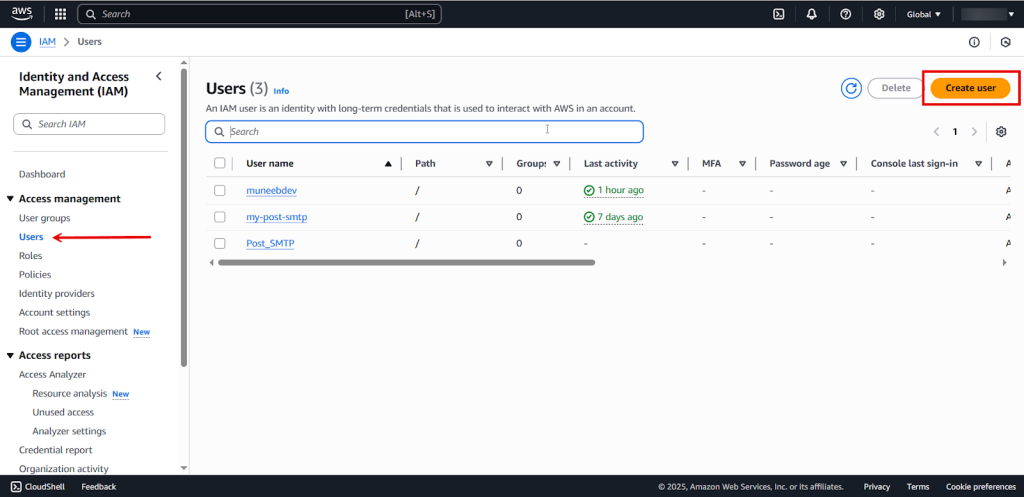
- Navigate to Users in the sidebar, and click the “Create User” button on the top right side of the screen.
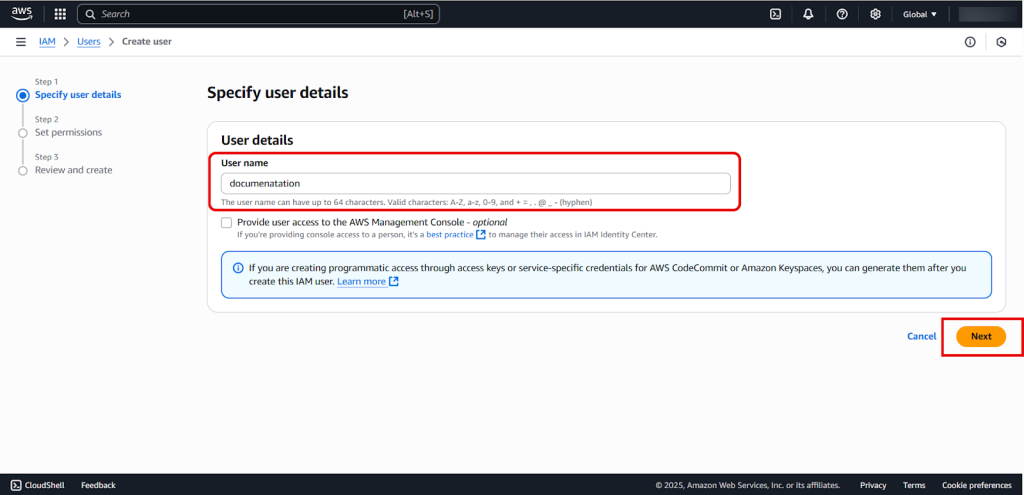
- Add your user’s name of your choice, and click next.
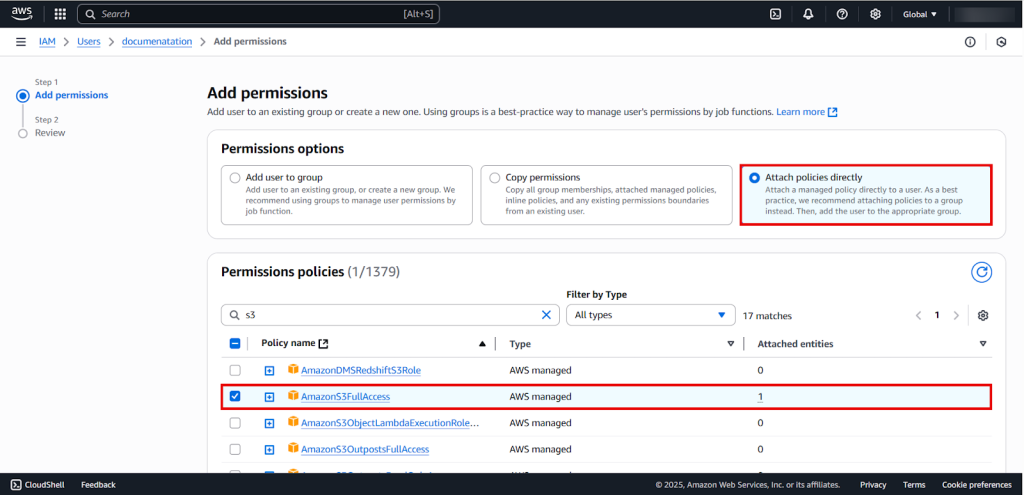
- The user must be granted permission to access the S3 bucket. The following method shown is not the only method that can be followed.
- Recommended method:
- Click on Attach policies directly.
- Click on “AmazonS3FullAccess”
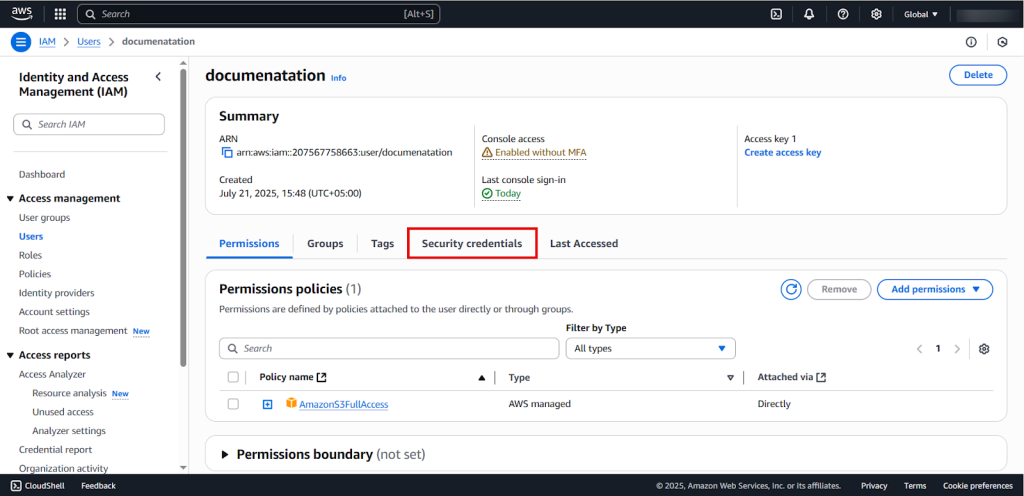
- Navigate to the Security credentials tab.
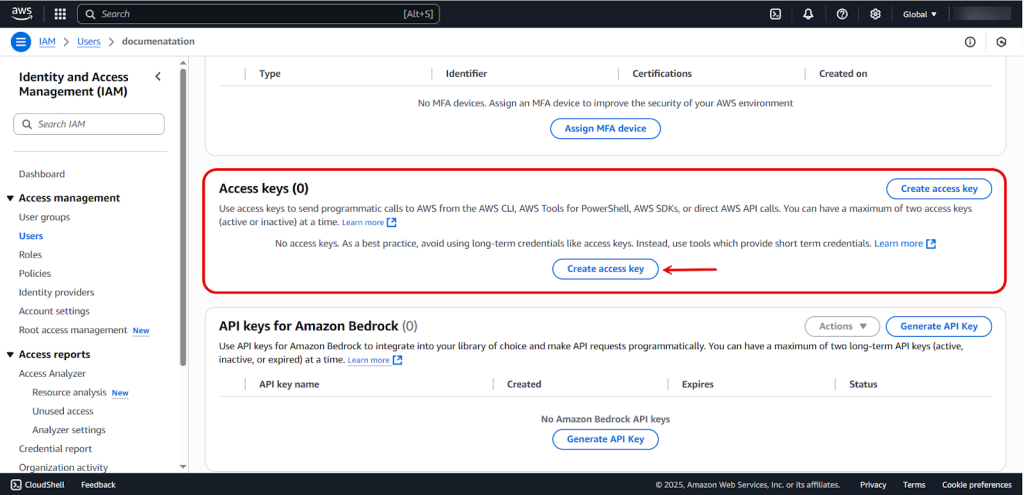
- Scroll down to Access keys
- Click on Create access key button
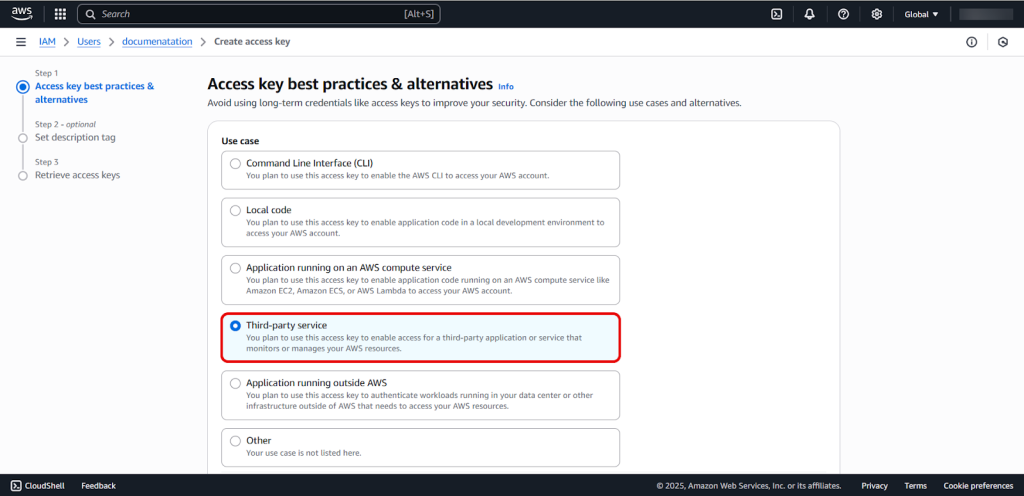
- Select Third-party service as the Use case.
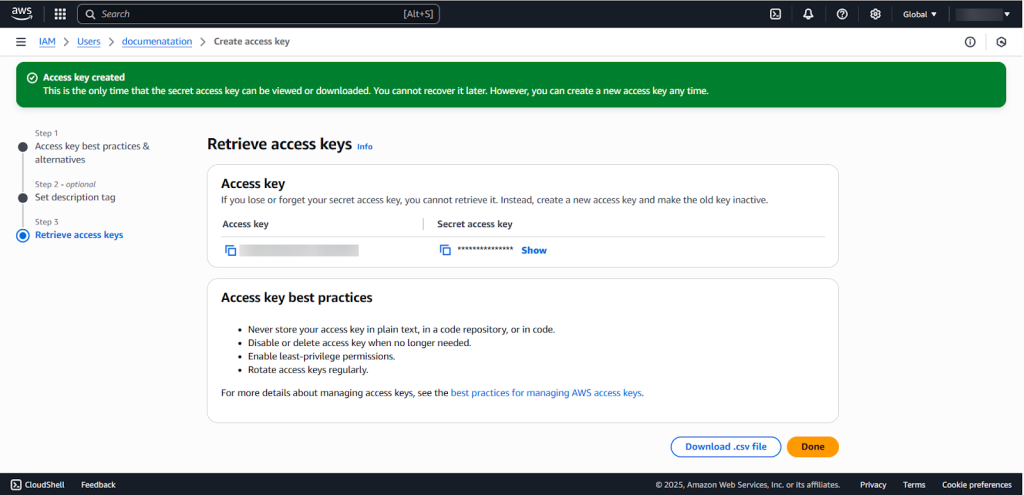
- Copy your Access key & Secret access key.
- Navigate to your WordPress Admin Dashboard> Advanced file manager > Amazon S3 (AWS).
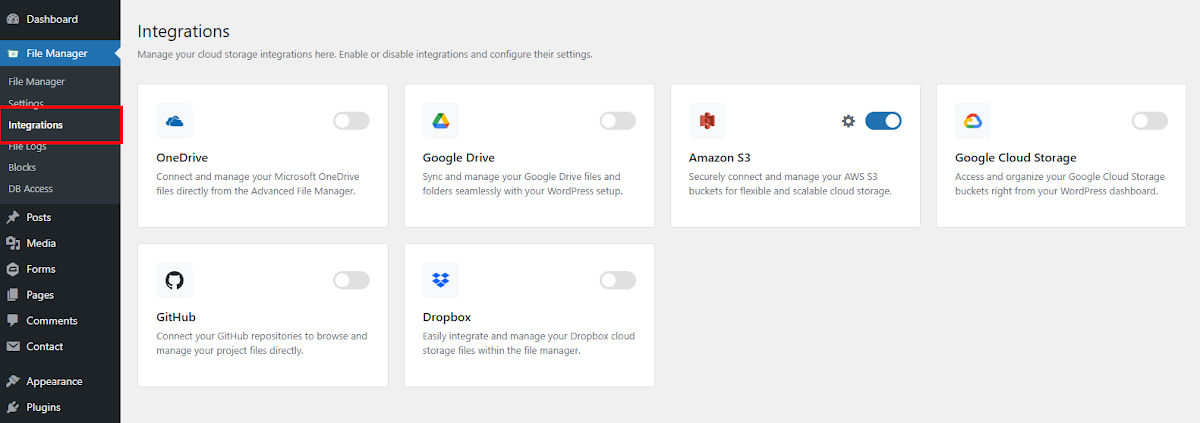
- Click on the checkbox to enable this feature.
- Paste your App key.
- Paste your Secret key.
- Add your accounts’ region.
- Add the bucket name, which you wish to connect.
- Click Save Changes
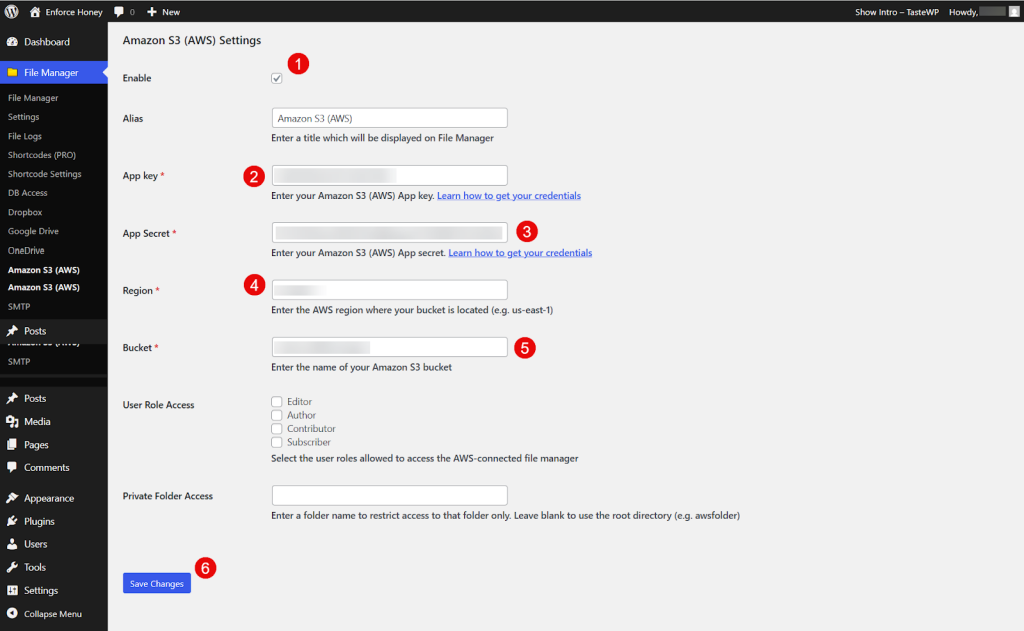
Note: to complete configuration,you must need to install Amazon S3 Library
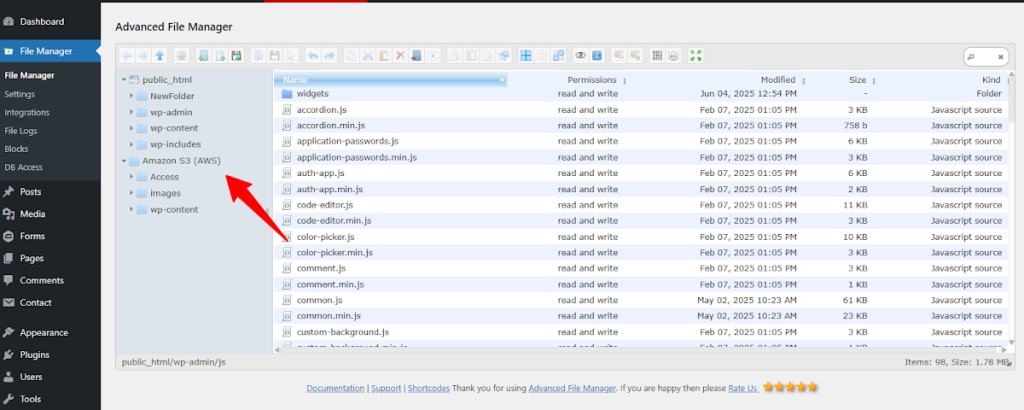
Output:
Need Help?
If you’re still having trouble, feel free to contact our Support Team. We’re here to assist you with setup issues and guide you step-by-step to ensure everything works as expected. Advanced File Manager is designed to make file management easy, and we’re committed to supporting you every step of the way.
