
When you plan to migrate a site, run an update, or back up your data before making changes, you must export your WordPress database. The process sounds technical, and it certainly involves technical steps. However, once you understand what the database holds and which method fits your situation, you will execute the process much easier.
This guide walks you through four proven methods to export a WordPress database. We will also cover what to check before and after exporting, and where things commonly go wrong.
What is a WordPress Database?
Every WordPress site runs on two components working together:
- The Files (themes, plugins, images, core WordPress code)
- The Database
Your database stores all your actual content and configurations. Hosting servers typically run this data on a MySQL or MariaDB engine. The system organizes the database into individual tables, and each table holds a specific type of data. WordPress reads and writes to this database constantly. It pulls post content when a page loads, checks plugin settings, verifies user logins, and performs countless other tasks.
The WordPress files and the database depend on each other. Therefore, when experts talk about how to back up WordPress site data properly, they mean both components, not just one.
The system organizes the database structurally into tables named wp_posts, wp_options, wp_users, and wp_postmeta. (You can change the “wp_” prefix for security reasons, so your tables might look different). SQL is simply the language the system uses to create, read, and modify this data.
When you export a database, you essentially ask the system to write out every table and every row as a text file. This file contains SQL statements that rebuild the same data elsewhere.
What Gets Exported (and What Doesn’t)?
One of the most common points of confusion involves assuming a database export equals a full site backup. It does not. Understanding this difference early saves you massive frustration later.
Included in Database Export:
- Posts and pages
- Comments
- Users and roles
- Site settings and options
- WooCommerce orders and product data
- Plugin and theme configuration data
Not Included in Database Export:
- Uploaded media files
- Theme files
- Plugin files
- wp-content folder
- Images, videos, documents
- Core WordPress files
If your site hosts many images or WooCommerce product galleries, the server stores them in the uploads folder, not inside the database. Therefore, if your goal is a complete backup, a database export alone will leave massive gaps.
WordPress Database Export vs WordPress Export vs Full Backup
These three terms are used loosely, often interchangeably, which can be confusing when someone is trying to follow a tutorial. Here’s a simpler breakdown of what each one actually covers.
People use these three terms loosely, which confuses users trying to follow tutorials. Here is a simpler breakdown of what each method actually covers.
| Feature | Database Export | WordPress Export | Full Backup |
| Format | The system generates an SQL file WordPress uses. | The system generates an XML file. | The system generates a ZIP (files + database). |
| Includes media files | No | Optional (links only by default) | Yes |
| Includes themes/plugins | No | No | Yes |
| Best used for | WordPress database migration, restore, dev work | Moving content between sites | Complete disaster recovery |
| Typical file size | Medium to large | Small | Large |
| Reversible on its own | Needs matching files | Needs matching setup | Yes, self-contained |
The built-in WordPress exporter (Tools → Export) helps you move posts between sites, but it does not replace a real backup. A full backup combines the database export with all your files. You want the full backup version if your goal is true disaster recovery.
When Should You Export WordPress Database?
The answer depends on your current tasks. We recommend exporting the database in these specific situations:
- Before migrating your site to a new host or domain (WordPress database migration)
- Before running major WordPress core, theme, or plugin updates
- Before installing an untested plugin
- As part of a regular backup WordPress site schedule
- Before starting local development or staging work
- As a precaution before disaster recovery planning
Treating this as a habit will save you from situations where something breaks, and no recent copy exists to revert to. The system usually saves the exported file as an SQL (.sql) file. It contains SQL statements that recreate your database during restoration.
Things to Do Before Exporting
A few minutes of preparation prevents corrupted or incomplete exports, especially on larger sites. Run through this short checklist before you start:
- Take a full site backup first if you plan to migrate.
- Check available disk space on your server or local machine.
- Note down your database name exactly as it appears in wp-config.php.
- Verify wp-config.php details match your expectations (host, name, prefix).
- Enable maintenance mode if the site is active and you worry about writing conflicts during the export.
- Export during low-traffic hours to prevent the system from writing data mid-export.
Skipping this step usually works fine on small sites. However, on active sites with heavy traffic, this checklist genuinely reduces the risk of an inconsistent export.
4 Proven Methods to Export a WordPress Database
You can export your WordPress database in several ways. The right method depends on your technical experience, website size, and hosting environment. Below, we walk you through four proven methods, complete with step-by-step instructions.
Important: Exporting your database does not back up your media library, themes, plugins, or other WordPress files. If you want a complete website backup, export both your database and website files.
Method 1: Export WordPress Database Using Advanced File Manager
Note: You need Advanced File Manager Pro to access the built-in Database (DB) Manager. With DB Manager, you can browse your WordPress database, export it in just a few clicks, and manage database tables directly from your dashboard without logging into your hosting control panel.
Since Advanced File Manager Pro requires the free version as a dependency, install the Free version first.
Advanced File Manager Free Version Installation:
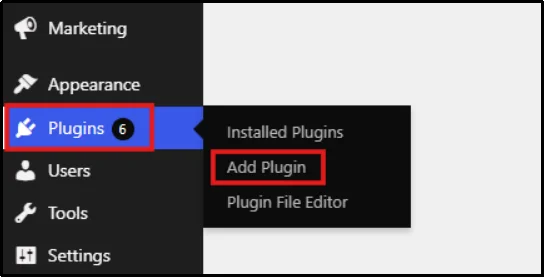
- Log in to your WordPress admin, go to Plugins → Add Plugin.
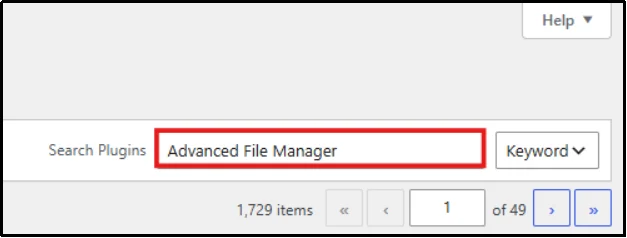
- Enter Advanced File Manager in the search bar.
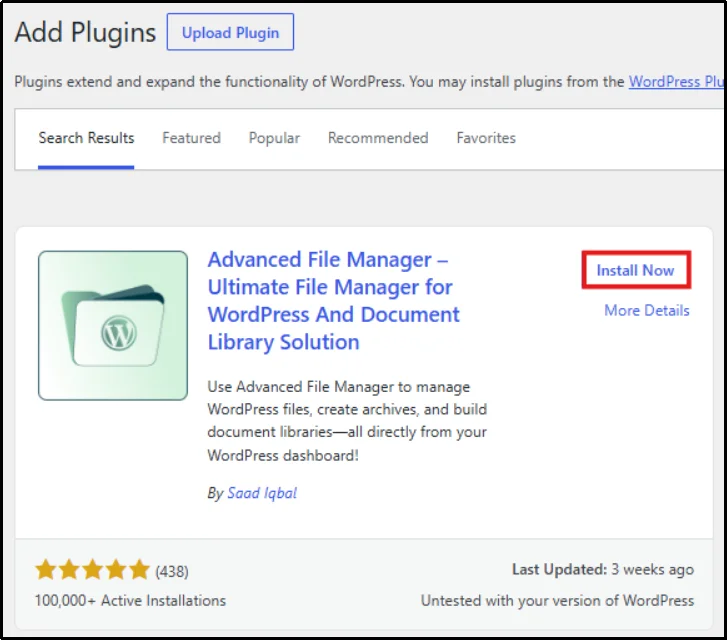
- Click on Install Now, then Activate.
Now proceed to Advanced File Manager Pro installation; follow the steps below carefully. If you need any further assistance, you can check our documentation page.
Advanced File Manager Pro Installation:
- Go to the Advanced File Manager Pricing page and purchase the Professional or Business plan that best suits your needs.
- Upon purchase, you will receive an email containing the plugin ZIP file and a license key; both will be used later.
- In your WordPress dashboard, head to Plugins → Add Plugin.
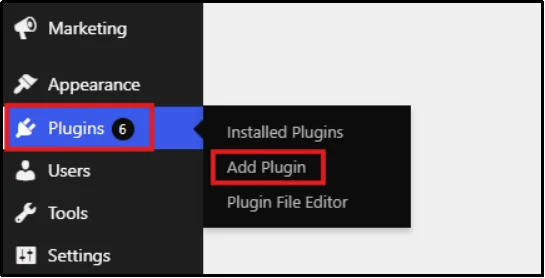
- Click on Upload Plugin, and then Choose File.

- Once you choose the correct file, upload it, then click Install Now.

- Now click on Activate.
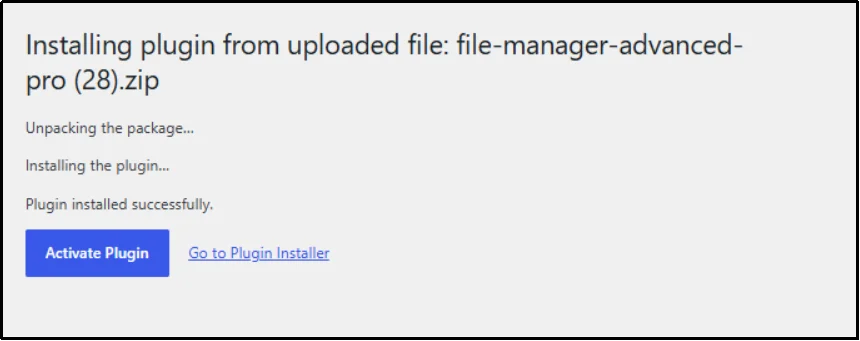
- Head back to Plugins → All Plugins, then, under Advanced File Manager Pro, click Activate License. Enter your license key, and then click Agree & Activate License.
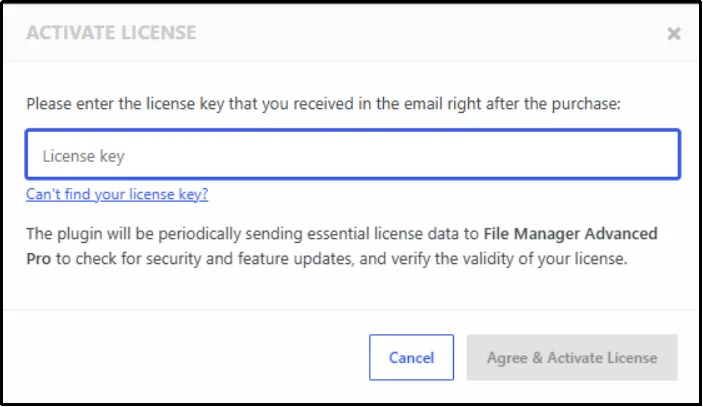
You have officially installed and activated Advanced File Manager Pro.
How to Export the Database:
Here’s how you can export the database via Advanced File Manager.
- Go to File Manager → DB Access.
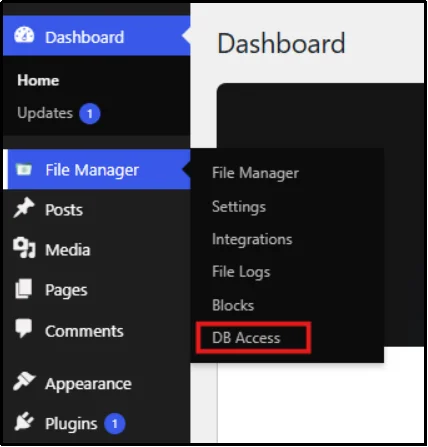
- In the left box, you will notice options like SQL Command, Import, Export, and Create Table. Click on Export.
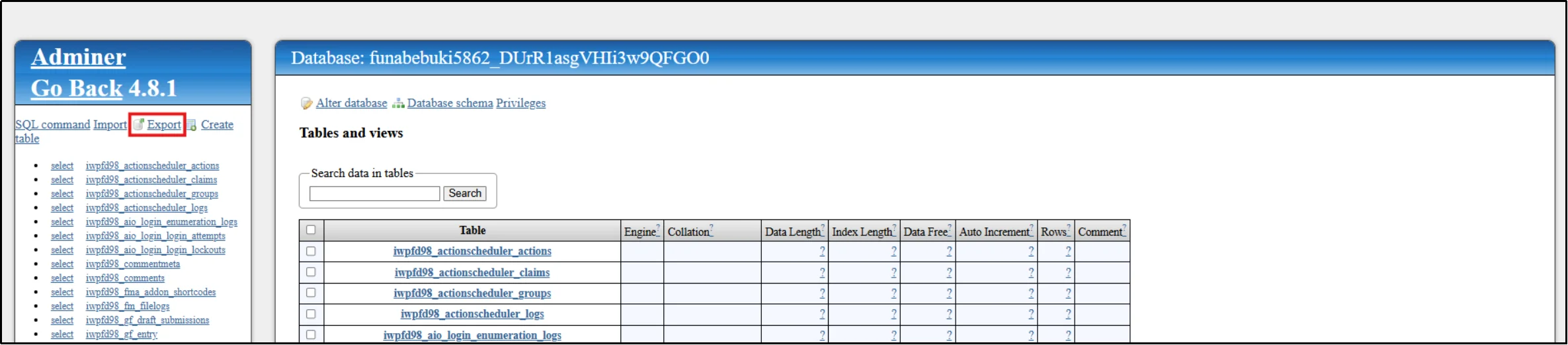
- You will come across the following:
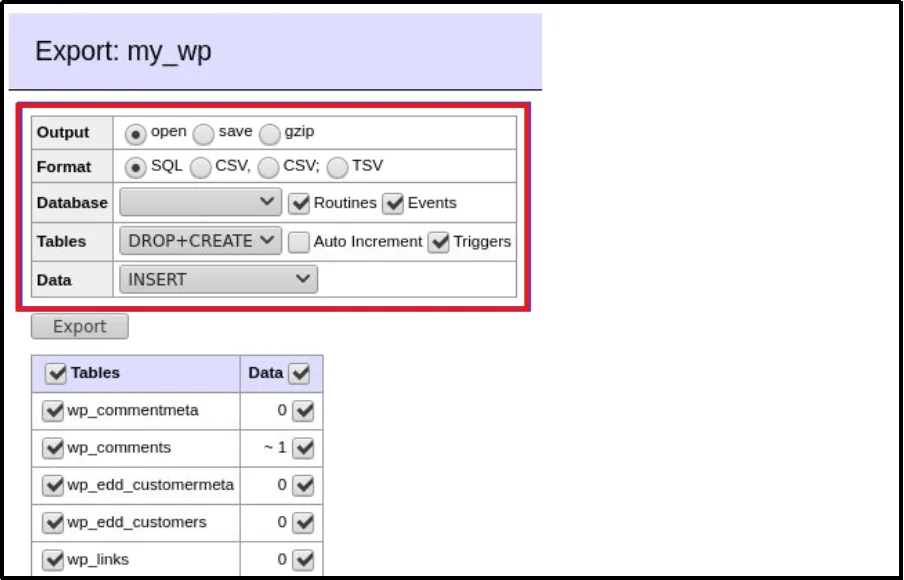
- Click Save in Output and SQL in Format, then click Export.
Your WordPress database will be exported to the system flawlessly.
Note: By default, Adminer lets you export databases in three formats: Open, Save, and GZIP. It supports four export formats: SQL, CSV (semicolon-separated), and TSV. Additional export options and formats can be added through Adminer plugins.
Method 2: Export WordPress Database via phpMyAdmin (cPanel Database Export)
If your hosting provider includes phpMyAdmin, you can manually export your database without installing a plugin. This method creates an SQL file WordPress uses for backups or migrations.
- Log in to your hosting control panel (like cPanel or DirectAdmin).
- Navigate to the Databases section and click on phpMyAdmin.
- On the left sidebar, click on your WordPress database name.
- Click the Export tab at the top of the page.
- Choose the Quick export method, select SQL as the format, then click Go/Export.
Your browser downloads the SQL file automatically. Save it in a secure location so you can restore or migrate your database later.
Method 3: Export WordPress Database Using SSH (mysqldump)
If you have SSH access to your server, you can use the mysqldump command to export your database. This method is commonly used for larger WordPress websites because it runs directly on the server.
- Connect to your server using SSH.
- Navigate to the directory where you want to save the exported database.
- Run the following command, replacing the placeholders with your database username, database name, and preferred file location.
mysqldump -u my_db_user -p my_db_name > /path/to/save/backup_file.sql
This command creates a complete SQL dump of your WordPress database. It doesn’t modify your website or interrupt visitors while the export runs.
- Enter your database password when prompted.
- Once the command finishes, confirm that the SQL file has been created in the selected location.
- Download the SQL file to your local computer and store it safely.
Method 4: Export WordPress Database Using WP-CLI
WP-CLI lets you manage WordPress from the command line, including exporting your database. It is a convenient option for developers and users who regularly manage WordPress sites through SSH.
- Install WP-CLI on your server if it is not already installed.
- Connect to your server using SSH.
- Navigate to your WordPress installation directory.
cd /path/to/your/wordpress
- Run the following command to export your database.
wp db export backup.sql
Replace backup.sql with your preferred file name if needed.
- Wait until you see the success message confirming that the database export has completed.
- Locate the exported SQL file in your current directory and download it to your computer for safekeeping.
Which Method Should You Choose to Export WordPress Database?
We prepared this table to compare each method side by side.
| Method | Beginner Friendly | Speed | Good for Large Sites | Automation Support | Difficulty |
| Plugin (File Manager) | Yes | Medium | Limited on shared hosting | Yes, built-in | Easy |
| phpMyAdmin | Yes | Medium | Struggles on very large DBs | No | Easy to Medium |
| mysqldump (SSH) | No | Fast | Yes | Yes, with scripting | Medium to Advanced |
| WP-CLI | No | Fast | Yes | Yes | Medium |
If you are a beginner on shared hosting, start with a plugin or phpMyAdmin. If you manage a large site or multiple sites, mysqldump or WP-CLI will save you time in the long run.
How to Find Your WordPress Database Name
The wp-config.php file stores your database name, username, password, and host at the root of your WordPress installation. Opening this file reveals a section near the top that defines DB_NAME, DB_USER, DB_PASSWORD, and DB_HOST. You need these exact values when exporting via phpMyAdmin, mysqldump, or WP-CLI.
If you do not have FTP set up, a file manager plugin like Advanced File Manager becomes genuinely useful. It lets you open and view wp-config.php directly from your dashboard, so you can quickly check your credentials without needing separate FTP software.
How to Verify Your Database Export
Once the export finishes, spend a minute confirming the system created the file correctly.
- Open the exported SQL file in a text editor and verify it contains readable SQL statements instead of errors.
- Check the file size to ensure it matches the expected data size. If your website has thousands of posts but the SQL file is unusually small, the export fails.
- Scroll through the file and confirm essential tables, such as wp_posts and wp_options, exist in the export.
- Store the file somewhere safe, ideally in more than one location, rather than leaving it on the same server.
Common Problems and Solutions
Server limits sometimes interrupt exports, especially on larger or older sites. Here are the issues that arise most often, along with their fixes.
- Export timeout: Shared hosting execution limits usually cause this. Try phpMyAdmin’s custom export with compression, or switch to mysqldump via WP-CLI.
- Memory exhausted: Very large databases often trigger this when using browser-based tools. Command-line methods handle this far better.
- Database too large for phpMyAdmin: Split the export by table using custom export, or use mysqldump instead.
- phpMyAdmin stuck or unresponsive: A browser timeout usually causes this, not a server error. Retry with a smaller table selection.
- Permission denied (SSH/mysqldump): Double-check your database username has export privileges, or confirm you use the right credentials from wp-config.php.
- Incorrect charset in exported file: Add the correct character set flag to your mysqldump command, since older databases sometimes use latin1 instead of utf8mb4.
- Broken or incomplete SQL file: An interrupted connection usually causes this. Re-run the export during lower traffic periods.
- Missing tables after export: Check if your export accidentally used a custom table selection instead of exporting everything.
- Large WooCommerce database issues: WooCommerce accumulates massive amounts of postmeta and order data. Consider cleaning up expired transients (database optimization) before exporting to reduce file size.
Best Practices When Exporting WordPress Database
A few habits go a long way toward making database exports reliable.
- Export on a regular schedule rather than only before major changes.
- Keep multiple copies, not just one.
- Store at least one copy offsite, away from the server itself.
- Compress large exports to save storage space.
- Periodically test restoring an export, not just creating one.
- Encrypt backups that contain sensitive data, like customer information from WooCommerce.
Successfully Exported Your WordPress Database?
Exporting your WordPress database does not have to complicate your workflow once you understand the available methods and choose the one that fits your expertise.
Remember that a database export only provides value if you can restore it when needed. After exporting, take a few minutes to verify the SQL file, store multiple copies in secure locations, and test your backup on a staging environment. Building these simple habits saves you hours of downtime and helps you recover quickly from accidental data loss or unexpected server issues.
If you need to identify your database credentials, access your wp-config.php file, or organize exported SQL files directly from your dashboard, Advanced File Manager makes the process much easier.
Frequently Asked Questions
Is phpMyAdmin safe to use?
You can use it safely as long as you access it through your hosting control panel with proper login credentials and never expose it publicly without authentication.
Does exporting the database include images?
No. The server stores images and other media files in the uploads folder, not inside the database.
Can I export only specific tables?
Yes, both phpMyAdmin’s custom export and WP-CLI support exporting selected tables instead of the entire database.
How do I restore an exported database?
You can import the SQL file back through phpMyAdmin’s Import tab, use wp db import backup.sql with WP-CLI, or use the MySQL command-line tool if you have SSH access.
What’s the difference between a database export and a full backup?
A database export covers only your site’s structured data, while a full backup includes the database and all your files, themes, plugins, and media.
Where does the server store the WordPress database?
The hosting server stores it, manages it via MySQL or MariaDB, and defines its connection details in your wp-config.php file.
Can I export a WooCommerce database?
Yes, WooCommerce data lives in the same WordPress database, so any standard export method includes your orders, products, and store settings.
Can I use WP-CLI on shared hosting?
Some shared hosts support it, while others do not. Check with your host, or look for it in your hosting control panel’s terminal or SSH access settings.
What file format does the system use for WordPress database exports?
The system typically saves exports as .sql files, sometimes compressing them as .sql.gz or including them inside a .zip when using backup plugins.
How often should I export my database?
This depends on how frequently your content changes. Active sites with daily posts or WooCommerce orders benefit from daily exports, while smaller sites might only need a weekly schedule.