
If you’ve ever wanted to add custom functionality to your WordPress site, like modifying how your theme behaves or inserting small pieces of code, you’ve probably come across something called the WordPress functions.php file.
This single file holds the power to completely change how your WordPress theme works. It’s where developers and advanced users can add PHP snippets to extend WordPress features, customize layouts, or improve performance.
But here’s the catch: editing the functions.php file incorrectly can also break your site. That’s why it’s crucial to understand what this file does, where it’s located, and how to safely edit it.
In this guide, we’ll go step-by-step through everything you need to know about the WordPress functions.php file.
Ready? Let’s get started!
What Is the functions.php File in WordPress (and What Does It Do)?
The functions.php file is one of the most important parts of your WordPress setup. It’s where the code that controls much of your site’s functionality lives.
Every WordPress installation includes at least two functions.php files; one comes with WordPress core, which handles essential system operations. Another comes with your active theme, which manages theme-specific behavior and features. And if you’re using a child theme, it has its own functions.php file as well.
The functions.php file inside WordPress core is crucial for the system to run properly. It contains the foundational code that makes WordPress work, so you should never modify that version.
Your theme’s functions.php file, on the other hand, is where customization happens. It allows you to define unique features for your site, such as:
- Custom menu locations and widget areas
- Special header or footer functionality
- Adjusting post excerpt lengths
- Loading specific scripts or styles
In many ways, the theme’s functions.php file behaves like a plugin. The key difference is scope:
- Use functions.php for code that applies to a specific theme.
- Use plugins for features you want to keep active, even if you change themes.
Where is the functions.php File Located in WordPress?
As we mentioned, every WordPress website contains at least two functions.php files, but the real question is, where do you find the functions.php file in WordPress? Knowing where these files are stored helps you access and edit them safely when needed.
First, let’s understand that all WordPress files live inside your website’s root directory and its subfolders. The root directory is often named public_html or www, though some hosting providers may use different names. If you’re unsure where your WordPress installation is located, your hosting support can point you in the right direction.
Once you find your WordPress folder, you’ll notice that there can be up to three functions.php files—one in the WordPress core, one in your theme, and another in your child theme.
Let’s look at where each of them is located.
WordPress Core functions.php File
The core functions.php file is stored in the wp-includes folder of your WordPress installation. You can see in the following screenshot.
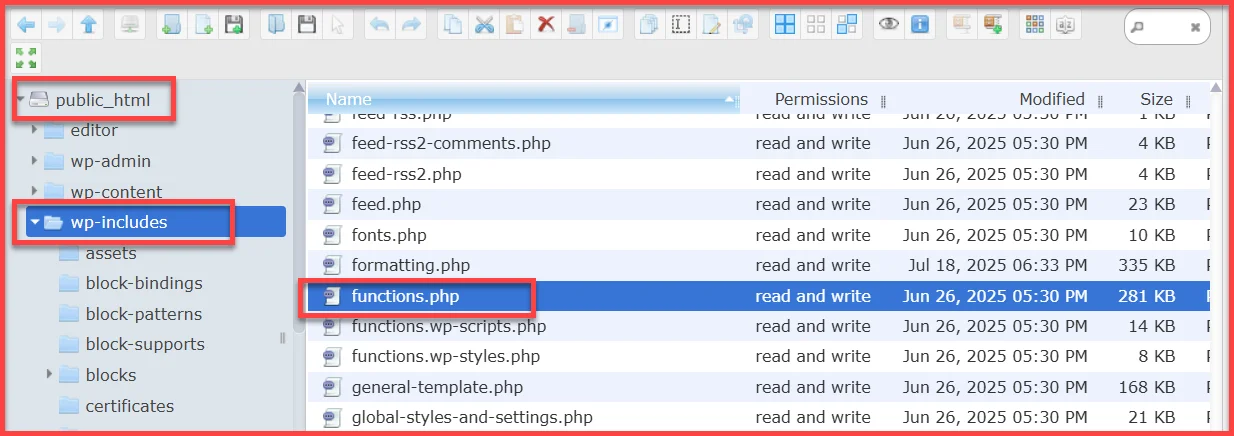
You should never edit this file directly because it contains critical WordPress functionality. However, you might inspect it occasionally—for example, if you suspect malware or code injection.
If you ever suspect that your core functions.php file has been compromised, it’s best to back up your site first, then reinstall a clean copy of WordPress rather than trying to clean it manually.
Theme functions.php File
Your active theme’s functions.php file is located inside your theme folder. Simply follow the path below:
public_html/wp-content/themes/your-theme/functions.php
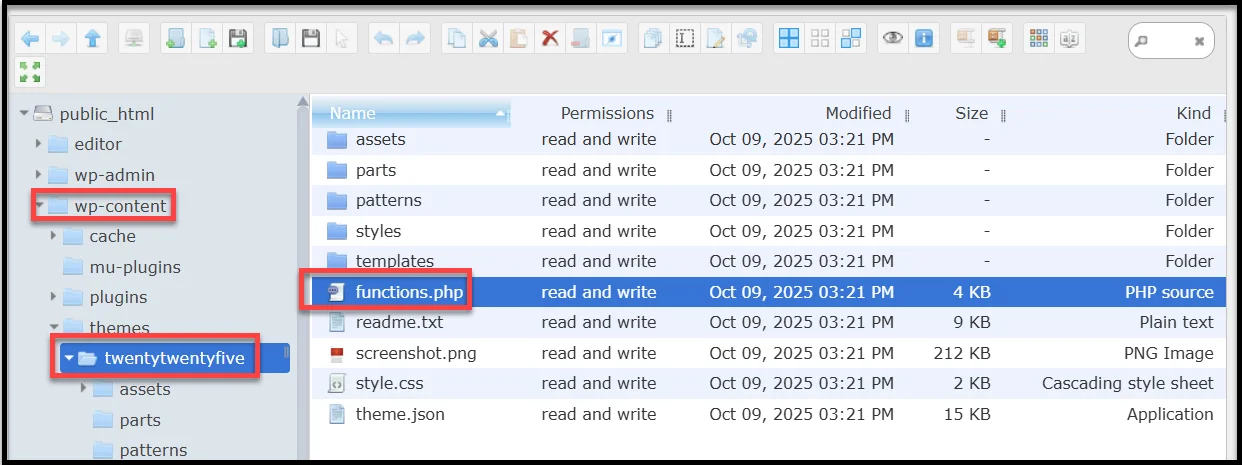
This is the most common functions.php file you’ll work with. It contains all theme-specific features and code snippets that modify your site’s behavior or appearance.
Child Theme functions.php File
If you’re using a child theme (which is the recommended way to make theme changes safely), you can find its functions.php file here:
public_html/wp-content/themes/your-theme-child/functions.php
This version works alongside your parent theme’s functions.php. You can use it to add or modify functionality without touching the parent theme files, keeping your customizations safe during theme updates.
✅ Pro Tip: Always use a child theme and a file manager plugin like Advanced File Manager to edit or add custom code safely, rather than modifying core or parent theme files directly.
How to Access the functions.php File (3 Methods)
Before you start editing, you first need to access the functions.php file. WordPress gives you several ways to do that, depending on your skill level and comfort with code.
In this article, we will explore three of the most common and safest options.
1. Access via WordPress Dashboard (Theme File Editor)
The quickest way to open the functions.php file is directly through your WordPress admin panel.
Here’s how:
- Log in to your WordPress dashboard.
- Go to Tools and then Theme File Editor.
- On the right side, select functions.php.
- The file will open in an editor on the right-hand side, where you can add or edit code.
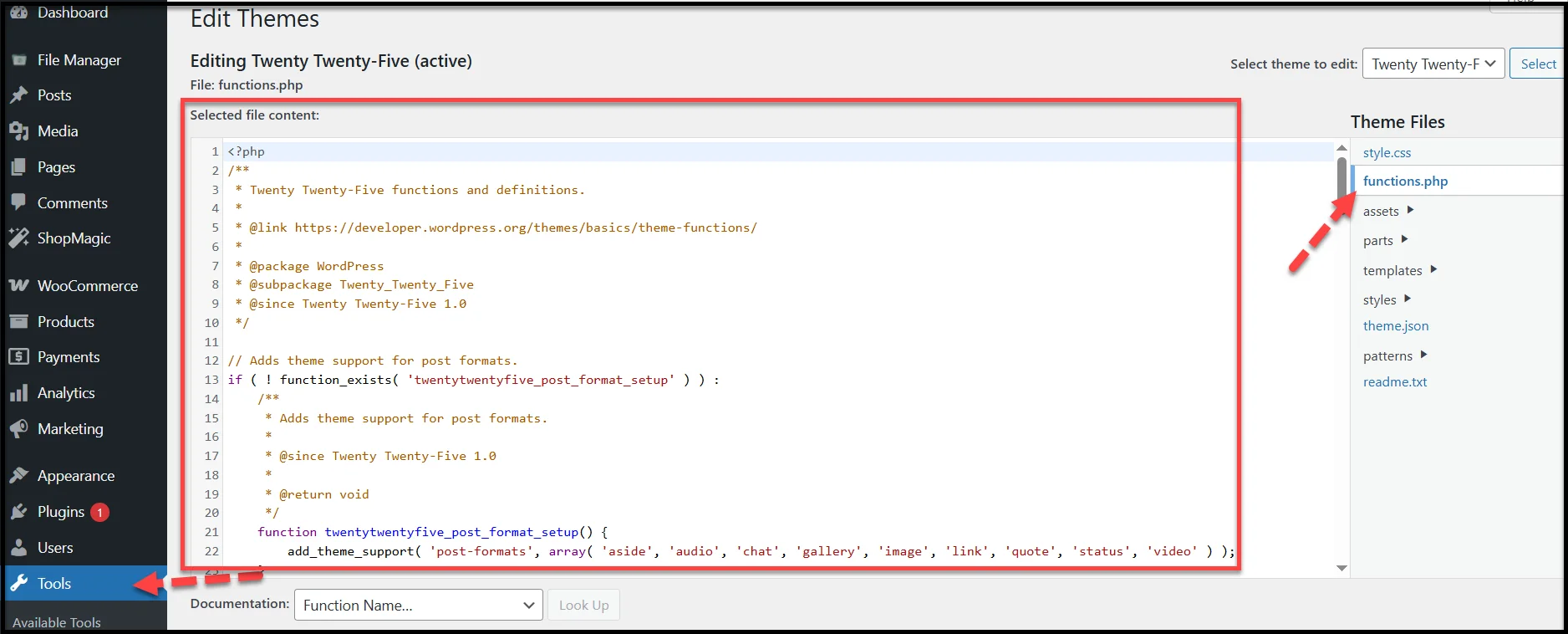
While this method is convenient, it’s not always the safest. A small coding error can make your site inaccessible, leading to a “white screen” or a PHP error. For that reason, it’s best to make minor edits or test snippets only if you know exactly what the code does.
2. Access via SFTP or FTP
If you prefer a more secure and manual approach, use SFTP (Secure File Transfer Protocol) or a standard FTP client such as FileZilla or Cyberduck.
- Connect to your website using your FTP credentials.
- Navigate to /wp-content/themes/.
- Open your active theme’s folder.
- Download or open functions.php in a text editor.
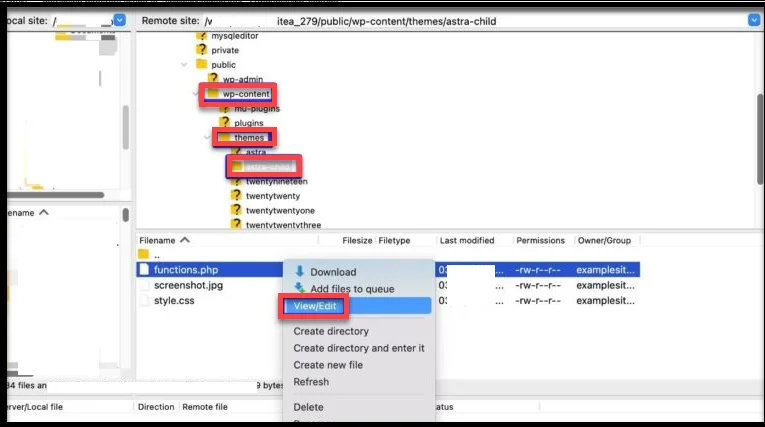
This method is safer because you can keep a local backup of your file. If something breaks, you can easily upload the original version again.
3. Access via a File Manager Plugin (Recommended)
For most WordPress users, the simplest and safest method is using a file manager plugin, such as Advanced File Manager. It lets you access, edit, and manage WordPress files directly from your dashboard, without needing FTP credentials or third-party software.
Here’s how to do it:
- Install and activate Advanced File Manager.
- Next, click the ‘File Manager’ option from your WordPress admin sidebar.
- Navigate to public_html/wp-content/themes/your-theme/functions.php.
- Right-click functions.php and choose Code Editor.
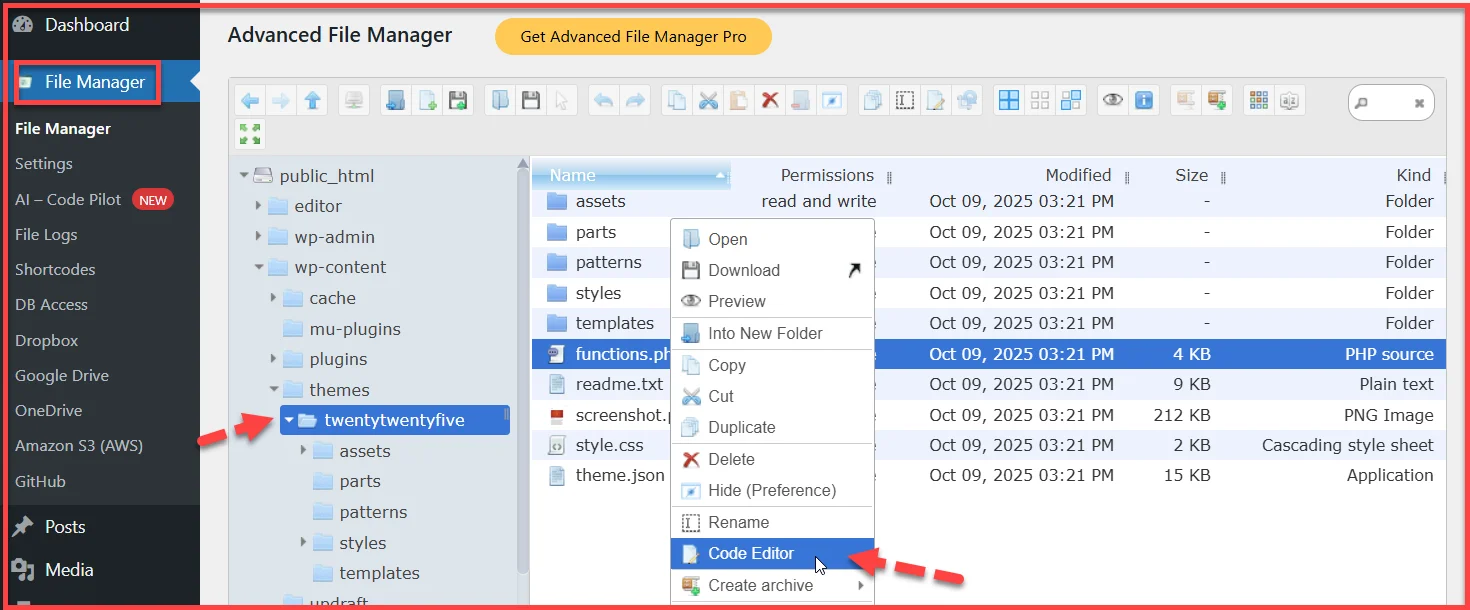
The best part? You can modify your functions.php file safely, back up your edits, or even use AI Coding Assistant inside Advanced File Manager to help write or fix PHP code in real time.
This method combines convenience with safety, which is ideal for both beginners and developers who prefer working inside WordPress.
How to Safely Edit the functions.php File
Editing the functions.php file gives you incredible control over your WordPress site, but it also carries some risk. A small syntax error, like a missing bracket or semicolon, can crash your website. That’s why you should always approach this file carefully and follow best practices before making any changes.
Here’s how to edit your functions.php file safely and smartly:
1. Always Create a Backup First
Before touching anything, make a complete backup of your WordPress site or at least your theme folder. You can use plugins like UpdraftPlus, Duplicator, or All-in-One WP Migration to do this.
If you’re using Advanced File Manager, simply right-click the file and choose Download to create a quick local backup.
That way, if your new code causes an error, you can restore the old file in seconds.
2. Use a Child Theme
Never edit the main functions.php file of your active theme directly, especially if it’s a theme you update regularly. When the theme gets updated, your changes will be overwritten.
The better approach is to create a child theme. A child theme inherits everything from the parent theme but keeps your customizations separate. You can then safely add your code to the child theme’s functions.php file without losing it during updates.
3. Test Your Code Before Saving
Even a simple PHP snippet can cause your site to stop loading if it’s not formatted correctly. Always test your code before saving it.
If you’re editing via Advanced File Manager, the built-in AI Coding Assistant can help spot potential issues or even write and fix code for you. It’s a great way to reduce the risk of syntax errors, especially if you’re not a developer.
4. Add Code at the Bottom (and Comment It)
To keep things organized, always paste new snippets at the end of the file, after any existing code. Leave a short comment explaining what the code does, like this:
// Add custom login logo
function custom_login_logo() {
echo ‘<style>.login h1 a { background-image: url(/images/logo.png) !important; }</style>’;
}
add_action(‘login_head’, ‘custom_login_logo’);
That way, if you ever revisit the file months later, you’ll know what each snippet was meant to do.
5. Use the Advanced File Manager for Safer Edits
When editing directly through WordPress, a mistake can sometimes lock you out of the dashboard. The Advanced File Manager plugin offers a safer option—it allows you to open, edit, and debug your functions.php file without leaving WordPress.
Following these steps makes your customization process much smoother and safer. With a good backup strategy and the right tools, you’ll never have to worry about breaking your site while experimenting with new functions.
Example functions.php Code Snippets (With Explanations)
Now that you know how to safely access and edit your functions.php file, let’s explore a few useful real-world examples. These snippets can help you customize your site, improve user experience, or automate simple tasks—all without installing extra plugins.
Each example below includes the code and an easy explanation of what it does.
Display the Last Modified Date of a Post
If you regularly update your blog posts, this snippet shows readers when a post was last modified—great for SEO and user trust.
function show_last_modified_date($content) {
if (is_single()) {
$content .= ‘<p><em>Last updated on: ‘ . get_the_modified_date() . ‘</em></p>’;
}
return $content;
}
How it works:
add_filter(‘the_content’, ‘show_last_modified_date’);
This function adds a line under your post showing its last modified date. It only runs on single posts, so it won’t affect your homepage or archives.
Disable the WordPress Admin Toolbar for Non-Admins
Don’t want the black toolbar showing for regular users when they’re logged in? This code hides it for everyone except admins.
add_action(‘after_setup_theme’, function() {
if (!current_user_can(‘administrator’)) {
show_admin_bar(false);
}
});
Why it’s useful:
It keeps your site clean for users or clients while allowing admins to retain full access.
Delay RSS Feed Posts to Prevent Accidental Publishing
If you schedule posts but need time to fix small errors before they go public, this snippet delays your site’s RSS feed.
function delay_rss_feed($where) {
global $wpdb;
if (is_feed()) {
$where .= ” AND TIMESTAMPDIFF(MINUTE, $wpdb->posts.post_date_gmt, NOW()) > 30 “;
}
return $where;
}
add_filter(‘posts_where’, ‘delay_rss_feed’);
What it does:
This function delays new posts from appearing in your RSS feed for 30 minutes—perfect for giving you a short review window.
Add Custom Image Sizes
Want consistent image dimensions for thumbnails or blog images? You can register new sizes like this:
add_image_size(‘custom-thumbnail’, 400, 250, true);
Then, call it in your theme using:
the_post_thumbnail(‘custom-thumbnail’);
Why it helps:
It ensures visual consistency and helps your site look more professional.
Remove the WordPress Version Number
Hiding your WordPress version number can slightly improve security by preventing automated attacks targeting older versions.
remove_action(‘wp_head’, ‘wp_generator’);
How it helps:
It simply removes the WordPress version tag from your site’s header—cleaner and safer.
These snippets show how powerful the functions.php file can be. A few lines of PHP can replace entire plugins or add unique customizations that make your website stand out.
✅ Pro Tip: Just remember—always test each snippet carefully, and if you’re unsure about the syntax, you can use Advanced File Manager’s AI Coding Assistant to review or generate the code for you automatically.
Alternative Ways to Add Custom Code (Without Editing functions.php)
While the functions.php file is a great place to add custom snippets, it’s not always the best option—especially if you change themes often or prefer to keep your code organized.
Thankfully, there are safer and more flexible alternatives for adding custom PHP functions without directly editing the functions.php file. Let’s look at the best ones.
1. Use a Code Snippets Plugin
If you only want to add a few pieces of code without touching your theme files, a code snippets plugin is the easiest option.
Plugins like Code Snippets or WPCode let you insert and manage custom PHP, CSS, or JavaScript right from your WordPress dashboard.
Why it’s better:
- You don’t have to edit core files.
- Code runs even if you switch themes.
- Built-in error handling prevents site crashes.
- You can easily enable or disable specific snippets.
For most users, this is the most convenient and safe way to extend WordPress functionality—no FTP access or file editing required.
2. Create a Custom Functionality Plugin
If you’re comfortable with basic coding, you can create your own mini plugin for site-specific functions.
Here’s how:
- Open your site files using Advanced File Manager.
- Go to /wp-content/plugins/ and create a new folder (for example, custom-functions).
- Inside it, create a file named custom-functions.php.
- Add the following code:
<?php
/*
Plugin Name: Custom Functions
Description: Site-specific custom code snippets.
*/
You can now add any PHP functions inside this file, and WordPress will load them just like it loads plugins.
Why developers love this method:
- Your custom code stays active even if you switch themes.
- Updates to your theme won’t affect your code.
- It keeps your functions organized in one dedicated location.
3. Use the Advanced File Manager with AI Coding Assistant
If you prefer to stay inside WordPress while maintaining control, Advanced File Manager gives you the best of both worlds.
You can:
- Edit any file, including plugin or theme files.
- Add new custom PHP scripts directly in your site folders.
- Use the built-in AI Coding Assistant to write, explain, or fix code instantly.
This makes it easier to experiment with PHP snippets safely—especially if you’re not a developer but still want to customize your site.
Using one of these alternatives keeps your changes portable and safe from theme updates. Whether you use a plugin-based approach or the Advanced File Manager, you’ll gain more control without the risk of breaking your site.
Common Mistakes to Avoid When Editing functions.php
The functions.php file gives you powerful customization control, but even experienced users can make mistakes that break their site or cause unexpected behavior. Before you start adding custom code, here are some common pitfalls to avoid.
Editing the File Without a Backup
This is the most frequent mistake beginners make. If you edit the functions.php file directly from the Theme Editor without saving a backup, a single typo can lock you out of your website.
Always back up your file before making changes. If you’re using Advanced File Manager, just right-click the file and download a copy. That simple step can save you hours of frustration later.
Missing or Incorrect PHP Tags
Every functions.php file starts with an opening PHP tag like this: <?php
If you accidentally remove it or forget to close a function properly, your entire site could stop loading.
A good habit is to test snippets in a code validation tool or use the AI Coding Assistant in Advanced File Manager to check for syntax errors before saving.
Adding Code in the Wrong Place
Your new code should always be added after existing functions—usually near the end of the file.
If you insert it inside another function or before a closing bracket, WordPress may throw a “syntax error” and break your theme. Adding clear comments also helps keep your code organized for future reference.
Forgetting to Use a Child Theme
If you edit your main theme’s functions.php file directly, all your customizations will disappear when you update or switch themes.
The right way to do it:
- Create a child theme.
- Add your functions there.
This keeps your changes safe and separate from core theme updates.
Using Unverified Code Snippets from Unknown Sources
It’s tempting to copy snippets from blogs or forums, but not all are safe or up to date. Some may conflict with your plugins or contain deprecated functions.
Before adding any code, check:
- When it was last updated.
- If it’s compatible with your WordPress version.
- Whether it’s commented and easy to understand.
When in doubt, you can paste it into the AI Coding Assistant within Advanced File Manager to explain what the code does or suggest a safer alternative.
Ignoring Errors After Saving
If your site shows an error or a blank screen after saving the file, don’t panic.
- Access your site via FTP or Advanced File Manager.
- Replace the broken functions.php with your backup.
- Double-check your syntax before reapplying the changes.
A quick restore usually fixes the issue in seconds.
Avoiding these mistakes will keep your site stable and your customizations safe. Always take your time, test changes, and use reliable tools to make editing the functions.php file a smooth and secure experience.
Final Thoughts
The functions.php file is one of WordPress’s most powerful tools for customizing your site. You’ve learned where to find it, how to access it safely, and the best ways to edit it without breaking your site.
Whether you’re adding new functions, modifying how your theme behaves, or experimenting with snippets, always remember to:
- Create a backup before editing.
- Use a child theme for permanent changes.
- Test the code carefully before saving.
- Keep your customizations organized and documented.
For beginners, using tools like Advanced File Manager or Code Snippets is the easiest and safest way to manage your functions.php file. Both let you add or edit code without leaving your dashboard—and with features like AI Coding Assistant, Advanced File Manager, and even help you write or fix PHP automatically.
Ready to customize your site? Get the Advanced File plugin and start exploring your functions.php file safely today.
FAQs About the WordPress functions.php File
Below are some of the most common questions people have about the WordPress functions.php file—along with straightforward answers to help you understand it better.
If you delete your theme’s functions.php file, your theme will lose any custom functions or features it provides. Depending on the theme, it could also trigger errors or missing functionality. You can restore it by uploading the original file from the theme package or switching to another theme temporarily.
Yes. If you add custom code directly to your main theme’s functions.php file, those edits will be overwritten when the theme updates.
To prevent this, use a child theme or a code snippets plugin. That way, your custom code remains safe and active even after updates.
It depends on what you’re trying to do. If the change is theme-specific (like customizing your header or sidebar), use the functions.php file. On the other hand, if it’s a site-wide feature that should remain active even if you switch themes, a plugin like Advanced File Manager or a code snippets tool is a better choice.
Yes, but each one must belong to a different theme. WordPress loads the functions.php file from your active theme and, if applicable, from its child theme. Both parent and child themes can have their own functions.php files that work together.
The functions.php file works only when a particular theme is active, while custom plugin code runs regardless of which theme you use. That’s why developers often move long-term customizations into a custom plugin, keeping theme code focused on design and layout.

