
Google Cloud Integration
The File Manager Google Cloud Integration allows you to manage your Google Cloud Storage Buckets directly from your WordPress Admin Dashboard using Advanced File Manager Pro.
Perform all your essential file operations: upload, download, create, delete, copy, move, and rename without ever leaving your WordPress site. This integration provides a secure and seamless bridge between your website and Google Cloud.
If you haven’t upgraded to the Pro Business Plan, now’s the perfect time!
Unlock this integration today to manage your files smarter and faster.
Configuring Google Cloud Integration in Advanced File Manager
Follow these steps to connect your Google Cloud Storage with Advanced File Manager.
1. Access Google Cloud Settings
After activating Advanced File Manager Pro, open your WordPress Admin Dashboard, and navigate to:
Advanced File Manager → Google Cloud
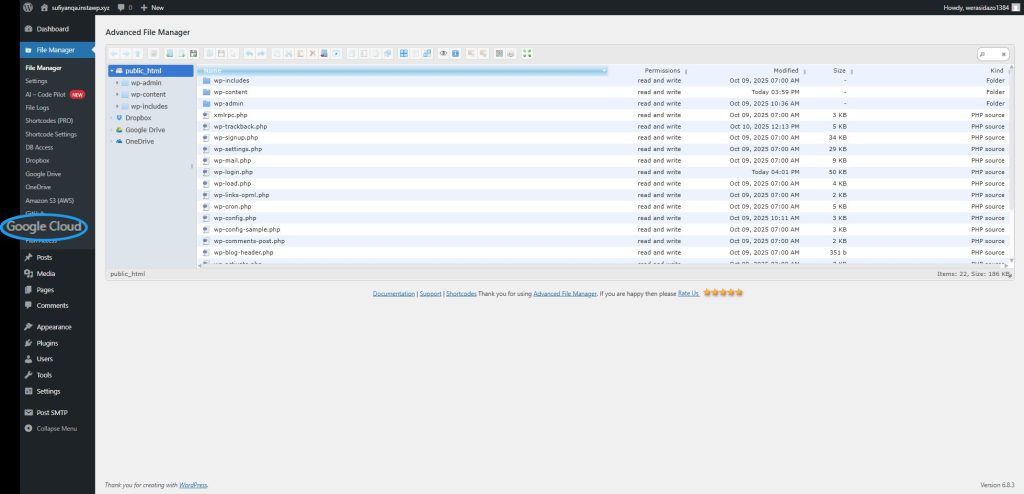
2. Configure Google Cloud Settings
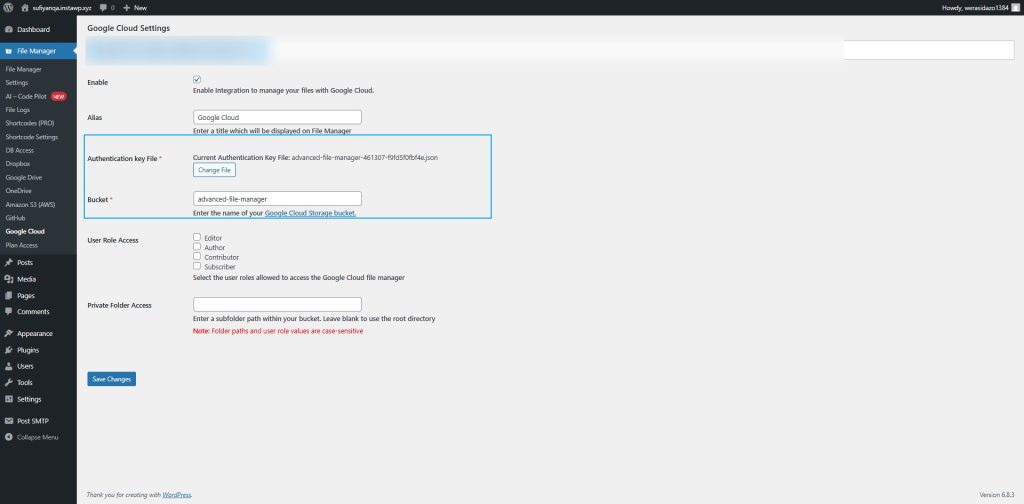
Below are the configuration fields available under Google Cloud Settings:
Enable
Enable integration to manage your files with Google Cloud.
Turn this option ON to activate the connection inside Advanced File Manager.
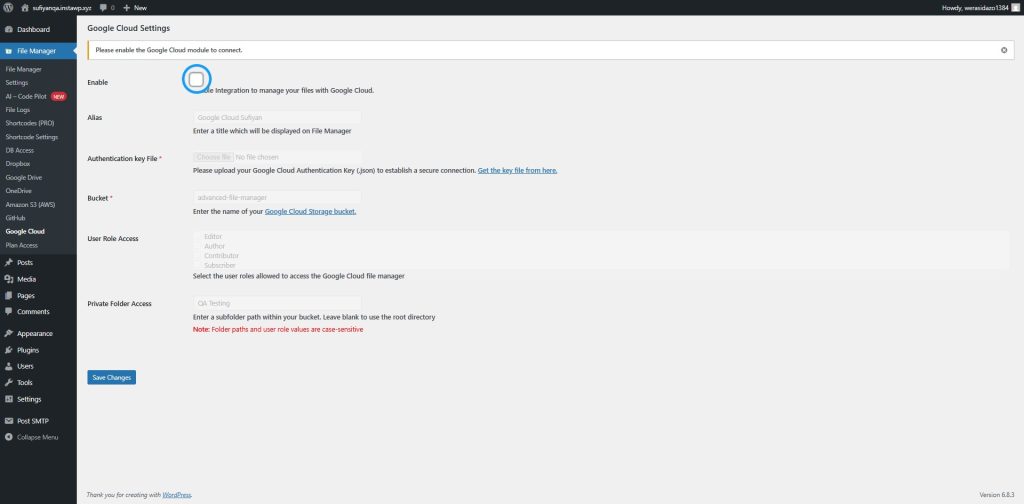
Note: Once you enable this option and click the Save Changes button, an “Install Google Cloud Library” button will appear. Click this button to install the required library for Google Cloud integration. The integration will not work until the library is successfully installed.
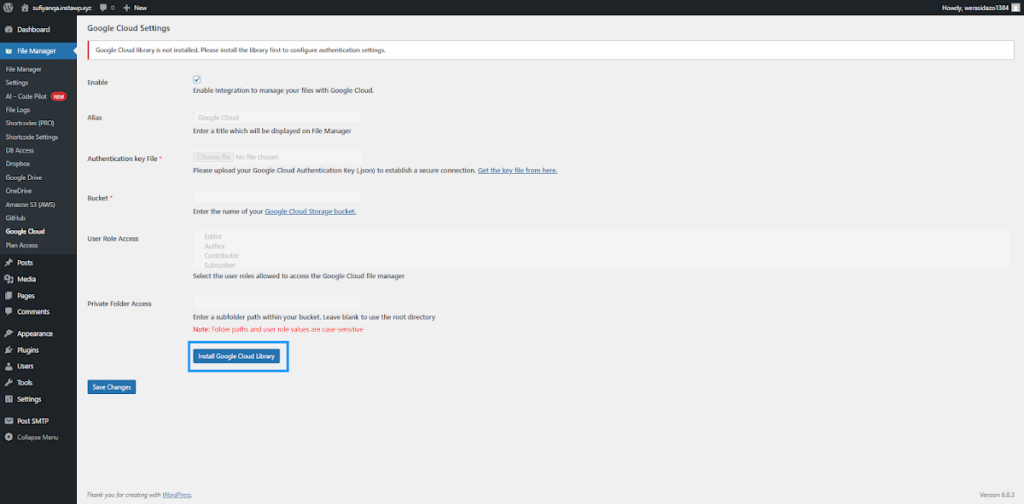
Alias
Enter a title that will be displayed inside the File Manager.
This name appears in the sidebar as the label for your Google Cloud integration.
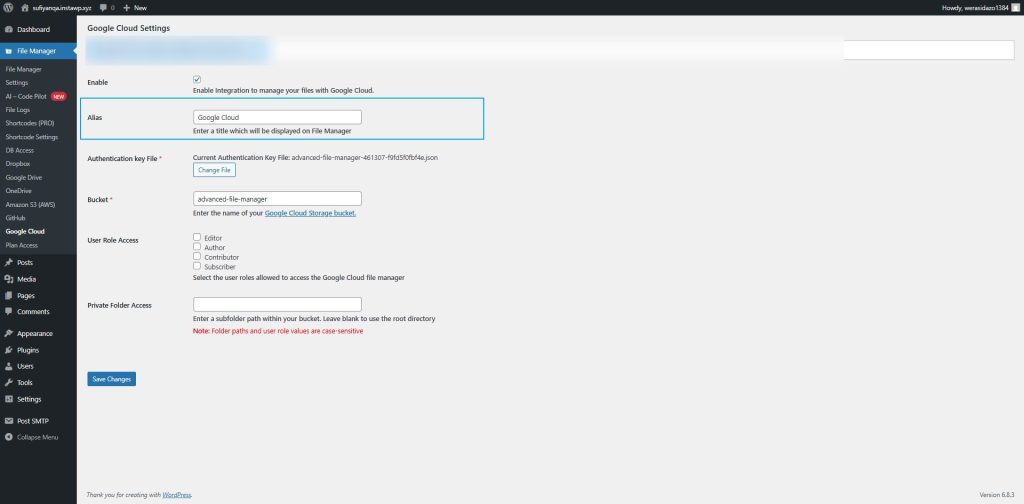
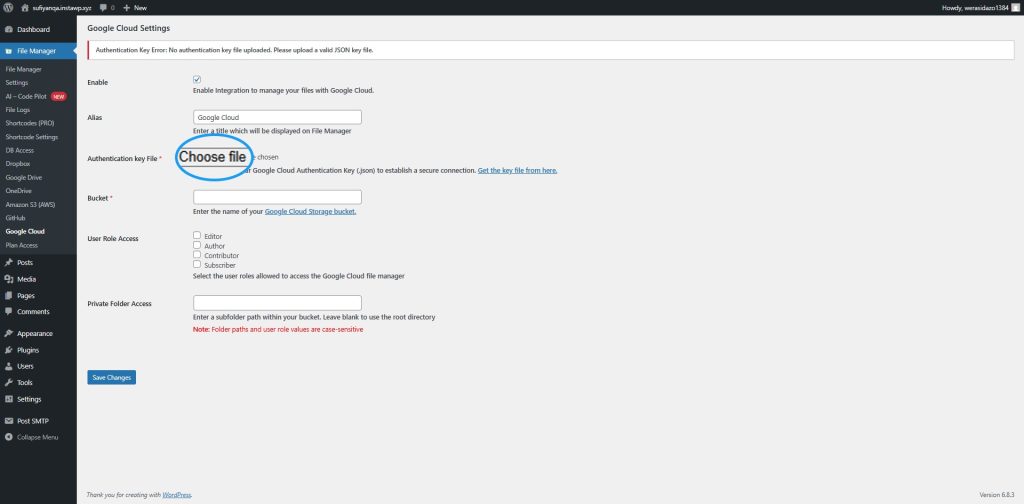
Authentication Key File*
Upload your Service Account Key File (JSON) obtained from your Google Cloud Console.
This file authorizes your WordPress website to access your Google Cloud Storage securely.
If you’ve already uploaded one, you can replace it anytime using the Change File option.
Bucket*
Enter the name of your Google Cloud Storage bucket you wish to connect to.
Once configured, the contents of this bucket will be accessible through Advanced File Manager.
How to Get Your Google Cloud Authentication File and Bucket Name
Follow the steps below to generate the required credentials from your Google Cloud Console:
- Sign in to Google Cloud Console
Visit https://console.cloud.google.com/ and sign in with your Google account.
From the top navigation, click the project dropdown. - Enable the Cloud Storage API
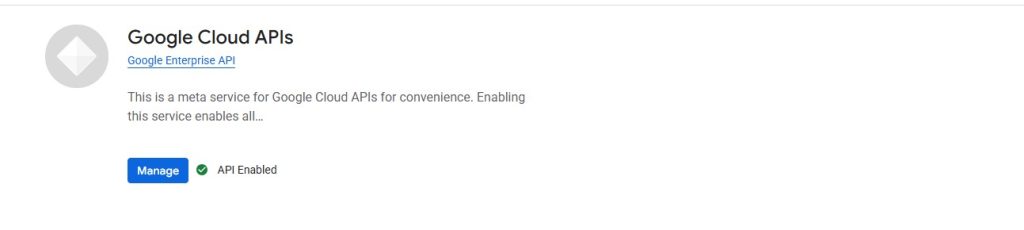
Go to APIs & Services → Library, search for Cloud Storage API, and click Enable.
3. Create a Service Account
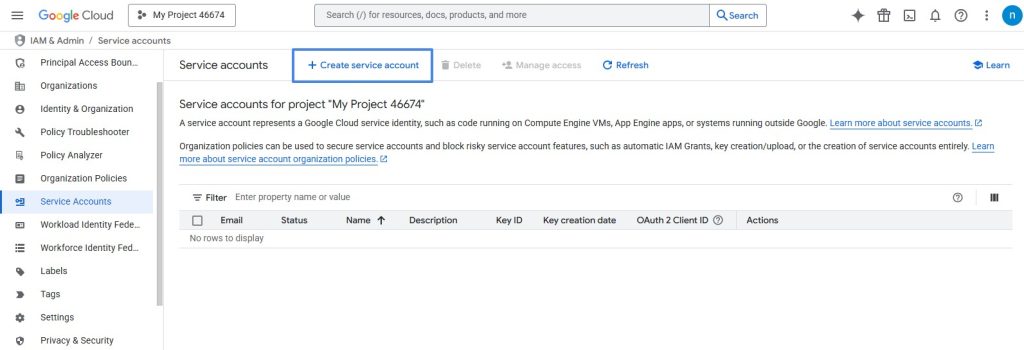
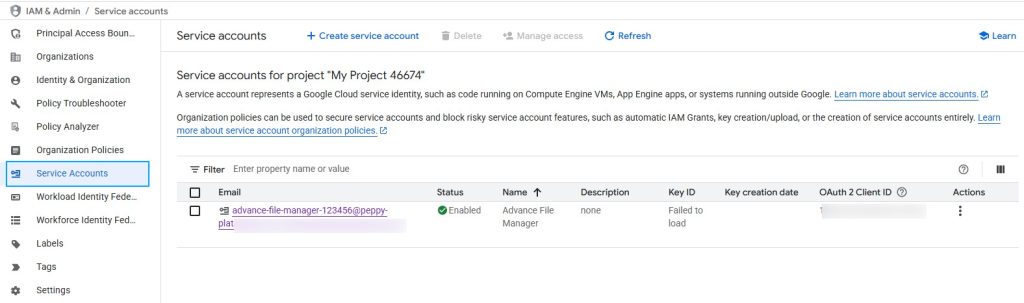
- Navigate to IAM & Admin → Service Accounts.
- Click Create Service Account.
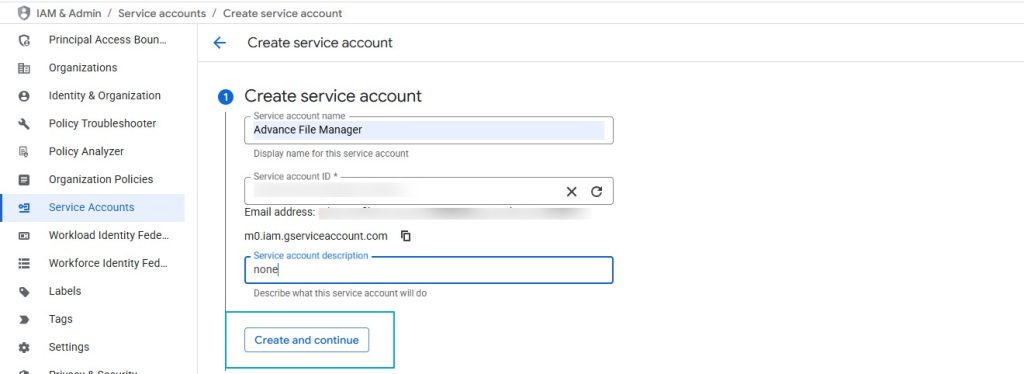
- Provide a name, and click Create and Continue.
- Assign the role Storage Admin, then click Done.
4. Generate the JSON Key File
- Open your created Service Account.
- Go to the Keys tab → click Add Key → Create New Key.
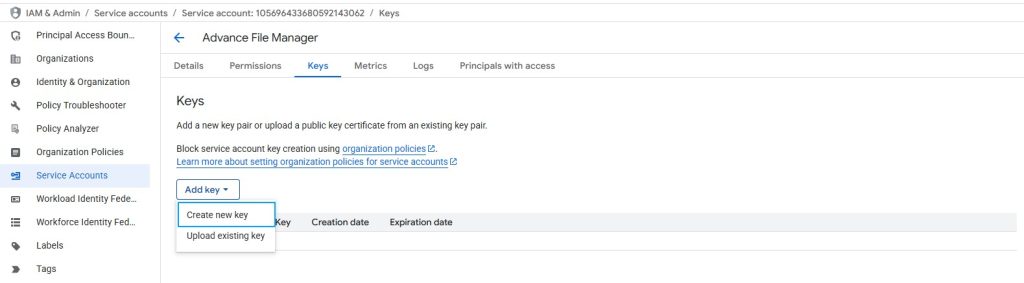
- Choose JSON and download the key file.
- Upload this JSON file to the Authentication Key File field in the Advanced File Manager.
5. Locate Your Bucket Name
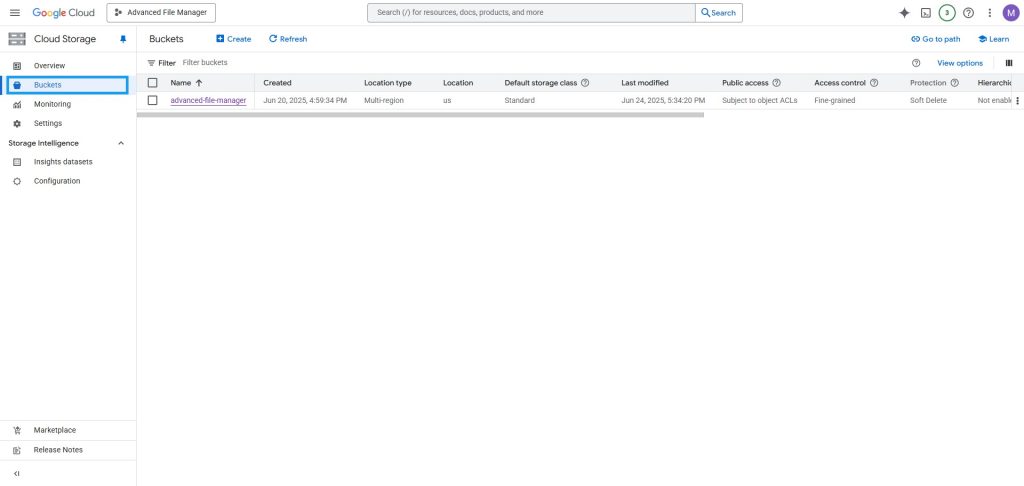
- In the left sidebar, navigate to Storage → Buckets.
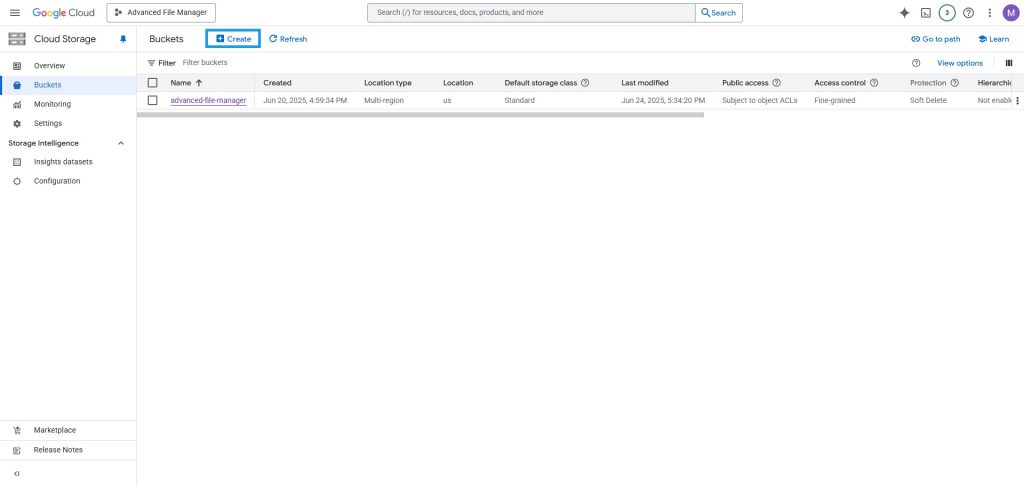
- Copy the exact bucket name you want to connect, and paste it into the Bucket field in Advanced File Manager.
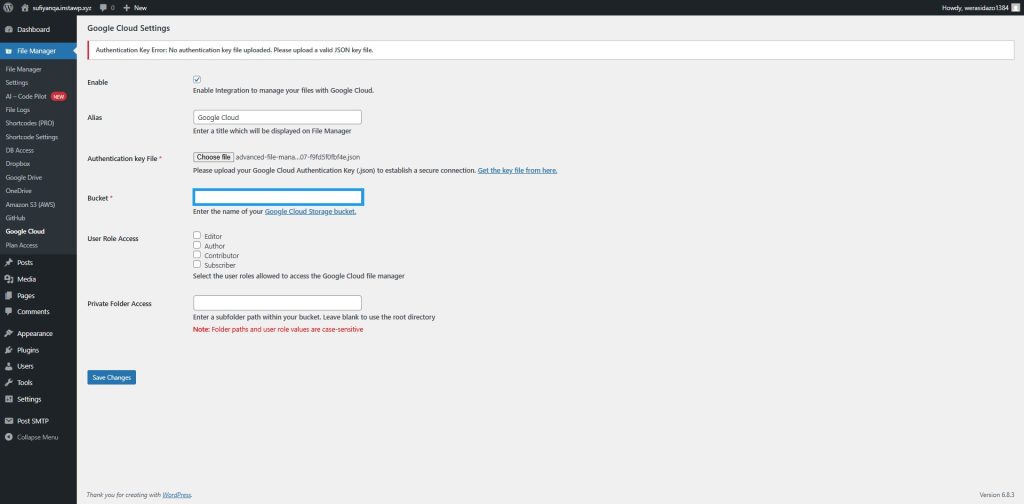
Once both fields are configured, click Save Changes to establish a secure connection between your WordPress and Google Cloud.
User Role Access
Select the user roles allowed to access the Google Cloud File Manager.
Only the selected roles (e.g., Editor, Author, Contributor, Subscriber) will be able to view and manage Google Cloud files inside File Manager.
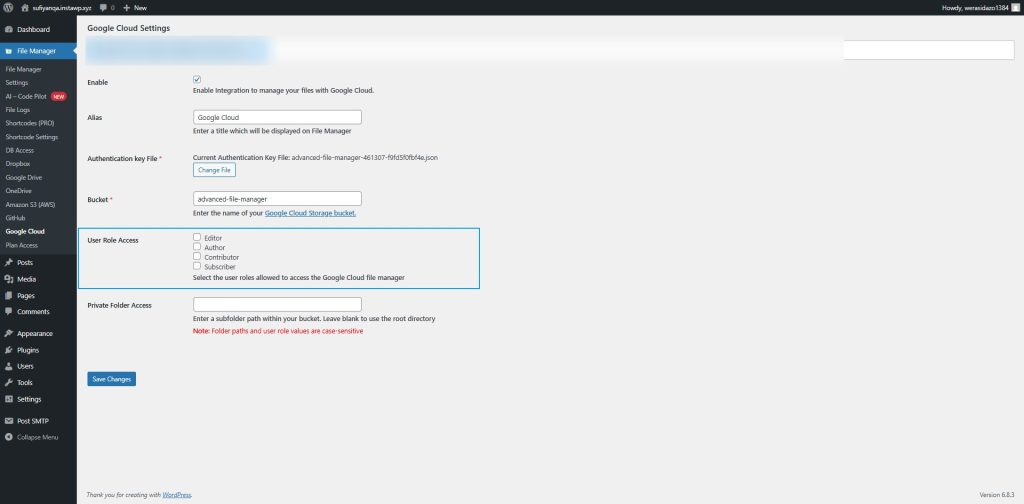
Private Folder Access
Enter a subfolder path within your bucket to restrict access to a specific directory.
Leave this field blank to use the root directory of your bucket.
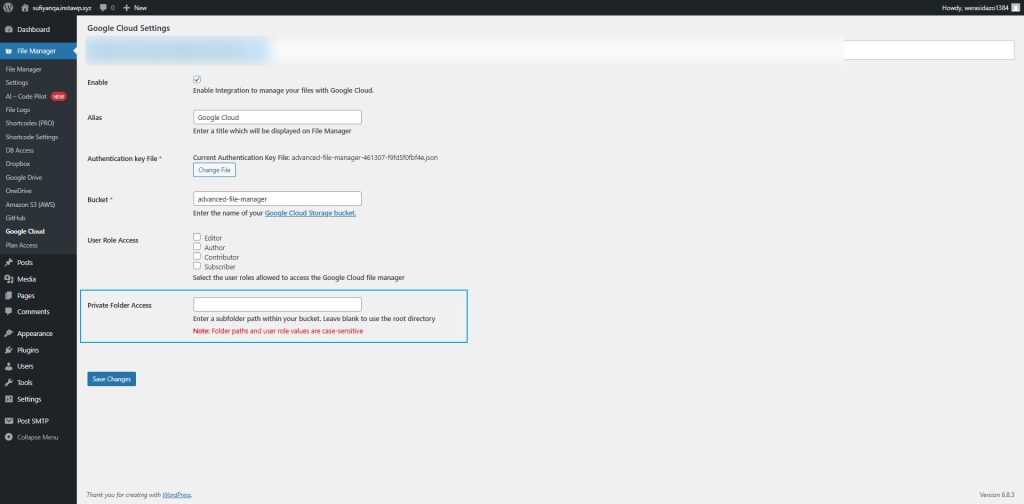
Note: Folder paths and user role values are case-sensitive.
3. Managing Files in Google Cloud
Once the setup is complete, you can access your Google Cloud bucket directly from the Advanced File Manager interface.
From here, you can:
- Upload and download files
- Create, rename, move, and delete folders
- Manage your bucket contents just like your local file system
All operations are instantly synced with your connected Google Cloud Storage.
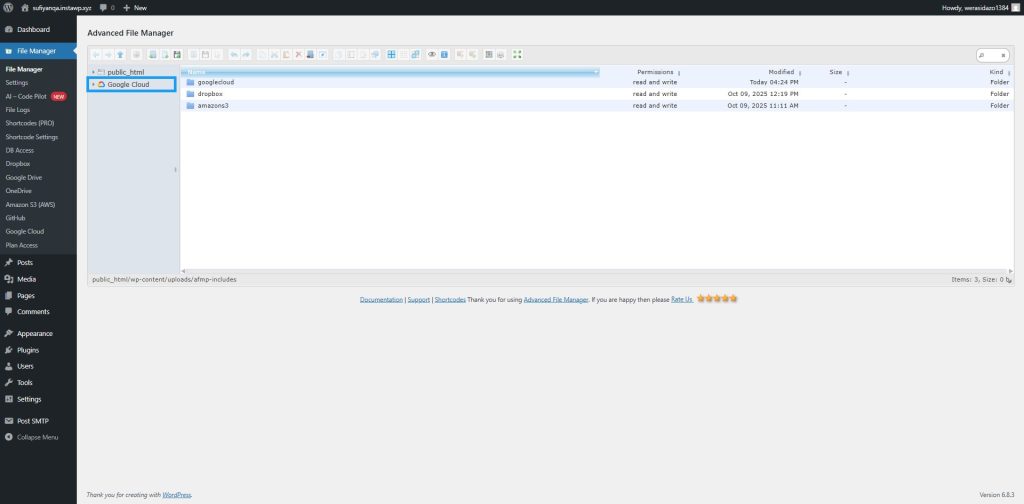
Your Google Cloud Storage is now successfully integrated with Advanced File Manager Pro.
Efficiently and securely manage, organize, and control your files directly from your WordPress dashboard. If you need assistance, our Support Team is always ready to help you configure or troubleshoot your integration.
