
Managing media files in WordPress often feels restrictive. The built-in library works well for smaller websites, but as the site grows, uploading and organizing files can become a time-consuming task.
For that reason, many site owners rely on Google Drive to store and manage their files. It is widely used for images, documents, and even videos.
The challenge begins when these two platforms don’t communicate directly. To add a file stored in Google Drive to WordPress, you typically download it first, then upload it again through the WordPress dashboard. Repeating this process quickly becomes inefficient.
Integrating Google Drive with the WordPress media library helps solve this problem.
This guide explains how to set up the connection between Google Drive and your WordPress media library. You’ll learn what tools are required, how to configure them, and what to expect during the process.
Let’s begin.
What is WordPress Media Library?
The WordPress media library is the central place where all your uploaded files live. Every image, video, audio clip, or document you add through the dashboard is stored here.
It provides quick access to files whenever you need to create or edit content. Whether you’re designing a page or updating a product listing, the media library makes it easy to insert the files you need.
Beyond storage, it also provides basic management tools. You can organize uploads, edit image details, or search for older files without leaving the dashboard.
However, the library only covers files that are uploaded directly to your site. External storage, such as Google Drive, doesn’t show up here by default. That’s why many site owners end up juggling between multiple platforms.
The following section will explain how to connect Google Drive directly to the WordPress media library. Once integrated, you’ll be able to manage and use those files without leaving your WordPress admin dashboard.
Connect Google Drive to WordPress Media Library in 3 Steps
By default, WordPress does not include any feature that allows connecting external storage services, such as Google Drive, to the media library. The platform only recognizes files that are uploaded directly to the site.
To bridge this gap, we’ll be using a plugin. Specifically, this guide relies on Advanced File Manager, a powerful solution designed to extend file handling within WordPress. It is one of the most reliable and feature-rich file manager plugins available in the WordPress directory.
For this tutorial, we’ll focus on its Integration feature, which enables connecting Google Drive with the WordPress media library. This capability is part of the premium version of the plugin, meaning you’ll need to upgrade the plugin to access it.
The premium version doesn’t stop there. It unlocks numerous advanced features that go beyond integration, all of which we’ll explore later in this article. For now, let’s move on to the steps required to set up the connection.
Step 1. Install and Activate Advanced File Manager Pro
- Navigate to your admin dashboard.
- Plugin ⇒ Add Plugin
- Using the search plugin bar, search for Advanced File Manager.
- Install and activate the plugin.
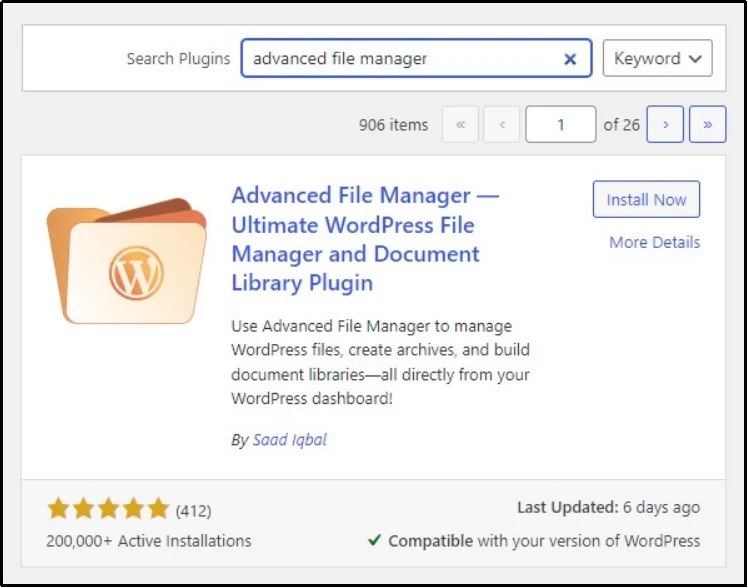
As discussed, the integration is a premium-only feature; therefore, we must also upload the premium version.
- Navigate to the plugin’s website and purchase a plan of your choice.
- Once the purchase is complete, you will get a welcome email along with a ZIP file of the plugin and a unique license key.
- Download the ZIP file on your computer (do not extract it) and copy the license key to your clipboard.
- Return to your admin dashboard and navigate to Plugin ⇒ Add Plugin.
- Click the “Upload Plugin” button at the top of WordPress.
- Click “Choose File” and select the ZIP file that you downloaded on your device.
- Click Install Now.
- Activate it with your unique license key, and you are free to enjoy the premium perks that we will discuss later.
Step 2. Connect to Google Drive
Now that you have Advanced File Manager Pro up and ready, let’s begin the integration.
- Navigate to File Manager ⇒ Google Drive ⇒ Check the Enable checkbox.
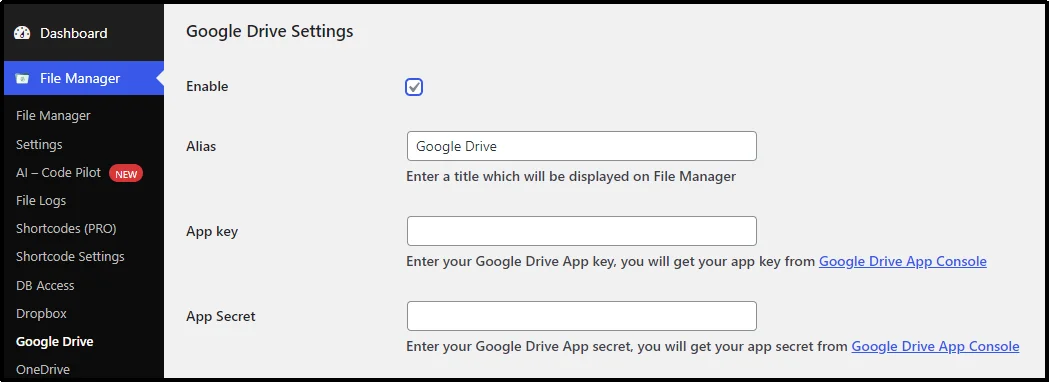
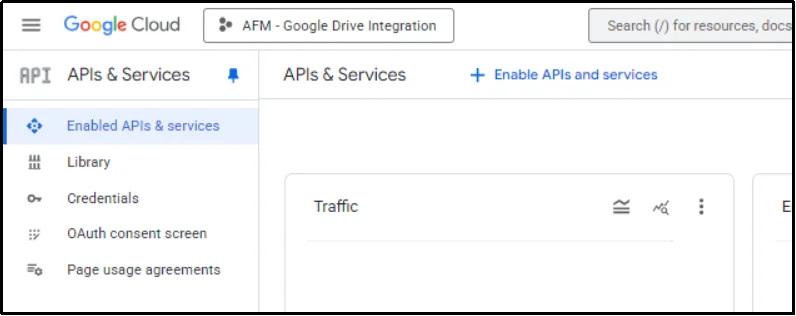
- Navigate to Google Cloud and create a New Project if you don’t already have one.
- Go to API & Services ⇒ Enabled API Services ⇒ Click + Enable APIs and services.
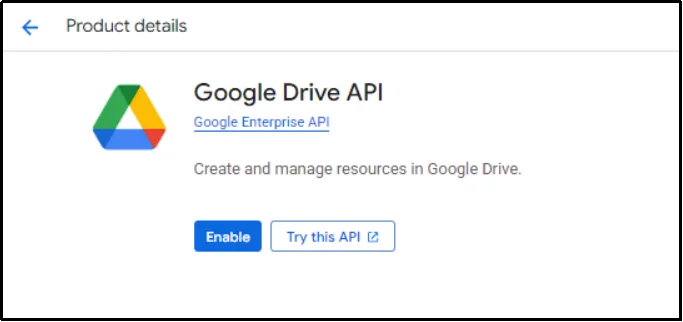
- Search for Google Drive API in the API library and enable it.
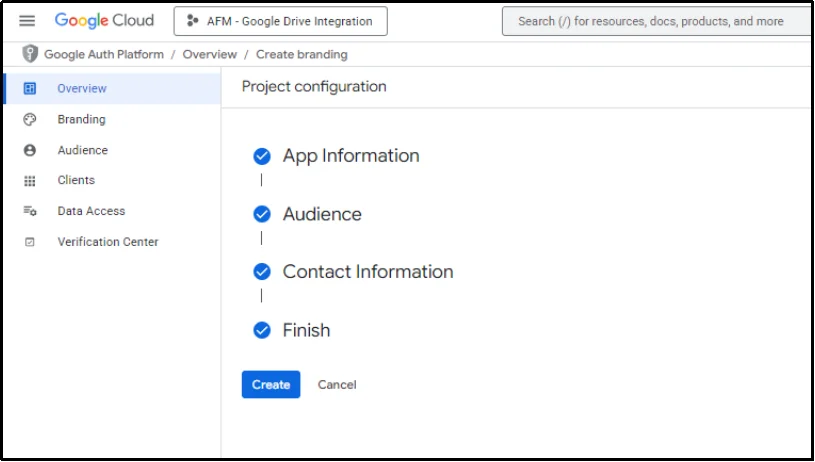
- Navigate to APIs & Services ⇒ OAuth consent screen ⇒ Click Get Started.
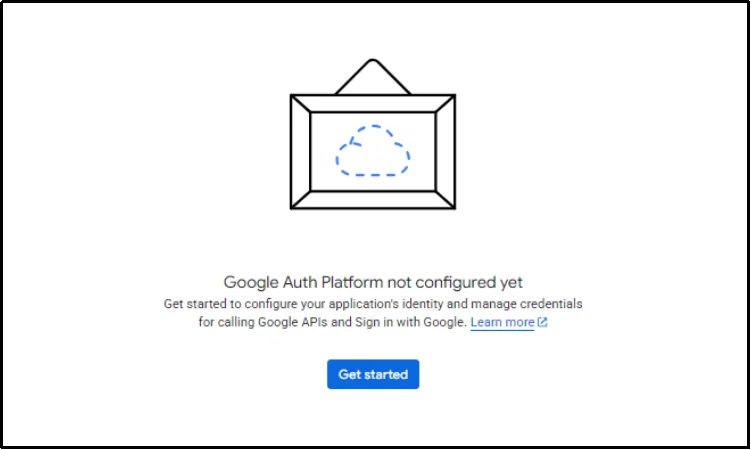
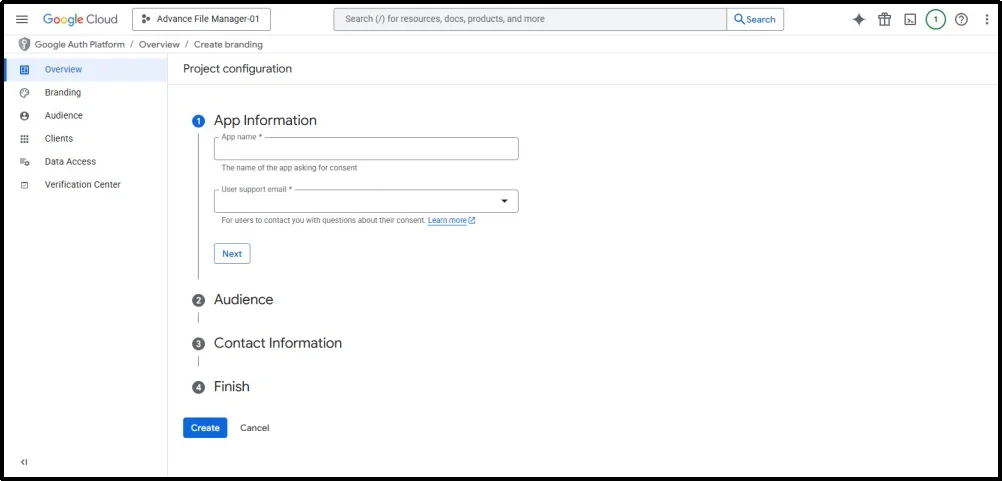
- Start creating a new app by filling out the necessary information, including the App Name and User support email.
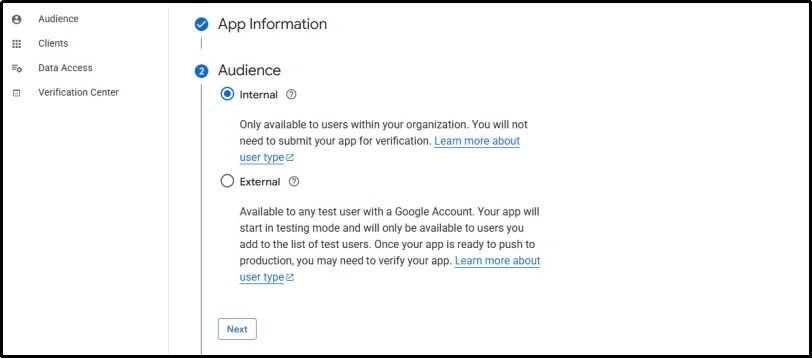
- Next, select Internal as the audience. Otherwise, the integration will not work.
- Finally, add the contact information.
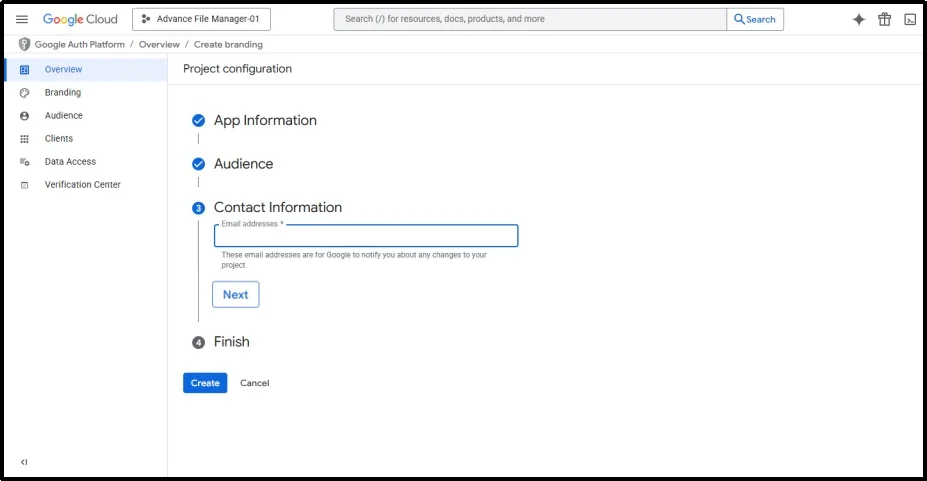
- Click Create.
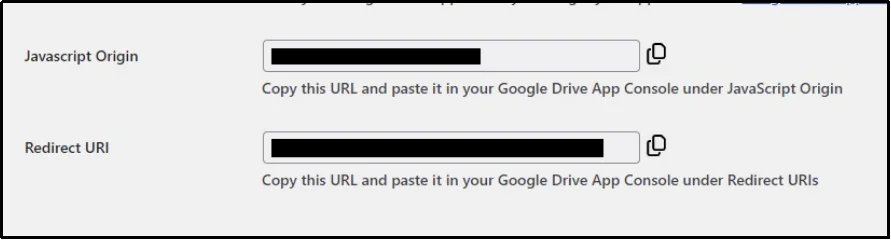
- Create a new OAuth client by completing the required information. You can find the JavaScript Origin and the Redirect URI from the Advanced File Manager.
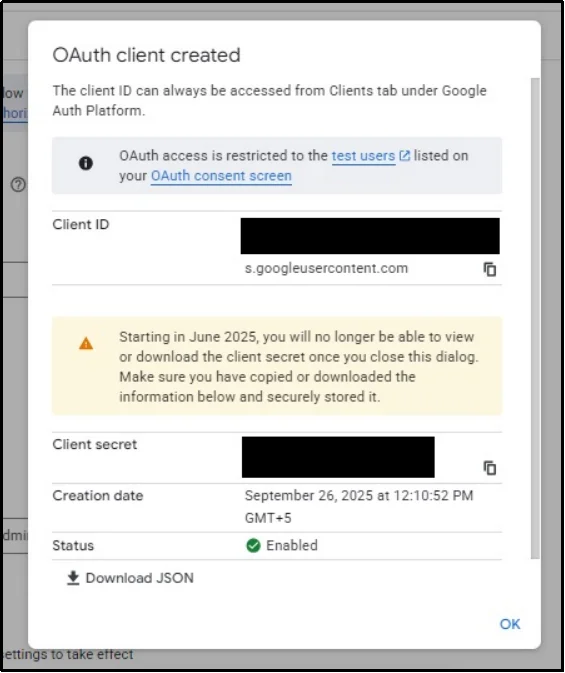
- You will see the unique Client ID and client secret. Copy these keys to the clipboard.
- Return to the admin dashboard and fill out the necessary details. Client ID goes in the App Key input box, and the Secret client goes into the App Secret input box.
- Click Connect Google Drive, and you will be redirected to the Google verification page.
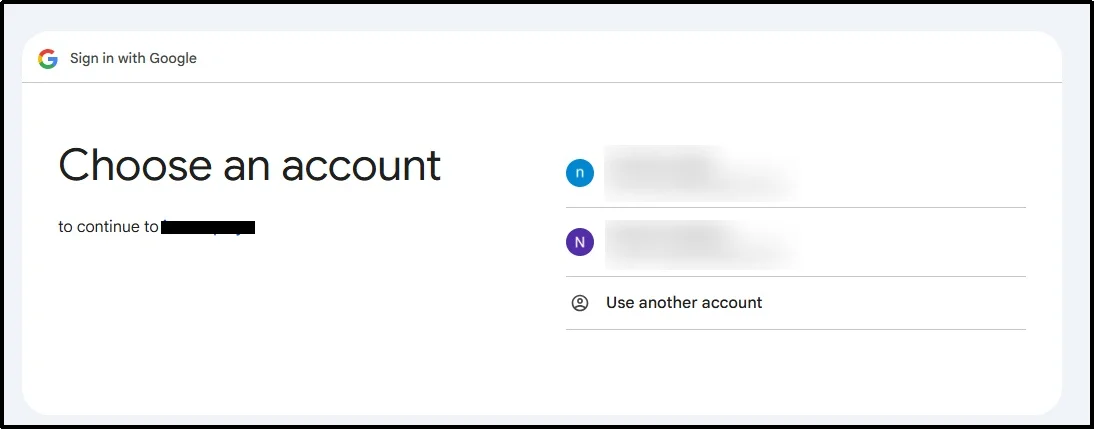
- Select the account, and there you go!
Return to your admin dashboard, and you should be able to see the dedicated Google Drive folder.
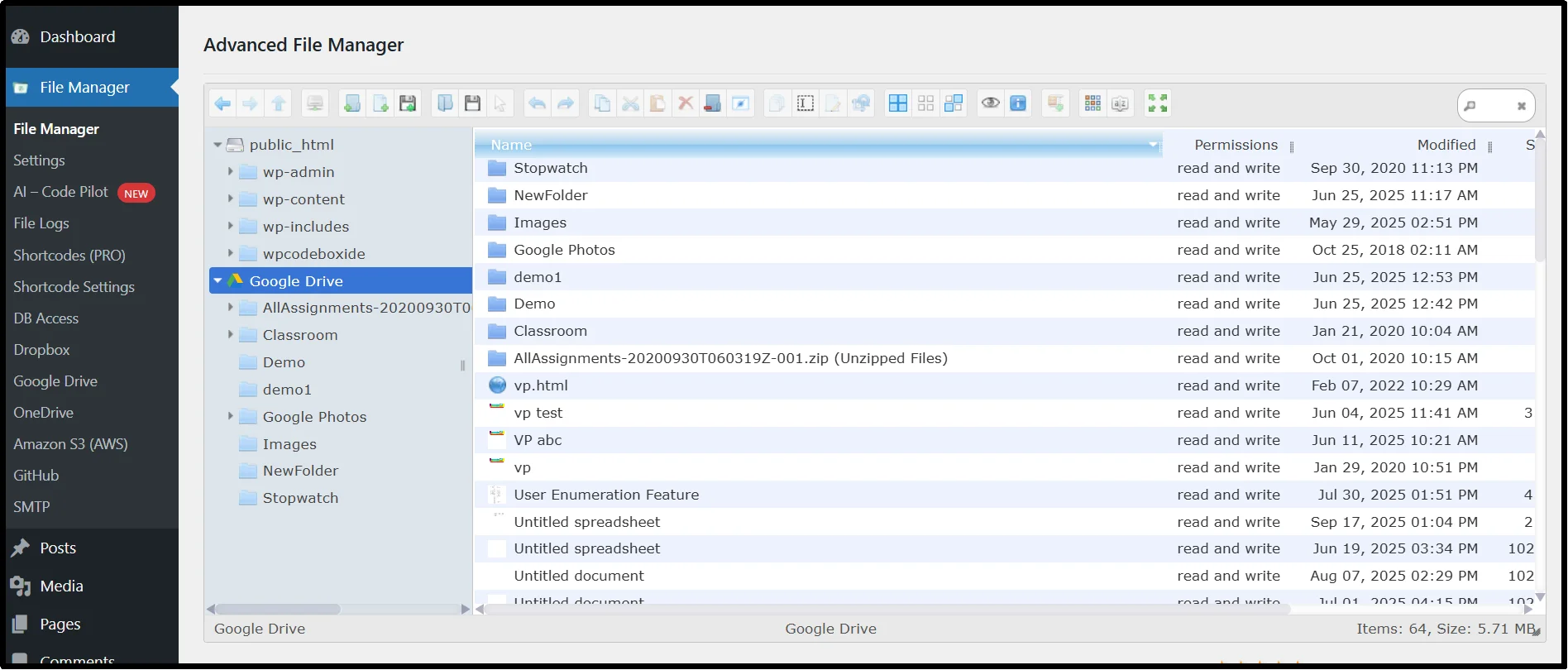
Open it up and use the Upload button to upload files, and similarly, all the features on the feature-rich toolbar will work just fine with the drive as well. Upload any file to Google Drive, and you should be able to view it here, eliminating the need to switch between apps.
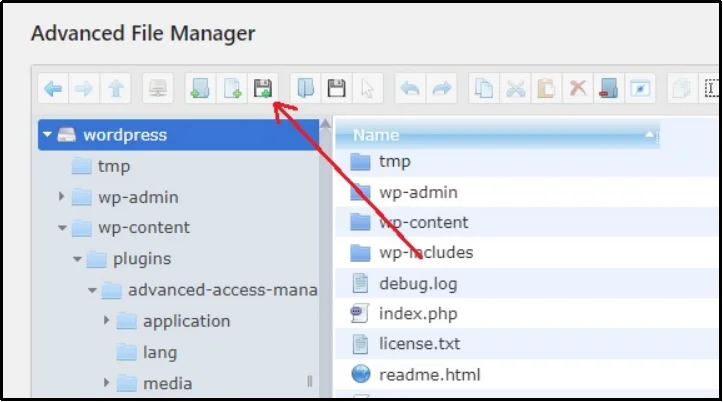
Now that the Media Library is connected to Google Drive, all we have to do is sync them together.
Step 3. Sync Google Drive and WordPress Media Library
For the final step, we need to sync Google Drive to the WordPress media library so that everything we upload to the Google Drive can appear in the media library.
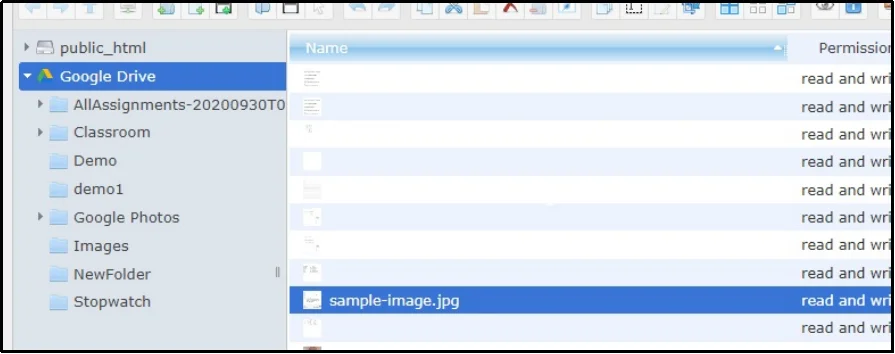
For that, let’s upload an image to Google Drive using the File Manager.
But as you can see, the Media Library is empty.
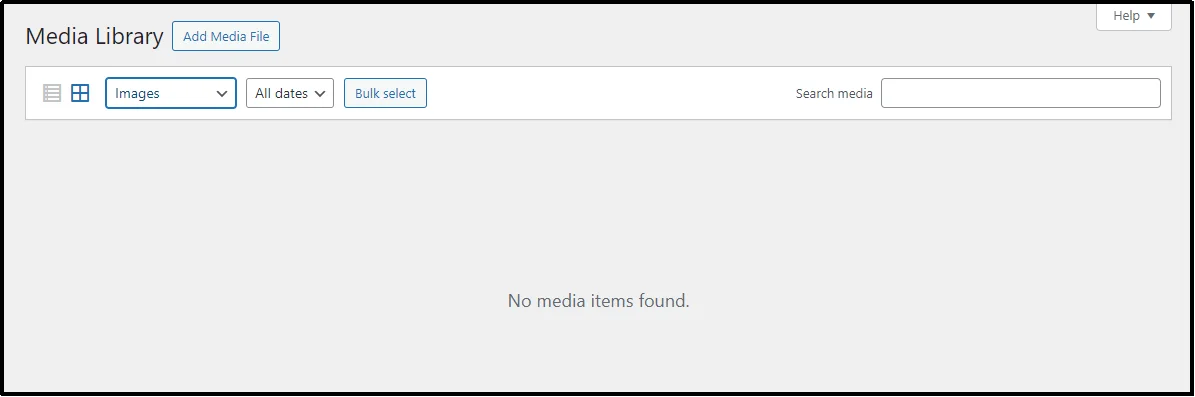
This is because the Media Library only detects files located within the /wp-content/uploads/ directory.
Here’s how to fix it:
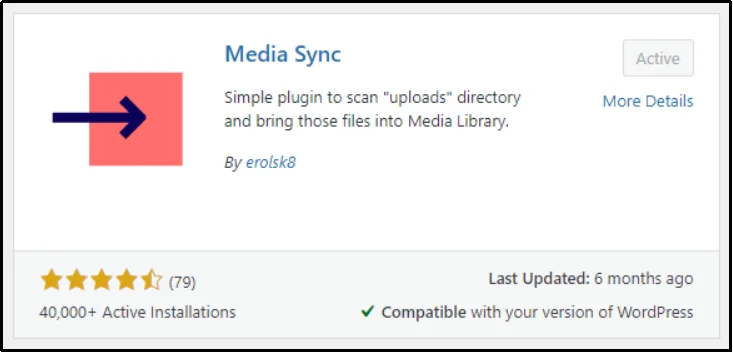
- Install and activate the Media Sync WordPress plugin just like we did with the Advanced File Manager in the first step.
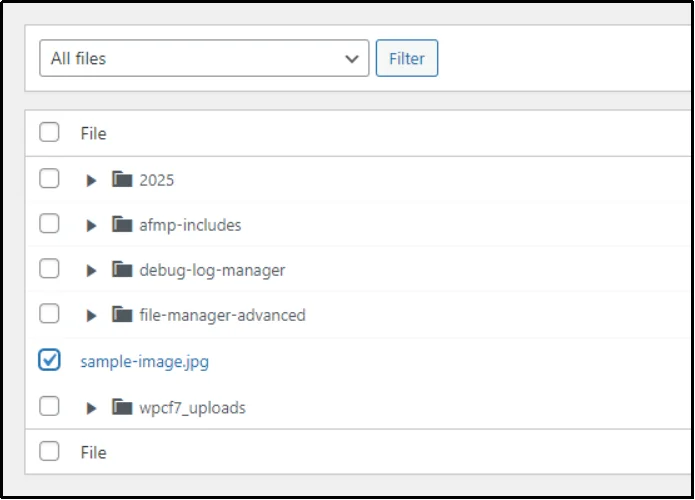
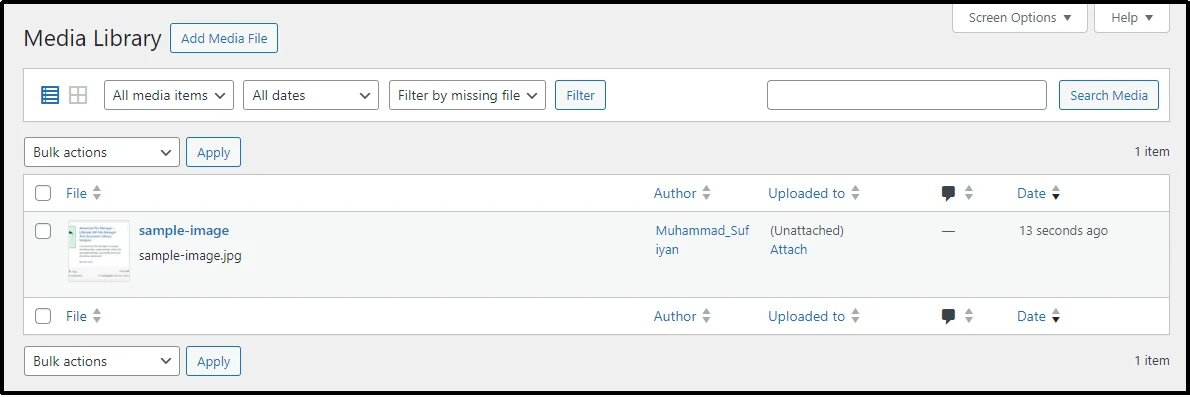
- Now, move the image you want to use in the media library and place it in the/wp-content/uploads/directory. In this case, we just uploaded the ‘sample-image.jpg’ file, and that’s what we are moving to the aforementioned folder.
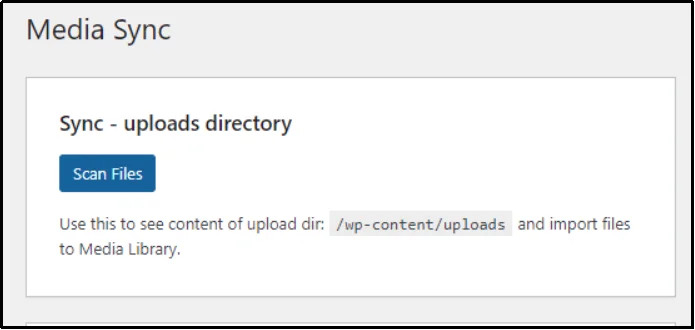
- After you are done, navigate to Media ⇒ Media Sync.
- Click Scan Files
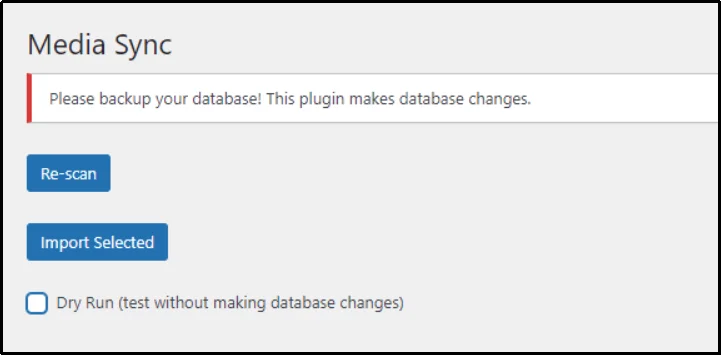
- Uncheck the “Dry Run (test without making database changes)” checkbox.
- Scroll down and check the files that you want to see in the Media Library.
- Click “Import Selected.”
- There we go! We have the file in the media library.
That’s how you can connect Google Drive to your WordPress media library and sync changes.
Advanced File Manager Pro: What’s More?
The ability to connect to Google Drive is a huge benefit, but the premium version of Advanced File Manager offers much more. It transforms your WordPress dashboard into a complete file management system. You no longer need to rely on complicated tools like FTP or cPanel for your everyday tasks. This plugin empowers you to manage your entire website with a user-friendly interface.
Here are some of the advanced features that make this plugin a complete file management solution:
- Complete File Operations: Perform every file task you need—copy, move, rename, archive, extract, and more—in seconds. The plugin supports multi-file selection for bulk actions and can handle large files and folder uploads.
- Role-Based & User-Specific Access: Restrict who can see, edit, or delete specific files based on their user role. You can also set up private folders for individual users or clients, keeping sensitive information protected.
- Stealth Mode for File Security: Hide the actual file paths to prevent unauthorized users from tampering with or accessing sensitive file locations. This adds an important layer of security to your site’s file structure.
- Operations Control for Users: Define exactly which file actions users can take, such as limiting their ability to edit, delete, or upload files. This enforces your specific security policies.
- Integrations: Connect to services like Dropbox, OneDrive, Amazon S3, GitHub, or Slack.
- AI Integration (Code Pilot): Get smarter coding help and support directly inside the built-in code editor. This new feature helps speed up development and debugging efforts.
- Frontend File Management: Enable logged-in users or site visitors to upload and manage files without needing to access the WordPress admin dashboard. This feature is perfect for client portals and membership sites.
- Media & Document Previews: Instantly view common file types directly in the file manager. You do not need to download the file just to see what it is.
- Debug Code-in Editor: Debug code and find problems to prevent a fatal error.
With over 200,000 users and a high rating, Advanced File Manager is a trusted solution for WordPress owners. The Pro features are designed to save you time, increase security, and simplify your entire file management.
Want a powerful, all-in-one tool for WordPress files and documents? Advanced File Manager is just what you need!
You can see the full, comprehensive list of features on the official Advanced File Manager features page.
Final Words
Managing files efficiently is crucial for maintaining a well-organized WordPress site. The built-in media library provides the basics, but it doesn’t meet the needs of sites that rely on external storage, such as Google Drive.
Thus, Advanced File Manager Pro is vital. Connecting Google Drive directly to the WordPress dashboard removes the extra steps of downloading and re-uploading files. At the same time, it offers a wide range of additional features that extend beyond integration, providing you with full control over how files are stored, shared, and secured.
If you want an improved workflow, tighter security, and the convenience of managing everything without leaving WordPress, this plugin is the perfect solution. With its premium version, you unlock an advanced file management system built for efficiency.
Frequently Asked Questions
How to integrate Google Drive with WordPress?
WordPress doesn’t offer a built-in option for Google Drive integration. To do this, you need a plugin such as Advanced File Manager, which includes an Integration feature. After setting up API credentials in Google Cloud and adding them to the plugin, your Drive files appear directly inside the WordPress media library.
What is the best Google Drive plugin for WordPress?
Several plugins let you connect Google Drive with WordPress, but Advanced File Manager stands out as the most comprehensive option. It not only integrates Drive with the media library but also adds advanced file management features, such as private folders, security controls, and multiple other third-party integrations, which can be extremely helpful for businesses of all sizes.
Does connecting Google Drive to WordPress affect my website’s speed?
No, integrating Google Drive with WordPress does not slow down your site. The files are stored on Google’s servers and only load when needed. In fact, since large files don’t sit directly on your hosting, it may reduce the load on your server and keep your website running smoothly.

