
Managing WordPress files shouldn’t mean jumping between settings, searching directories, or switching platforms to access cloud storage. You need a workspace that keeps everything within reach.
That’s why we’re introducing Advanced File Manager Free v6.0.0 and Pro v4.0.0, with four major updates designed to simplify file management and give you more control.
The latest release brings a centralized dashboard, a redesigned user interface, role-based file access for your website’s frontend, and Wasabi cloud storage integration.
What’s New in Advanced File Manager v6.0.0 and v4.0.0?
The latest release introduces four updates to simplify file management in WordPress.
- Centralized File Management Dashboard: Monitor storage usage, review plugin settings, and access frequently used tools from one place.
- Redesigned User Interface: Navigate the plugin through horizontal navigation and a reorganized Settings area.
- Role-Based File Access for Frontend: Assign specific folder paths to WordPress user roles and configure individual user folders.
- Wasabi Hot Cloud Storage Integration: Connect Wasabi and manage cloud-stored files directly through the WordPress File Manager.
Here’s what each update offers.
1) Manage Everything From the New File Management Dashboard
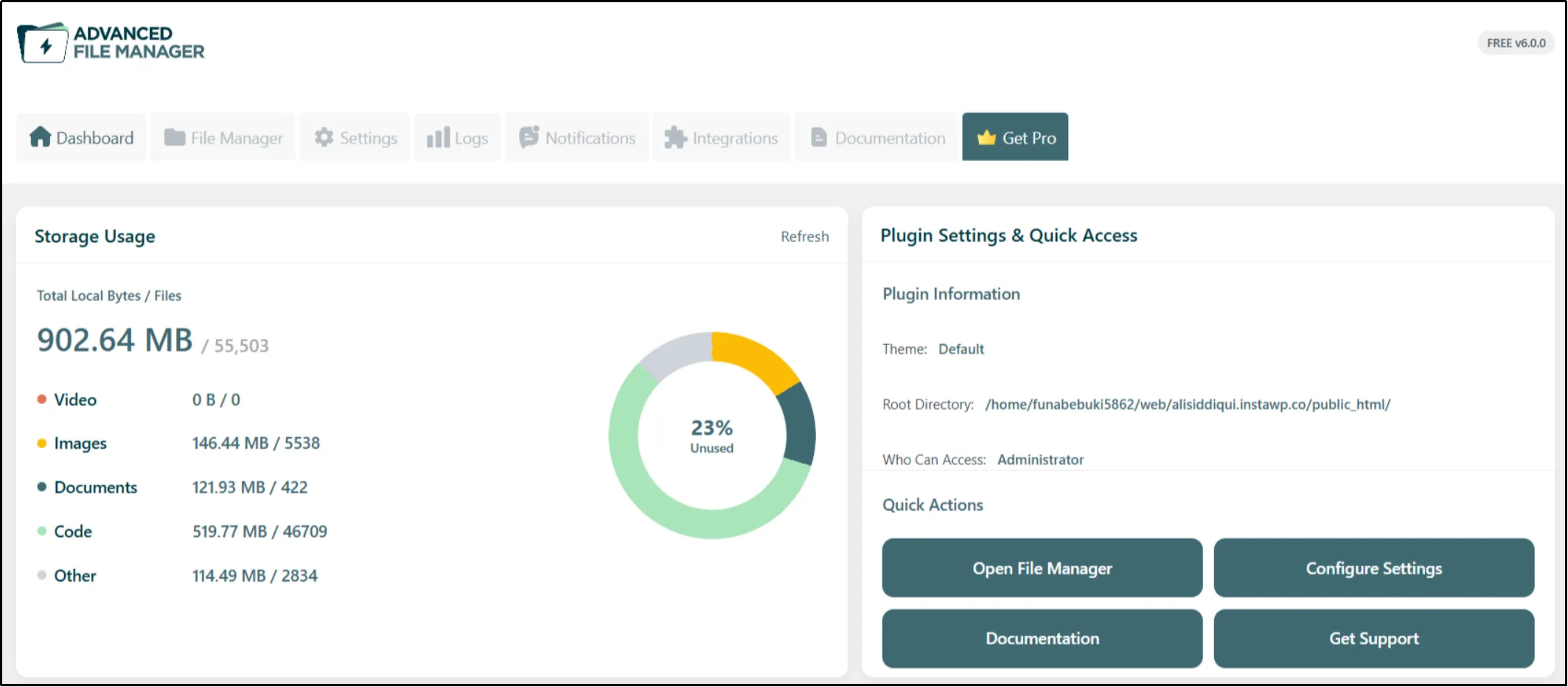
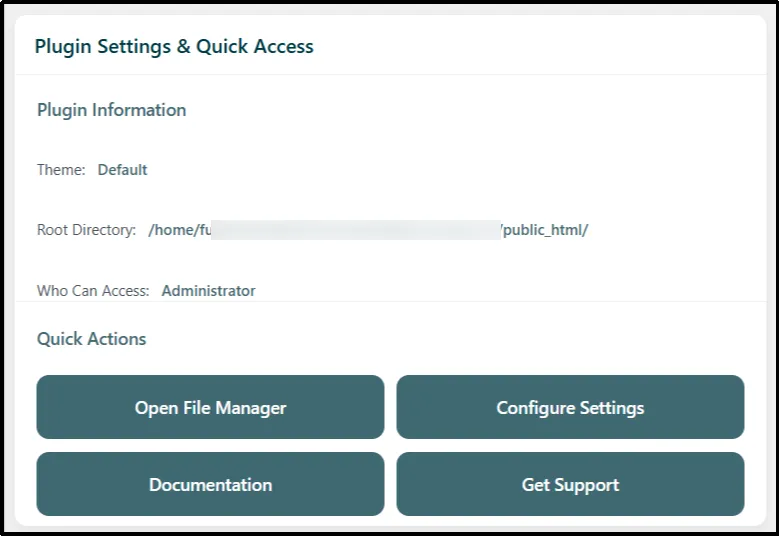
The new Advanced File Manager dashboard gives you a centralized overview of your file management environment. Instead of navigating through multiple screens to check your configuration or find common actions, you can access key information directly from the dashboard.
To open it, navigate to WordPress Dashboard → File Manager. The Dashboard tab opens automatically when you launch Advanced File Manager.
Monitor Storage Usage
The Storage Usage section helps you understand how your server storage is being used. It shows total storage used, the number of files, and a breakdown by category.
You can review categories such as:
- Videos
- Images
- Documents
- Code
- Other
A visual chart makes it easier to identify which file types occupy the most space. The section also displays your website’s available disk capacity, helping you monitor storage consumption.
Click Refresh to reload the displayed data when you need an updated overview.
Access Plugin Settings and Quick Actions
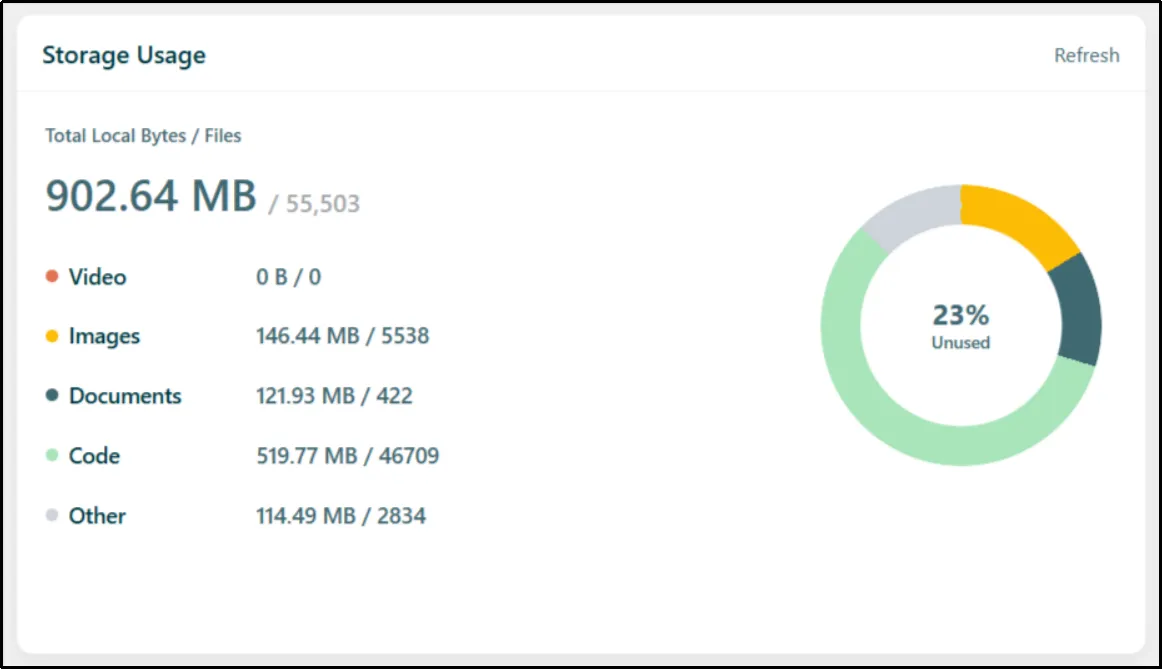
The dashboard also lets you quickly review your current plugin configuration.
The Plugin Information section displays your selected theme, root directory, and the WordPress user roles permitted to access the File Manager.
You can also use Quick Actions to open the main File Manager interface, configure plugin settings, read the documentation, or access support resources.
These shortcuts make routine tasks easier to access without navigating through the plugin’s menus.
Review Recent Activity Logs (Pro)
Advanced File Manager Pro adds a Recent Activity Logs widget to the dashboard. It gives you a quick overview of file-related actions performed through the plugin.
Depending on the activity, the log can show the user who performed the action, the date and time, the event type, the affected file path, the activity category, and the associated IP address.
You can review recent entries directly from the dashboard or click View All Logs to access the complete activity history.

Check Cloud Integration Status (Pro)
The Integrations section gives Pro users a centralized view of supported cloud storage services and external integrations.
Each integration card displays the service name and its connection status, such as Connected or Disconnected. You can use this view to check your connections and click Manage Settings to configure available integrations.
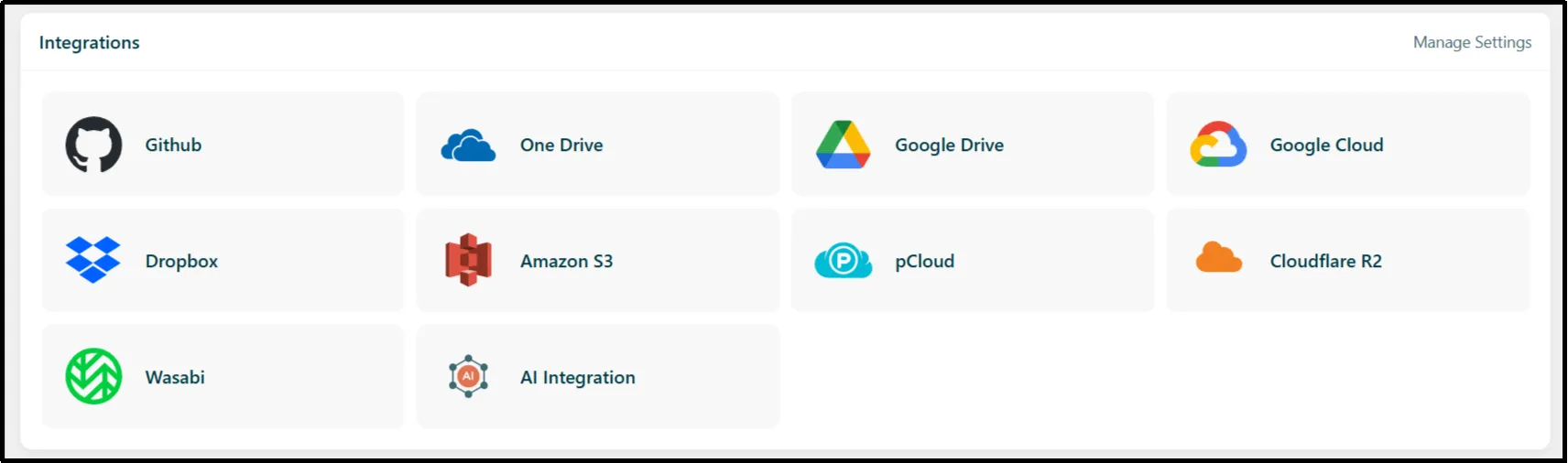
Supported integrations include Google Drive, OneDrive, Dropbox, GitHub, Amazon S3, pCloud, and supported AI services. Explore our full list of integrations to see all available connections.
2) Navigate Faster With the Redesigned User Interface
A good file manager should help you find what you need without making you work through unnecessary menus.
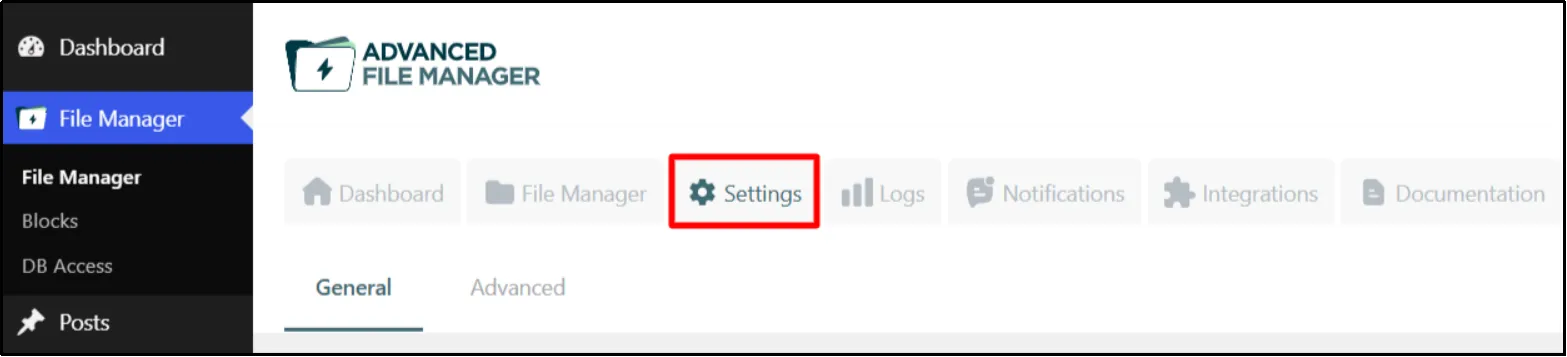
The latest release introduces a refreshed interface with horizontal navigation. This layout makes the plugin’s main sections easier to locate and gives you a more organized way to move between its features.

We’ve also reorganized the Settings area into two sub-tabs: General and Advanced Settings.
The General Settings tab keeps your core File Manager configuration in one place. The Advanced Settings tab lets you customize File Manager and Code Editor themes and enable debugging.
But the goal isn’t just a fresh appearance. It’s a simpler workflow that lets you spend less time navigating and more time managing your files.
3) Control Frontend File Access With User Role Settings (Pro)
Not every user needs access to the same files. For websites that let users browse or manage files through a frontend file manager block, assigning folder access by role helps organize permissions for different user groups.
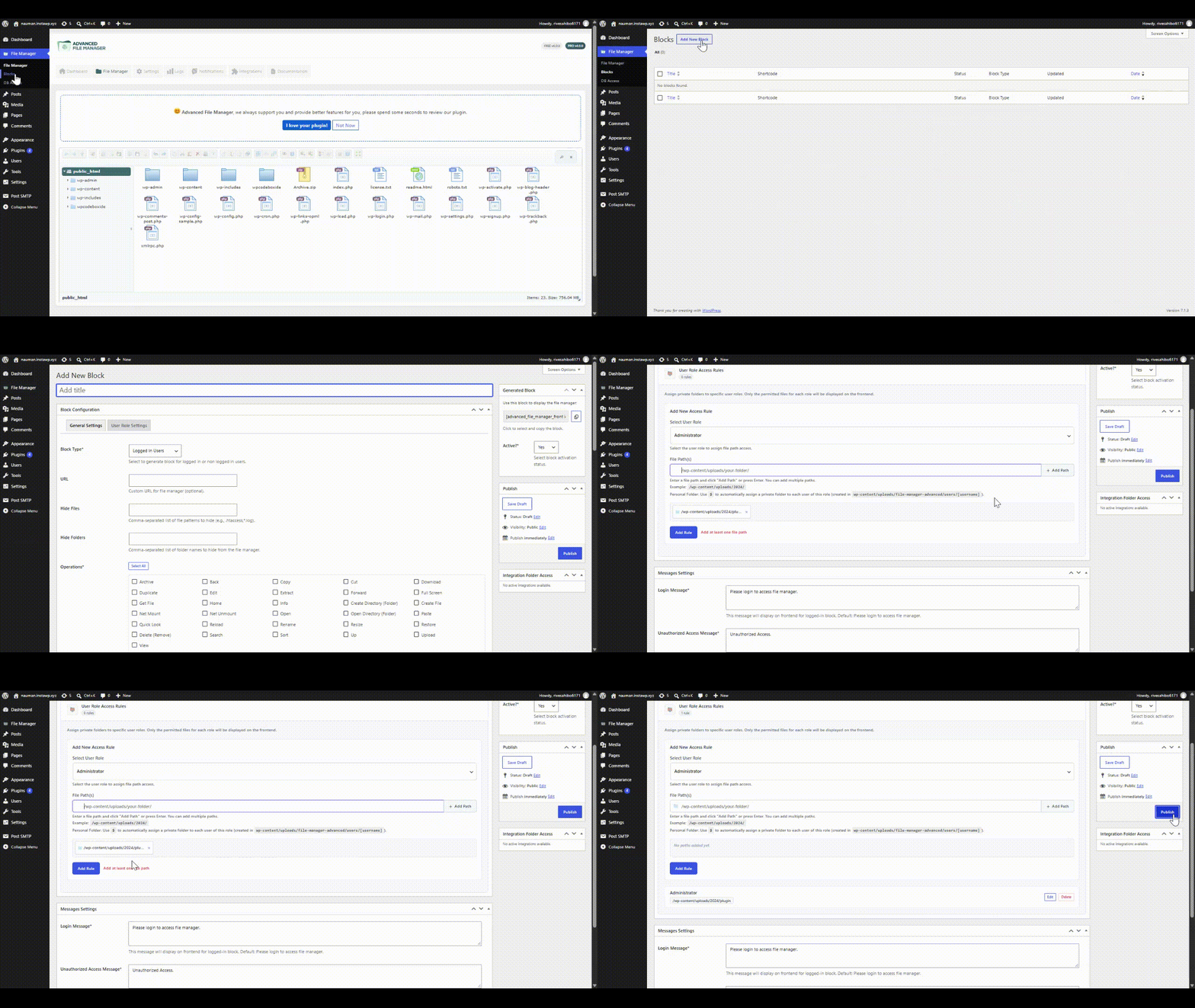
Advanced File Manager adds User Role Settings in Block Configuration, giving administrators more control over frontend file access.
- Go to File Manager → Blocks.
- Click on Add New Block.
- Under the General Settings tab, enter a suitable title, configure general settings (such as custom URL, hide files or folders, allowed operations, customization).
- Under the User Role Settings tab, assign private folders to specific user roles. Only the permitted files for each role will be displayed on the frontend.
- Set the block’s status and publish it.
4) Connect Wasabi Hot Cloud Storage to WordPress (Pro)
Advanced File Manager Pro now supports Wasabi Hot Cloud Storage, allowing you to manage cloud-stored files directly from your WordPress dashboard.
Once connected, your Wasabi storage appears in the Advanced File Manager interface. You can browse folders, upload and download files, rename or delete items, and organize cloud-stored files without switching platforms for routine file operations.
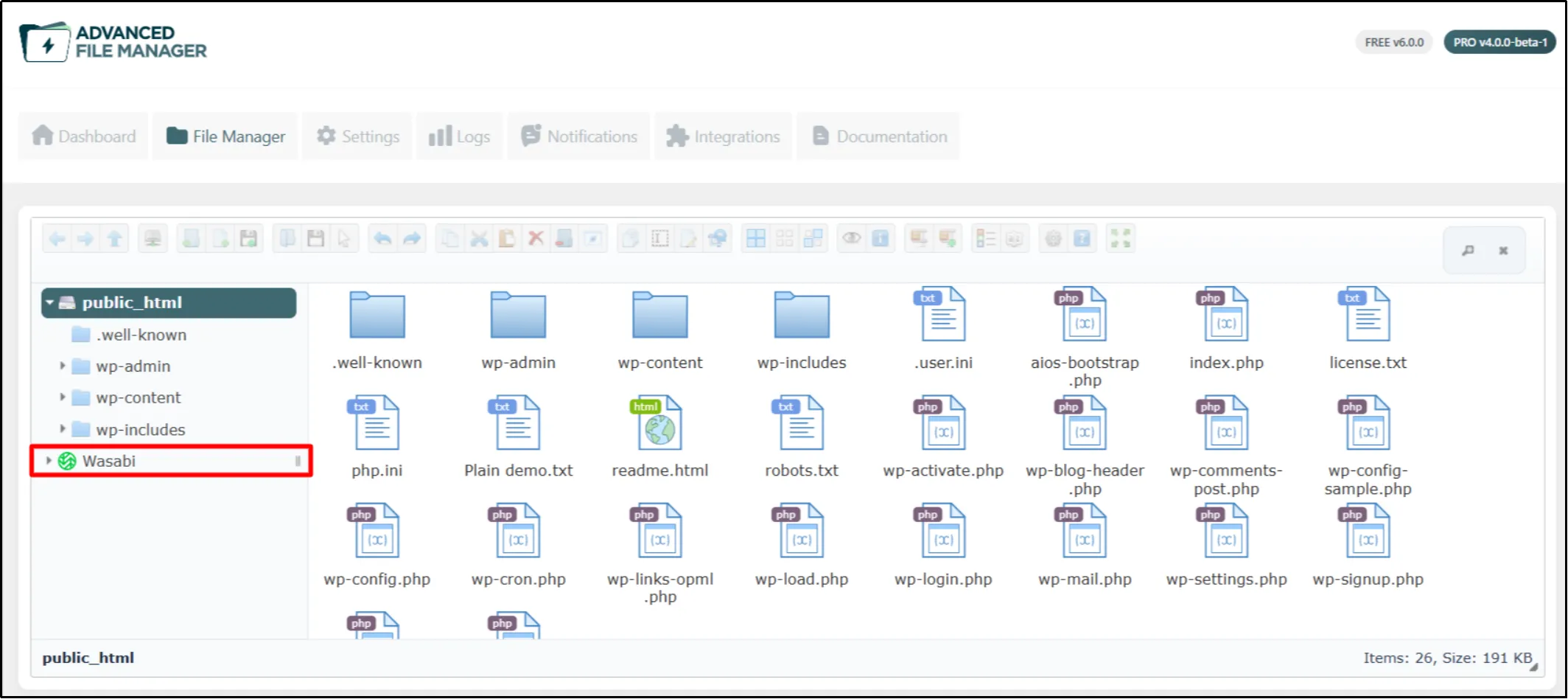
You can also configure user role access and restrict access to specific folders through Private Folder Access, giving you more control over how users interact with your cloud files.
Wasabi integration is available with Advanced File Manager Pro.
Follow the Wasabi Integration Guide for step-by-step instructions on connecting your Wasabi account, configuring the integration, and managing cloud files directly from WordPress.
Manage Local and Cloud Files From One WordPress Dashboard
Take advantage of the latest Advanced File Manager improvements to organize your files, manage frontend access, and work with cloud storage from WordPress.
Ready to explore the new features?
- Get Advanced File Manager Free to try the latest dashboard and interface improvements.
- Explore Advanced File Manager Pro for additional capabilities, including activity logs, integration status widgets, and Wasabi cloud storage integration.
Choose the version that fits your needs and manage your WordPress files in an organized way.
Need help with the update? Visit our documentation, contact our support team, or create a support ticket.