Want to use FTP to upload files to WordPress?
There are many ways to manage files on your WordPress site, but using File Transfer Protocol (FTP) is one of the most commonly used methods.
Whether you’re troubleshooting an issue, installing a large plugin, or just prefer working with a dedicated application, knowing how to use FTP is a must-have skill for any site owner.
This guide will walk you through everything you need to know about this tool and how to use FTP to upload files to WordPress, including how to connect it, the best FTP clients, and more.
Let’s start.
What is FTP?
FTP stands for File Transfer Protocol. As the name suggests, a network uses it to move files between a local computer and a web server. This is the underlying technology that powers your entire WordPress website.
When you want to upload files to WordPress via FTP, this protocol securely handles the connection. It creates a digital pathway that allows you to manage, edit, and transfer files directly to your hosting account.
FTP is one of the most reliable and oldest methods for managing web files, offering full control over your site’s structure.
Please note: FTP itself is not secure — it transfers data in plain text. However, its secure version, SFTP (Secure File Transfer Protocol), encrypts all communication between your computer and server.
How to Choose The Best FTP Client?
Before we learn how to connect to WordPress using FTP, you must first learn how to choose the best software for the job. Every FTP client is a desktop application you install on your computer to communicate with your website’s server.
The right client makes your work much easier, so here is what to look for and a few of the most popular options.
What to Look for in a WordPress FTP Client?
When selecting an FTP client for WordPress, focus on three key features to ensure a fast, secure, and easy experience.
- Security: Security is the most important factor to consider. Standard FTP sends your WordPress FTP credentials (username and password) in plain text, which is not safe. The best clients support SFTP (Secure File Transfer Protocol), which encrypts all data.
- Compatibility and a Good Interface: Choose a client that runs smoothly on your operating system, whether that’s Windows, Mac, or Linux. The interface should be intuitive, often using a “dual-pane” layout. This design shows your local computer files on one side and your remote server files on the other, making file transfer as simple as drag-and-drop.
- Reliability and Features: The client should be stable, especially when you upload large file sizes. Helpful features include the ability to queue transfers, resume broken uploads, and edit remote files directly. These tools save you time and prevent connection errors in WordPress.
The Most Used FTP Clients
There are several highly-rated FTP clients available, often with a free, open-source version that is perfect for most users.
- FileZilla: This is the most popular choice and is completely free. It works on all operating systems (Windows, Mac, Linux) and supports SFTP, making it a great all-around option for beginners.
- Cyberduck: Known for its clean, modern interface, Cyberduck is another free, open-source client for both Windows and Mac users. It also supports connections to various cloud storage services like Google Drive.
- WinSCP: If you are a Windows user, WinSCP is a powerful, feature-rich, and free client. It is known for its advanced features, such as scripting, which is often preferred by developers.
How to Connect FTP Client to WordPress: 2 Easy Steps
Before you can start moving files around, you must securely connect your chosen FTP client for WordPress to your live website. For that, we have two easy steps.
If you’re not comfortable working with server settings, you can skip this section and try the simpler plugin method we’ll cover later.
The main idea is to get your unique login details—your WordPress FTP credentials—from your web host.
Step 1: Get Your FTP Credentials
Your WordPress site is stored on a server, and you need a special key to enter. This key is your FTP login information. You can always find these details inside your hosting account’s control panel (like cPanel or a custom dashboard).
Look for a section often called FTP Accounts, SFTP/SSH, or File Manager.
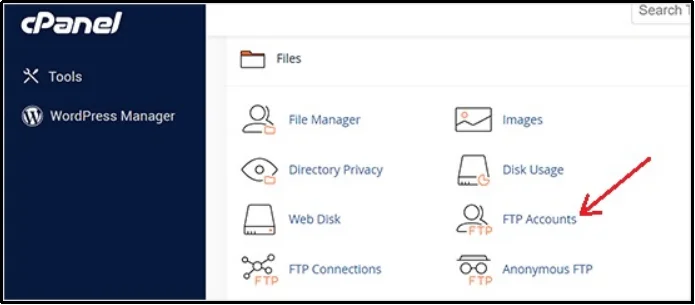
The information you need to copy will include the Hostname (which is usually your domain name or an IP address), the Username, the Password, and the Port (which is usually port 21 for FTP or port 22 for SFTP). If you can’t find them, your hosting support team can provide them.
Step 2: Establish the Connection
Now open the FTP client you installed, such as FileZilla or Cyberduck. Most clients have a “Quickconnect” bar or a “Site Manager” where you can input the details you just collected.
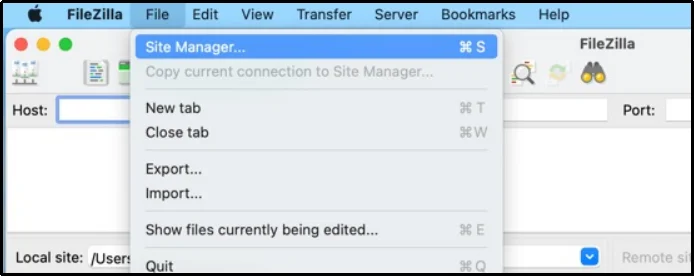
Enter the Hostname, Username, and Password. For the Port, make sure to use Port 22 if you want a secure FTP connection to WordPress via SFTP, which we highly recommend.
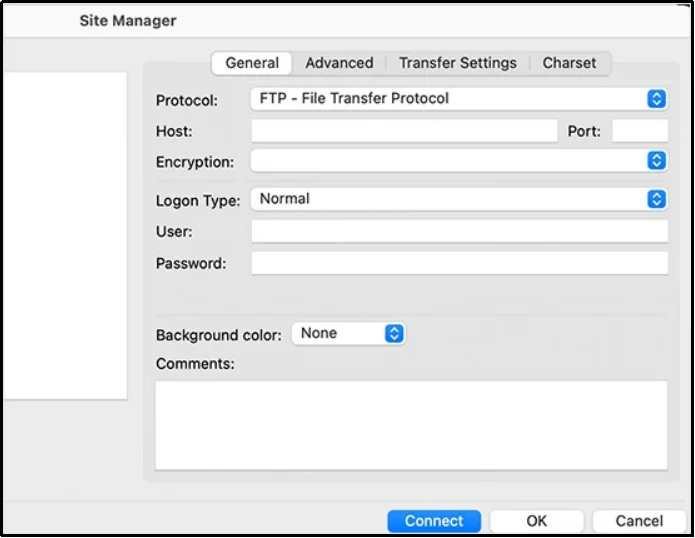
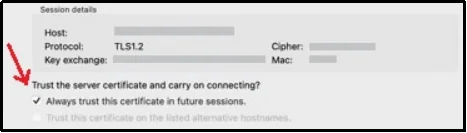
Hit the “Connect” button. Your FTP client will now send the request to your web host. If the details are correct, you will see a certificate pop-up. To stop these pop-ups in the future, check the “Always trust certificate for future sessions.”
How to Use FTP to Upload Files to WordPress
Now that the FTP is connected, you can begin with uploading.
As discussed, the interface is divided into two sections with one side being the files available on your computer and the next one being the files on the external server, which is your WordPress website in this case.
Right-click the file you want to upload to your website and select Upload. The interface will show the transfer progress.
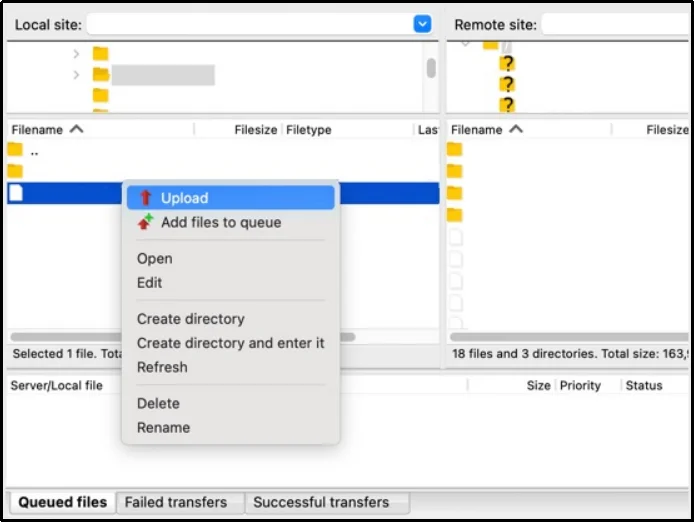
Alternatively, you can also drag the file and paste it into your WordPress root directory, but use it carefully, as dragging files into the wrong directory can overwrite or break your site’s structure.
For example, when you upload themes or plugins via FTP, they need to paste in their dedicated wp-content folders in /wp-content/themes/ and /wp-content/plugins/
Otherwise, they won’t work.
For downloading, the process is straightforward. Just locate the file that you want to download, right click on it, and select download. Let’s say we need to download the .htaccess file, here’s how the process should be:
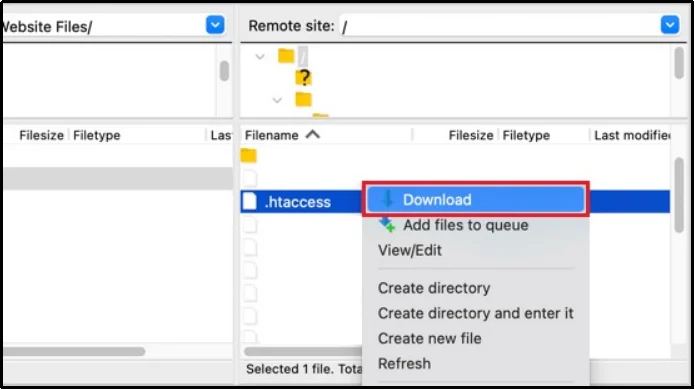
It’s that simple! That’s how you can use FTP to upload and download files to WordPress.
As promised, now, let’s see the easier, better, and safer alternative.
A Simpler, Safer Alternative: File Manager Plugin
While FTP is the tried-and-true method, it comes with multiple drawbacks.
It forces you to leave your WordPress dashboard, remember tricky credentials, and rely on a separate application. For many site owners, this process is complex, time-consuming, and adds unnecessary steps to a simple file task.
A simpler alternative that works directly inside WordPress is a file manager plugin.
Why Ditch The External FTP Client?
Using an external FTP client might feel familiar, but it often creates more friction than convenience. Here’s why switching to a built-in file manager plugin is the smarter move:
- No App Switching Required: You don’t have to jump between your WordPress dashboard, FTP software, and hosting control panel. Everything happens in one place inside WordPress.
- No Credentials to Remember: FTP access requires hostnames, ports, usernames, and passwords. Forgetting or misplacing them can slow you down. With a file manager plugin, you stay logged in through your existing WordPress session without extra details needed.
- Improved Security: Standard FTP (Port 21) sends your login credentials in plain text, exposing you to potential security risks. While SFTP (Port 22) encrypts data, many users skip it by accident. A file manager plugin eliminates that risk entirely by keeping all operations within your secure WordPress environment.
- Easier, More Visual File Management: Managing files through an FTP client can feel technical, especially for beginners. A file manager plugin provides a graphical, drag-and-drop interface similar to your computer’s file explorer, making uploads, edits, and deletions straightforward.
- No Installation or Connection Hassles: Setting up FTP software and configuring ports or certificates takes effort. Downloading a plugin from the WordPress directory is a piece of cake.
Learn More: WordPress File Manager Plugin vs FTP: Detailed Comparison [2025]
If you are sure now, make the right choice by choosing Advanced File Manager, the best file manager plugin on the WordPress directory.
Advanced File Manager: The Perfect Solution
If you want complete control over your site’s files without the FTP hassle, the Advanced File Manager plugin is the ultimate choice.
This powerful tool brings a full desktop-like file explorer directly into your WordPress dashboard. The plugin is trusted by over 200,000 active installations and has a strong 4.8 out of 5-star rating on WordPress.org, showing its reliability and popularity.
It eliminates the need for FTP clients, making file organization faster and much easier for everyone. Here’s what more you can do with Advanced File Manager:
- Complete File Control: Perform all essential file operations like copying, moving, deleting, renaming, and uploading files and folders right from your dashboard. You can also create and extract common archive types (ZIP, RAR, GZIP) effortlessly, just like on your computer.
- Built-in Code Editor: Edit PHP, CSS, HTML, and other code files instantly with the built-in, powerful code editor. This feature includes syntax highlighting and line numbers, allowing you to make quick updates without needing to download, edit externally, and re-upload files.
- Drag-and-Drop Interface: Forget complex menus. The file manager uses a simple drag-and-drop system for file uploads and moving files, saving you tons of time. This user-friendly interface is much faster.
- Security & Access Management: The plugin helps you boost your site’s security by allowing you to define precise role-based access control. You can control exactly who can view, edit, upload, or delete files based on their WordPress user role.
- Hide Sensitive Paths: For an extra layer of security, you can hide the actual file path from users, which protects sensitive information on your site from unauthorized discovery. This is a critical security feature that traditional FTP often lacks.
- Media and File Previews: Instantly preview common file types, including images, audio, video, and PDF documents, directly within the file manager. This eliminates unnecessary downloads and is an excellent feature for managing media-heavy websites.
- Cloud Integrations: Connect and manage WordPress files from popular cloud storage providers, including Google Drive, OneDrive, Amazon S3, and Dropbox. These integrations let you move files between your site and cloud storage without leaving your dashboard.
- Debug Code in Editor: The built-in code editor helps with debugging by providing syntax highlighting and line numbers. This allows you to quickly locate the error and make corrections before they cause fatal errors.
- AI Code Pilot: Enhance your coding experience with a built-in AI coding assistant integration. This feature can generate code snippets, modify existing functions, and offer instant suggestions based on natural language prompts to boost productivity.
There’s much more to it! Learn more about all capabilities of the plugin on our features page.
Download Advanced File Manager today and simplify file management effortlessly.
Take Control of Your WordPress Files with Confidence
Managing files shouldn’t require juggling tools or risking site errors. While FTP remains a reliable option for developers, most WordPress users can accomplish the same tasks faster and more securely with a file manager plugin like Advanced File Manager.
It keeps everything within your dashboard, reduces setup time, and lets you handle uploads, edits, or troubleshooting without leaving your site.
Whether you run a blog or an eCommerce site, direct file access gives you the freedom to fix issues and manage content efficiently — all from your dashboard.
Tired of switching between apps just to upload one file? Try the Advanced File Manager plugin today and see how effortless file management can be inside WordPress.
Frequently Asked Questions
How to upload files to WordPress via FTP?
To upload files using FTP, connect your FTP client to your hosting server using FTP credentials. Once connected, locate your WordPress directory on the server and upload the desired file to the respective folders, such as /wp-content/themes/ for themes or /wp-content/plugins/ for plugins.
Do I need FTP for WordPress?
Not necessarily. While FTP is useful for troubleshooting, most day-to-day tasks like uploading themes, plugins, or media can be handled directly within WordPress. For convenience and security, many users prefer using a File Manager plugin like Advanced File Manager instead of an external FTP client.
Which one is better, FTP or a WordPress File Manager?
Both have their place. FTP offers deeper access and is ideal for developers or when your site is down. However, a WordPress File Manager plugin provides an easier, faster, and more secure option for regular users. It works directly inside your dashboard, eliminating the need for external software or complicated credentials.