

Have you ever tried logging into your WordPress site only to see a white screen, an error message, or a broken page? You immediately ask: “Why is my WordPress site not working?”
One moment, everything runs smoothly, and the next, your entire site is gone. These issues are more common than you think, especially when your WordPress site is not loading or showing unexpected errors.
If you understand the root causes behind these issues, you can quickly fix WordPress errors, restore your site, and avoid unnecessary developer costs. Most WordPress issues come from simple causes like plugin conflicts, theme compatibility problems, or incorrect server settings.
In this WordPress troubleshooting guide, you’ll learn how to identify, diagnose, and fix issues step-by-step using proven methods, including checking WordPress error logs and debugging core files.
What are WordPress Errors?
WordPress errors occur when your site is not loading, crashes, or suffers from WordPress performance issues that affect functionality and user experience. These issues range from minor problems like cache errors and display glitches to critical failures that make your website completely inaccessible.
They can affect everything from site appearance and performance to full accessibility. That’s why you need to identify and fix issues quickly to avoid website downtime, traffic loss, and ranking drops.
If you have come across a WordPress error and are looking for a fix, take a look at the errors and fixes listed below.
11 Common WordPress Errors (With Causes & Fixes)
1. White Screen of Death (WSOD
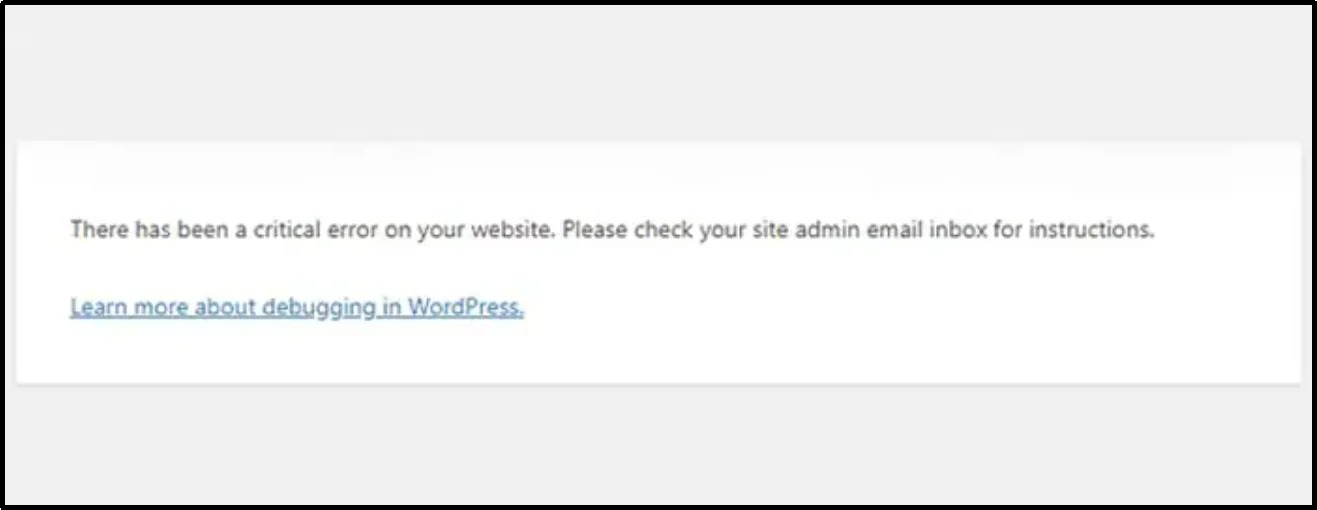
The White Screen of Death (WSOD) shows a completely blank page with no error message, making WordPress troubleshooting and error diagnosis difficult. It typically occurs when something in the background prevents the site from loading properly, but you can usually isolate the problem quickly using basic troubleshooting steps like enabling WordPress debug mode.
Root Cause:
- Plugin conflict or an incompatible WordPress theme
- Server memory exhausted
- Broken code in a custom theme or functions.php
How to Fix:
- Deactivate WordPress plugins one by one to identify the conflicting plugin
- Switch to a default WordPress theme like Twenty Twenty‑Four, or edit theme files
- Increase the PHP memory limit if hosting allows
2. Error Establishing Database Connection
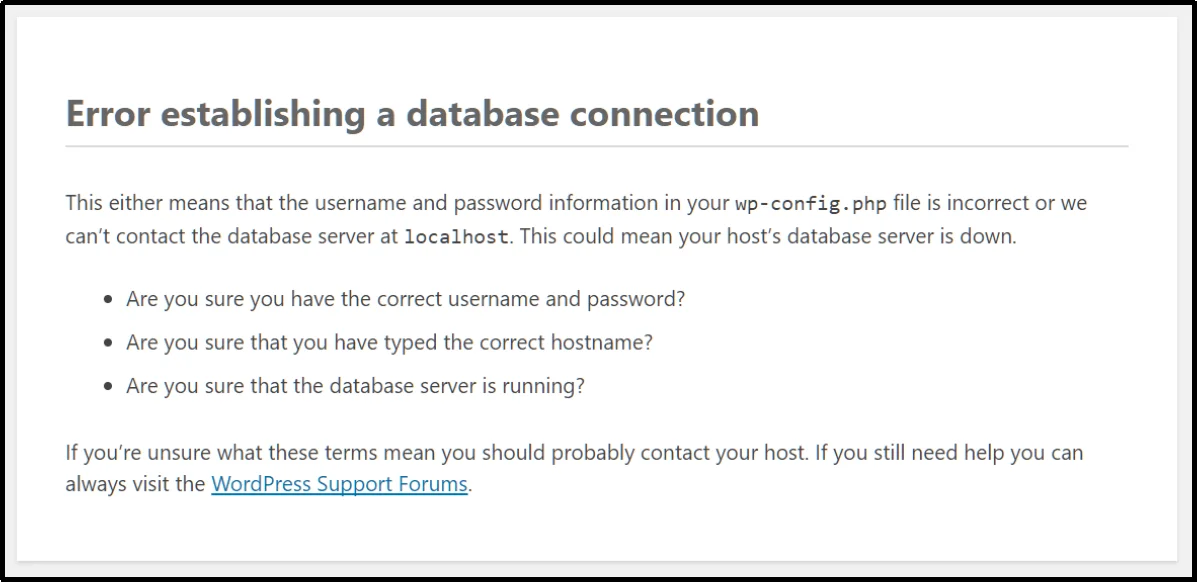
An error establishing database connection is one of the most common WordPress problems, occurring when WordPress fails to connect to its database and makes the entire site inaccessible. Since the database stores all your content and settings, even a small misconfiguration can break the connection and prevent your site from loading.
Root Cause:
- Incorrect database credentials in wp-config.php
- Corrupted database tables
- Hosting server issues
How to Fix:
- Verify database username, password, and host in wp-config.php as part of a quick wp-config.php fix to restore your database connection. You can quickly access and edit your wp-config.php file using a WordPress file manager plugin like Advanced File Manager without needing FTP access.
- Repair the database by accessing your site files using Advanced File Manager or phpMyAdmin
- Contact the hosting provider if the issue persists
3. Internal Server Error 500
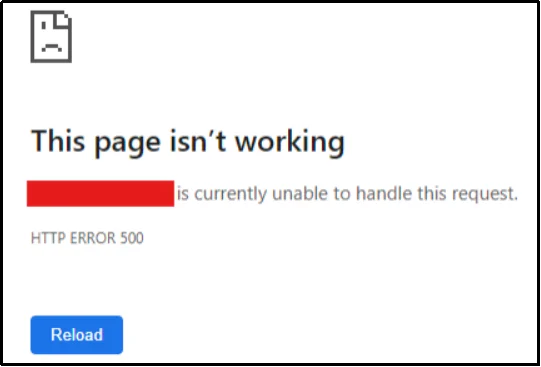
An internal server error (500) is a server-side issue that prevents your website from loading but does not clearly indicate the exact cause. It often occurs after changes to site files or configurations and usually requires a few quick checks to resolve.
Root Cause:
- Corrupted .htaccess file
- PHP memory limit exceeded
- Faulty plugin or theme code
How to Fix:
- Regenerate your permalinks to create a fresh .htaccess file as part of a quick .htaccess file fix.
- Increase PHP memory in wp-config.php
- Disable plugins or switch themes to isolate the problem
4. 404 Page Not Found / Broken Permalinks
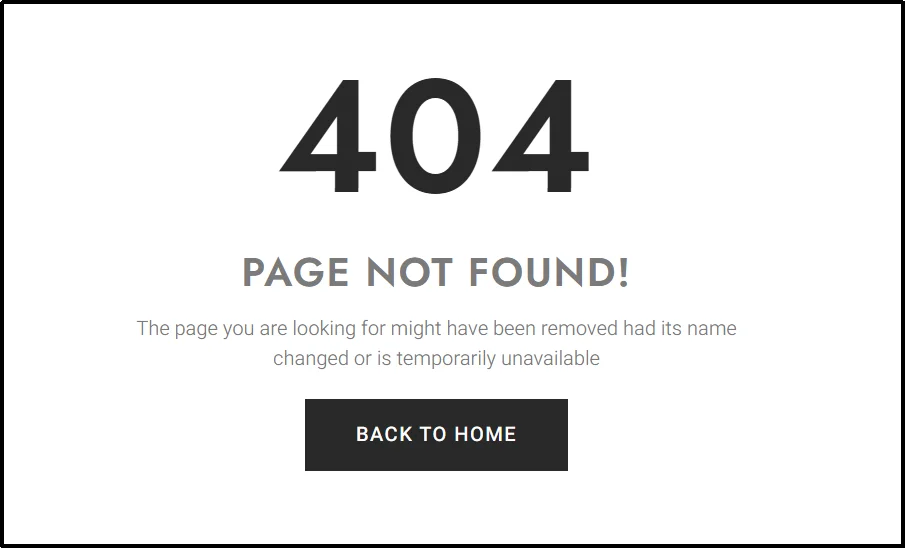
A 404 error appears when a page cannot be found, even if it exists, often due to broken links or incorrect URL structures. In WordPress, this is commonly linked to permalink settings or misconfigured files that affect how URLs are generated.
Root Cause:
- Incorrect permalink structure
- Missing or deleted pages
- .htaccess misconfiguration
How to Fix:
- Reset permalinks in Settings → Permalinks
- Update broken links or restore missing pages
- Repair the .htaccess file as part of a quick .htaccess file fix to resolve permalink and server configuration issues.
5. WordPress Login Issues
Login issues block access to your WordPress dashboard and often result from authentication conflicts, session issues, or plugin interference, making it difficult to manage your site. These problems are often related to simple access conflicts rather than serious technical failures.
Root Cause:
- Browser cache or cookies are blocking the login
- WordPress plugin conflicts affecting authentication
- Incorrect credentials
How to Fix:
- Clear browser cache and cookies
- Reset password via email or phpMyAdmin
- Disable plugins temporarily to regain access
6. Memory Exhausted Error (PHP Memory Limit Error)
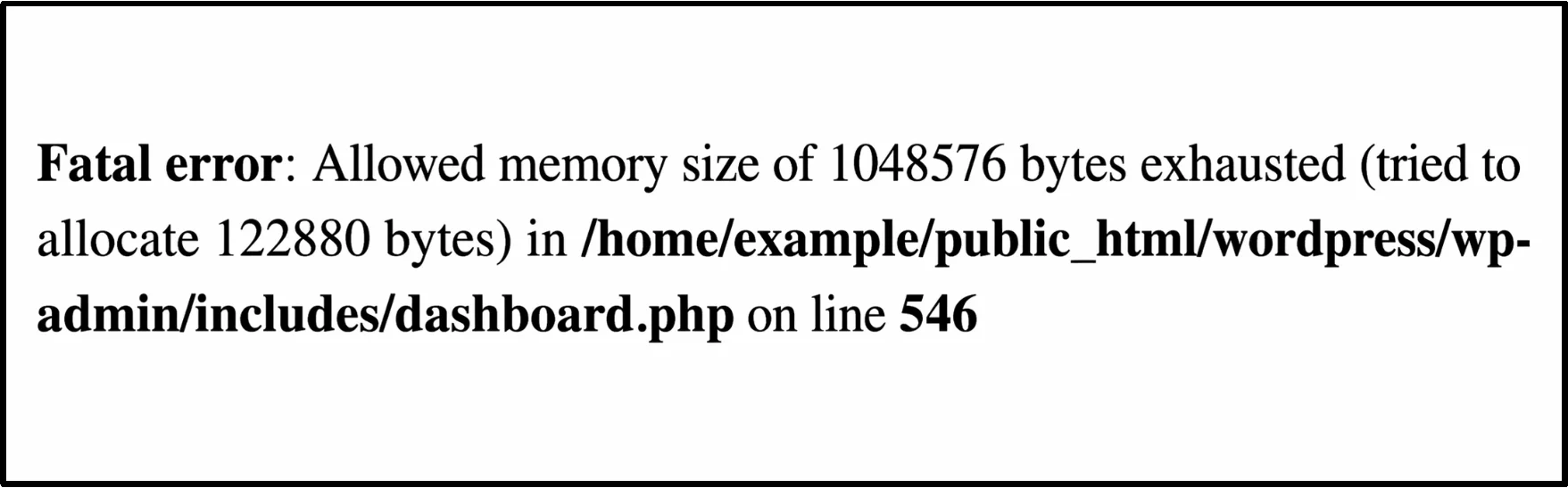
This error occurs when your WordPress site exceeds the memory allocated by your hosting server. It often happens when using heavy plugins, themes, or running resource-intensive processes. When the memory limit is reached, WordPress cannot execute tasks properly, causing parts of your site to break or stop loading.
Root Cause:
- Heavy plugins or themes consume memory
- Insufficient PHP memory allocation
How to Fix:
- Increase PHP memory in wp-config.php
- Remove or replace resource‑intensive plugins/themes
- Request more memory from the hosting provider
7. Connection Timed Out
A connection timed out error appears when your server takes too long to respond, causing the website to fail to load. This usually points to deeper WordPress performance issues such as server overload, inefficient plugins, or unoptimized resources.
Root Cause:
- Server overloaded with requests
- Heavy plugins/themes are slowing performance
- Limited hosting resources
How to Fix:
- Disable or optimize resource‑heavy plugins/themes
- Upgrade hosting plan
- Optimize site performance
8. WordPress Auto-Update Failed
This issue occurs when WordPress is unable to complete an automatic update, leaving your site partially updated or unstable. It can interrupt normal functionality and may require manual intervention to complete the process.
Root Cause:
- File permission issues
- Server timeout during update
How to Fix:
- Perform manual update via FTP
- Ensure correct file permissions (e.g., 755/644)
- Retry update after fixing permissions
9. Image Upload Issues
Image upload issues prevent media files from being added to your WordPress library, affecting content creation and updates. This usually happens due to server restrictions or incorrect configurations rather than a fault in WordPress itself.
Root Cause:
- Incorrect file permissions
- PHP configuration limits (upload size, execution time)
How to Fix:
- Adjust file permissions to 755/644
- Increase PHP upload limits in php.ini or wp-config.php
- Check server restrictions
10. Syntax Error in Code
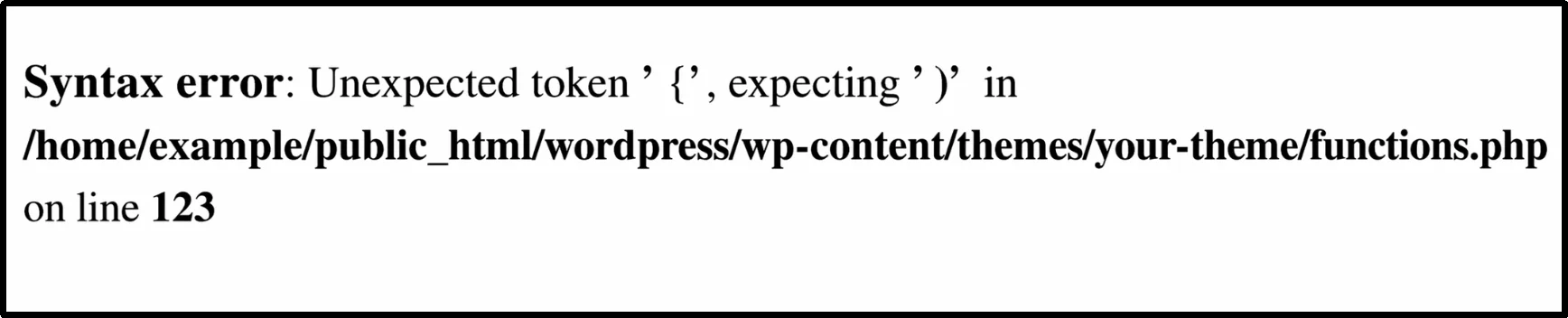
A syntax error occurs when invalid or mistyped code is added to your WordPress files, often causing the site to crash immediately. Even a small mistake in PHP can disrupt the entire site, making it inaccessible until fixed.
Root Cause:
- Mistyped or invalid PHP code
- Missing characters like semicolons or brackets
How to Fix:
- If a syntax error breaks your site, you can instantly access your theme files using Advanced File Manager’s AI Coding Assistant feature and fix the code without relying on FTP.
- Restore a backup if needed
- Test changes in staging before applying
11. Stuck in Maintenance Mode
This happens when a WordPress update is interrupted, leaving the site stuck displaying a maintenance message. The issue is caused by a temporary file that WordPress fails to remove after the update process.
Root Cause:
- WordPress update problems
- .maintenance file left behind
How to Fix:
- Delete .maintenance file from root directory
- Retry the update process
- Ensure stable server performance during updates
How Advanced File Manager Fixes WordPress Errors Faster (Without FTP)
If a WordPress error suddenly breaks your site, your priority is to restore its functionality as soon as possible. To resolve these issues efficiently, you need direct access to your site files so you can diagnose and fix problems faster.
That’s where Advanced File Manager, a powerful WordPress file manager plugin, gives you a faster and easier way to fix WordPress errors without using FTP or cPanel.
Its user-friendly interface lets you access and manage WordPress core files directly from your dashboard. Once these files are accessible, you can easily edit, upload, and manage your WordPress site files.
You can instantly troubleshoot and fix common WordPress issues like plugin conflicts, database errors, and PHP errors, all from your dashboard.
With the built-in PHP Code Debug feature, you can quickly identify and fix PHP errors without relying on external tools. For more advanced debugging and code-level assistance, you can upgrade to Pro and use AI Code Pilot, an intelligent assistant that helps you analyze, debug, and resolve complex WordPress issues faster.
Take Control of Your Site Files Easily
When you have direct access to your site’s files, you can easily fix WordPress issues. Instead of relying on an expert for WordPress support tips, using Advanced File Manager gives you full control to troubleshoot and fix issues in real time.
With the right approach, you can quickly fix WordPress errors, restore functionality, and prevent your WordPress site from not loading in the future. Having reliable WordPress error solutions empowers you to handle WordPress errors confidently and keep your website running smoothly.
Fix WordPress errors faster and take full control of your site files using a powerful file management solution built for WordPress such as Advanced File Manager.
Frequently Asked Questions
How do I enable WordPress debug mode to see errors?
To view errors in WordPress, enable WordPress debug mode by editing your wp-config.php file. Add define(‘WP_DEBUG’, true); to the wp-config.php file, and this will display PHP errors directly on your site. For a cleaner approach, enable WP_DEBUG_LOG to record issues in a log file located in the wp-content folder. You can also check your hosting panel or server logs to analyze detailed WordPress error logs and pinpoint the root cause.
How to find 404 errors in WordPress?
You can track down 404 errors in WordPress using tools like Google Search Console, which highlights crawl errors, or plugins such as Broken Link Checker. These tools scan your site for missing pages and broken links. Regularly checking links helps you identify the 404 errors.
How to repair a WordPress website?
Repairing a WordPress site starts with identifying the root cause. Begin by disabling plugins and switching to a default theme to rule out conflicts. If files are corrupted, restore your site from a recent backup. For malware or hacks, use a security plugin to scan and clean your installation. You can also repair the database using built-in WordPress tools. When problems are severe, professional WordPress support services can quickly restore your site’s health.

