
If you regularly move files between OneDrive and your WordPress site, you already know how frustrating it can be to upload, download, and re-upload the same files just to keep everything in sync. It takes time, eats up storage space, and slows down your publishing flow.
But what if you could connect OneDrive directly to your WordPress dashboard so you could upload, organize, and manage your cloud files without leaving your site?
That’s exactly what a file manager plugin makes possible. With this powerful tool, you can bring your OneDrive folders into WordPress and manage them inside your WordPress dashboard.
In this step-by-step guide, we will show you how to connect OneDrive with your WordPress Media Library.
Ready? Let’s get started!
👉 Please note: In this article, we will use the Advanced File Manager plugin. It’s one of the best plugins for managing files in WordPress. We’ll discuss it in detail later in the article.
Why Sync OneDrive with WordPress Media Library?
OneDrive isn’t just a storage platform; it’s a central space for your photos, videos, and project files. By linking it directly to WordPress, you make file access faster and reduce the need to juggle between different tabs or upload tools.
Here’s why connecting OneDrive to your WordPress Media Library is a smart move:
1. Save Time with Direct Access
Instead of downloading a file from OneDrive and then uploading it again to WordPress, you can use it instantly inside your Media Library. This cuts your upload steps in half and keeps your workflow quick.
2. Keep Files Organized in One Place
When you manage large amounts of content (e.g., images, videos, documents), it’s easy to lose track. Keeping everything structured inside OneDrive helps maintain a tidy file system, even as your website grows.
3. Use OneDrive for Backup and Storage
Website backups can take up gigabytes of hosting space. By offloading them to OneDrive, you reduce your server load and gain a reliable cloud backup you can restore at any time.
4. Collaborate Without Chaos
Teams and clients can upload shared assets to OneDrive, and they will automatically appear in WordPress. This eliminates duplicate uploads and endless email attachments.
5. Improve Site Performance
When heavy files, such as HD videos and large PDFs, are stored in OneDrive instead of your hosting account, your WordPress site loads faster and stays more stable.
Connecting OneDrive and WordPress is more than just a convenience feature, it’s an upgrade to how you manage, store, and collaborate on digital content.
Who Can Benefit from OneDrive WordPress Integration?
Connecting OneDrive to your WordPress site transforms how you regularly manage digital assets. Whether you’re building websites, writing blogs, or managing clients, this setup adapts to your workflow and saves hours every week.
Let’s look at how different users benefit from this connection.
- Developers: Developers often juggle backups, log files, and project assets that don’t need to live permanently inside WordPress. By connecting OneDrive, you can store these files off-site and access them directly from your dashboard. It’s a cleaner, faster, and more organized way to manage technical assets without increasing your hosting load.
- Content Creators & Bloggers: Uploading the same images or videos twice—once to OneDrive and again to WordPress—is unnecessary work. With OneDrive integration, files you upload to the cloud become instantly available inside your file manager. You can drag them into posts, pages, or galleries without re-uploading, saving time on every publish.
- Agencies & Remote Teams: When multiple people work on a project, keeping track of who uploaded what can become messy fast. Shared OneDrive folders solve this. Your team can upload media, design files, or reports directly into shared folders, and once synced, everyone can access them from within WordPress. No repeated downloads, no version confusion.
- Site Owners & E-Commerce Stores: Store owners and admins can use OneDrive for media-heavy sites—like product galleries, manuals, or customer uploads. It keeps the hosting clean while still providing instant access to important files through the dashboard.
No matter if you’re a solo blogger or managing dozens of client websites, OneDrive integration gives you a more organized and scalable workflow.
Prerequisites Before Connecting OneDrive to WordPress
Before you start syncing OneDrive with your WordPress Media Library, there are a few things you’ll need to prepare, which we have listed below:
1. Advanced File Manager Pro Plugin
The OneDrive integration is available only in the Pro version of the Advanced File Manager plugin. If you’re using the free version, consider upgrading, as it unlocks cloud connections, including OneDrive, Google Drive, Dropbox, Amazon S3, GitHub, and other WordPress file management features.
👉 Please note: In the following section, we will show you how to install and activate the Advanced File Manager plugin.
2. Microsoft Azure Account
To link your WordPress site with OneDrive, you’ll need a Microsoft Azure Portal account.
Azure lets you register an app and generate two essential credentials, such as Application (Client) ID and Secret ID, which act as a secure bridge between WordPress and your OneDrive account.
If you don’t have an Azure account yet, go to https://portal.azure.com and create one. Make sure you use the same email address you use for your OneDrive account.
3. Administrator Access to Your WordPress Site
You’ll need full admin access to your WordPress dashboard to install plugins, modify settings, and connect to the API. Without admin rights, you won’t be able to authorize OneDrive or complete the sync process.
Once you’ve got these three essentials ready, you’re all set to start the connection process.
Step-by-Step Process on How to Connect OneDrive to WordPress Media Library
Now that everything is ready, let’s walk through the full setup process to link OneDrive with your WordPress Media Library using the Advanced File Manager Pro plugin.
Follow these steps carefully to avoid connection issues and get a smooth sync between your cloud storage and WordPress dashboard.
Step 1: Install and Activate Advanced File Manager (Free + Pro)
- Log in to your WordPress dashboard.
- Go to Plugins and then click Add Plugin and search for ‘Advanced File Manager.’
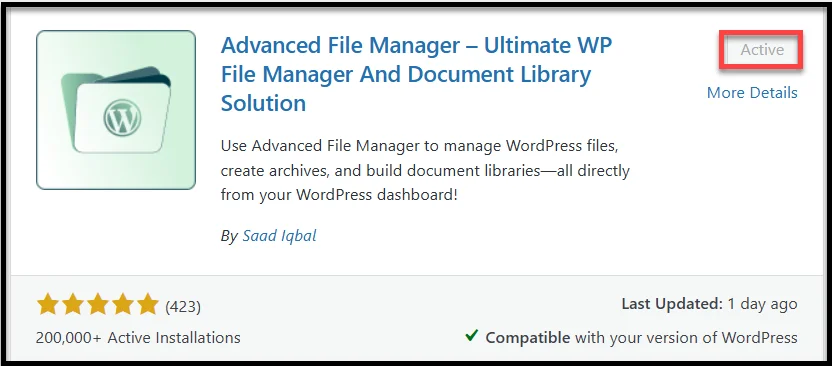
- Install and activate the free version first. Once activated, a File Manager option will appear in your WordPress sidebar.
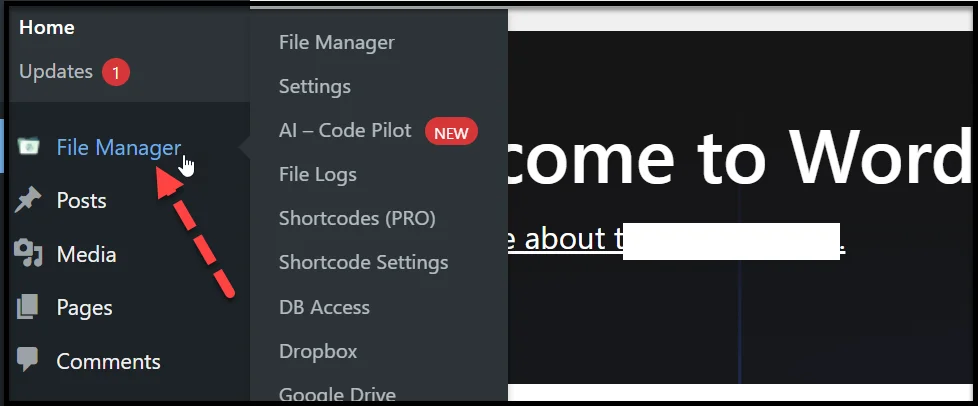
- Next, visit the official website of Advanced File Manager and purchase the Business plan, which includes all cloud integrations.
- Afterward, you’ll receive a welcome email containing your license key and the plugin’s zip file. Download the zip file to your computer.
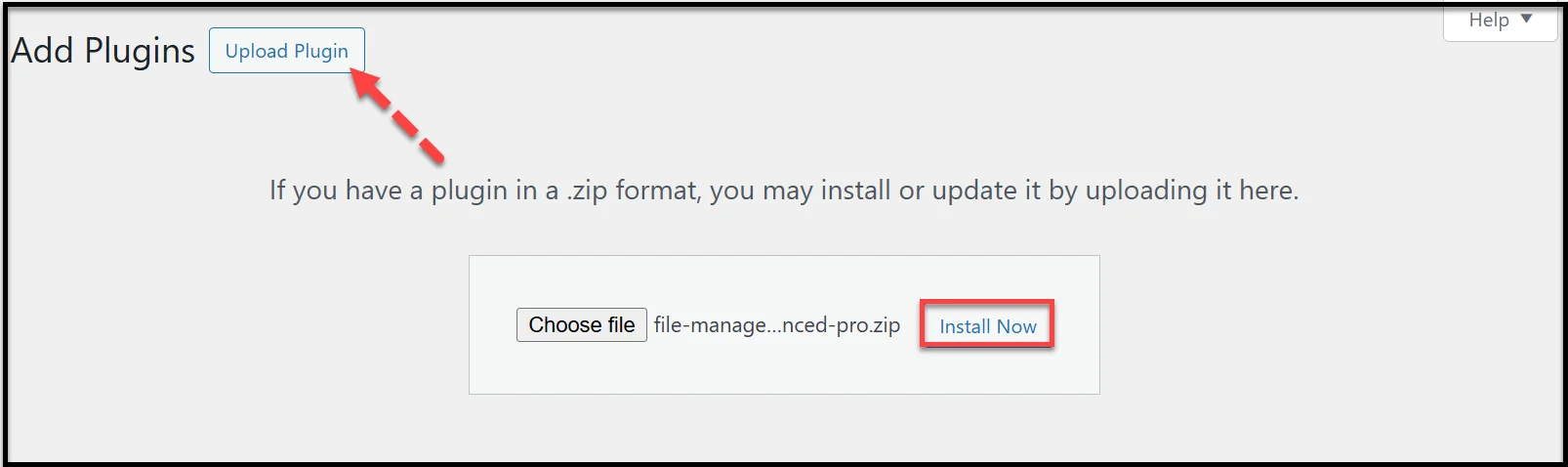
- Next, go to Plugins, select Add Plugin, then Upload Plugin, click the Choose file button to upload the pro plugin ZIP file you received in your purchase email, and activate it using your license key.
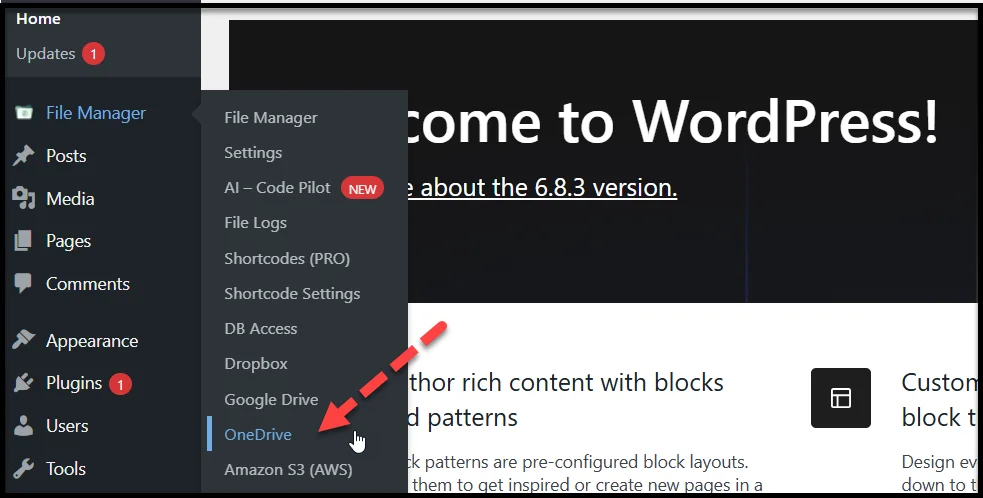
Once activated, you’ll notice new options in your File Manager settings, including cloud integrations such as OneDrive, Google Drive, Dropbox, and Amazon S3.
Step 2: Enable OneDrive Integration in Plugin Settings
- In your WordPress dashboard, go to File Manager → OneDrive.
- Check the box next to “Enable”
- Add a custom Alias Name (for example, “My OneDrive Media”) to identify the connection easily.
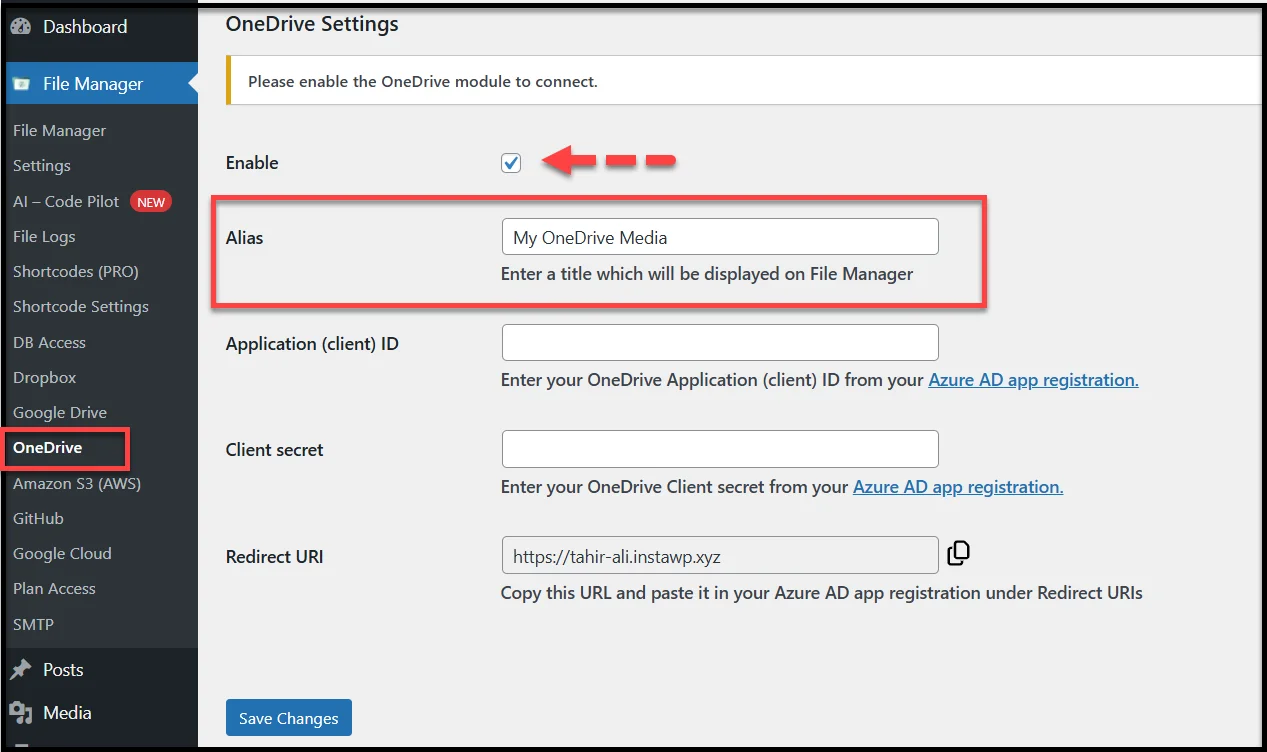
- You’ll see two fields: Application (Client) ID and Secret ID. Leave them empty for now. You’ll get these from your Azure account in the next step.
Step 3: Register a OneDrive App in Microsoft Azure Portal
To securely connect your WordPress site with your OneDrive account, you’ll create a small “app” in the Microsoft Azure Portal. Follow the steps below:
- Log in to your Microsoft Azure Portal.
- From the dashboard, search ‘App registrations’, or you can find it in the Azure services menu at the bottom.
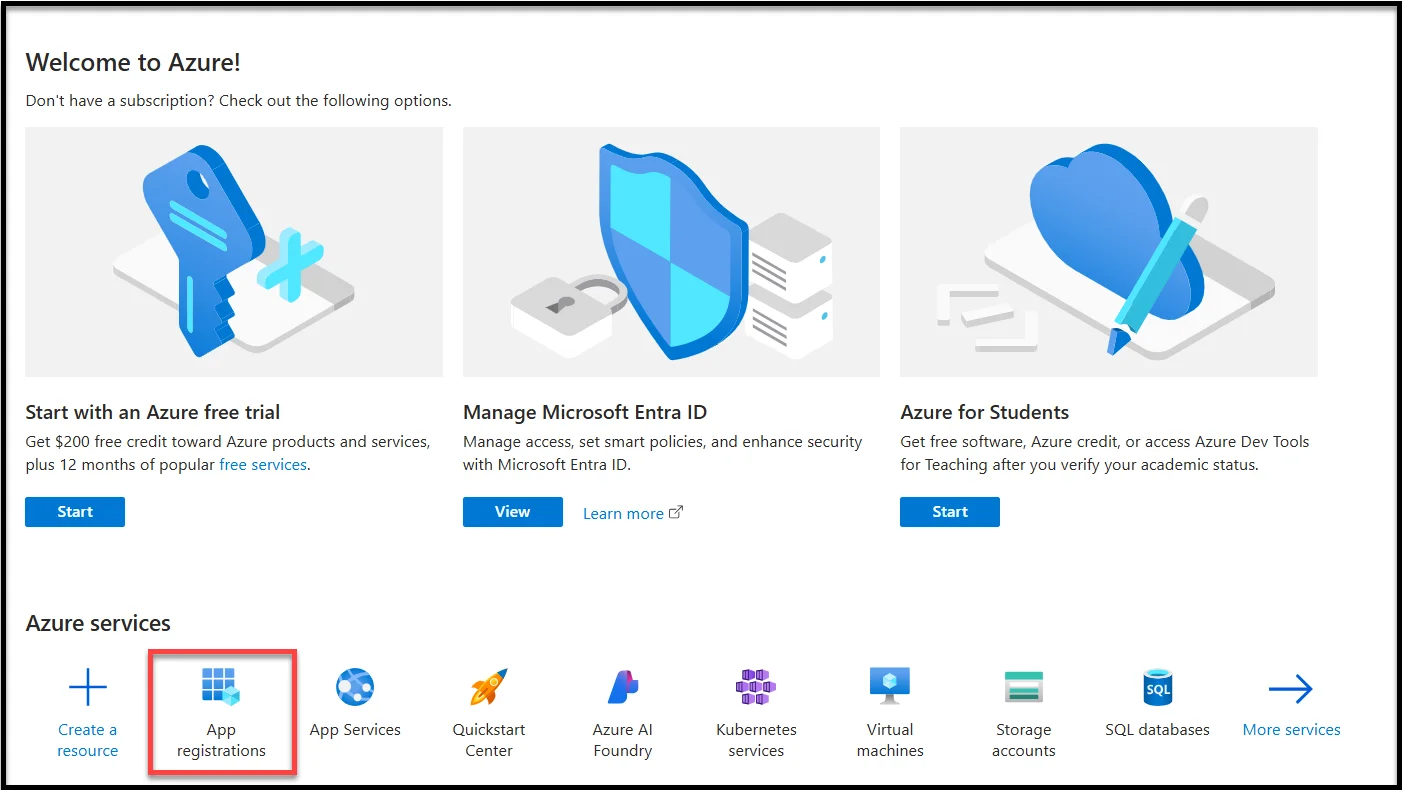
- On the subsequent screen, select the ‘+ New registration’ tab.
- Fill in the form as follows:
- Name: OneDrive AFM Integration (you can name it anything)
- Supported Account Types: Select Accounts in any organizational directory and personal Microsoft accounts
- Redirect URI: Choose Web and enter your WordPress site URL (e.g., https://yourwebsite.com)
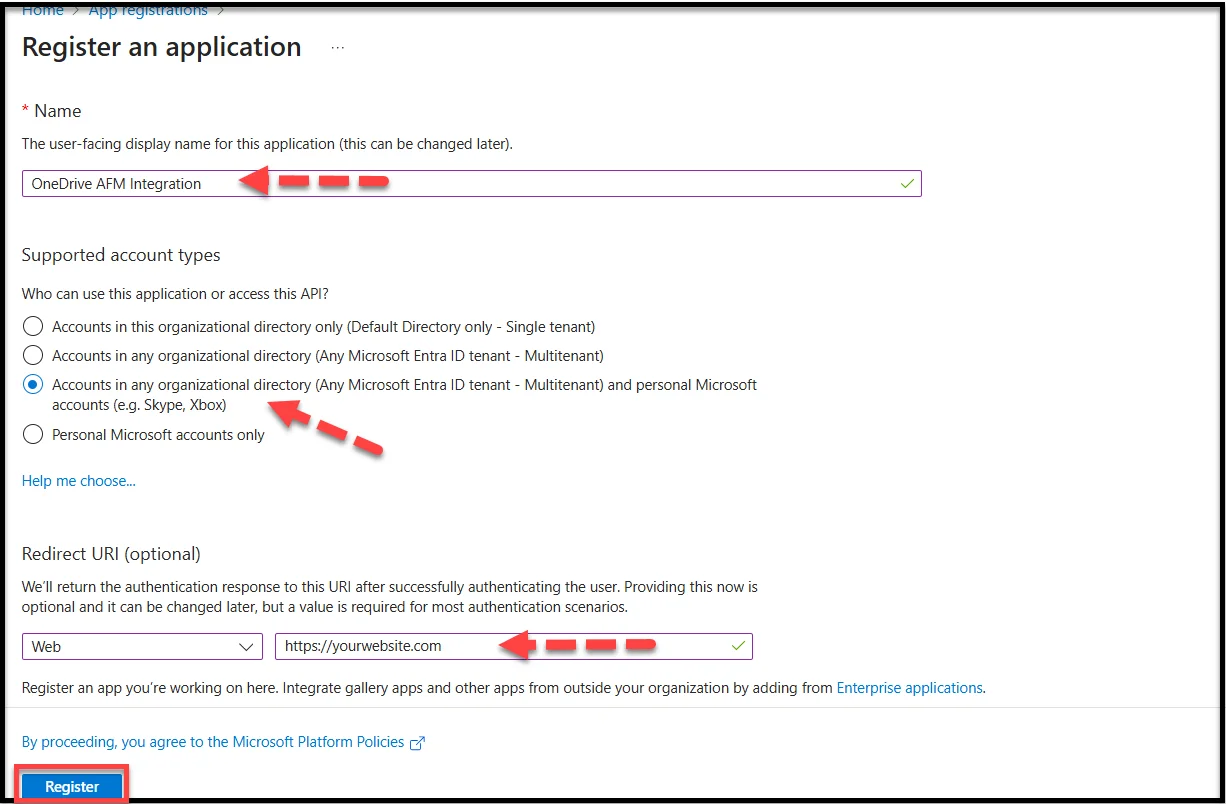
- Click Register to create the app.
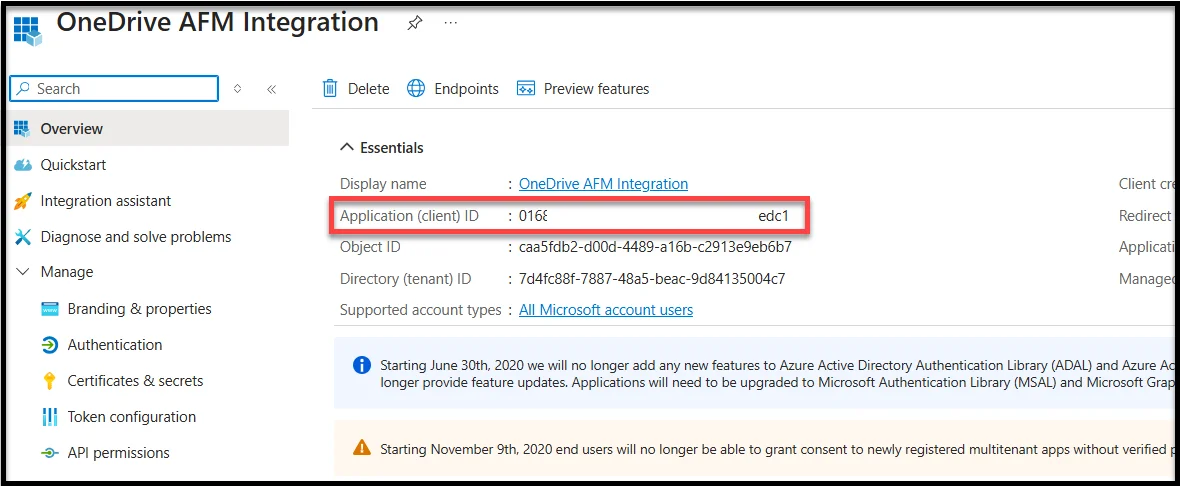
- Copy the Application (Client) ID. We will use this in the later step.
Step 4: Generate a Secret Key
- In the same Azure App screen, go to Manager → Certificates & Secrets and select ‘+ new client secret.”
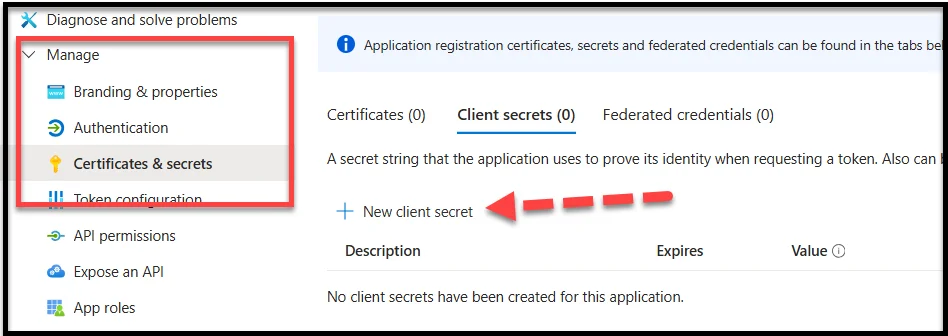
- Add a name (like “OneDrive Key”) and set the expiration period.
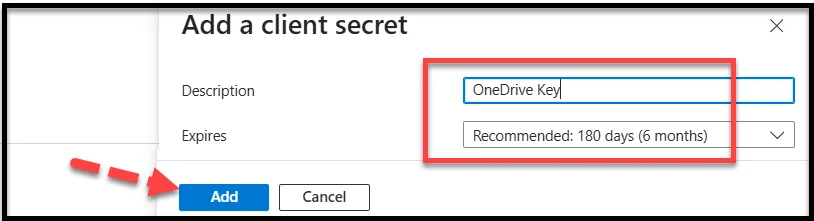
- Click Add, and Azure will show a Value: this is your Client secret.
⚠️ Copy it immediately, as you won’t be able to see it again later.

Step 5: Connect OneDrive to WordPress
- Go back to File Manager and then OneDrive in your WordPress dashboard.
- Paste your Application (Client) ID and Value (Client secret) into their respective fields.
- Click Save Changes.
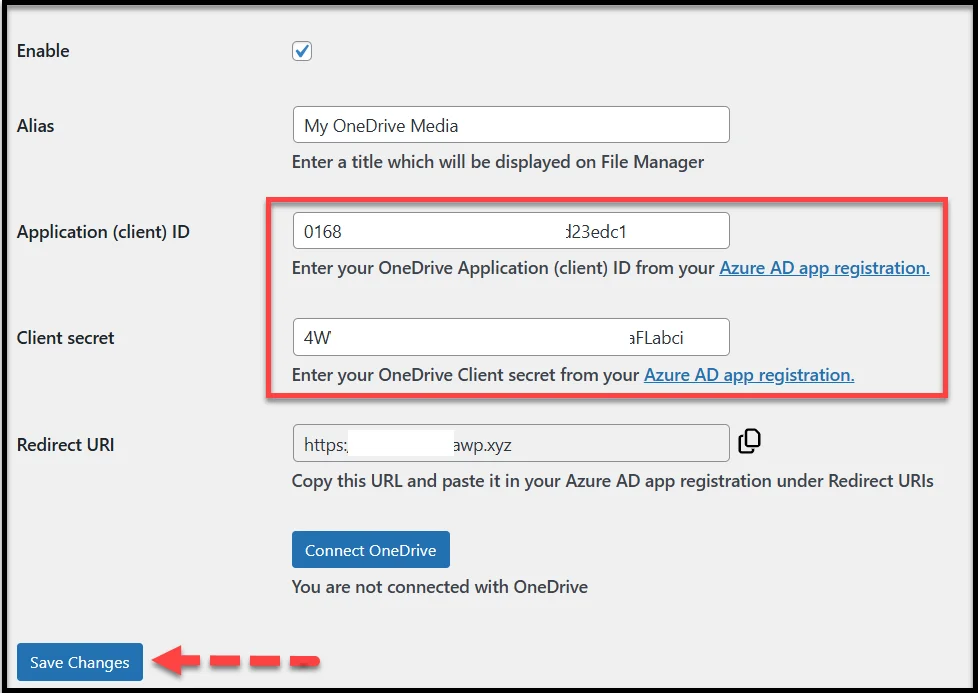
- Next, click Connect OneDrive to authenticate.
- You’ll be redirected to a Microsoft login screen. Log in and allow permissions.
Once approved, you’ll return to WordPress, and your OneDrive folder will now appear inside the File Manager panel. 🎉
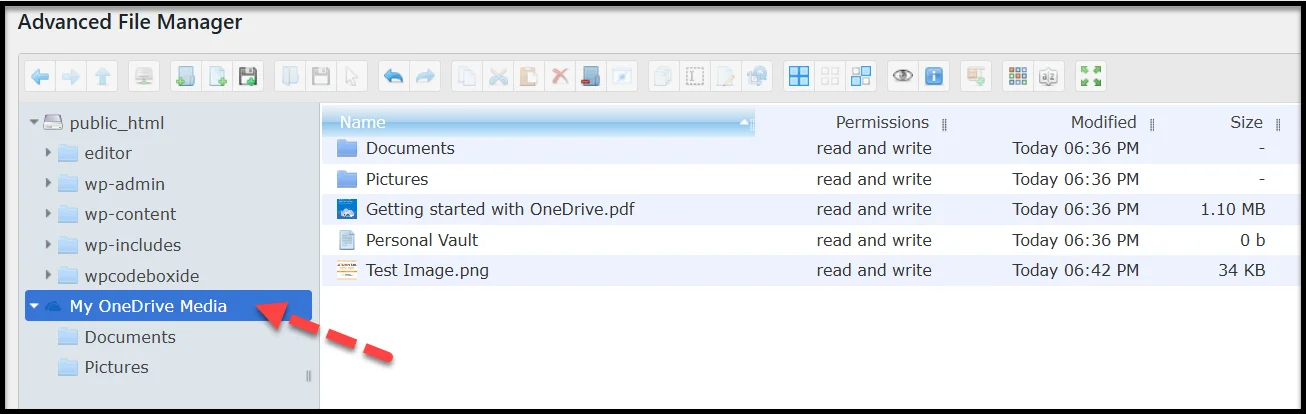
If you face a connection error, double-check your Redirect URI and keys. They must match exactly the setup of your Azure app.
Step 6: Final Step – Sync OneDrive Files to WordPress Media Library
After uploading files to OneDrive, you might notice they don’t automatically appear in your WordPress Media Library.
That’s because the Media Library only shows files located in the /wp-content/uploads/ folder and registered in the WordPress database.
Follow these quick two steps to make your OneDrive files visible in the Media Library:
Step 1 – Copy OneDrive Files to /wp-content/uploads/
Go to Advanced File Manager and then the OneDrive folder.
Select the media files you want to use, then copy or move them to /wp-content/uploads/ (you can also create a subfolder, like /uploads/from-onedrive/, for better organization).
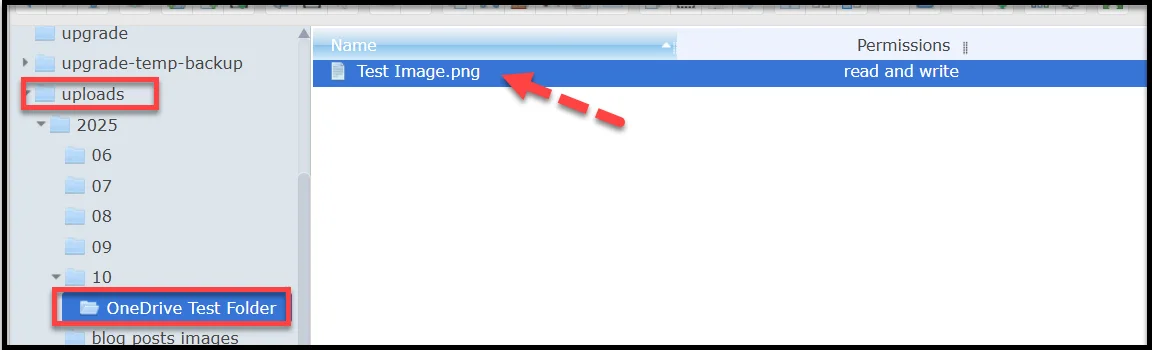
Step 2 – Register Files Using Media Sync Plugin
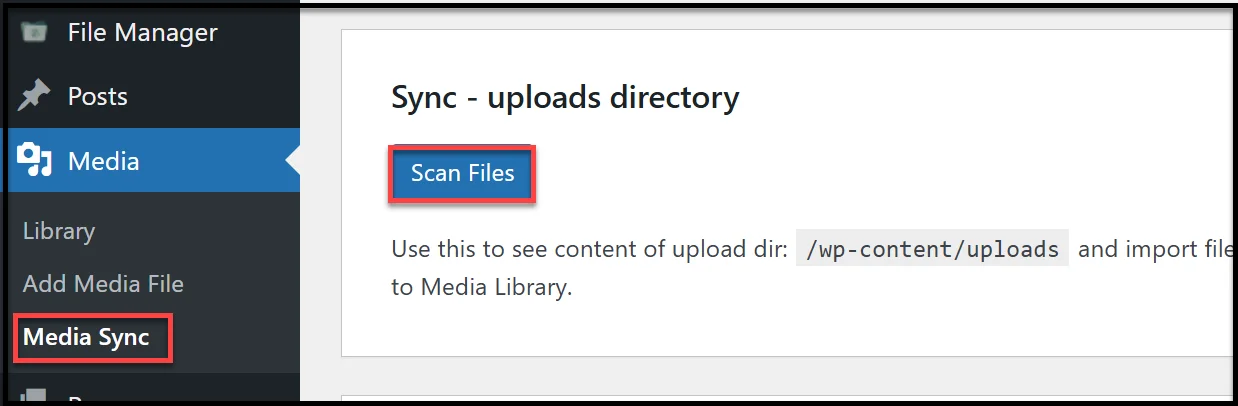
Next, install and activate the Media Sync.
Then go to Media → Media Sync and click Scan Files.
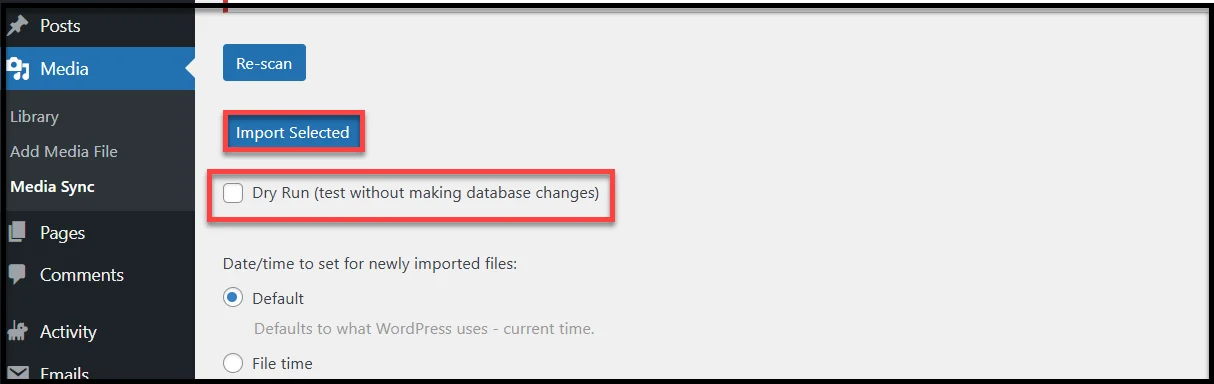
Uncheck Dry Run, select your copied OneDrive files, and click Import Selected.
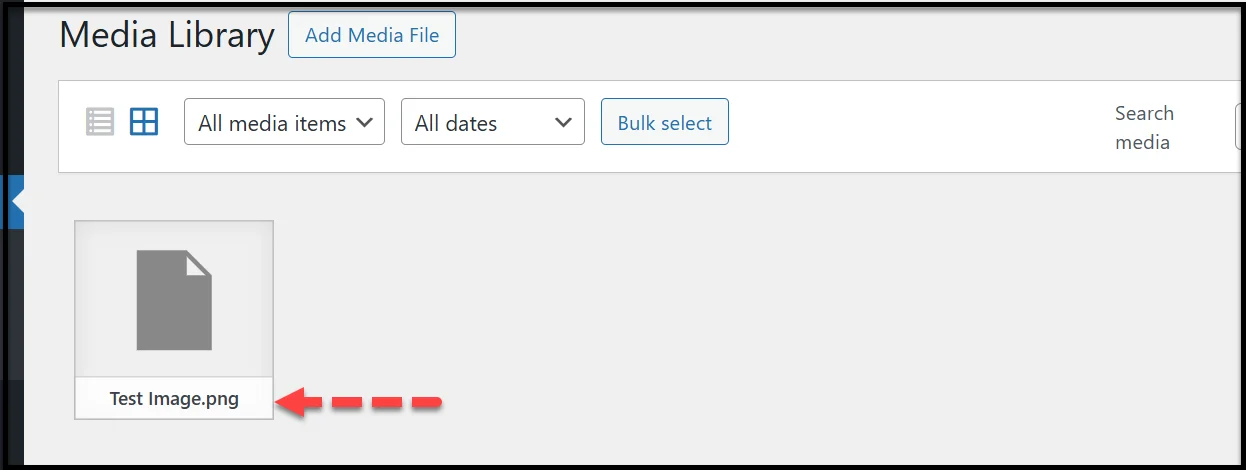
Once done, open your Media Library and you will see your OneDrive files should now appear, ready to use in posts or pages.
Your OneDrive is now fully connected to your WordPress site. From here, you can upload, organize, sync, and manage cloud files directly inside your dashboard: just like local Media Library files.
What You Can Do After Integrating OneDrive to WordPress
Once you connect OneDrive to WordPress using the Advanced File Manager plugin, your workflow becomes faster and more flexible.
Here’s what you can do next:
- Access OneDrive Files Directly from WordPress: You no longer need to switch tabs or log into OneDrive. Open the file manager, and all your OneDrive folders and files are right there inside your WordPress dashboard. It’s the easiest way to manage OneDrive files in WordPress without extra plugins or logins.
- Upload and Manage Cloud Files in Real Time: Need to upload images, PDFs, or documents to OneDrive? You can do it straight from WordPress. Files sync instantly to your OneDrive storage, so you can upload to OneDrive from WordPress without manual transfers.
- Organize Files from Dashboard: Rename, move, or delete OneDrive files directly inside WordPress. The plugin mirrors changes in real time, keeping both your cloud and local structure perfectly aligned.
- Build a Cloud-First Workflow: By connecting OneDrive, your media workflow shifts entirely to the cloud. You can upload, manage, and share files directly from OneDrive within WordPress without storing large files on your hosting server. It’s a smart way to keep your site light while working with cloud-based media.
- Create Off-Site Backups: Keep your important uploads safe by storing backups on OneDrive. Even if your site data gets lost, your files remain secure in the cloud for quick recovery.
What Else Do You Get With Advanced File Manager
If you want to take management of your WordPress files to the next level with cloud integrations and an AI Coding Assistant, you need Advanced File Manager Pro.
With over 200,000 active installs and a 4.8/5 rating on WordPress.org, the plugin is trusted by professionals who want power, speed, and simplicity inside their dashboard.
The following are some of the useful features of the plugin:
- Complete File Management: Copy, move, rename, delete, upload, and download files right from your dashboard. You can even create or extract ZIP archives in a few clicks, just like on your computer.
- Built-In Code Editor: Edit PHP, CSS, HTML, or JavaScript files without leaving WordPress. The built-in editor includes syntax highlighting and line numbers, helping you make quick, accurate changes.
- Drag-and-Drop Simplicity: Upload or move files using an intuitive drag-and-drop interface. It saves time and makes file organization effortless.
- Advanced Access Controls: Protect your site by setting role-based access. Define who can upload, edit, or delete files, and keep sensitive areas restricted to authorized users.
- Stealth Mode for Security: Hide actual file paths from users to prevent unauthorized access and keep your file system structure secure.
- Front-End File Management: Allow clients, students, or team members to upload and manage files directly from the front end. Ideal for membership sites, client dashboards, or project collaboration.
- Media and Document Previews: Preview images, videos, PDFs, and other common files without downloading them. This makes managing large media libraries faster and more visual.
- Cloud Integrations: Just like OneDrive, you can easily sync and manage files from Google Drive, Dropbox, and Amazon S3, and even access your GitHub repositories directly from the file manager.
- AI Coding Assistant: Write, debug, and improve your code instantly with the AI Code Pilot. It can generate snippets, suggest fixes, or help you understand code with simple natural-language prompts.
To unlock the Advanced File Manager’s full potential, get the pro version today and experience faster workflows, safer file handling, and effortless cloud management, all from one place.
Common OneDrive Connection Issues (and How to Fix Them)
Even with the Advanced File Manager’s smooth integration, you might occasionally face issues connecting OneDrive to WordPress. Here are the most common problems and how to resolve them quickly:
1. Authorization Error
Problem: The connection fails during authorization or redirects you back without linking to OneDrive.
Fix:
- Go to File Manager → OneDrive
- Check your Client ID and Secret Value.
- Reconnect your account and make sure you’re logged into the correct Microsoft account.
- Clear your browser cache before reconnecting if the issue persists.
2. Expired Access Token
Problem: Files suddenly stop syncing even though the setup was working before.
Fix:
This usually means your OneDrive access token has expired.
- Simply reconnect your OneDrive account from the plugin settings.
- If it happens often, check whether your site’s cron jobs or cache plugins are interfering with token refreshes.
3. Permission Denied
Problem: You can’t view, upload, or manage certain files or folders.
Fix:
- Ensure that the folder you’ve connected is shared with the same Microsoft account used in the plugin.
- Double-check your OneDrive permissions as the plugin needs access to read and write files.
4. File Sync Delay
Problem: Uploaded files don’t appear instantly in your OneDrive or WordPress file manager.
Fix:
- Wait a few minutes for OneDrive’s API to process the sync.
- For instant updates, use the Reload option inside the File Manager.
- If delays are consistent, check your site’s caching or firewall settings.
5. Large File Upload Fails
Problem: Uploads of large files (100 MB+) fail midway, or you get a timeout error.
Fix:
- Increase the upload size limit in your WordPress and server settings.
- Check if your hosting provider restricts file uploads over a certain size.
- If needed, upload large files directly to OneDrive and resync via the File Manager.
Final Remarks on Connecting OneDrive to Your WordPress Media Library
Connecting OneDrive to WordPress gives you the freedom to manage your files more efficiently without overloading your website’s hosting. With OneDrive WordPress sync, you can upload, edit, and organize files directly from the cloud while keeping your site fast and optimized.
If you’re ready to go beyond OneDrive, Advanced File Manager Pro also supports additional cloud integrations for WordPress, including Dropbox, Google Drive, Amazon S3, and GitHub.So, what are you waiting for? Upgrade to Advanced File Manager Pro today and start managing your cloud files smarter.

