What if you could manage your Dropbox files without ever leaving WordPress?
With Advanced File Manager Pro v2.7.0, that’s now a reality. Our latest update introduces Dropbox Driver Integration—a powerful new feature that brings your cloud storage right into the WordPress dashboard.
With this Dropbox integration, you can instantly upload, sync, and manage files across both platforms without switching tabs or wasting time.
Curious how it works? Let’s dive into what’s new, why it’s a game-changer, and how to get it set up in minutes.
Why Dropbox Integration in v2.7.0 Is a Big Deal?
This powerful new capability allows you to instantly connect your WordPress file manager with your Dropbox account, giving you full access to upload, sync, and manage files across both platforms in real-time. Whether you’re pushing backups to the cloud or pulling assets into your site, it all happens from a single, unified dashboard.
Here’s what makes this integration such a valuable addition:
- Real-Time Sync — Upload a file in Dropbox, and it’s instantly accessible in WordPress.
- Cloud Backups — Backup important WordPress files directly to Dropbox without extra plugins.
- Streamlined Workflow — Work directly with cloud files in your file manager—no manual transfers needed.
- Secure & Reliable — Dropbox’s robust API integration ensures a safe, encrypted connection for all your file operations.
And the best part? It’s exclusive to Pro users—so if you haven’t upgraded yet, now’s the perfect time.
Ready to ditch the old back-and-forth routine and manage your files like a pro? This is the upgrade you’ve been waiting for.
How Dropbox Integration Improves Real-World Workflows
Let’s face it—manual file uploads, repeated downloads, and constant switching between WordPress and external cloud storage are a productivity killer. That’s why our new Dropbox integration isn’t just a cool feature—it’s a genuine workflow revolution.
Here’s how Dropbox Driver Integration makes a real difference:
- For Developers: Stop juggling between environments. Push logs, theme backups, or staging files straight from WordPress to Dropbox without leaving your dashboard. Share code or configurations with clients or team members in seconds.
- For Content Creators & Website Managers: Upload once, access everywhere. Whether you’re managing a blog, portfolio, or media-heavy site, you can now drag and drop your files into Dropbox and immediately use them on WordPress—without extra steps.
- For Agencies & Teams: Centralized asset management. Share folders via Dropbox, let your team handle content externally, and then sync it back into WordPress when ready. No duplicate uploads. No version control headaches.
In short, Dropbox is more than a storage tool—it’s a strategic extension of your WordPress setup. And with Advanced File Manager Pro v2.7.0, it’s now baked right into your workflow.
How to Set Up Dropbox Integration (Step-by-Step Guide)
Getting started with Dropbox integration in Advanced File Manager Pro v2.7.0 is easy—and once it’s set up, your WordPress site and Dropbox will work hand in hand. Just follow the simple steps below to connect your cloud storage and start managing files like a pro.
Prerequisites for Dropbox integration
Before you begin:
- Make sure you’ve upgraded to Advanced File Manager Pro.
- You’ll need a Dropbox account (sign up for free if you don’t already have one).
Step #1: Plugin Configuration
- In your WordPress dashboard, go to Advanced File Manager >> Dropbox.
- Enable the Dropbox integration checkbox.
- Set a custom alias to help identify this connection.
- You’ll see two fields: App Key and App Secret. Leave them empty for now—we’ll generate them next.

Step #2: Create Your Dropbox App
- In a new tab, log in to the Dropbox App Console.
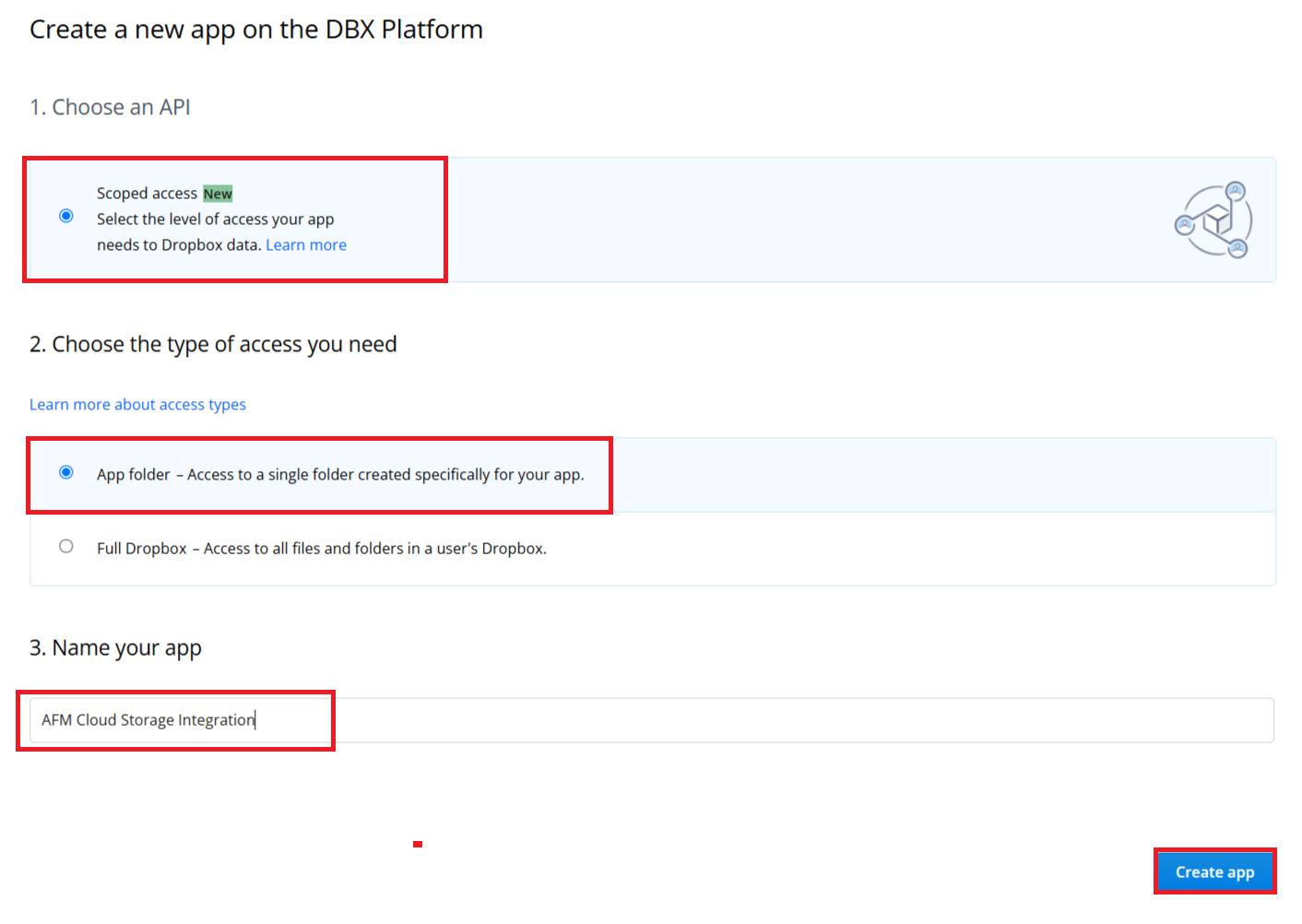
- Go to App Console and click ‘Create App.’

- Next, choose the ‘Scoped Access’ option.
- After that, select ‘Full Dropbox’ or ‘App Folder’ access, based on your needs.
- Give your app a unique name.
- Agree to the terms and click ‘Create App’ to continue.
Step #3: Configure the Dropbox App Settings
- On the subsequent page, under the Settings tab, find the ‘OAuth 2 Redirect URIs’ field.
- Copy the ‘Redirect URL’ from your plugin’s Dropbox settings and paste it here, and click ‘Add.’

- Navigate to the ‘Permissions’ tab, select the necessary checkboxes (e.g., files.content.read/write), and hit ‘Submit.’

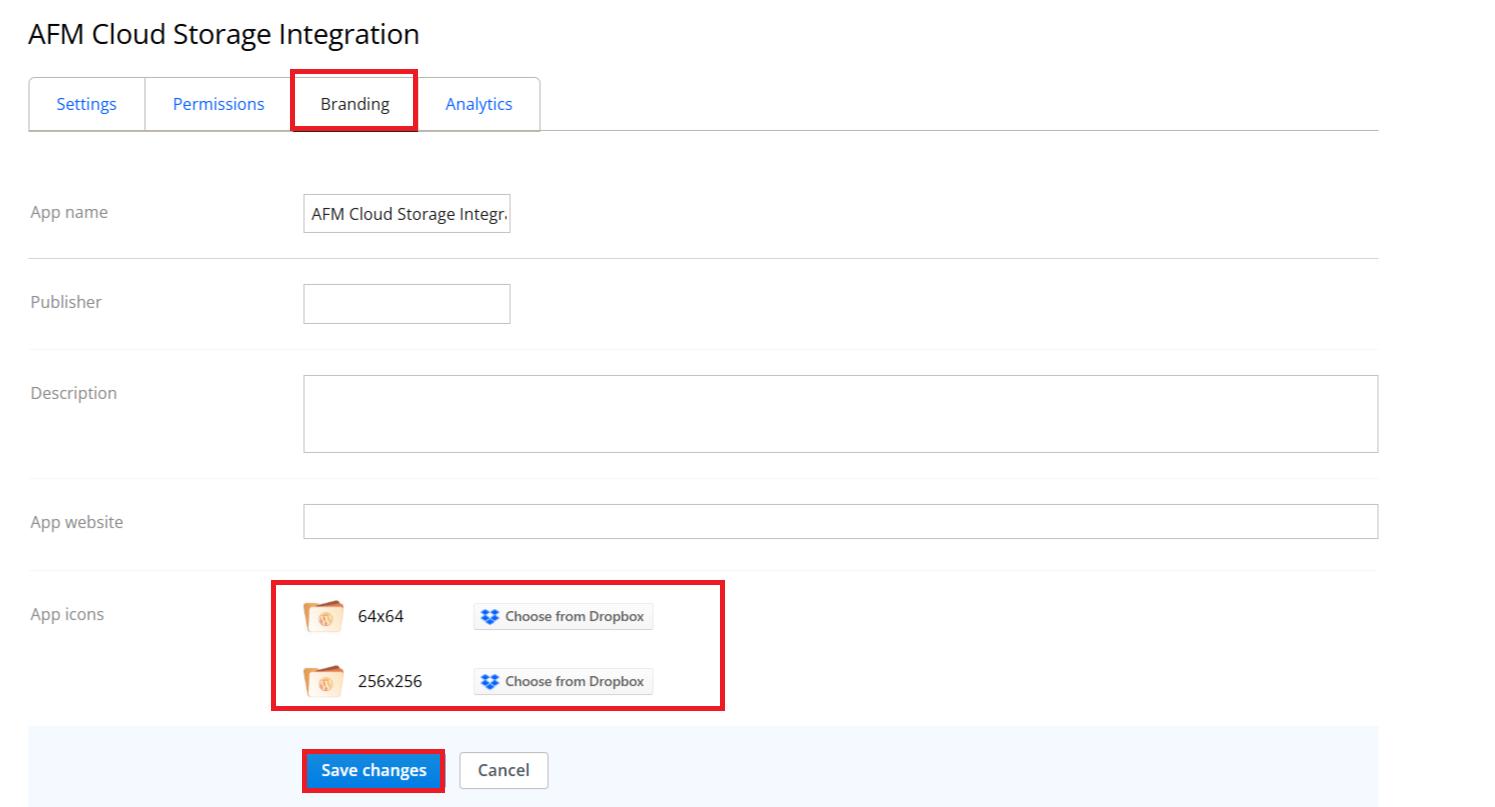
- Fill in the ‘Branding’ section (app icon, name, description, etc.), and click Save Changes.
Step #4: Apply for Production Status
- Go back to the app’s Settings tab and click Apply for Production.
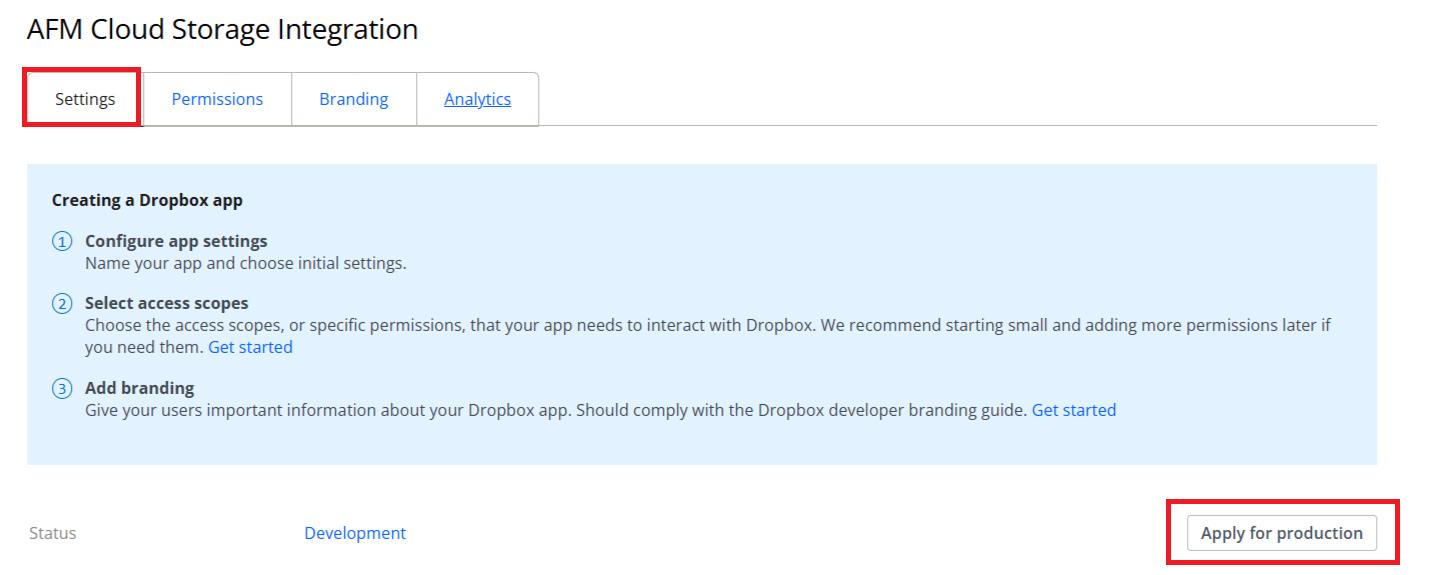
- Complete the Request Production Status form with valid details.
- After filling the form, make sure to select ‘Submit app.’

You should now see a success message once your app is approved.

Now, return to the Settings tab inside the Dropbox app and copy the App Key and Secret.

Step #5: Final Plugin Setup
- Back in WordPress, go to Advanced File Manager >> Dropbox.
- Paste your App Key and App Secret into the fields.
- Click Save Changes, then hit Connect Dropbox.

That’s it! Your Dropbox is now connected to WordPress.

Success! You’re Now Connected to Dropbox
You did it! With just a few simple steps, you’ve successfully linked your WordPress site to Dropbox using Advanced File Manager Pro v2.7.0.
Now, you can:
- Access Dropbox files directly from the WordPress file manager
- Upload files to Dropbox from your dashboard in real-time
- Organize, rename, and manage Dropbox content without ever leaving WordPress
- Create cloud backups for safer, off-site storage
This integration isn’t just about convenience—it’s about control. Whether you’re managing daily uploads or backing up critical site files, the Dropbox driver gives you a smooth, connected, and secure file management experience you can rely on.
Need Help? We’ve Got You Covered
We know that setting up integrations like Dropbox can be a bit technical—and we’re here to make sure you’re never stuck.
If you run into any issues during setup or configuration, our dedicated Support Team is ready to assist you. Whether it’s authentication errors, connection problems, or questions about permissions, we’ve seen it all—and we’ll get you sorted out quickly.
Here’s how to get support:
- Submit a ticket through our support portal
- Check our documentation for step-by-step guides.
Our mission is to help you get the most out of Advanced File Manager Pro, and we’re committed to delivering support that’s just as powerful as our plugin.
Give Us Your Feedback on WordPress Dropbox Integration
We’re excited to see how you use this feature—and we’re just getting started. More powerful integrations and enhancements are on the way.
Got feedback or suggestions? Drop us a line—we’re building this for you.