

Far gone are the days of sifting through the WordPress directory to upload or manage files. Nowadays, you can do that from the dashboard using Advanced File Manager.
Pretty interesting, right? There’s more…
This article highlights all the fantastic things you can do, including uploading and managing files without leaving your dashboard. But before diving right into it, let’s understand what file managers are, how to install and set up the best file manager plugin, and why you must do it in the first place.
What Are File Managers in WordPress?
File managers are plugins that help access WordPress core files without relying on third-party FTP clients, such as FileZilla or Cyberduck. These are convenient and help upload, delete, or manage files from the WordPress dashboard.
If you are looking for a one-size-fits-all plugin, Advanced File Manager is undoubtedly one of the best file manager plugins for WordPress. It is lightweight, has many amazing features, and makes managing files much easier and more convenient.
However, convenience is not the only perk of having the best file manager plugin. If you are thinking about this, the following section might help.
Why Use Advanced File Manager in WordPress
Considering the fact that you can access the root directory without or with any plugin, you might wonder whether you need it. The short answer is definitely, you do, for multiple reasons. Such as:
- Convenience: To access your root files, you will have to rely on FileZilla or other FTP clients to access them. Alternatively, with a file manager, you can access it right from your dashboard without having to rely on external software.
- No technical setup: FTP tools aren’t always beginner-friendly. For non-developers or casual site owners, installing and using Advanced File Manager is far simpler than dealing with FTP clients, SSH access, or cPanel.
- Faster workflow: Whether you want to upload a media file, edit a theme file, or move things around, you can do it directly inside your dashboard. No switching between tools or waiting for connections to sync.
- Safe and secure: Reputable file manager plugins come with role-based access controls, so only the right users can access sensitive files. That’s not always as straightforward with FTP unless you manually manage user permissions.
- Additional features: Advanced File Manager isn’t just about browsing folders. It includes zip/unzip capabilities, code editing with syntax highlighting, file previews, and much more.
First, Download Advanced File Manager: 2 Easy Ways
Downloading Advanced File Manager is super easy. We have two easy ways to do so. You can either download it from the WordPress plugin directory or upload the file directly.
#1. From WordPress Plugin Directory
Log in to the WordPress dashboard ⇒ Plugins ⇒ Add Plugin.
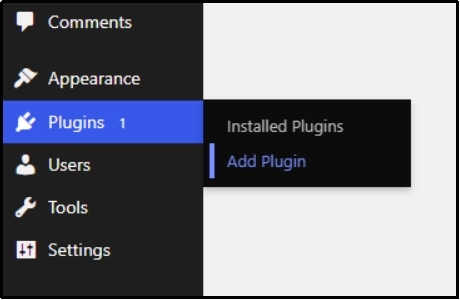
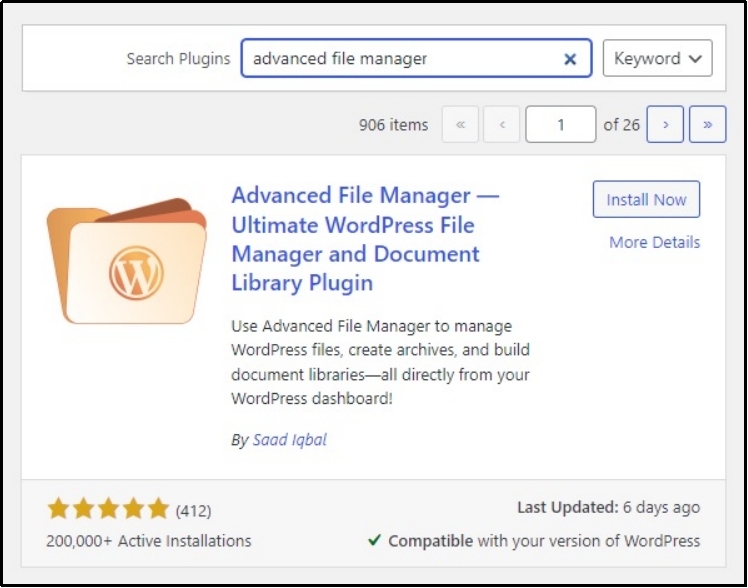
After landing on the plugin directory, use the search plugin bar and look for Advanced File Manager.
Install the plugin using the “Install Now” button.
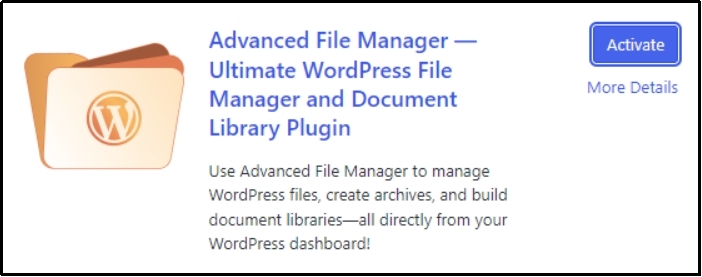
Once the installation is done, a couple of seconds later, the “Activate” button will appear. Click it and activate the most advanced file manager plugin for WordPress.
#2. Using The Upload Plugin Button
Next, we have the “Upload Plugin” button. This is usually used to upload plugin files when you buy premium plugins.
Click the “Add Plugin” button.
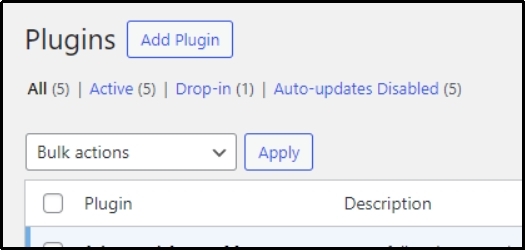
Now, the “Upload Plugin button.”
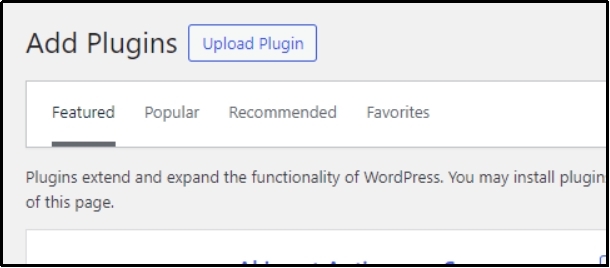
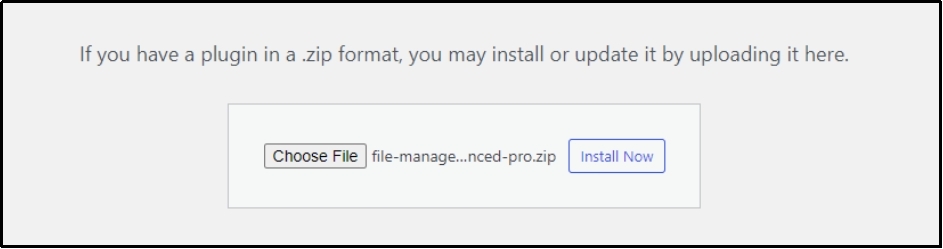
Use the Choose File button to browse to the plugin’s file on your computer and click “Install Now.”
Within seconds, the plugin will be installed, proceed further with activation with the “Activate Plugin” button.
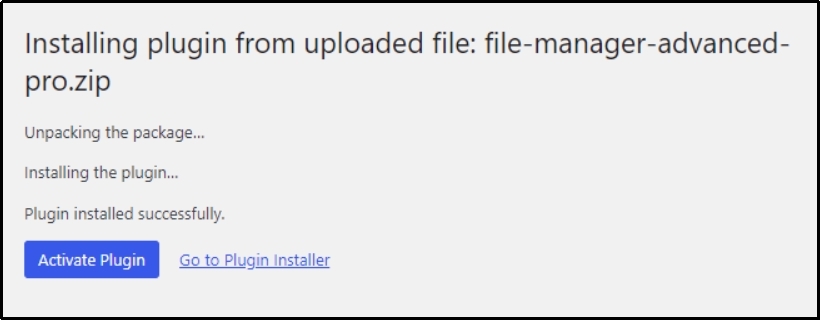
Either way, pat yourself on the back; you have successfully installed the best file manager for WordPress. Now, let’s move on to how you can upload or manage files without any help from an FTP client.
How to Upload Files Using The File Manager in WordPress
After installation, you will see this additional tab on the dashboard. Opening it allows the first look inside the plugin.
It has a sleek design and a very easy-to-use interface.
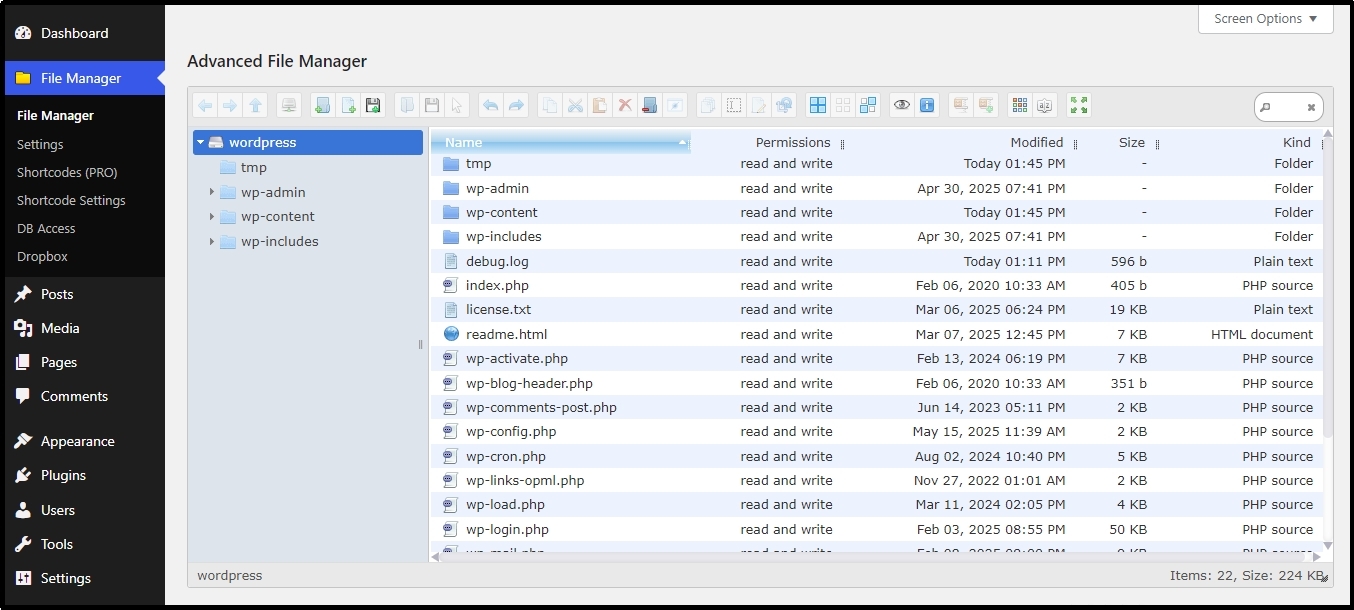
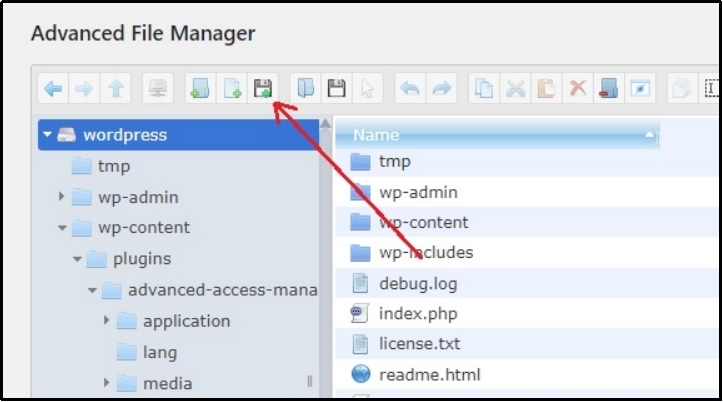
To upload a file, you can simply click on the Upload Files button.
Upon click, a drop zone will appear, allowing you to drop, select, or select entire folders directly.
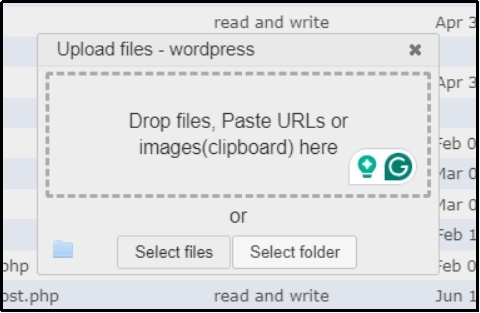
Downloading files is very straightforward. Managing them is even simpler!
Manage Files With Advanced File Manager
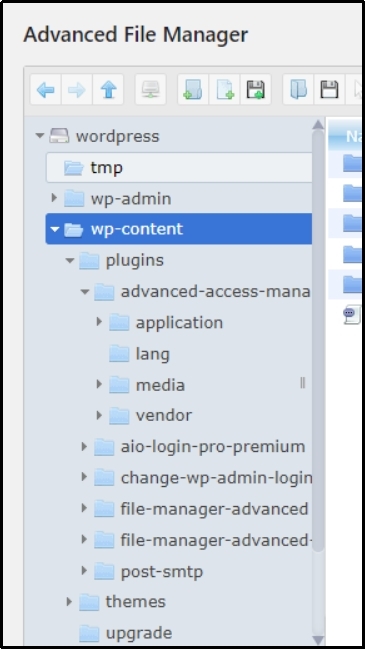
Clicking on any folder will open the child folders, making accessing or searching for files extremely easy.
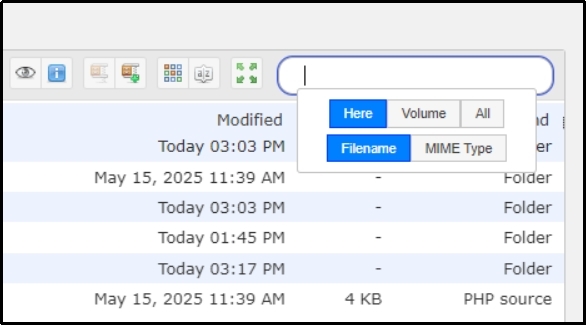
To make the search even easier, you can always use the search filter on the top right corner of the plugin’s interface.
Not only that, you get tons of more fantastic management features with Advanced File Manager.
The feature-rich toolbar might seem overwhelming, but this article can help!
Let’s learn the features from left to right.

- Back: Allows going back to the folder after accessing a child folder.
- Forward: Head inside the folder.
- Upward arrow: Jump to the parent folder.
- New folder: Allows creating a new folder in any folder you select.
- New file: Create a new file within the folder.
- Upload: Upload files via dropping or browsing through files.
- Open: Opens the selected folder.
- Arrow down: Download the selected file.
- Curved arrow (left): Undo
- Curved arrow (right): Redo
- Copy: Copy selected file.
- Scissors: Cut files to move to other folders.
- Paste: Paste files after copy or cut.
- Cross: Delete selected file/files.
- Empty folder: Empties the selected folder
- Hide: Hides the selected files.
- Duplicate: Creates a copy of the selected file
- Rename: Allows renaming the selected file.
- Select: There are three selection types:
- Select all: Selects all files.
- Select none: Unselects all files.
- Invert selection: Selects all files except the one selected.
- Preview: Pops a preview of the selected file, showing the file type, size, and modification date and time.
- Information: Get complete information about the file, including file size, path, link, modification date and time, permissions, and whether the file is locked.
- Archive: Archives the selected file.
- Unarchive: Reverts the archived file.
- Icon view: Changes the file view.
- Sort: Sort files by name, size, kind, date, or permissions.
- Full screen: Use the plugin in full screen.
- Search: Filter-rich search feature to look for files.
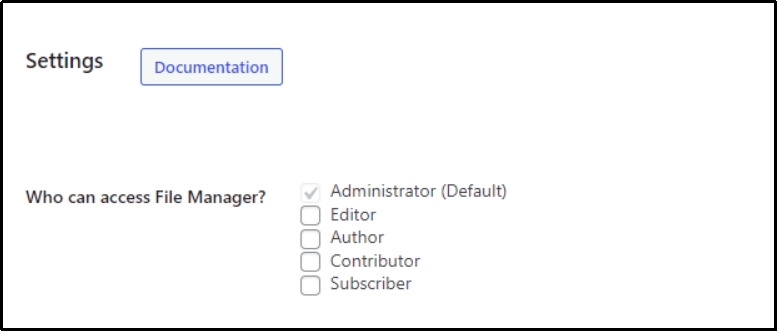
To help with security, you can also restrict or allow access to Advanced File Manager via roles. Just head to File Manager ⇒ Settings ⇒ Who can access File Manager? ⇒ Check the boxes that you want to allow access to.
Lastly, if you didn’t like the theme, you can choose from multiple options, including mono, material dark, material grey, Windows 10, or Bootstrap.

The advanced file manager offers complete flexibility.
Manage Files Effortlessly With Advanced File Manager
Thanks to Advanced File Manager, managing files in WordPress is no longer a hassle.
Whether you’re a developer looking to speed up your workflow or a non-technical site owner who just wants things to work, this plugin gives you the tools to access, upload, edit, and manage files from your dashboard.
No more jumping between FTP clients or navigating cPanel. You can take complete control of your WordPress files with just a few clicks. Safely, securely, and efficiently.
Install Advanced File Manager, simplify your file management process, and enjoy a smoother, more productive WordPress experience.
Frequently Asked Questions
Absolutely not! The Advanced File Manager is extremely easy to use and does not require any coding knowledge. Hovering over the feature on the toolbar reveals the purpose of the button. You can easily figure it out without any professional help. However, if you are still stuck, our documentation is here to help.
You can prevent unauthorized access to the file manager by allowing access to only those roles that definitely need access to complete their roles. Use the principle of least privilege access.
The Media Library in WordPress is where all your uploaded images, videos, audio files, and documents live. It’s designed to manage media uploaded through the WordPress dashboard.
The File Manager, on the other hand, is a plugin that gives you direct access to your website’s core file, enabling you to browse, upload, edit, or delete files and folders on your site, including theme files, plugin files, and other non-media content.

