

If you’re running a WordPress site that shares files with clients, team members, or users, you must have thought:
“How can I let people download files without giving them backend access?”
The answer? A front-end download manager.
The front-end download manager enables users to access, view, and download files directly from your website without needing to log in.
In this guide, we’ll walk you through how to create a clean, functional, and secure front-end download manager using a file manager plugin.
Ready? Let’s get started!
Note: In this article, we will use the Advanced File Manager plugin. It’s one of the best plugins available for managing files in WordPress, and with its Shortcode Addon, you can display download folders right on the front end. More on this later.
What is a Front-End Download Manager in WordPress?
A front-end download manager is a file access interface (such as a document library) that lets users search, preview, and download files directly from a page or post on your site, and sometimes without even needing to log into the WordPress dashboard.
Instead of sending files through email or manually creating download links, you can organize everything into a clean, easy-to-navigate file library. Visitors can access it anytime, and you get full control over which files they see, who can download them, and what actions they can take.
Here’s how it’s different from a traditional file manager:
- Front-End Access: Users interact with files through a page on your website, not your admin panel.
- Better Security: Since users don’t get backend access, there’s less risk of accidental changes or security breaches.
The scenarios where you can use the front-end download manager are as follows:
- A student portal where learners can grab course materials without digging through emails.
- A client dashboard where each customer has their private folder.
- A media library for a team that needs quick, organized access to shared assets.
A front-end download manager makes all of this possible while keeping your workflow simple and your files organized.
Why Use Advanced File Manager for a WordPress Download Manager?
When it comes to the “WordPress download manager” plugin, there are plenty of options available, but most either have complicated setups or feel outdated once installed. Advanced File Manager takes a different approach: it’s fast, intuitive, and doesn’t require you to jump through hoops just to get started.
On top of that, using Advanced File Manager, you can add the upload option to your WordPress download manager.
The plugin has a free and a premium version. Let’s discuss both:
Highlights of the Free Version
The free version of Advanced File Manager already covers the basic features you’d expect from a solid file management tool:
- Upload, rename, delete, and move files directly from your dashboard.
- Preview common file formats without having to download them first.
- Access all directories and files on your site.
- Zip and unzip files on the fly.
- Adjust file and folder permissions when needed.
- And much more.
These features are great for backend management, but the real magic happens when you step up to Advanced File Manager Pro.
Why the Pro Version is Worth It
If your goal is to create a front-end document library, the premium upgrade is essential. It unlocks:
- Front-End Access: Display your file manager anywhere on your site using shortcodes or a Gutenberg block.
- Role-Based Restrictions: Choose exactly which user roles can view, download, upload, or manage files.
- Private User Folders: Automatically assign each user their own secure space for file sharing.
- Custom Layouts: Choose between list or grid views to match your site’s style.
- Cloud Integration: Easily connect your favorite cloud app with WordPress (i.e., Google Drive, Dropbox, Amazon S3, etc).
- Advanced Permissions: Block specific users or roles for tighter control.
In short, Advanced File Manager Pro enables you to transform your WordPress site into a fully functional file-sharing hub, perfect for both public downloads and private file access.
3 Easy Steps to Create a WordPress Front-End Download
We have divided the process of creating a download manager into three easy steps. Let’s go through each step one by one.
Step 1: Install Advanced File Manager (Free + Premium)
Before we start building your front-end download manager, you’ll need to get Advanced File Manager installed and running. The process is quick, and you need to install the free version before upgrading to Pro for front-end features.
- Log in to your WordPress dashboard.
- Go to Plugins → Add Plugin.
- In the search bar, type Advanced File Manager.
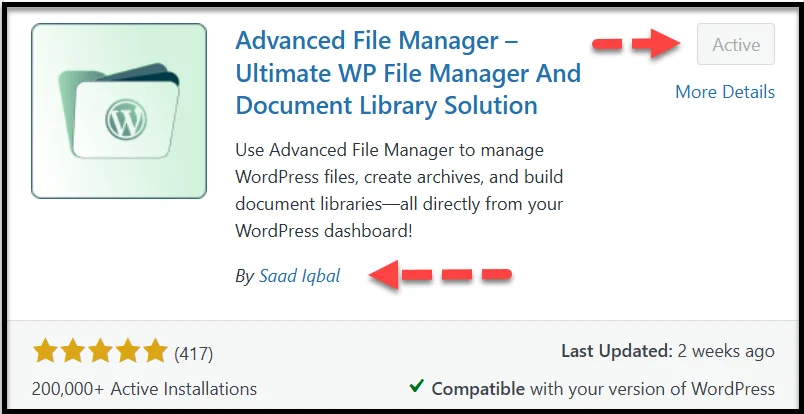
- Look for the plugin by Saad Iqbal and click Install Now.
- Once installed, hit Activate.
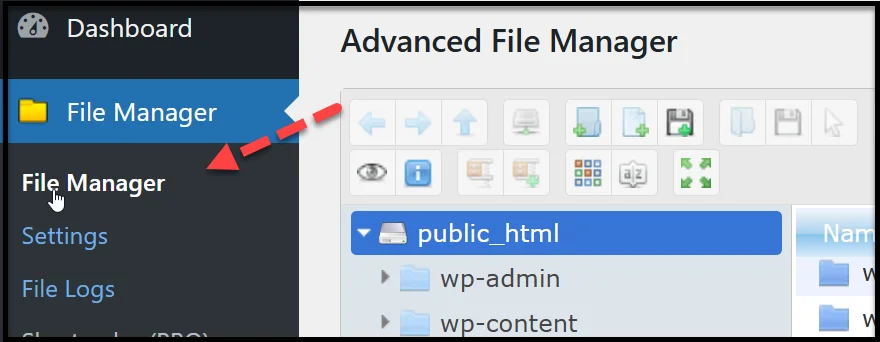
After activation, you’ll see a new ‘File Manager’ menu in your dashboard sidebar. This is where you’ll manage backend files if you want, but for now, our focus will be on the front-end setup.
Now, to install the premium version of the plugin, follow the steps below:
- Visit the Advanced File Manager’s official website and purchase any premium plan of your choice.
- You’ll receive a welcome email with:
- A ZIP file (e.g., file-manager-advanced-vx.x.zip).
- Your license key.
- Download the ZIP file to your computer (don’t unzip it).
- In WordPress, go to Plugins → Add Plugin → Upload Plugin.
- Upload the ZIP file and click Install Now.
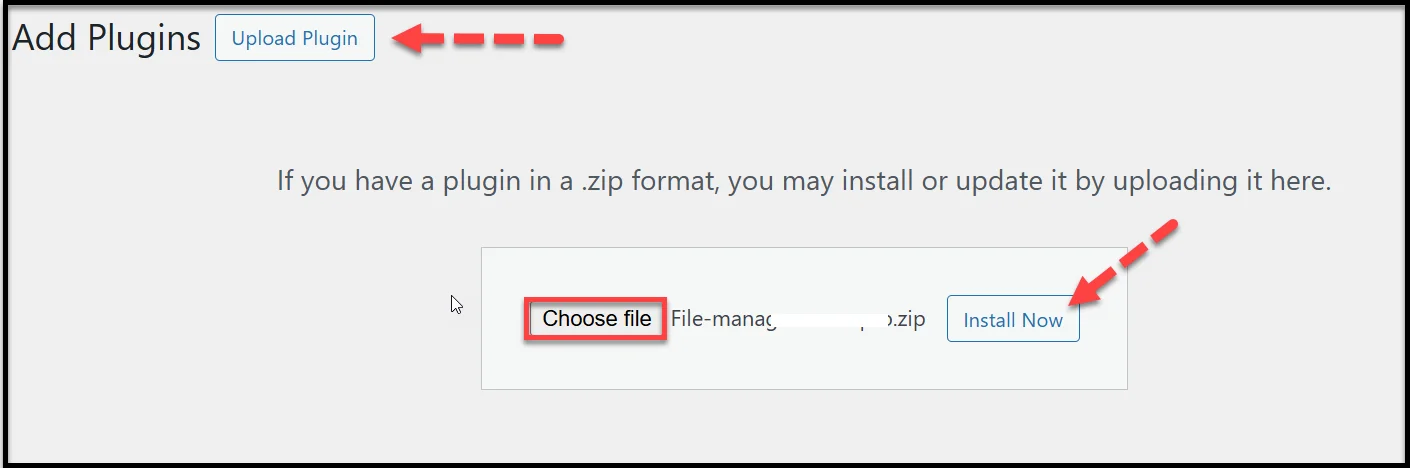
- Next, activate the plugin using your license key.
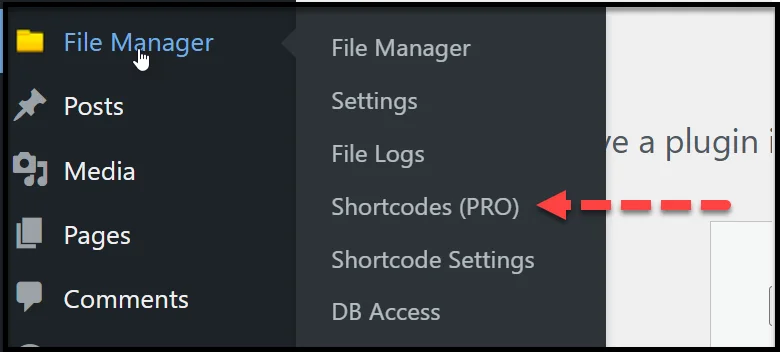
Once activated, you’ll see a ‘Shortcodes (PRO)’ menu in your File Manager settings. This is the tool we’ll use to build your front-end download manager.
Step 2: Create Your First Shortcode for the Download Manager
With Advanced File Manager Pro active, you’re ready to create the shortcode for the front-end download manager. This shortcode controls what files are displayed, who can access them, and what actions users can take.
To create the shortcode for the front-end download manager, follow the steps below:
- In your WordPress dashboard, go to File Manager → Shortcodes (PRO).
- Click the Create Shortcode button.
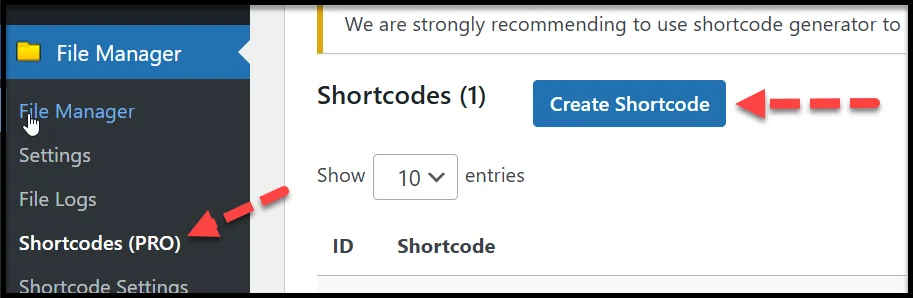
A setup form will appear with all the customization options, which we have discussed in the sequential order as follows:
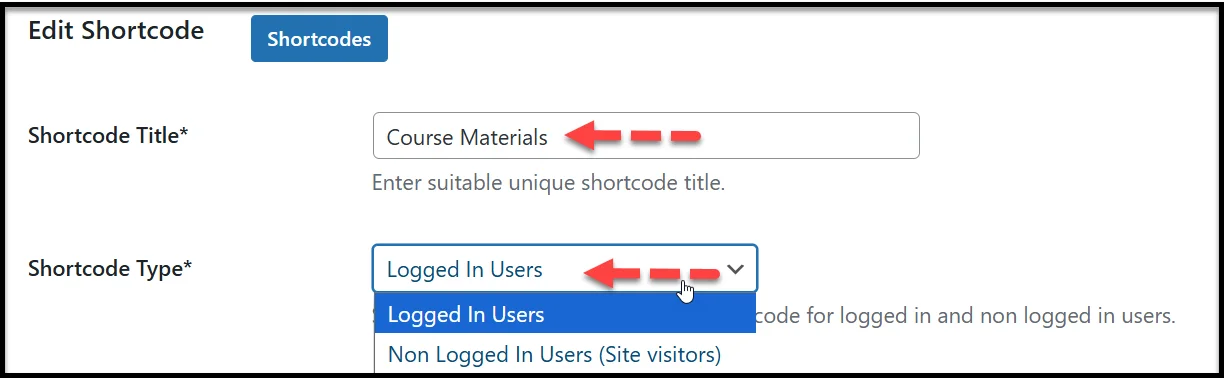
1. Shortcode Title & Access Type
- Give your shortcode a name (e.g., “Client Files” or “Course Materials”).
- Choose whether it’s visible to logged-in users only or to everyone.
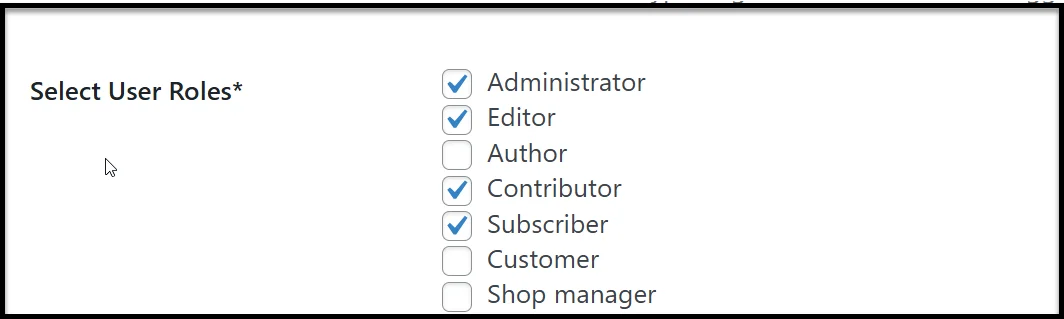
2. Allowed Roles
- Select which WordPress user roles can view this library:
- Administrator
- Editor
- Author
- Subscriber
- Contributor
- Customer
You can select multiple roles.
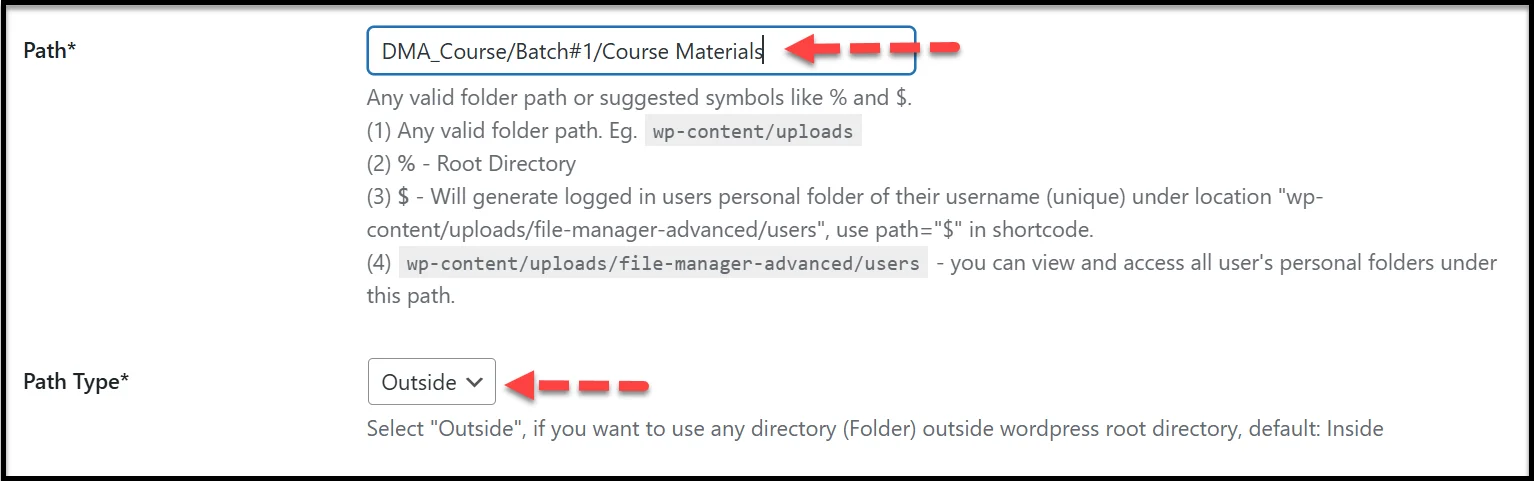
3. Path & Path Type
- Define the file location:
- % for your site’s root directory.
- $ for user-specific folders (ideal for private client access).
- Or a specific folder like uploads/docs.
Pro Tip: Use the Outside path type for better file isolation.
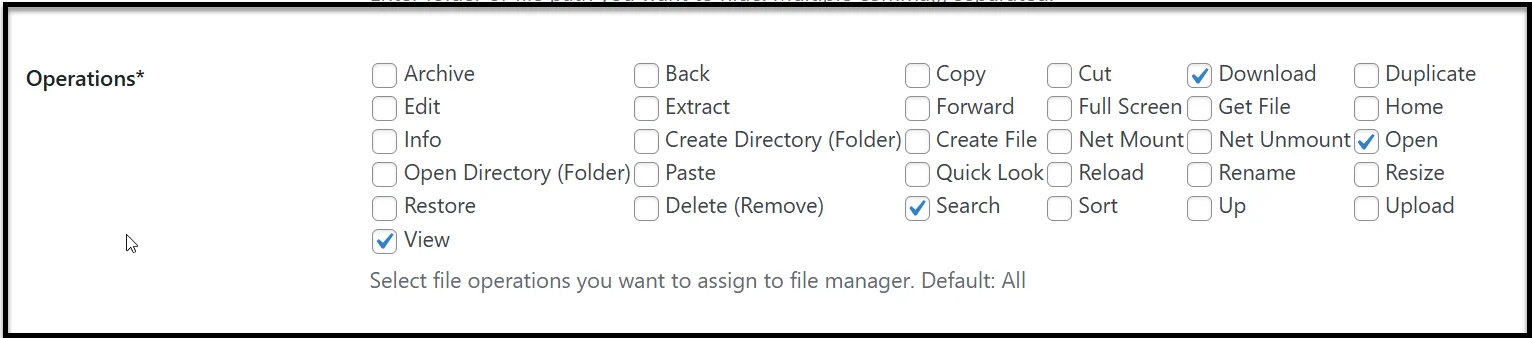
4. Operations (Permissions)
Choose what users can do:
- View
- Download
- Upload
- Rename
- Delete
- Copy
- Move
- …and more.
Pro Tip: If your goal is a public download library, stick to View, Download, Open, and Search only.
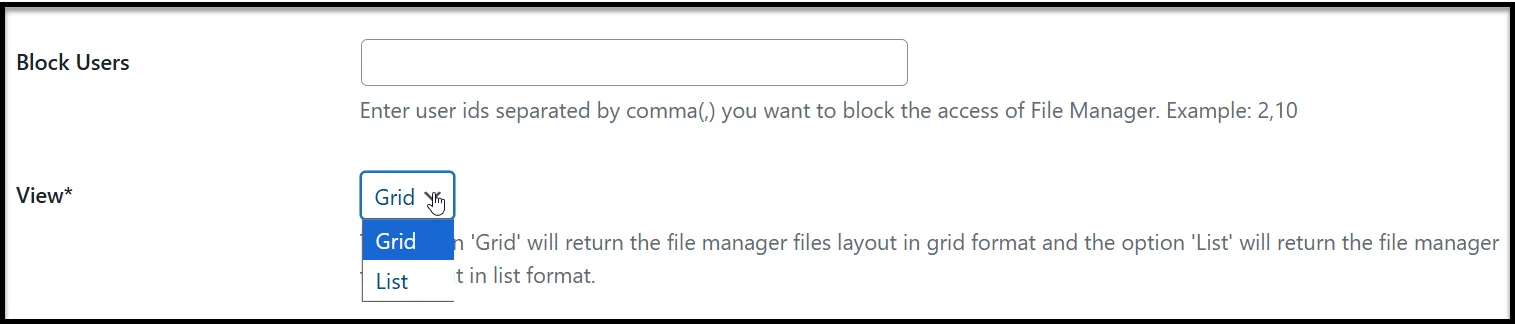
5. Blocked Users
- You can block specific roles or usernames for extra control.
6. Layout
- Grid View for a visual, thumbnail-style display.
- List View for a cleaner, table-like appearance.
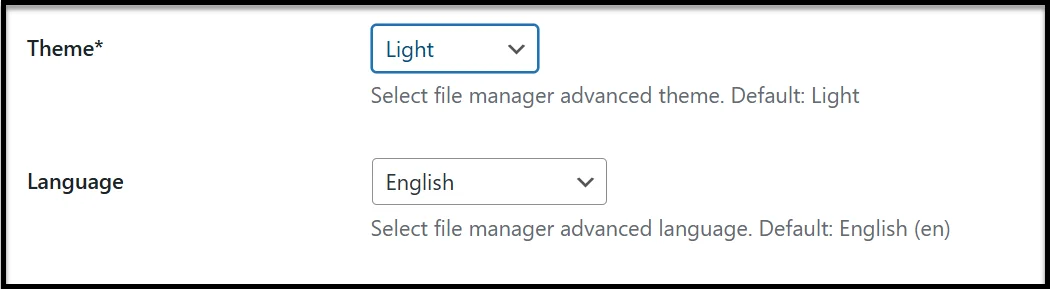
7. Theme & Language
- Match the color theme to your site’s design.
- Select the language for the file manager interface.
8. Save the Shortcode
Once you’ve adjusted all settings, scroll down and click Save Changes.
You’ll now see your shortcode in the list, looking something like this:
Invalid Shortcode!
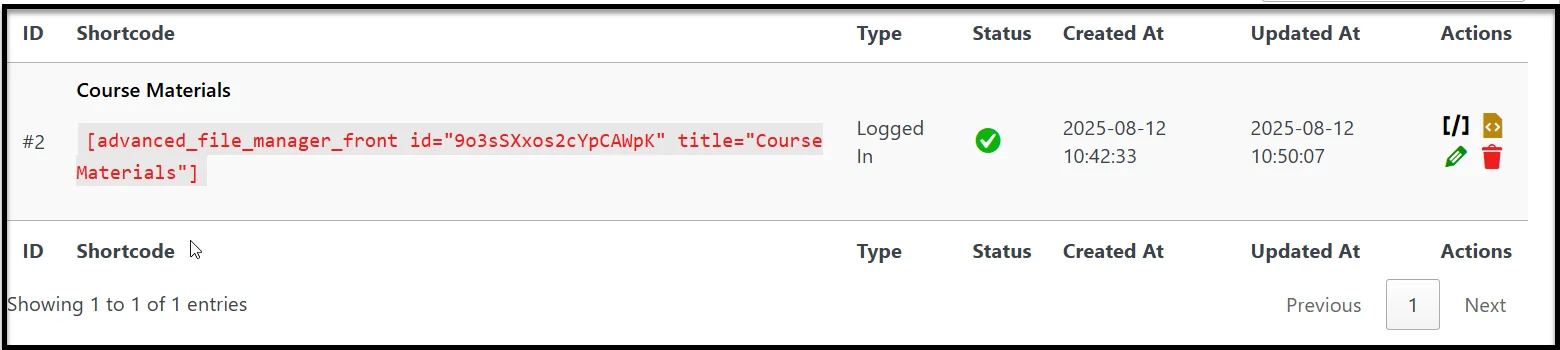
Copy the shortcode to your clipboard; you’ll need it for the next step when we place the download manager on the front end.
Step 3: Embed the Document Library (Gutenberg or Shortcode)
Now that your shortcode is ready, it’s time to place your download manager where users can see and use it. You’ve got two simple options: Gutenberg block or manual shortcode placement.
Option 1: Add with the Gutenberg Block
If you’re using the WordPress block editor, this is the most straightforward method.
- Go to Pages → Add Page (or edit an existing page).
- Give your page a title, like “Course Materials” or “Download Manager.”
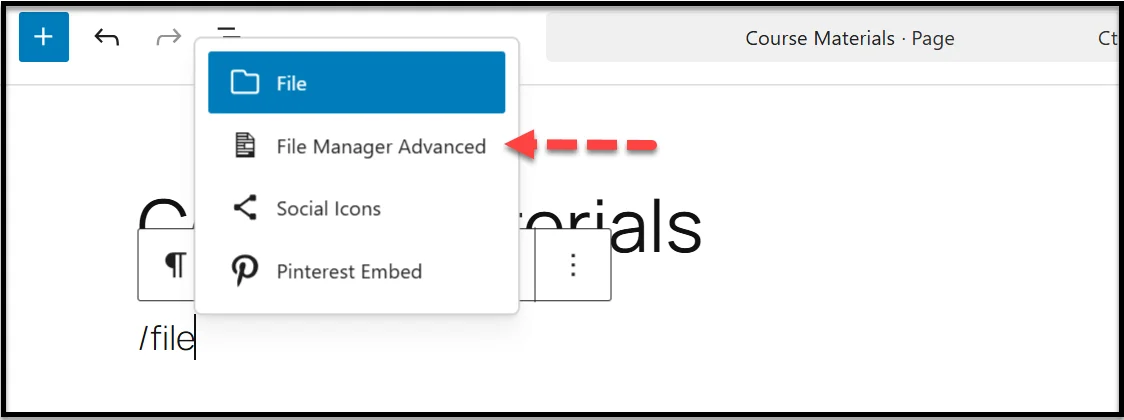
- In the editor, type /File and select File Manager Advanced from the suggestions.
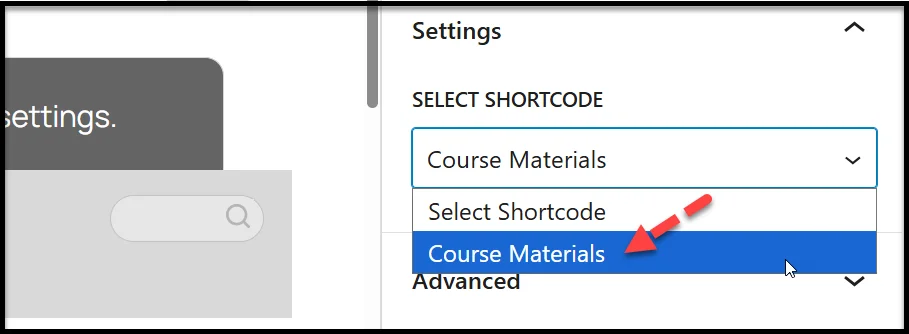
- On the right-hand settings panel, choose the shortcode you created earlier from the dropdown list.
- Click Publish and then View Page to see your live file manager.
This method provides a drag-and-drop interface to position your download manager exactly where you want it on the page.
Option 2: Paste the Shortcode Manually
If you’re using the Classic Editor, a page builder (like Elementor), or want to place the download manager in a widget area:
- Copy your shortcode (e.g.,
Invalid Shortcode!
). - Paste it into the page, post, or widget where you want the file manager to appear.
- Save or publish your changes.
Either method will display the same fully interactive document library, complete with the permissions, layout, and settings you configured earlier.
How the Front-End Download Manager Looks to Visitors
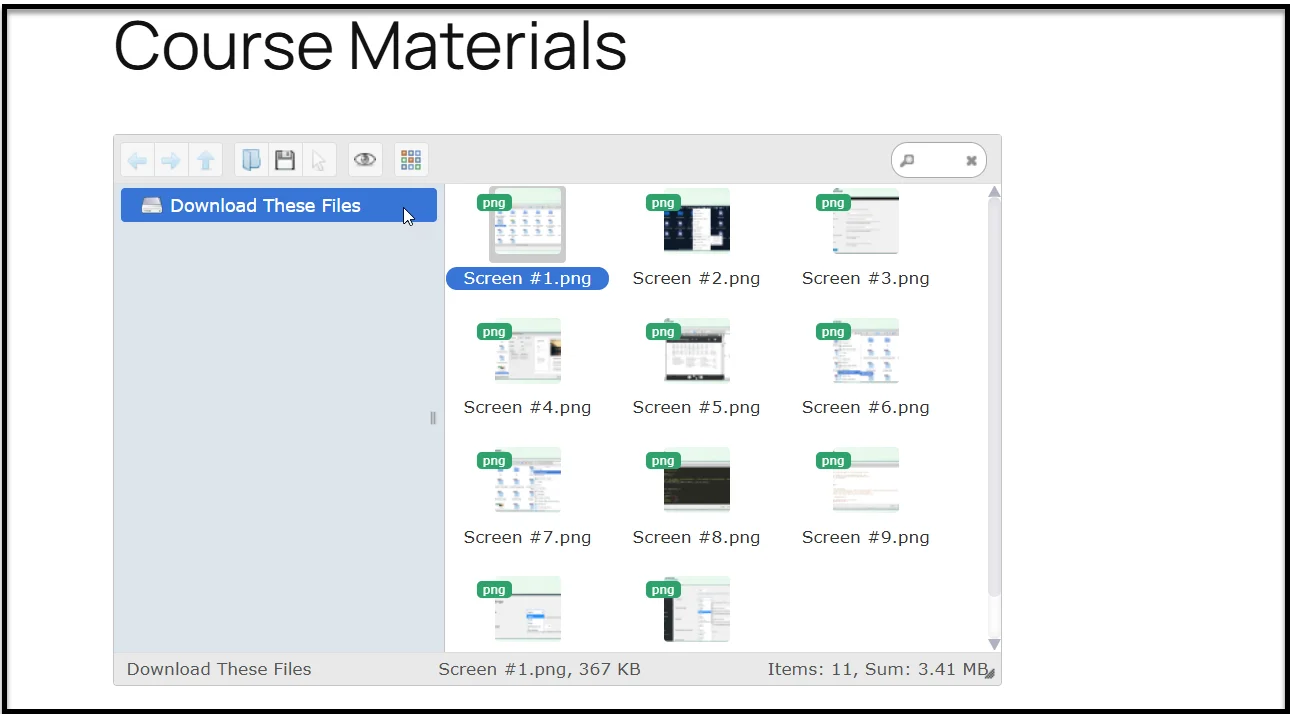
Once your shortcode is live on a page, your visitors will see a professional, fully functional file manager that feels like it’s built into your website. The interface is clean, responsive, and works on desktops, tablets, and smartphones without any extra tweaking.
As you can see, our download manager appears as follows:
Pro Tips for Managing a Front-End Download Manager in WordPress
Setting up your document library is just the start; the way you manage it over time will decide how useful and secure it remains. Here are some expert tips to keep your front-end download manager running smoothly.
- Use Private User Folders for Sensitive Files: If you’re working with clients, students, or team members, private folders are a must. With Advanced File Manager Pro, you can automatically assign each user their own folder that no one else can access. This is perfect for delivering personalized content.
- Limit File Types to Prevent Issues: If you allow file uploads, it’s a good idea to restrict them to only the necessary formats (such as PDF, JPG, or DOCX). This reduces the risk of someone uploading large or harmful files.
- Keep Permissions Tight: Be selective with who can upload, rename, or delete files. If the goal is just to share resources, stick to “View and “Download” permissions. This prevents accidental changes.
- Keep Your Folder Structure Simple: A tidy folder system makes it easier for users to find what they’re looking for. Use clear names and logical categories instead of dumping everything in one place.
- Update the Plugin Regularly: Like all WordPress tools, keeping Advanced File Manager up to date is important. Updates often include new features, bug fixes, and security improvements.
Following these tips will make your download manager easier to use, more secure, and better organized over the long run.
Get Advanced File Manager to Create a WordPress Download Manager
If you want a straightforward way to set up a front-end download area in WordPress, the Advanced File Manager plugin is one of the best solutions you can use. It gives you a clean, user-friendly interface to manage and share files directly from your pages or posts, without adding complicated workflows or requiring extra coding.
With its Shortcode Addon, you can embed a file list or download section anywhere on your site. This means your visitors can quickly view available files, preview them when supported, and download them instantly.
Ready to make file sharing simple and organized? Install Advanced File Manager today and start building a polished, front-end download experience for your visitors.

