
Do you want to manage your code without constantly switching between tools? Many developers lose time jumping between GitHub, FTP clients, and the WordPress dashboard just to update a few files.
Learning how to manage GitHub repositories directly from WordPress can save hours of repetitive work. This setup lets you sync your code and push changes from a single place. It makes your workflow faster and keeps everything organized.
This guide explains what GitHub is, why connecting it to WordPress improves your development workflow, and how to set it up step by step.
Let’s dive in.
What is GitHub?
GitHub is a cloud-based platform where developers store and share their code. It acts as a giant filing system that tracks every single change made to a project. As of 2025, GitHub is used by over 150 million developers worldwide and hosts hundreds of millions of repositories.
To understand GitHub, you need to know about “Git.” Git is the actual tool that tracks changes in files. GitHub is the website that makes using Git easy and social.
Key Terms You Should Know
- Repository (Repo): Think of this as your project’s main folder. It contains all the files and the history of every change made to them.
- Commit: A “save” point. When you make a change and commit it, you are telling GitHub to remember that specific version of your work.
- Branch: This is a copy of the main code where you can test new ideas. It allows you to work on new features without breaking the live version of your site.
- Pull Request (PR): A request to merge your changes into the main branch, allowing others to review and approve the code before it goes live.
GitHub is more than just storage. It is a social network for coders. There are more than a hundred million active accounts. You can follow other developers, “star” projects you like, and contribute to open-source software.
It also helps teams work together. Because GitHub tracks every change, multiple people can edit the same file at once without losing work. If a mistake is made, you can easily go back to an older version.
Today, GitHub remains the most widely used platform for code collaboration, supporting millions of active projects across personal, open-source, and enterprise teams.
Why Manage GitHub Repositories from WordPress?
Managing GitHub repositories directly from your WordPress dashboard improves efficiency and reduces development friction. Even minor updates often require jumping between GitHub, a local editor, FTP, and the WordPress admin area. According to research on task interruption, developers can lose more than 20 minutes of productive time each time they switch contexts during focused work.
Integrating GitHub with WordPress removes these unnecessary steps and keeps code management, deployment, and file updates centralized. Here’s why this setup makes a measurable difference in day-to-day development.
Stop the “Tab Jungle”
The average worker switches between nine different apps every day. For a developer, this usually means bouncing between a code editor, a terminal, GitHub, and the WordPress admin area. Centralizing these tasks helps you stay in “the zone” longer.
Instant Deployments
When you manage your repository from within WordPress, you can push updates with a single click. You no longer have to upload files via FTP (File Transfer Protocol) manually. This reduces the risk of human error and ensures your live site always matches your latest code.
Also Read: WordPress File Manager Plugin vs FTP: Detailed Comparison [2025]
Better Team Collaboration
If you have a team, everyone can see what changes were made without leaving the site. Referring to the same article again, 90% of Fortune 100 companies rely on GitHub for their projects; using it correctly is essential for professional growth.
Extra Security and Backups
Keeping your theme and plugin code on GitHub creates a secure off-site backup. If your server ever crashes, your hard work is still safe in the cloud. It also allows you to “roll back” or undo a mistake instantly if a new update breaks your site.
How to Manage GitHub Repositories from WordPress?
By default, WordPress does not allow you to connect directly to GitHub. The platform is built for content management, not for version control integration. Because of this, it is impossible to sync your repositories without using an external tool or plugin.
To bridge this gap, we will use Advanced File Manager. This tool acts as the middleman, allowing your website to “talk” to your GitHub account securely.
Why Choose Advanced File Manager?
Advanced File Manager is much more than a simple tool to move files. It is a comprehensive file management plugin that lets you control server files directly from WordPress, without relying on FTP clients or cPanel.
With over 200,000 active installations and a stellar 4.8/5 star rating, it is one of the most trusted plugins in the WordPress community.
Developers and site owners prefer it because it is fast, secure, and works seamlessly on mobile devices. Whether you need to edit a quick code file or manage files across cloud storage services, everything is handled from a single dashboard.
Key Features of Advanced File Manager
- FTP-Free File Management: Manage all WordPress core, theme, and plugin files directly from the dashboard without using FTP clients or hosting control panels.
- Front-End File Management: Allow selected users to upload, edit, or organize files from the front end without accessing the WordPress admin area.
- AI-Powered Coding Assistant: Get real-time code suggestions, fixes, and error detection while editing PHP, HTML, CSS, or JavaScript files using the built-in AI Code Pilot.
- Cloud Storage Support: Connect to popular services like Google Drive, Dropbox, OneDrive, Google Cloud, and more.
- Complete File Operations: You can copy, paste, rename, edit, and delete files directly from your dashboard.
- GitHub Integration: Connect public or private repositories to push, pull, and sync code directly from the WordPress dashboard.
- Drag-and-Drop Uploads: Upload single or multiple files instantly using a simple drag-and-drop interface from your computer to the server.
- Hide Private Files: Hide specific files or folders from selected user roles to prevent unauthorized viewing or access.
- Private Folder Management: Create secure private folders that store sensitive files and block direct public URL access.
- Multi-Lingual Support: Use the file manager in multiple languages with built-in translations for a global user base.
- Built-in Code Editor: Edit repository files using a syntax-highlighted editor with error detection and debugging support.
- Role-Based Access: Control exactly which users can see, upload, or delete files based on their WordPress roles.
- PDF & Media Previews: View your documents and images instantly within the manager without downloading them.
- Zip/Unzip Management: Create and extract archives in multiple formats like .zip, .rar, and .tar with one click.
- Shortcode Support: Use shortcodes to display the file manager on the front-end for specific users or clients.
- And much more! Check out the complete features list.
Manage GitHub Repositories from WordPress in 3 Easy Steps
Now that you understand what Advanced File Manager is, we can get back to the setup. Connecting your site to GitHub is a simple process that only takes a few minutes.
Follow these steps to get started.
Step 1: Install and Activate Advanced File Manager
Before you can sync your repositories, you need to have the core plugin running on your site.
- Log in to your WordPress admin dashboard.
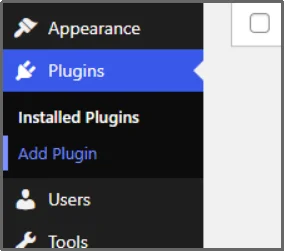
- Navigate to Plugins in the left-hand menu and then click Add Plugin.
- In the search bar at the top right, type “Advanced File Manager.”
- Find the plugin in the results and click the Install Now button.
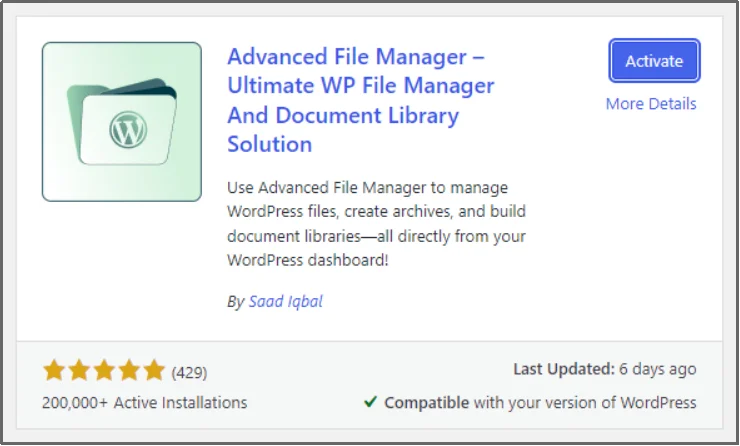
- Once the installation is finished, the button will change to Activate. Click it to turn the plugin on.
While the free version of Advanced File Manager offers many helpful features, the GitHub Integration is a specialized tool found only in the premium plan. The Business premium plan enables many more integration capabilities as well.
- Navigate to the Advanced File Manager’s pricing page.
- Choose the business plan and complete the purchase.
- You will receive an email with a zip file for the premium plugin and the License key. Copy this key to your clipboard and download the zip file to your device.
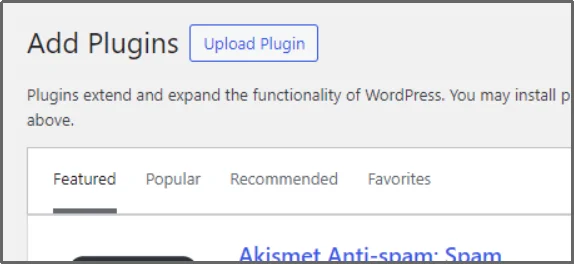
- Go back to your WordPress dashboard, click Plugins, Add Plugin, and finally select Upload Plugin.
- Click Choose File, then browse the file you just downloaded on your device.
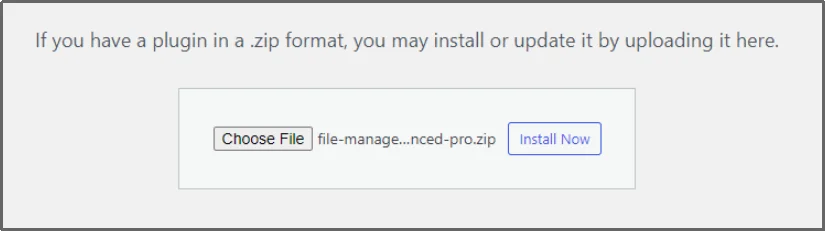
- Upload the file and click Install Now.
- After the installation is completed, click Activate Plugin.
- Navigate to the plugin settings and activate the premium features by entering your license key.
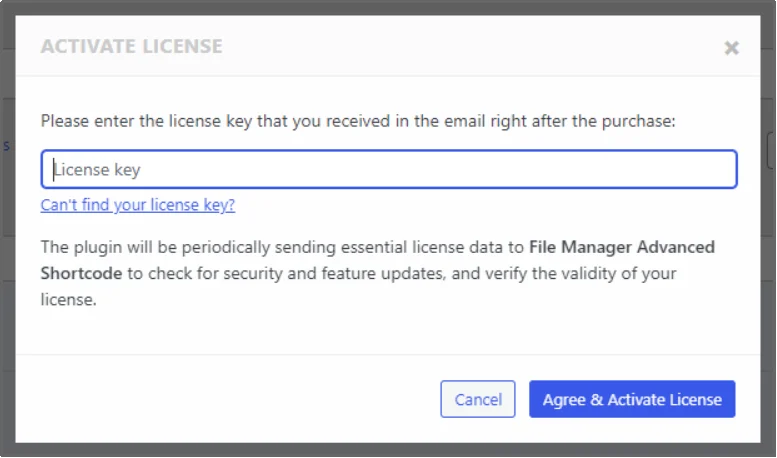
That’s about it! You are halfway done with managing GitHub repositories without leaving your WordPress dashboard.
Step 2: Create a GitHub Personal Access Token (PAT)
Now that the plugin is ready, you need to create a secure key that lets WordPress access your GitHub files. This is called a Personal Access Token (PAT), a digital key that apps use to log in to your account instead of your password.
If you already have a Personal Access Token, you can skip this step; otherwise, follow the steps to get your PAT, or simply check out GitHub’s official documentation.
- Log in to your GitHub account.
- Click your profile picture in the top-right corner and select Settings.
- On the left sidebar, scroll down and click Developer settings.
- Click Personal access tokens and choose Tokens (classic).
- Click Generate new token (choose the “classic” option).
- Give your token a name, like “WordPress File Manager,” and set an expiration date (90 days is recommended for security).
- Select the repo checkbox. This gives the plugin permission to see and update your code.
- Scroll to the bottom and click the Generate token.
Important: Copy the token immediately and save it somewhere safe. You will not be able to see it again!
Step 3: Connect it with Advanced File Manager
Now that you have your PAT, it is time to finalize the bridge between WordPress and GitHub. This is the last step to take complete control of your code from your dashboard.
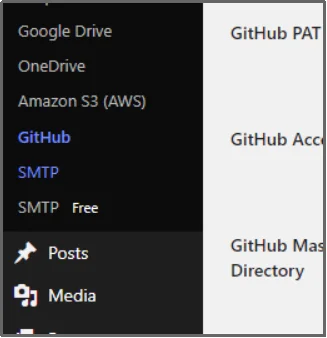
- In your WordPress sidebar, go to File Manager and click GitHub.
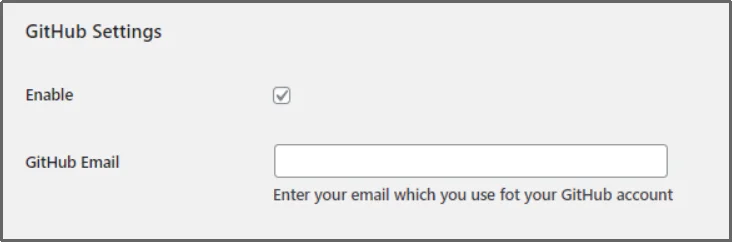
- Enable the GitHub integration using the checkbox.
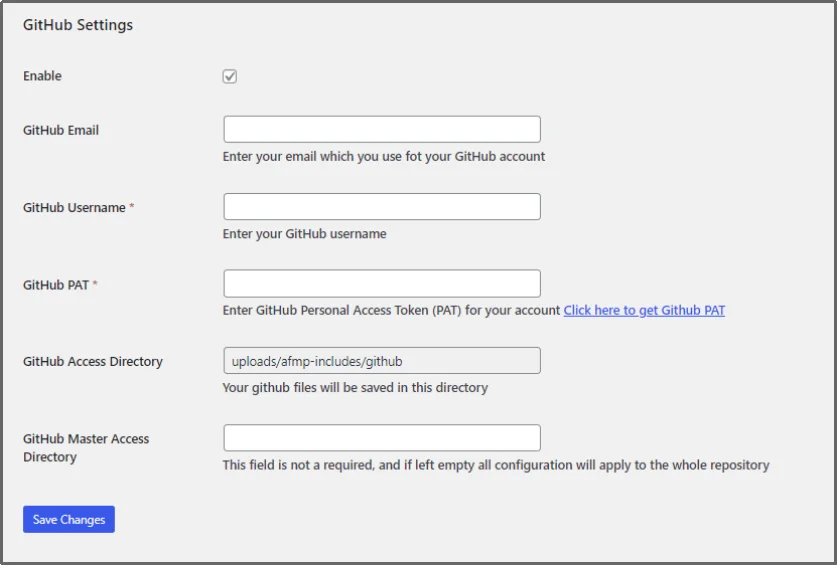
- Fill out the necessary information, such as:
- GitHub email.
- GitHub username.
- GitHub Private Access Token, or the PAT that we learned about.
- GitHub Access Directory or the directory path for GitHub access, where you want the files to be saved.
- GitHub Master Access Directory, which is the master directory path for GitHub.
- Once everything is configured, click Save Changes.
There you have it! You can now successfully manage GitHub repositories from WordPress. With Advanced File Manager, you can perform all essential GitHub-related actions directly from WordPress, such as:
- Push and Pull Files: Easily send updates to your repository or bring the latest code changes to your WordPress site.
- Edit Code Directly: Use the built-in editor to make quick changes to your repository files without an external code editor.
- Sync Repositories: Keep your local WordPress files and GitHub projects in perfect harmony.
- Manage Project Assets: Organize, delete, or rename files within your connected repositories just as you would with local files.
You can see all the action in the following screenshot:
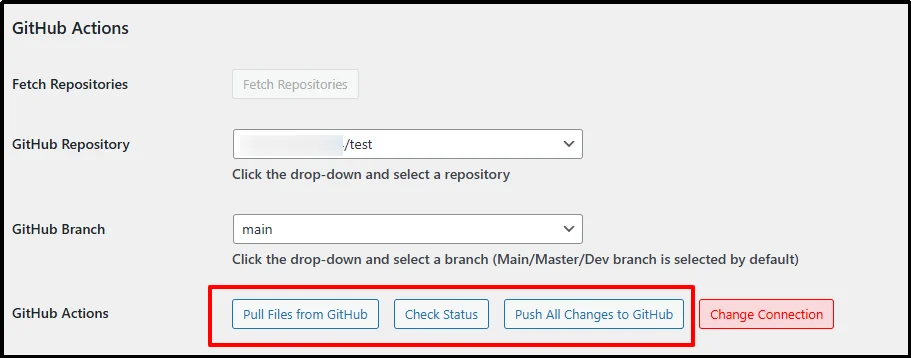
That’s what you can do—hard emphasis on—without leaving your WordPress.
Advanced File Manager: More Than Just File Management
Connecting your code to your website does not have to be a difficult chore. By following this guide, you have learned how to skip the messy “tab jungle” and sync your work in just three easy steps. You can now push updates, pull new code, and edit files without ever leaving your dashboard.
Advanced File Manager makes this professional workflow available to everyone. It replaces complex tools with a simple, secure, and fast interface that saves you hours of work every week. More than 200,000 users already trust it to handle their most important files.
Stop wasting time switching between tools and bring your entire development workflow into one place. Experience the power of total control over your server and your code in one single place. Try Advanced File Manager and manage your GitHub repositories directly from your WordPress dashboard.

